
Accelerate responses with suggested replies [legacy]
⚠️This feature is deprecated and no longer available for new customers as of Oct. 6, 2026. If you’d like to build an AI agent that replicates this same behavior as suggested replies, see this article.
Overview
Suggested replies reduce the time and effort needed to resolve conversations by pre-generating drafts based on past, similar conversations and optionally, your Front knowledge base and external knowledge sources. Let AI generate a message draft and see which sources contributed to it for full transparency and clarity. Suggested replies improve the efficiency and accuracy in your team’s workflows, while maintaining control and oversight over your replies
Prerequisites
General requirements
Enable the Suggested replies setting via the Front AI tab in workspace settings and select your shared inboxes and knowledge sources.
You must have shared inboxes containing messages (English recommended).
Enabling the Close conversations channel setting is not required, but will improve suggested reply performance. See this article to learn how the Close conversations setting affects AI features.
Connecting knowledge sources are not required, but will improve suggested reply accuracy. Specifically, you can connect:
A Front knowledge base that is published. Public, Login controlled, and Front users only site visibility options are supported.
A public website. See this article to learn more.
A third party source. See this article to learn more.
All sources that are connected must be in English. Non-English languages may work, but are unsupported.
External knowledge source requirements
Content language: English recommended
Up to 3,000 pages of content per source
Front supports a maximum of roughly 3,000 pages. The maximum may vary as some pages are more costly to sync, causing you to reach the limit. If you run into this please contact us.
See this article for an overview on the knowledge sources you can use with Front
Configuring suggested replies
Step 1
Click the gear icon, navigate to your workspace settings, then select Front AI from the sidebar.
Step 2
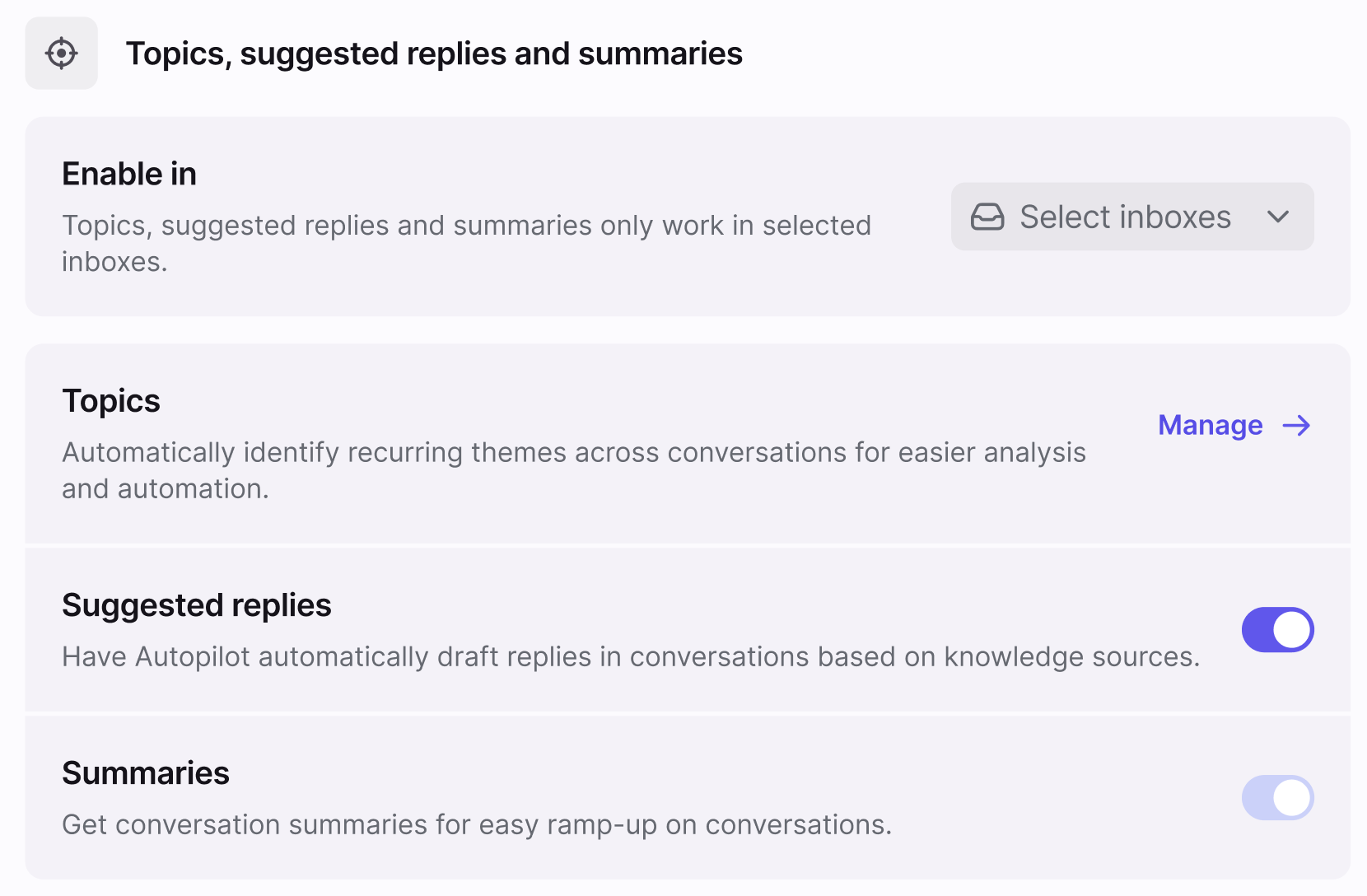
Under Workspace settings, use the dropdown in the Enable in setting to select the shared inboxes where suggested replies are active.
Step 3
Toggle on the Suggested replies setting to enable AI-powered drafts in your inboxes.
Step 4
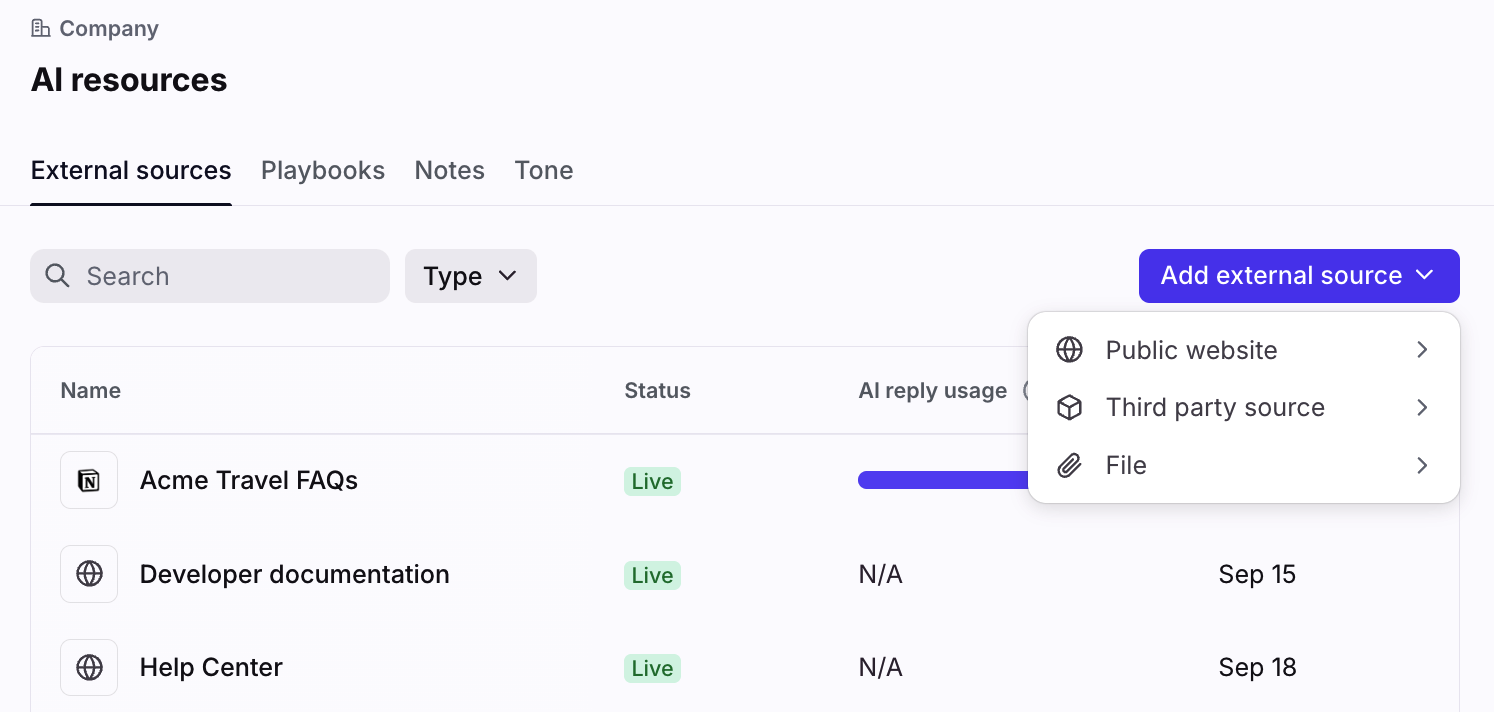
Navigate to the company settings, then select the AI resources tab. In the External sources tab, add the knowledge source type you’d like to add to Front. Suggested replies will reference external sources, Front knowledge bases, and similar conversations when generating replies.
See these articles for more detailed instructions:
Front knowledge base: Getting started with knowledge base
Public website: Use public website content with Front AI features
Third party source: Use third party sources with Front AI features
Step 5
Once configured, suggested replies will start generating drafts based on your knowledge sources. It may take up to 1 day to start seeing suggested replies.
Using suggested replies
When AI detects a question and can find a relevant similar conversation or knowledge base article, you’ll see a suggested reply in your composer with pre-drafted content. From here, you can:
Select Send as [status] to send the draft as-is
Select Edit to continue customizing the message before sending it
Select the trash can icon to delete the draft

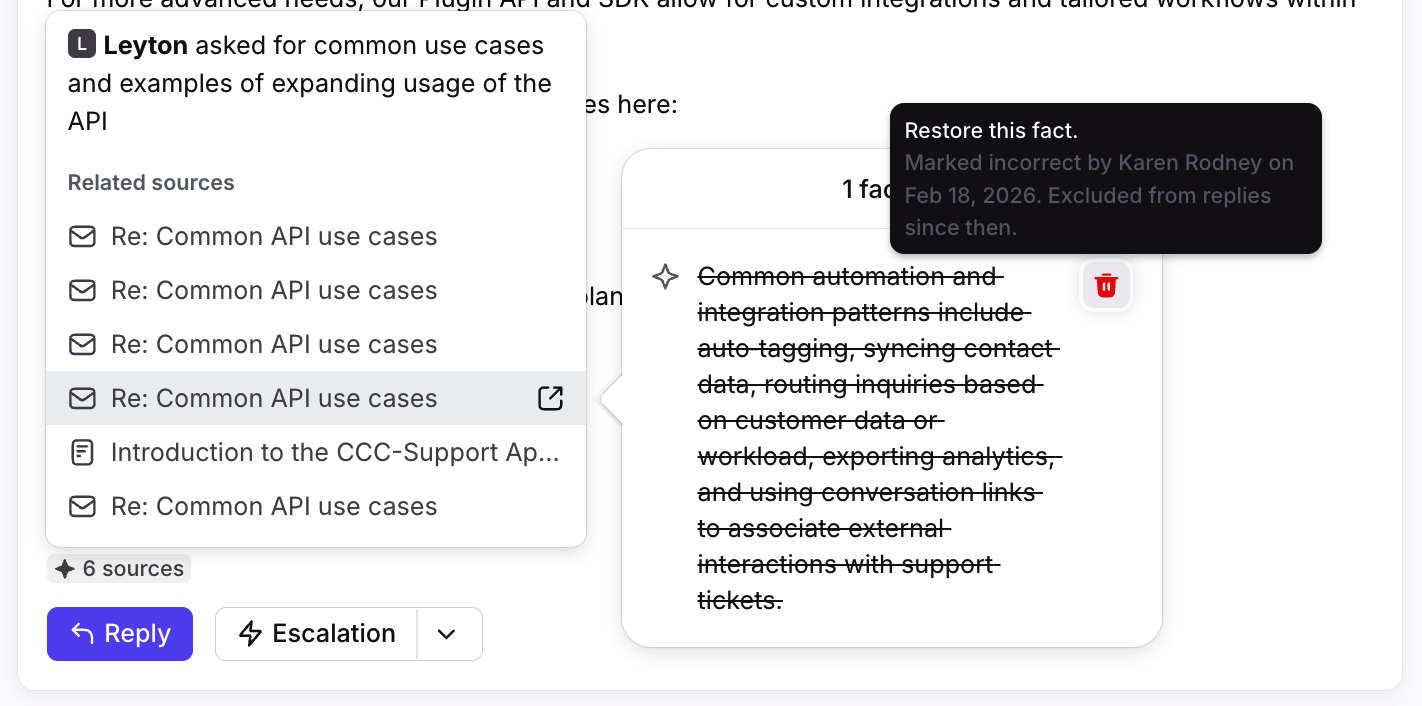
Hover over the # sources indicator to preview the content used to generate the draft.
Clicking on the similar conversations source opens the conversation used to generate the reply.
Clicking on a knowledge base article source takes you directly to the article.
When hovering over a source, you may see relevant facts extracted by Front AI.

The benefits of using suggested drafts includes:
Enabling faster resolutions by decreasing the number of drafts you need to create from scratch
Reducing the need to manually search your knowledge base or past conversations for answers
Flexibility to edit drafts to further customize the response to your recipient
Suggested reply context
Tone matching
Front AI is designed to automatically learn and establish a specific tone guideline by analyzing your team's existing conversations. This involves identifying key elements such as writing styles, word choices, greetings, and overall personality from inboxes with Front AI enabled.
This enhanced context allows the AI to provide more accurate answers and generate replies that sound authentic and unique to your organization.
Tone-matched | No tone match |
Great catch, Erica! Spotting those out-of-date email suggestions can be frustrating, thanks for bringing it up. The good news: you can tidy these up by jumping into your Contact manager and updating your team's records. Go ahead and remove any old or incorrect email addresses there. Once those are cleared out, only the right email addresses should pop up next time youʼre drafting a message. If you run into any hiccups along the way or notice other stray addresses, feel free to reach out. We’re here to help! | To prevent incorrect or outdated email addresses from appearing as suggestions when composing messages, update your team's contact records in the Contact manager to remove any references to the old or incorrect addresses. This will ensure that only the correct addresses are suggested when drafting new messages. |
Attachment support
When a message contains a PDF attachment or image, Front AI will generate a summary of the content in the attachment. The summary is then used as additional context in AI-generated responses.
For example, if a customer writes in and references content that is only visible in the attachment, Front AI can read that content and reference it in the suggested reply.

Fact invalidation
See this article to learn how to manage the facts Front AI uses to generate replies.
Reviewing suggested reply usage
Use the Suggested replies report in Analytics or the AI replies tab in your Front AI settings to review your company's suggested reply usage.
FAQ
What channels are supported?
This feature is available for the following channel types: Email, Front Chat, Portal, Slack, SMS, WhatsApp (native), WhatsApp (via Twilio), Yalo WhatsApp.
Which languages are supported?
Only English is officially supported at this time. While it is possible to use this feature with other languages, unexpected results may occur.
Do suggested replies apply to individual inboxes?
No. Suggested replies only apply to shared inboxes. As a workaround, you can create a shared inbox that only an individual can access and move conversations from the individual inbox to the new shared inbox.
Why don’t I see suggested replies in some messages?
When Suggested replies are first enabled, there's usually a 24 hour delay before you'll see suggested replies in conversations.
Otherwise, AI will only suggest a reply when it can detect a question and is confident in the accuracy of similar conversations or relevant articles in your knowledge base. Having conversations with similar contents and a broad knowledge base containing in-depth articles and frequently asked questions will increase the likelihood of generating an AI draft. You can check why a suggested reply did not generate by opening up the activity line in the conversation and looking at the “suggested reply skipped” activity line for more details.
Where can I see all messages generated by AI?
You can navigate to the AI replies hub in your Front AI workspace settings to view a list of all messages generated by AI. See this article to learn more.
How can I improve the suggested replies?
There are two recommend ways to improve suggested replies:
Add more sources: While suggested replies need only historical conversations, adding your knowledge base or other external help content can improve the quality and quantity of suggestions generated.
Use suggested replies: Every time your team edits a suggested reply, Front AI sees the final response and learns to improve suggestions when a similar inbound message comes in the future.
Do suggested replies use sources from multiple inboxes?
Yes. If you select multiple inboxes in your AI settings, conversations from all inboxes can be used as sources. e.g. A suggested reply in the Support inbox could use information from a conversation from the Sales inbox.
Do suggested replies use message templates as a source?
Yes. When learning from your past conversations, Front takes into account whether those past conversations used message templates. If you would like Front AI to answer specific questions in a certain way, just use a message template a few times and Front AI will pick up on it.
Can I configure more than one knowledge base?
Yes. Multiple knowledge bases are supported.
What happens when there are multiple knowledge sources?
When there are multiple knowledge sources, Front extracts all the facts and integrates them into a unified knowledge layer, which is what the AI then uses to generate replies. There’s no direct prioritization, but when AI detects that there are conflicting facts, a suggested reply will not be generated.
How do the composer actions for suggested replies affect AI performance?
Takeover: If an agent takes over and sends the suggested reply as-is or with edits, the response is added into the pool of similar conversations. The next time a similar conversation is detected, Front AI includes the previous suggested reply in the pool.
Discard: If an agent discards the suggested reply and writes their own response, the new response is added to the pool of similar conversations. The next time a similar conversation is detected, Front AI can now reference the previous conversation.
Thumbs up/down: If an agent clicks the thumbs up/down icon, this feedback is sent to our Product team for review, and is not immediately used to update your company's AI performance.
Are changes to my knowledge base immediately available for AI to use?
Yes. Article additions and updates to your Front knowledge base will be available to AI within minutes of the update.
How do I share feedback?
For feedback on the suggested reply itself, you can use the thumbs up / thumbs down icon in the suggested reply shared draft header.
Additionally, check our ideas portal here to see if your idea or feedback already exists.
If it exists, you can upvote and/or comment on the idea to add additional details or describe the importance to your team’s workflows.
If it doesn't exist, you can submit a new idea by clicking Add a new idea and share details about your idea and/or the problem you're having.
Doing any of those actions will ensure your feedback is reviewed by our Product team. This will also subscribe you to any updates and progress made on those ideas.
If you're encountering a bug and need support, please reach out to our Support team.
What happens to my data? Which providers does Front use?
See this article for additional AI FAQs.
Pricing
As of April 28, 2026, this feature is available as part of the Autopilot add-on. Customers with legacy access may continue using the feature until their next renewal date or upon 30 days' advance written notice.