
Use third-party sources with Front AI features
Overview
When you're configuring Front AI features like Copilot or Autopilot AI agents, you can connect applications like Notion to use as an AI knowledge source. This allows you to resolve inquiries with natural language responses generated by AI based on content outside of Front.
This feature allows you to connect private knowledge sources that are hidden from public view, ensuring Front AI provides comprehensive answers to your customers.
If you’d like to connect external knowledge using a specific URL instead, see this article.
Prerequisites
General requirements
To connect third-party sources to use with Front's AI features, you must have the following:
Company admin permissions
A shared inbox set up
Access to the AI feature you want to use (Copilot, Autopilot)
Third-party source requirements
Content language: English recommended
Up to 3,000 pages of content per source
Front supports a maximum of roughly 3,000 pages. The maximum may vary as some pages are more costly to sync, causing you to reach the limit. If you run into this please contact us.
How it works
Supported applications
The third-party source integration tool works with the following applications:
ClickUp
Confluence
Google Drive (Google Doc files only at this time)
Guru
Microsoft SharePoint (Word/Doc files only at this time)
Notion
Support for additional applications are on the roadmap and planned for future updates.
Important to know
Supported content types: Pages, articles, wiki-style documentation, embedded files within pages, and databases that contain additional pages.
Front can only access the content you select from your third-party source.
To add or remove pages from the sync, you must re-authenticate through your third-party application. It is not currently possible to edit the page selection from Front at this time.
Instructions
Step 1
Click the gear icon, then navigate to your company settings.
Step 2
Select AI resources in the sidebar, then navigate to the External sources tab.
Step 3
Click Add external source and select Third party source.
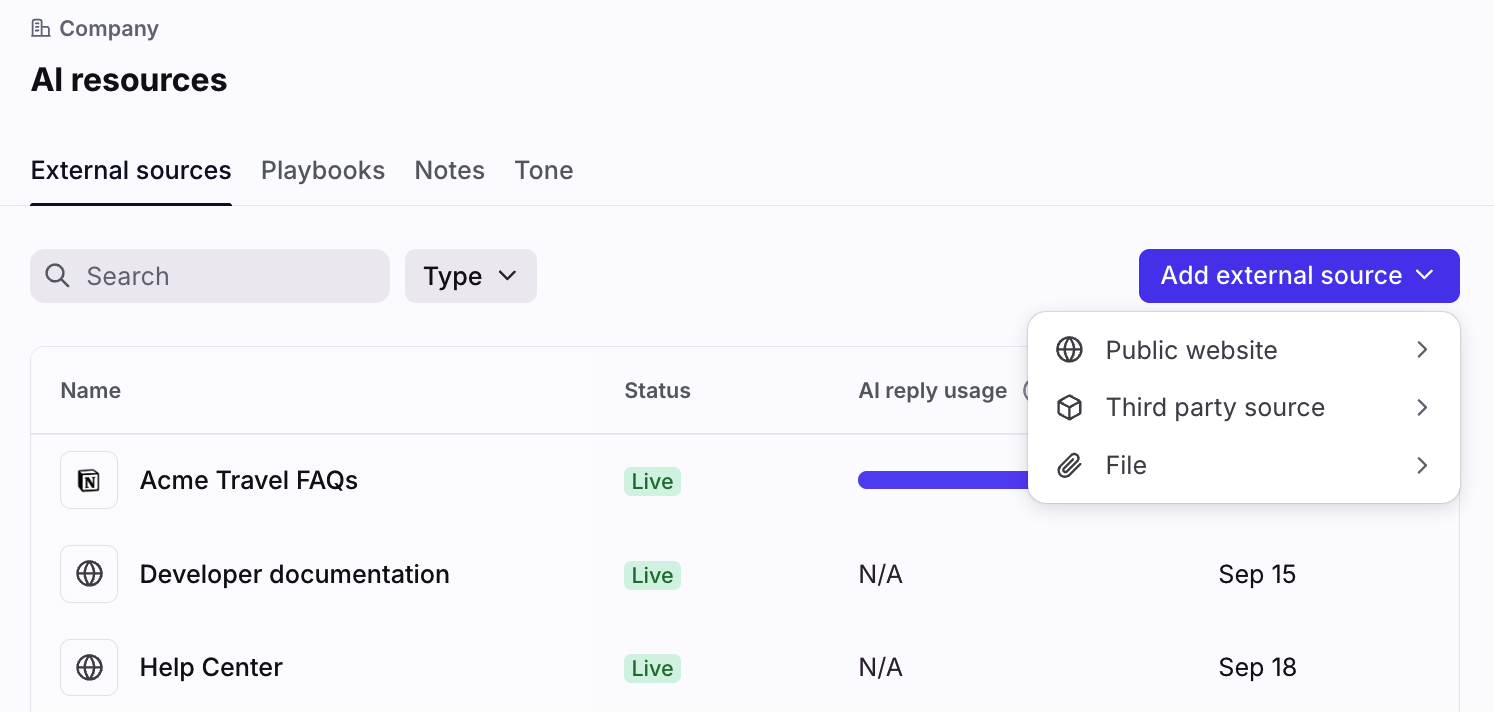
Step 4
In the pop-up, fill in the following fields:
Third party source: Select the third-party source you’d like to connect
Name: Enter the internal name for your third-party source
Click Continue. In this example, we’ll connect Notion as a third-party source.
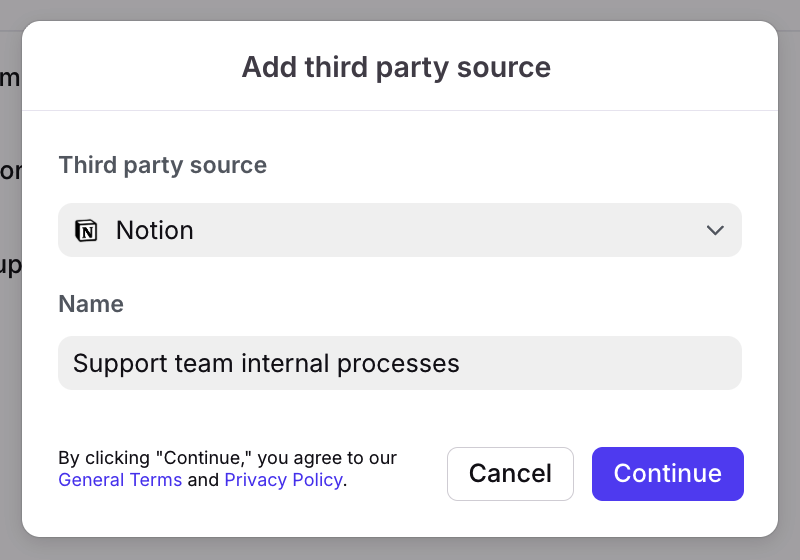
Step 5
Enter the login credentials to authenticate with your third-party source, then click Continue.
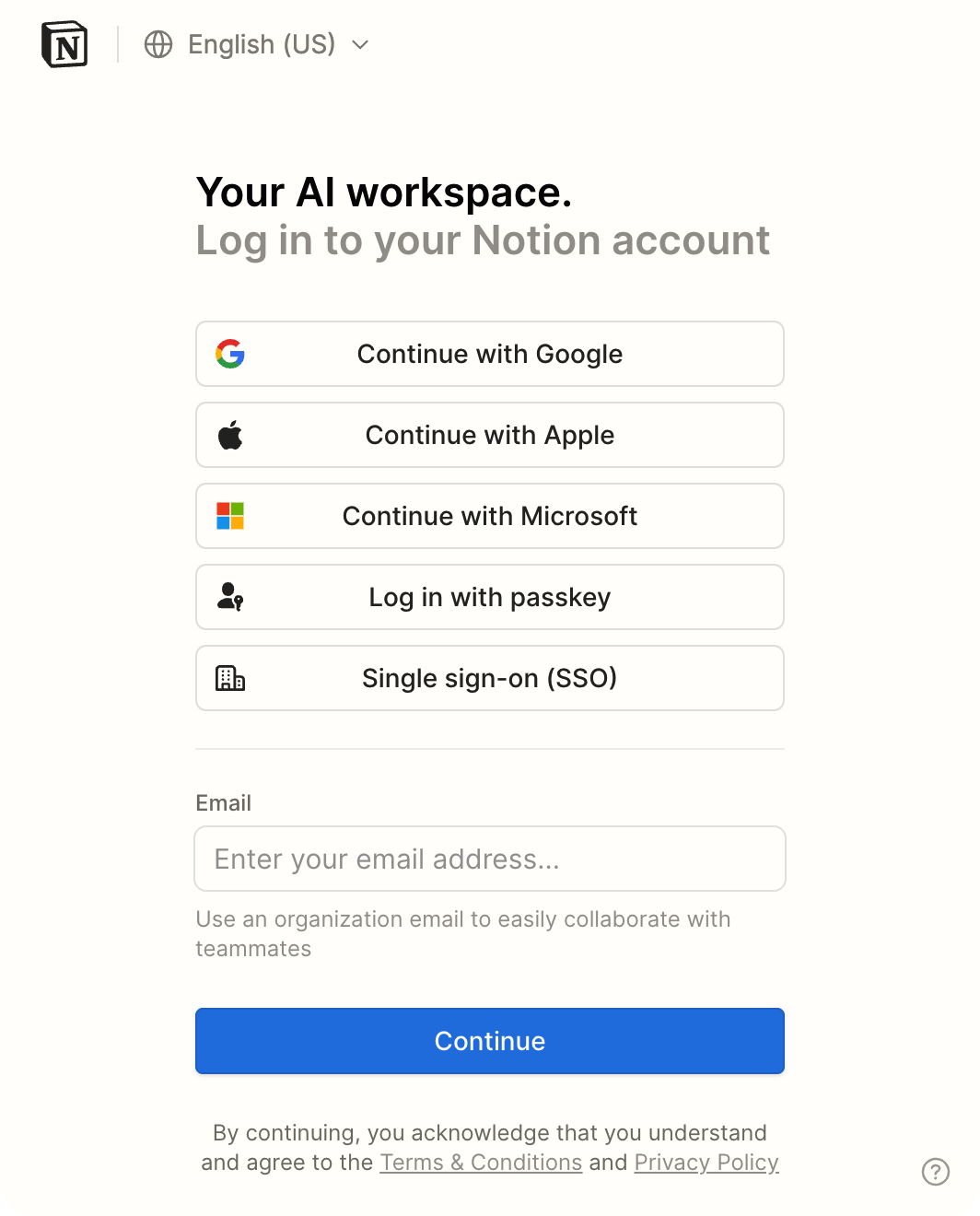
Step 6
If you have access to multiple Notion workspaces, select the one you’d like to connect at the top right of the pop-up.
Click Select pages.
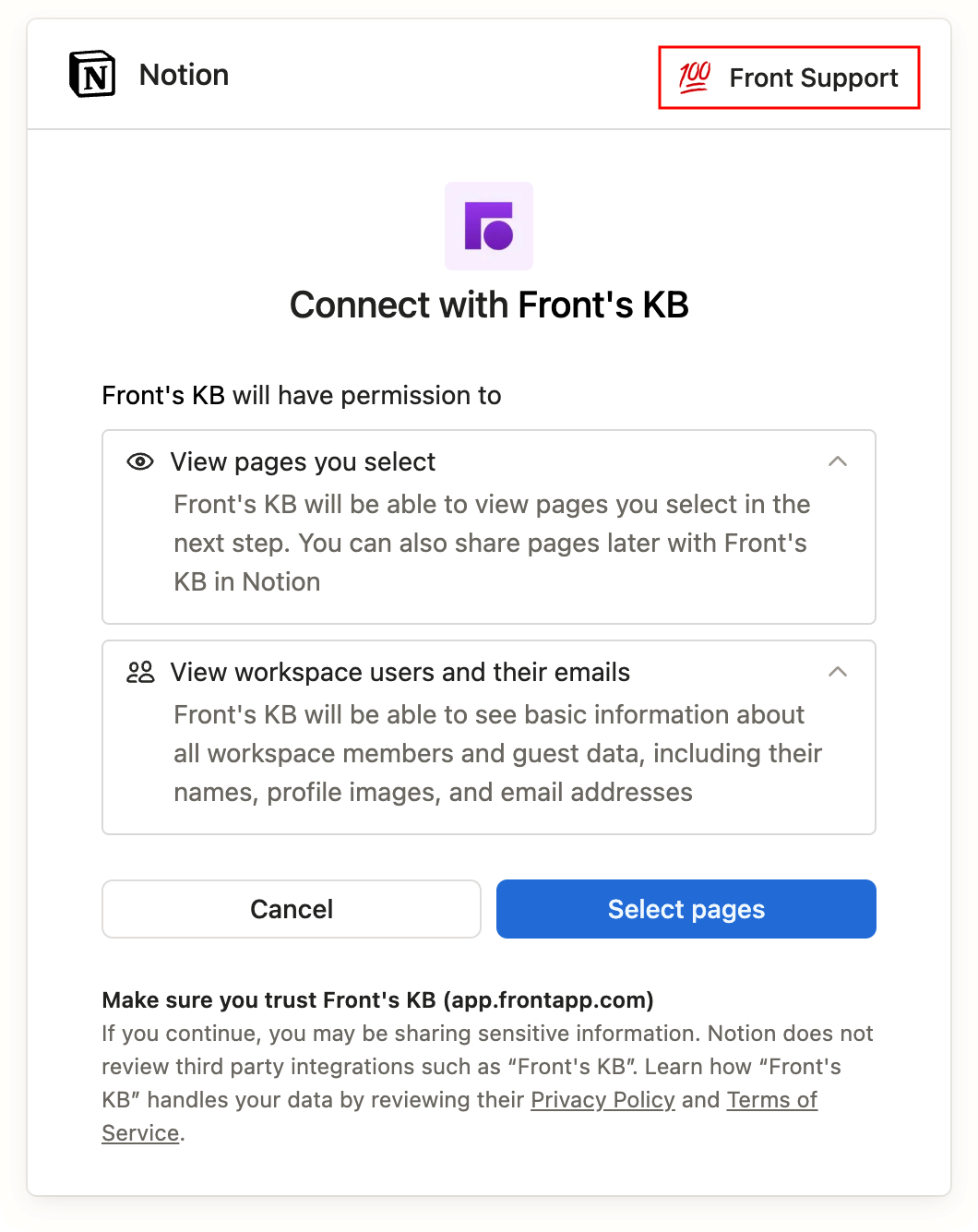
Step 7
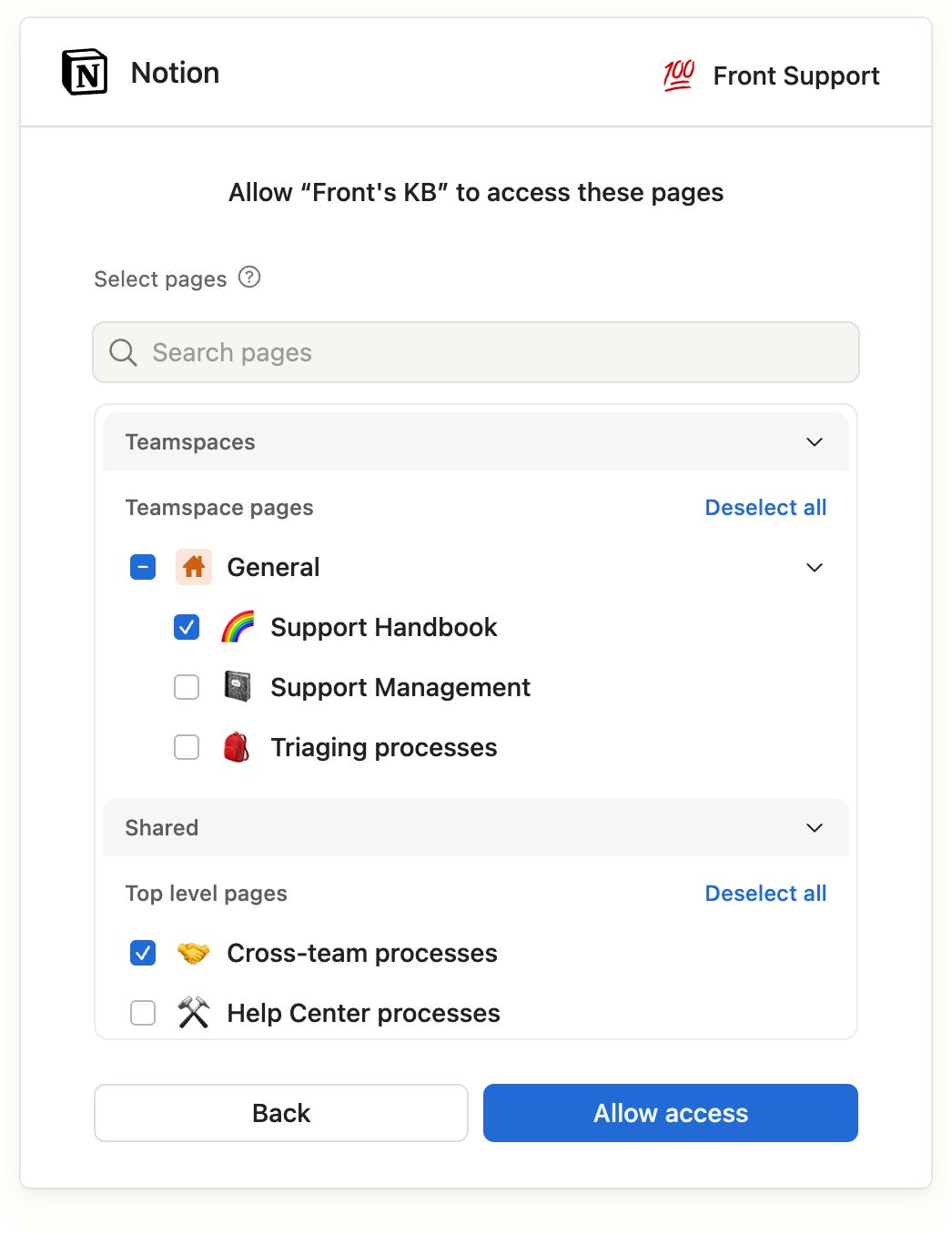
Select the pages you’d like to connect to Front, then click Allow access. You can select pages from the Teamspaces, Shared, and Private sections in Notion.
Step 8
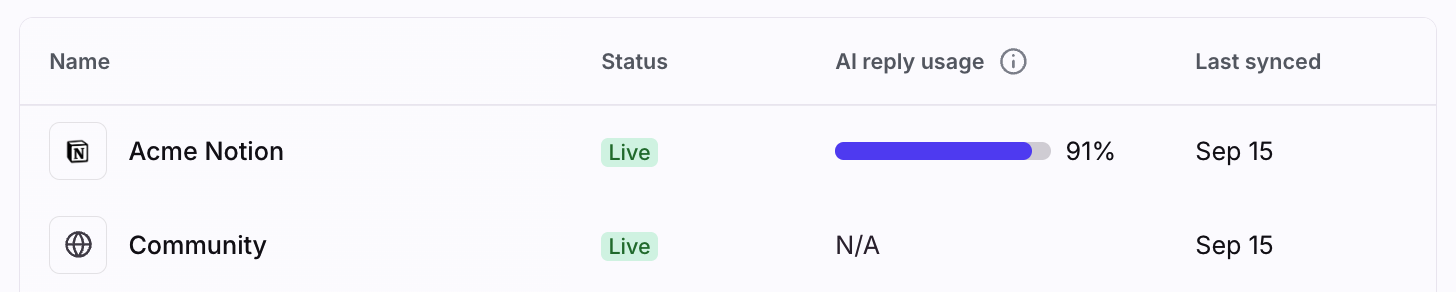
Once finished, you’ll see your third-party source in the list of external sources. Front AI will start referencing this source when generating responses in conversations.
Content filtering and sync status
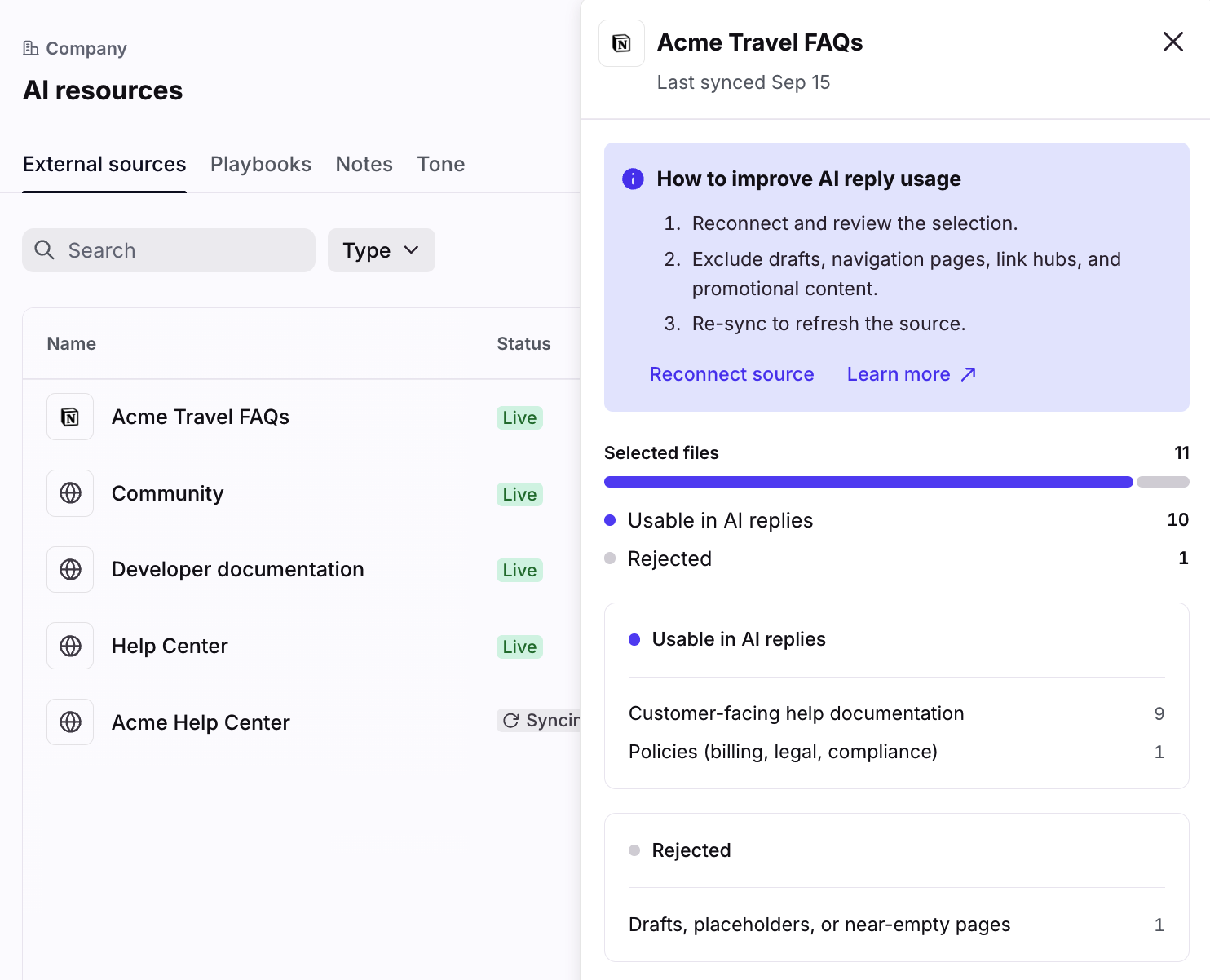
After you connect a third-party knowledge source to Front, you can check the sync status or review which files were approved or excluded from the sync.
See this article to learn more.
FAQ
Can I automatically sync content on a regular basis?
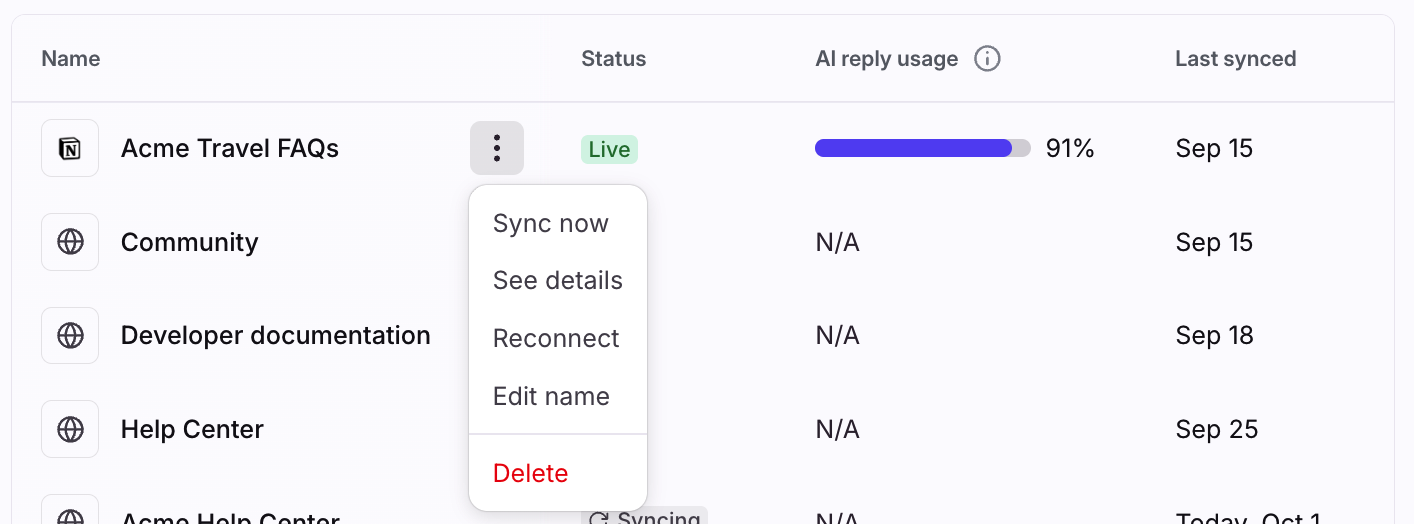
No. To update your content, you must manually trigger a re-sync in the External sources settings.
Can I connect multiple workspaces from one third-party source?
Yes. If you have access to more than one workspace (e.g. “Acme” and “Cloud Content”) for your third-party source (e.g., Notion), you can connect all of them to Front.
Is content from third-party sources shared across Front features?
Yes. Once you add a third-party source to Front, the content selected from the third-party source (e.g., Notion workspace) will be available as a knowledge source for all your AI features. The knowledge source cannot be used with non-AI Front features.
Will my content be used for machine learning training by model providers powering Front’s AI features?
No, we contractually prohibit the model service providers we use for Front AI from using Customer Data for machine learning training purposes. Learn more here.
How do I prevent outdated content from being leveraged by Front features?
Content from your third-party sources are not automatically updated when you make changes in the original destination or file. You must manually re-sync content from your third-party sources to ensure Front features are leveraging the latest information.
How many pages can I sync per source?
Front supports a maximum of roughly 3,000 pages per source. Depending on the type of website, we may sync less pages as it requires more resources to ingest the content. For example, if your website has bot prevention, we may only be able to sync up to 500 pages.
Why were some pages not synced?
Pages must meet a minimum content viability threshold to be ingested. If the page has little content or relies heavily on images, it will not be ingested. A rough guideline: pages should have at least 100 words of text.
If you think you have a valid page that was not synced, please contact our Support team and send us the website URL for the source you are syncing.