
Using AI agents in Front
Overview
AI agents are a new teammate in Front, similar to your human teammates, except they are powered by AI engines. After setting up an AI agent—whether powered by Front’s native Autopilot, Claude, Codex, or other agent provider—you can integrate it into your team's workflows like any human teammate. AI agents work seamlessly with features such as analytics and rules, allowing you to configure auto-assignment workflows to maintain complete control over whether conversations are handled by a human or AI.
You must have company admin permissions to set up AI agents.
How it works
Use cases
You can build different kinds of AI agents into Front to support the automation of your workflows. Common use cases for AI agents include:
Triage: Automatically tag, classify and route conversations
Drafting: Assist your teammates with drafted replies directly in the inbox
Resolution: Send automated replies such as answering FAQ or automating end-to-end support workflows
Setup requirements
Setting up an AI agent closely mirrors the process of onboarding a human teammate, but includes a few unique requirements:
Identity and permissions: Just like a human teammate, you must identify the AI agent and configure its access and permissions
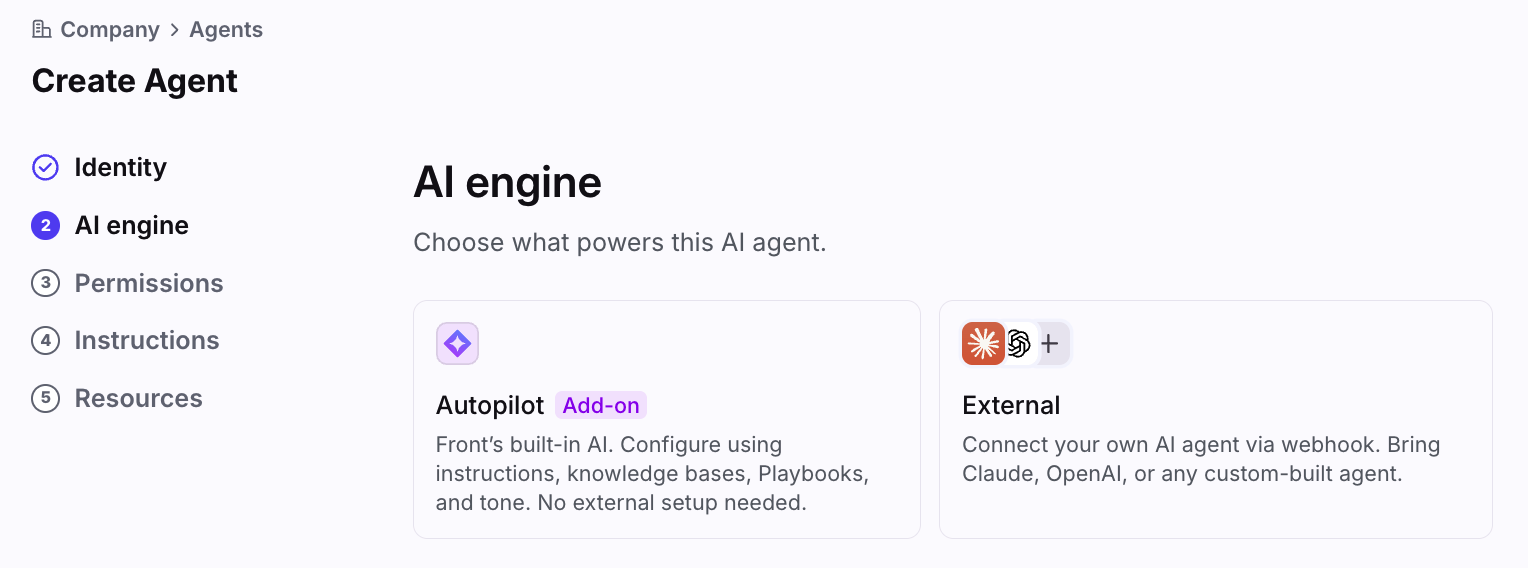
AI engine selection: You must select the underlying engine or "brain" that powers the AI agent
Contextual training: For Front's native Autopilot, you must treat the agent like a new employee by equipping it with the necessary context to reply to customers
Part 1: Create an AI agent
Follow the instructions based on the AI provider you’d like to use to power your agent:
Part 2: Using your agent
Manual assignments
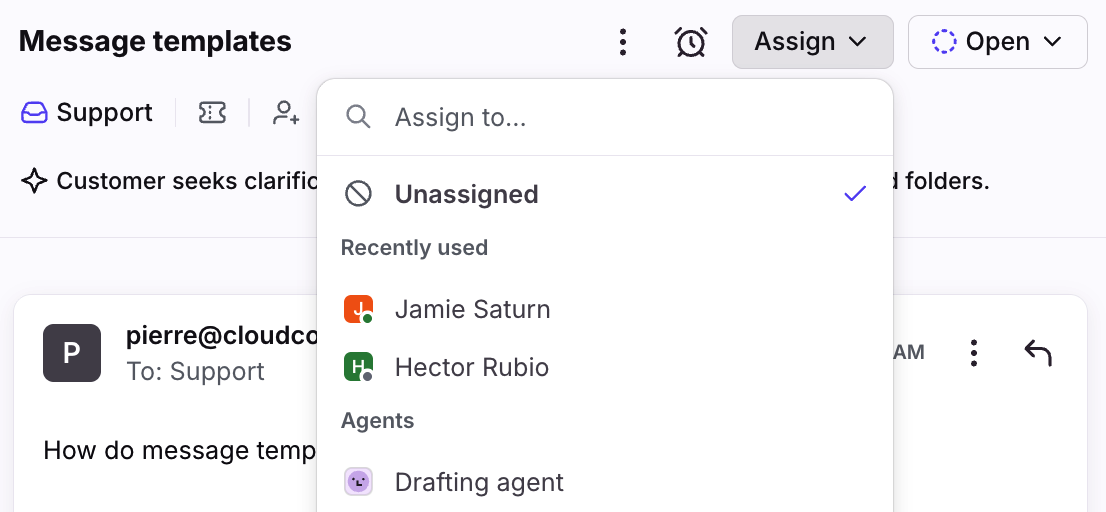
Now that you’ve created your agent in Front, you can start manually assigning conversations to it alongside every other teammate.
Automated assignments
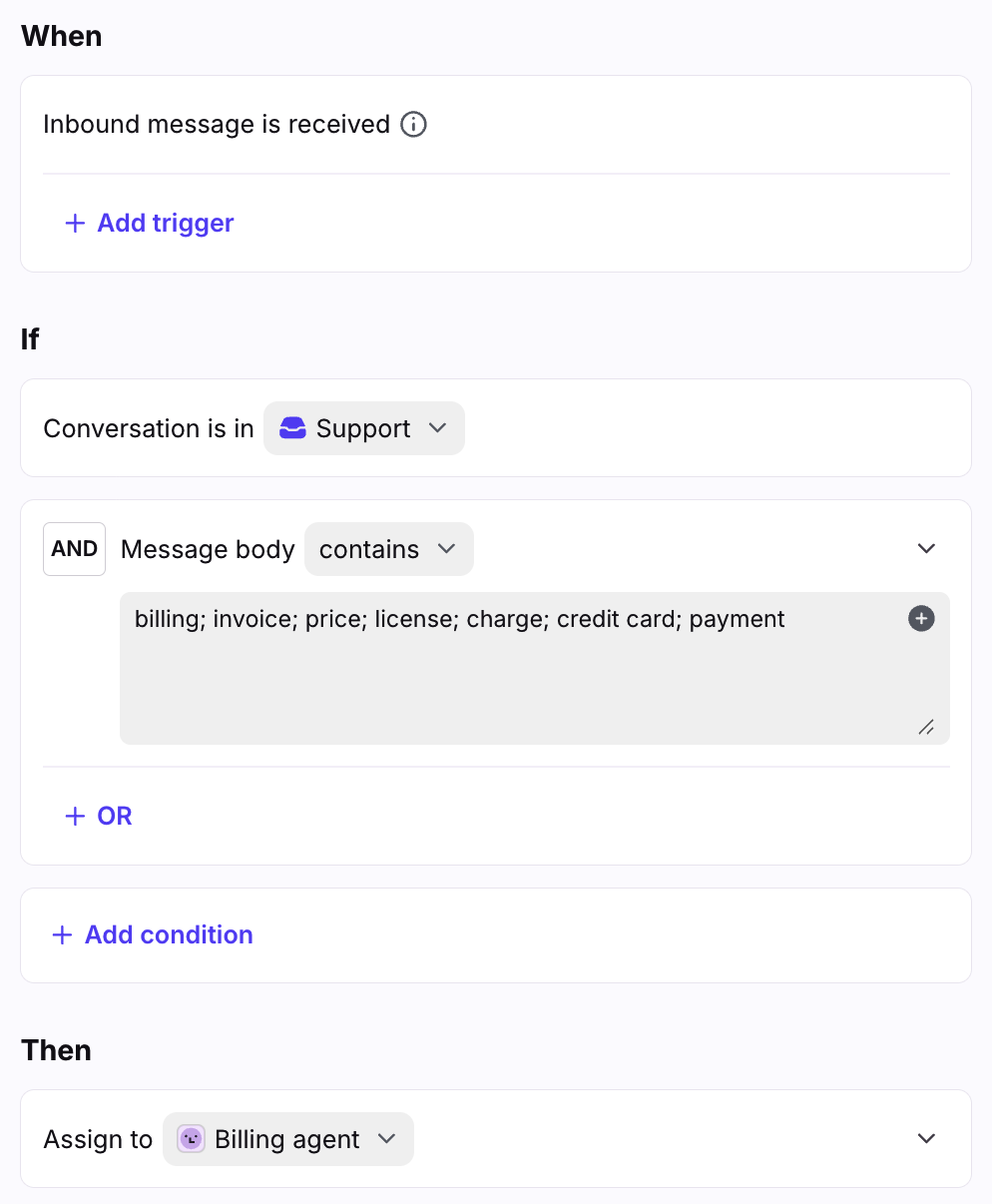
We highly recommend creating an assignment rule to automatically assign your AI agents to specific conversations based on triggers and conditions set in the rule.
Example rule build:
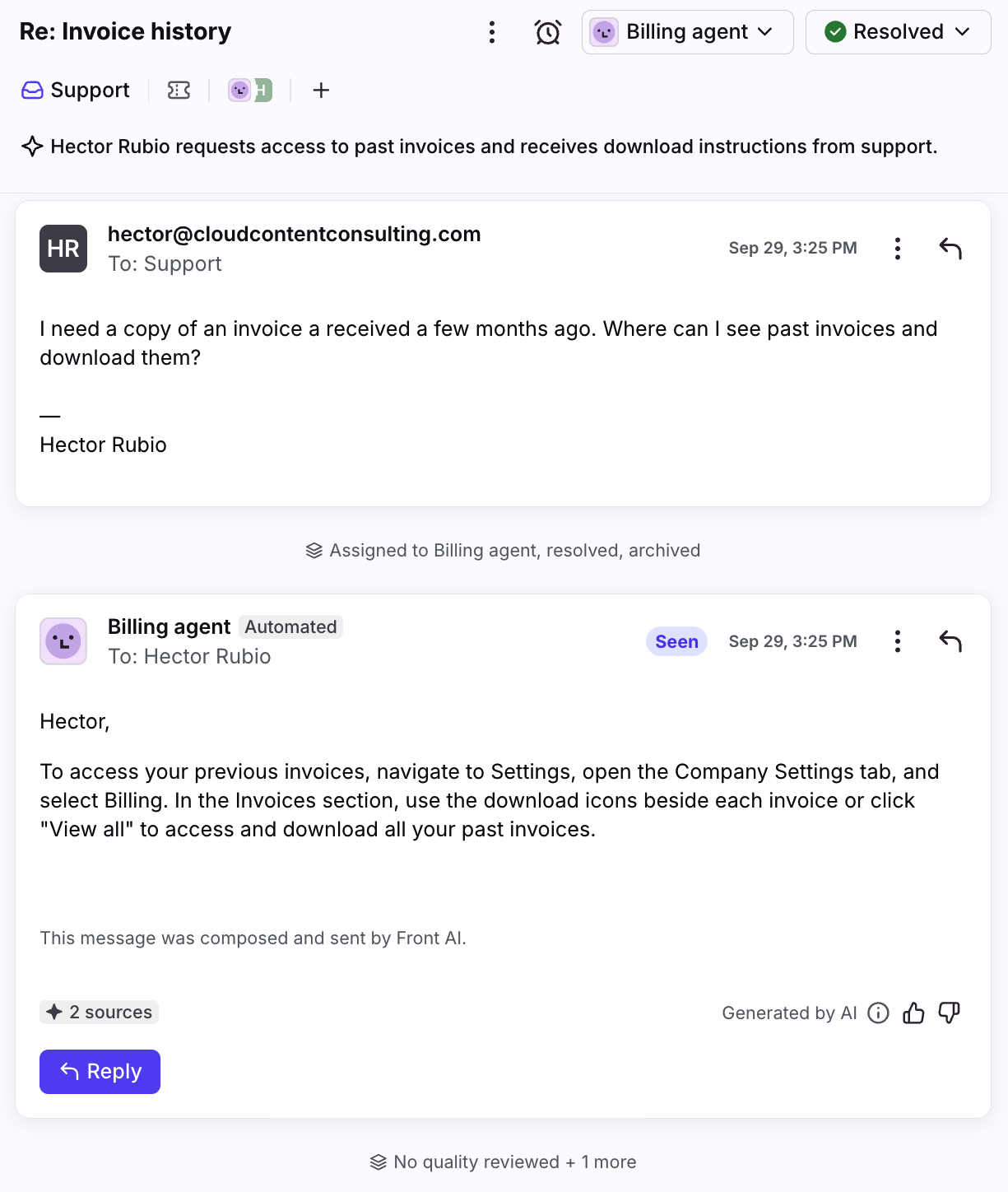
Example conversation:
Mentions
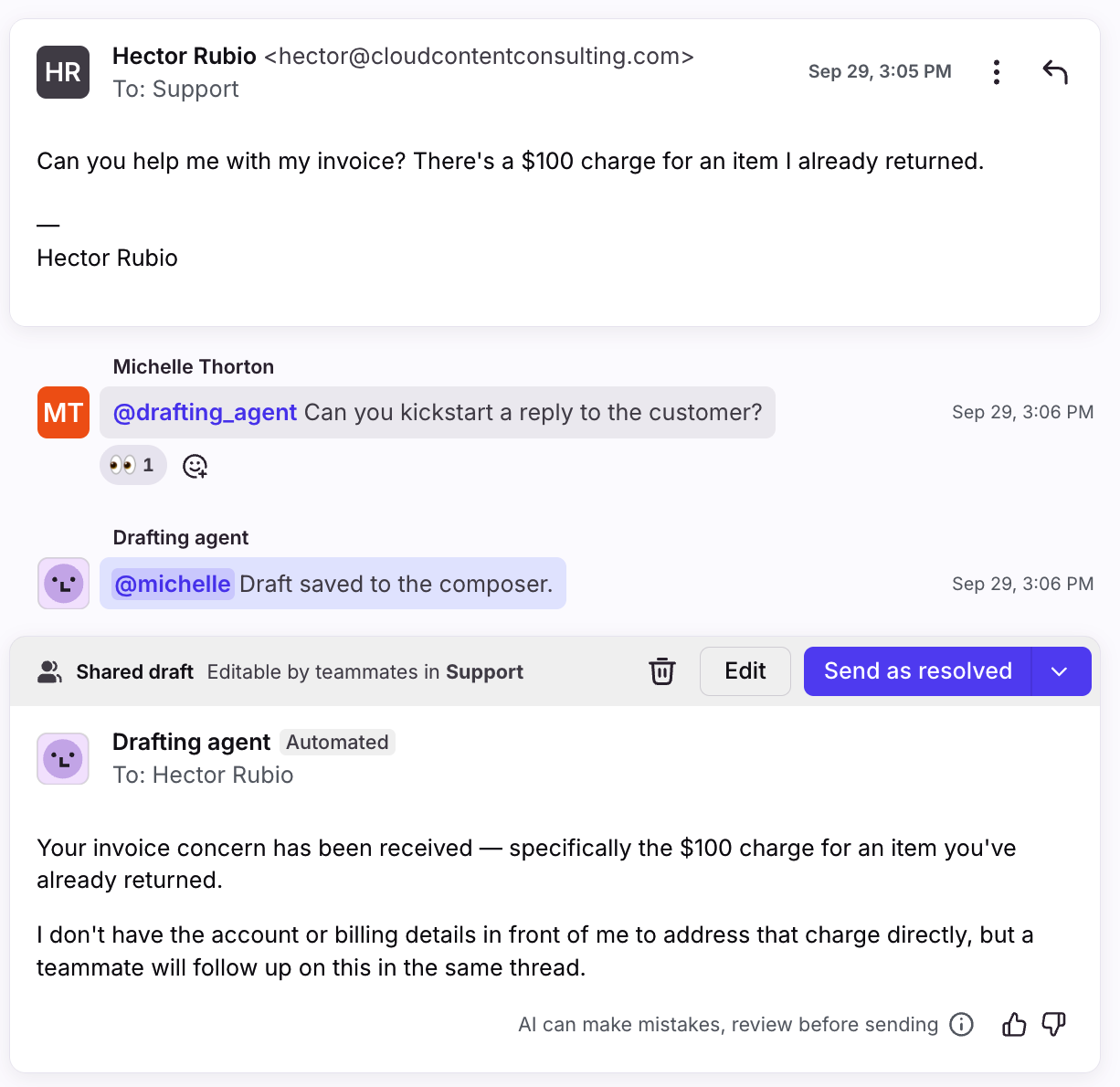
In addition to manually assigning AI agents to conversations, you can also @mention them in a comment using their handle to give them instructions in the same way you would a human.
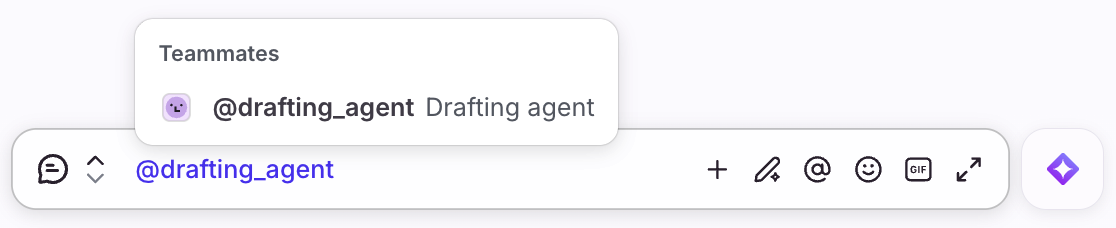
Agents will generally behave the same with both assignments and @mentions, but the key difference is the explicit goal of either entry point.
An assignment, just like with humans, means it is the AI agent’s scope of work to resolve that conversation with the customer
An @mention is unique to each comment, and AI agent activity depends on the instructions in the comment
Part 3: Review and manage your agent
Compass
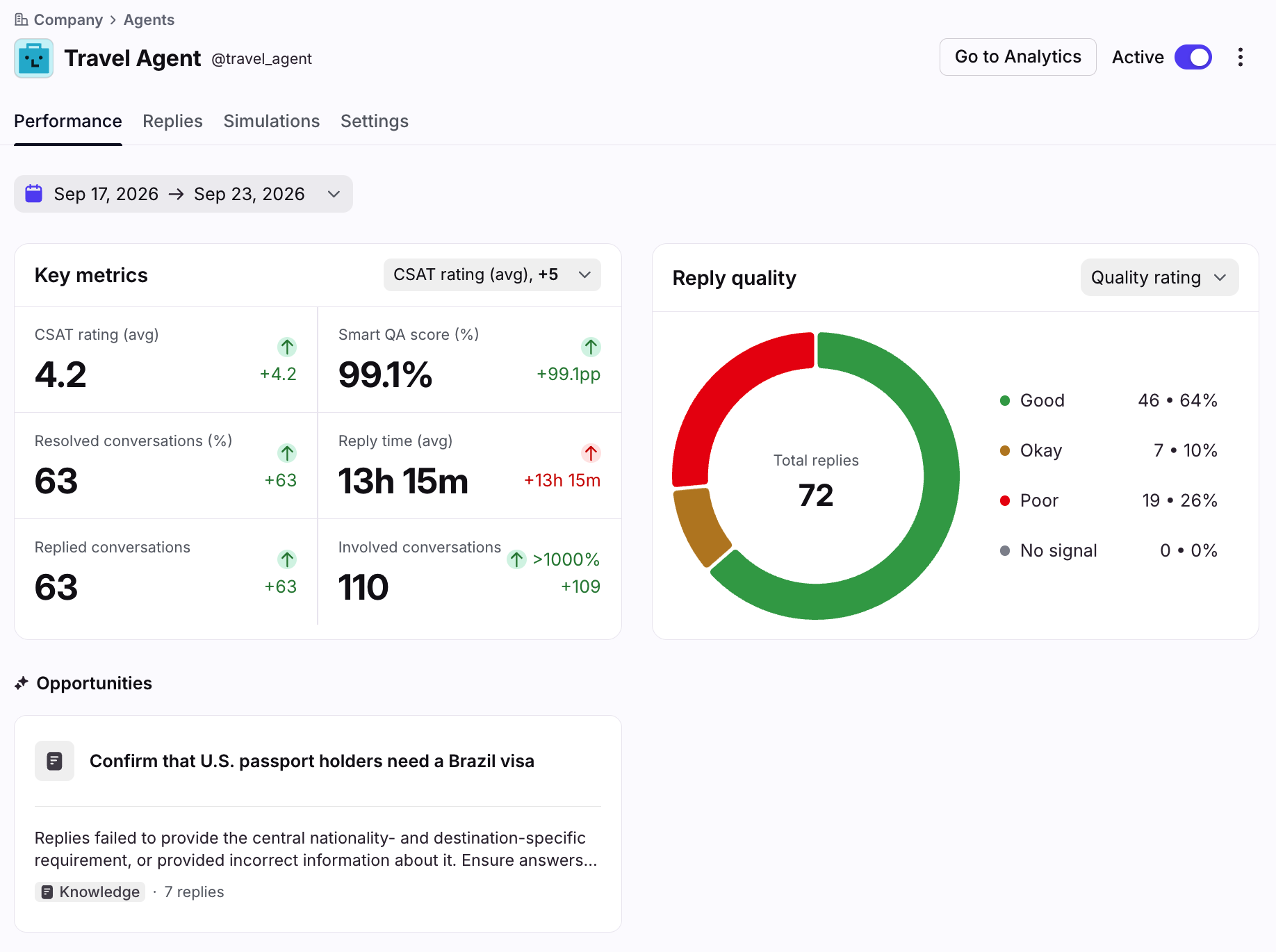
Compass helps you measure conversation quality and sentiment, track key performance signals, and get AI-powered recommendations to improve your AI agents over time. For Autopilot-powered agents, you can also test your agent against simulated conversations to evaluate agent behavior.
See this article to learn more.
Analytics
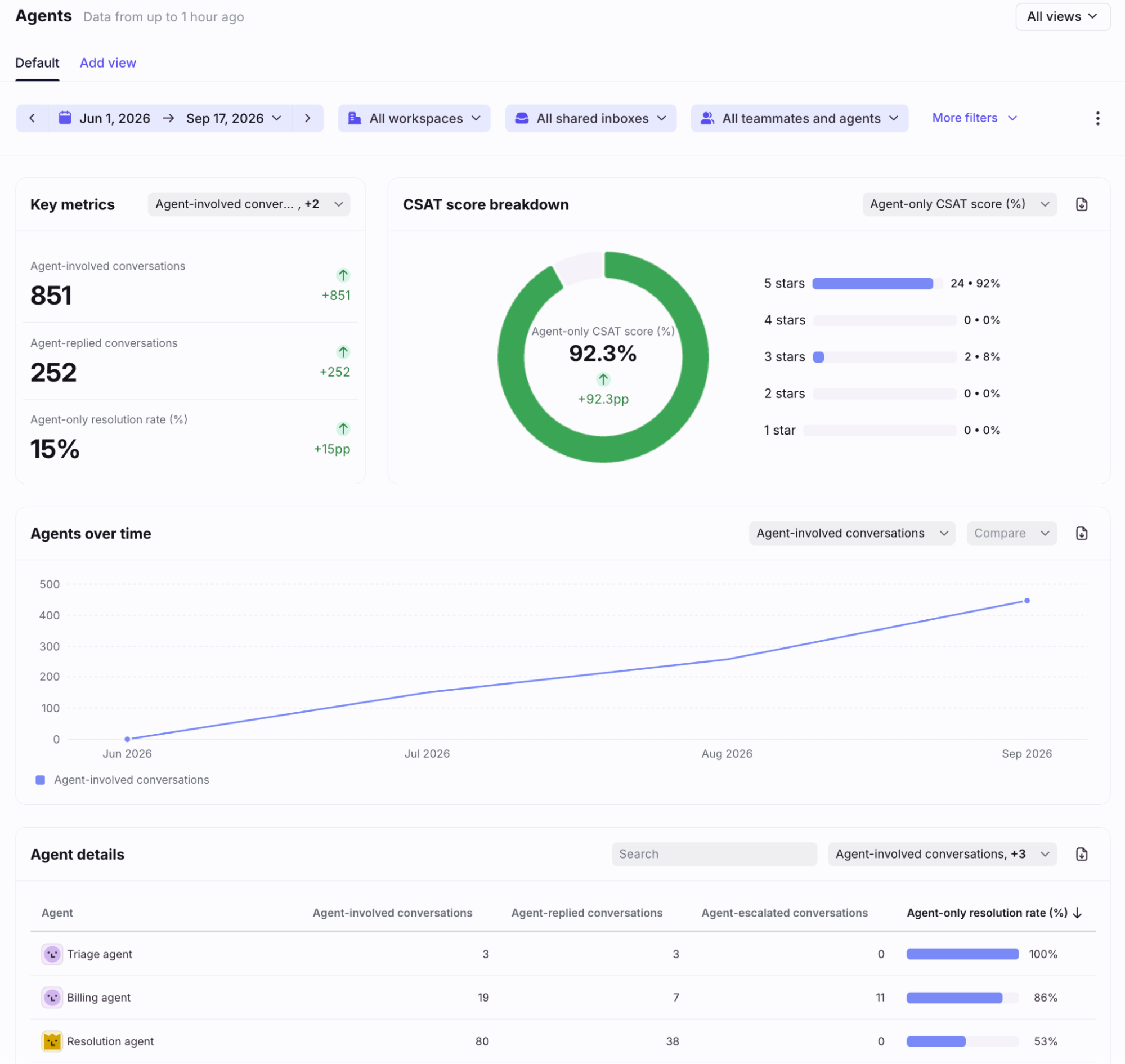
In Front Analytics, admins can navigate to the Agents report for a comprehensive look at all AI agent activity. Use the report to evaluate resolution data, customer satisfaction and engagement, and performance over time for all agents across your workspaces.
See this article to learn more.
Pausing and editing your AI agent
If you see behavior you’d like to update and address, you can pause your agent using the Active/Inactive toggle in the agent’s settings.
Note: You do not need to pause your agent to edit its settings. This is primarily to help ensure a live agent handling production volume does not engage with new conversations if you need time to correct undesirable behavior.
Disabling the agent will:
Run its escalation actions on currently assigned conversations
Prevent it from being selected in mentions and assignment menus
Prevent it from being new assigned conversations by rules
Keep its historic data in Analytics, but does not log new data
For external agents: Stops webhooks and blocks MCP credentials
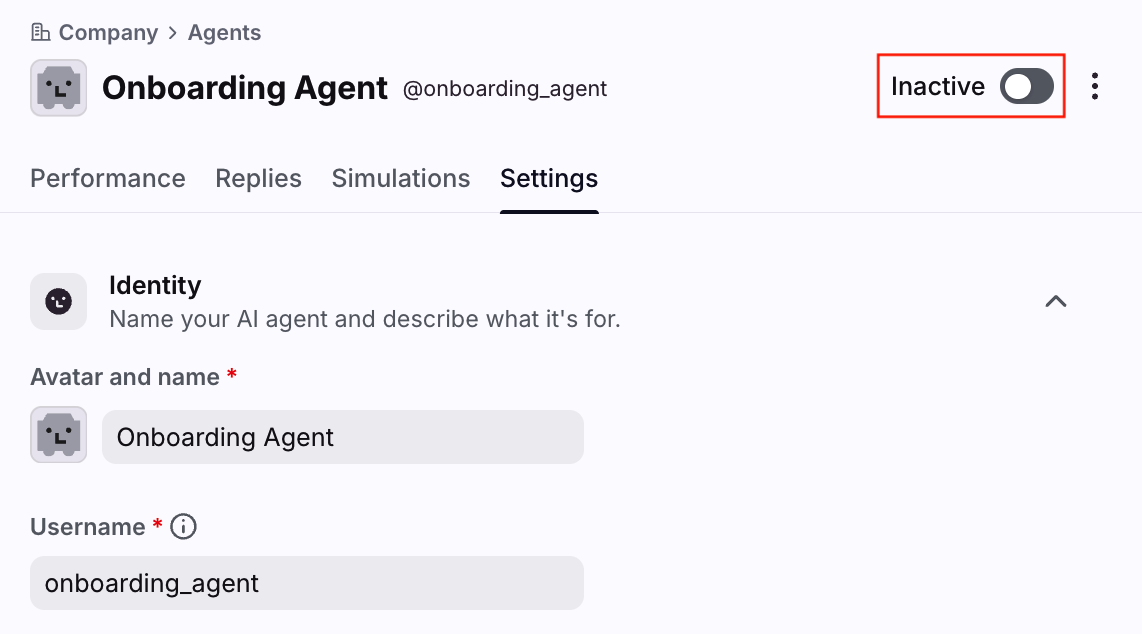
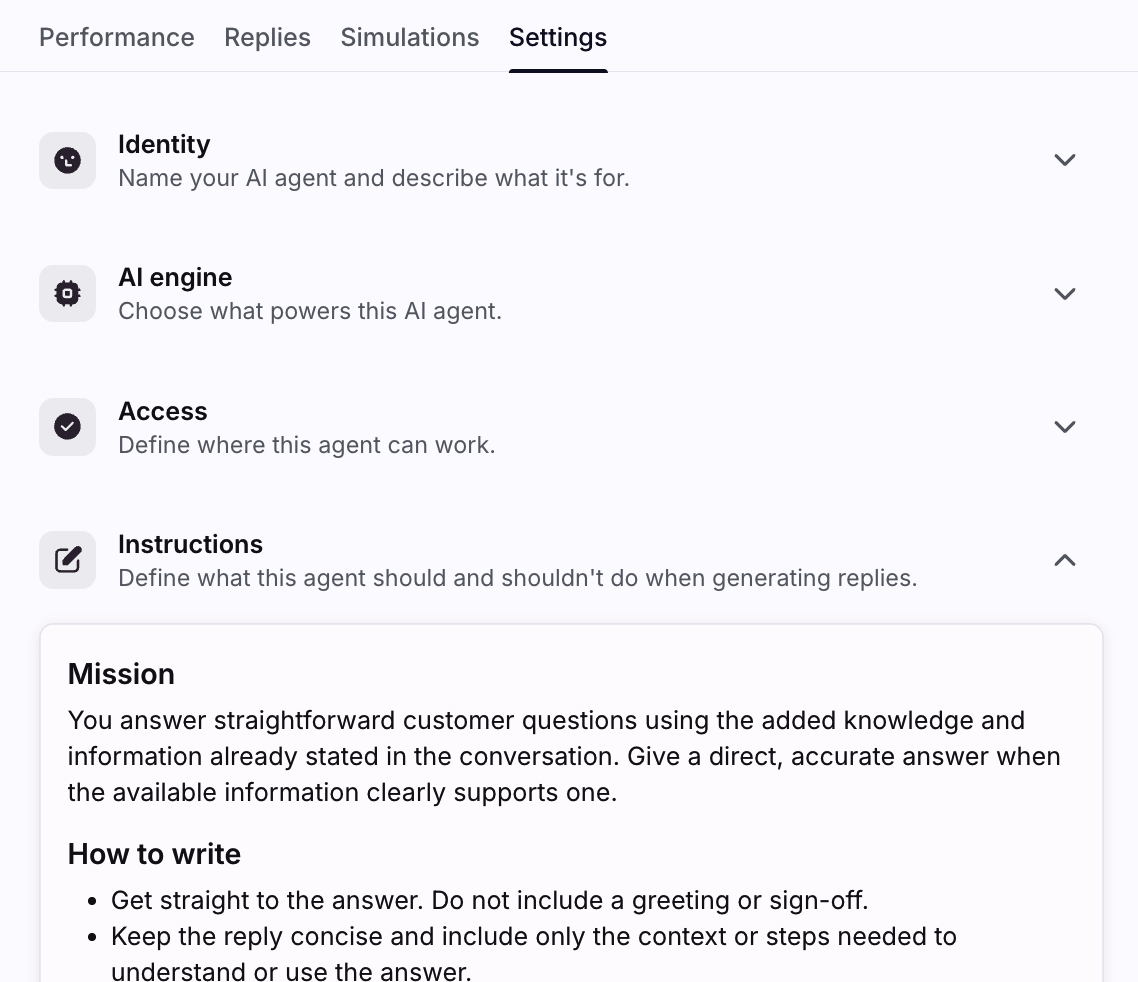
While your agent is paused you can make edits in the agent’s Settings tab, which were configured during agent creation.
For example, if you see your agent offering phone calls and you do not operate a call center, you can add guidance that instructs the AI to never offer phone support. After finalizing your changes, toggle the agent to Active to make it available for your workflows.
FAQ
What channels are supported?
AI agents can work on any channel type. For Resolve specifically, see unique instructions in this article.
Are individual inboxes supported?
You cannot automate work with AI agents in individual inboxes, but you can add them to individual conversations as needed. If you are primarily looking for help with personal work we highly recommend using Copilot, which is built for this use case.
Are there additional fees when using AI agents?
External agents are included in all plans. Front Autopilot agents require access to the Autopilot add-on.
How do I give an AI agent access to a conversation?
Same way you'd loop in a human teammate: assign it or @mention it. Mentioning an AI agent grants it access to that conversation and lets it act on it.
What steps can I take if my AI agent displays unexpected or undesirable behavior?
If your agent behaves unexpectedly, pause it to review and adjust its settings. We recommend starting with the Instructions and Playbooks sections, as they have the greatest impact on your agent’s actions and scope. If an agent uses incorrect context or knowledge, review its assigned knowledge sources to ensure they are properly scoped for its tasks.
Can I restrict agent access to only a subset of my human teammates?
You can restrict AI agent access to specific workspaces for automation purposes. Any teammate can still manually assign or @mention an agent, which just like humans will only add them to that specific conversation. Manual assignments or @mentions will not grant the agent access to the entire inbox or workspace.
It is not currently possible to restrict access by human teammate, but this is on our roadmap for a future update.
How quickly do updates take effect on an agent's behavior?
Changes to Front AI company resources including tone, instructions, and notes take immediate effect. Knowledge article updates take ~12 hours to reingest, so allow 24 hours for updates to reflect in your AI agent’s replies.
What happens if an agent doesn't have permission to do something?
If an agent is asked to do something it's not allowed to do, it responds that it doesn't have permission and that you need to edit its settings. If it lacks the capability entirely, it says it doesn't have the tool to take the action.
How can I improve AI agent performance?
Compass will automatically surface improvement opportunities, which you can use to update your agents.
Pricing
External agents are included in all plans. Front Autopilot agents require access to the Autopilot add-on.