
Autopilot AI agents
Overview
Set up an AI agent powered by Front’s native Autopilot to integrate it into your team's workflows like any human teammate. AI agents work seamlessly with features such as analytics and rules, allowing you to configure auto-assignment workflows to maintain complete control over whether conversations are handled by a human or AI.
You must have company admin permissions to set up AI agents.
Prerequisites
You must have access to the Autopilot add-on
You’ve already set up workspaces and shared inboxes
You’ve connected knowledge sources to Front
Optional but helpful:
You’ve created Playbooks to outline specific workflows
You’ve created custom tone guidelines for AI to follow
How it works
See this article for example use cases and setup requirements.
Thinking about the puzzle pieces
When setting up an Autopilot agent, there are four distinct configurations that work together: Instructions, Knowledge, Playbooks, and Tone.
You can think about these settings in terms of onboarding a new hire for your team:
Instructions are the core behavioral elements you instill in every hire, so you should include information like high-level company details, specifics about their exact scope of responsibilities, things to always do when replying to customers, and things to always avoid. While fundamental principles like staying truthful and grounding statements in facts may seem obvious, explicitly defining these guidelines for an AI agent—just as you would for a new hire—ensures clear and aligned expectations. We’ve preloaded this field in your agent settings, which you can use as-is or modify to your needs.
Knowledge is all the external-facing factual information about your product or service that every new employee needs to review and learn. Sometimes this is your full knowledge base for general support, or can be more narrow for teammates specializing in specific subjects. If the agent you’re creating only needs to handle specific topics, only give it knowledge on those subjects. Select public-facing materials that you are comfortable sharing directly with customers to serve as your knowledge sources. Internal and business-specific content such as training documentation and standard operating procedures (SOPs) should be outlined in Playbooks instead.
Playbooks are where you outline your standard operating procedures (SOPs), runbooks, and internal-facing procedures for your employees. Just like onboarding SOP packets given to new hires, you should create and share all the procedures your AI agent needs to handle the conversations it works on. These can have very specific business or support logic/processes, like “Check Salesforce to get the contract data” or “Look up the contact information before responding.”
Tone represents the core writing and style standards that guide communication across your entire organization. New hires must learn and reference tone guidelines to adopt your “company voice”, ensuring customers have a unified experience. For example, if you always need to maintain a professional tone, you should outline what that means relating to syntax, word choice, brevity, and emoji use. Front has a set of default tones to get started, and will also guide you when creating custom tones.
Create an AI agent
Step 1
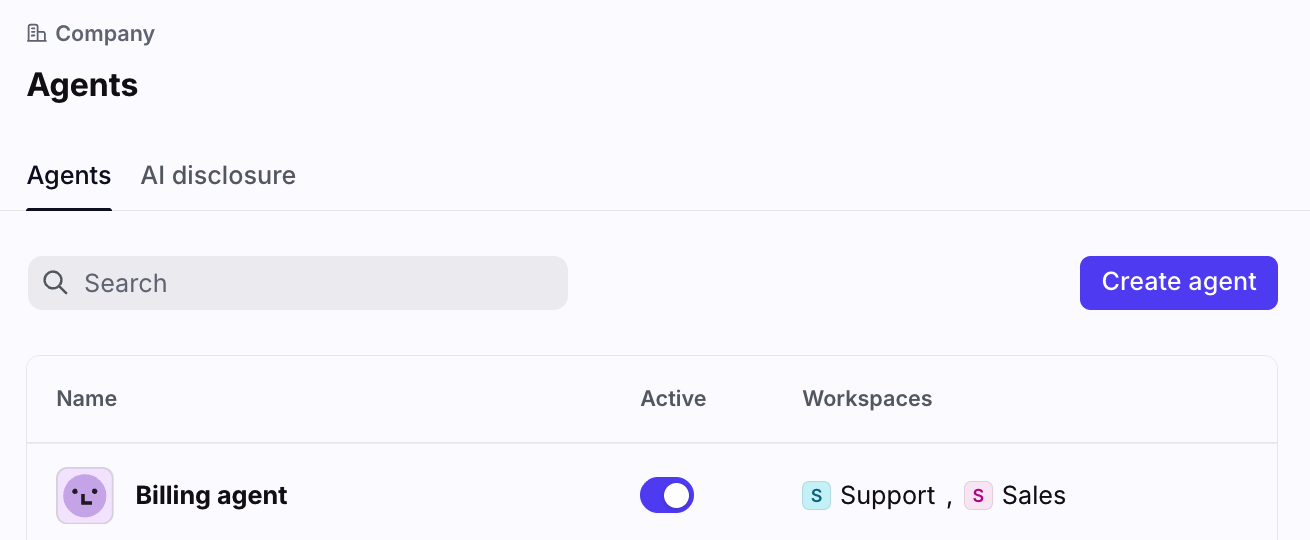
Navigate to company settings, then select Agents in the sidebar.
Step 2
Click Create agent to set up a new one. You’ll see existing AI agents in the list.
Step 3
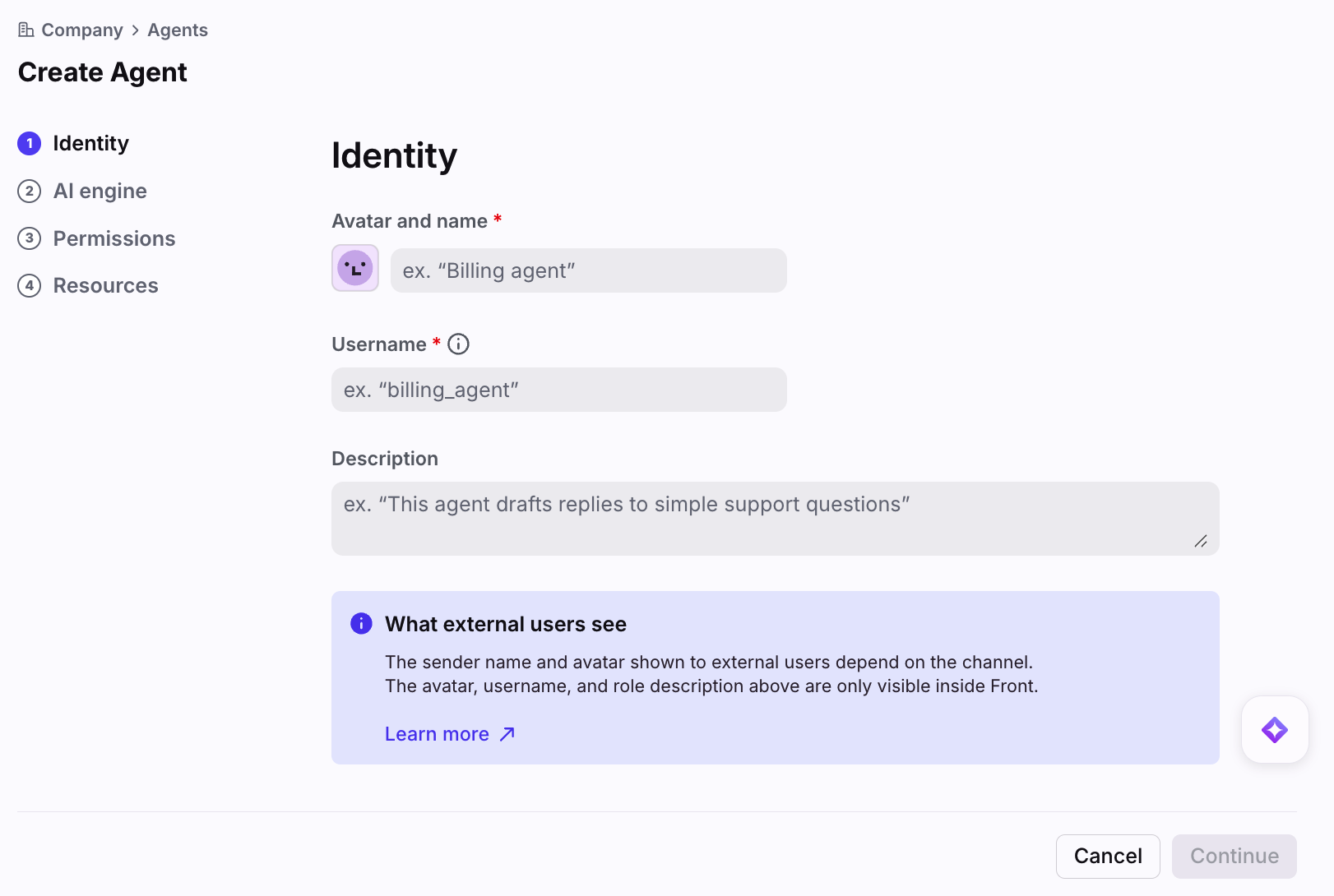
In the Identity page, identify your new AI agent by selecting or uploading an avatar, giving it a name, a username, and optionally a description of what this agent will be doing. This description is purely for organizational purposes, it is not used by the agent or any AI features.
Click Continue.
Step 4
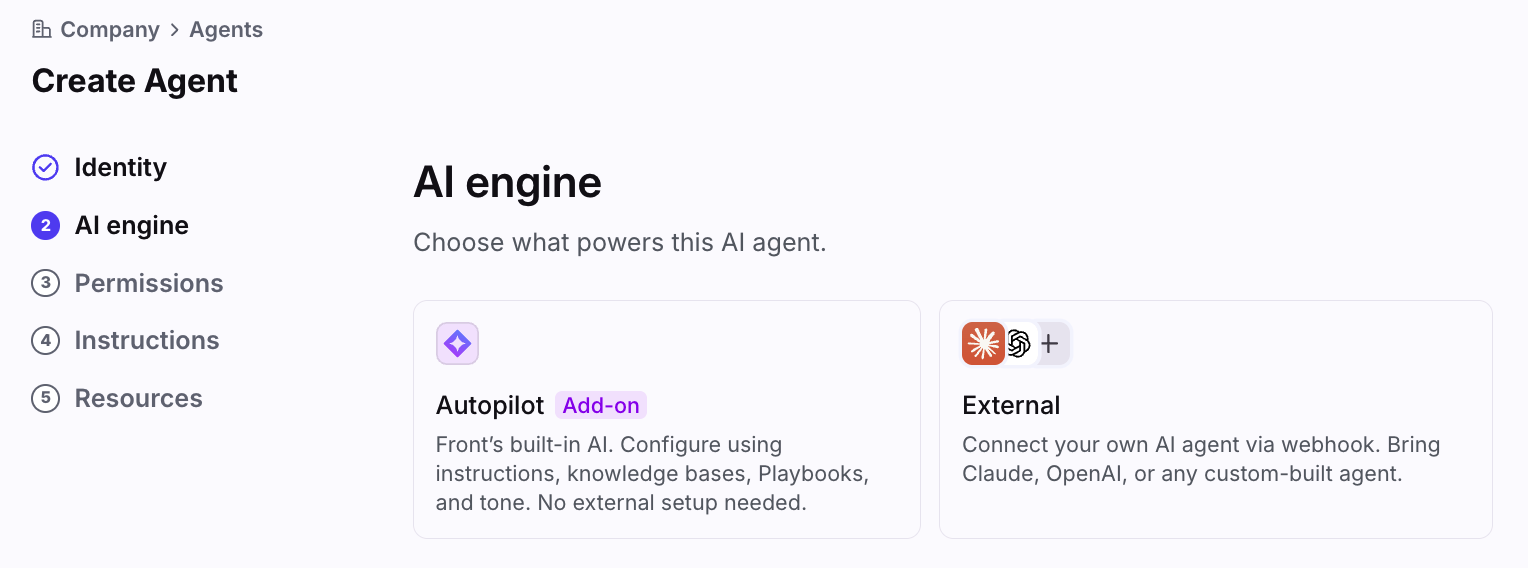
In the AI engine page, select the Autopilot option. If needed, enable the Autopilot add-on in your AI settings. Click Continue.
Step 5
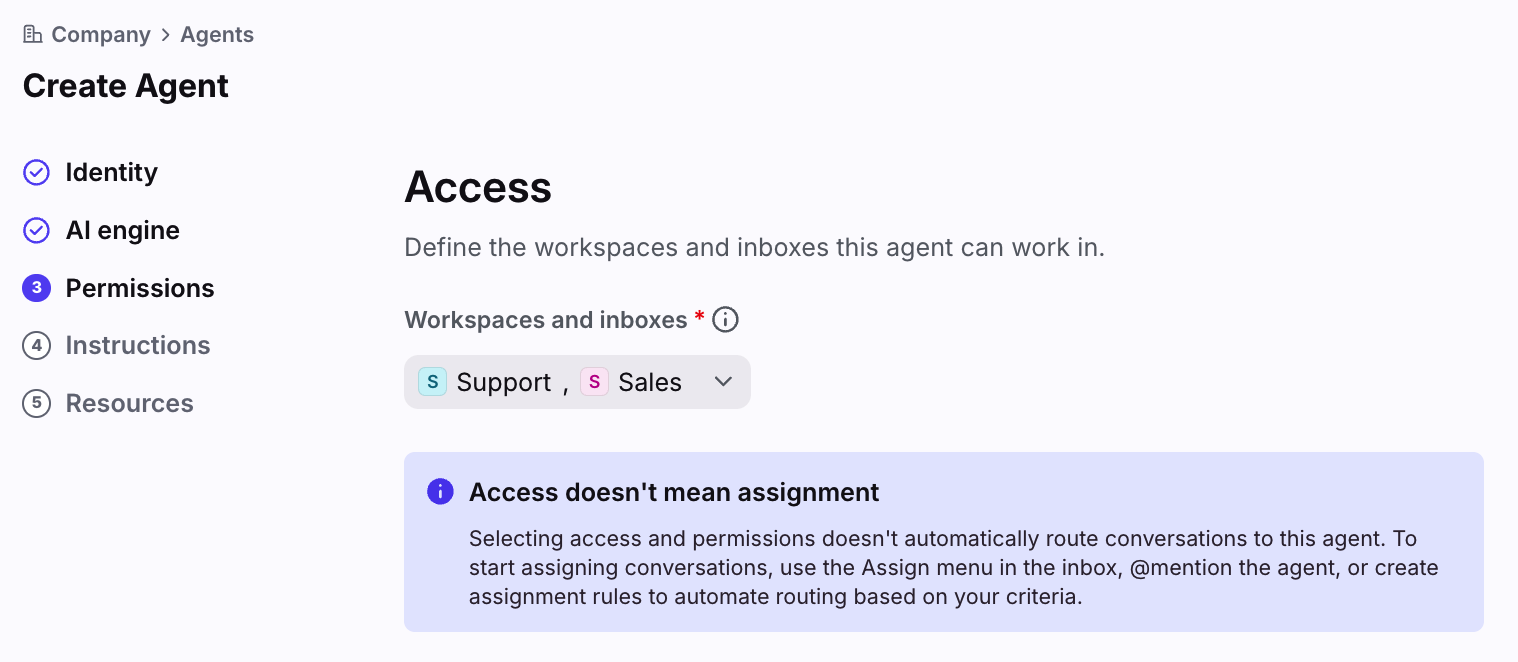
In the Permissions page, select the workspace(s) the AI agent has access to work in. This setting designates where this agent can be used in rules to automate assignment. However, any teammate can use this agent on a per-conversation basis via the assignment menu and @mentions.
Click Continue.
Step 6
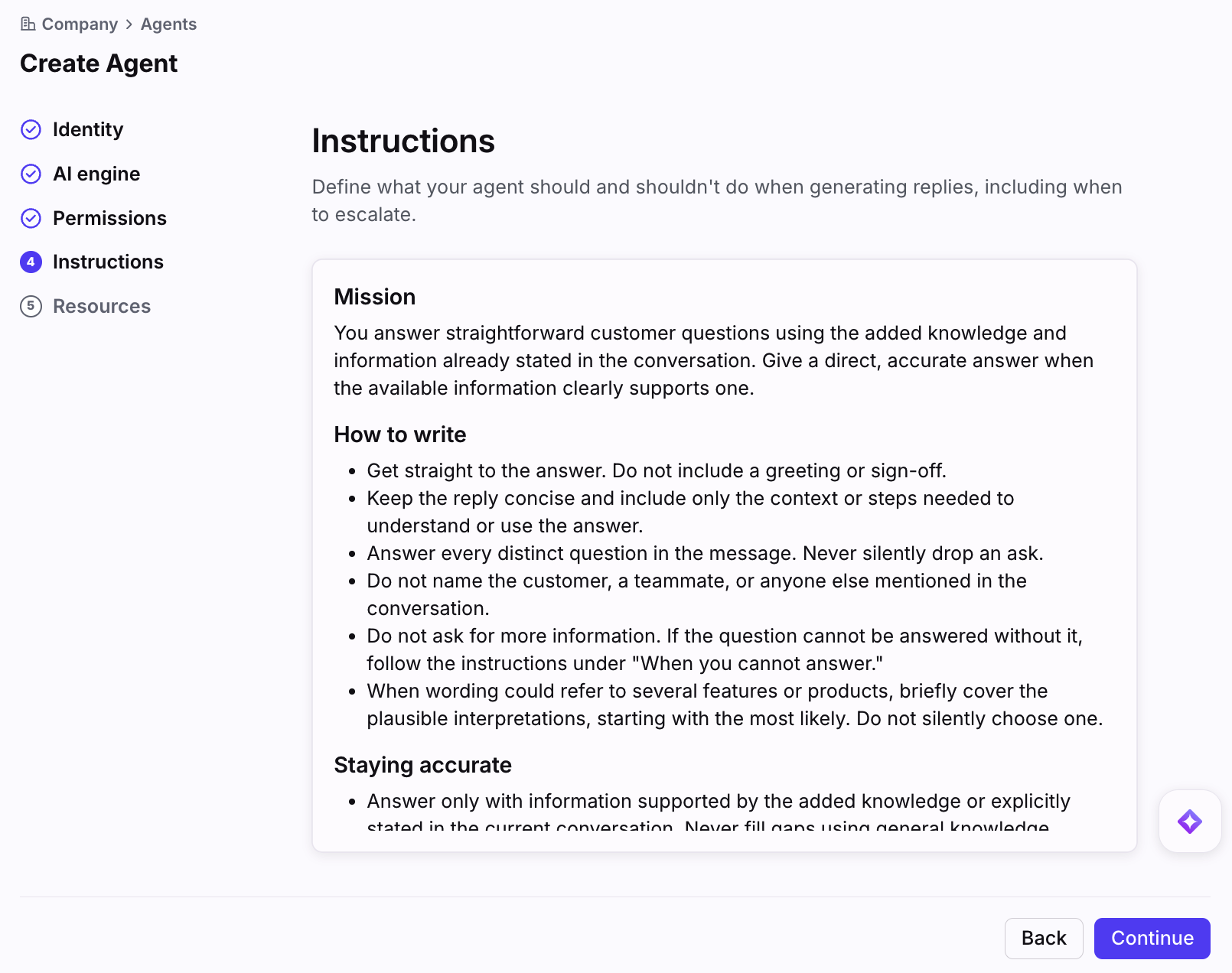
In the Instructions page, define the general behavior you’d like this AI agent to adhere to. These are broad do’s and don’ts, escalation instructions, as well as specific rules for the AI agent to follow when acting on a conversation.
Click Continue.
Step 7
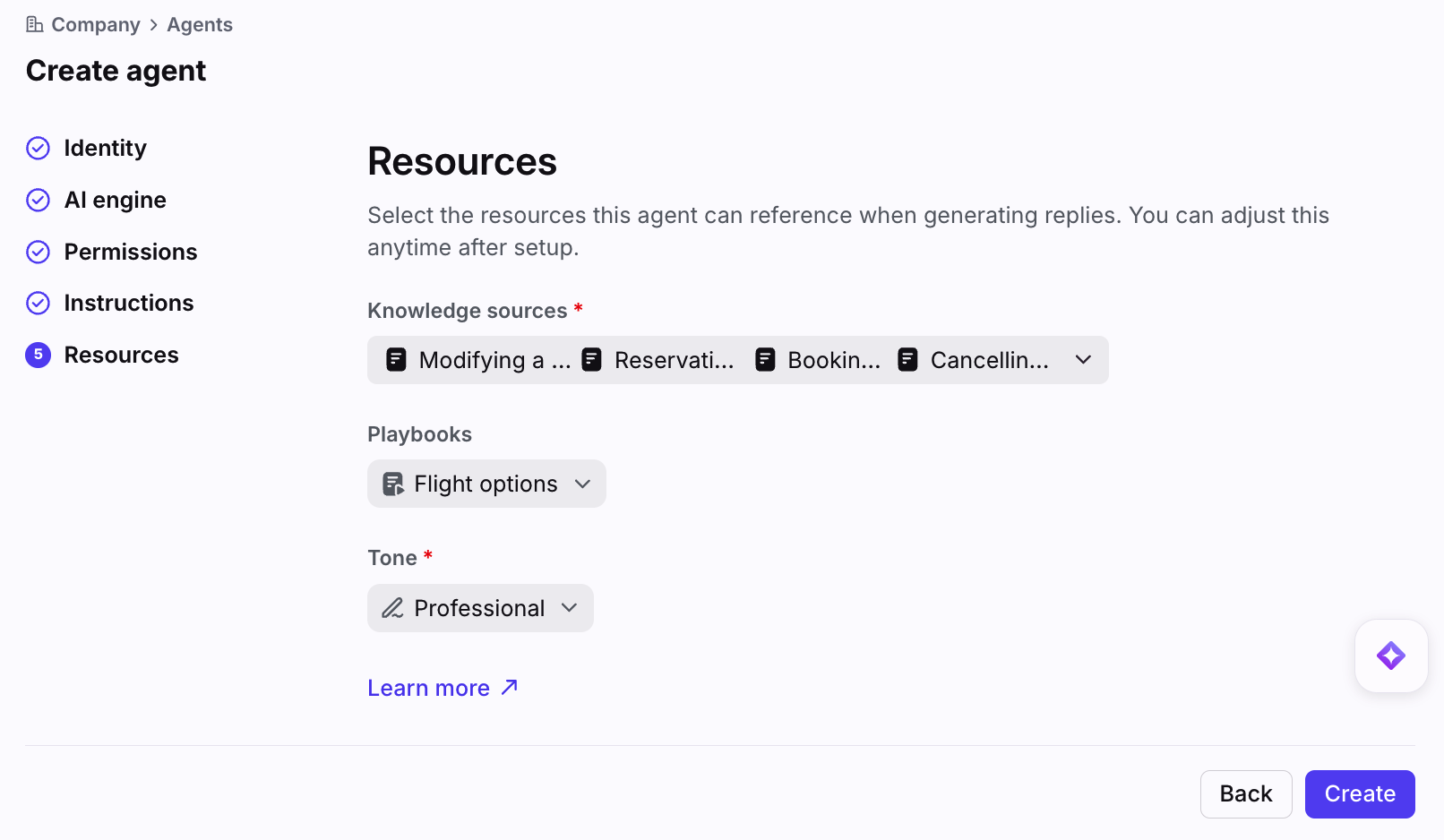
In the Resources page, provide additional context your AI agent needs to operate based on your expectations and desired use cases.
Knowledge sources: Select the knowledge content your AI agent can reference. We recommend narrowing the scope of knowledge to the use case this agent is intended to address for more predictable results.
This setting tells your AI agent to look in specific places to find answers when replying to customers.
The dropdown populates based on the knowledge you’ve added in the AI resources page, as well as all Front knowledge base articles added within your company.
Playbooks: Select the Playbooks you want your agent to consider and use.
This setting tells the AI agent to automatically follow a predefined set of instructions when handling specific scenarios. e.g., Move conversations, draft messages, apply/remove tags, etc.
Playbooks are created and managed in the AI resources page. There you can decide when to trigger the Playbooks, which is respected by the AI agent.
Tone: Select the tone guidelines this agent should always follow.
This setting controls the AI agent’s writing style, word choices, and overall personality.
Tone guidelines are created and managed in the AI resources page.
Step 8
Click Create. Your agent can now be used in your Front workflows.
Next steps
After creating your AI agent in Front, see the main AI agents guide to review how to:
Assign conversations to your AI agent
Monitor and track AI agent analytics
Optimize AI agent performance
Find answers to frequently asked questions
Example build: Drafting agent for FAQs
If you’re familiar with Front’s legacy feature, suggested replies, you can build this same experience using AI agents to create proactive drafts.
Step 1
Follow Steps 1-4 from the above instructions to create an agent. In this example, we’ll name it “Drafting agent”.
Step 2
In the Permissions page, select the workspace(s) you want the AI agent to draft messages in. We recommend selecting as many workspaces as needed to create a wide net for proactive drafts.
Step 3
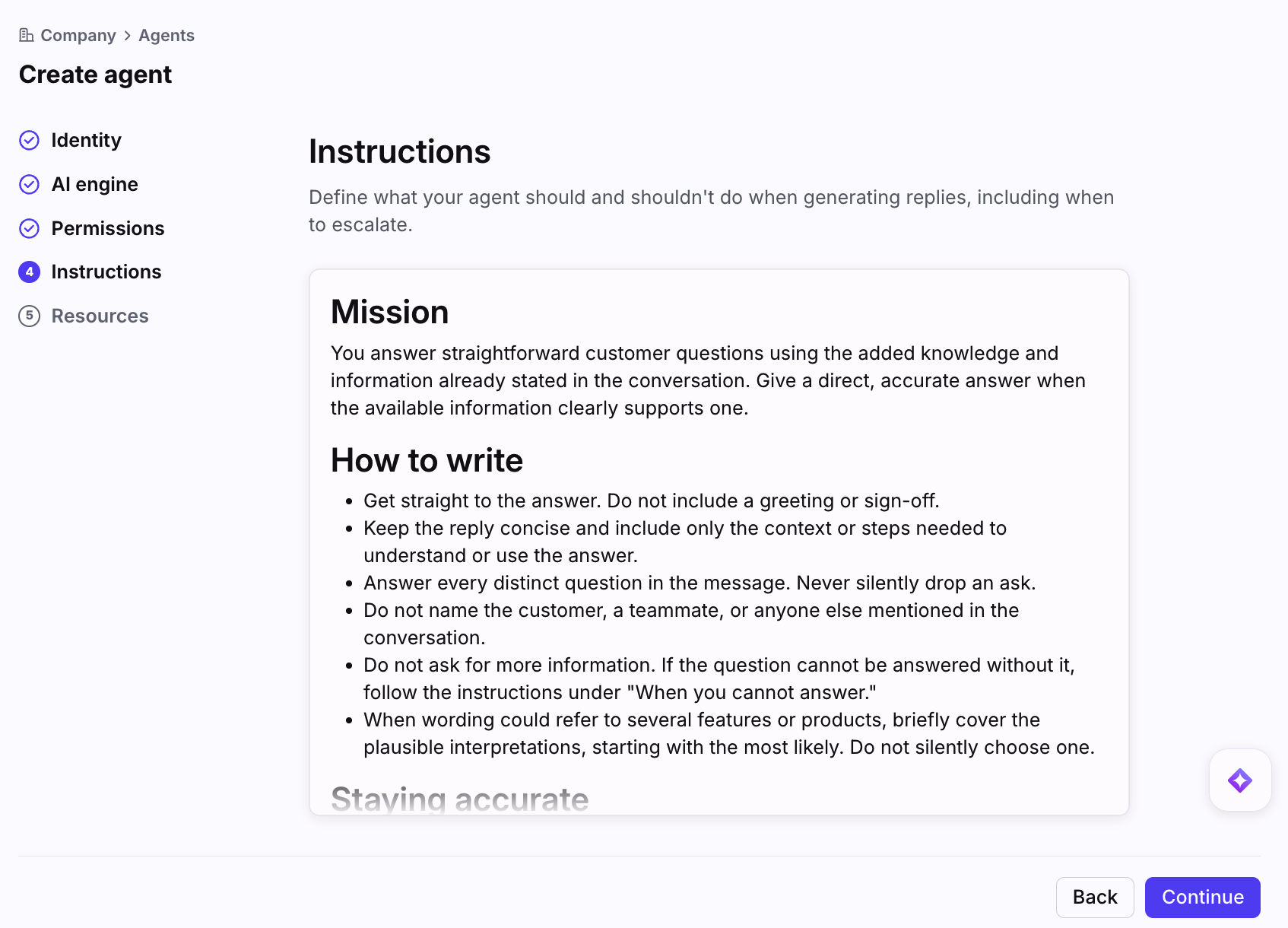
In the Instructions page, define the general behavior you’d like the AI agent to follow. Feel free to edit the existing content or create your own guidelines. For drafting only, ensure to include this in the instructions.
Otherwise, click Continue to accept the pre-filled default instructions to create an experience that resembles the suggested replies feature.
Step 4
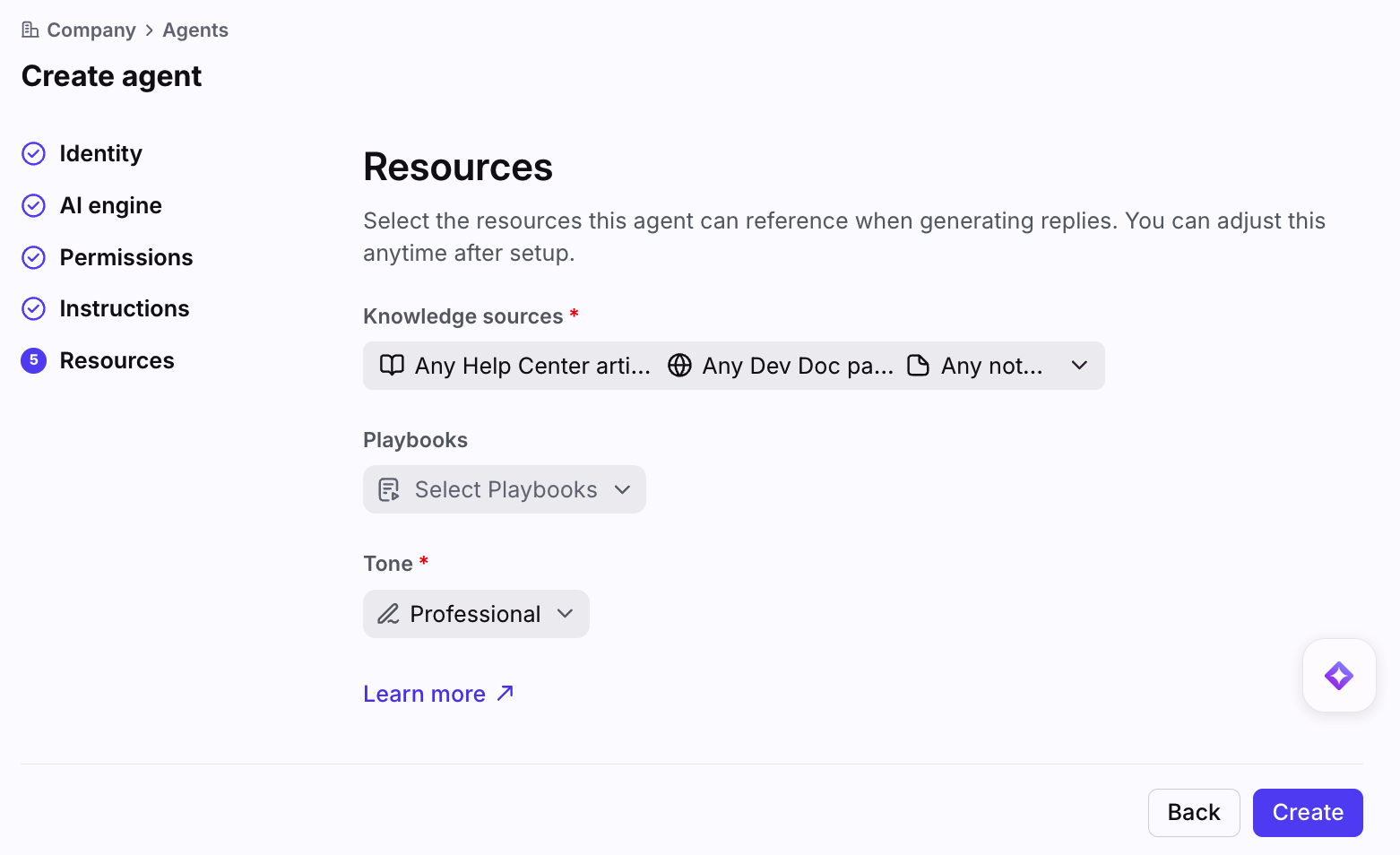
In the Resources page, provide all the context your AI agent needs to operate based on your expectations.
Knowledge sources: Select the content you want your AI agent to use when it is replying to customers. For proactive drafts, we recommend selecting all knowledge sources.
Playbooks: Select the Playbooks you want your agent to use. For proactive drafts, you can leave this dropdown blank for now, and you can come back later when you’re ready to create custom workflows.
Tone: Set the tone guidelines this agent should always follow. For proactive drafts, we recommend using the pre-selected Professional tone.
Click Create.
Step 5
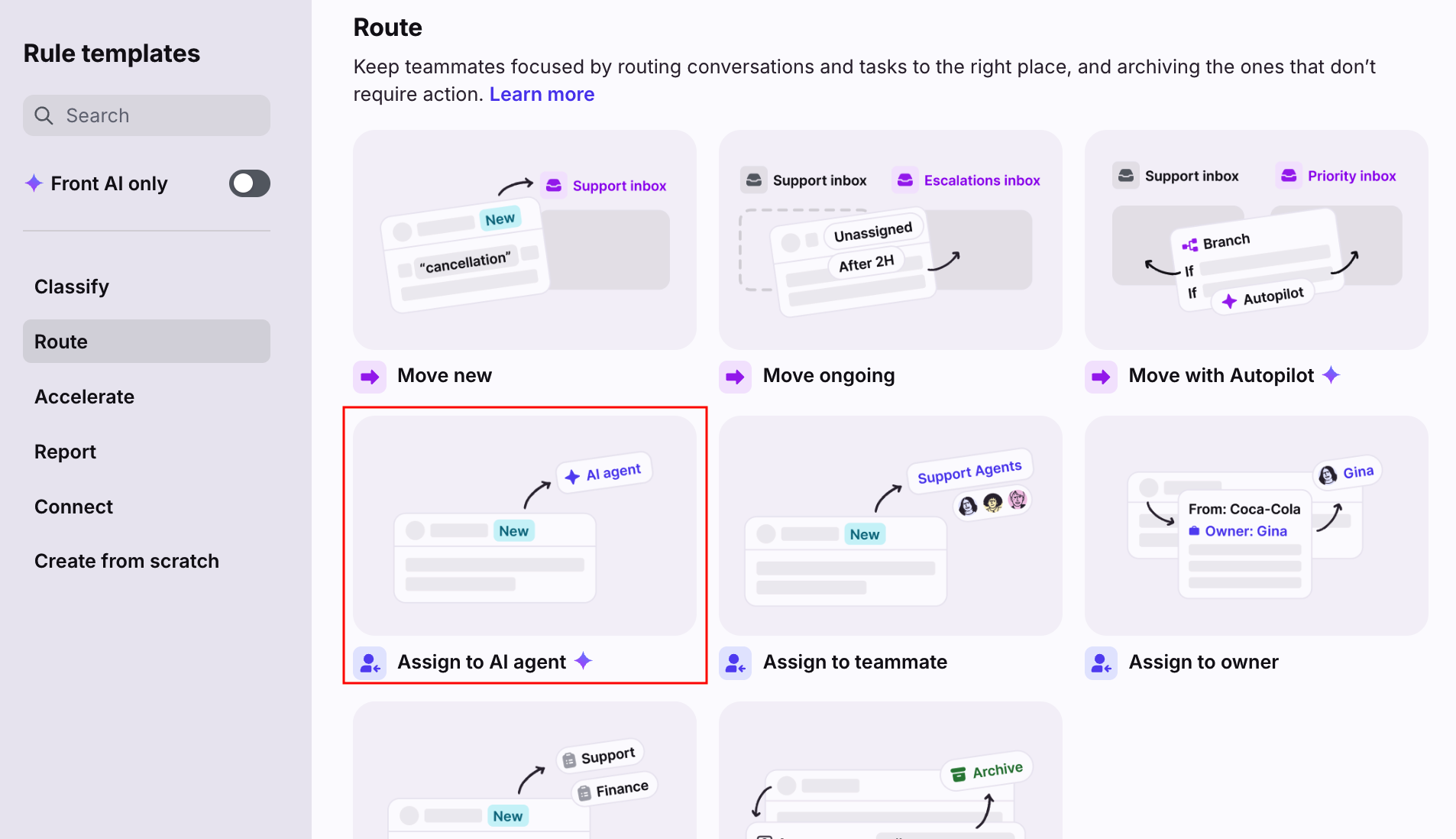
Navigate to the Rules and macros page, and create a new rule using the Assign to AI agent template.
Step 6
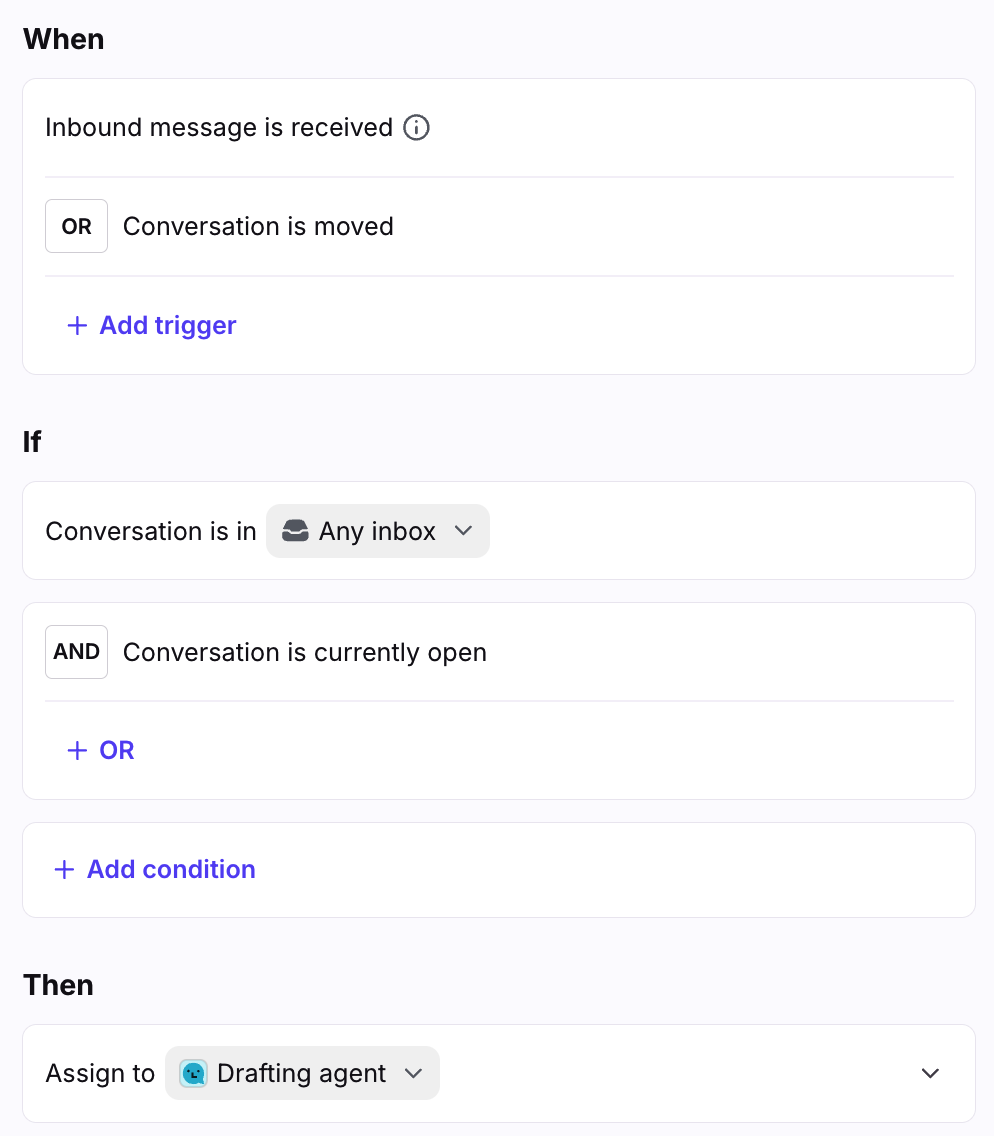
Make the following adjustments to these fields:
Conversation is in: Select the shared inbox(es) you want to create proactive drafts for
Assign to: Select the drafting agent you created
Click Create to finish. Your drafting agent will now proactively generate a draft on all new applicable conversations.
FAQ
How does billing work?
See this article to learn more.
What is the best strategy for writing guidance for the agent?
When writing guidance for the agent (e.g., instructions, Playbooks, etc.), we highly recommend pasting this article and other AI resource specific articles into an AI chat service of your choosing, like Claude or ChatGPT. Outline the exact use case you are trying to solve and ask it to write instructions, write a Playbook, or several Playbooks that need to work together. In the near future we will bring this same AI setup experience directly into Front.
Should we create agents to chat with our human teammates?
No. Autopilot AI agents are designed to automate your workflows. If you need AI assistance without executing automated processes, we recommend using Copilot.
Will users see what the agent is thinking?
No. You will not be able to see what the agent is thinking, but you can see that it is actively taking actions when assigned to the conversation.
Can my Autopilot agents work with my external agents?
Yes. That is the core benefit of the AI agent framework - that all your agents can live in Front, act on the same conversations, and pass work off to each other if one is more specialized than the other. This open collaboration system means your human teammates, Autopilot agents, and external agents work together seamlessly to achieve your support and business goals.
Does this work with Resolve?
Yes. You can create a single AI agent per Resolve channel and select it in the Resolve channel settings. See this article to learn more about Resolve.
Anything else I should know?
See this FAQ section for common questions that apply to AI agents.
Pricing
You must have the Autopilot add-on to create Autopilot agents. See the Autopilot article for more information.