
Autopilot Resolve
Overview
Autopilot Resolve is an AI-native channel customized for self-serve support. Embed Resolve into your web pages or Front help centers to provide customers 24/7 AI-powered support using information from a connected AI agent. If your customer needs to speak to a human, Resolve seamlessly creates tickets with full context so your team can quickly step in after the handoff. By spending less time on simple questions and repetitive tasks, your teammates can focus on more complex problems.
With Autopilot Resolve, you can:
Provide instant answers to common customer questions using content from your knowledge base.
Provide customers a chat-like experience that starts with AI and can escalate to your team for real-time or async support. When a teammate replies, customers receive an email notification to take them back to the Resolve ticket.
Improve the speed and rate of resolutions without a human involved
Minimize repetitive tasks a teammate needs to do for complex cases
Prerequisites
To manage Autopilot Resolve channels, you must be a Front company admin or have permissions to manage shared inboxes and AI settings.
You must have access to the Autopilot add-on.
We recommend creating a dedicated Autopilot AI agent for your Resolve channel so it can be fine-tuned for self-serve support. We also recommend creating a separate shared inbox for Resolve.
How it works
Customer experience
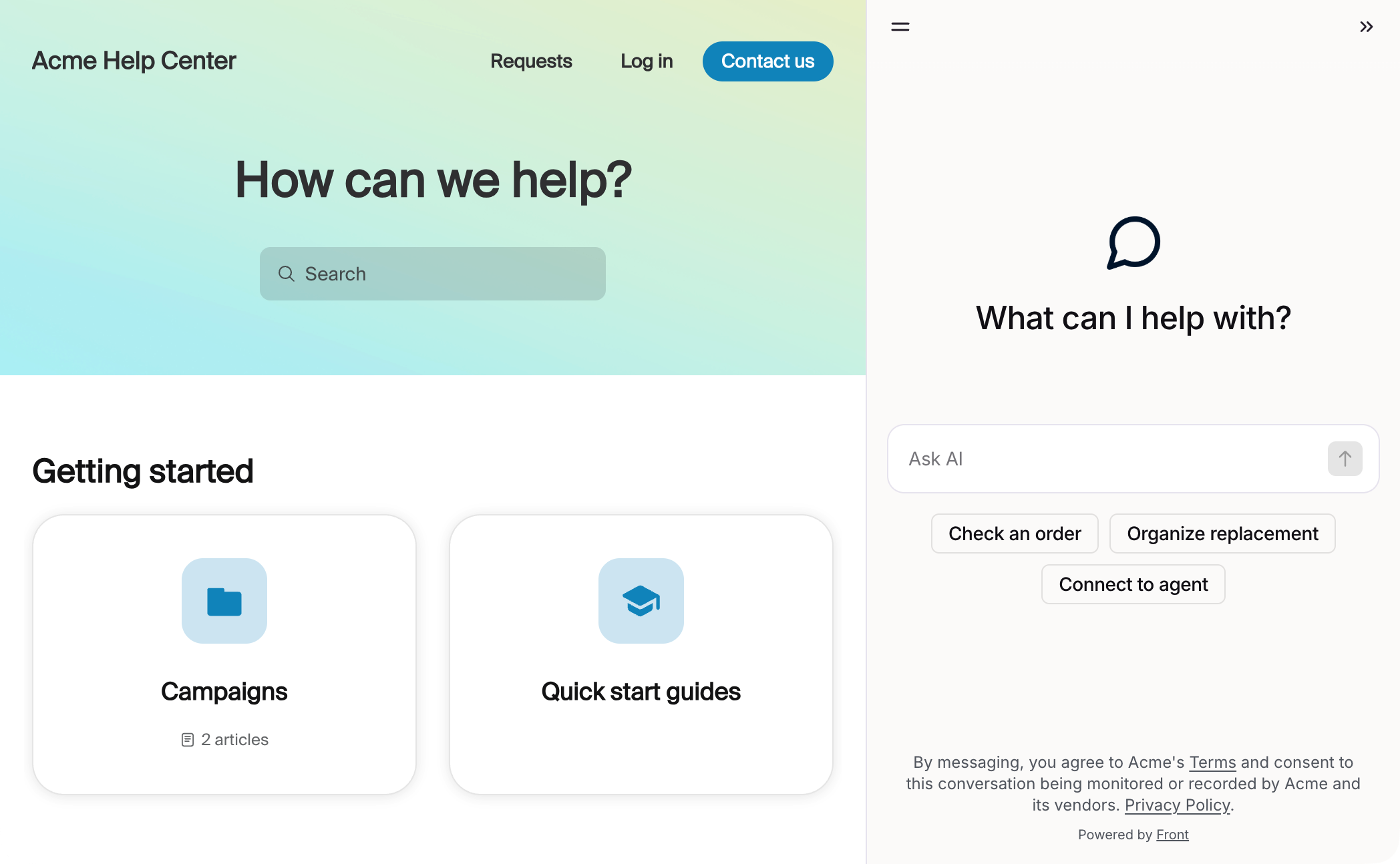
When customers access Resolve from your website or a Front-hosted web page, they can chat with AI to answer simple questions or complete common requests via Playbooks such as checking status updates, confirming reservation details, etc.
Customers can also use the icons at the top to start new conversations, or view any previous conversations that were escalated to a teammate.
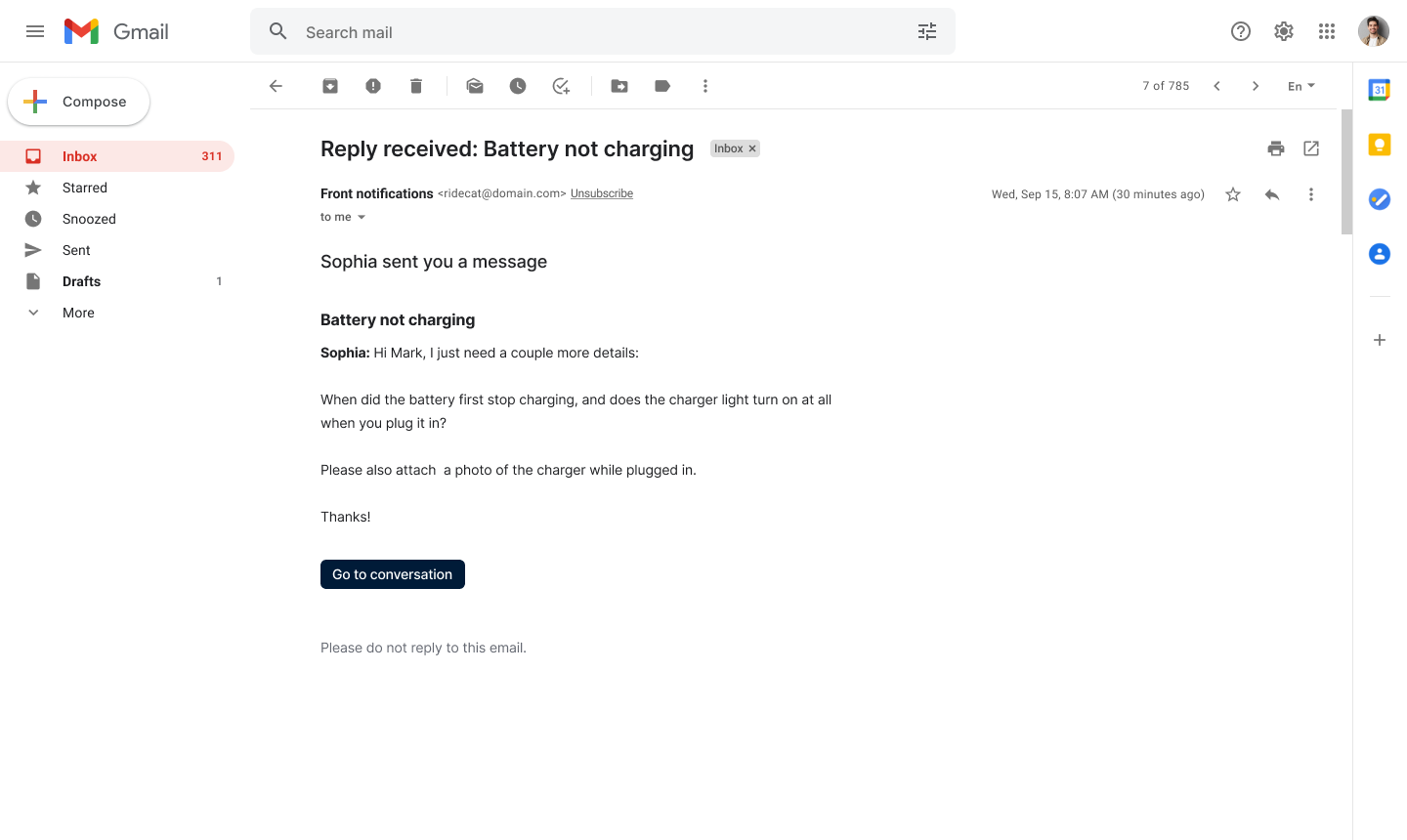
When customers receive a reply from a teammate, they’ll receive a notification email with a Go to conversation link to view the response and reply. Customers can reply to notification emails, and the replies will be automatically added to the conversation in Front.
Sharing
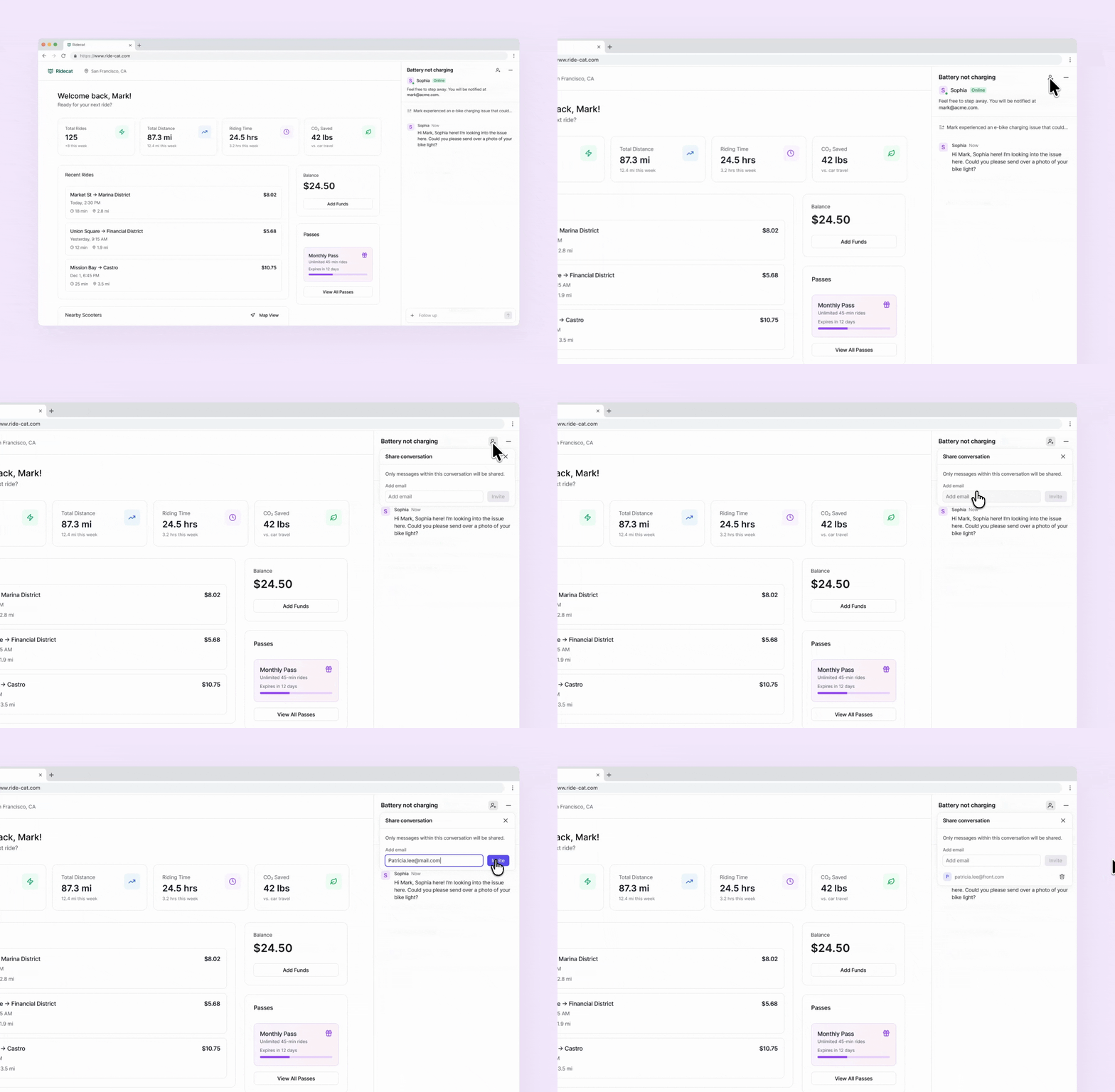
Conversations can be shared by clicking the share icon and entering an email address. Once shared, only messages within that specific conversation will be visible to the recipient. To remove access, click the trash icon to the right of their email address.
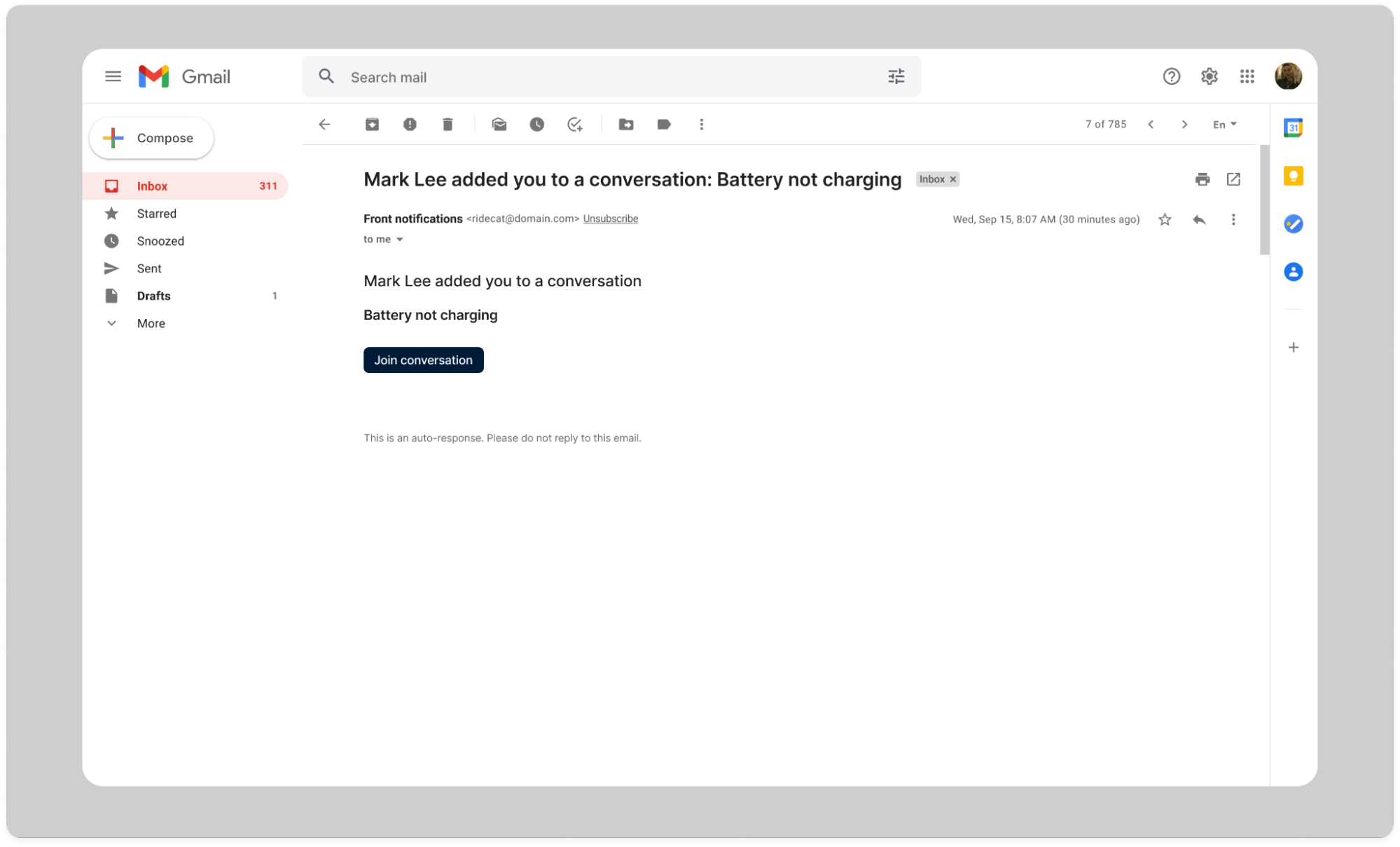
After a user has been invited, they will receive an invitation email with instructions to join the conversation.
Live agent
When the Show online status toggle is enabled, customers can see when your teammates are online.
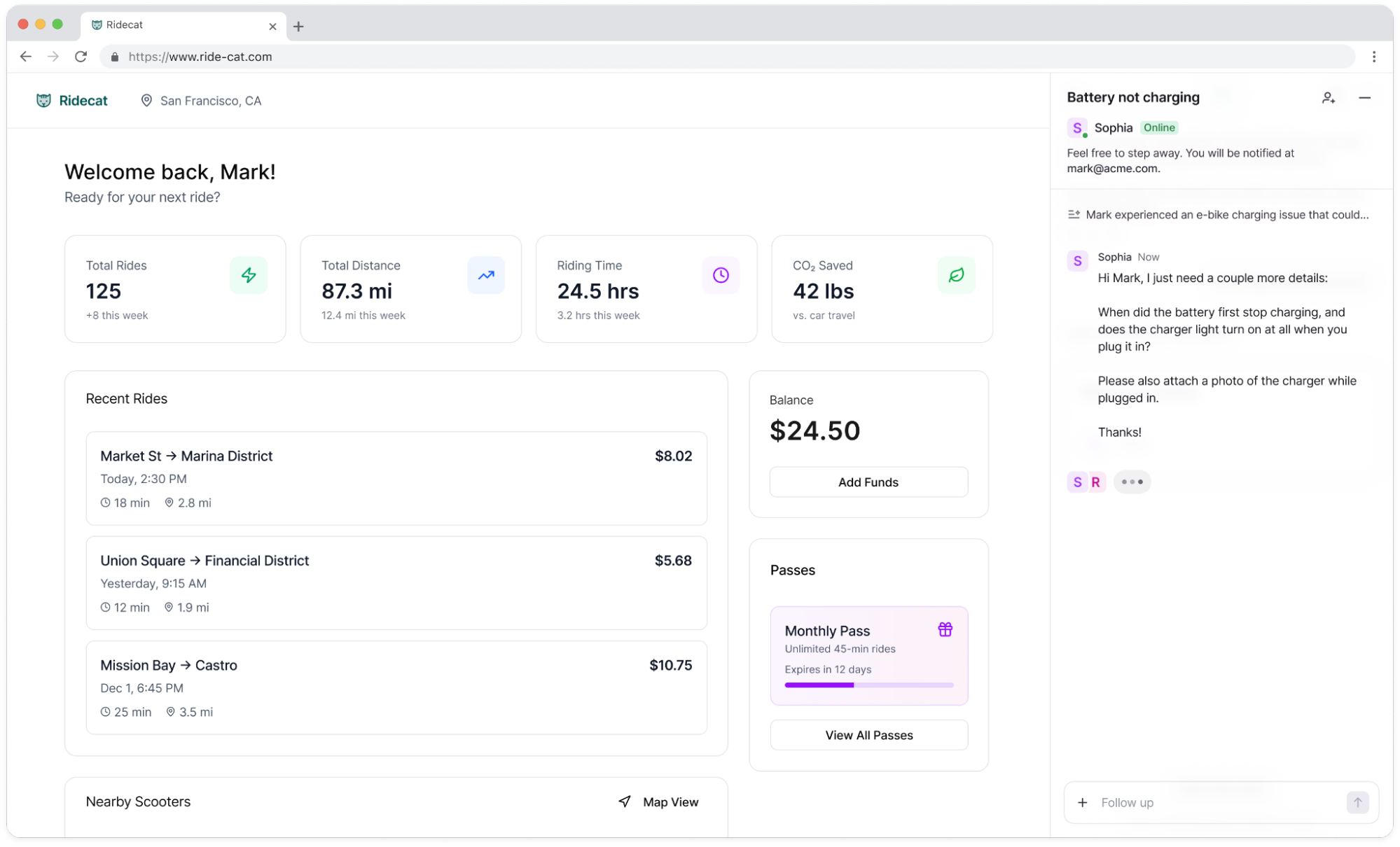
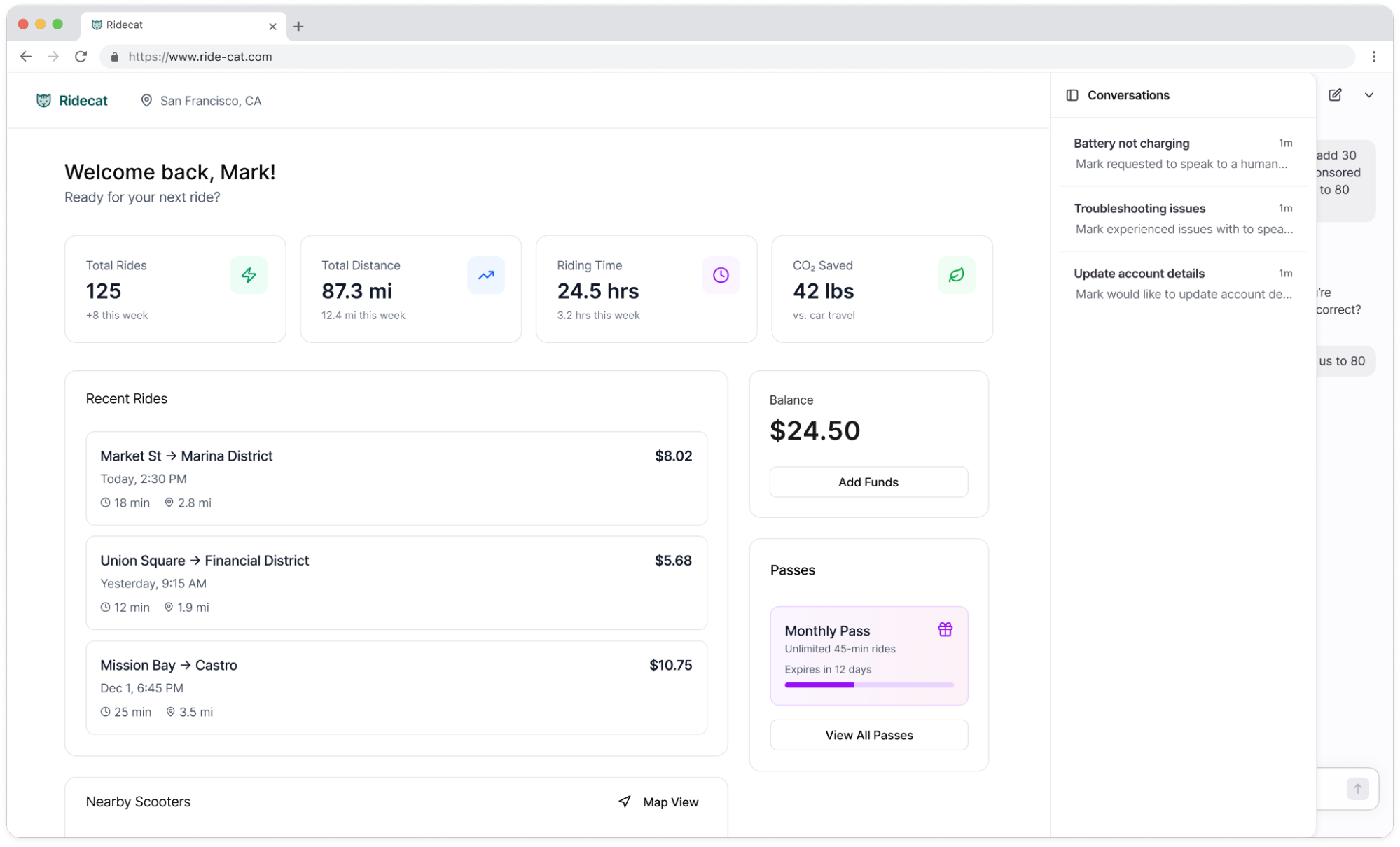
Conversation history
Users can view any previous conversations in the conversation list. An AI-generated summary of each conversation will be displayed in the panel, and users can click a conversation to view the full thread.
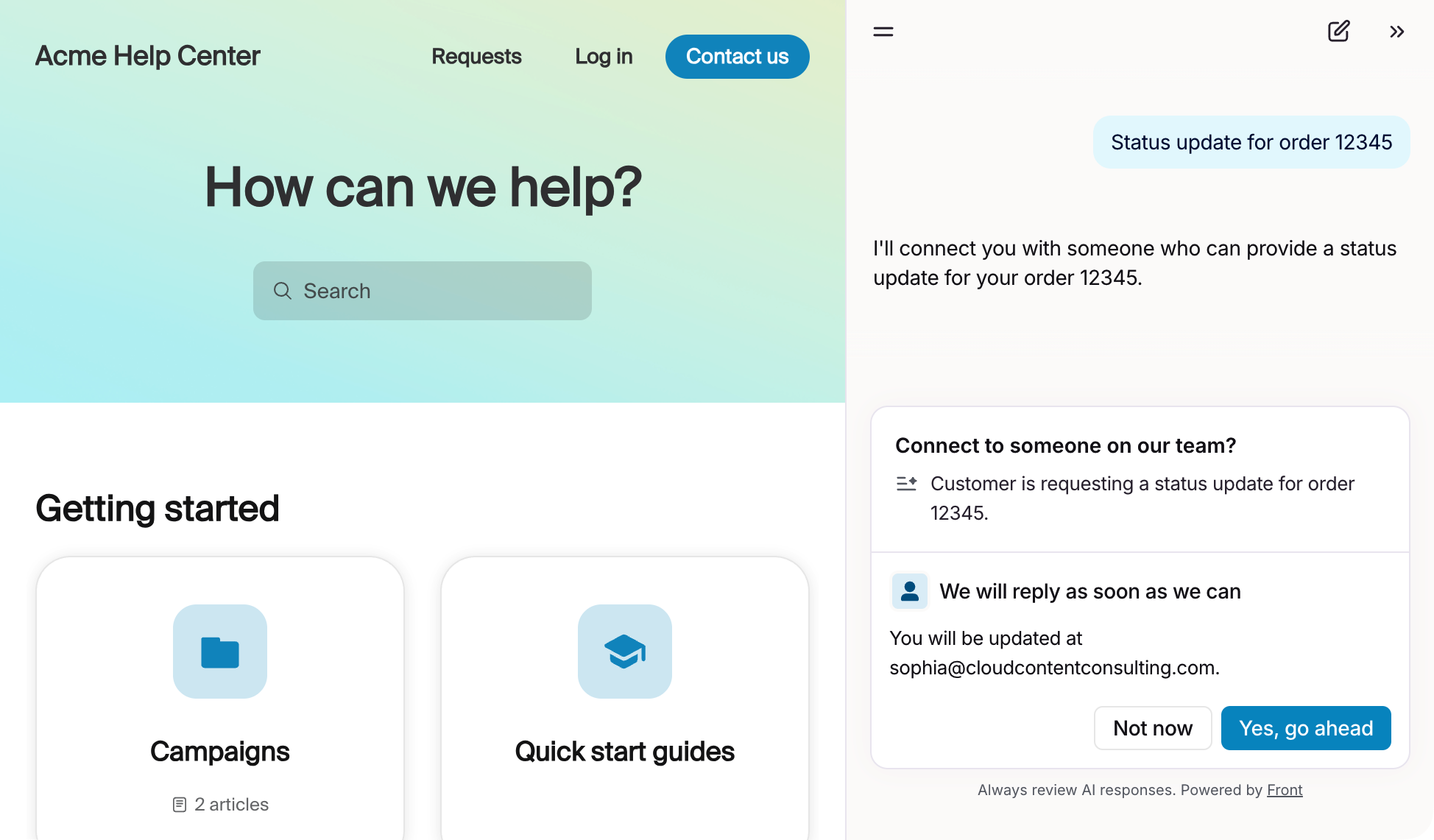
Customer escalation
If customers ask to speak with a human, a Playbook escalation occurs, the AI agent's own instructions call for escalation, AI is unable to answer the customer’s questions, or a Playbook encounters a technical error, they can submit their email address and Resolve will automatically create a follow up ticket with a summary of the conversation so far.
Customers will receive a notification email with a 6-digit code during the verification process. Once verified, customers only need to re-verify once every 7 days. If auto-verification is enabled, customers who are already signed in to your app can be recognized automatically and may not need to complete the email verification step.
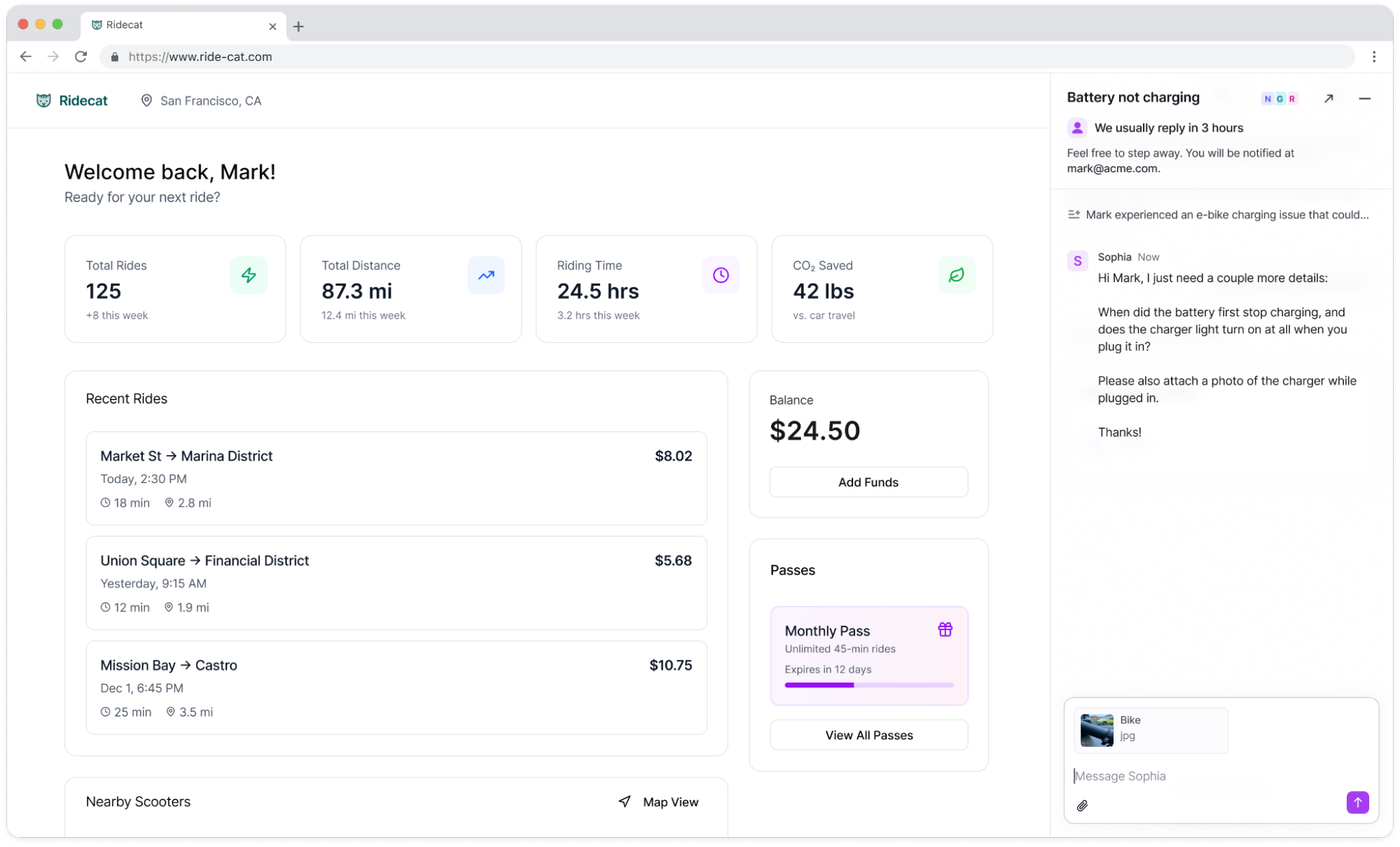
Attachments
For escalated conversations, users can add attachments by clicking the paper clip icon in the composer.
Teammate experience
When a customer starts an AI interaction, a conversation is created in the shared inbox. Until Resolve hands the conversation off to a human teammate, the conversation won’t be available for interaction, including replying, and inbox rules won’t apply. Once the handoff occurs, the conversation will follow any assignment or routing rules configured for the inbox.
When chatting with an anonymous chat visitor, Front will auto-generate a name using a random color and animal string. e.g. Purple panda. Once a customer is verified and Front identifies them as a contact, the customer will display as the sender.
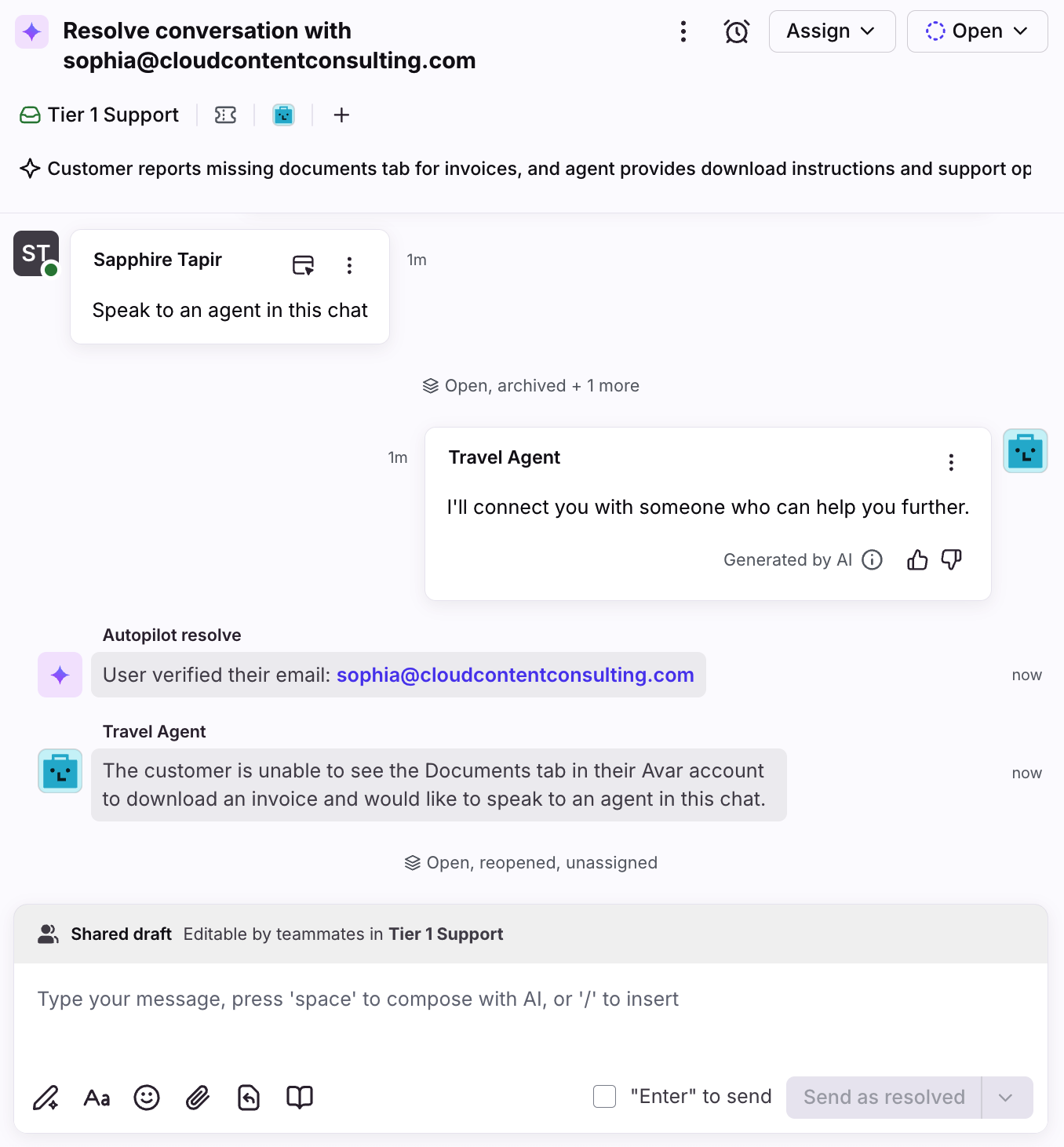
Agents can reply directly to the customer, add internal comments, and use other Front features just like any other conversation.
Escalation logic
The following events will trigger an escalation:
Customer asks for a human teammate or escalation
Customer expressed dissatisfaction
Instructions defined for AI agent
Playbook defines handoff, including when Playbook encounters a technical error
Admin setup: Create a Resolve channel
Step 1
Click the gear icon, navigate to workspace settings, then select Channels in the left sidebar.
Step 2
Select Autopilot Resolve from the channel list, then click Connect channel.
Step 3
Enter a name for your channel, then select the inbox you want conversations to route to. We highly recommend creating a brand new inbox and checking the box for Enable Front AI.
Step 4
Click Create to finish creating your new channel. You’ll automatically be navigated to your channel settings to continue the configuration. Each tab is described below.
Settings: Build
Use the Build tab in channel settings to manage the information AI can use to respond to your customers, reply time indicators, email notifications, and more.
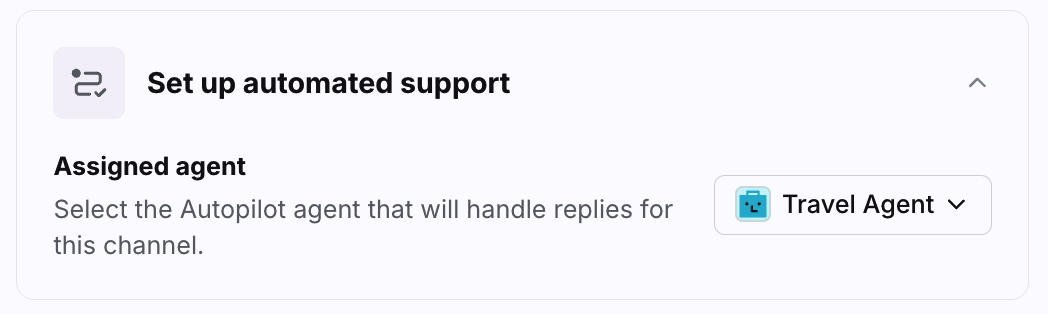
AI agent
Select an Autopilot agent to give customers accurate responses. For best results, configure it with both knowledge sources and Playbooks.
Knowledge sources: Used to answer FAQ-type questions. e.g., How to change a reservation time.
Playbooks: Used to define what to do in specific scenarios. e.g., Escalate to an agent when the customer requests a refund.
Show teammate online status
When toggled on, customers will see when your teammates are online when they open the chat experience.
Show email follow-up notice
When toggled on, customers will see a notice explaining they will be notified by email so they don’t have to wait for a response in the widget.
Set reply expectations
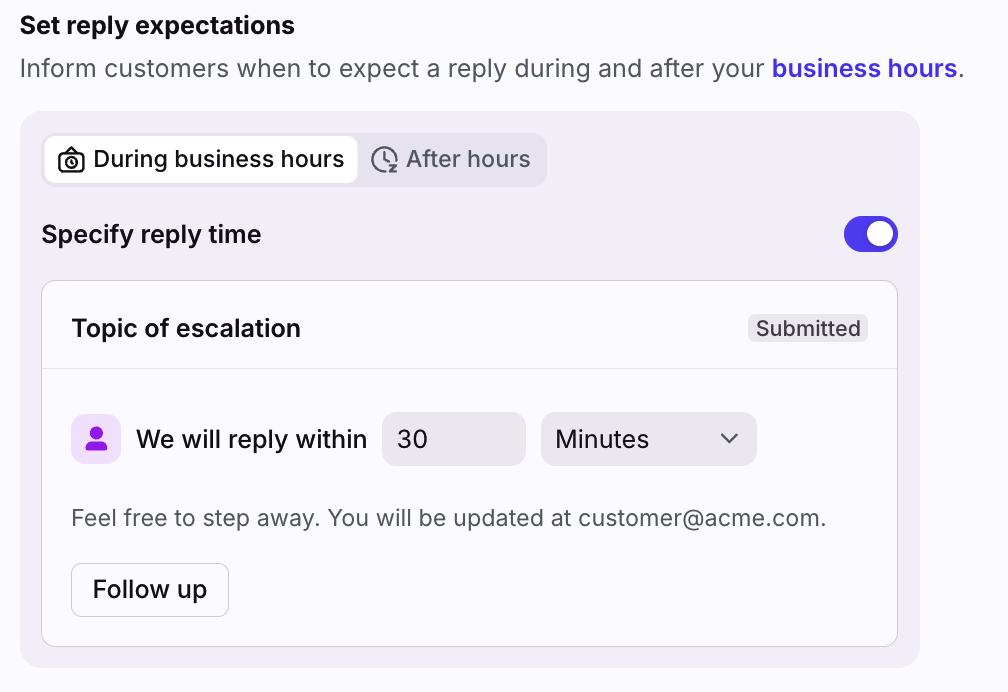
Use the Set reply expectations setting to configure the message customers see after they trigger an escalation. This lets customers know when they can expect a reply from a human during business hours and offline hours.
Toggled off: Customers will see a general “We will reply as soon as we can” message.
Toggled on:
During business hours: Select the reply time you’d like customers to see.
After hours: Displays the next business hours start time
Show visitor-facing ticket status
When toggled on, customers can see the custom ticket status applied to their conversation.
Display as email thread
When toggled on, teammates will see escalated conversations as an email thread instead of chat bubbles.
Send notifications from
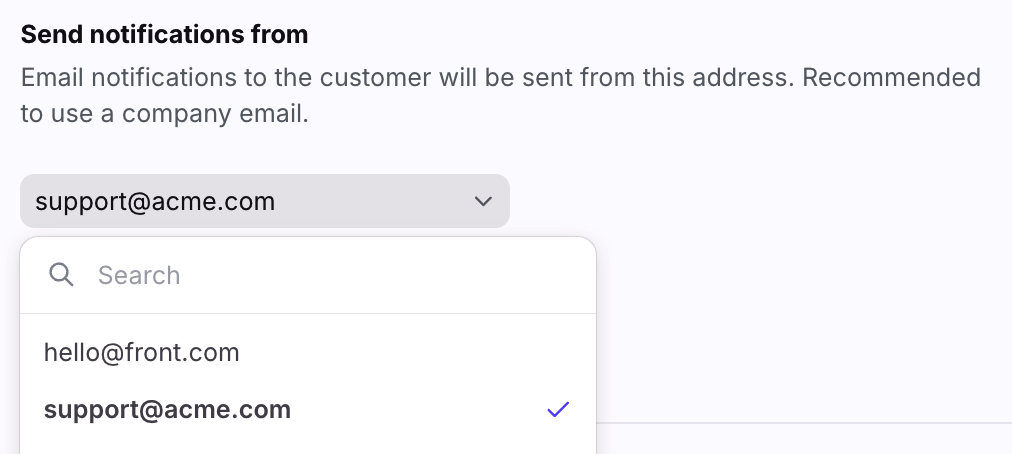
Select the email address customers see when they receive notification emails from Resolve. By default, hello@front.com is selected. We highly recommend selecting one of your own email addresses in this setting. For the best experience, we recommend using an address on a notification-oriented domain (for example, notifications@yourcompany.com) rather than a personal inbox. Customer replies to notification emails aren’t supported and won’t be added to the associated conversation. Additionally, when a user is invited to a conversation, they will not receive notifications until they have been authenticated.
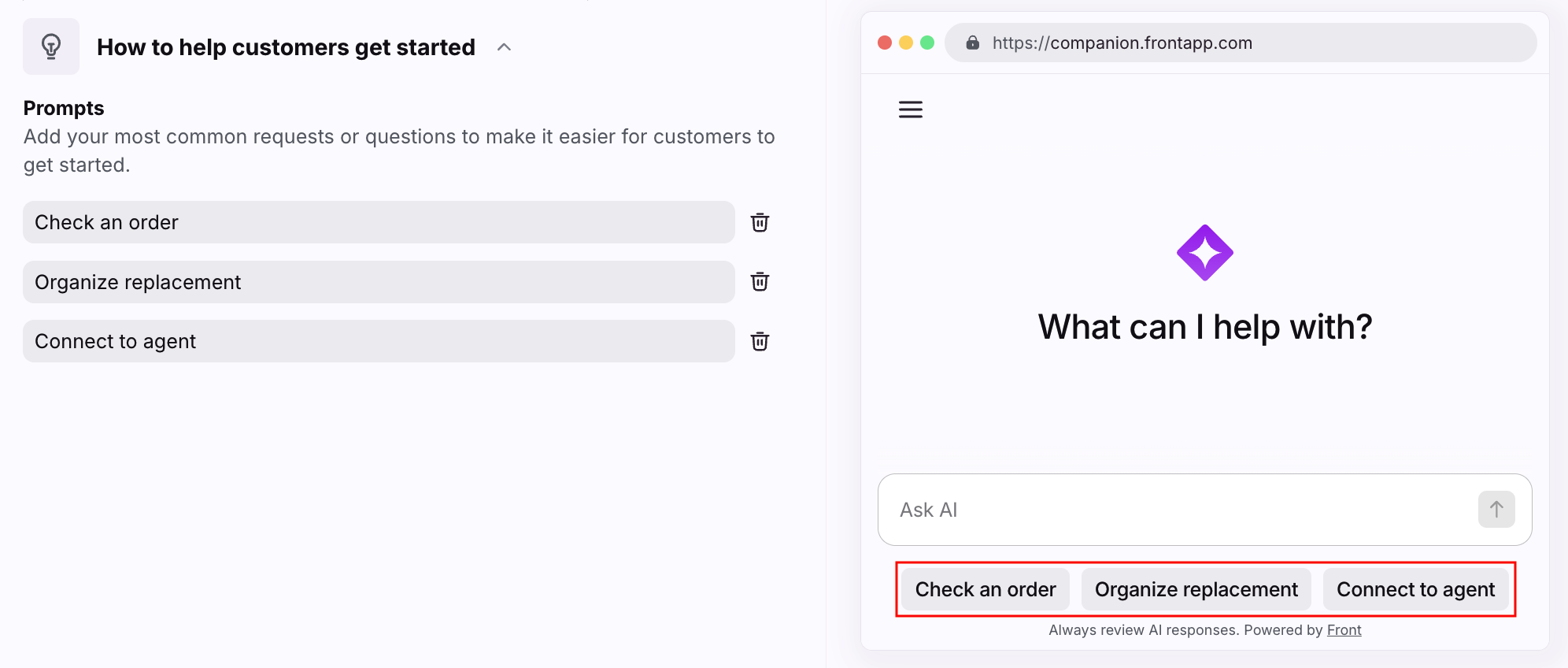
Prompts
Add conversation starters for your most common requests or questions to make it easier for customers to get started.
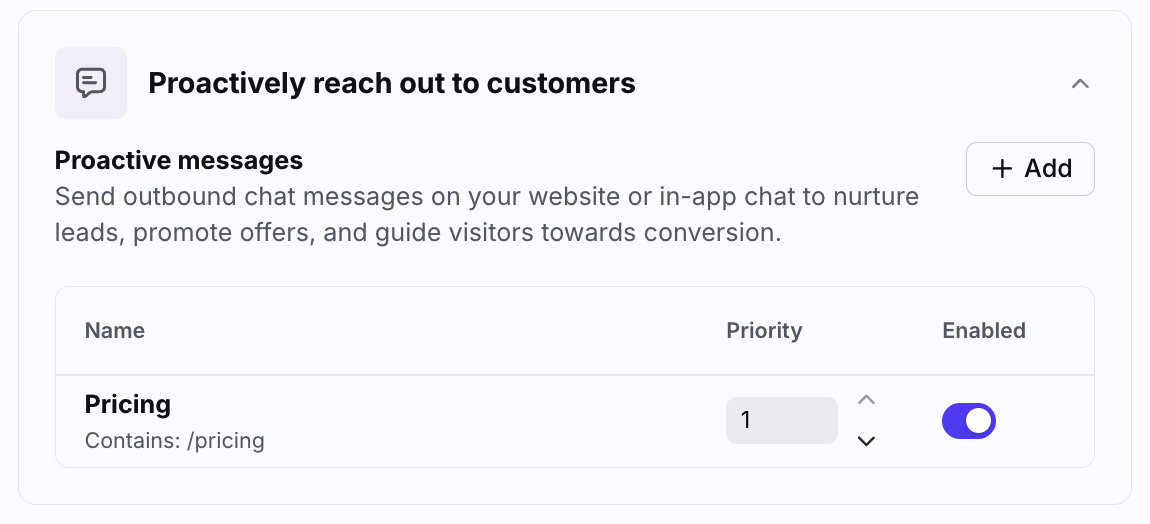
Proactive messages
Set up outbound chat messages on your website to boost engagement and help customers quickly start conversations with your team.
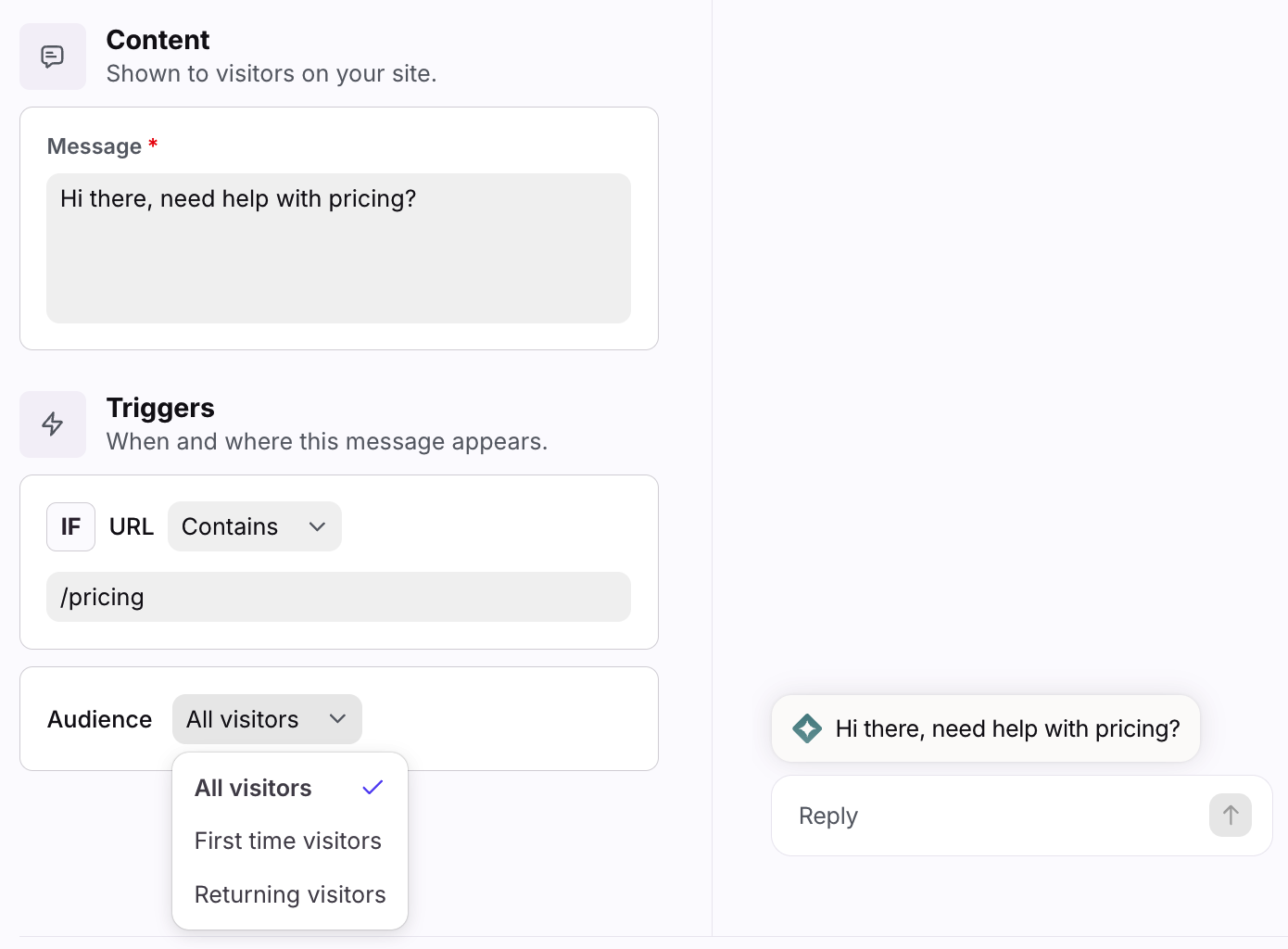
When adding proactive messages, you can configure the message customers see, the website URL they see it on, and who you want to display the message to. Rich text is supported.
Settings: Customize
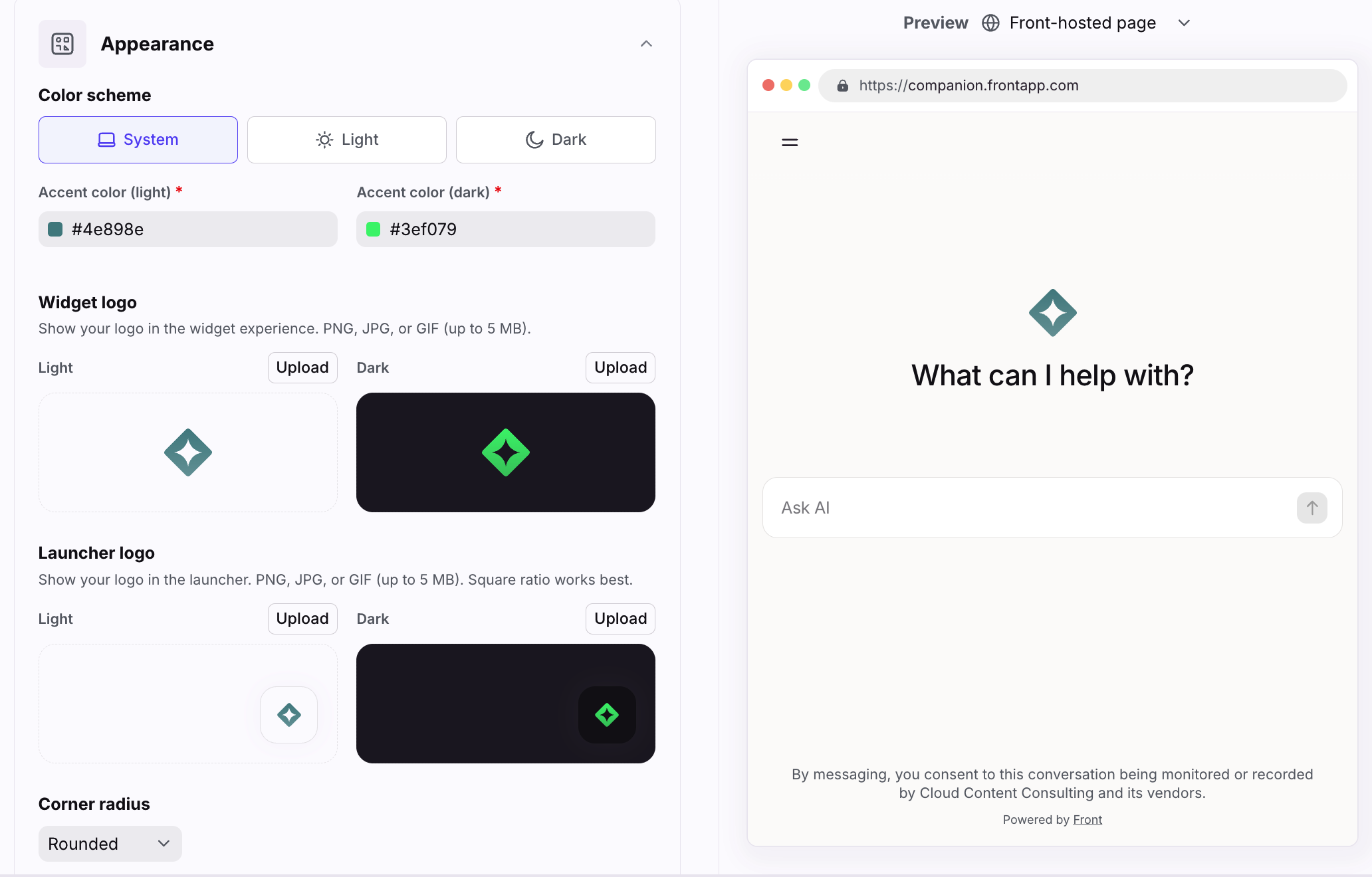
Use the Customize tab in channel settings to personalize the look and feel of your Autopilot Resolve experience. You’ll see some of your changes in the preview on the right.
Appearance
Select the color scheme for the page/widget, enter hex codes for the accent colors Front will use to create a theme, upload logos, and select how you want the text area to look.
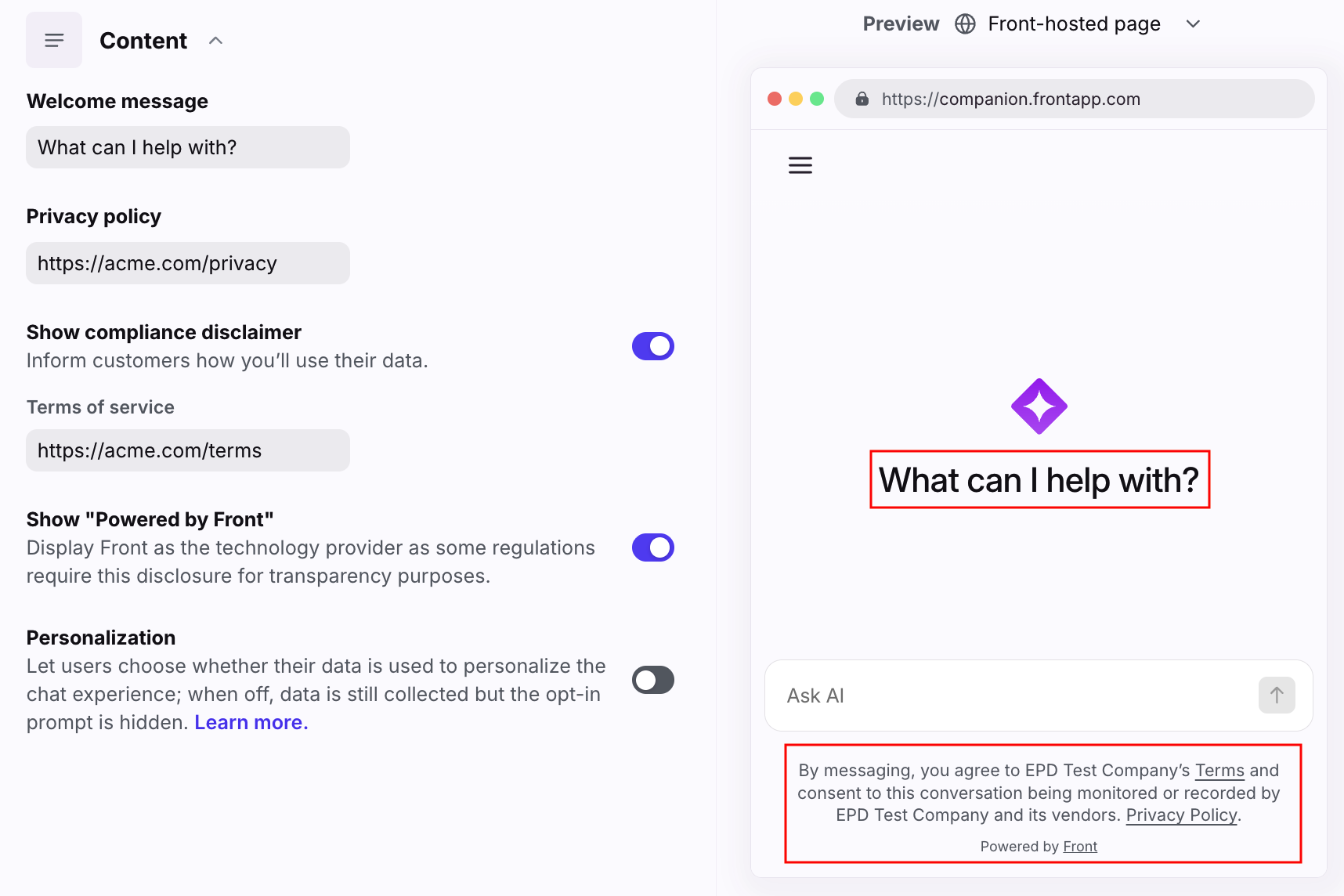
Content
Edit the public-facing welcome message, and decide whether you want to display a compliance disclaimer or Front branding.
See our developer documentation to learn more about the Personalization setting to automatically collect basic and custom events. e.g. current URL path, locale, browser type, etc.
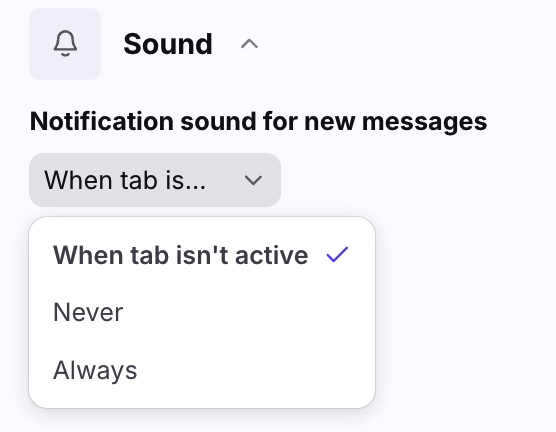
Sound
Select whether you’d like customers to hear a notification sound when they receive new messages.
Settings: Deploy
Use the Deploy tab in channel settings to access the information needed to embed Autopilot Resolve into your web pages.
💡 Tip 1: We recommend visiting the Front-hosted page URL to test the Resolve experience before going live with customers.
💡 Tip 2: If you need more control over how you embed Autopilot Resolve into your web pages, use the Autopilot Resolve SDK available on our Developer Portal.
Front-hosted page
To deploy Resolve as a standalone, full-page experience, copy the URL and embed it in your web pages.
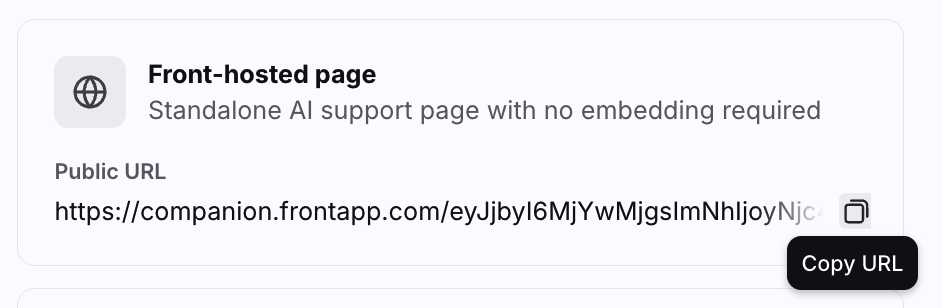
When you ask Resolve questions using the URL, you can test how Autopilot handles questions and review the conversations created in your Front inboxes.
The built-in Preview feature on the right-hand side in channel settings doesn’t currently support back-and-forth conversations with AI. However, this is on the roadmap for a future release.
Once you’re confident in the Resolve experience, you can link it into the pages where you want customers to receive support.
Widgets
To embed Resolve as a widget in your web pages, click the Sidebar widget or Floating widget settings to view and copy the widget code snippet. Paste this code into your website editor.
Widgets must be embedded on https websites. Local file:// environments are not supported.
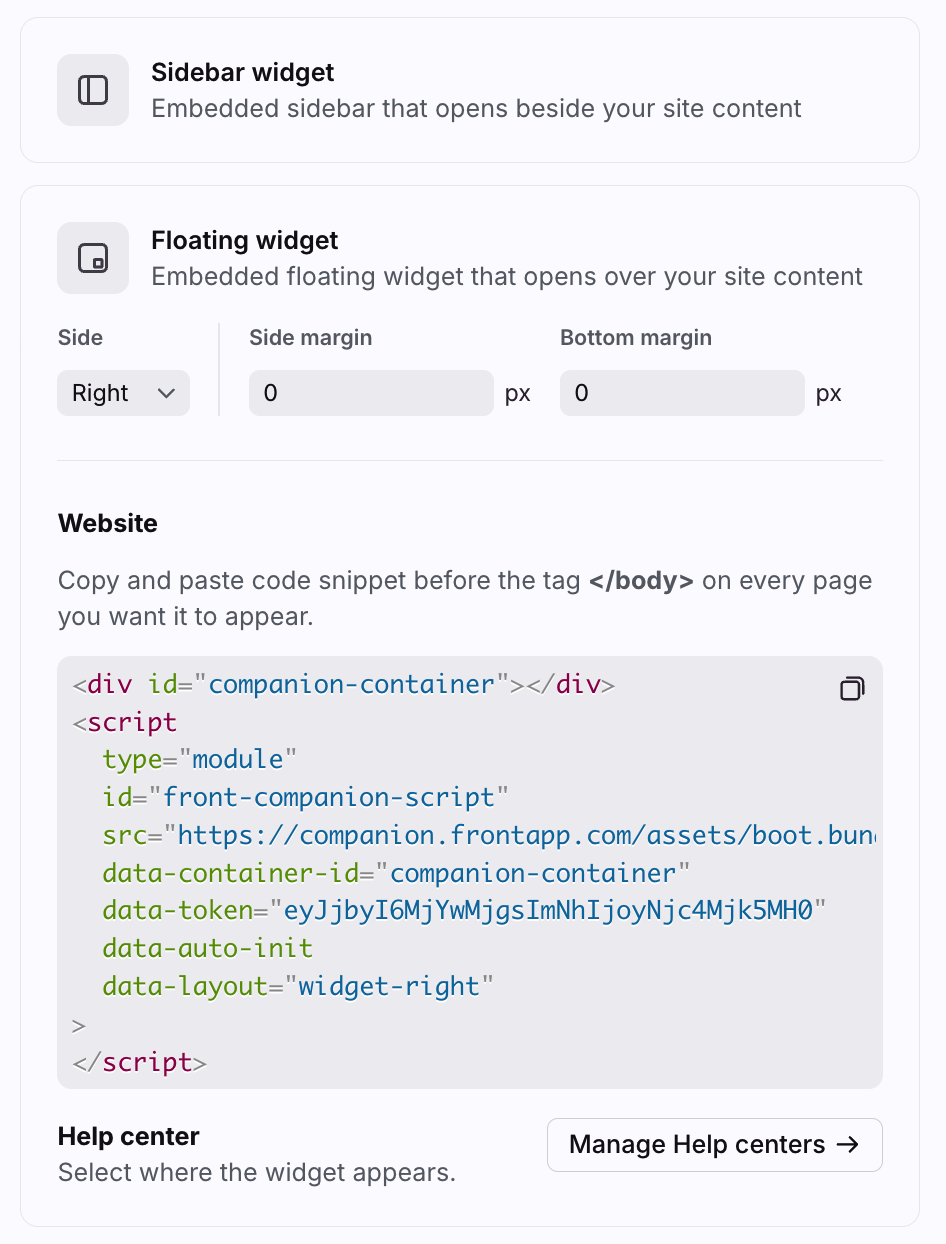
The following table provides information about the initialization attributes you can add to the script. If you need further control over the widget, use the Autopilot Resolve SDK as described in our Developer Portal.
Attribute | Required | Description |
data-auto-init | Yes | Enables automatic initialization on page load |
data-container-id | Yes | ID of the DOM element to mount the iframe into |
data-token | Yes | Your companion token from Front admin settings |
data-layout | Yes | Layout preset (see Developer Portal) |
data-launcher | No | default (show launcher) or none (hidden until show() is called) |
data-side-margin | No | Side margin, e.g. 24px (max 100px) |
data-bottom-margin | No | Bottom margin, e.g. 24px (max 100px) |
data-user-jwt | No | JWT for auto-verification of logged-in users (see Developer Portal) |
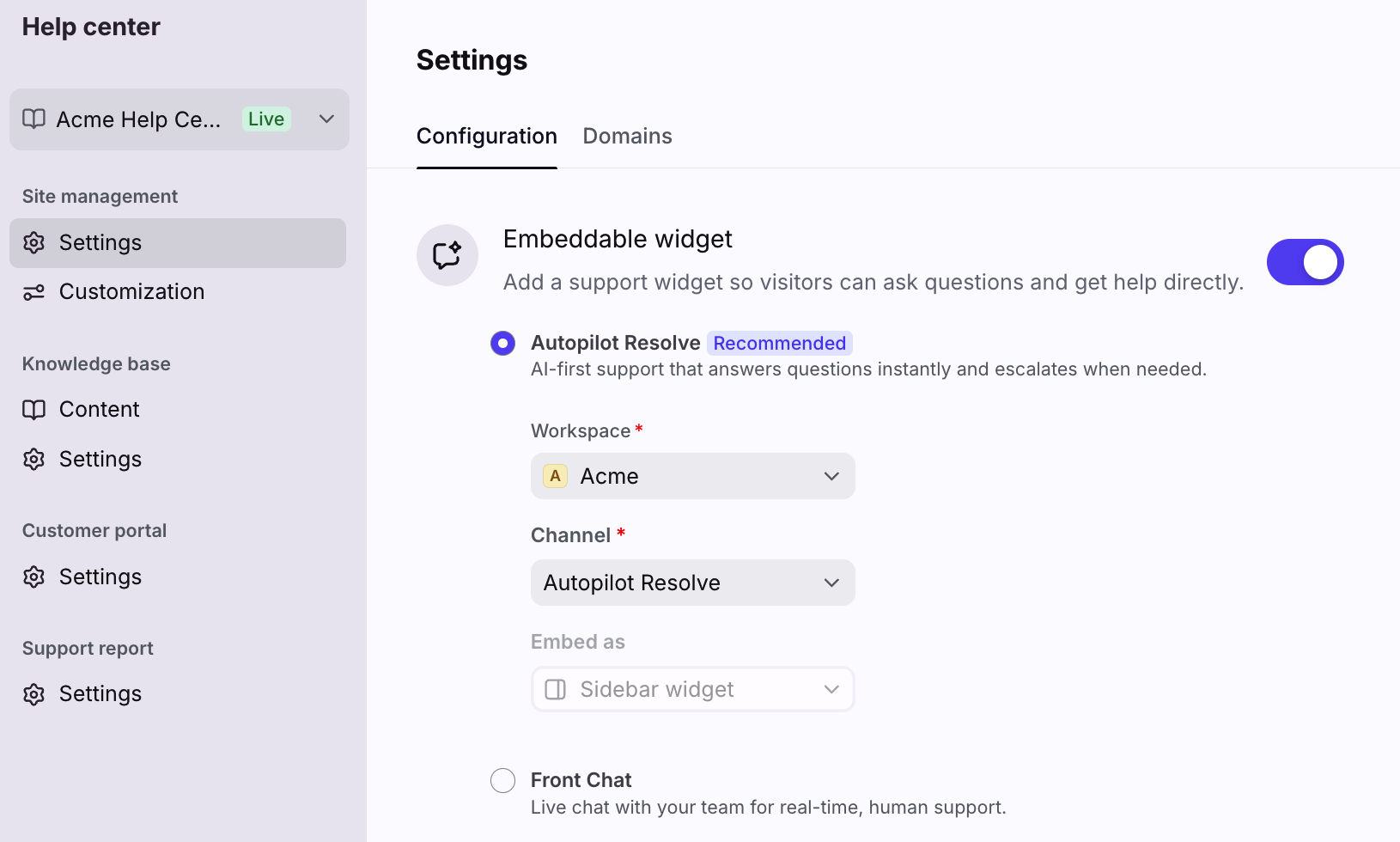
To add the sidebar widget to a Front help center, click Manage Help centers, then navigate to the Settings tab under Site management. Toggle on the Embeddable widget setting, select Autopilot Resolve, then select the Autopilot Resolve channel you’ve configured. Click Save to finish.
Auto-verification
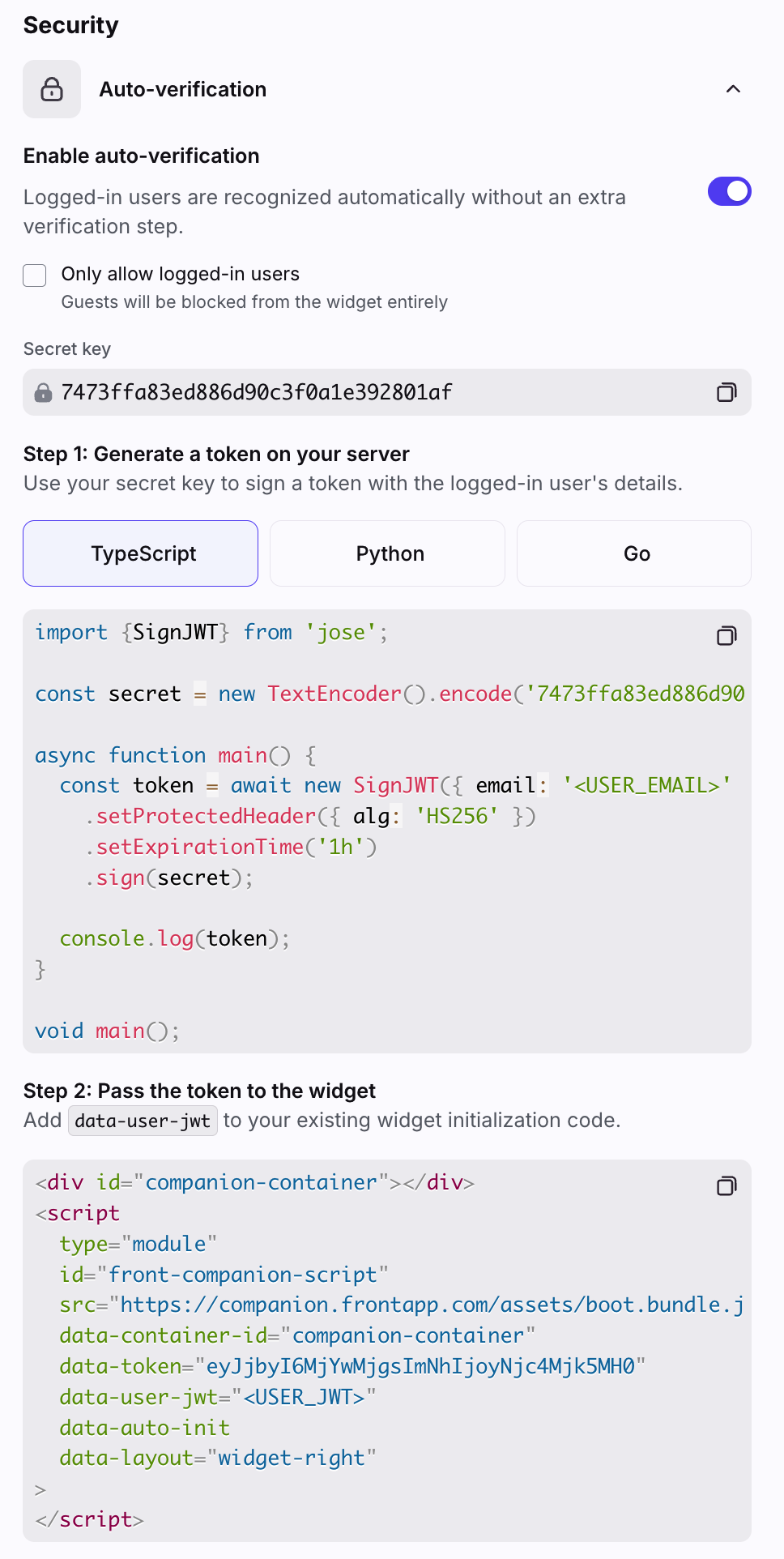
Auto-verification allows you to connect the widget to your existing login system so customers who are already signed in to your app are automatically recognized when they open the widget. If the customer is already logged in, Resolve can verify their identity using a secure token, so no additional email verification step is required in the widget experience.
When auto-verification is enabled, your server signs each user’s identity with a secret key so Resolve can verify that they are who they claim to be.
Settings: Analytics
See this article to learn more about Autopilot Resolve analytics.
Settings: Routing
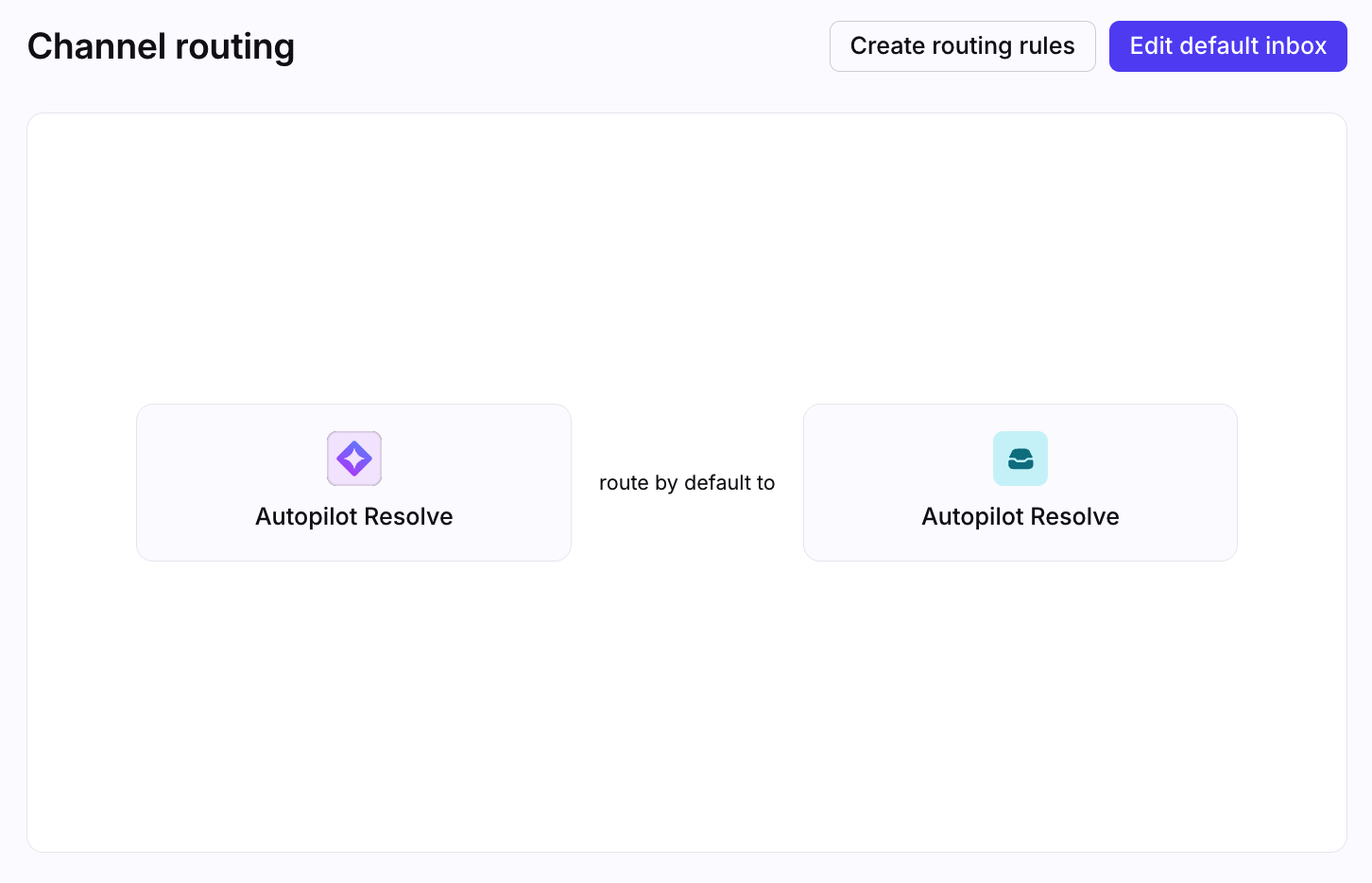
Use the Routing tab to change the default inbox you previously selected, or create rules to automate additional workflows for your channel. See this article to learn more about inbox settings.
Settings: Channel settings
Use the Settings tab to configure additional channel settings:
Internal label for the channel
FAQ
Is Resolve part of Autopilot?
Yes. The Autopilot Resolve channel is part of the Autopilot add-on.
Which languages are supported?
Only English is officially supported at this time. While it is possible to use this feature with other languages, unexpected results may occur. In general, Front AI will respond to a single inbound message in the same language. However if multiple languages are used at any point in the conversation messages there's no guarantee that it'll make the language choice a human would. Our AI vendors support 40+ common languages.
Which file types are supported?
Each message has a 25 MB limit. You can send and receive the following file types: .csv, .gif, .jpg, .json, .mov, .mp3, .mp4, .pdf, .png, .txt, .wav, .xlsx, .xml
What if I’m currently using Front Chat or AI Answers?
If you’d like to use the AI functionality available in Autopilot Resolve, you must purchase the Autopilot add-on and create and configure a new Autopilot Resolve channel in your workspace settings. You can easily migrate from Front Chat, as Resolve includes the same online indicators and flexible time goal (SLA) settings. However, migrating directly from AI Answers is not currently supported.
What happens when a conversation between a customer and Resolve doesn’t get escalated to a teammate?
Conversations handled by Resolve move through inbox statuses on their own, so no manual triage is needed.
While Autopilot is handling a conversation, the conversation moves to Waiting
While Autopilot is actively generating a response, the conversation will be be in the Open status
Once the conversation is resolved, it moves to the Resolved status
If the conversation is escalated to a human, the conversation moves back to Open
Can we force escalation for certain topics (e.g. billing, security)?
Yes. You can configure guardrails in AI agent instructions so that sensitive or complex topics are automatically escalated to a human teammate.
Can I connect multiple AI agents to a single Resolve channel?
No. You can only connect a single AI agent to your Resolve channel at this time.
Can I connect an external agent to a Resolve channel?
No. You can only select an Autopilot AI agent to your Resolve channel at this time.
Can Resolve use the information on the page it’s embedded in to inform AI?
Not through the settings at this time. However, developers can pass custom code snippets through the widget embed code for use in Playbooks today. Broader support for using page context directly in the settings is planned for a future update.
How do we prevent internal-only content from being used in customer-facing answers?
Only connect customer-facing content sources to Resolve, and keep internal documentation separate. We recommend using curated or approved collections to ensure only appropriate content is used in customer responses.
What happens to my data? Which providers does Front use?
See this article for additional AI FAQs.
Pricing
See the Autopilot article for more information.