
Autopilot Playbooks [legacy]
⚠️ These instructions refer to the legacy version of Autopilot. Customers creating Playbooks for the first time after Oct 6, 2026 use the new version of Playbooks here.
Overview
Use Autopilot Playbooks to automatically handle complex scenarios with guided logic and teammate handoff. Playbooks allow you to configure workflows using a mix of defined steps and natural language instructions to handle variability in customer responses effectively.
With Playbooks, you can:
Automatically handle back-and-forth conversations with customers, coordination with third-party systems, and documenting resolution progress on the conversation for internal teams
Dynamically navigate edge cases
Seamlessly hand off to teammates
Prerequisites
To manage Playbooks, you must be a Front company admin or have the Rules and macros - Create and edit permission.
You must have access to the Autopilot add-on and have been granted access to the Playbooks feature.
You must have shared inboxes selected in the Inboxes with Front AI enabled setting in the Front AI page in workspace settings.
How it works
A Playbook consists of four sections:
Steps let you describe your process using a mix of defined steps and natural language instructions.
Context explains when to run this Playbook and how to handle it.
Inboxes lets you choose where this Playbook can run.
Escalation configures what happens when handoffs are needed.
Once configured, you’ll see a Playbooks indicator in applicable conversations.
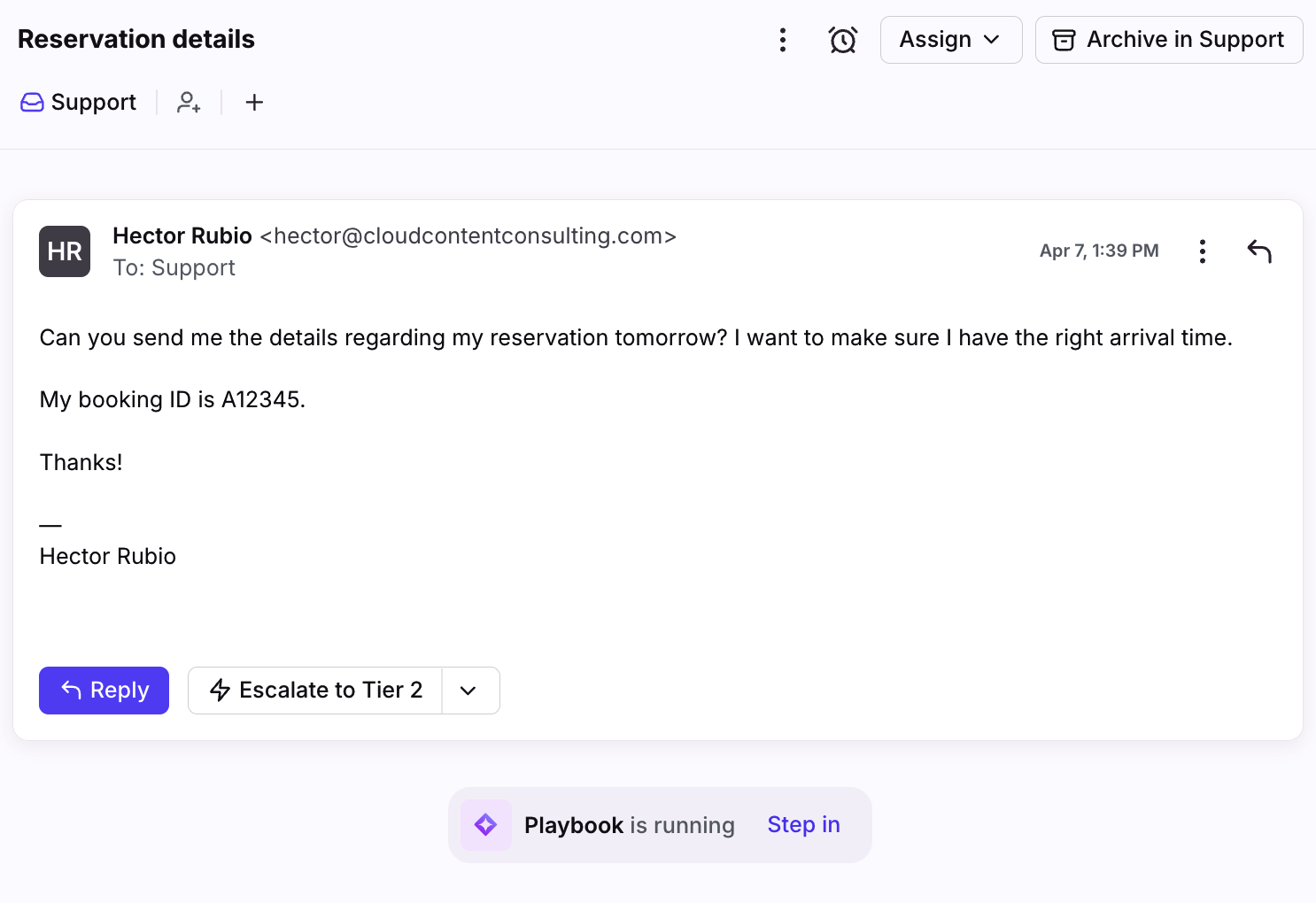
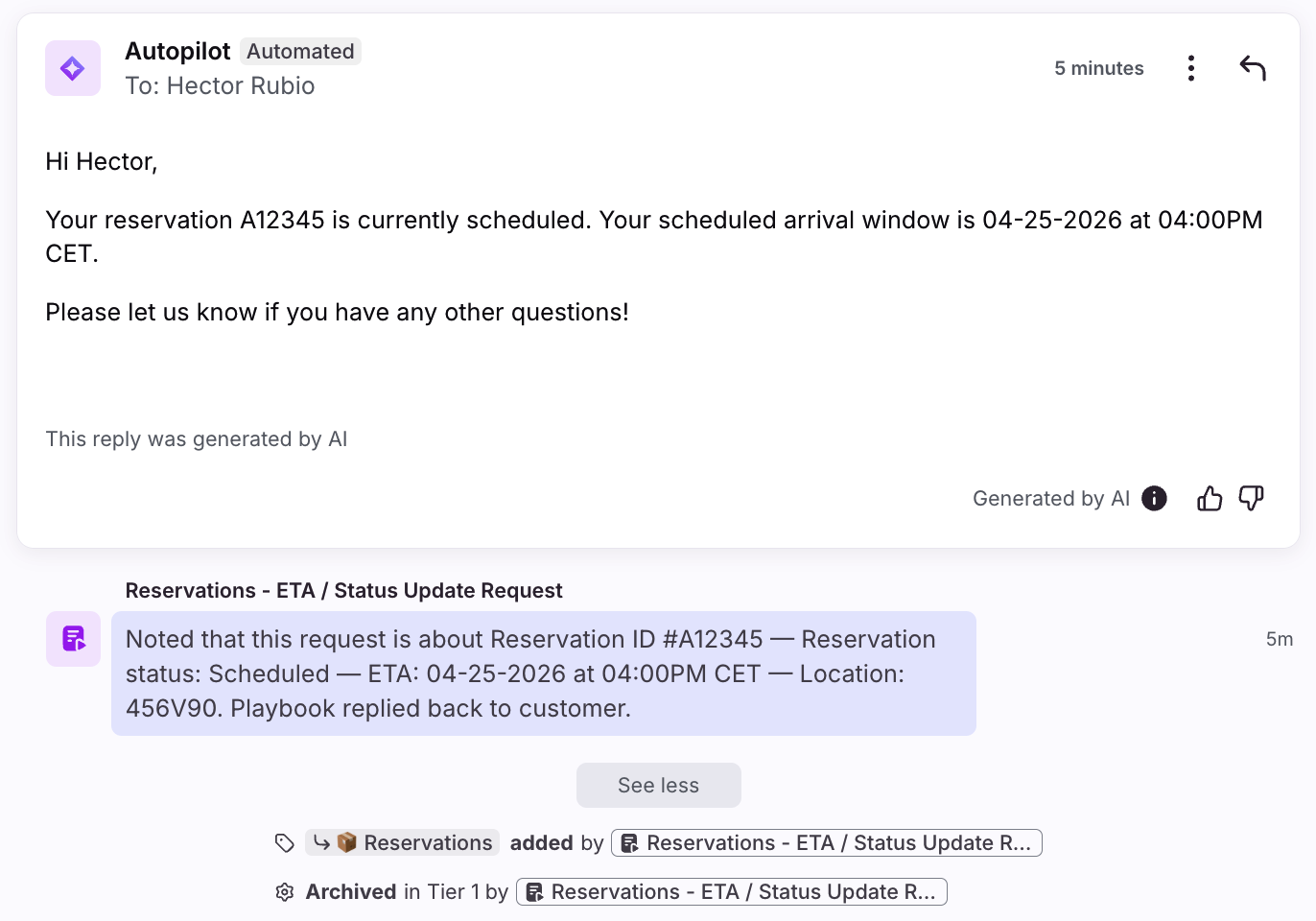
You’ll see actions the Playbook has taken in the conversation history and comments, depending on your configuration.
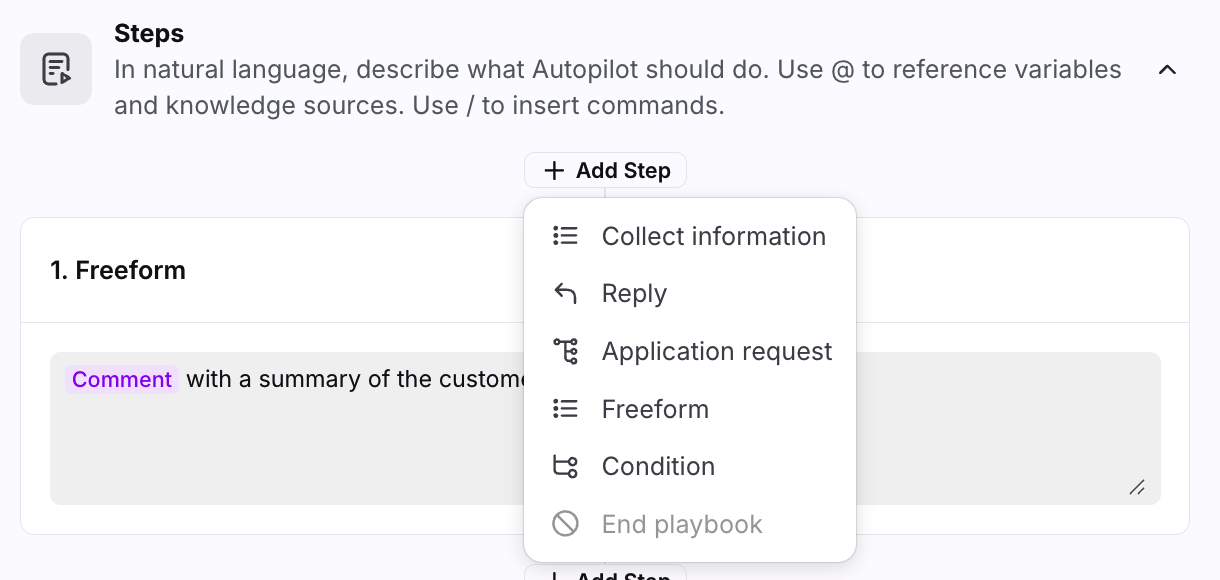
Playbook step types
Playbooks support different types of steps to build your automation workflow.
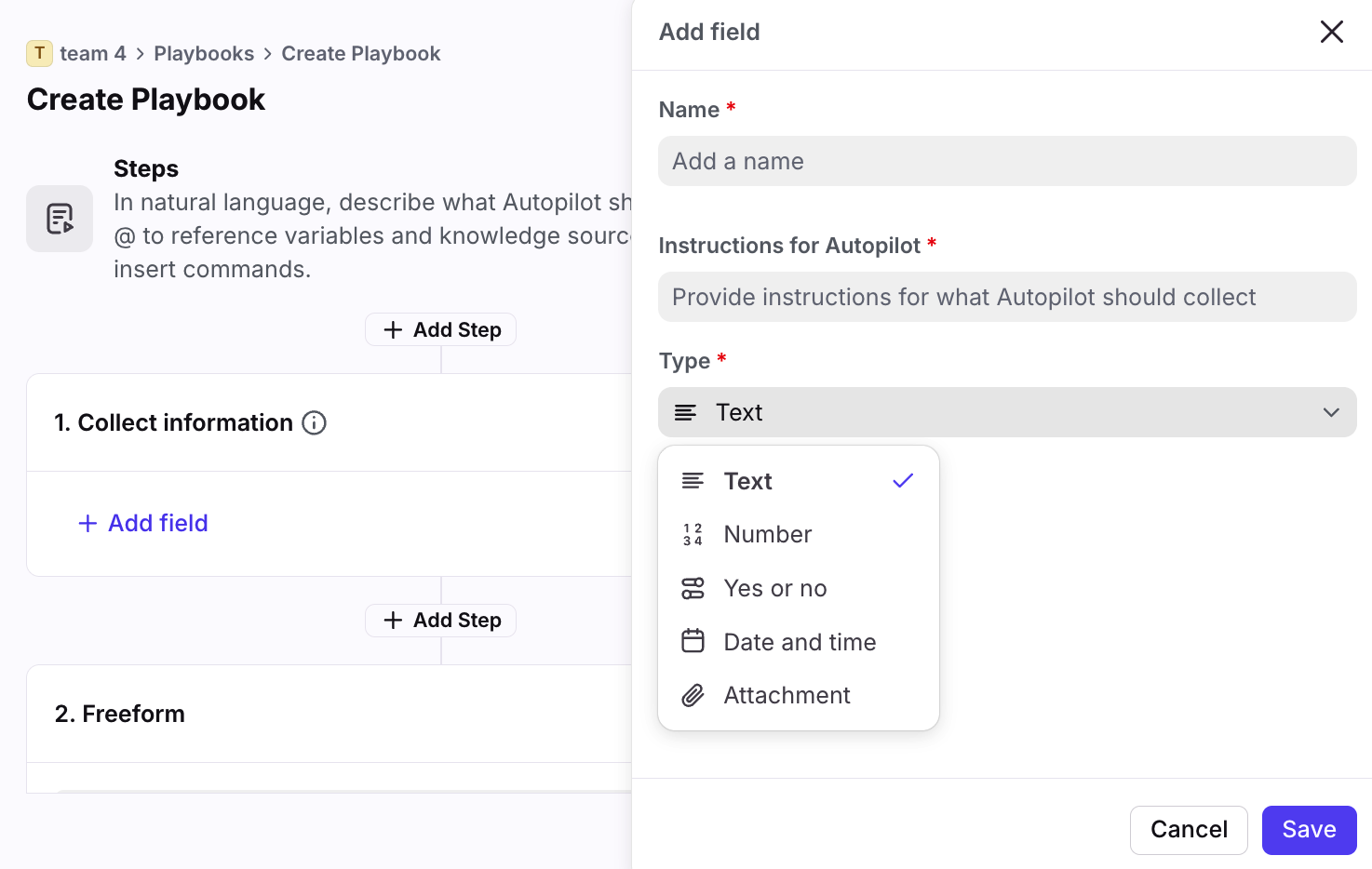
Collect information
Define specific data you want to collect from your customers. e.g., account ID, order number, email address, invoice in PDF format.
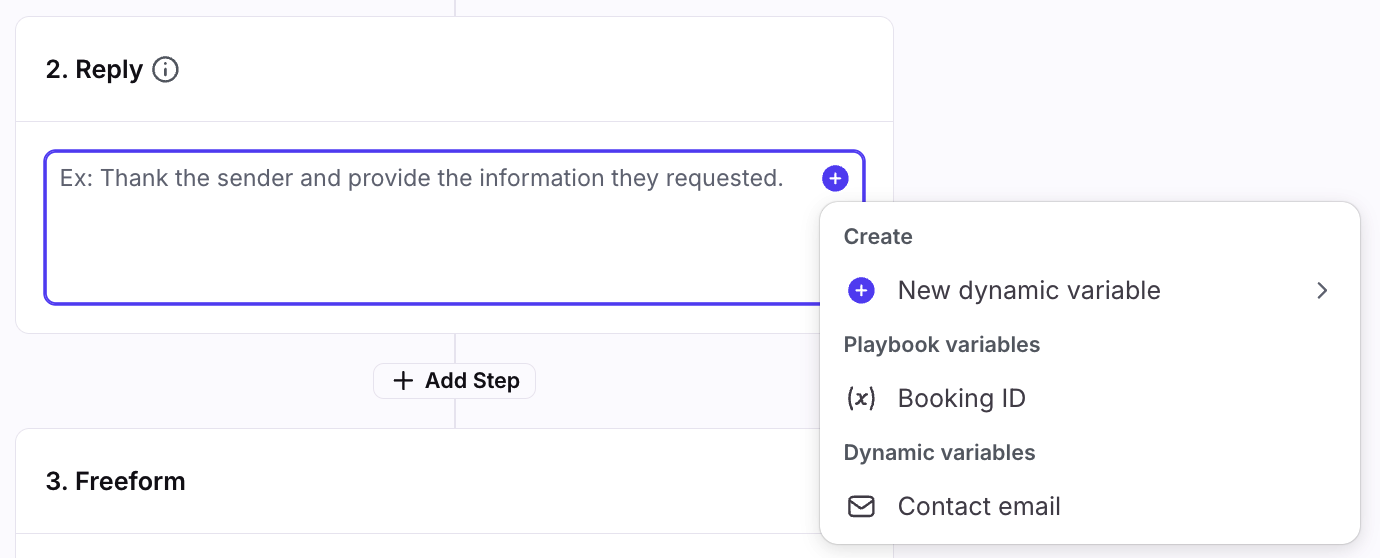
Reply
Provide instructions for how to reply to customers. You can include dynamic variables and reference previously collected information.
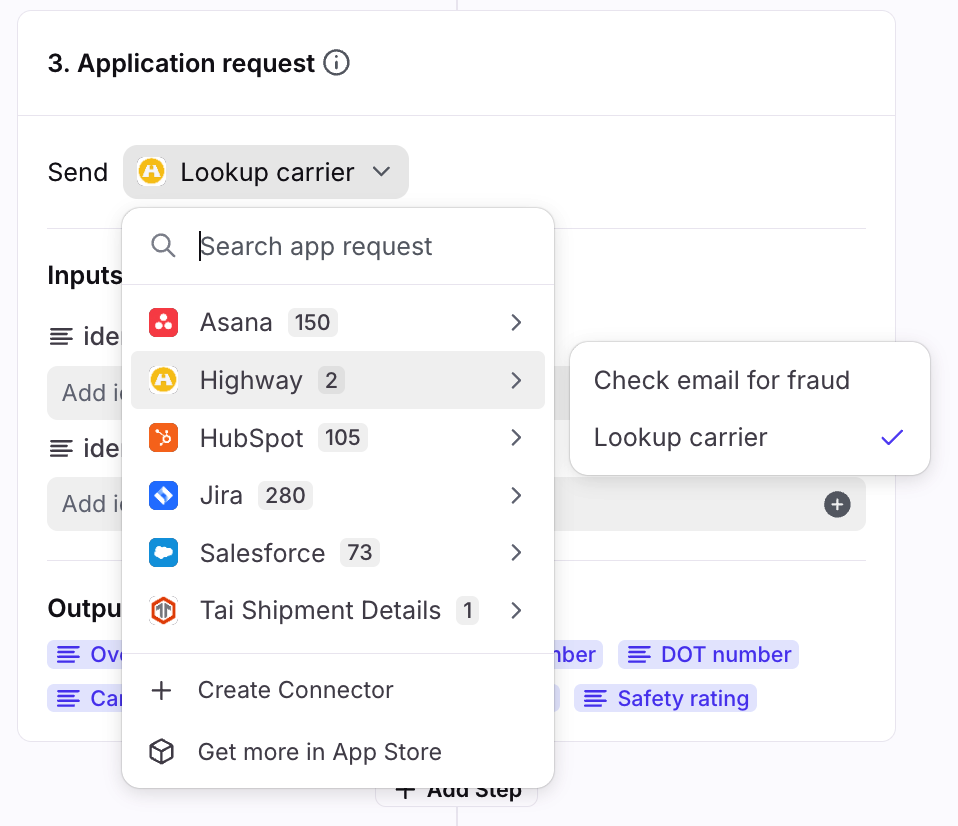
Application request
Send requests to APIs that you've configured in your developer settings to fetch or update data in external systems. See this article to learn more about application requests (Connectors).
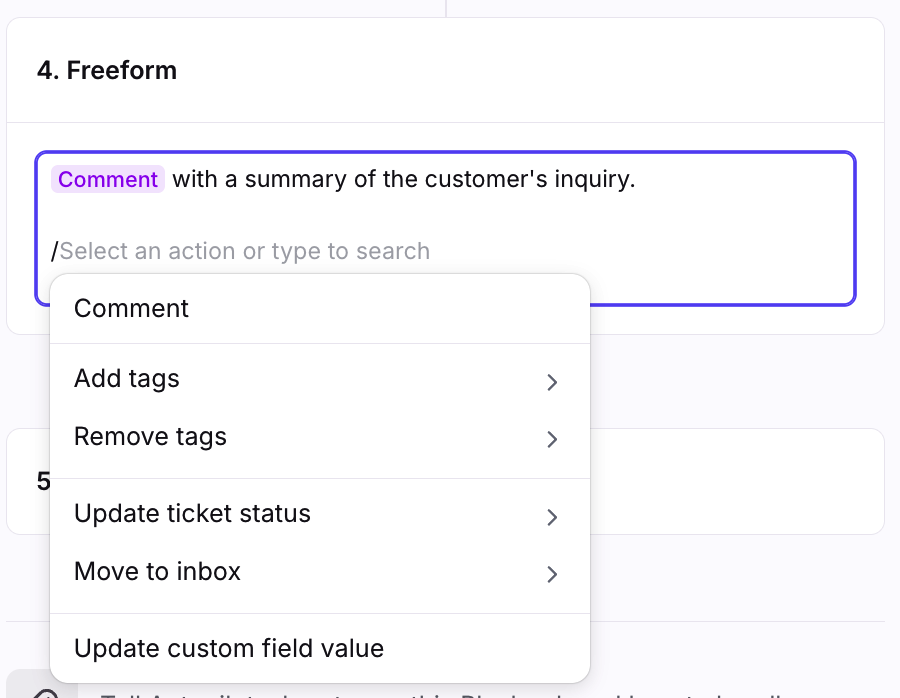
Freeform
Perform additional conversation actions like adding internal comments or moving conversations to different inboxes. Use the slash / key to add actions, @ to reference variables.
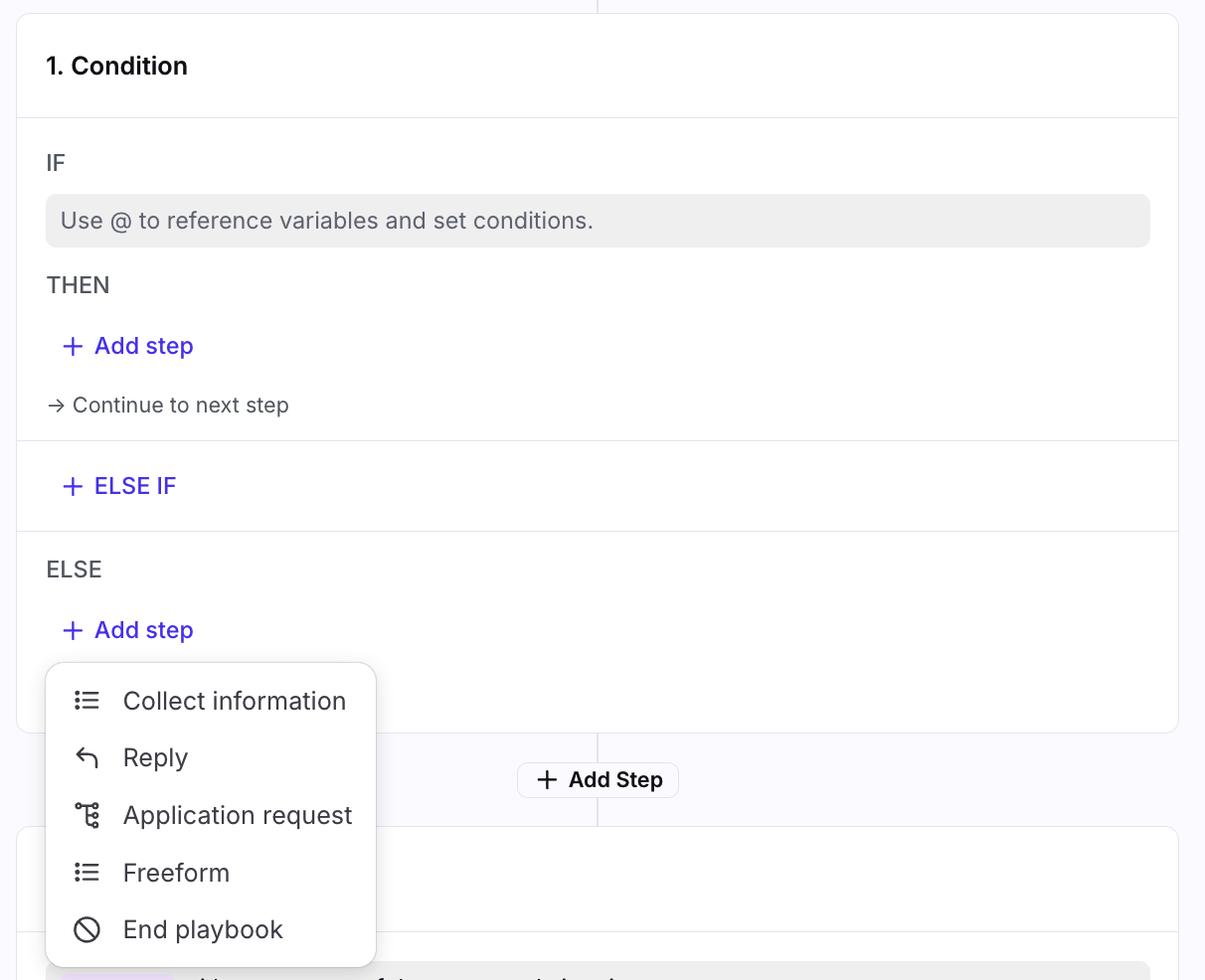
Condition
Write a conditional statement to run specific steps if true (multiple Then conditions available).
Section 1: Steps
Step 1
Click the gear icon, navigate to workspace settings, then select Playbooks in the sidebar.
Step 2
Click Create Playbook.
Step 3
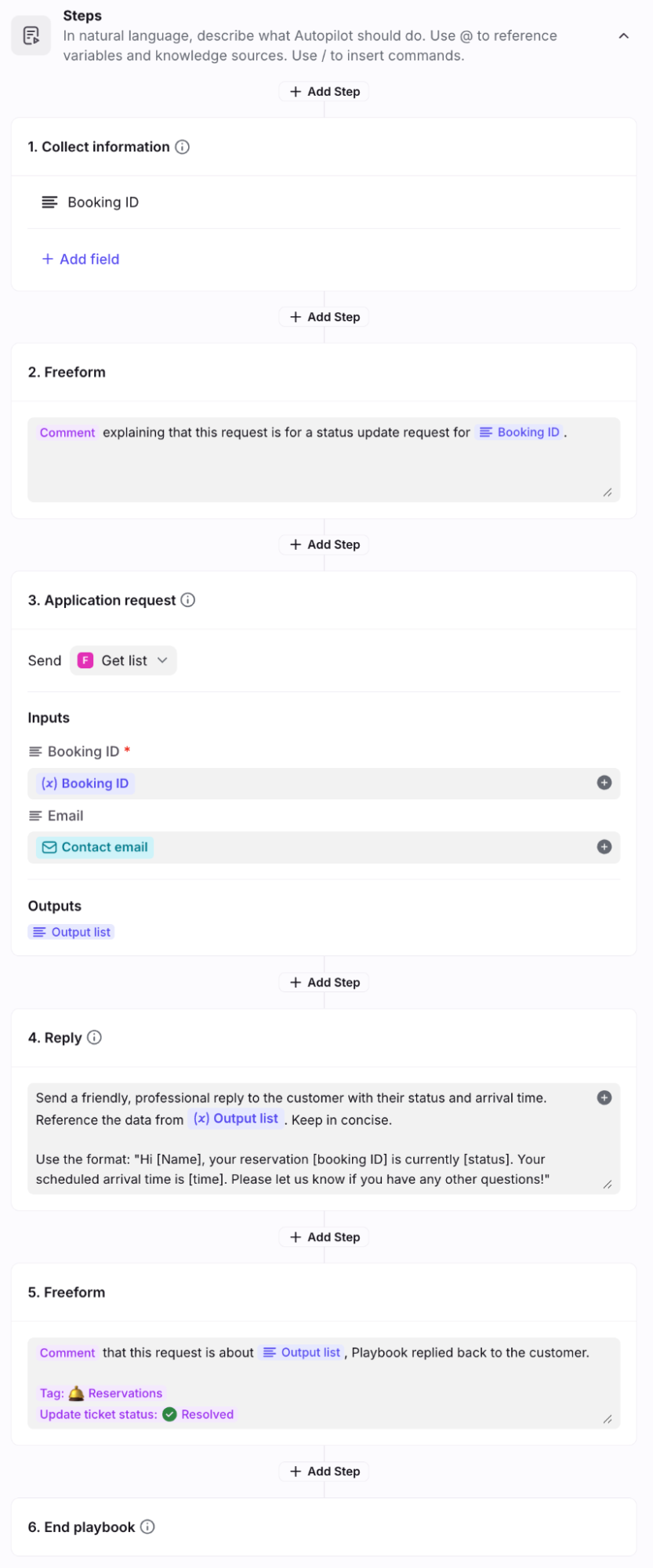
Configure the steps you want the Playbook to take when it is triggered.
In this example, when customers ask for an update regarding their booking information, we want our Playbook to automatically send customers a reply.
Step | Purpose |
Collect information: Booking ID | Fetch the booking ID to find the corresponding information in a third-party system. |
Freeform: Add a comment | Track and document actions taken so teammates who view the conversation have full context. |
Application request: Get list | Trigger an app request using the information collected to access data associated with the inputs. |
Reply: Generate a reply | Automatically send a reply using the information pulled from the app request, and format it using the guidelines described in the Playbook. |
Freeform: Add a comment, add a tag, update ticket status | Resolve the conversation by taking actions like: adding a comment to document the actions taken by the Playbook, adding a tag for analytics and tracking, and updating the ticket status to close out the request. |
Section 2: Context
Step 1
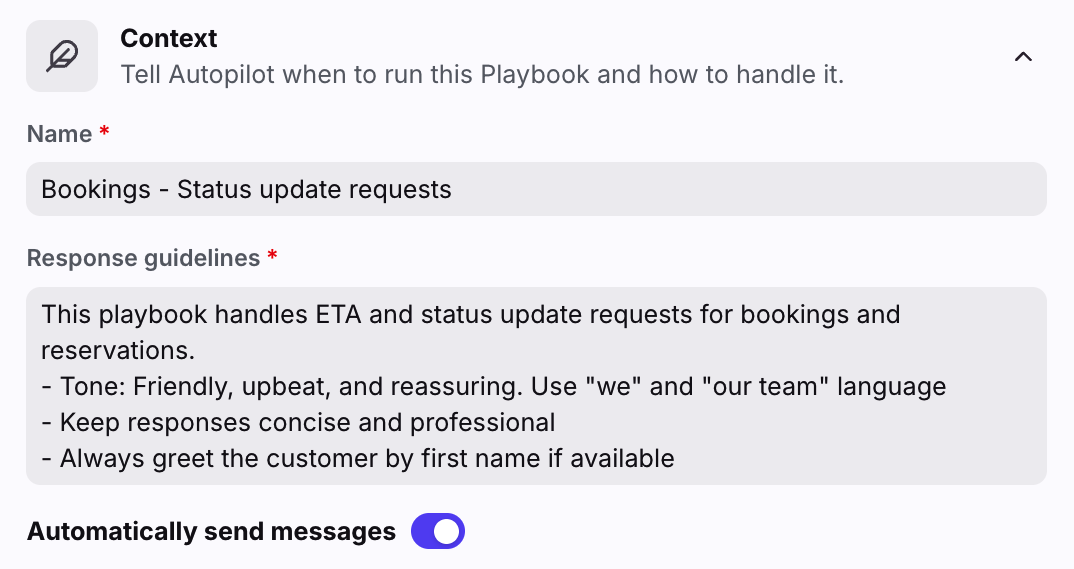
In the Name field, enter the internal name for the Playbook.
Step 2
In the Response guidelines field, use natural language to explain how the Playbook should respond to an inbound message.
Step 3
Use the Automatically send messages setting to control whether replies are sent automatically or require human review.
Toggle on: Playbook auto-sends each reply to customers immediately
Toggle off: Creates drafts that users must review and send from the inbox
⚠️ Do not toggle this setting off if you're using this Playbook with Autopilot Resolve.
Step 4
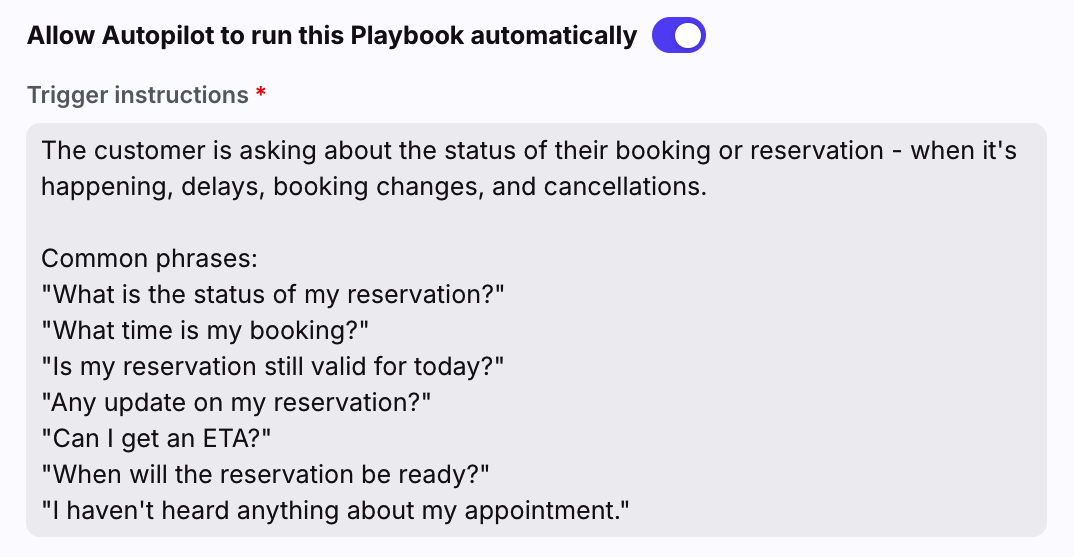
Use the Allow Autopilot to run this Playbook automatically setting to choose how your Playbook is activated.
Manual trigger (toggled off): Teammates can trigger Playbooks directly from the inbox on a conversation. This is always enabled as long as the Playbook is enabled for that inbox.
Allow Autopilot to run this Playbook automatically (toggled on): Playbooks trigger automatically based on inbound messages and inquiry detection.
⚠️ This trigger type is required if you're using this Playbook with Autopilot Resolve.
When toggled on, use the Trigger instructions field to define specific phrases or scenarios the Playbook should act on.
Section 3: Inboxes
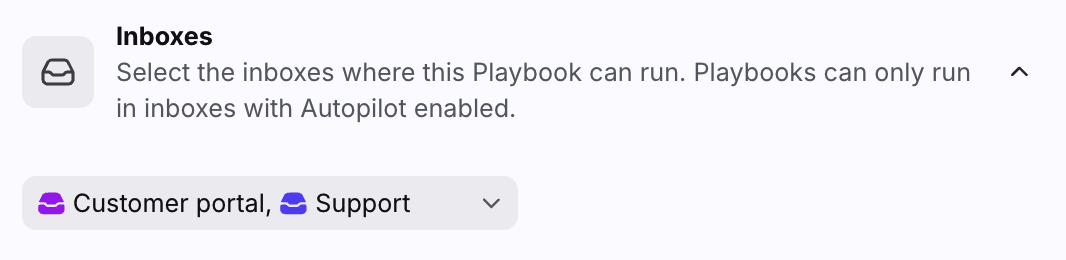
Select the shared inboxes where you want the Playbook to trigger. Playbooks only work in shared inboxes with Autopilot enabled. You can manage by navigating to workspace settings, select Front AI, then edit the Inboxes with Front AI enabled setting.
Section 4: Escalation
Configure actions for when this Playbook escalates to a human. You can move the conversation to a different inbox and add tags.
These actions trigger when the Playbook encounters a technical error or when a customer explicitly requests a human handoff.

Finish and test your Playbook
Once you’re finished creating your Playbook, click Create.
You can also click Test at the top of the page to manually enter information to simulate how the Playbook will run against an incoming message.
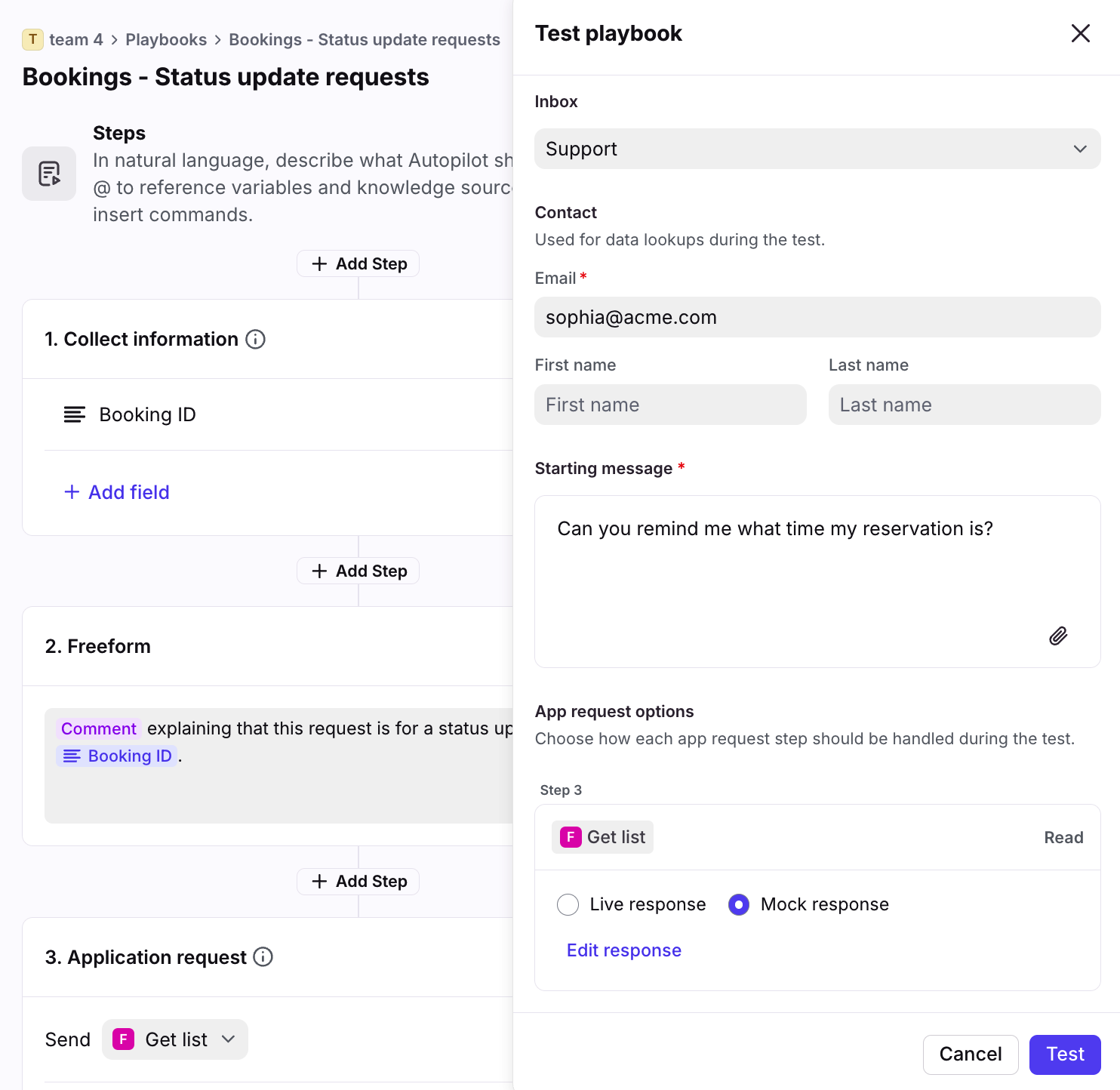
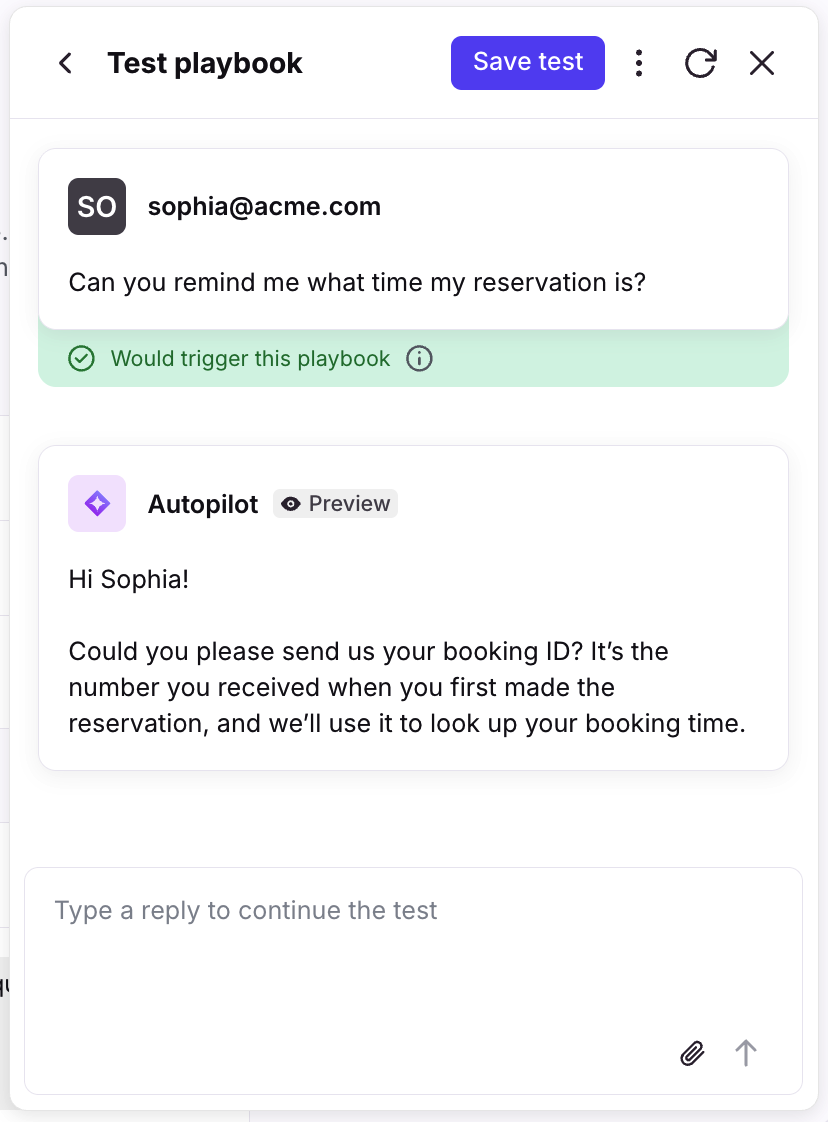
Click Test at the bottom of the panel, and you’ll see results containing automated responses and indicators stating whether or not the Playbook would trigger.
Best practices
Write clear, specific guidelines to help the Playbook understand context and execute properly.
Use internal comments as checkpoints to track automation progress.
Always include a human handoff step for complex issues that require agent review.
Test your Playbook thoroughly before enabling auto-replies.
FAQ
Are Playbooks part of Autopilot?
Yes. Playbooks are part of the Autopilot add-on. You must have access to the Autopilot add-on and have been granted access to the Playbooks feature. Add your name to the waitlist to request access, and we’ll reach out as we have capacity.
What channels are supported?
This feature is available for the following channel types: Email, Autopilot Resolve, Portal, Slack, SMS, WhatsApp (native), WhatsApp (via Twilio), Yalo WhatsApp.
To use Autopilot with custom channels, please reach out to your account manager or Front's support team.
To use Autopilot with a chat-like experience, we recommend setting up Autopilot Resolve.
Which languages are supported?
Only English is officially supported at this time. While it is possible to use this feature with other languages, unexpected results may occur. In general, Front AI will respond to a single inbound message in the same language. However if multiple languages are used at any point in the conversation messages there's no guarantee that it'll make the language choice a human would. Our AI vendors support 40+ common languages.
Do Playbooks apply to individual inboxes?
No. Playbooks only apply to shared inboxes. As a workaround, you can create a shared inbox that only an individual can access and move conversations from the individual inbox to the new shared inbox.
What information does a Playbook use to generate replies?
Playbooks use the following information to generate replies:
Dynamic variables
Information previously collected from the user
Previous messages from the same conversation
Knowledge sources configured in your Front AI workspace settings
What information does a Playbook use to inform AI?
Playbooks look at the following information:
Dynamic variables
Information collected from the user
Previous messages from the same conversation
Knowledge sources configured in your Front AI workspace settings
What happens if a “Reply” step is placed next to a “Collect information” step?
When a “Reply” step is placed next to a “Collect information” step, the Playbook will merge both steps into a single outbound message to the recipient.
What happens if a Playbook moves a conversation to an inbox without AI enabled?
If a Playbook step moves a conversation to an inbox where AI is not enabled, the Playbook will continue running as expected.
What happens if a Playbook moves a conversation to a different workspace?
Playbooks are designed to operate in a single workspace. If a Playbook step moves a conversation to an inbox in a different workspace, the Playbook immediately loses access to that conversation and cannot perform any further actions on it.
To ensure all Playbook actions are run on a conversation, we recommend placing the "Move to inbox" action at the very end of your Playbook, after all other actions have been completed.
What if an incoming message contains all information the Playbook needs to collect?
Playbooks skip Collect information steps if any previous message already includes all the required information, and runs through the next step in the Playbook. This accelerates response times and eliminates unnecessary back-and-forth replies.
What happens to my data? Which providers does Front use?
See this article for additional AI FAQs.
Pricing
See the Autopilot article for more information.