
Optimize your AI agents with Compass
Overview
Compass helps you test your AI agents, measure the quality of agent conversations, track key performance signals, and get AI-powered recommendations to improve your agents over time. In your AI agent settings, use the Simulations tab to test out your agent before deploying it, or use the Performance and Replies tab to monitor and tune your AI agent.
Prerequisites
To use Compass, you must:
Have company admin permissions
Have created an AI agent
Agent testing
Autopilot agents only: Use the Simulations tab in your agent settings to simulate how your agent will function against conversations. This lets you test and evaluate agent behavior, allowing you to activate it across inboxes with confidence.
Step 1
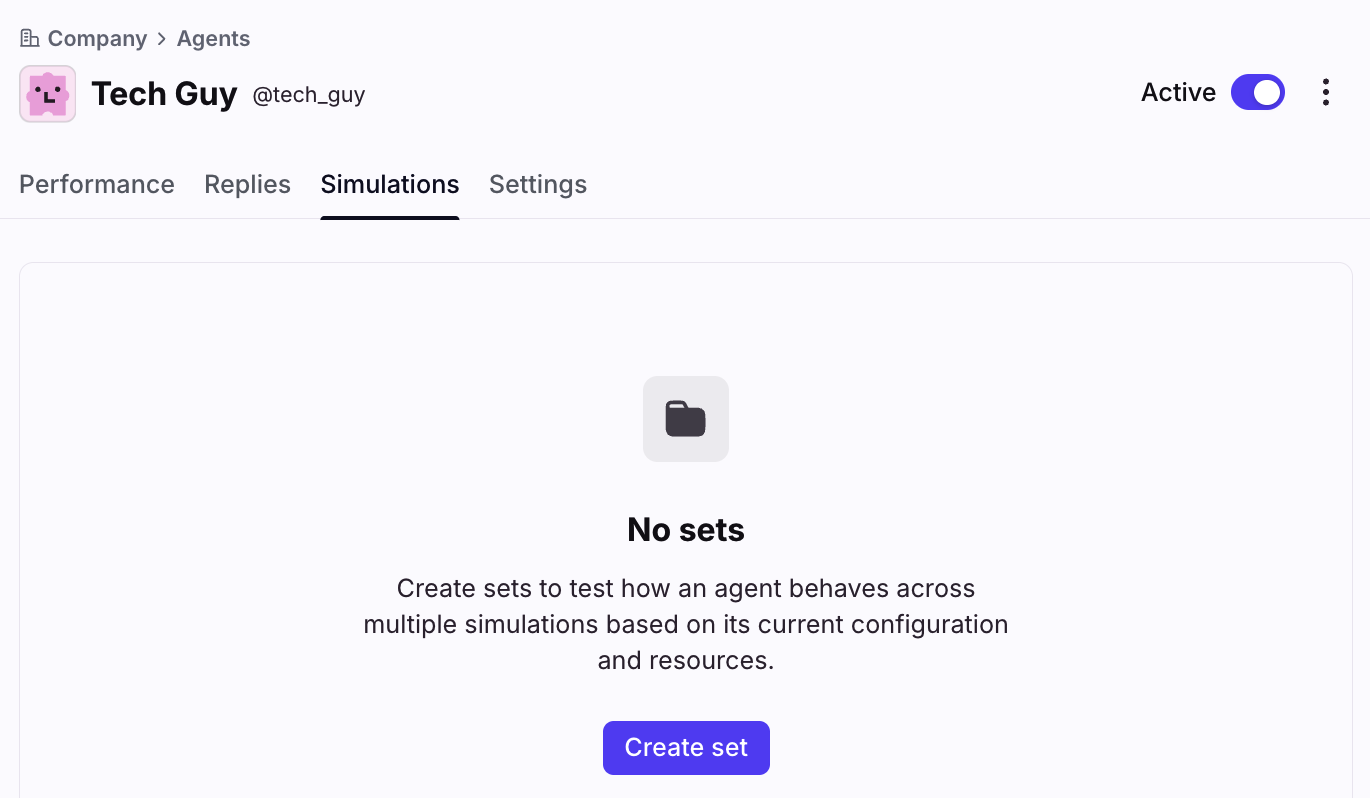
Navigate to the agent you’d like to test, select the Simulations tab, then click Create set. You can think of a set as a collection of related simulations.
Step 2
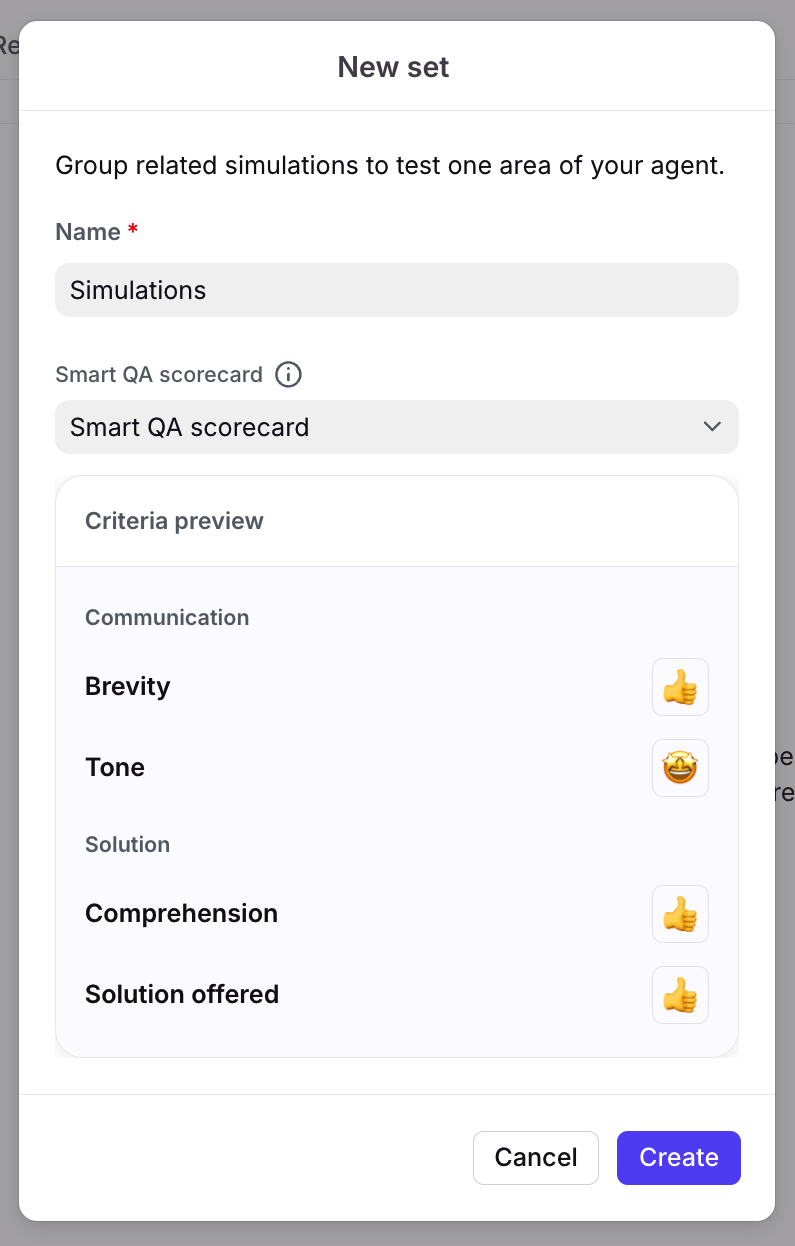
In the pop-up, enter a name for your set, then optionally select a Smart QA scorecard you want to use with the evaluation.
Important to know:
The Smart QA scorecard is only available for when the agent is replying in the conversation.
If the agent is not replying, the Smart QA evaluation will not apply, but the simulation will still evaluate the agent on other actions it takes using criteria created later.
Step 3
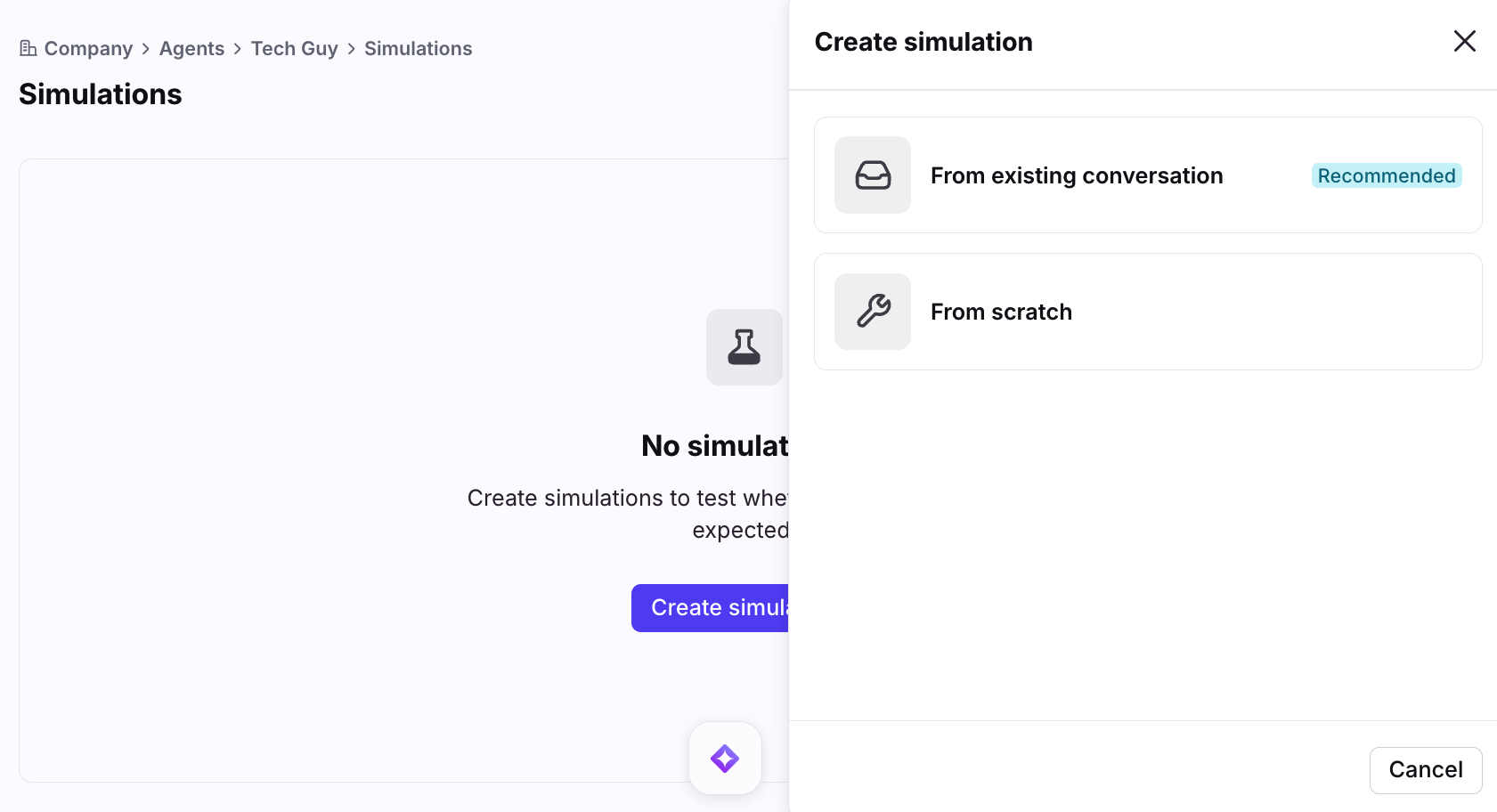
Select the set you just created, then click Create simulation. In the panel, select whether you want to test the rule with an existing conversation (Option 1), or with a simulated conversation created from scratch (Option 2).
For the best results, we strongly recommend using an existing conversation, so the agent's behavior is tested as closely as possible to the scenario it will encounter in the inbox.
Option 1: From existing conversation
Step 4
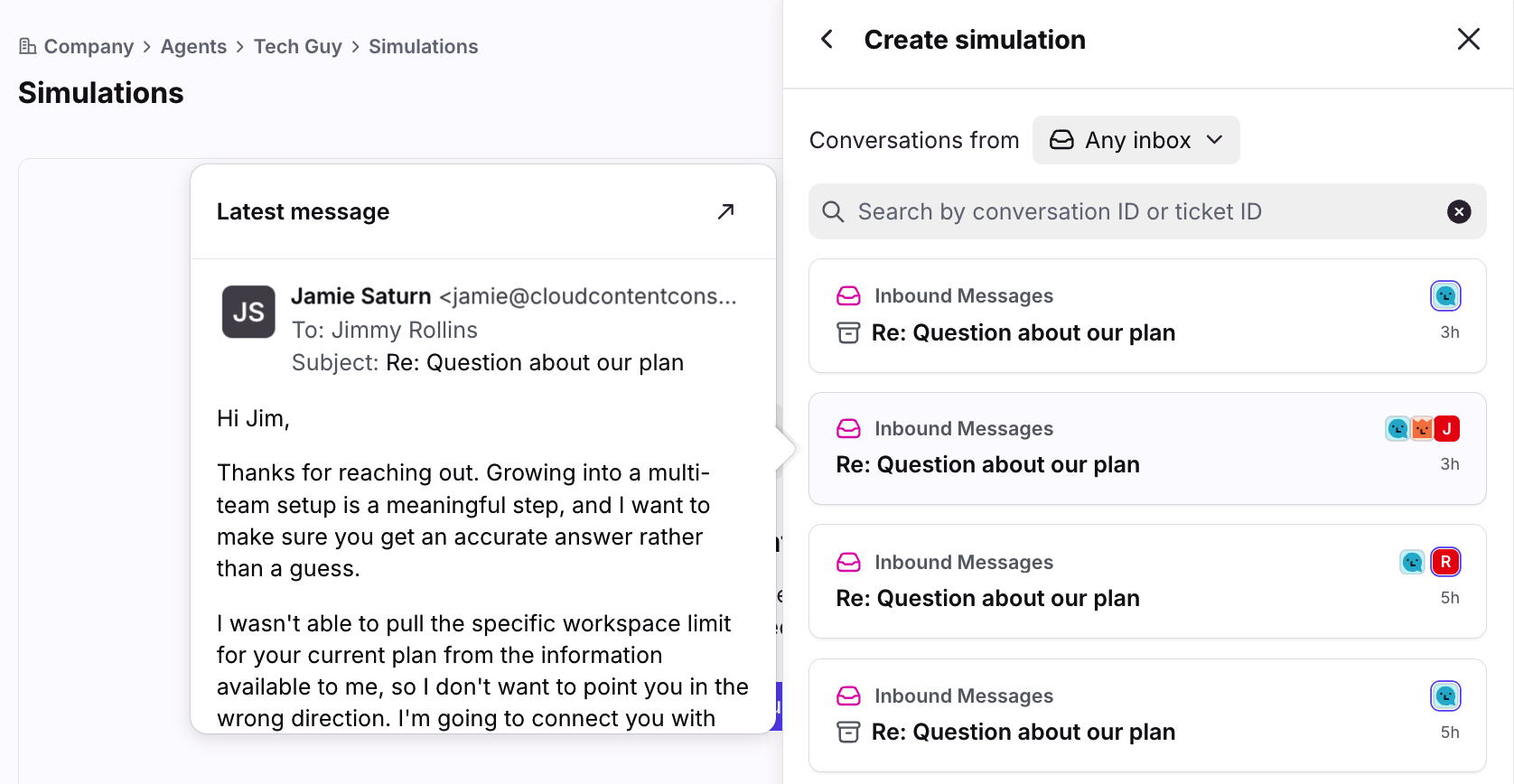
You'll see a list of recent open conversations in the selected inbox(es). Hover over any conversation to preview its contents.
Step 5
Enter the conversation ID or ticket ID for a conversation you want to test with, or select any conversation in the list.
Step 6
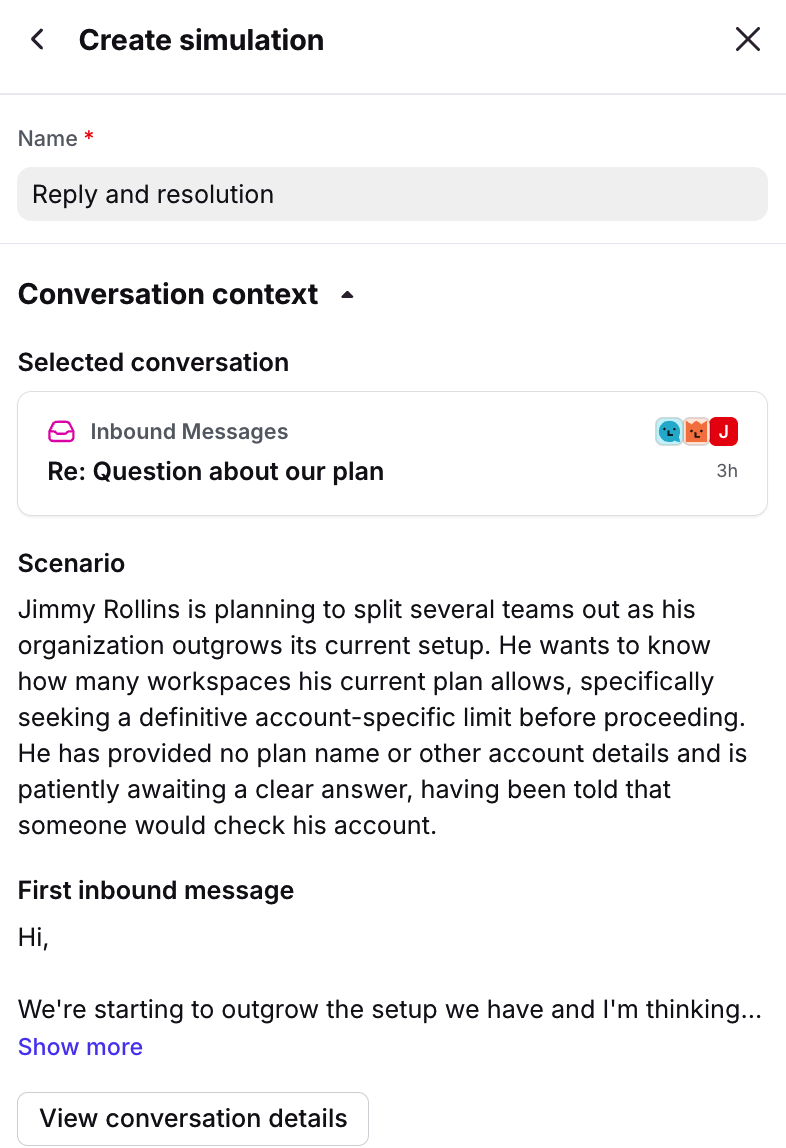
Enter a name for the simulation. In the Conversation context section, you’ll see a summary of the scenario, along with the first inbound message from the conversation.
Step 7
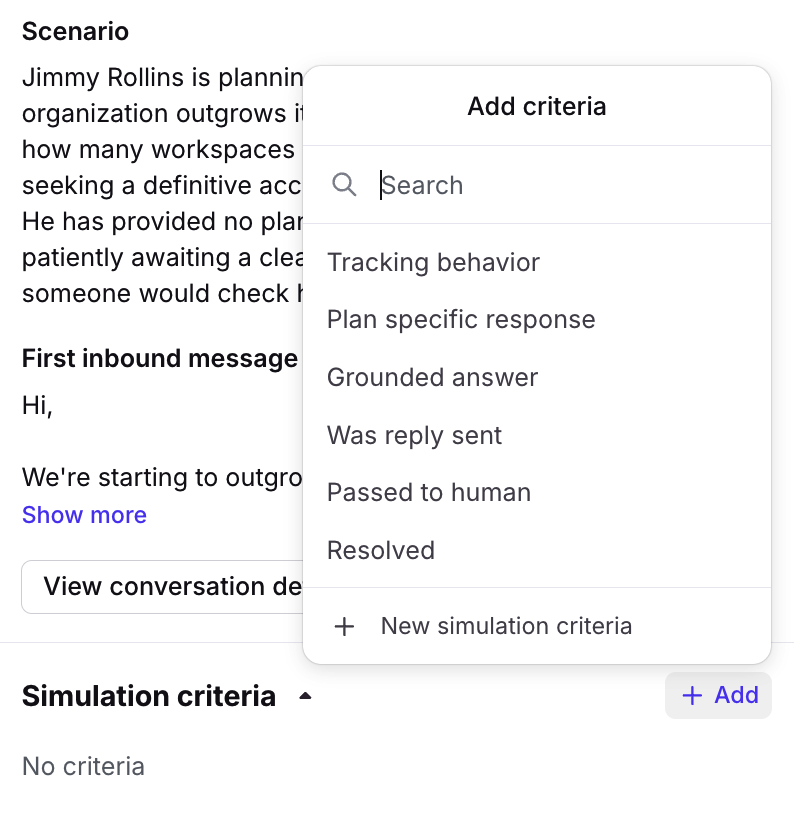
In the Simulation criteria section, create or select previously created criteria you want to test with your agent. To add new criteria, click Add, then select New simulation criteria.
Recommended criteria to start with:
Never claims an action it didn't take: The agent must never tell the end user something was done (a refund issued, a ticket escalated, an account updated) unless that action appears in the actions it took during the conversation.
Escalated when it should have: Where the agent couldn’t action the request, or the request needed a human decision, the agent handed off instead of answering.
Did not escalate when it shouldn't have: Where all user requests were resolved, the agent answered rather than escalating or handing off to a human.
Step 8
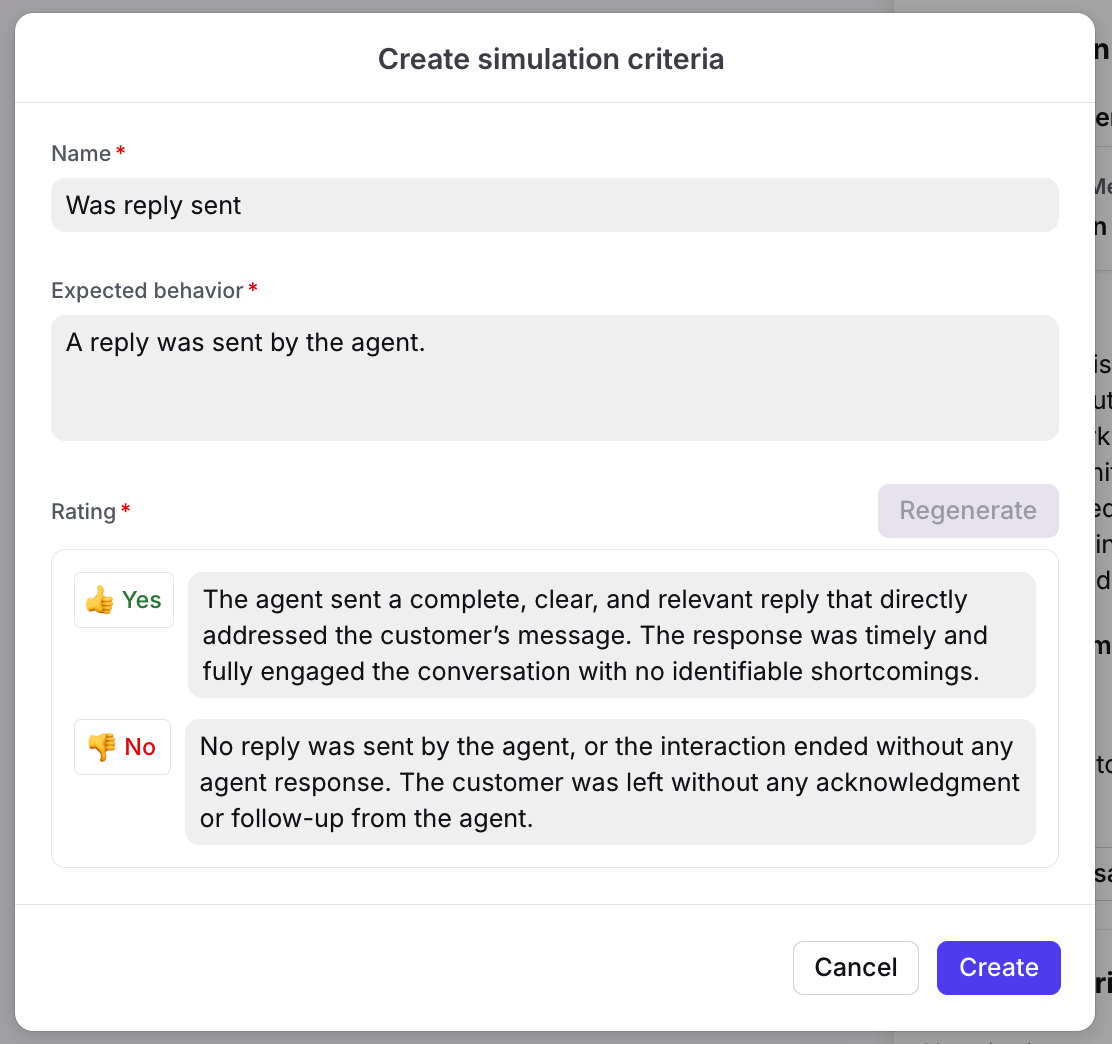
Enter a name for the simulation criteria, then enter a description of the expected behavior. Click Generate scale to create pass/fail conditions, which you can then customize.
Click Create.
Step 9
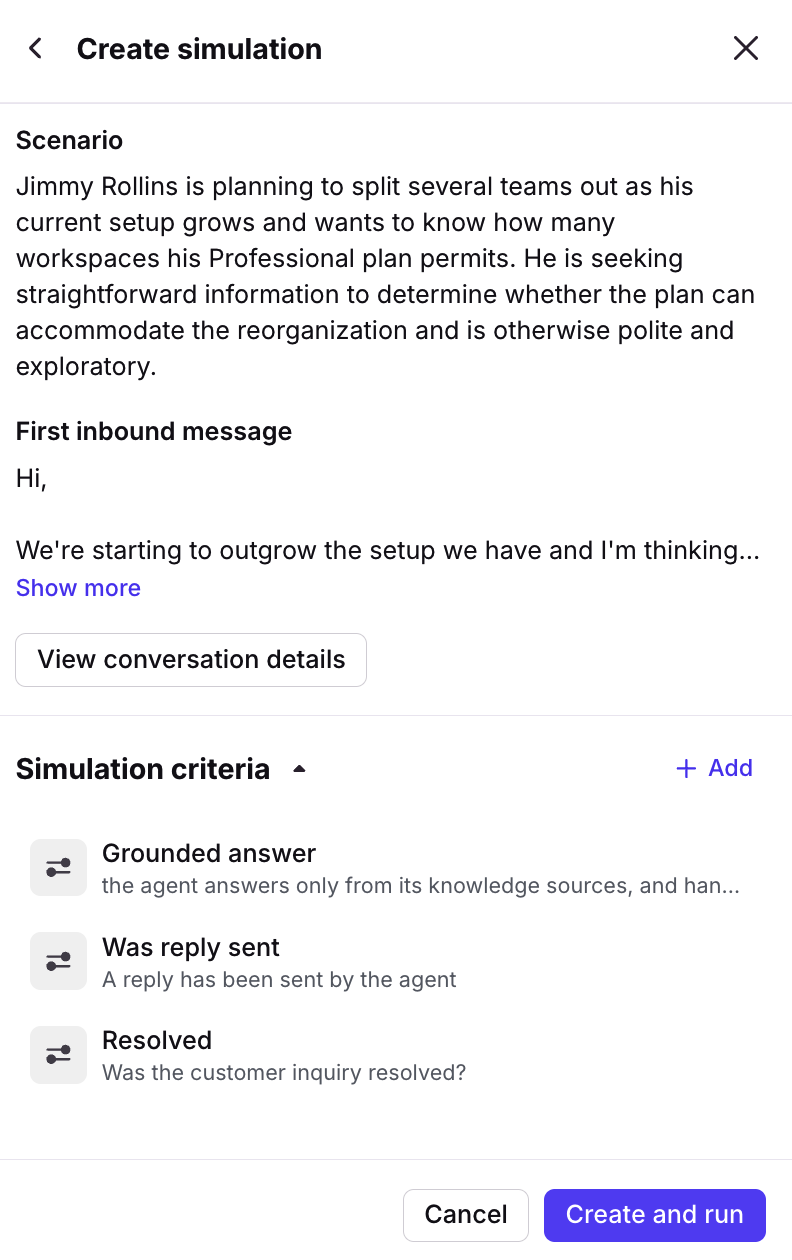
Add additional criteria as needed, then click Create and run.
Step 10
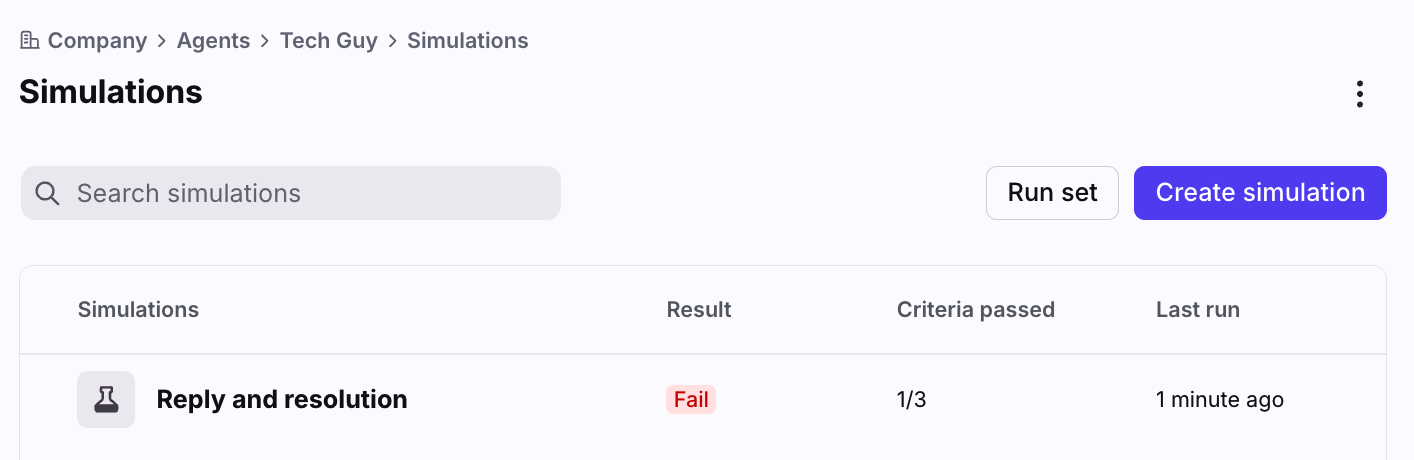
When the simulation has finished, you’ll see the results in the list view. Click the simulation to see additional details.
Step 11
See the Reviewing test results section below.
Option 2: From scratch
Step 4
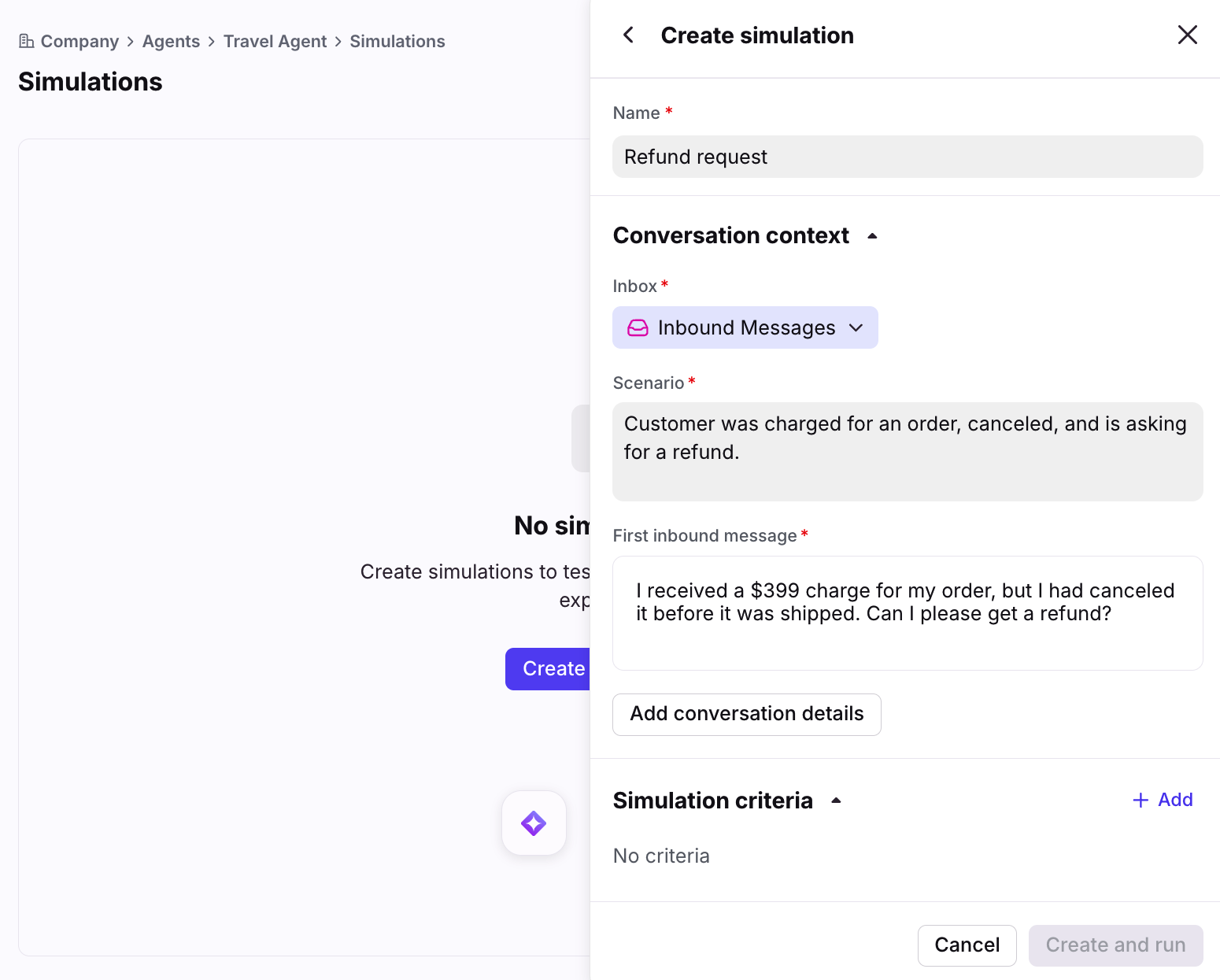
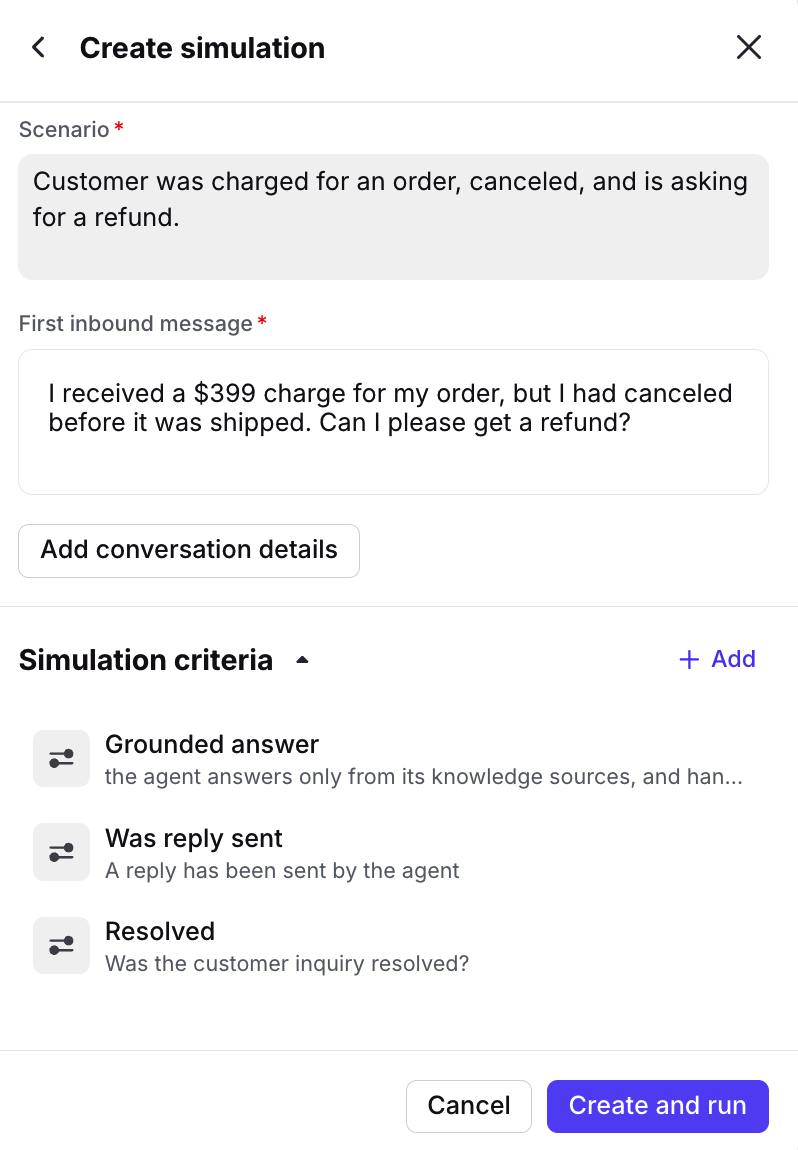
Create a simulated message by filling in the following fields:
Inbox: Select the shared inbox for the message
Scenario: Enter a description of the customer’s inquiry
First inbound message: Enter the message contents (body of the email)
Optionally, click Add conversation details to add contact email and name, tags, or channels.
Step 5
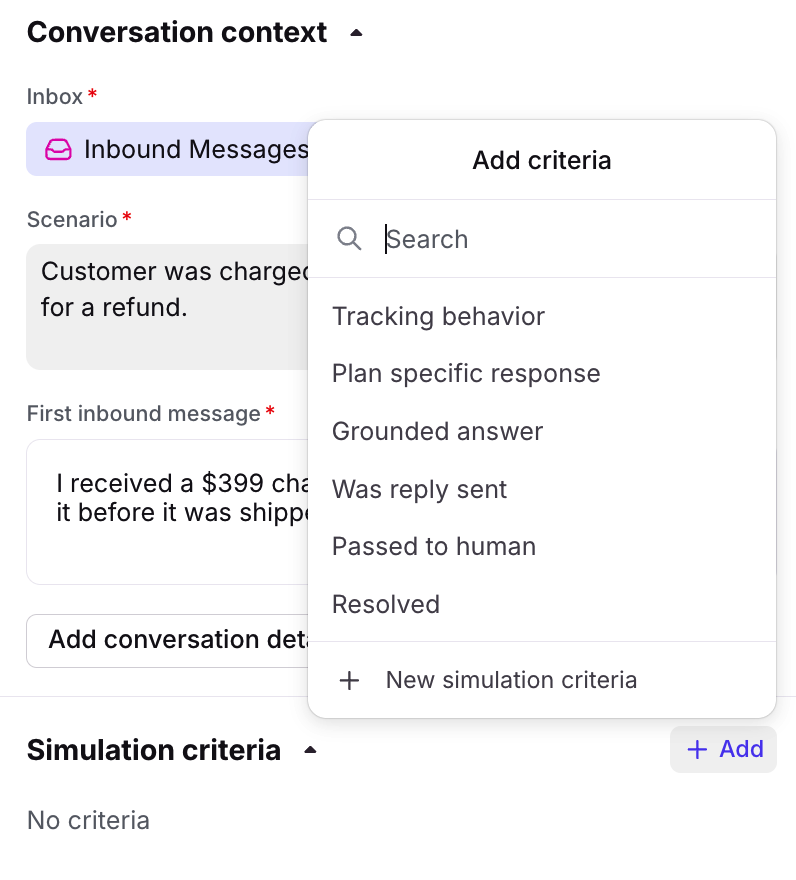
In the Simulation criteria section, create or select criteria you want to test with your agent. To add new criteria, click Add, then select New simulation criteria.
Step 6
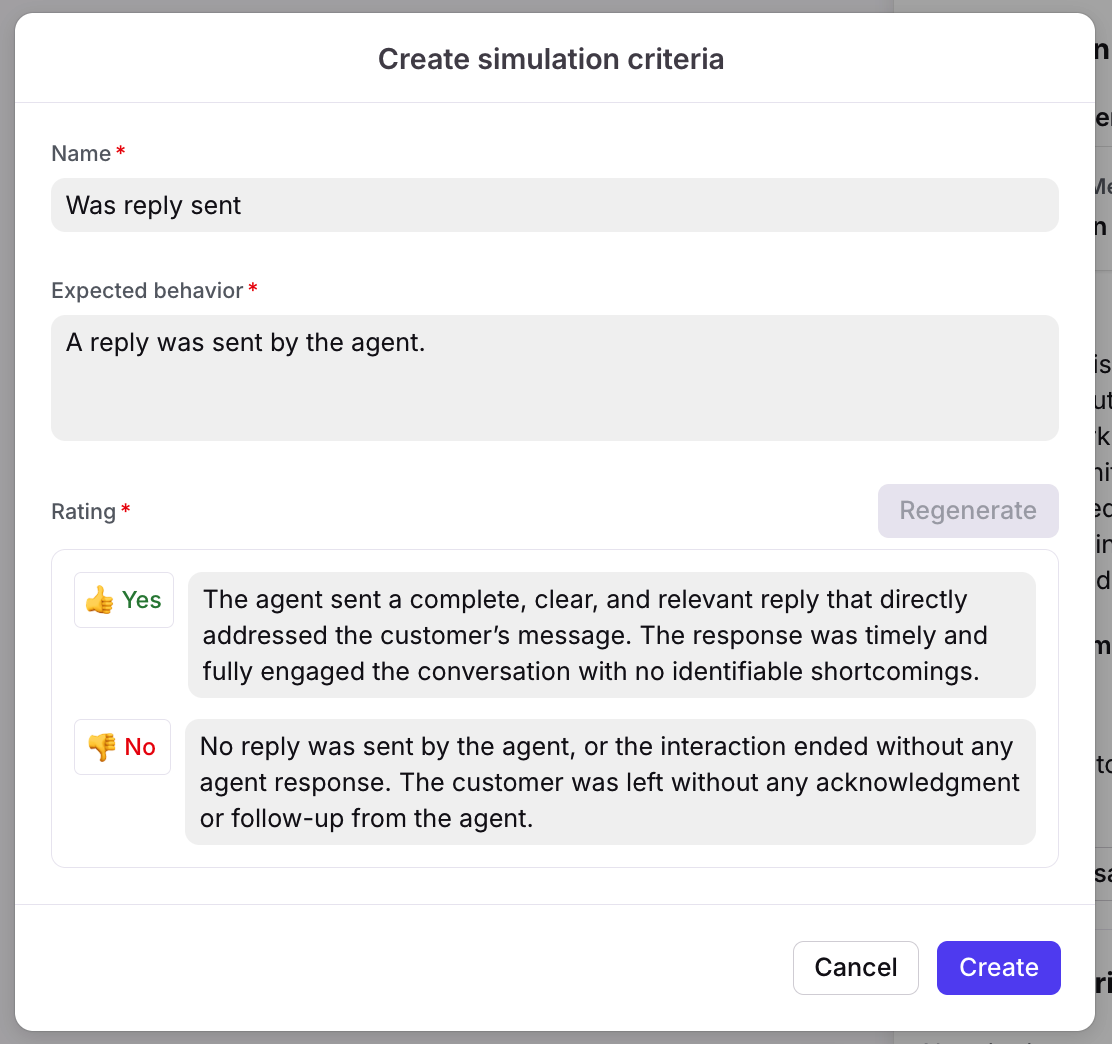
Enter a name for the simulation criteria, then enter a description of the expected behavior. Click Generate scale to create pass/fail conditions, which you can then customize.
Click Create.
Step 7
Add additional criteria as needed, then click Create and run.
Step 8
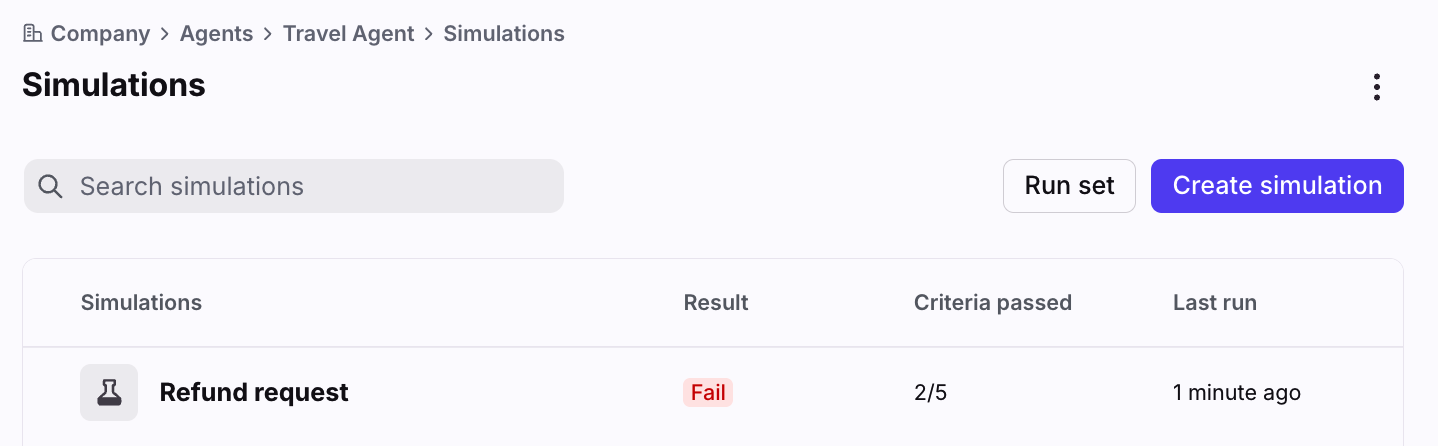
When the simulation has finished, you’ll see the results in the list view. Click the simulation to see additional details.
Step 9
See the Reviewing test results section below.
Reviewing simulation results
When you select a simulation, you’ll see a preview of the conversation along with the simulation results.
In this menu you can also:
See past run history
Re-run the simulation
Use the three-dot menu to edit or delete the simulation
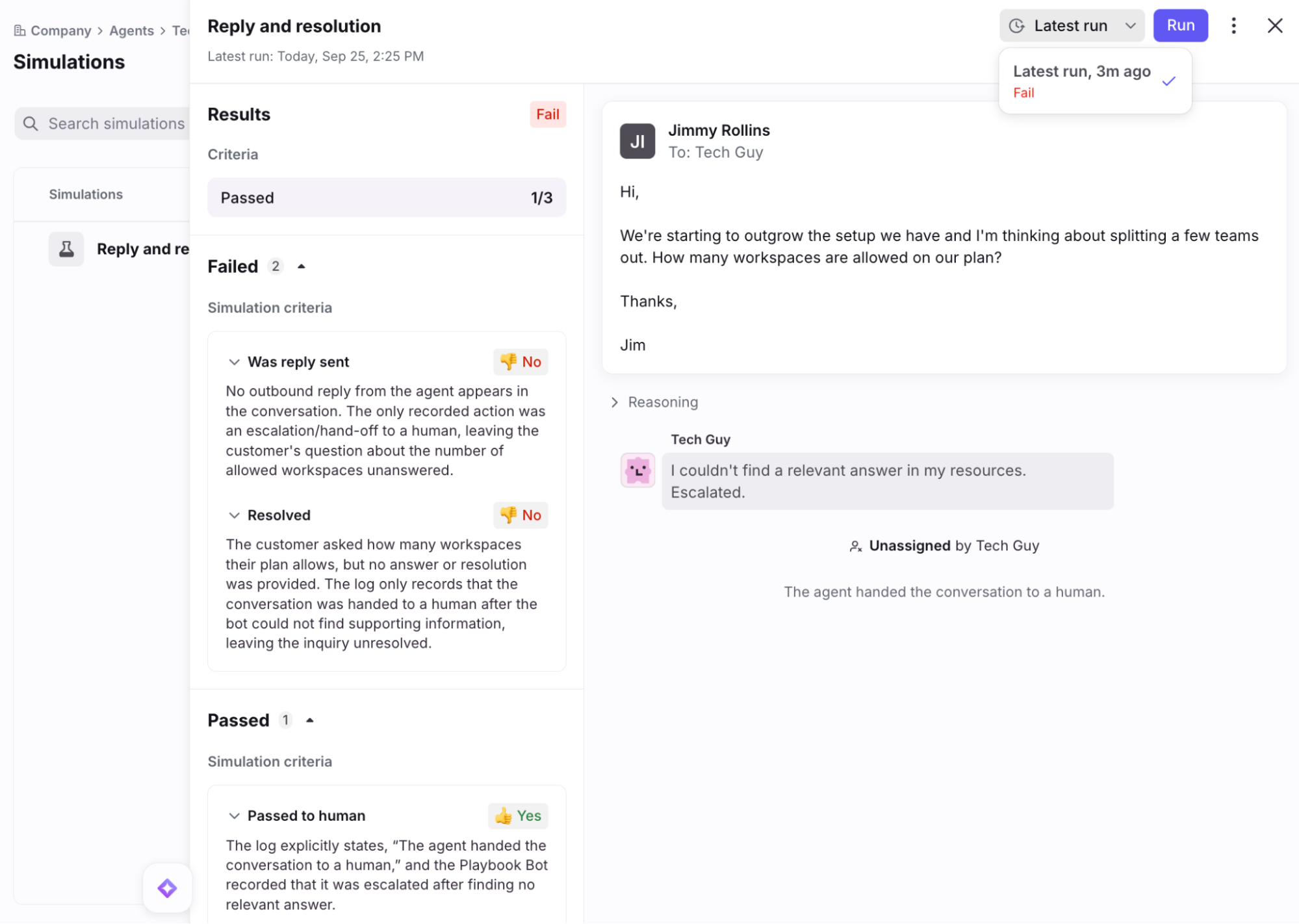
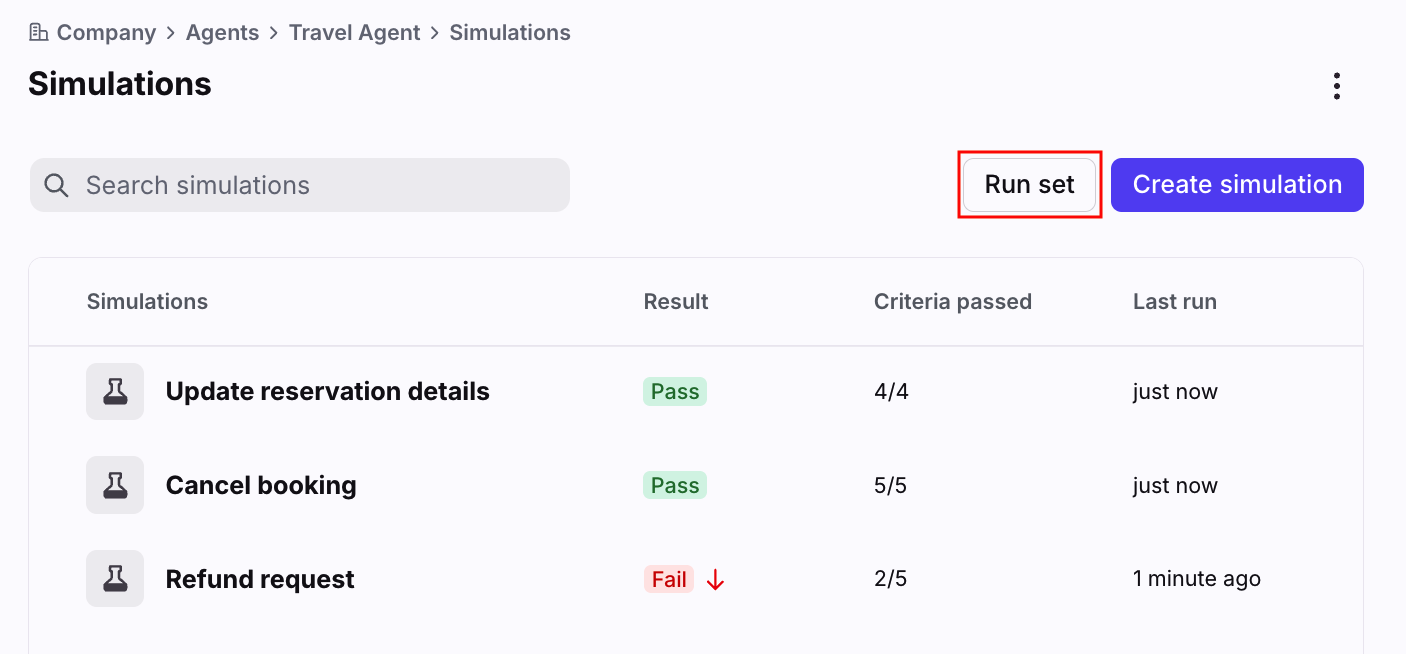
Arrow indicators highlight differences between the current run and previous runs to track progress or regressions resulting from your changes.
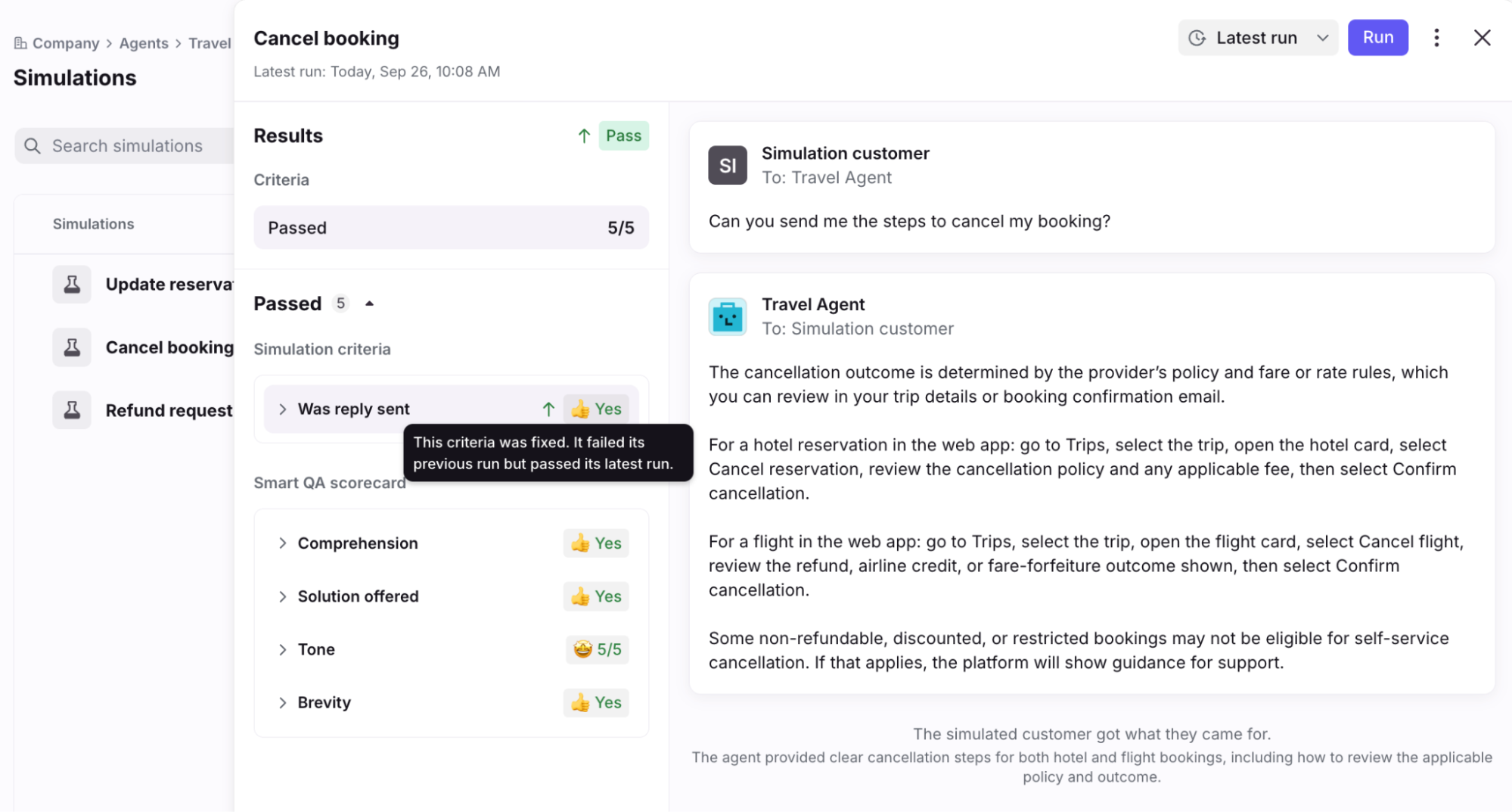
In the list view, click Run set to run all simulations at once. When finished you’ll see a summary of results in the list. You can also hover and select specific simulations you want to run.
Agent reporting
Quality signals
Compass includes the following quality signals to help you review AI agent performance. Quality is graded as No Signal, Good, Okay, or Poor.
When you set up an AI agent, Smart CSAT is automatically enabled and runs on all AI agent replies in resolved conversations. Human teammates will not be evaluated.
When you set up an AI agent, Smart QA is automatically enabled and runs on all AI agent replies in resolved conversations. Front will set up a default Smart QA scorecard and rule that runs 24 hours after a conversation is resolved. The default Smart QA scorecard includes these criteria: Brevity, Tone, Solution offered, Comprehension, however you can modify these in your Smart QA settings.
To configure the criteria used for Smart QA evaluations on your AI agent, adjust the scorecard in your Smart QA settings. Human teammates will not be evaluated.
Draft edit level
Front automatically detects if an AI draft was edited by a human teammate before it was sent, and calculates an edit level. Drafts can be sent as-is, lightly or heavily edited, or discarded. Draft edit level also contributes to the AI inferred feedback value for a conversation.
Teammate feedback
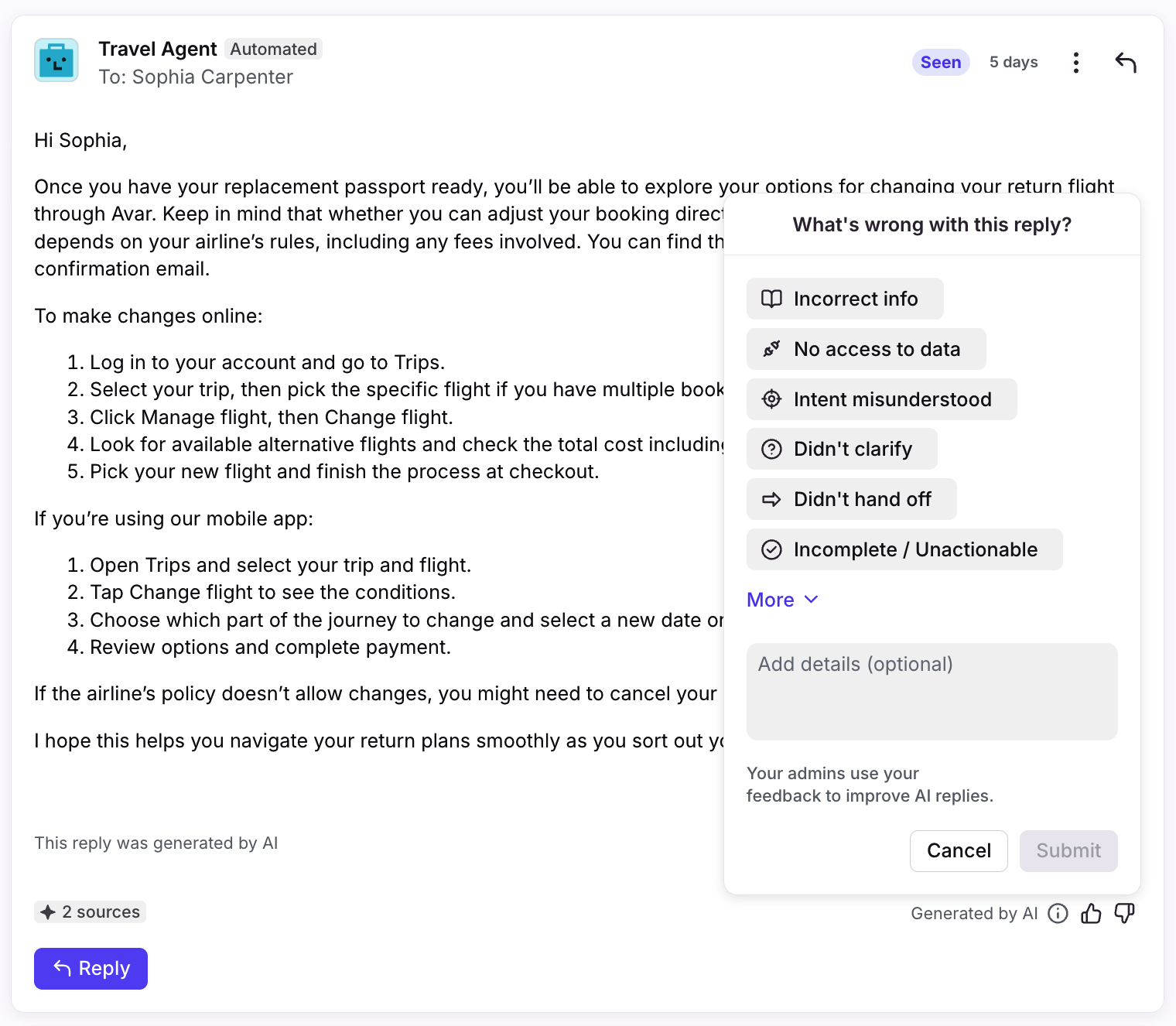
Human teammates can provide positive or negative feedback on AI agent drafts and replies directly in conversations using the thumbs up/down icons. Teammates are prompted to add additional details, which admins can view in the agent’s settings.
AI will also infer feedback on drafts and replies where it didn’t quite meet the mark - there was a correction of your AI Agent’s response in the conversation or a draft was heavily edited, giving you more signal on poor quality replies without relying on manual teammate feedback.
Each feedback item acts as a signal that feeds directly into creating Opportunities in the Performance tab to enhance your AI agents. Negative teammate feedback will trigger a ‘Poor’ quality signal on AI replies, and positive teammate feedback will trigger a ‘Good’ quality signal on AI replies.
Performance tab
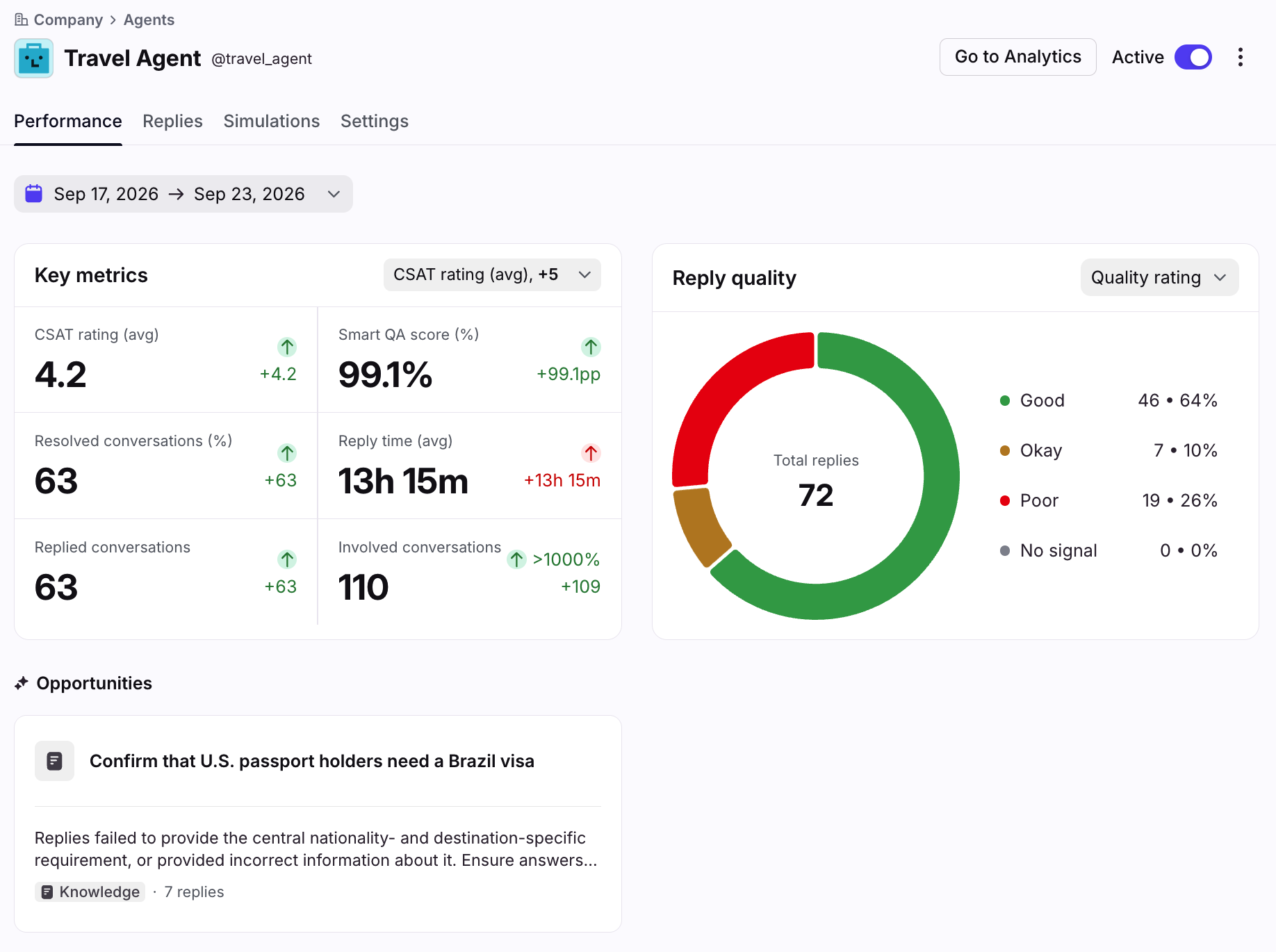
Use the Performance tab in an agent’s settings to monitor its activity once it begins handling conversations. You can find this tab by navigating to company settings, selecting Agents in the sidebar, then selecting the agent you’d like to review.
In the Performance tab, you can:
Get complete visibility into agent performance: The Performance tab consolidates quality signals at a glance that previously lived in separate places — Smart CSAT scores, Smart QA scores, involvement and resolution metrics, reply ratings, and failure patterns.
Assess agent effectiveness: Analyze performance metrics to address key questions, such as:
Is my AI agent healthy enough to expand its coverage or graduate from generating drafts to sending auto-replies?
What is the single most impactful thing I can improve right now?
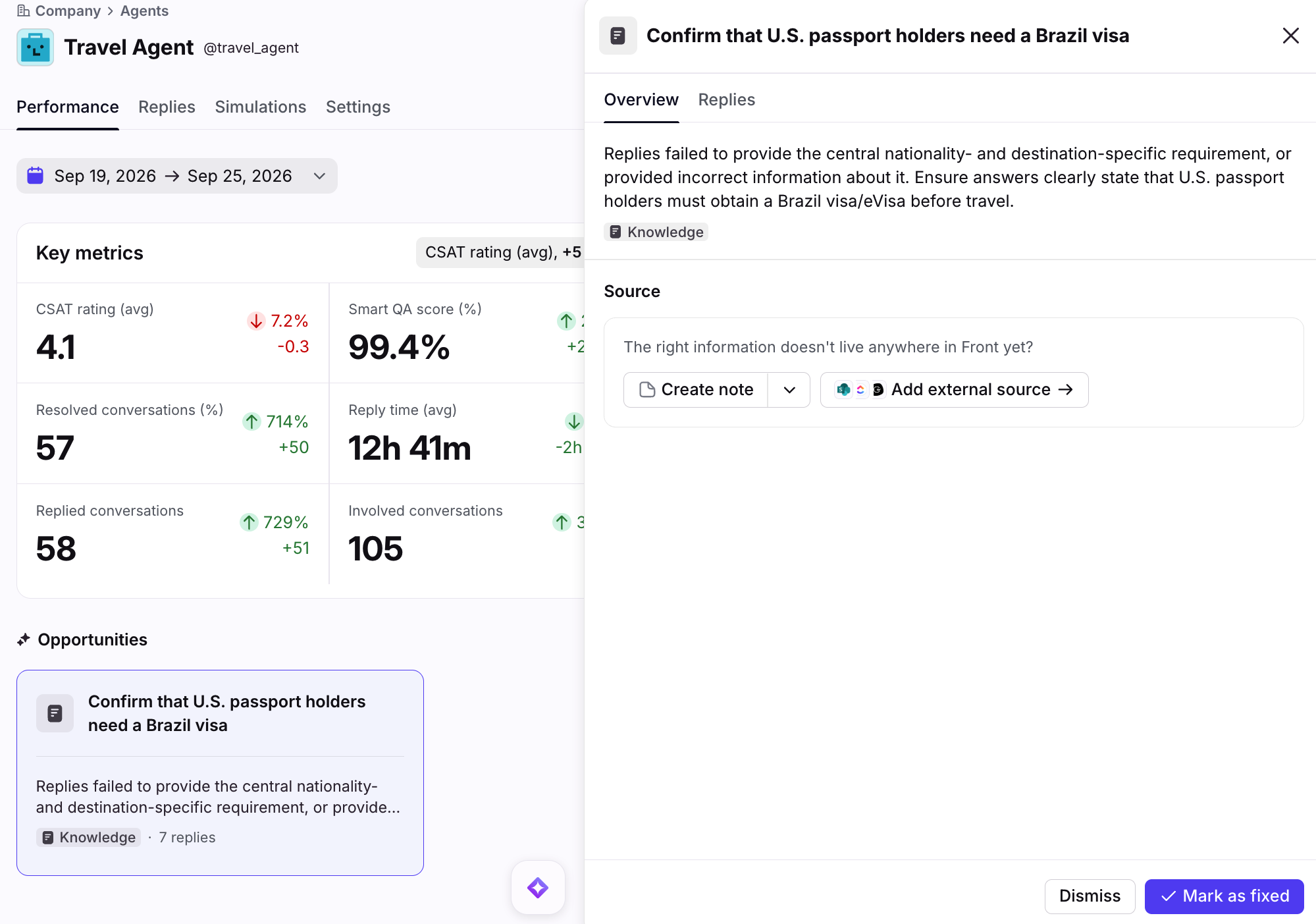
Identify areas of improvement: The Opportunities section evaluates poor quality AI replies and converts them into actionable steps.
Each item shows a summary of the issue, the gap type, the and the reply volume affected. Click into the opportunity to view suggested actions and additional details.
Opportunities generated for all AI agents include updates to knowledge or agent instructions.
Replies tab
Use the Replies tab in an agent’s settings to review all messages generated by it, along with quality signals. Both drafts and sent auto-replies are included. Use the filters at the top to focus on specific message characteristics such as the inbox, reply type, topic and quality signals.
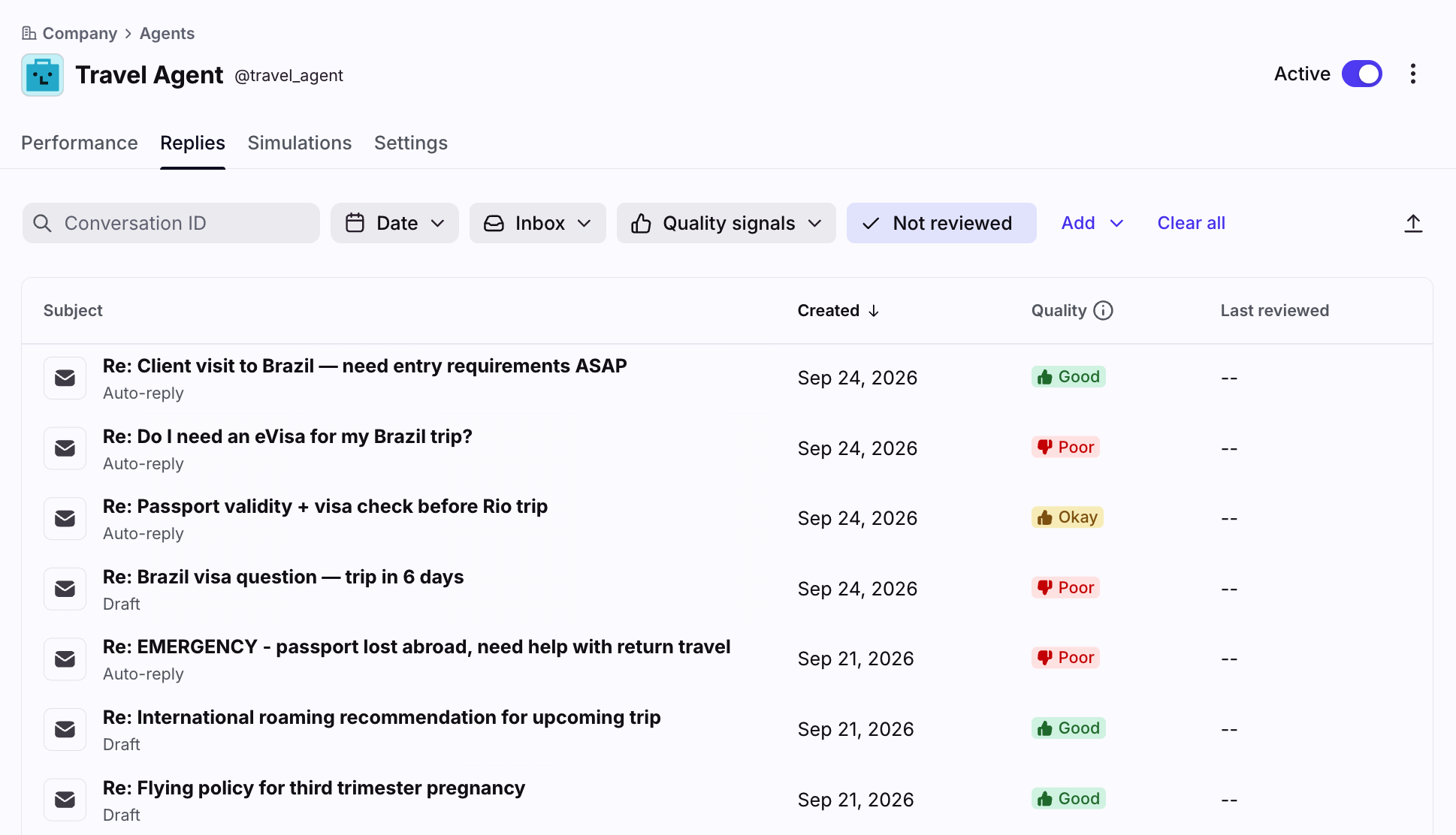
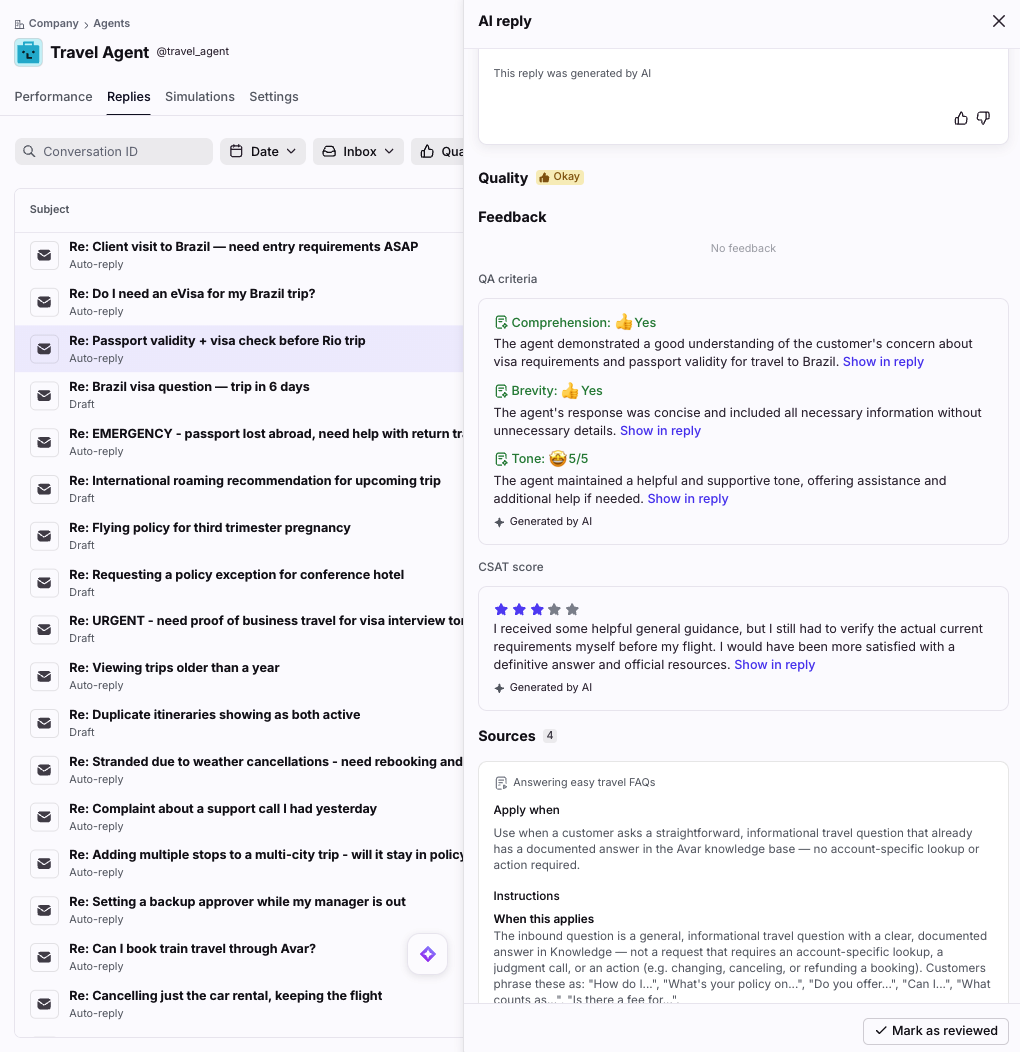
Select a message from the list to view more details in the AI reply panel, including:
Messages and drafts: View the inquiry and AI auto-replies or drafts
Draft edits: Toggle on Show edits in a message to view the human edits made to the AI draft
Quality signals: View all quality signals that indicate if a draft or reply is Good, Okay, or Poor. Based on the following:
Feedback: Rating and/or comment provided by human teammates, or inferred by AI
Edit level: Whether an AI-generated draft was sent as-is, lightly or heavily edited, or discarded
QA criteria: Cited Smart QA scores for scorecard criteria with references to this message
CSAT rating: Smart CSAT score inferred by AI with reference to this message
Sources used: View all inputs AI used to generate the reply
For Autopilot agents, this includes knowledge articles, notes, facts from similar conversations, agent instructions, playbook used and tone guidelines
For external agents, this includes the knowledge sources passed by the MCP
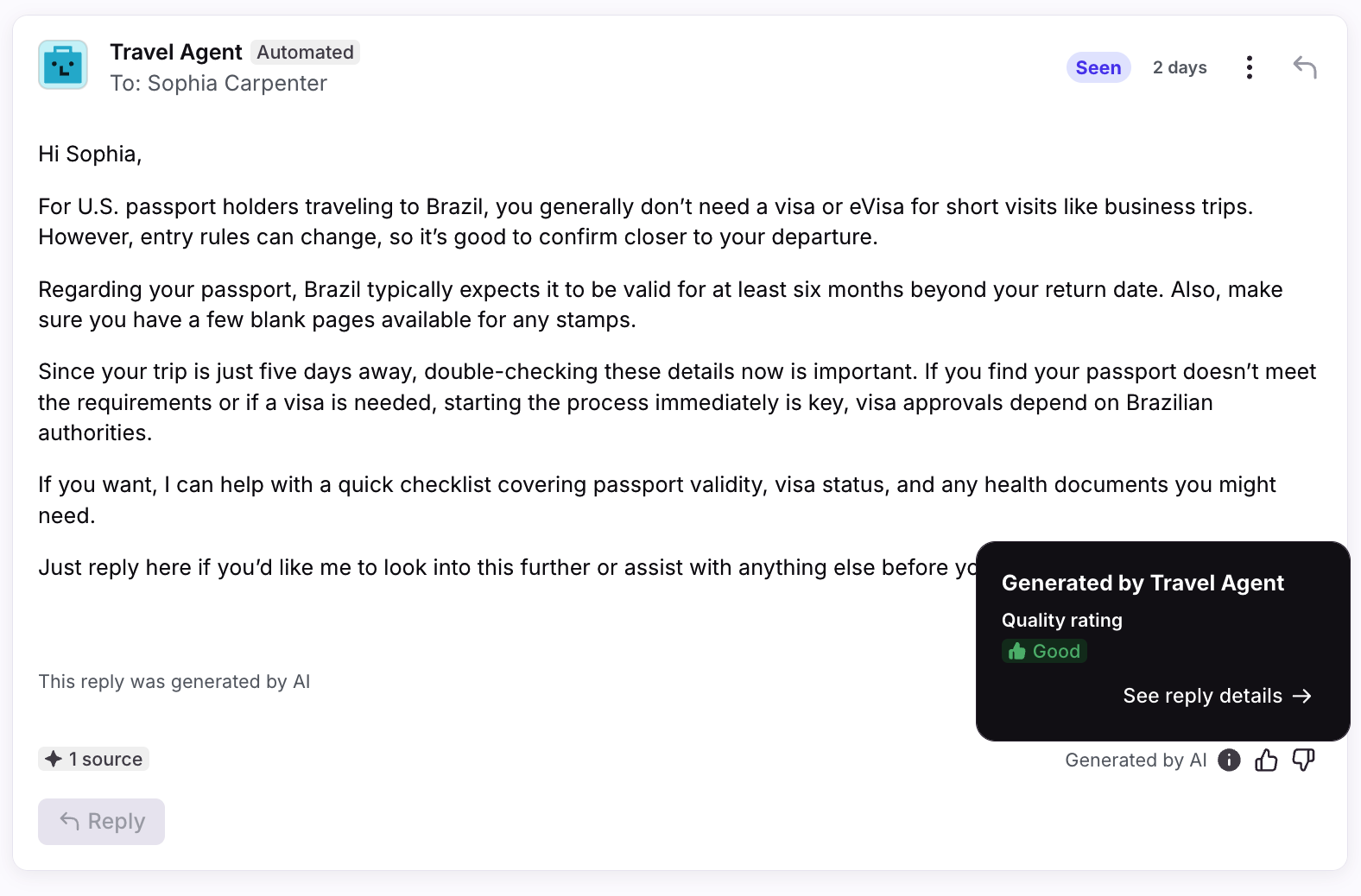
In the inbox, admins can access a preview of the reply quality and a link to the Replies tab to see more details.
Analytics
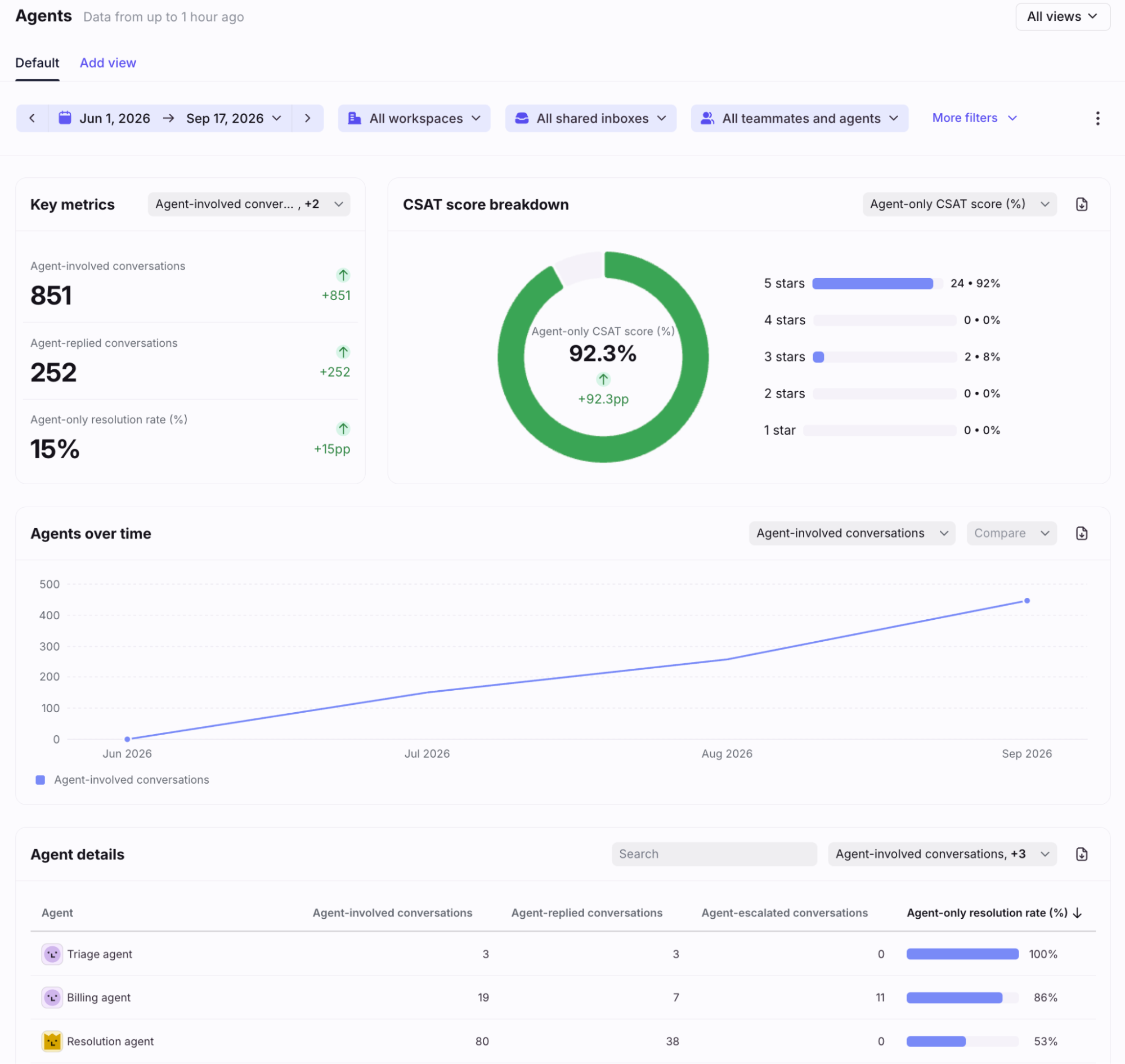
In addition to Compass features, admins can navigate to the Agents report in Front Analytics for a comprehensive look at all AI agent activity. Use the report to evaluate resolution data, customer satisfaction and engagement, and performance over time for all agents across your workspaces.
FAQ
What if I don’t have access to the Smart CSAT and Smart QA features?
If you’re using Compass, but don’t have access to Smart CSAT and Smart QA, only your AI agents are evaluated in eligible conversations it replied to. Smart CSAT/QA will not run on human teammates.
What is a simulation set?
A simulation set is a named group of related simulations covering the behaviors an agent is expected to handle. Admins can run a single simulation, or the whole simulation set at once. The set serves as a stable baseline you re-run after every change to the agent configuration.
Does testing have an impact on live conversations?
No. Replies are not sent to real conversations/customers, no live conversation is modified, customers do not see test results, and analytics are not impacted.
What happens if the agent does not reply in a simulation?
Not every simulation may require a reply. If an agent doesn’t reply in a simulation, simulation criteria are still evaluated, which is how an escalation or a no-action case is flagged. Smart QA scorecards only evaluate replies; if the agent does not generate a response, Smart QA criteria are not evaluated.
How many times can I run a simulation?
You can run a simulation as many times as you like, but each conversation within a simulation is capped at 10 back and forth exchanges with the agent.
Can simulation criteria check if the agent's answer is correct as per its resources?
No. Simulation criteria are evaluated using the simulated conversation and the actions the agent took during it. They don't have access to the agent's knowledge sources or Playbooks, so they can't confirm whether an answer matches your help center articles or internal procedures.
Instead, write criteria about behavior that's visible in the conversation. A criterion like "The agent gives our correct refund policy" can't be evaluated reliably, while "The agent never tells the customer a refund was issued unless it took that action" can. To check the accuracy of an answer itself, review the simulated conversation in the simulation results.
Can I stop drafts from being sent?
Yes, but not directly in the Replies tab. You can quickly navigate to the conversation by clicking Open conversation in the AI reply panel, then either discard that draft or step in to send a reply yourself.
Pricing
External agents are included in all plans. Front Autopilot agents require access to the Autopilot add-on. Compass is included with the use of both external and Autopilot agents.