
AI replies hub [legacy]
⚠️ These instructions refer to the legacy version of Autopilot. Customers reviewing AI replies for agents after Oct 6, 2026 use Compass.
Overview
Front's AI replies hub is a tab in the Front AI settings page where admins can review all messages generated by AI in their workspace. This includes:
Suggested reply drafts
Sent suggested replies
Sent Autopilot replies
Alongside these replies you can see the status of those messages, the Topic they belong to, and their creation date.
Instructions
Step 1
Click the gear icon, navigate to your workspace settings, then select Front AI in your sidebar.
Step 2
Select the AI replies tab.
Step 3
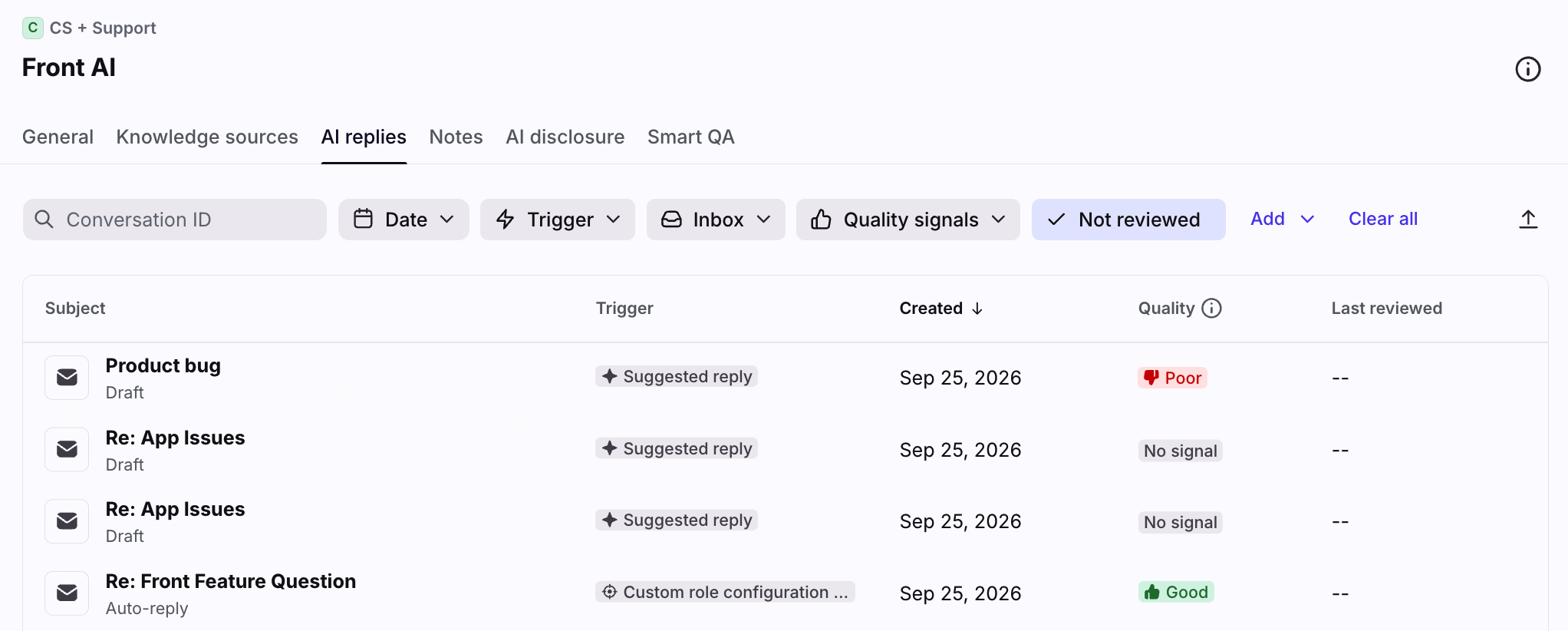
You'll see a list of AI-generated drafts or sent messages. Use the filters at the top to focus on specific message characteristics.
Step 4
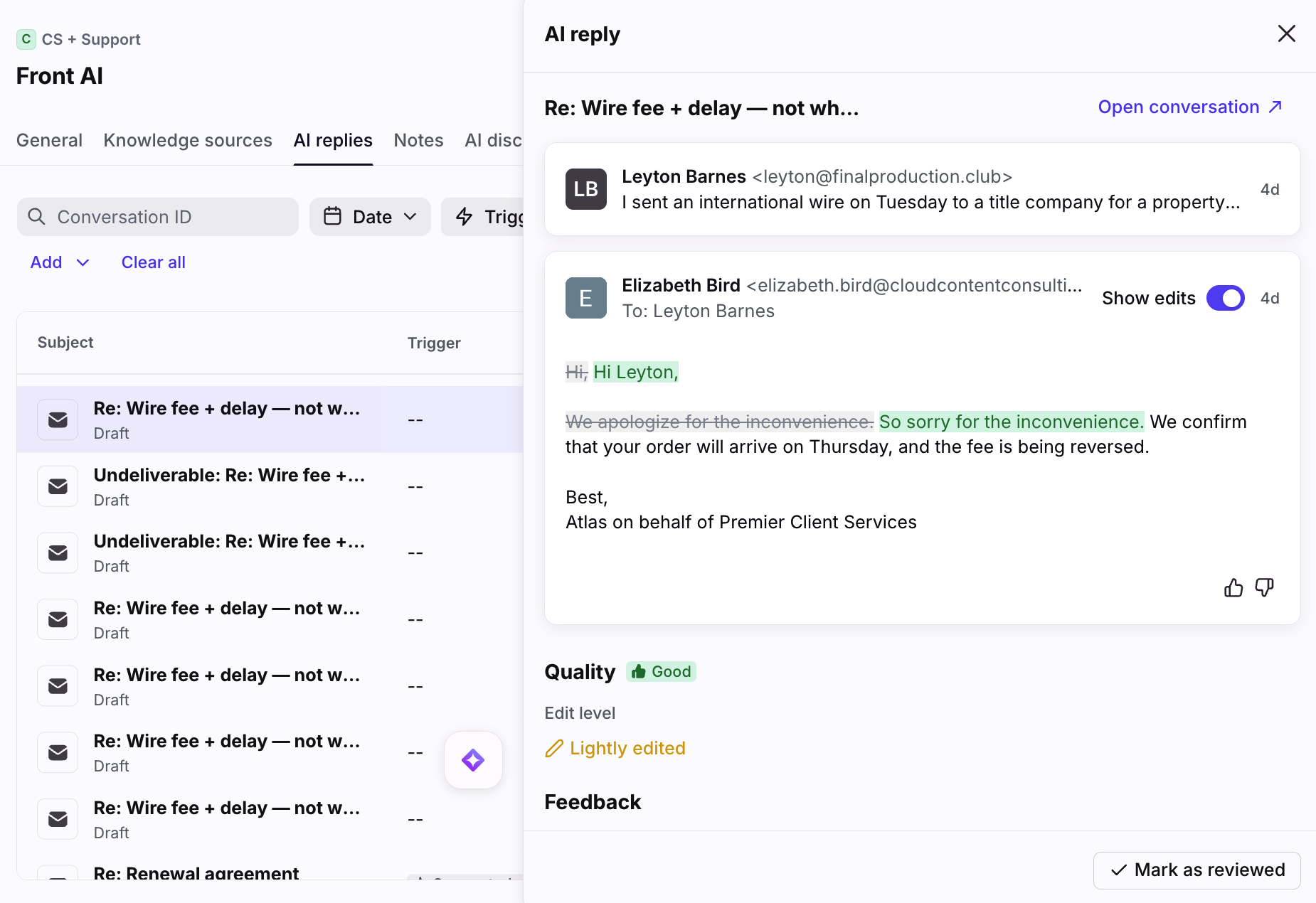
Select a message from the list to open the AI reply panel and review the content. Click Open conversation to view the entire conversation thread.
Step 4
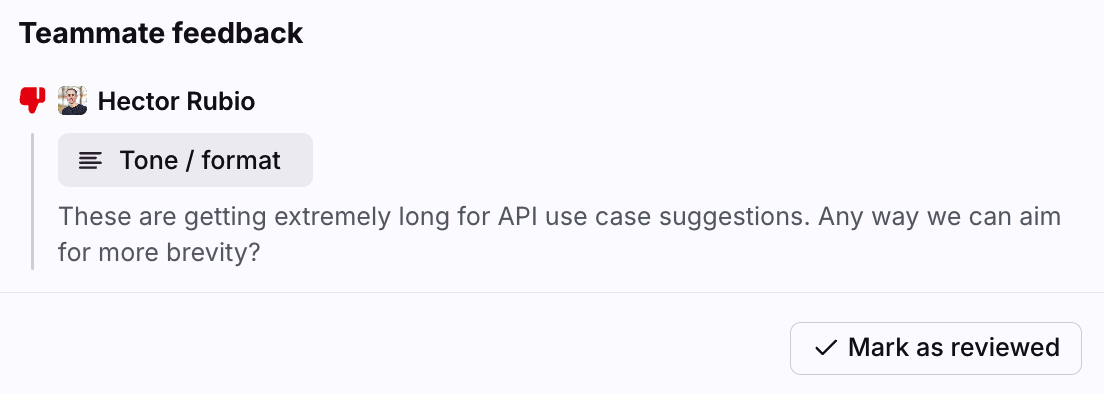
In the Teammate feedback section, you can review ratings and comments left by your teammates.
Step 5
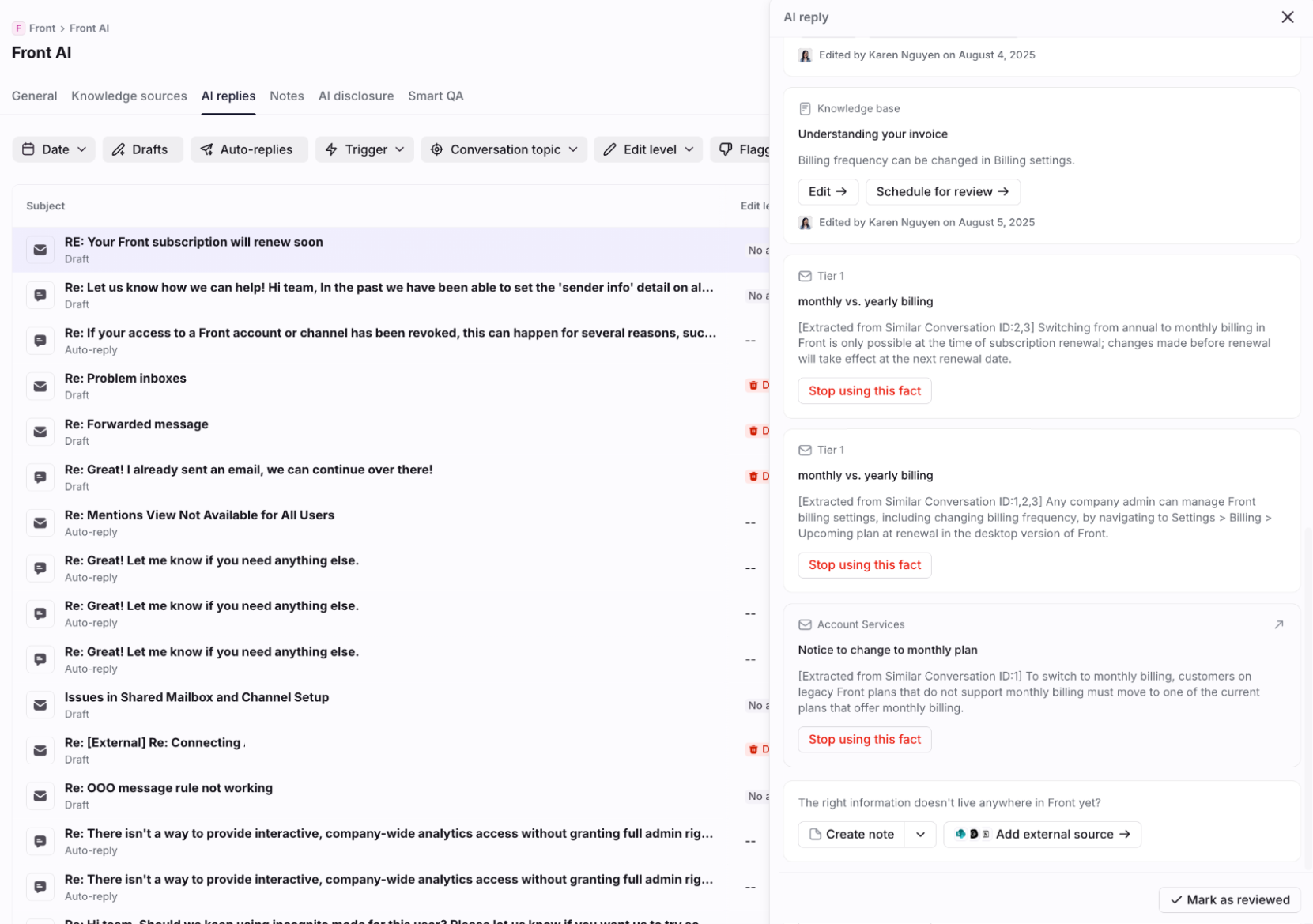
In the Sources section, you can:
Easily see every source the AI teammate used to generate a reply, including the actual excerpt pulled from each source.
Create or update knowledge directly using the inline actions (Edit, Stop using this fact, Create note, etc.) to directly fix knowledge gaps, incorrect content, or stale knowledge.
FAQ
Can I stop drafts from being sent?
Yes, but not directly in the AI replies hub. You can quickly navigate to the conversation by clicking Open conversation in the AI reply panel, then either discard that draft or step in to send a reply yourself.
What if a teammate edits a draft generated by AI?
Any/all messages generated by Autopilot/Copilot will be included in the list, even if they were later edited by a human teammate.
Can I export drafts or replies?
Yes. Click the export icon at the top of the list to download a file with your drafts and replies.
Pricing
This feature is available with the Copilot or Autopilot add-ons, including trials.