How admins can manage teammate settings [new]
⚠️ This article references the new permissions system. Front companies using legacy permissions can view the instructions here.
Overview
Customize your teammates' settings so they can easily transition into Front. Front admins have access to manage their team members' preferences, signatures, and shared inbox permissions. This allows you to standardize certain settings like a default reply channel or message template shortcuts for everyone on your team. You can easily configure settings for new team members or update them along the way, without requiring them to learn and edit each one themselves.
Instructions
Step 1
Click the gear icon, navigate to company settings, then select Teammates in the sidebar.
Step 2
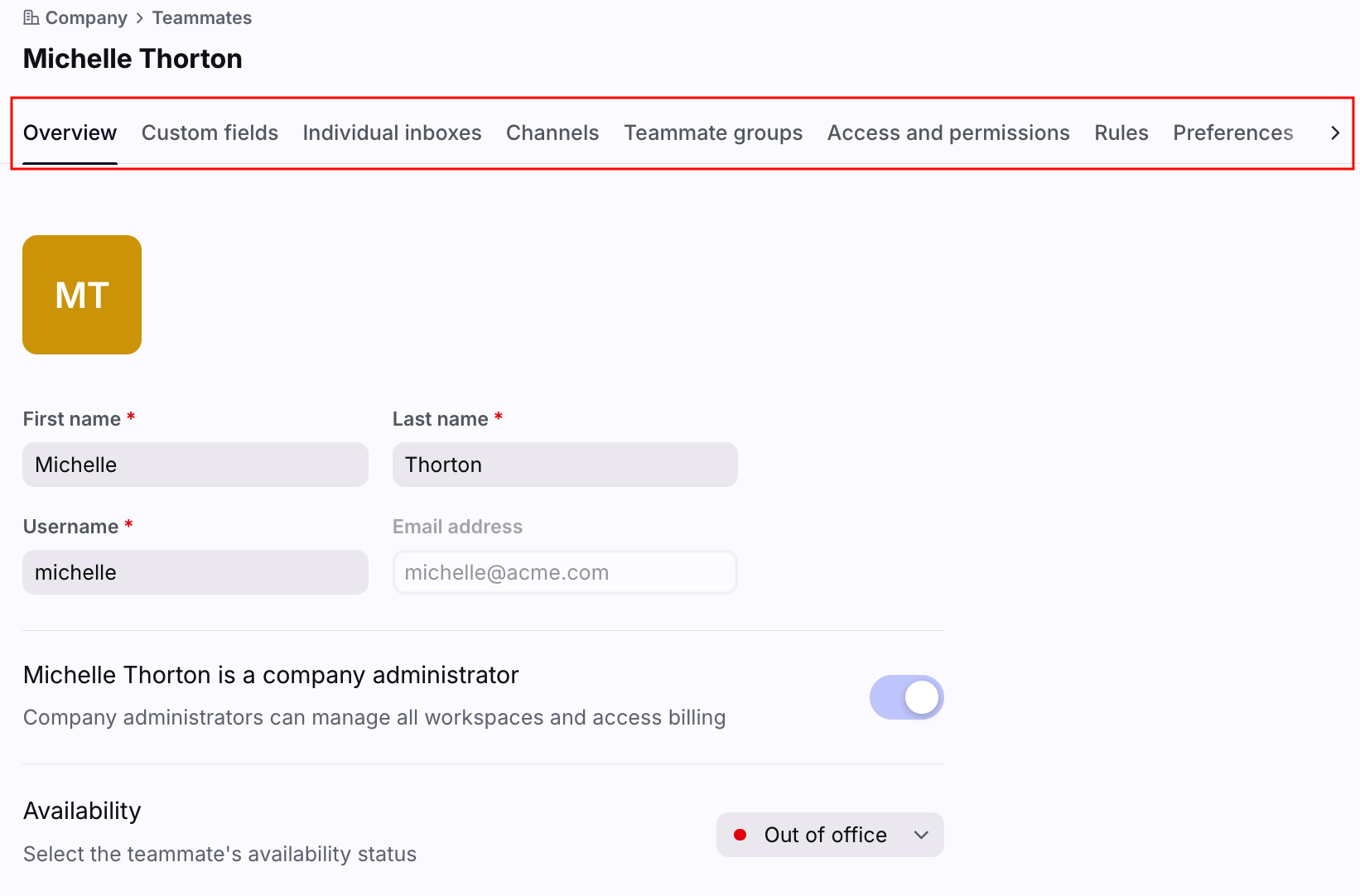
Choose the teammate from the list to see a menu of settings for their account.
Step 3
Click into each category and make any necessary changes. Be sure to click Save for each category where you make changes. See the section below for details on each category.
What settings can admins manage?
Overview
The Overview section will allow you to:
Edit the teammate's full name
Edit the teammate's username for others to @mention them
Edit availability status for the teammate
Turn on/off company admin status (company admins only)
Block or delete the teammate (company admins only)
Custom fields
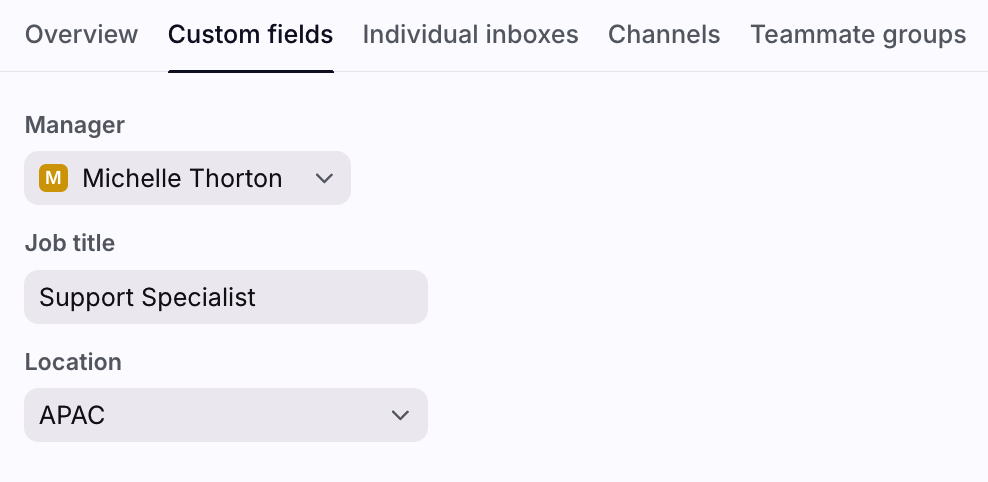
The Custom fields section allows you to view and manage any teammate custom field data to the user account.
Individual inboxes
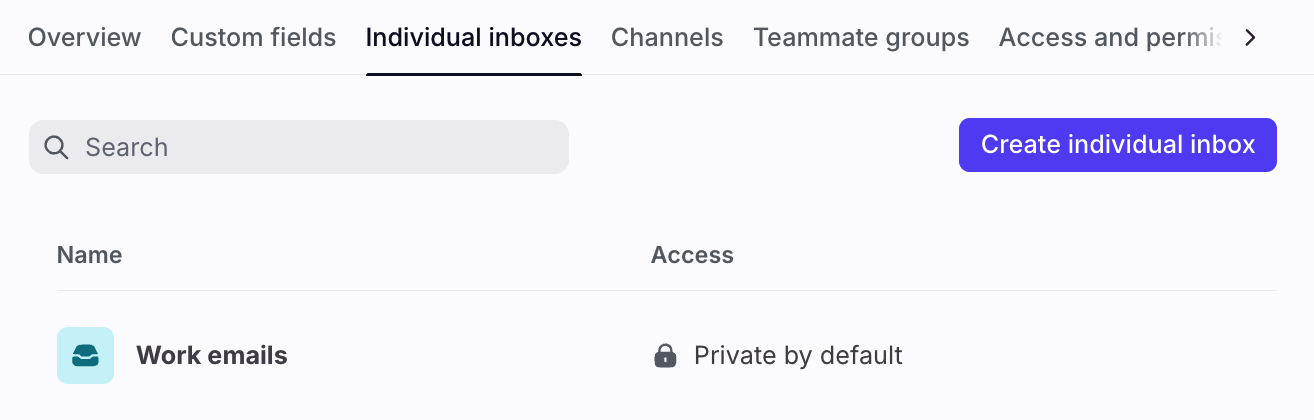
You can set up an individual inbox for the teammate in this section, and make changes to their individual inbox settings. The process to add the inbox is the same as adding any inbox into Front.
The only difference here is that you will not have the ability to give access to other teammates, or yourself, for the individual inbox. Only the inbox owner will be granted visibility for the inbox and they can choose to share it with others once they log in.
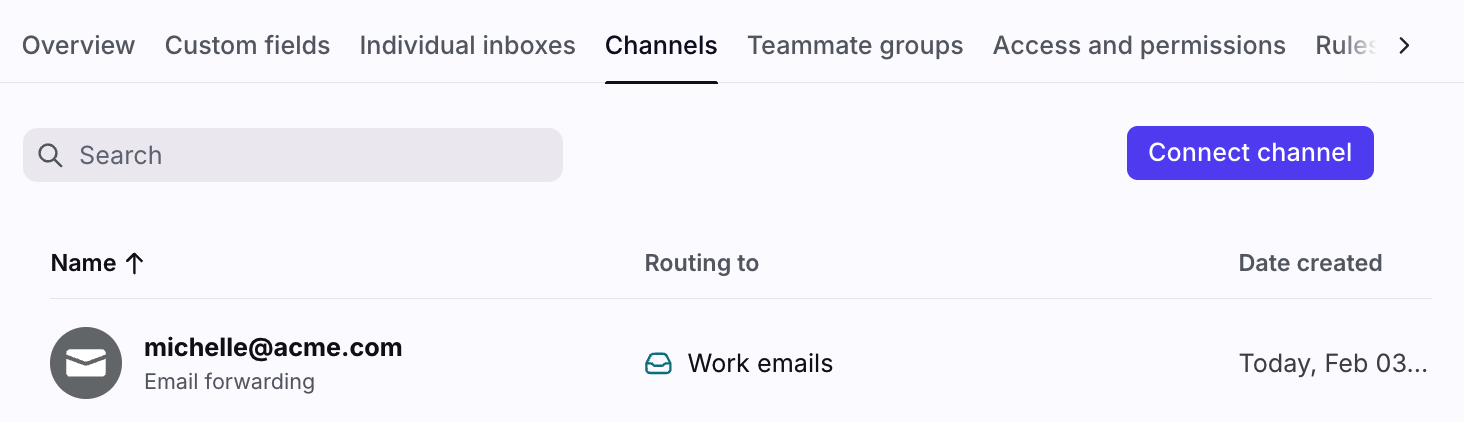
Channels
You can set up an individual channel and connect it to any individual inbox for this teammate.
The process to add a channel is the same as adding any channel into Front; you can choose the channel type and walk through the setup screens.
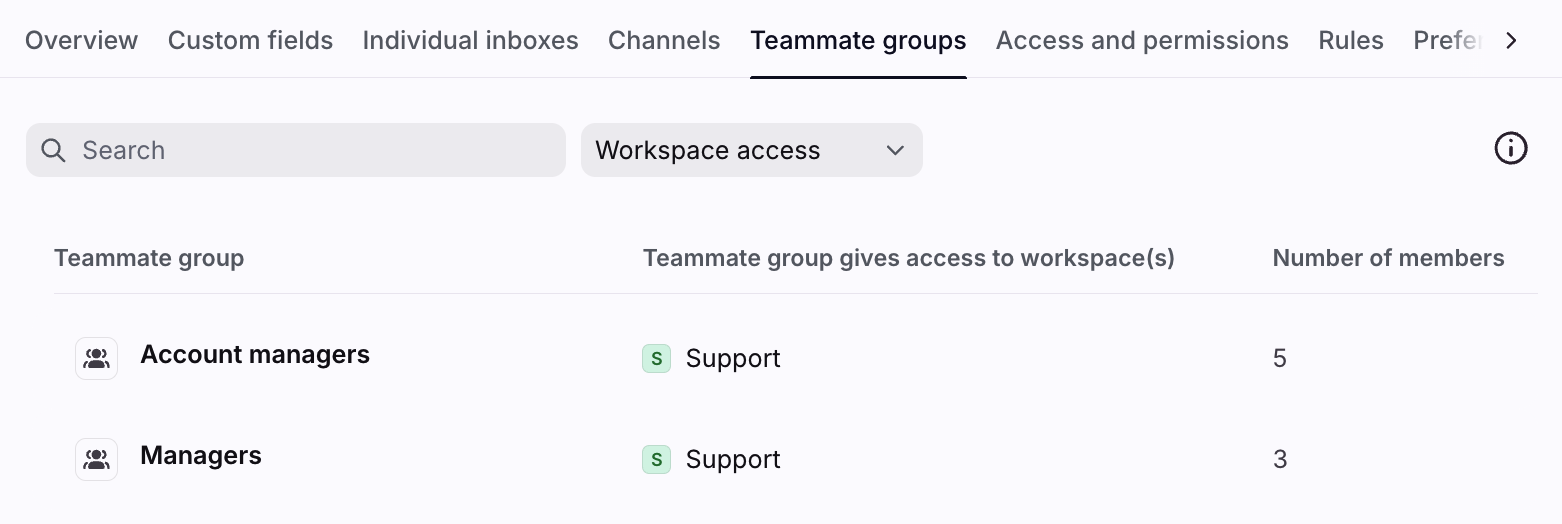
Teammate groups
Company admins only: This section will list any teammate groups the teammate has been added to.
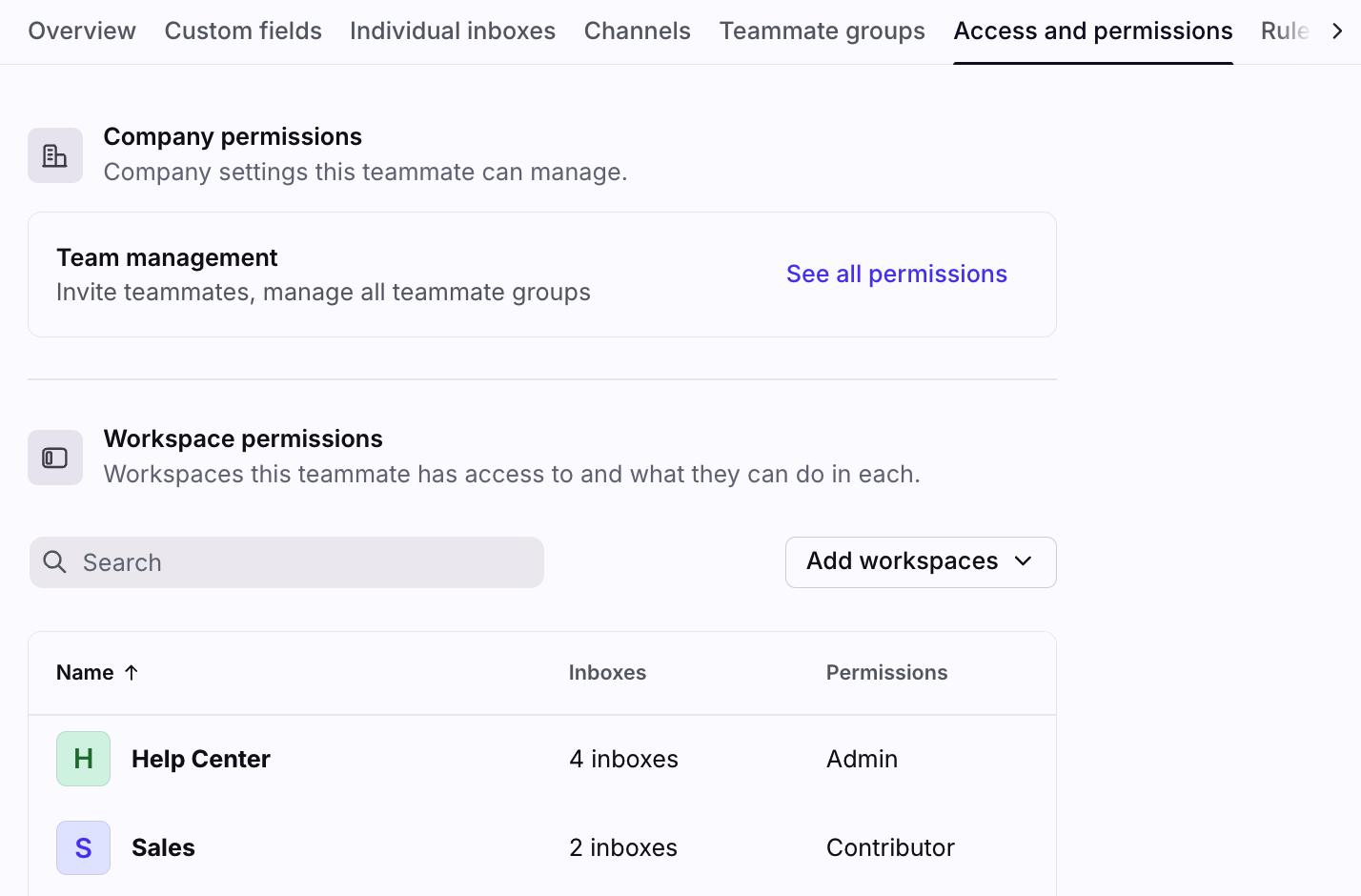
Access and permissions
Company admins only: This section will allow you to grant access to company permissions, workspaces and shared inboxes, and view workspace permissions. Use the dropdown to select which workspaces the teammate belongs to. Then, click into a workspace to access the following settings:
Inbox access tab: Choose which shared inboxes the teammate has access to. Any of the workspace's public inboxes are selected by default, and cannot be deselected.
Permissions tab: View the permissions the teammate has in each workspace. Teammates can have different permissions in different workspaces. You can edit the permissions through teammate groups or by changing the default workspace permissions.
For non-company admins who have the Teammates - Manage workspace permission, you’ll have view-only access to Inbox access and Permissions tabs instead.
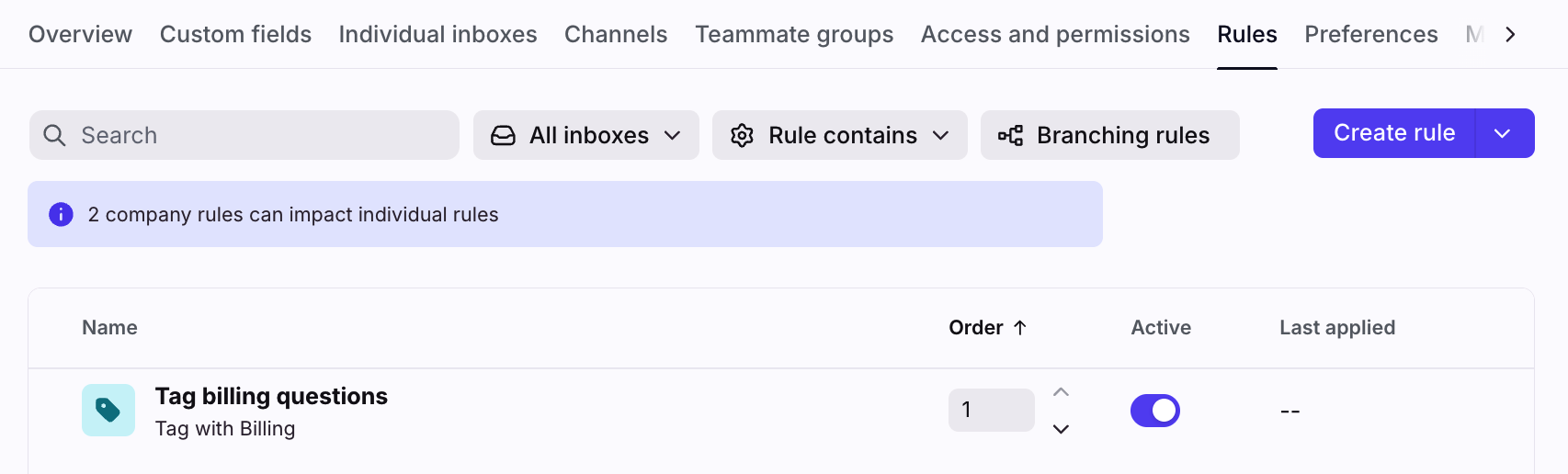
Rules
You can create individual rules for the teammate in the Rules section. These individual rules will apply to their individual inbox(es) and not to any shared inboxes.
Adding rules here allows you to set up any automated workflows your team uses correctly, without needing each teammate to learn to build and use rules.
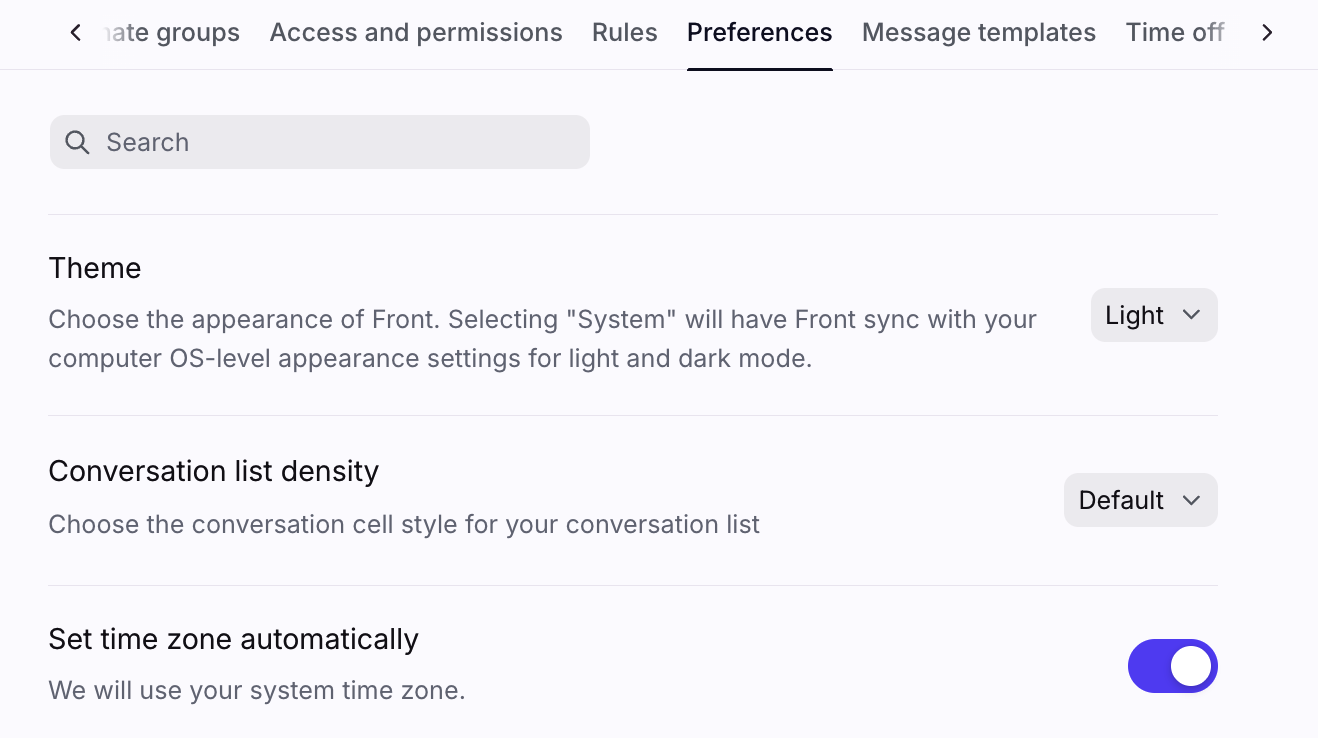
Preferences
The Preferences section houses the same list of personal preferences that you have when you access your own personal preferences. You can use this to ensure that everyone on your team has the same set of behaviors in Front.
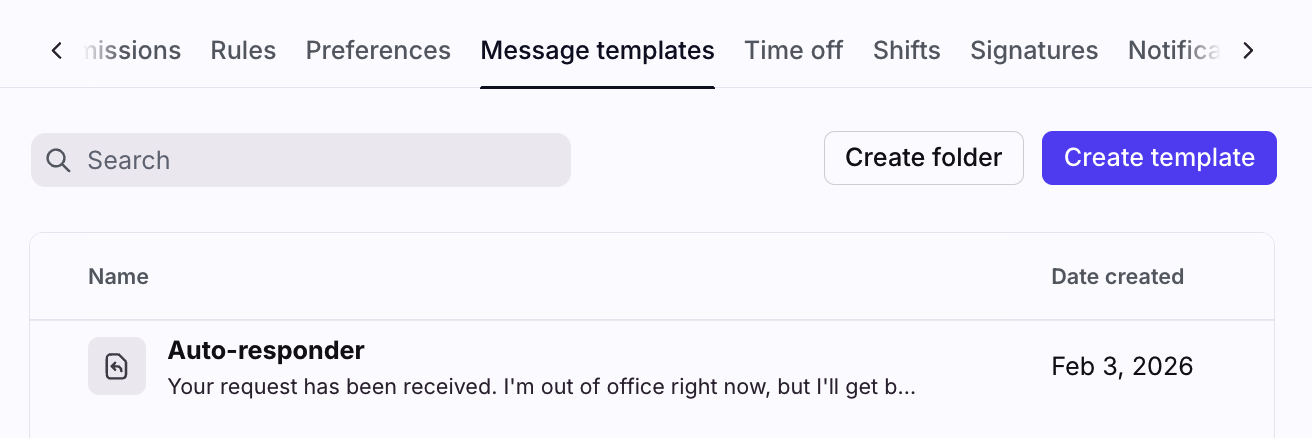
Message templates
In the Message templates section, you can create and edit individual message templates. Set up message templates to help your teammates quickly respond to messages.
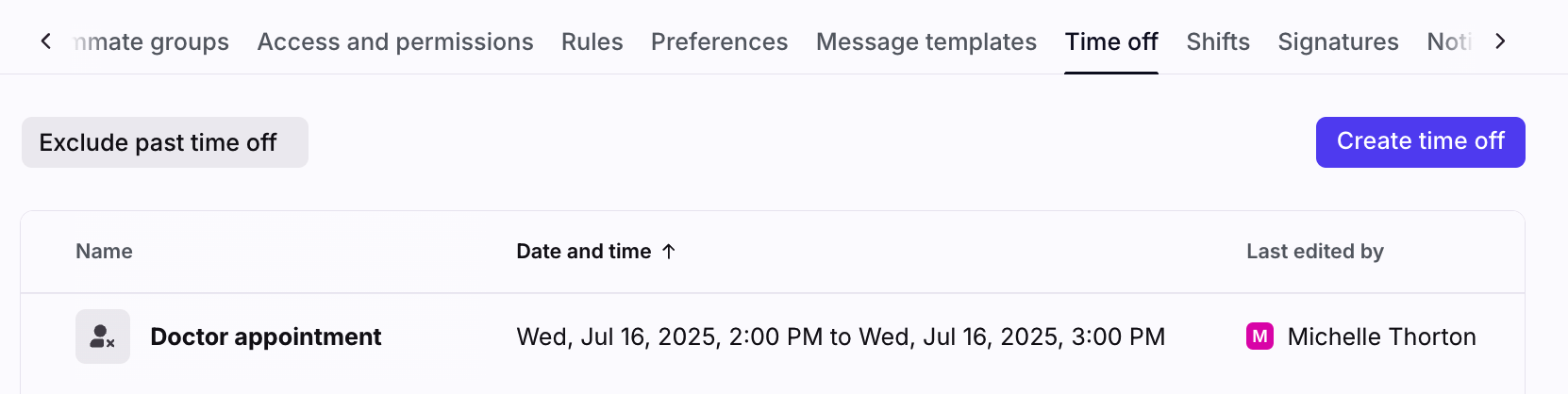
Time off
In the Time off section, you can create and edit time off. Set up date ranges and optional auto-responders on behalf of your teammates.
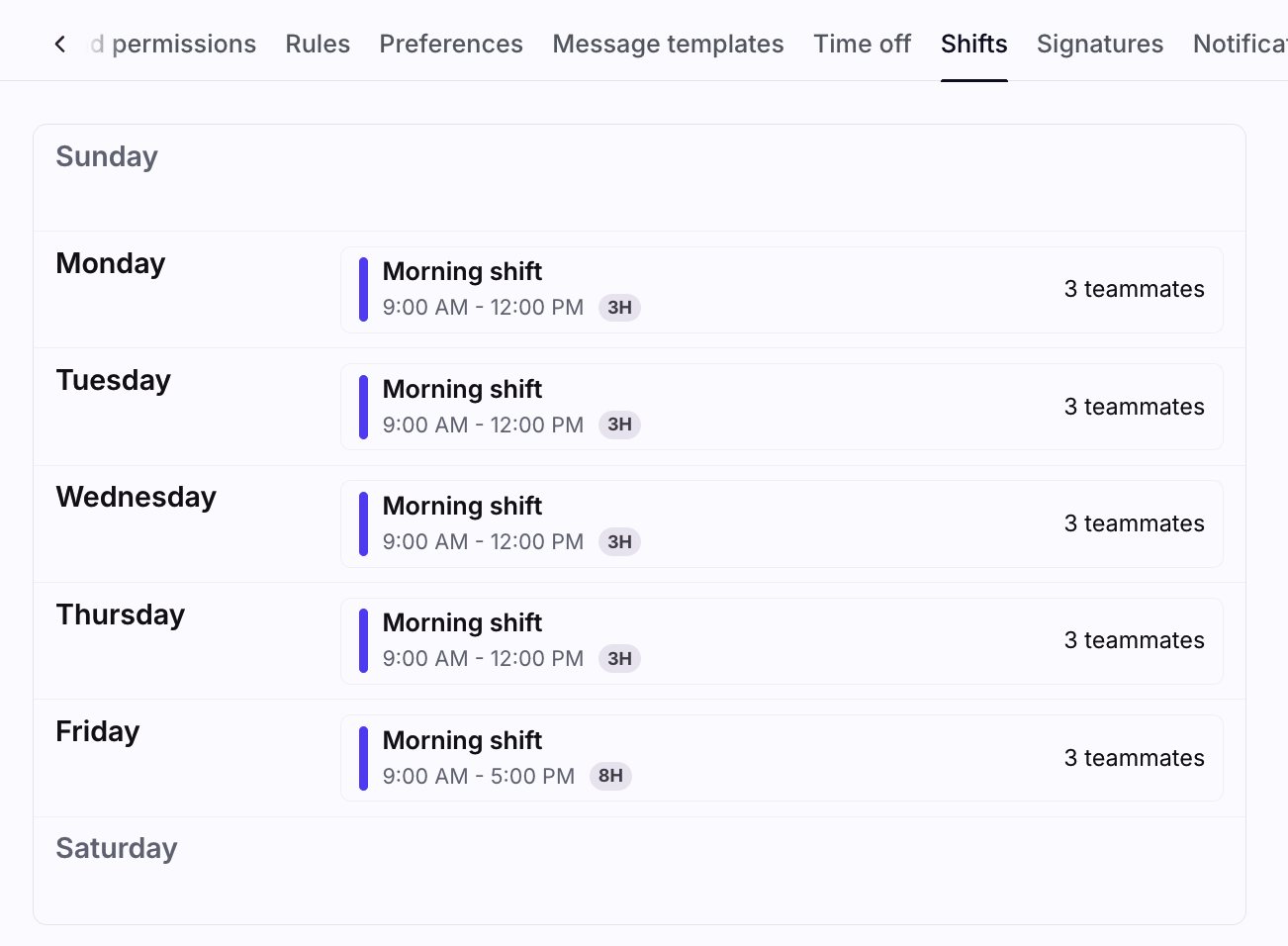
Shifts
Enterprise plan: The Shifts section will display any shifts a teammate has been added to.
Signatures
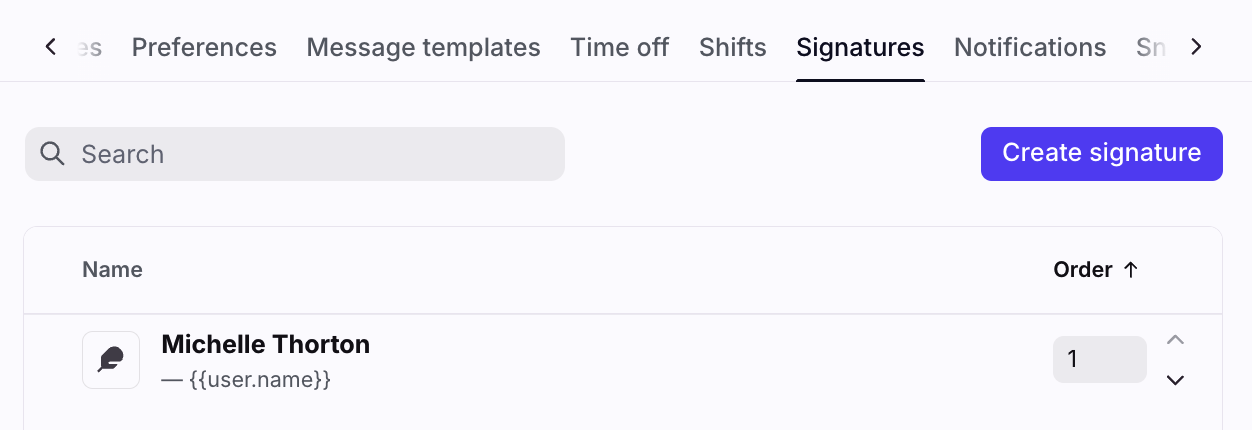
In the Signatures section, you can create and edit personal signatures for the selected teammate. Click Add a signature to create a new one, or click an existing signature to edit it.
This feature is helpful if you'd like all teammates to have a certain text format, logo, or link in their signature. You can also standardize signatures with shared signatures in your company settings.
Notifications
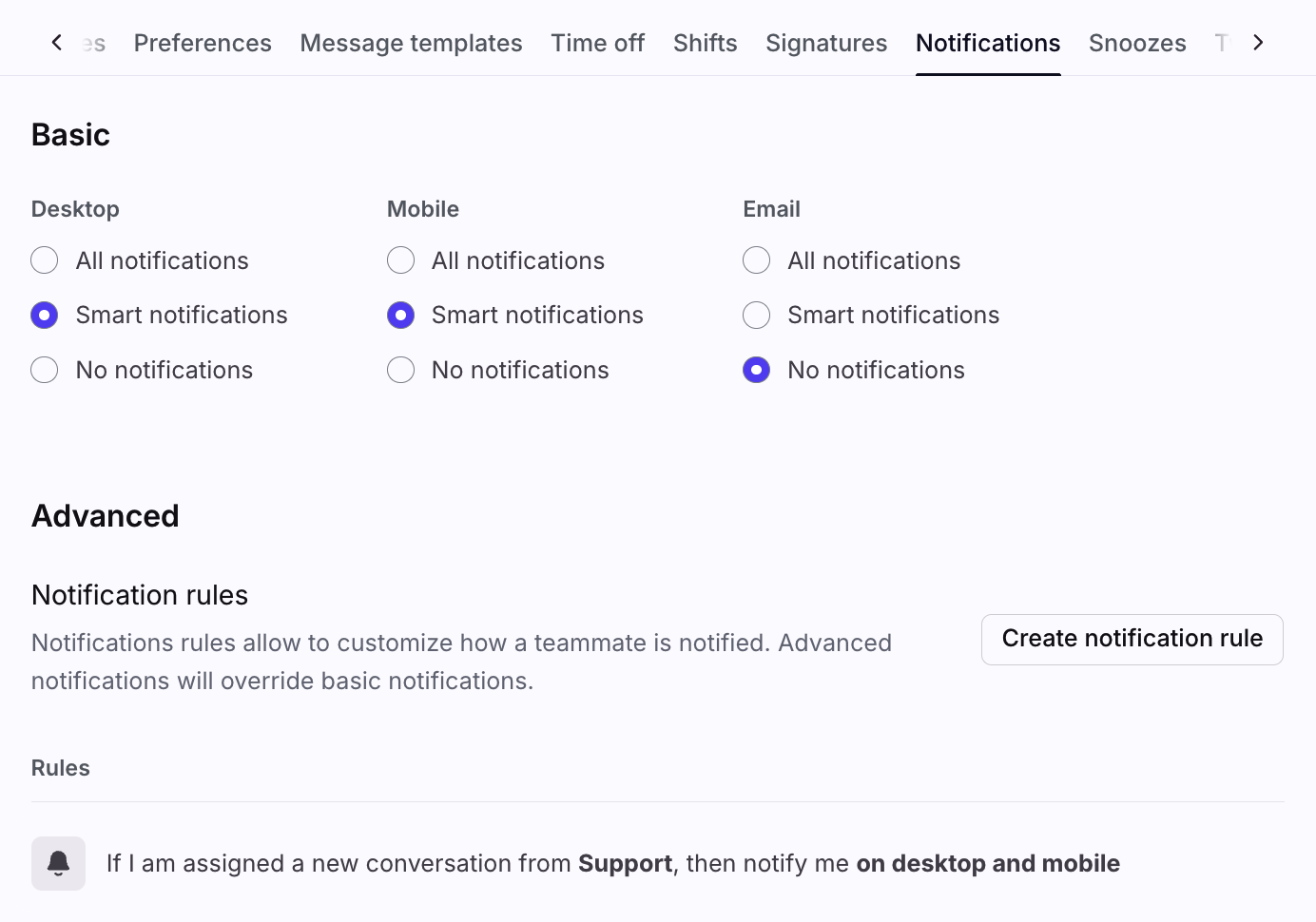
Just like with your own notifications settings, you can set your teammate's basic and advanced notifications for them. This is helpful to standardize what notifications teammates should be getting to ensure they don’t miss important messages.
Snoozes
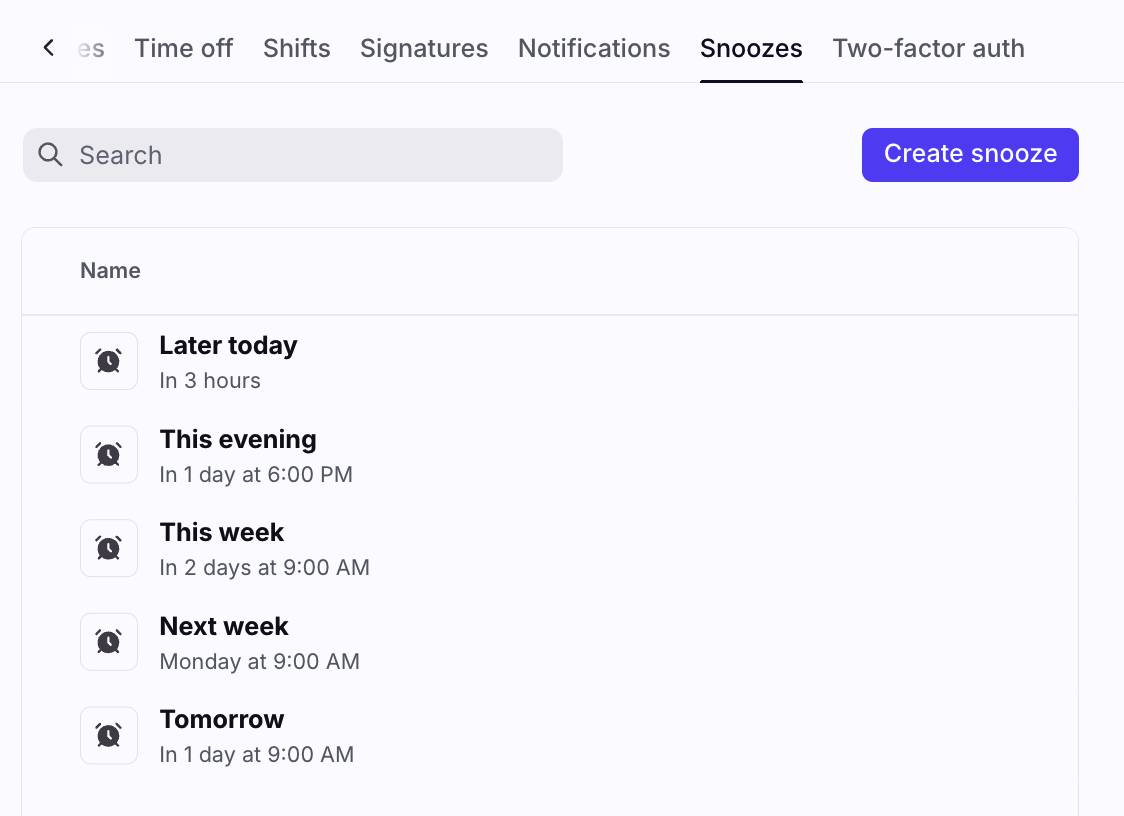
The Snoozes section allows you to modify your teammate's snooze settings.
Two-factor auth
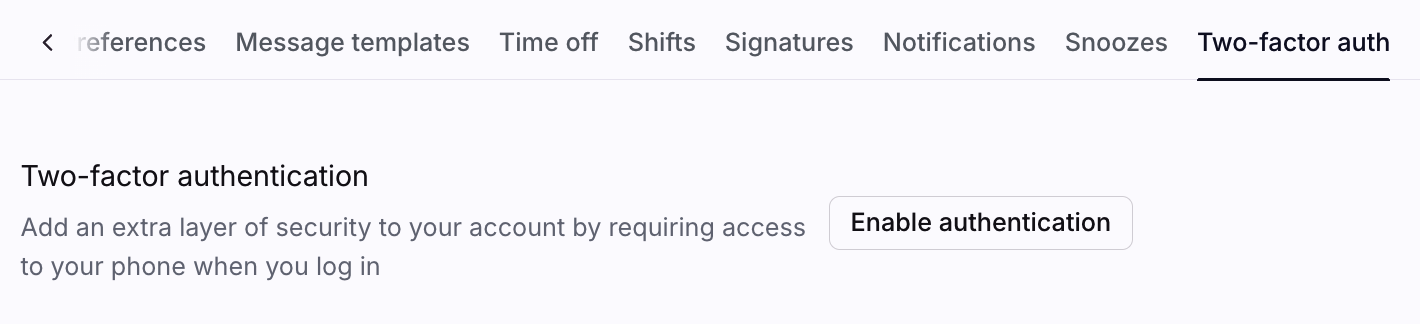
When a teammate has set up two-factor authentication (2FA), you can disable it here if they lose their authentication method and cannot log into Front. Toggle off the setting and input your password to confirm you’d like to disable it.
Note: The teammate will need to use their own account to set up their two-factor authentication.