
Understanding default workspace permissions [new]
⚠️ This article references the new permissions system. Front companies using the legacy version of permissions and roles can view the instructions here.
Overview
The Permissions page in your workspace settings offers a comprehensive view of all available permissions that can be assigned to team members.
Use this page to:
Review and audit which teammate groups have been granted access to perform specific actions within the workspace
Enterprise and legacy Scale plans only: Customize the default permissions teammates should have when they are granted access to this workspace
See this article once you’re ready to grant permissions to team members using teammate groups.
How it works
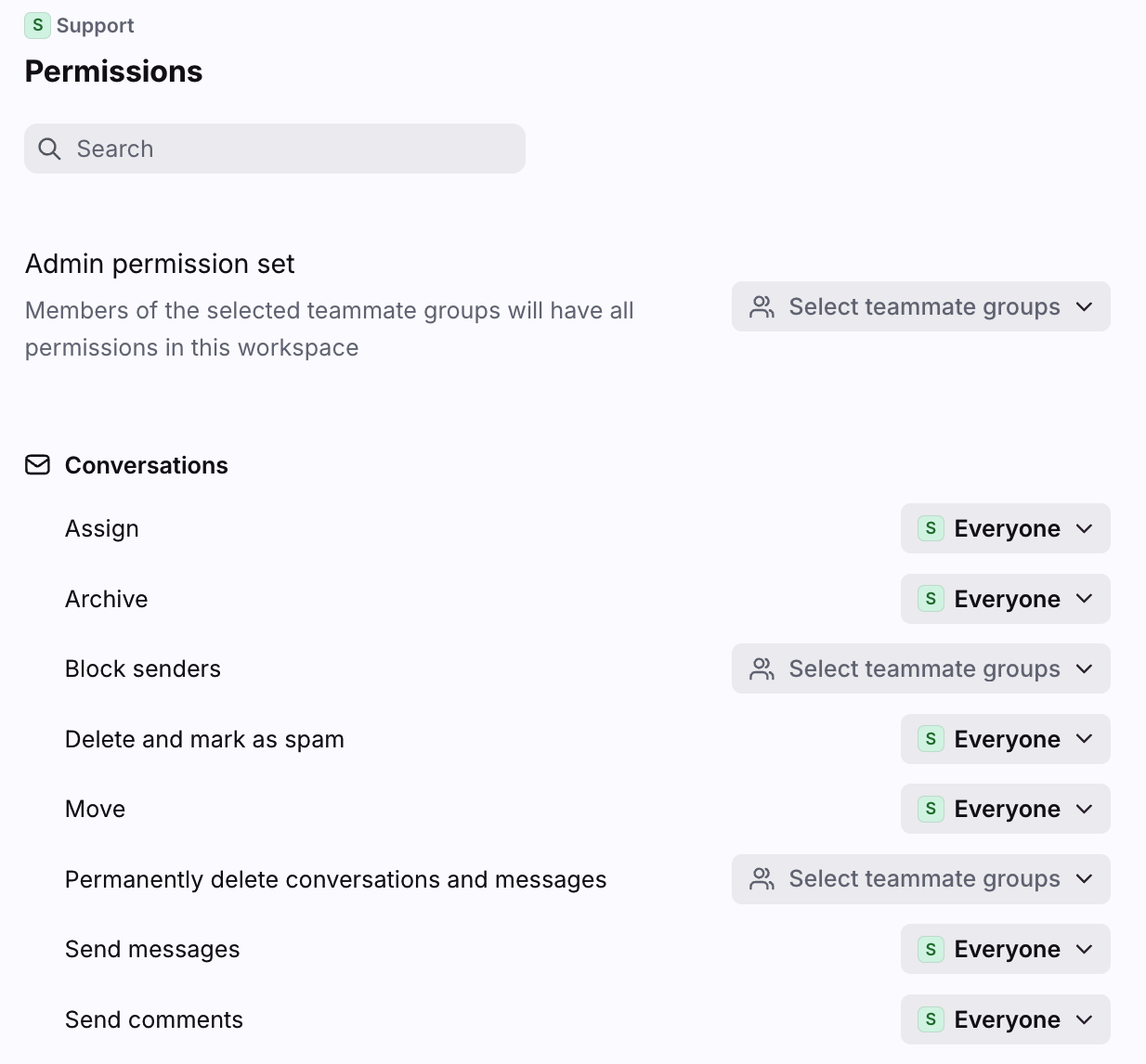
In the workspace Permissions page, you’ll see a dropdown menu next to each permission. This menu will show either "Everyone" or the specific teammate groups that have been selected for that permission.
Enterprise and legacy Scale plans only: You can adjust the values in the dropdowns to customize your default workspace permissions.
Default permissions
Permissions set to “Everyone” are considered default permissions. This means:
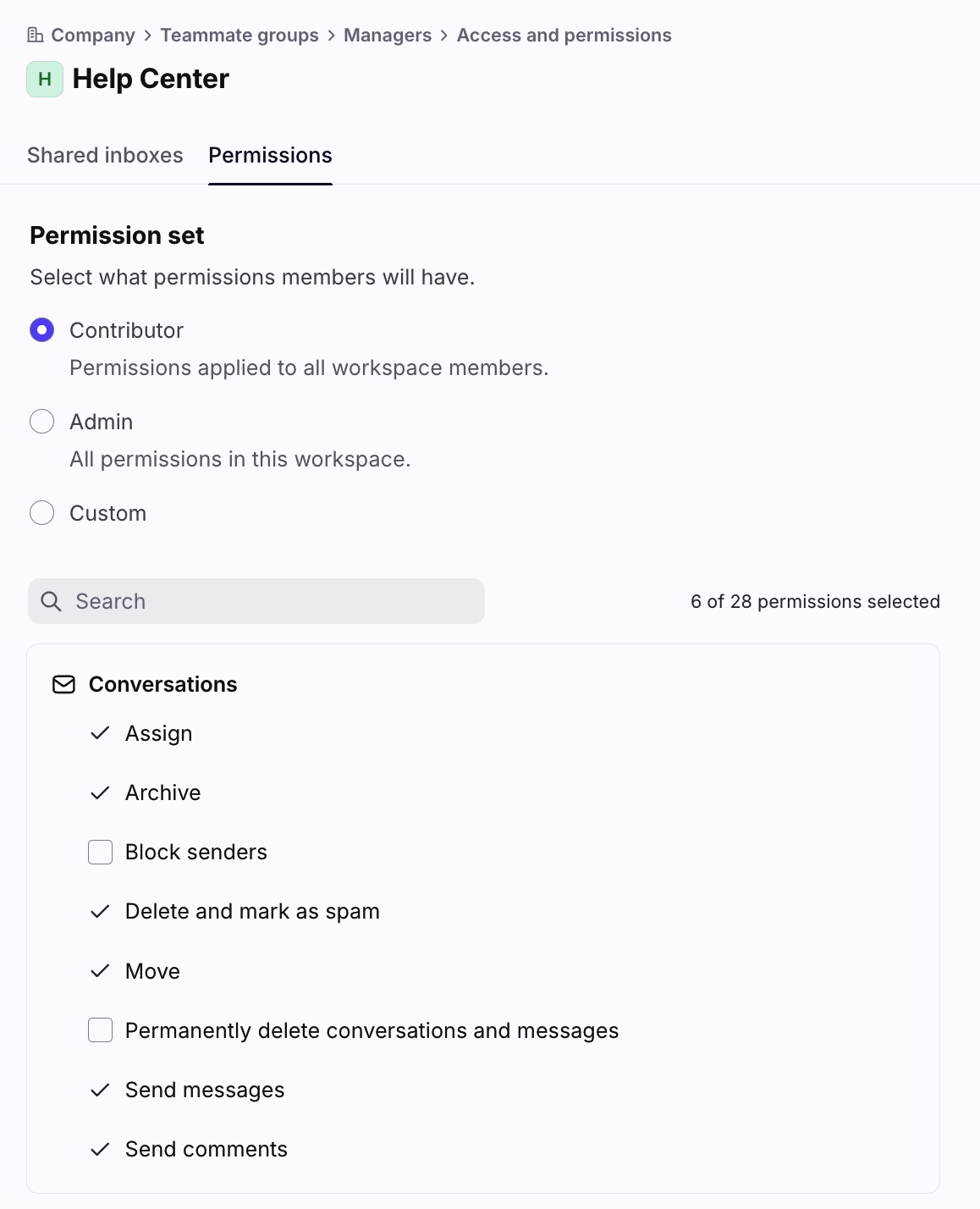
When a teammate group is created, and the Permissions setting is set to “Contributor”, the teammate group will be granted all permissions set to “Everyone” in workspace settings.
When a teammate is granted access to the workspace through any other invite method, they’ll have this basic set of permissions.
Example:
In workspace settings, the Assign permission is set to “Everyone”, and Block senders is not.
In a teammate group, when you select “Contributor” in the Resource permissions setting, this group has access to the Assign permission, but not the Block senders permission.
Admin permission set
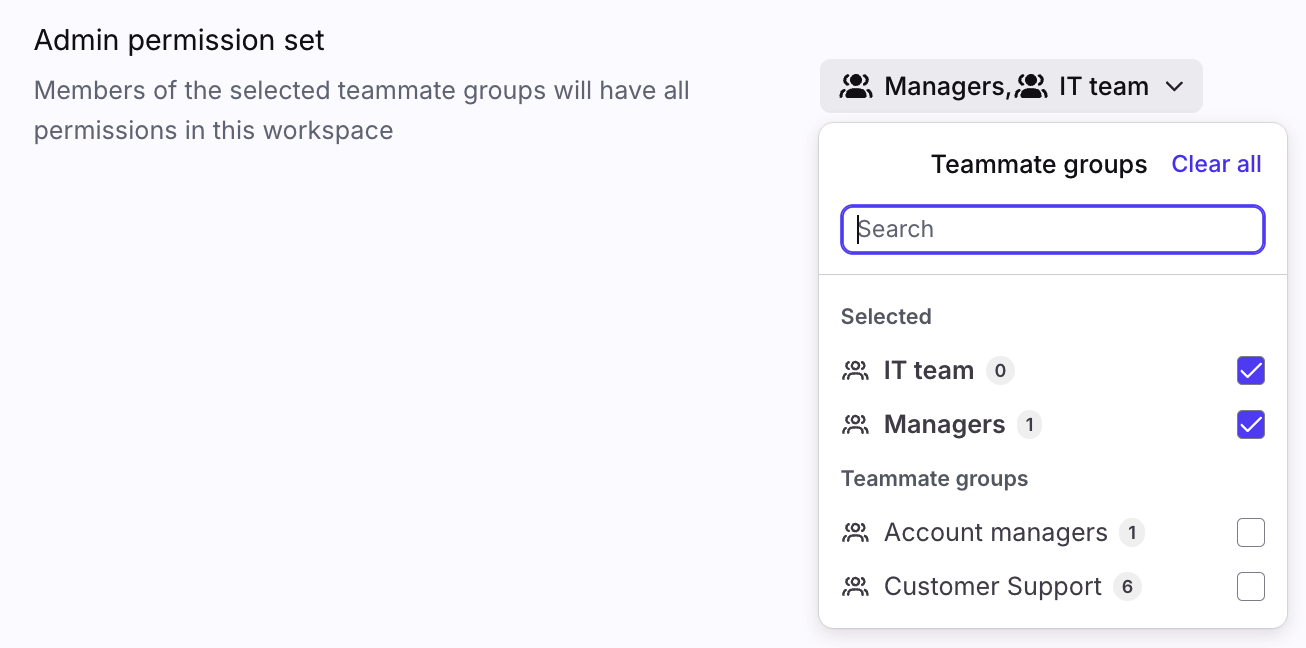
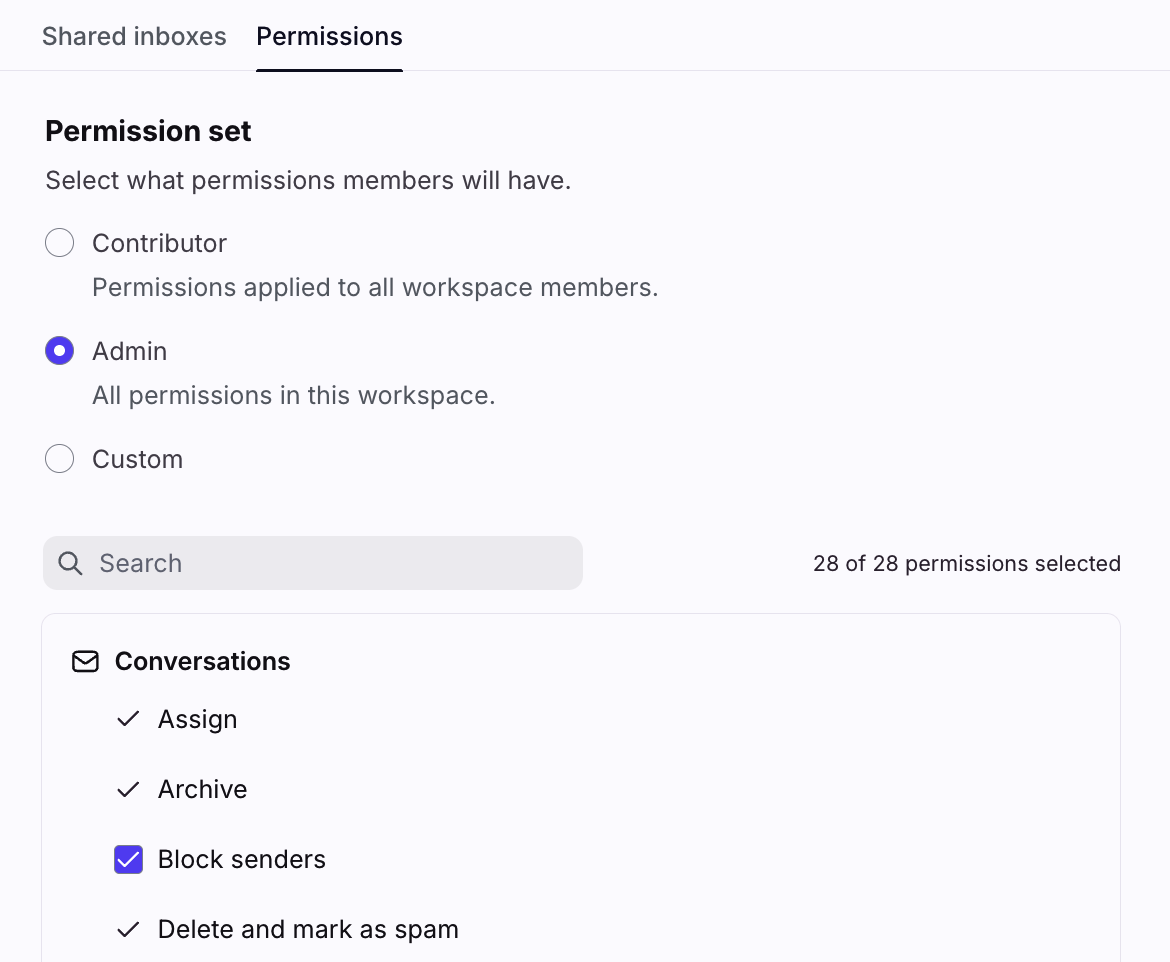
In the Admin permission set field, you’ll see the teammate groups that have All permissions selected in the teammate group’s Resource permissions setting. Changes made in workspace settings will also reflect in the teammate group’s setting.
In workspace settings:
In a teammate group:
All permissions
See this article to review the full list of permissions and what they allow users to do.
FAQ
What if a teammate is in multiple teammate groups with different permissions?
Permissions are additive, meaning a teammate gets the combined permissions from all the groups they are a member of for a particular workspace. If one group has a permission enabled, and another group has the permission disabled, Front will consider the permission enabled if a teammate is added to both groups.
For example, if a teammate is in a "Support" group that can send messages and also in an "Ops" group that can create workspace rules, they will be able to do both in the same workspace.
Can I edit permissions for an individual user?
You can individually invite a teammate to a workspace, where they will be granted the default workspace permissions. Otherwise, you’ll need to use a teammate group to customize the permissions for a teammate.
Can I customize the permission presets in teammate groups?
No. When you select the Contributor and Admin permission sets in a teammate group, they cannot be further customized.
What happens if I edit the permissions in a teammate group or workspace settings?
When you edit the permissions in a teammate group or in your workspace settings, the change will be reflected in both areas.
Example 1:
Action: In the “IT team” teammate group, set the Resource permissions setting to Admin
Result: In workspace settings, “IT team” is added to the Admin permission set setting
Example 2:
Action: In workspace settings, Remove the “Managers” teammate group from the Admin permission set setting
Result: In the “Managers” teammate group, the Resource permissions setting is set to Contributor (previously set to Admin)
Pricing
Permissions are available on all plans. Custom workspace permissions are available on the Enterprise plan and legacy Scale plans.