
Enable and use the Amazon Connect integration
Overview
Amazon Connect is a cloud-based, AI-powered contact center platform that allows businesses of any size to set up a scalable customer service and engagement system. With the Amazon Connect integration, Front users can seamlessly manage SMS and voice channels directly alongside email, live chat, and more in one unified workspace.
Use Front’s Amazon Connect integration to seamlessly:
Place and receive voice calls directly in your Front inbox
Listen, comment, and tag teammates on call recordings and transcripts
Get up to speed fast with AI summaries of past calls
Keep agents focused with automatic Busy status updates
Send and receive SMS messages directly from Front
Permissions
You must have both Amazon Connect/AWS admin permissions AND Front admin permissions to set up Amazon Connect channels in Front.
Set up overview
Admin requirements
To set up the Amazon Connect voice/SMS integration in Front, admins will need to complete most setup steps in both Amazon Connect and Front.
In Amazon Connect, company admins need to:
Have an active Amazon Connect instance (AWS account).
Have at least one claimed phone number.
Set up queue and routing profiles to route calls to agents.
Have Contact Lens enabled to access recordings and transcripts.
In Front, admins need to:
Log into a Front account using the same email address you use with Amazon Connect.
Connect phone numbers to the Front inbox you would like the voice call or SMS conversation to be in using the Amazon Connect channel integration.
Additional admin configuration
Call recording configuration
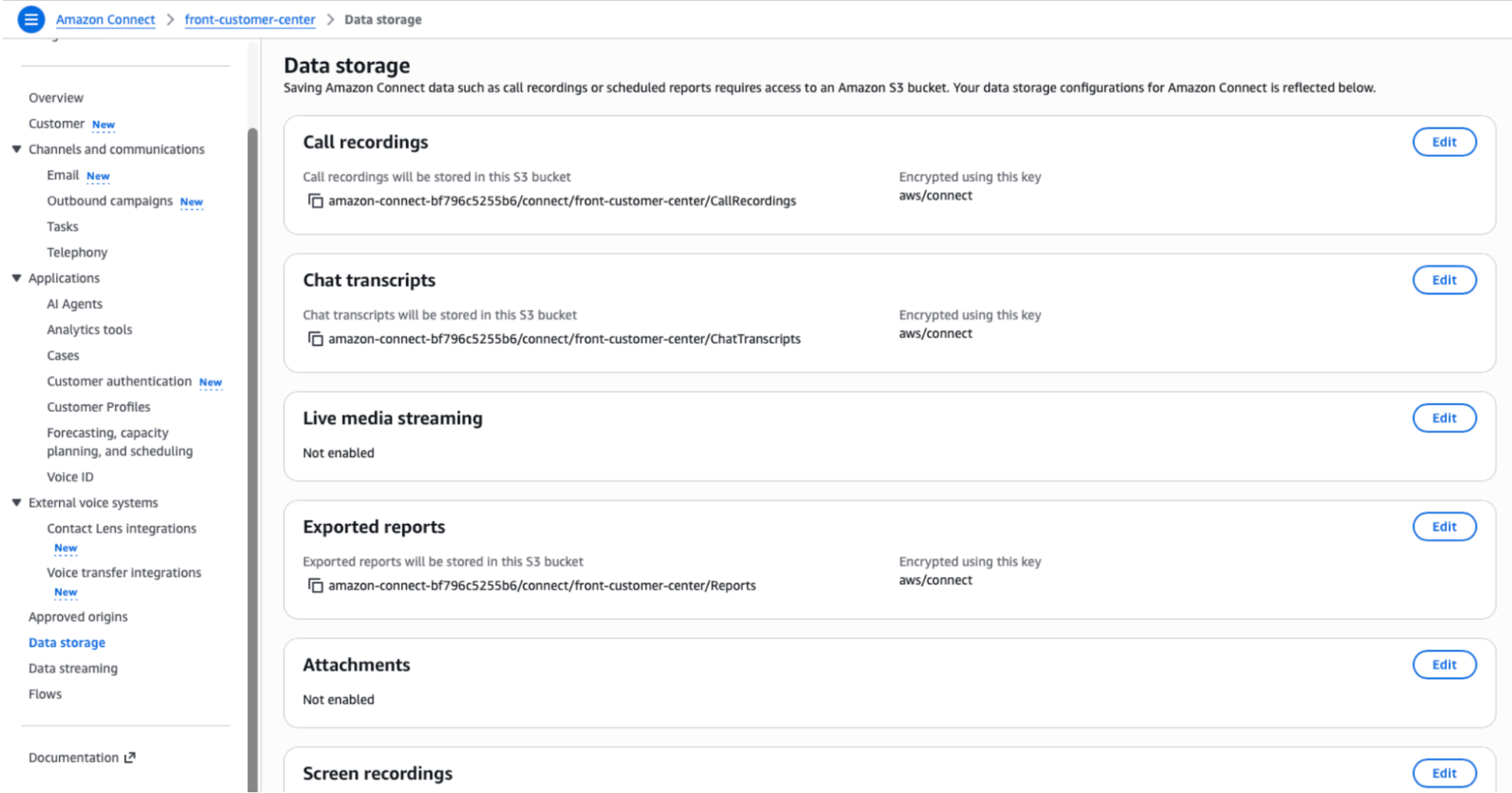
To access call recordings in Front, navigate to your Amazon Connect settings, select Data storage, then ensure Call recordings are enabled.
Outbound call configuration
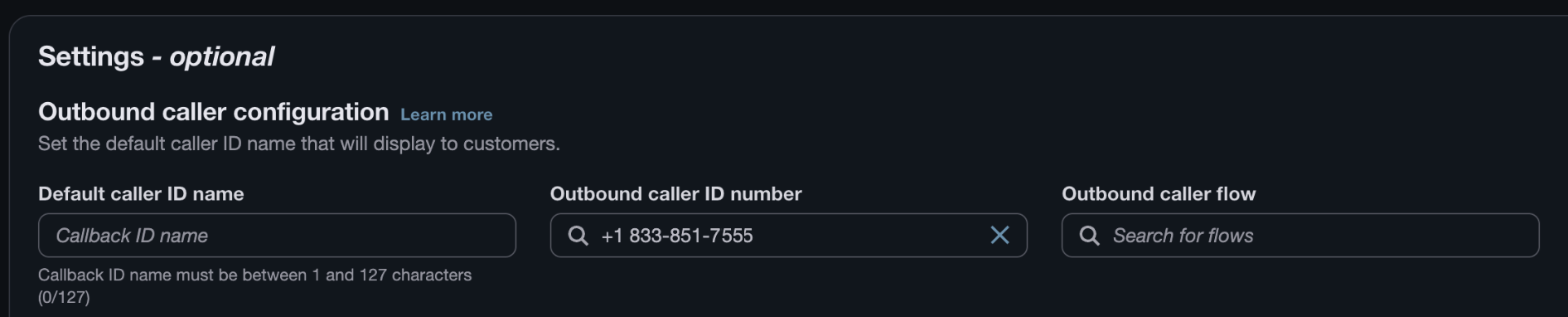
To make outbound calls in Front, you must configure the following in your Amazon Connect settings:
Configure the Outbound Caller ID on a queue.
Navigate to Routing, select Queues, then open the queue you want to use (e.g. BasicQueue)
In the Outbound caller ID number field, select the channel’s phone number, then save your changes.
Assign that queue as the agent’s Default Outbound Queue in the Routing Profile.
Navigate to Users, select Routing profiles, then open the agent’s profile.
In the Default outbound queue field, select the queue from Step 1, then save your changes.
Transfer call configuration
To enable call transfers in Front, you’ll need to create a “quick connect” for every agent or queue.
Create an agent quick connect.
In the Amazon Connect console, navigate to Routing, select Quick connects, then click Create quick connect.
Enter a name (e.g. “Transfer to Sophia”), set Type = Agent or Type = Queue (depending on your workflow), select the destination agent, and choose the contact flow. Use Default agent transfer, then save your changes.
Associate the quick connect with a queue. The queue must be included in the routing profile of the agent performing the transfer.
Navigate to Routing, select Queues, and open the queue used by your test agent.
Under Quick connects, add the quick connect you just created and save your changes.
Refresh the CCP. The quick connect should now appear in the list when you select Quick connects.
Repeat steps 1 and 2 for every agent or queue using call transfers.
Agent requirements
Agents need to be signed in with the same email address in Front and Amazon Connect.
Agents will be prompted to login to Amazon Connect once a channel they have access to is connected. If they do not log in then, or if their login session expires, they will be prompted to log in before making an outbound or receiving an inbound call.
Agents must enable microphone access for Front.
If logging in to Front via web browser, agents must have third-party cookies enabled in the browser for the call widget to function. Check your web browser's instructions for guidance (e.g., Google Chrome, Mozilla Firefox, Amazon’s list of supported browsers).
The first time you open Front with the integration enabled, if third-party cookies aren't allowed in your browser, a pop-up appears prompting you to grant cookie access. Allow it to enable the embedded CTI (the Amazon Connect CCP).
How it works
How calls appear and are assigned in Front
For an agent to be notified or for a call conversation to show up in Front, the number will need to be connected as a channel in Front. SMS and Voice for the same number should be set up separately.
Calls are routed through Amazon Connect. Front will notify agents based on the Amazon Connect call assignment. Because of this, an agent must log into Front and the Amazon Connect integration with the same email address.
The conversation will display in the Front inbox where the channel is connected. For voice calls, once the channel is connected, the conversation will get assigned to the agent that picked up the call.
Each call to or from a customer will create a new conversation. Call threading is not supported.
As long as an Amazon Connect channel is connected to a Front inbox, admins can leverage Front rules according to their needs.
Contacts
The inbound caller will be mapped to the appropriate Front contact, as long as the number being used to make the call matches a number stored in your Contacts. Front can successfully match to contacts in the Contact Manager or synced from a CRM plugin (Salesforce, HubSpot, Zoho, etc).
Note: The format of the numbers must match exactly, including parentheses, spaces, and the leading country code.
Contact syncing
If a contact already exists in Front with a matching phone number, then the message will display their name as the sender. If the contact does not already exist in Front, a new contact will be created for that phone number. Contact information like first and last names will not sync from Amazon Connect to Front.
Enabling the integration
These instructions assume you’ve already set up phone numbers and call distribution in Amazon Connect.
Enable company-wide settings
This section is applicable if you're connecting voice channels. You can skip this section if you’re only connecting SMS channels.
Step 1
In Front, click the gear icon, navigate to company settings, then select App store.
Step 2
Select Amazon Connect from the list of integrations, then click Enable app.
Step 3
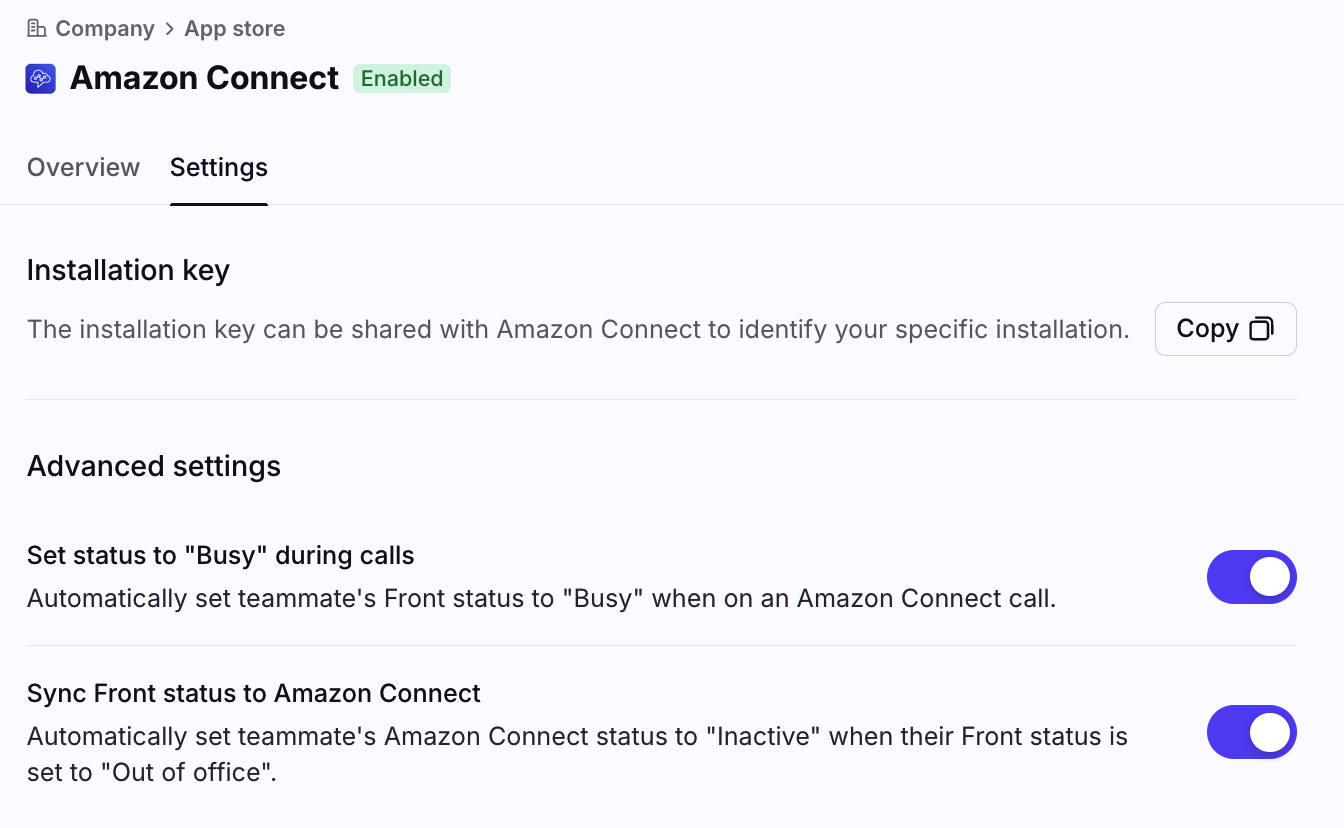
Select the Settings tab, then adjust the toggles for the following company-wide settings:
Set status to “Busy” during calls:
Toggle on if you want to automatically set agent statuses to “Busy” when they’re on calls.
If toggled off, agents will stay “Available” in Front during calls.
Sync Front status to Amazon Connect:
Toggle on if you want to automatically sync Front status changes to Amazon Connect. e.g. “Available” in Front to “Available” in Amazon Connect, “Out of office” in Front to “Offline” in Amazon Connect.
If toggled off, Front status changes will not affect Amazon Connect statuses. e.g. Agent can be “Available” in Front and “Offline” in Amazon Connect.
Step 4
Click Save.
Connecting channels
Step 1
In Front, click the gear icon and navigate to workspace settings in the left sidebar.
Step 2
Click Inboxes in the left menu and create a new shared inbox, or select an existing inbox you would like to connect your Amazon Connect number(s) to.
Step 3
Select Channels in the left menu, then click the Connect channel button.
Step 4
Navigate to the Amazon Connect option or SMS by Amazon Connect option.
Step 5
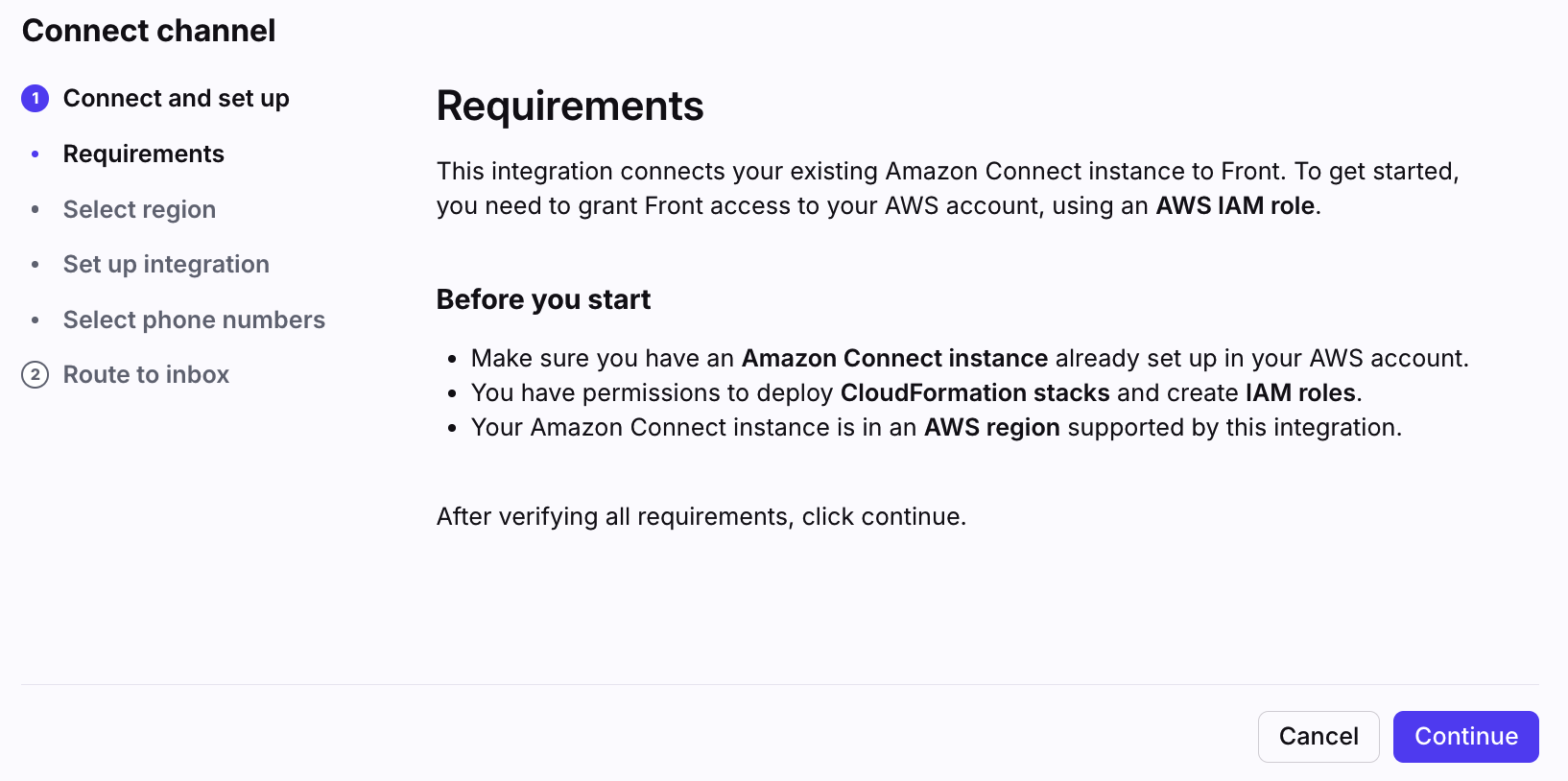
Verify the requirements needed to configure the channel, then click Continue.
Step 6
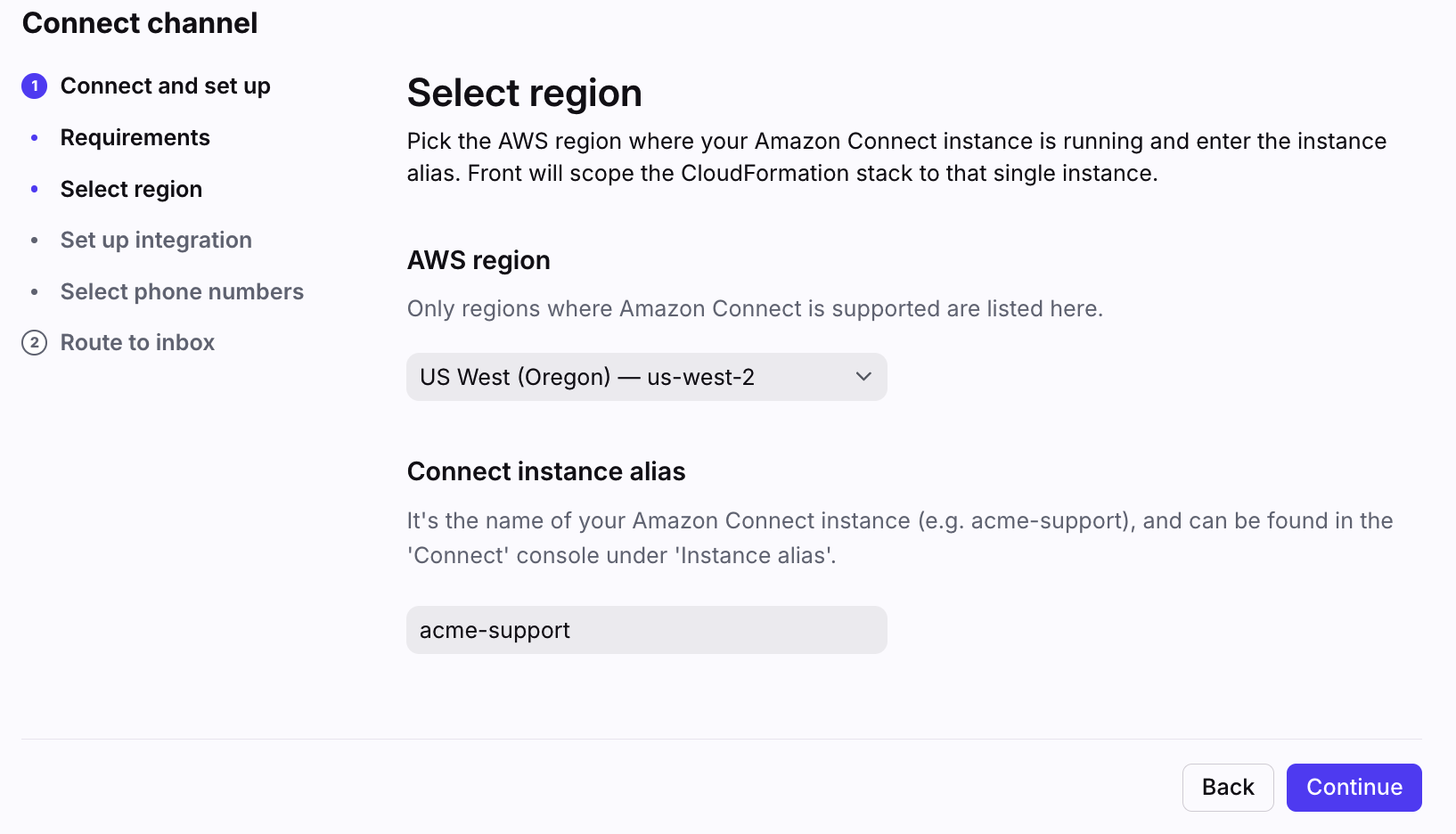
Select your AWS region, enter your instance alias, then click Continue.
Step 7
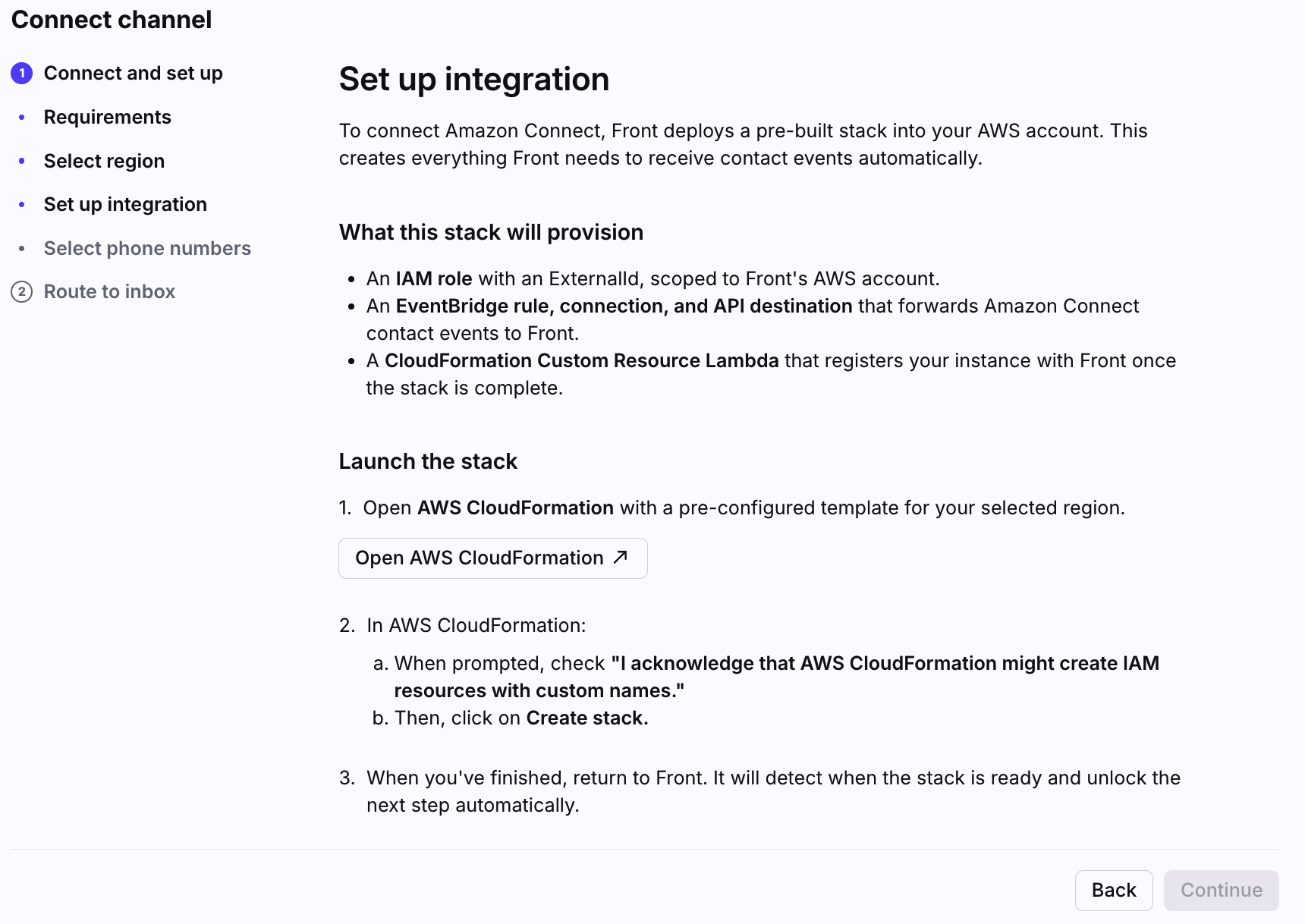
Follow the on-screen instructions, then click Continue.
Step 8
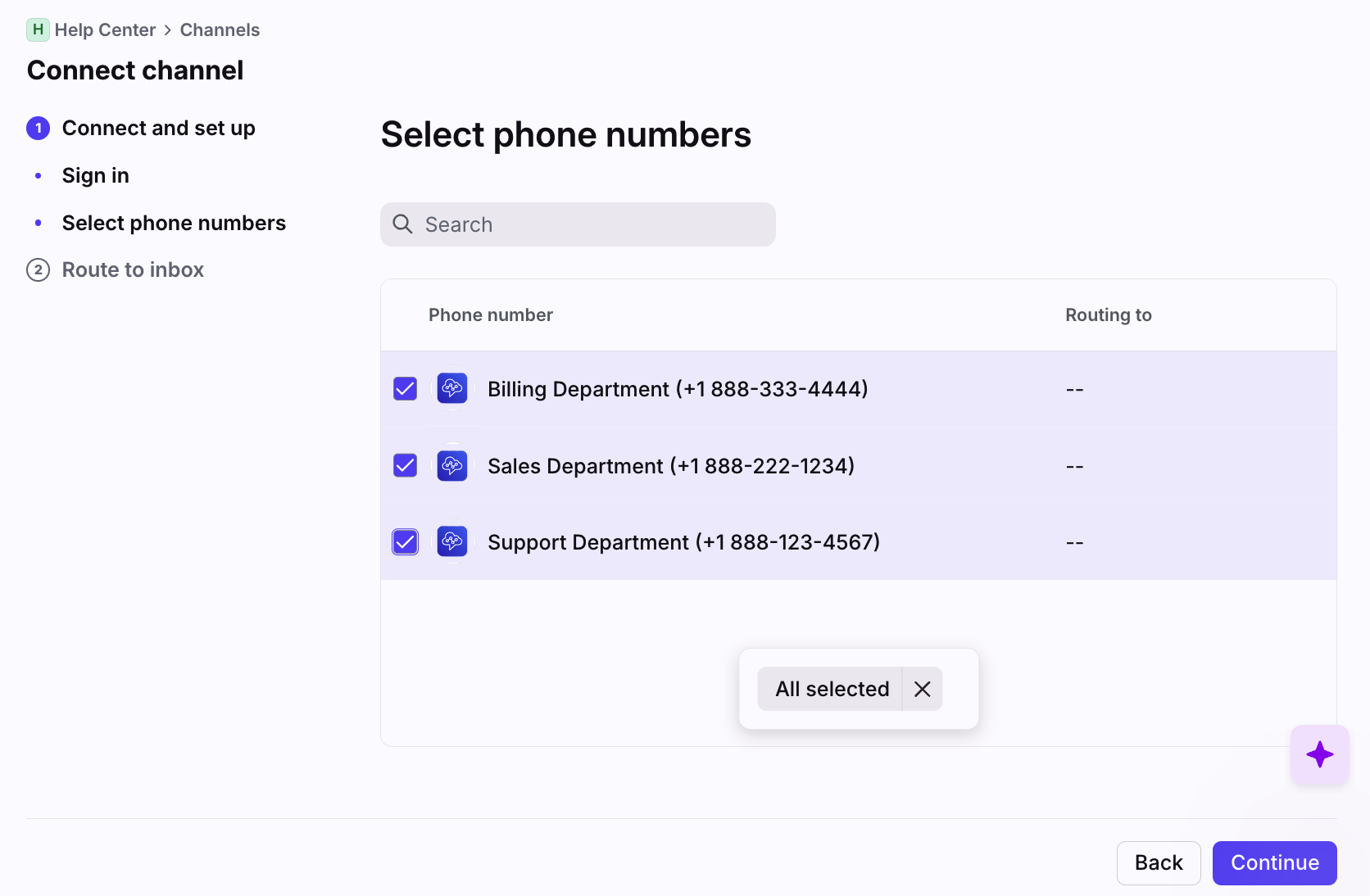
Select the phone number you want to connect to Front. Select multiple channels to connect them in bulk.
Click Continue.
Step 9 (for SMS channels)
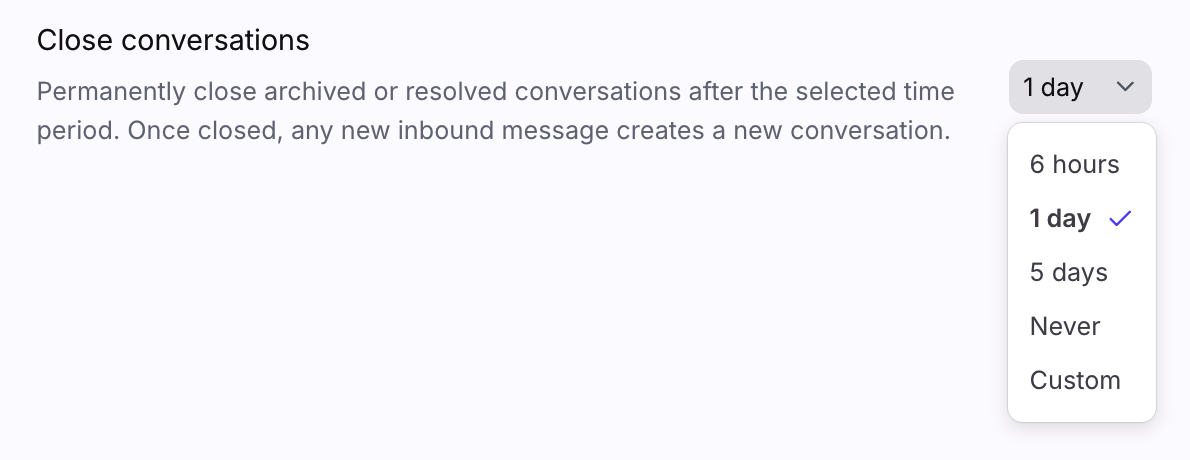
Select when you want conversations to automatically close using the Close conversations setting.
If you plan to use AI features with your inbox, we do not recommend selecting Never. See this article to learn how the Close conversations setting affects AI features.
Step 10
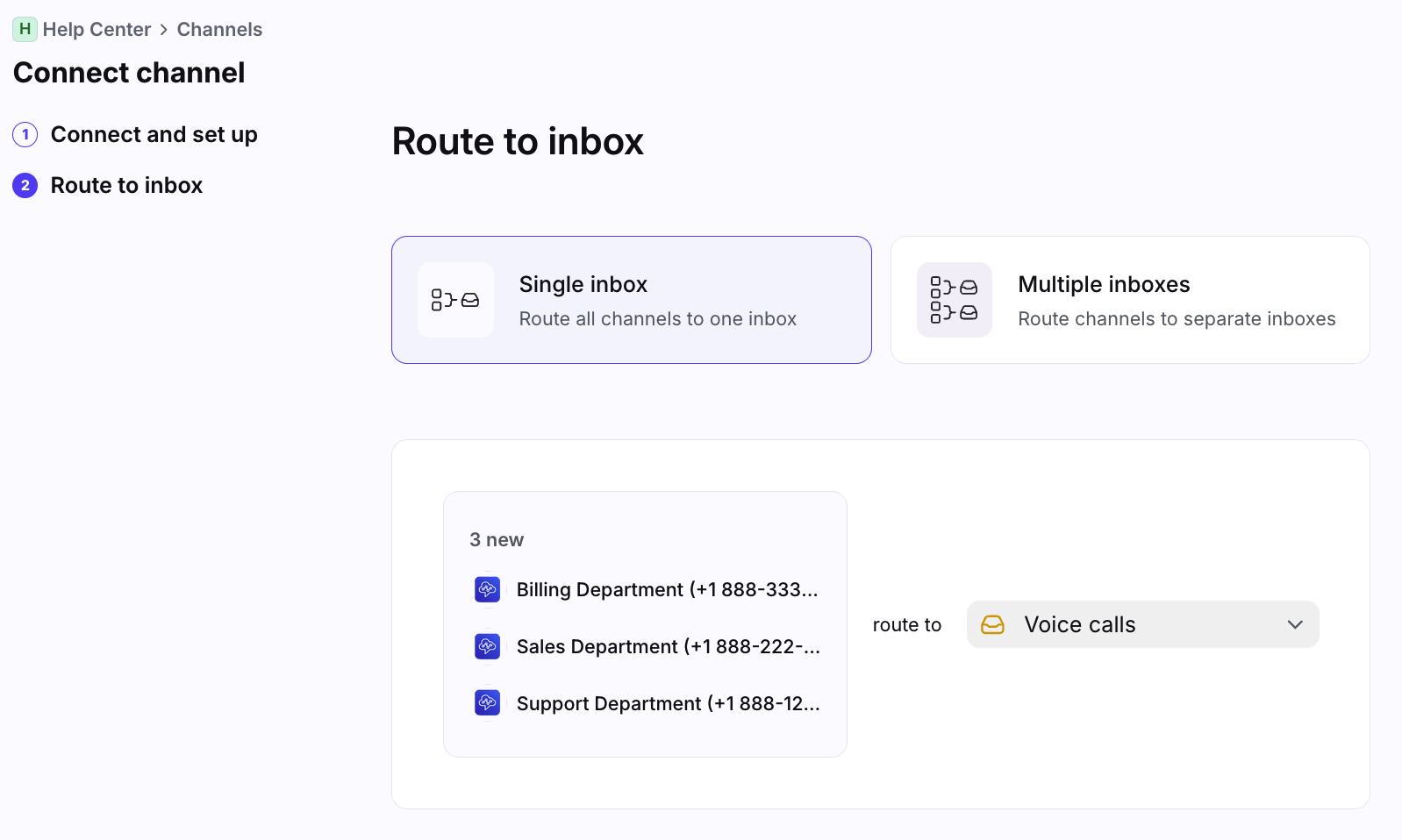
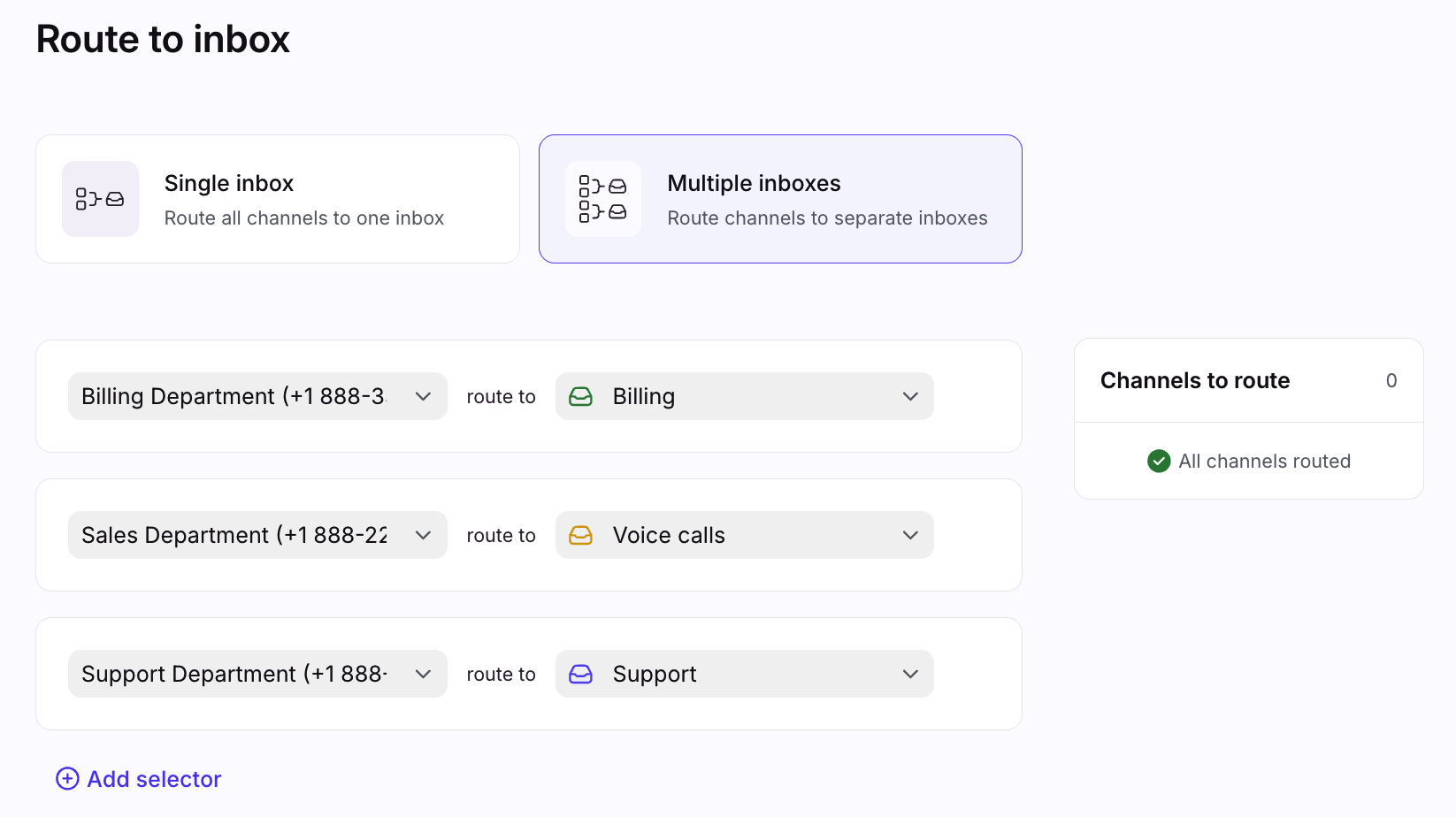
In the Route to inbox page, select whether you want to route the channel(s) to a single inbox, or multiple inboxes.
Option 1: If routing to a single inbox, use the dropdown to select the inbox.
Option 2: If routing to multiple inboxes, use the dropdowns to select the Amazon Connect channels, then select the corresponding inboxes in the other dropdowns.
Step 11
Click Continue to finish. All calls and messages from your channels will route to the selected inboxes by default.
Your team can now use these Amazon Connect numbers with Front to make and receive calls, access call recordings, etc. if you connected voice channels, or send and receive messages if you connected SMS channels.
Using the integration
Once a Front admin has enabled the integration, agents can use Amazon Connect inside Front.
Status updates
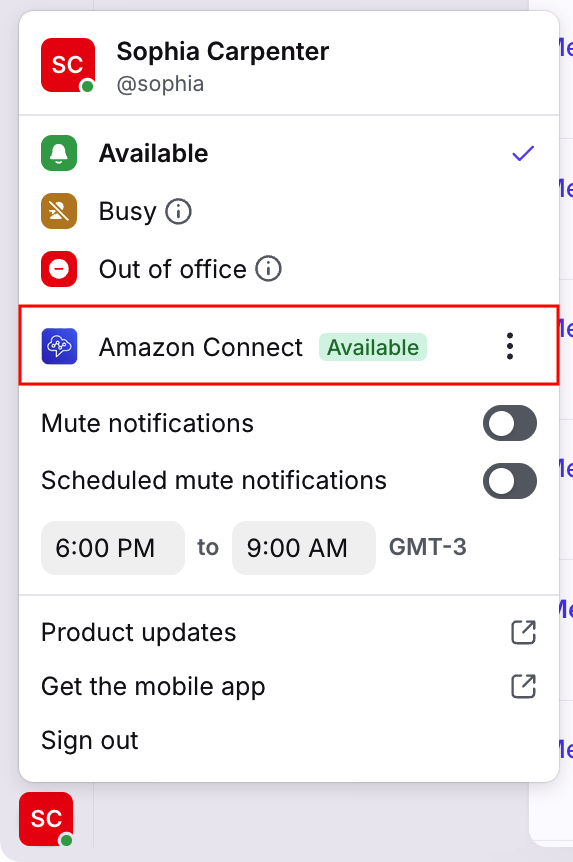
In Front, you can see your Amazon Connect status in your account menu.
If your Front admin has enabled automatic status updates between Front and Amazon Connect:
Your Front status will switch to “Busy” when you’re on a call, then switch back to “Available” when you’re ready to take your next call.
If you change your Front status between “Available” and “Out of office” in Front, your Amazon Connect status will automatically update to match.
If you change your status to “Busy” in Front, this will not be synced to Amazon Connect.
If you change your status in Amazon Connect, your status in Front will not change. You will see your Amazon Connect availability next to the Amazon Connect section in your user information. For example, if you switch your status to “Not Ready” in Amazon Connect, you can still be “Available” in Front.
Making calls
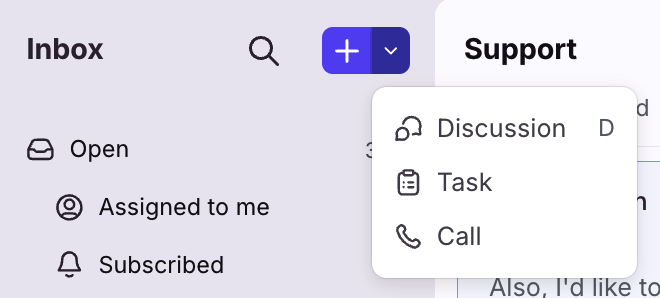
To make an outbound call, click the down arrow next to the plus icon, then select Call.
Enter a phone number in the Keypad tab or select a contact in the Contacts tab, then click the call (phone) button.
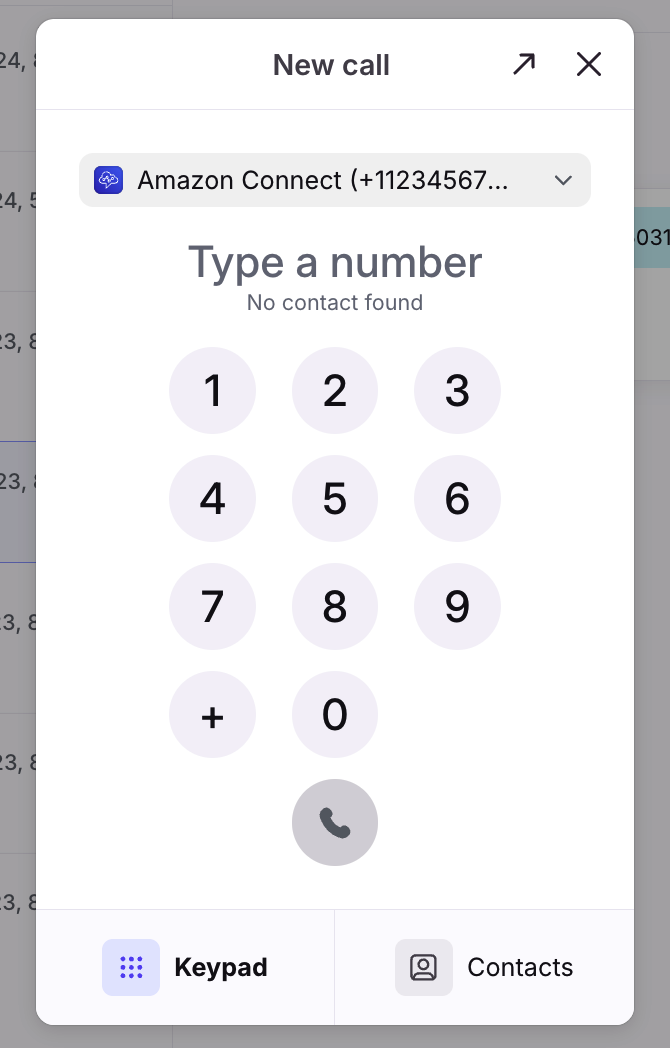
Navigate to the conversation using the Open section in your sidebar. You can also make outbound calls from your Front Contacts plugin.
Receiving calls
When there’s an incoming call, you’ll hear a ringtone and see a call widget pop-up at the bottom left. To answer the call, you can either Click Answer in the call widget or in the conversation.
The call will automatically assign to you when you answer it.
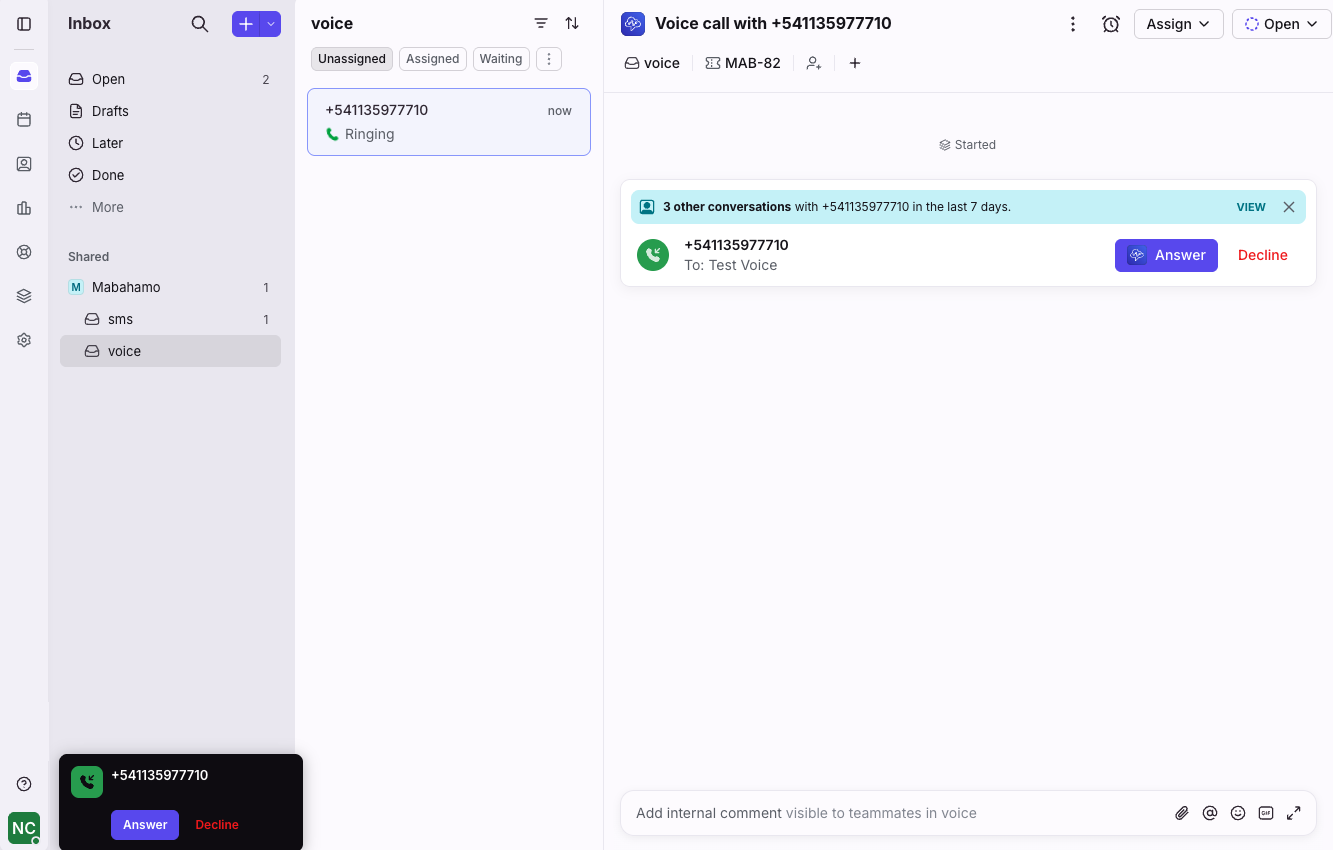
Click the Amazon Connect icon to expand the widget to take additional actions (mute, transfer, etc.) using the toolbar icons. Use the arrow icon to minimize the widget. You can always re-open it using the Amazon Connect icon in the conversation.
Wrapping up calls
After you end a call, you’ll see a Call ended activity update in the conversation and conversation list.
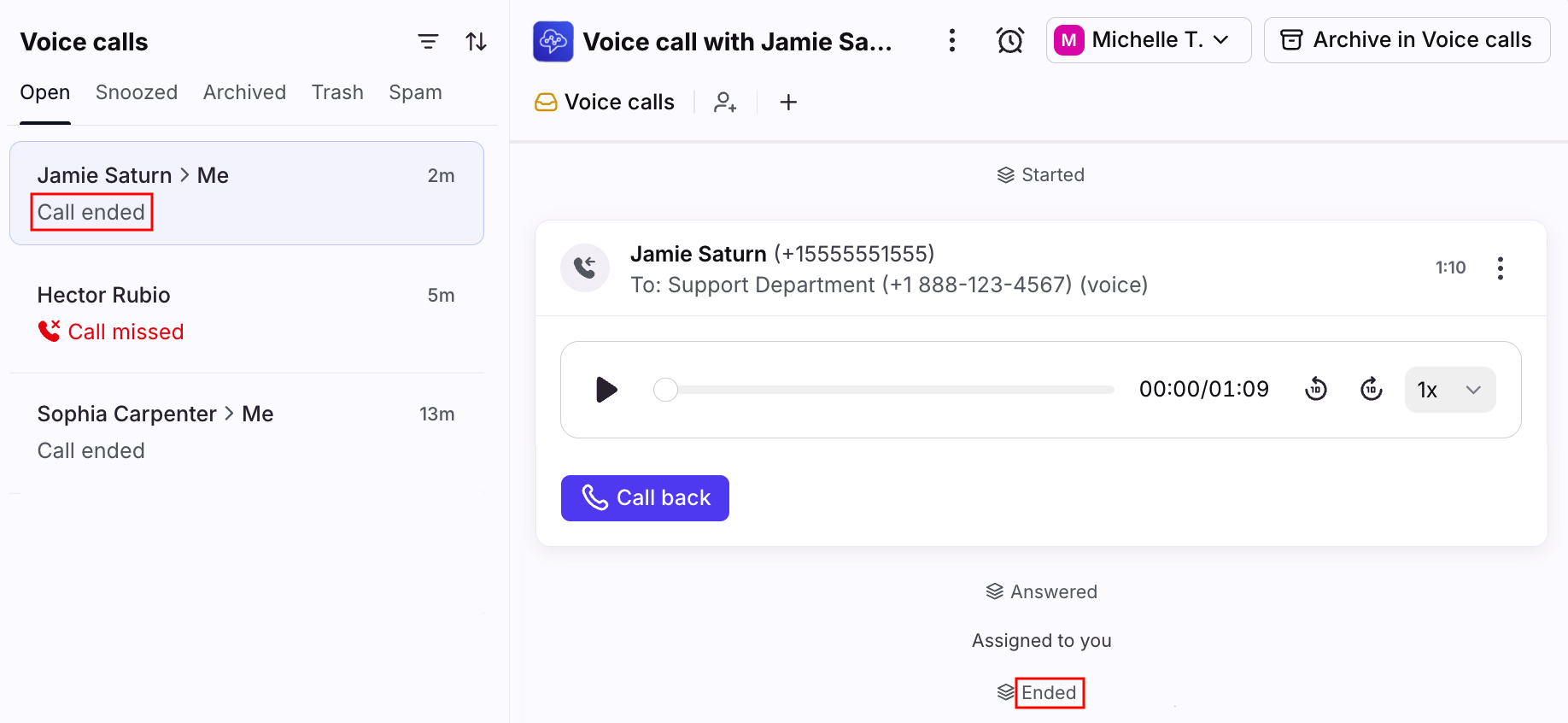
Call summaries, transcripts, and call recordings are available for applicable conversations.
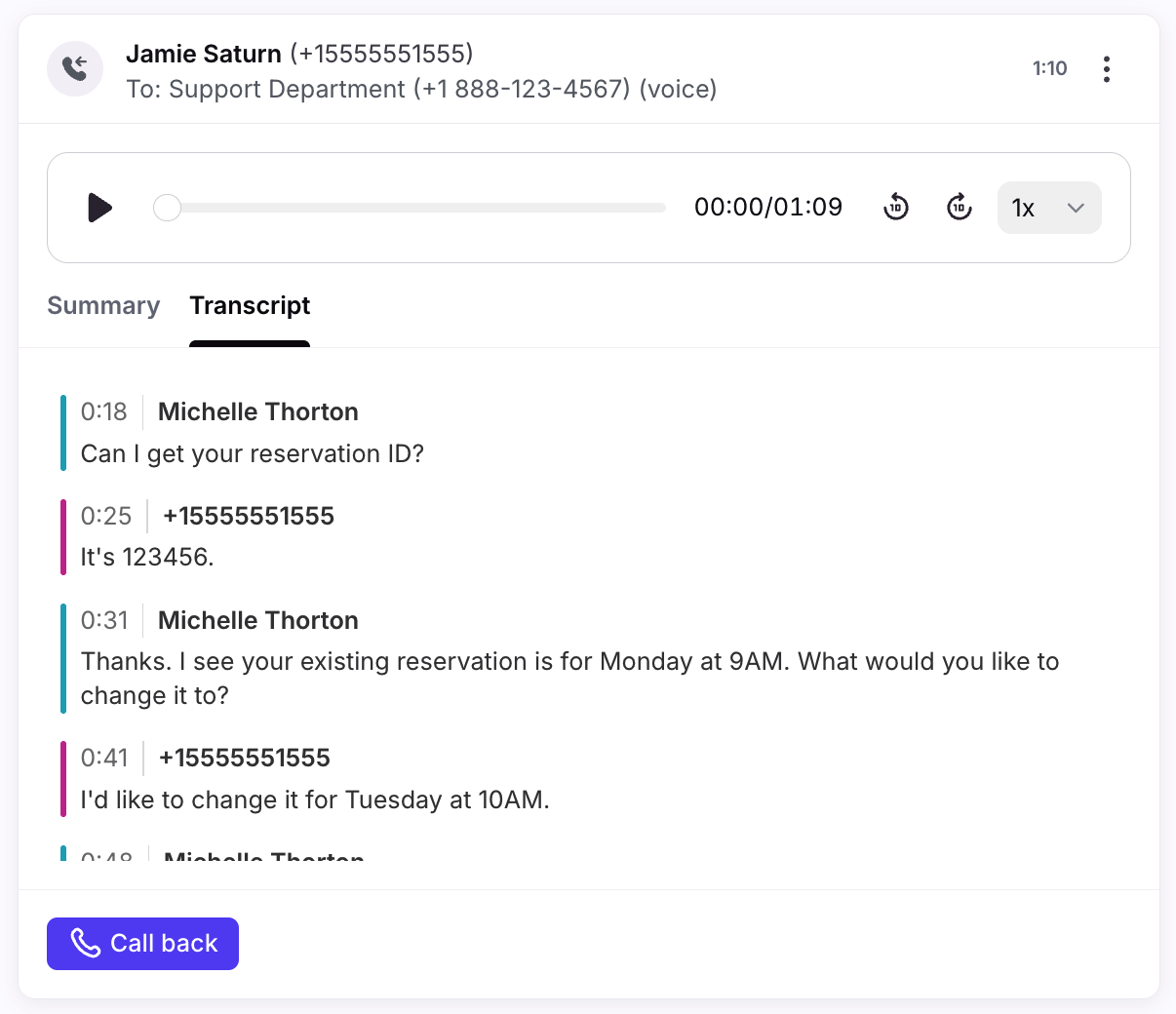
Use Front’s comment feature to take notes after the call. This is useful for adding call summaries, action items, and more. You can also add contextual comments on the call transcript.
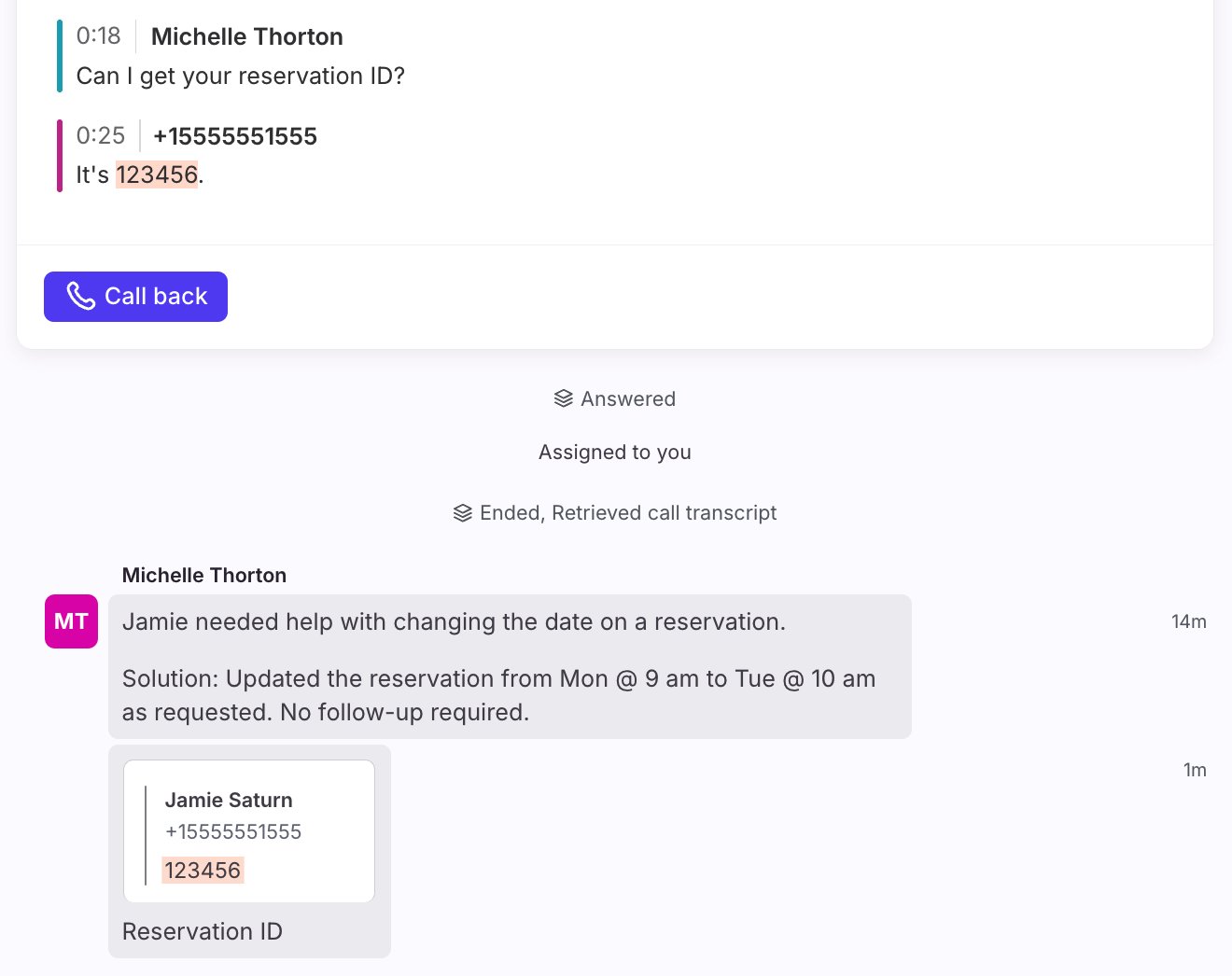
When you’re done with the conversation, follow your team’s specific workflows that may include archiving or tagging the conversation.
Missed calls
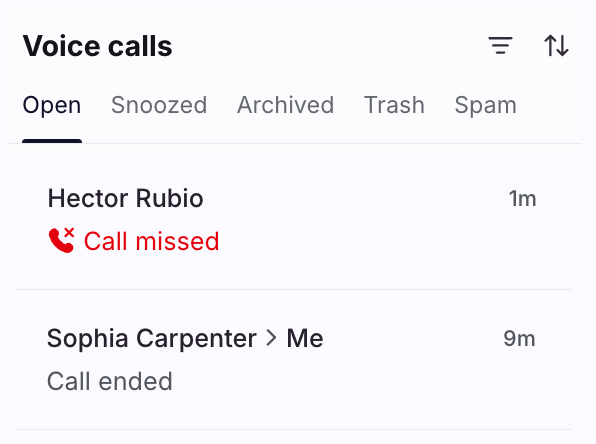
If no one is available to answer a call, a conversation will be created and marked as marked as Call missed in the conversation list.
Sending SMS messages
To send an SMS message, click the (+) plus icon in the sidebar, then select Message. In the From field, select the phone number you want to send from. In the To field, enter the phone number you want to send a message to.
Enter your message in the composer and add emojis, attachments, message templates, or knowledge base article links as needed. Once finished, send the message using one of Front’s sending options.
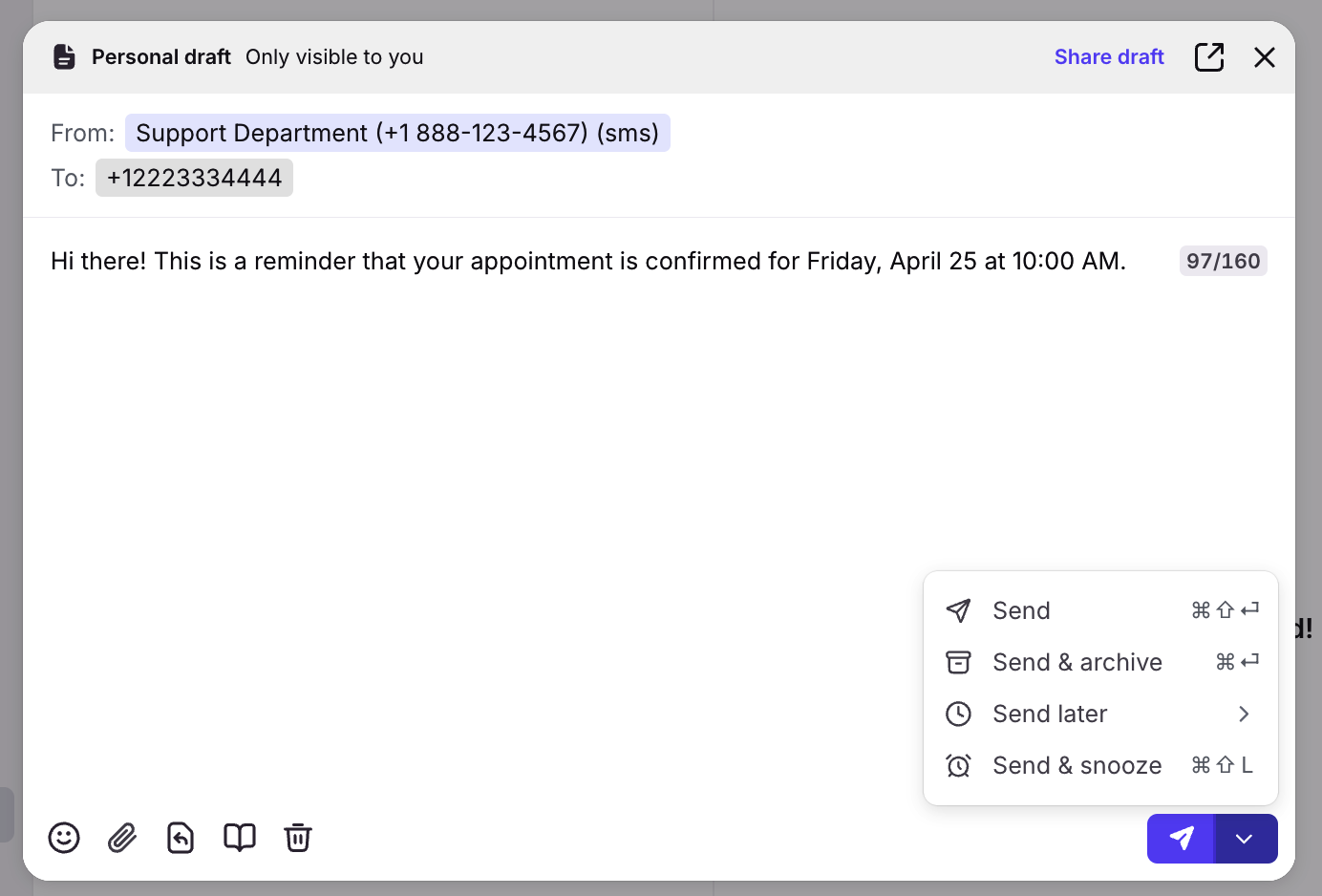
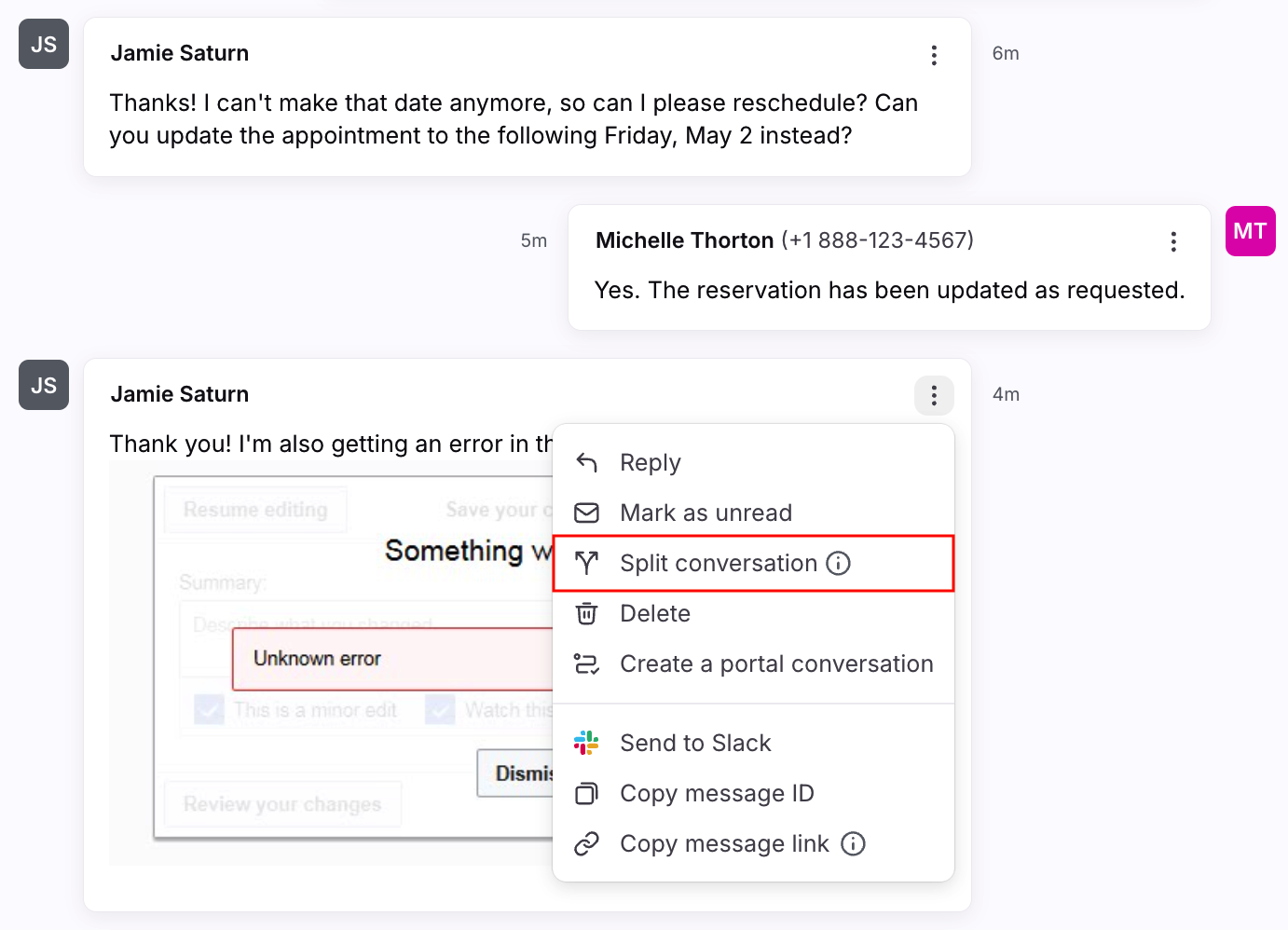
Messages from the same customer will thread together into the same conversation. To separate topics into new conversations, use the Split conversation feature in the message’s three-dot menu.
Workflows
Use Front rules to automate team processes to help your team work more efficiently. See this article to learn more.
FAQ
How do calls get assigned to agents?
Assignment logic differs between calls and conversations:
Calls: Front uses the routing logic set up in Amazon Connect. When a customer calls a phone number, the call is routed to an agent in Amazon Connect, then Front will notify (or “ring”) that agent in Front if they are logged into Front with the same email address.
Conversations: Front assigns the conversation to the agent that answers the call. If an agent does not answer a call, or the agent that answers the call isn’t a Front user, then Front will not assign the conversation.
Why don’t I see a call summary, transcript, or recording?
Users must have permission to the inbox in Amazon Connect to access recordings and transcripts in Front. This is configured in Amazon Connect.
Call summaries, transcripts, and recordings won’t be available in Front if Amazon Connect doesn’t generate them. Amazon Connect may not generate these resources if the agent doesn’t have access to the feature, doesn’t turn on the feature, or the call does not meet length requirements. Amazon Connect doesn’t natively support voicemails, so they are not available in Front.
Why doesn’t my status match in Front and Amazon Connect?
When logging into the call widget for the first time, your status defaults to “Offline” in Amazon Connect, even if you appear “Available” in Front. Once you change your status in Front, the matching status will sync over to Amazon Connect.
Are user extensions supported?
No. The integration does not support user extensions.
Are images and videos supported for SMS messages?
Yes. Images and videos will be visible inline when viewing the message.
Can I send MMS messages?
No. MMS messages are not supported at this time.
Are there call and SMS-specific analytics?
Yes. You can access voice metrics in the Key metrics chart of the Workload report or custom report. SMS analytics are included in any text-based metrics like reply time.
Will I still see calls and SMS messages in Amazon Connect?
Yes. You can still receive calls and SMS messages in Amazon Connect if the Amazon Connect phone number is connected to Front.
Can I silence Amazon Connect calls?
Yes. Toggle on the Mute and hide incoming call banner setting in your notification preferences.
What happens if I transfer a caller to a different phone number connected to Front?
The conversation is first created in the inbox containing the phone number the caller dialed (e.g. Support 888-111-1111). If the caller is transferred to another number connected to Front (e.g. Sales 888-222-2222), the new activity will thread into the existing conversation, and the conversation will appear in both inboxes.
Pricing
This feature is available on the latest Professional plan or above. Some legacy plans may not have access.