
How to invite a new teammate [new]
⚠️ This article references the new permissions system. Front companies using legacy permissions can view the instructions here.
Overview
Admins can invite new users at any time, either one at a time or in batches of up to 150 using a CSV. Admins can also invite guests who have requested invites. During the setup process, admins can:
Select a teammate group or copy an existing teammate’s settings to quickly configure new user accounts
Configure user settings after they have been invited
You must be a company admin or have the Teammates - Invite teammates company permission to add new teammates to Front.
Invite new teammates individually
Step 1
Click the gear icon and navigate to your company settings. Select Teammates in the sidebar.
Step 2
Click Invite teammates.
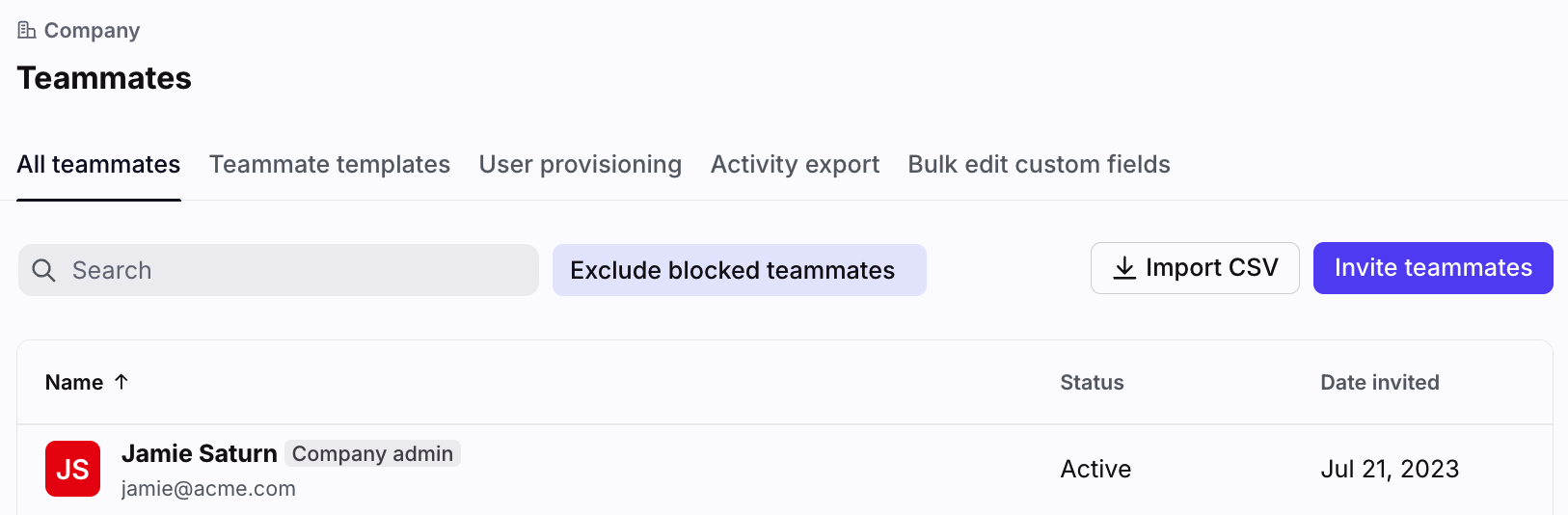
Step 3
Enter the email addresses for any teammates you want to invite, then click Continue.
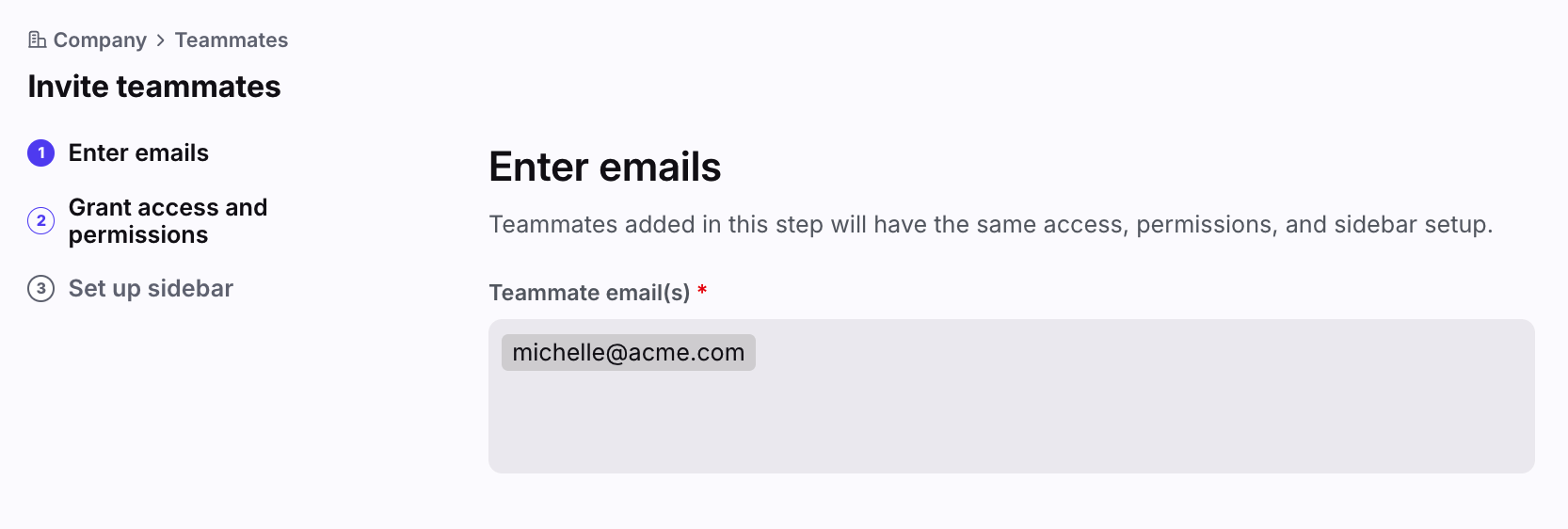
Step 4
In the Grant access and permissions page, you can configure the following fields:
Invite as company admin: Toggle on to grant this user company admin permissions. See this article to learn more.
Add to teammate groups: Select the teammate group(s) or teammate you’d like to use to grant permissions to the new teammate. This will add the new teammate to the teammate groups listed in the table.
Click Continue.
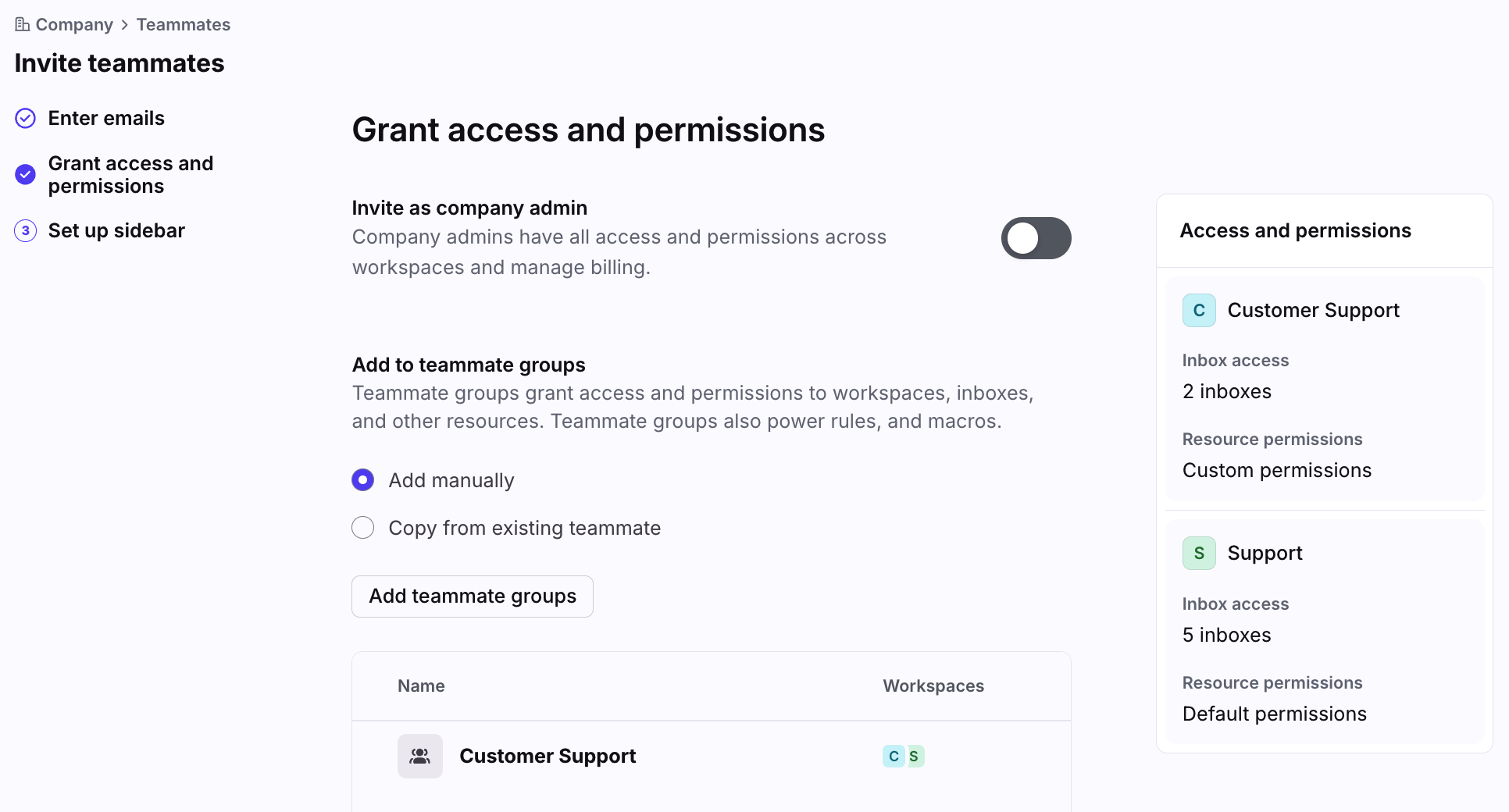
Step 5
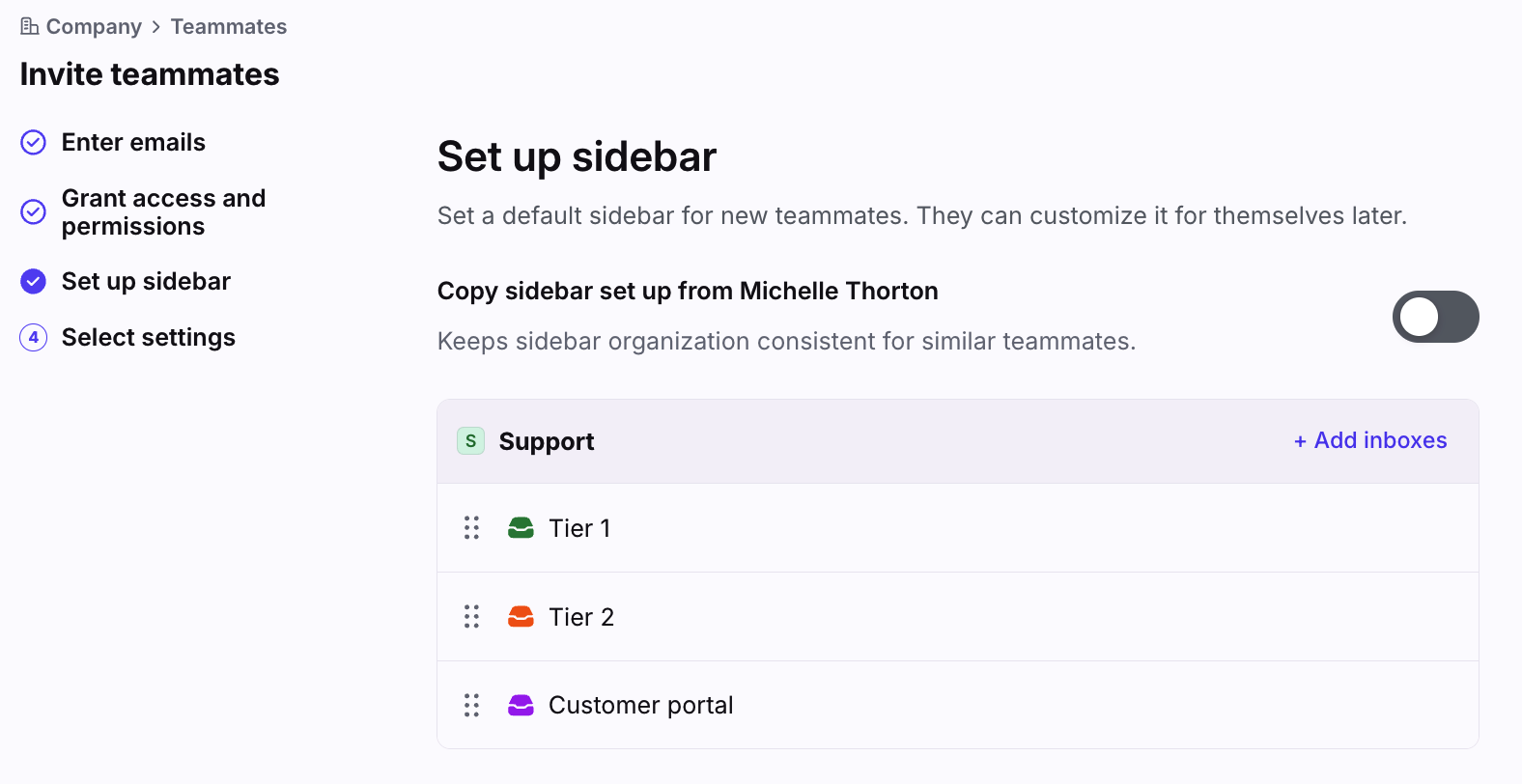
Click Add inboxes to choose which inboxes will be shown in the user's left sidebar. This allows your new teammates to see the inboxes they'll be working with when they first log in. Click and drag the six-dot menu to re-order the inboxes. Your new teammate can customize this later.
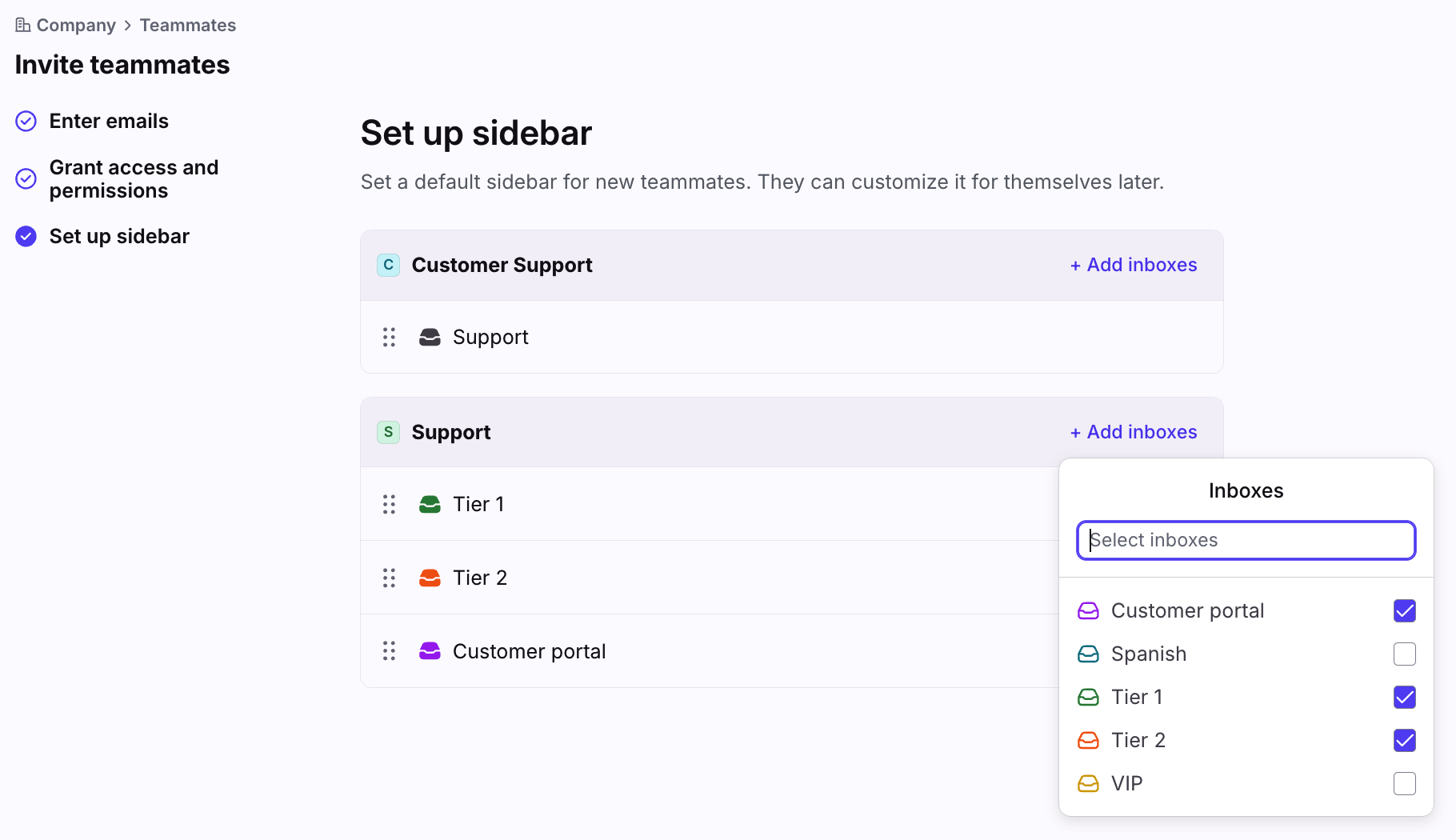
Step 6 (if copying settings from a teammate)
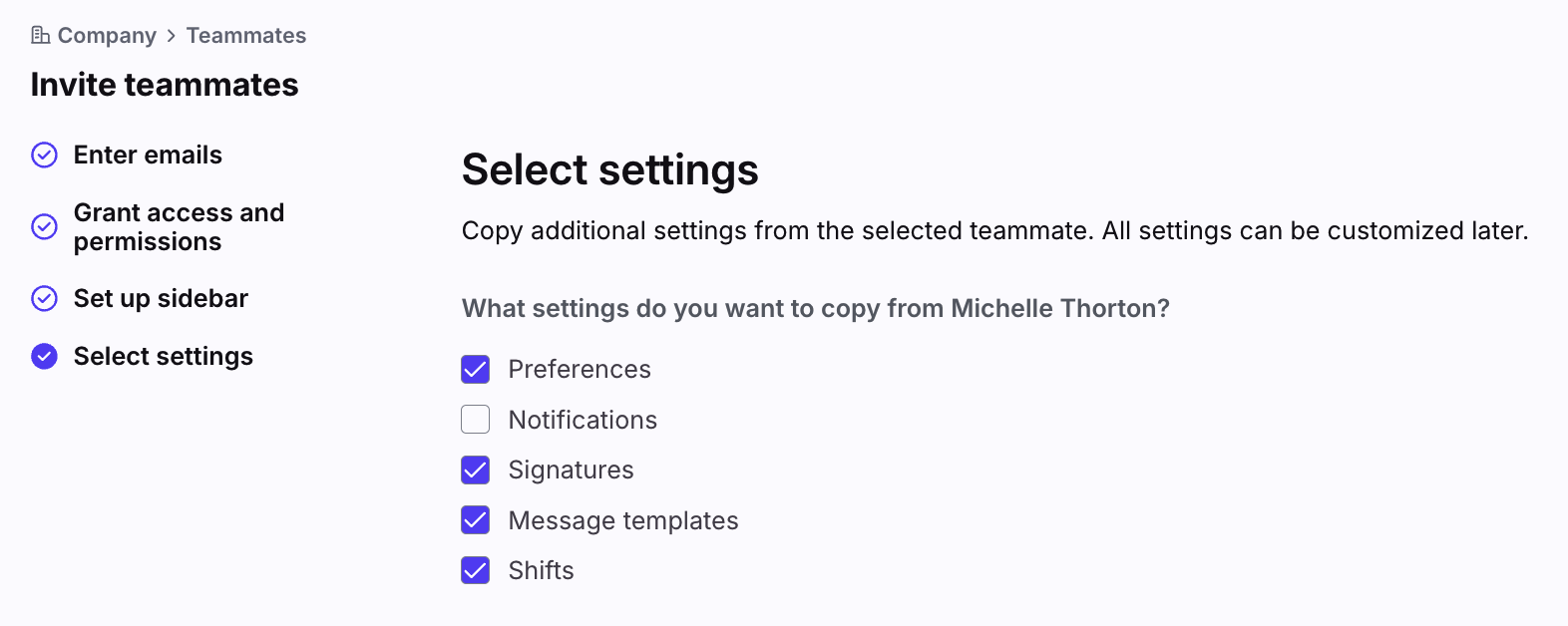
If you’re copying settings from a specific teammate, you can optionally copy the teammate’s sidebar configuration and other settings. See section below for more information on what is copied.
Step 7
Click Invite to invite your new teammate(s) to Front.
Step 8
Your teammate will then receive an email to complete their setup process. They will need to click the link in the email and walk through the setup prompts.
Note: Make sure your teammates don't sign up for their own trial on our website. This will create a new company for them, and you won't be able to add the same users to your company. If a user accidentally creates their own trial, please contact our Support team and we will remove their incorrect account.
Invite multiple teammates using a CSV
Template
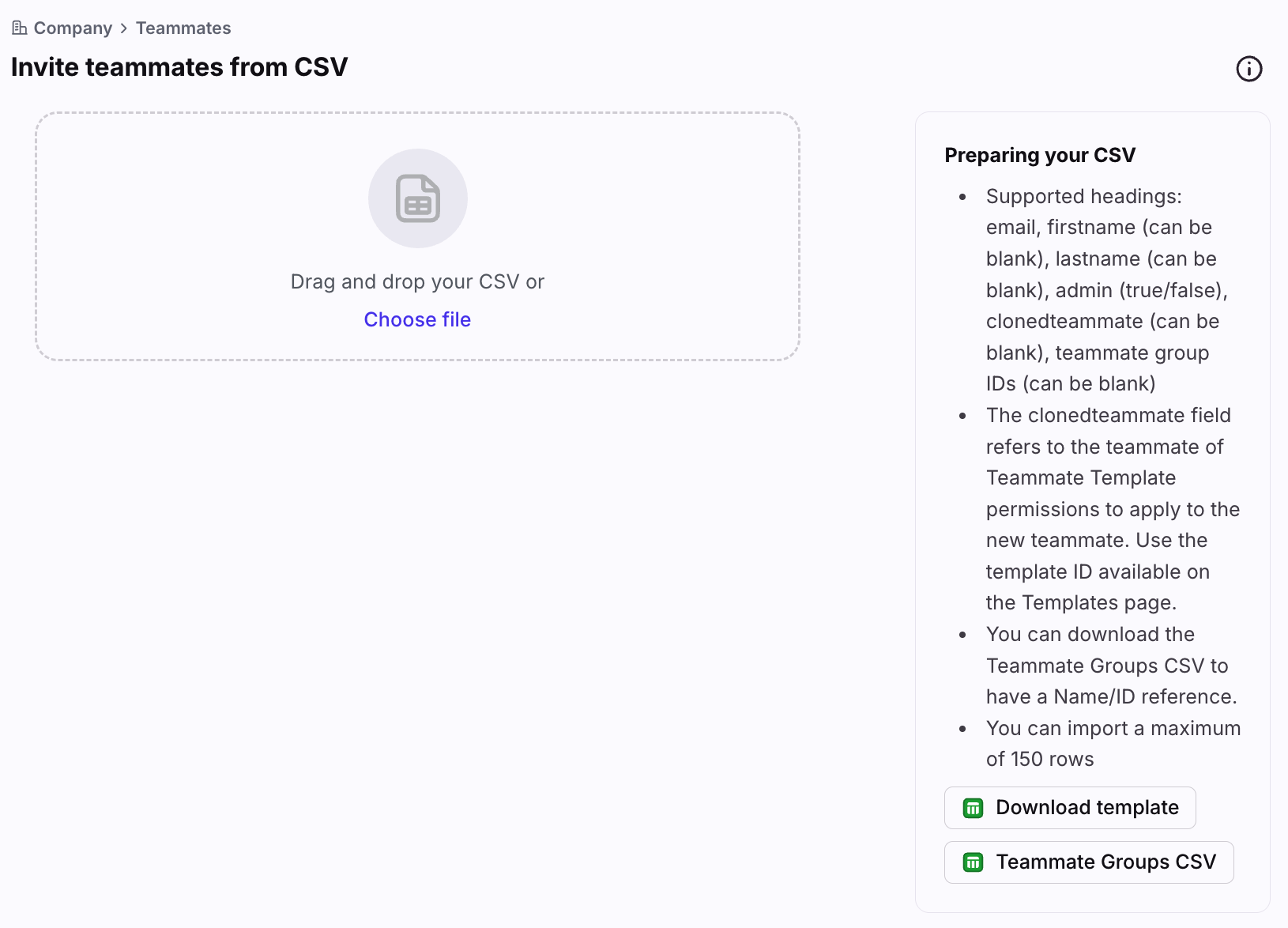
You can export a template using the Download template option on the Invite teammates from CSV page.
File formatting
Column headings and naming conventions are critical for a successful import. The file may only contain the exact fields listed below, in any order:
Column heading | Example value | Description |
jsmith@acme.com | [Required] Email address of the teammate you want to invite | |
firstname | John | Teammate first name |
lastname | Smith | Teammate last name |
admin | TRUE | Enter true or false to indicate whether the teammate should be a company admin. This input will be ignored if you are cloning from a teammate, as the status of the teammate will be reused. |
clonedteammate | jamie@acme.com | Teammate permissions to be copied. This must match either the email address of the teammate you want to copy. |
teammate group ids | cir_1, cir_4 | Provide the teammate group IDs for the teammate groups the teammate should be added to. Click the Teammate Groups CSV option on the page to download a list of your teammate groups and their IDs. |
Import instructions
Step 1
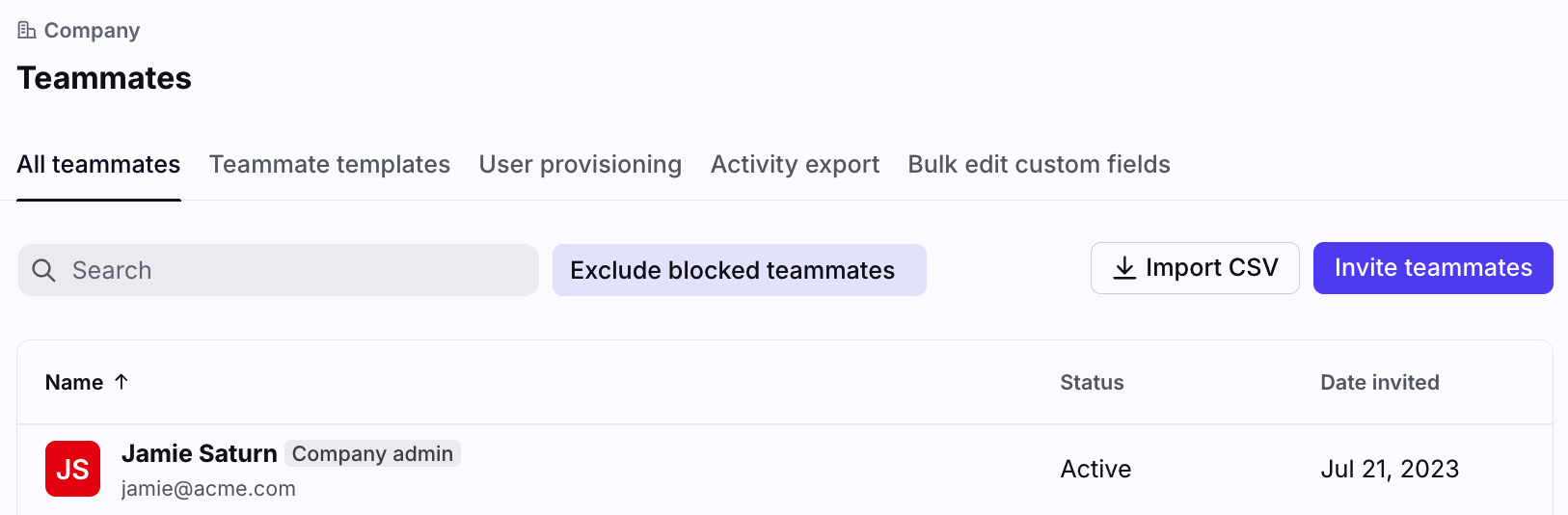
Click the gear icon and navigate to your company settings. Select Teammates in the sidebar.
Step 2
Click Import CSV.
Step 3
Click Choose file or drag and drop your file from your computer into this section. You can invite up to 150 teammates at once using this method.
Step 4
You’ll see a summary of all invited teammates. If a field is incorrect, you'll see an error message.
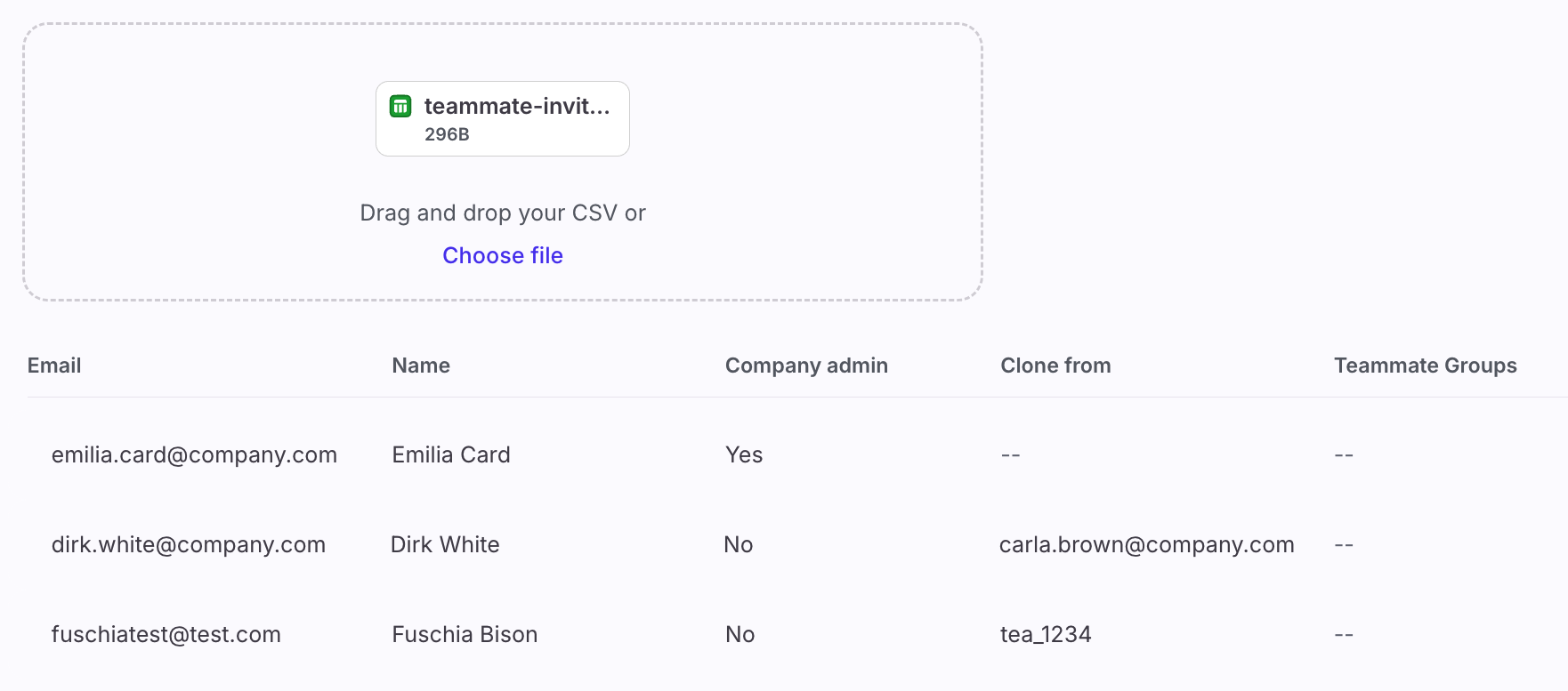
Step 5
Click Add. Your invited teammates will receive emails to complete their account setup. They will need to click the link in the email and walk through the setup prompts.
Note: Make sure your teammates don't sign up for their own trial on our website. This will create a new company for them, and you won't be able to add the same users to your company. If a user accidentally creates their own trial, please contact our Support team and we will remove their incorrect account.
Copying settings from teammates
If you choose to copy settings from a teammate when inviting new users, the selected settings and resources will be inherited by the newly invited teammate to give them a head start on setup. This is helpful for configuring a large number of users who have the same or similar preferences.
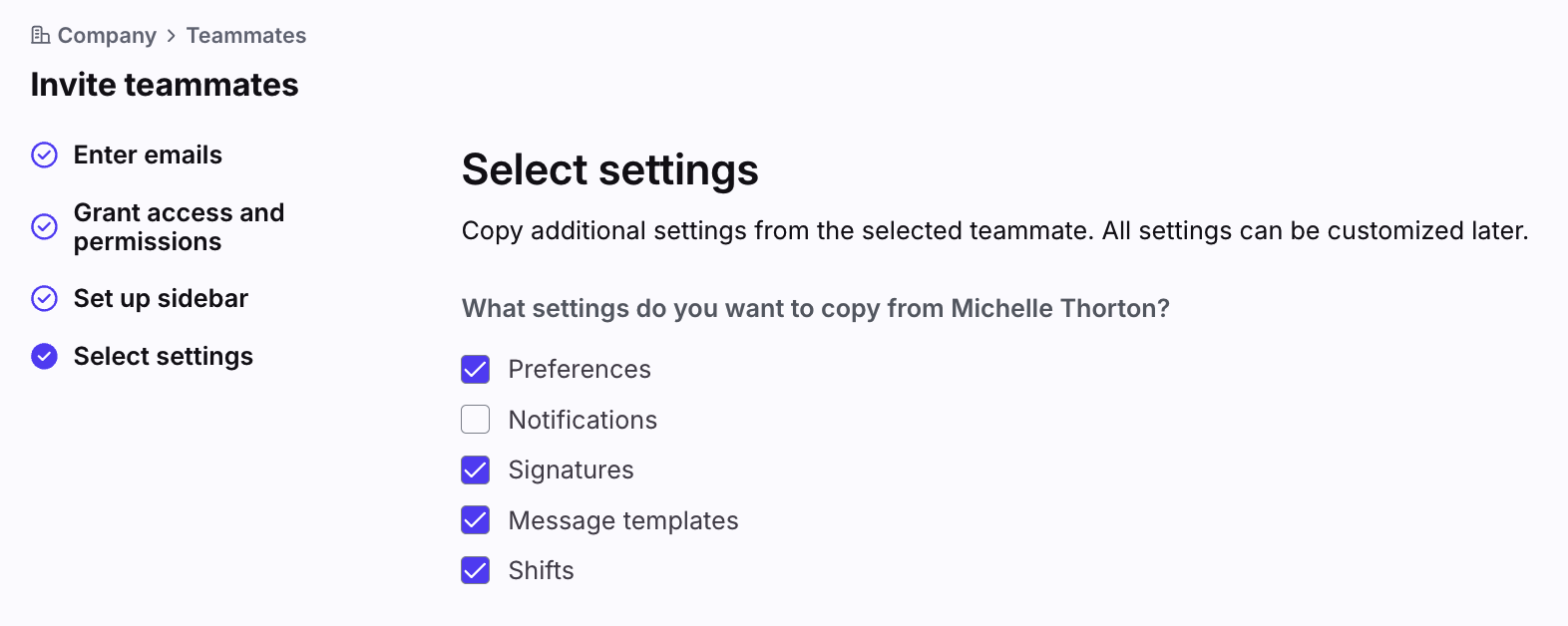
What is copied
The specific settings within each category that are/aren't copied are:
All personal preferences are copied except:
To copy custom field settings, navigate to company settings, click Teammates, then select the teammate you’d like to use as a template. Click the Preferences tab, then select the custom fields in the Custom fields cloning preference. | |
All notification settings are copied except:
| |
All individual signatures are copied. | |
All individual message templates are copied except:
| |
All shifts are copied. |
What is not copied
The categories that are not copied, and thus, not listed in the copy options, are:
Individual inboxes and channels
Individual rules
Individual tags
Views
Even though these categories are not copied, admins can still manage individual inboxes and individual rules for the teammate on the teammates' settings page.