
Introduction to the Front App Store
Overview
Our library of applications allow you to connect Front to your favorite tools, from CRMs to chatbots to data warehouses. These apps are straightforward to use and can be enabled with just a few clicks. In this article, we'll walk through the key app use cases, as well as the process for installing and using them in Front.
Non-admins will be able to access the App Store and enable most apps. Apps that have company-level data impact (such as rules or data sync) will require company admin permissions. If you want to prevent any non-global-admins from enabling apps, you can turn off the Allow non-administrators to enable and disable integrations setting in the your company preferences page.
For detailed guidance on how a particular app works, we also have help articles for each app. If you’re looking to build a custom app using our API, check out our API Overview.
Use cases
Admins and teammates can use an app in Front once it has been enabled for your company. Where to access the app will depend on the type of app that was enabled.
Plugins
Plugins can be accessed via the app switcher in the right sidebar in Front. Plugins allow apps to embed a custom UI within Front that can interact with Front’s UI by reacting to the user’s current conversation, creating drafts, adding tags, and more. CRMs, telephony software, and knowledge bases are some of the most popular plugins.
When a user enables a new plugin, it will automatically be accessible for all teammates in their app switcher.
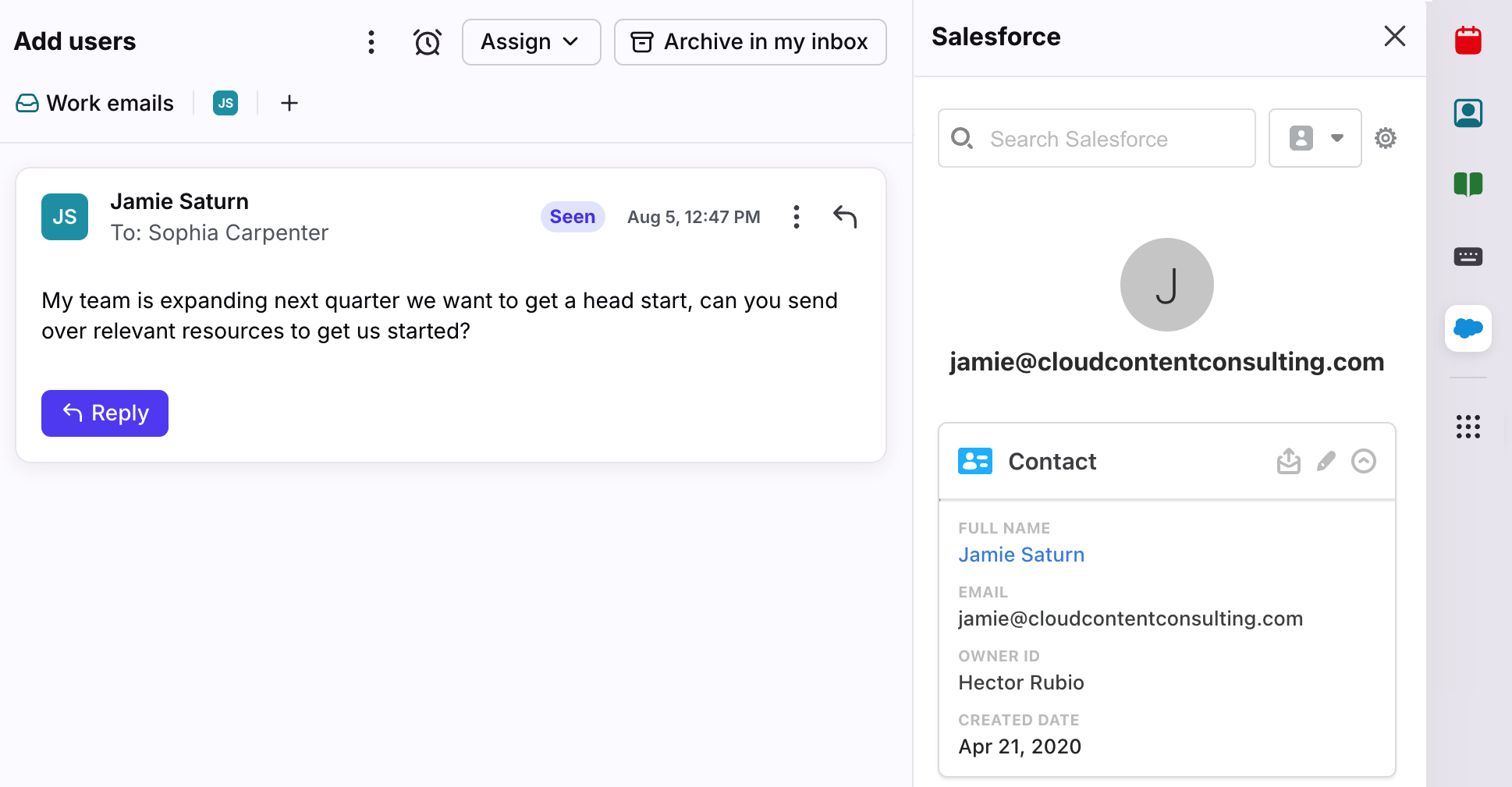
Example plugins:
Channels
Channel integrations allow you to connect external communication streams to Front. By connecting communication streams such as chat, chatbots, and phone call logs to Front, you can consolidate all of your customer communication into one place.
Since channel integrations simply create a channel in Front, they can be used just like any other channel. Any teammate with access to the inbox containing the channel will be able to view and reply to its conversations.
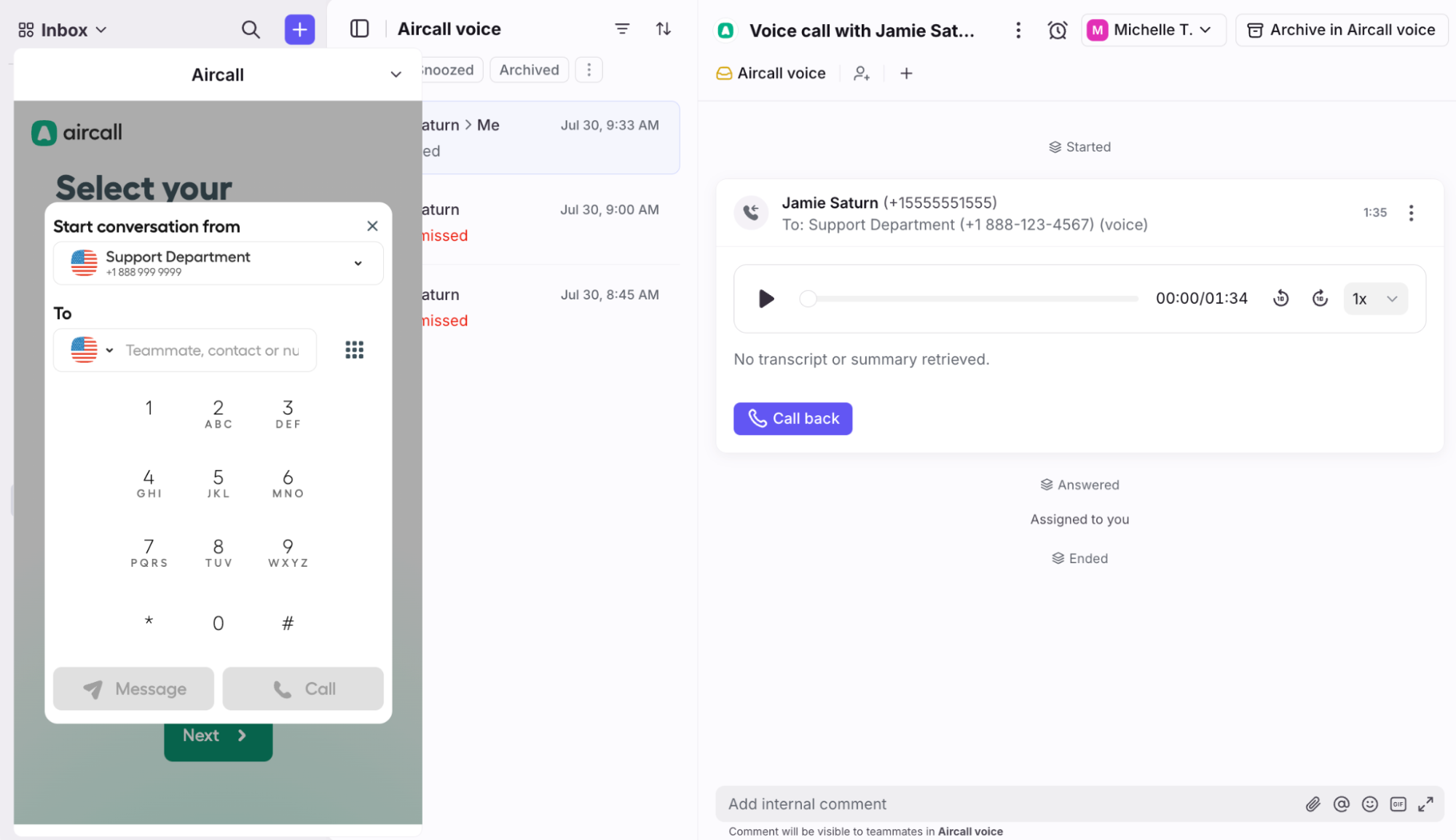
Example channels:
Connectors
Connectors let you connect Front with your external tools - surfacing data, triggering actions, and automating workflows without leaving Front. Admins can insert Connectors into rules to automate workflows, use them inside macros to allow teammates to perform actions in external tools with the click of a button, and combine Connector data with chat flows to enrich customer interactions.
See these resources to learn more:
Prebuilt Connectors: Quickly connect to popular tools and configure rules, macros, or chatbots to enhance team workflows.
Links & Connectors: Check out all our guides on creating custom Connectors or using prebuilt ones.
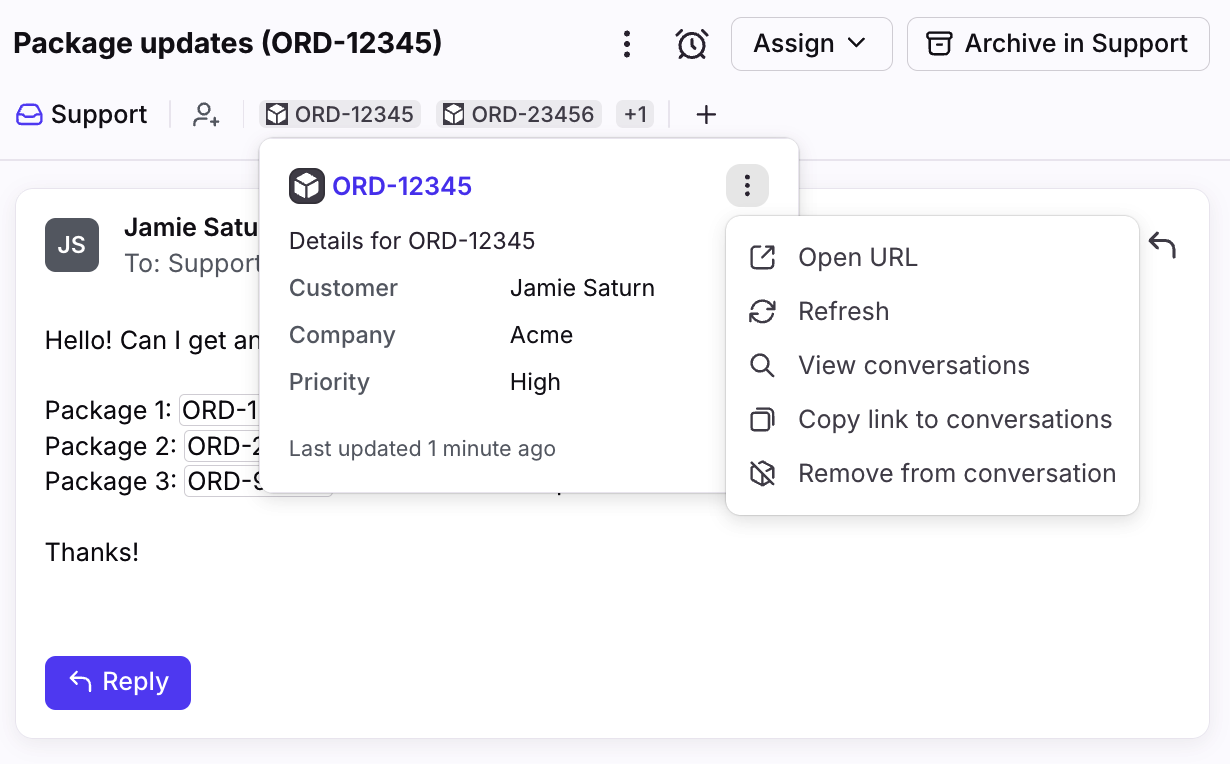
Example Connectors:
AI knowledge sources
When you're configuring Front AI features like Copilot or Autopilot, you can connect applications like Notion to use as an AI knowledge source. This allows you to resolve inquiries with natural language responses generated by AI based on content outside of Front. See this article to learn more.
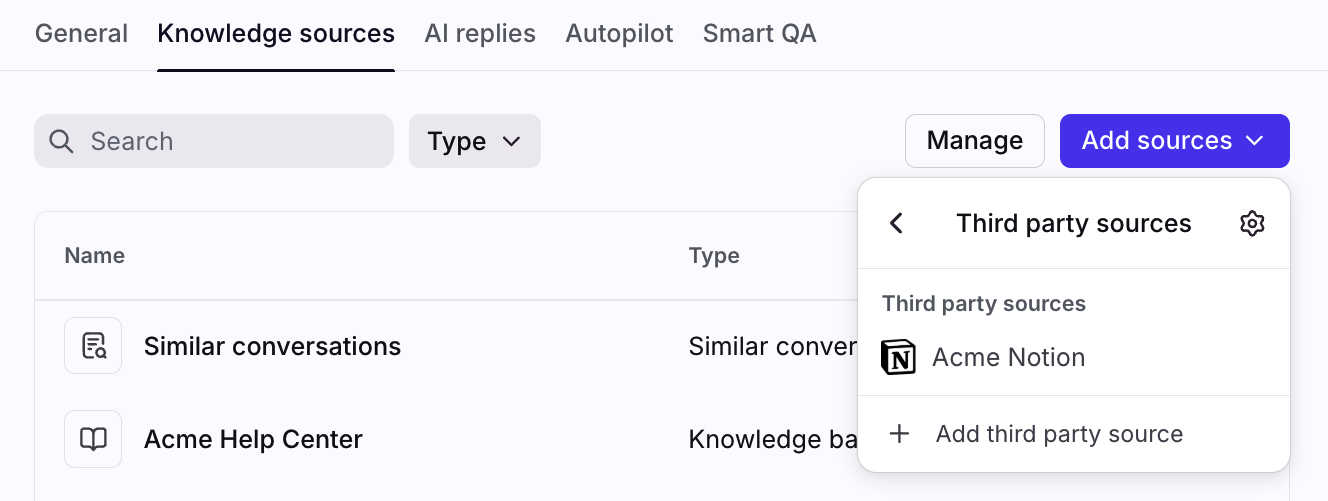
Example knowledge source integrations:
Google Drive (Google Doc files only at this time)
Guru
Microsoft SharePoint (Word/Doc files only at this time)
Notion
Data sync
Data sync integrations allow you to both export and import data from/into Front. Exporting conversational data can be especially useful if you are using a data warehouse or third party BI tool to consolidate your operational data. Importing customer data is often useful if you are looking to use that data to power routing through Front Rules.
Since data sync integrations happen in the background, there’s not much to do once you’ve enabled the integration. If you’re using a data sync integration that syncs information to Front Contacts, you can verify that it’s working by using the contacts manager.
Example data sync apps:
Enabling apps
App setup
When an app is enabled for your company, all teammates will be able to access and use the app in Front. Setup for each specific app differs slightly, but share the same basic steps:
Step 1
Click the gear icon, navigate to company settings, then select App store from the left menu.
Step 2
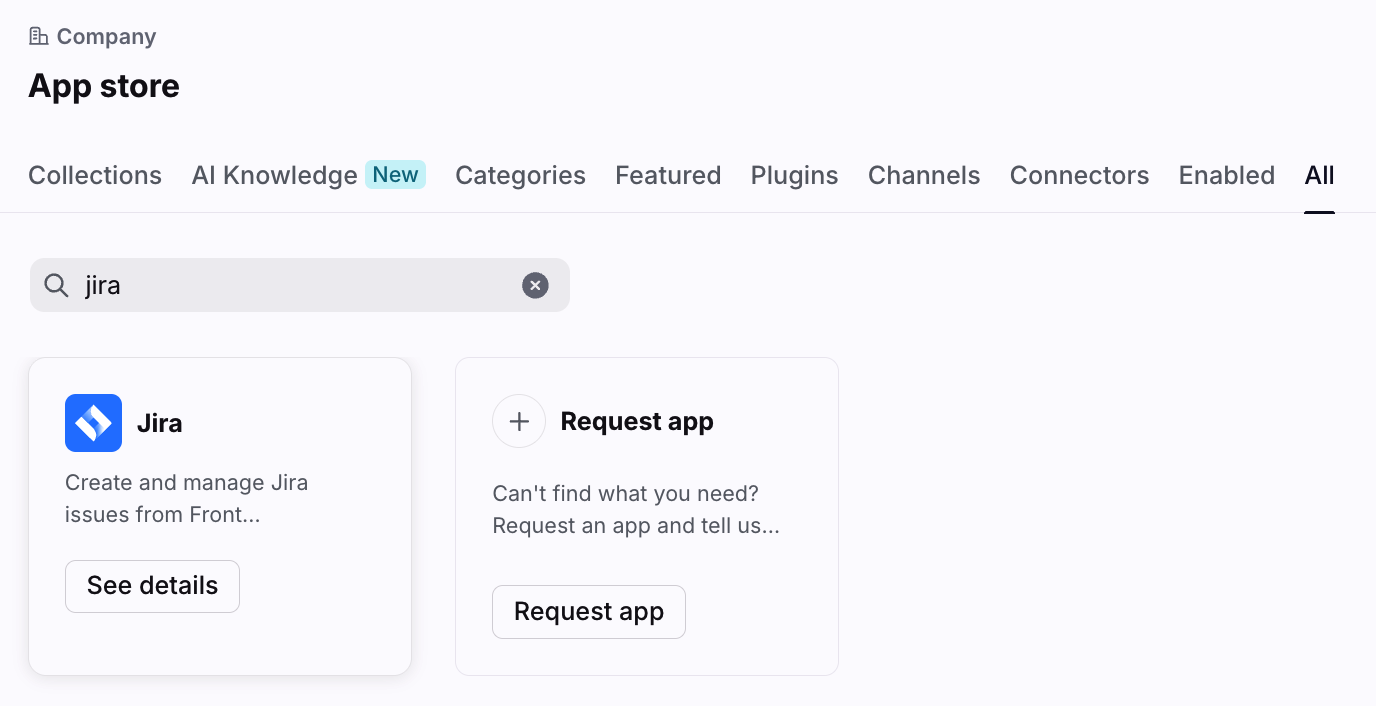
Click the tabs at the top to browse through apps. You can use the search bar at the top right to search for a specific app. Click the See details option to review the app.
Step 3
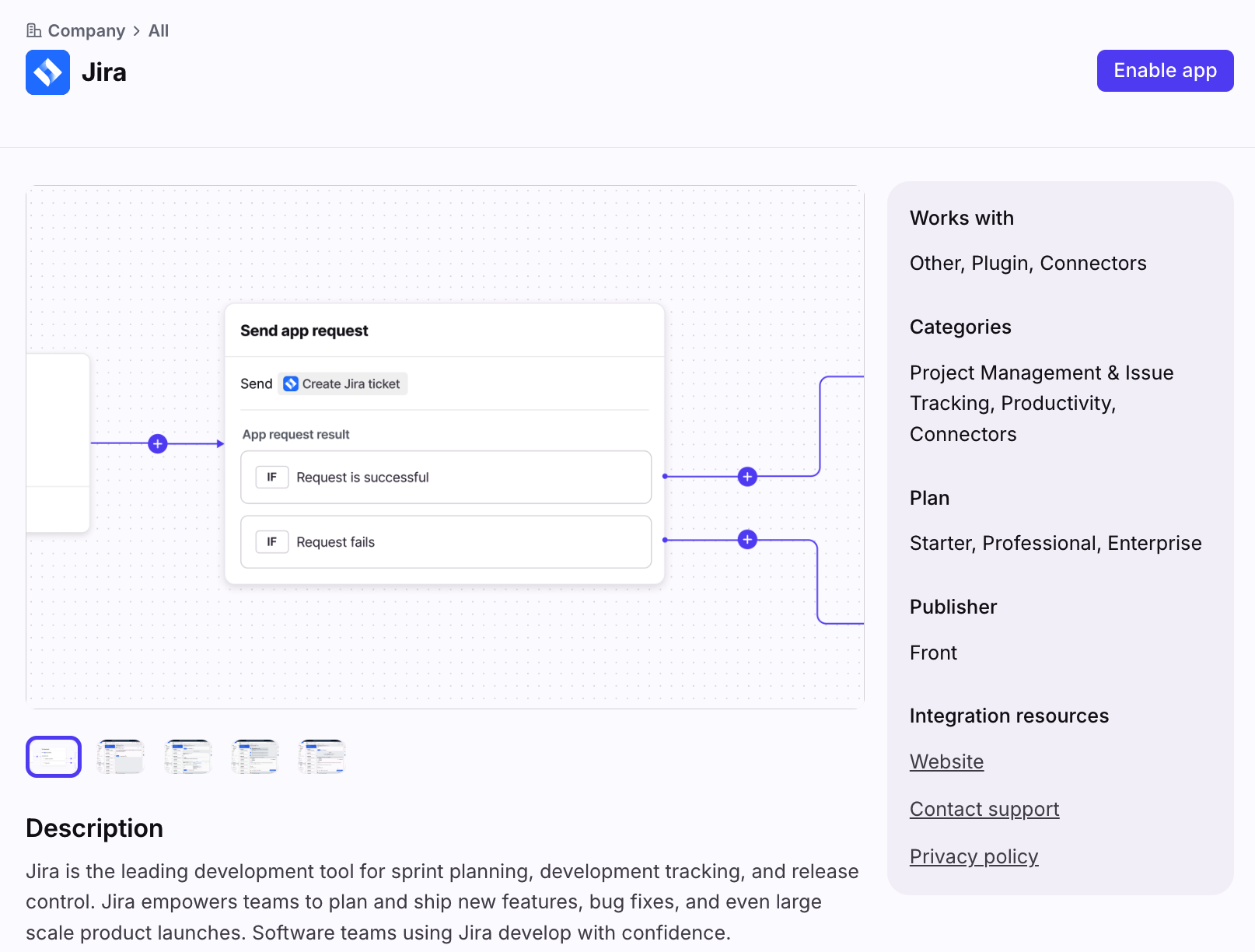
Click Enable app to activate the app for all teammates.
Step 4
Depending on the app, you may get routed to another page for further instructions, or be prompted to sign in to the app to activate it for your team.
Step 5
Once enabled, your team will be able to see and use the app in Front after they sign into the app for the first time. Most apps will require that a user signs in with their personal account.
For example, a Front company admin can enable the Salesforce app at the company level, which would make the Salesforce plugin available to all teammates. At that point, each teammate would still need to sign into the plugin with their preferred credentials.
Permissions
By default, both company admins and teammates can enable most apps for your company. If needed, you can restrict non-admins from enabling apps for your company.
Step 1
Click the gear icon, navigate to company settings, then select Security from the left menu.
Step 2
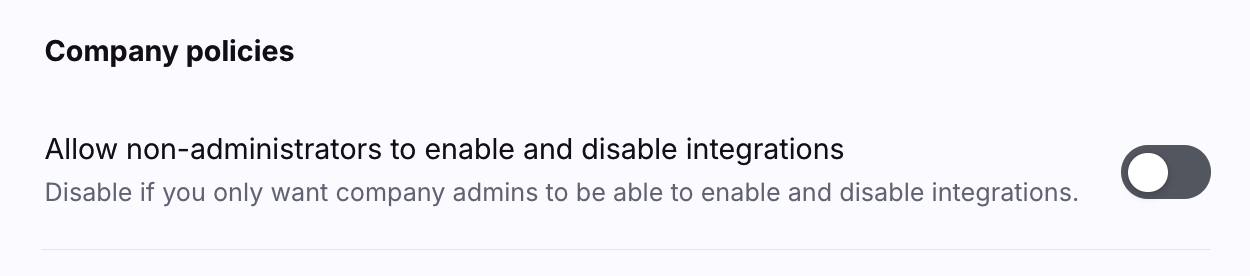
In the General tab, toggle off the Allow non-administrators to enable and disable integrations setting.
Step 3
Click Save when finished. Only company admins can enable apps for the entire company moving forward.
Managing app permissions
Some apps request access to your Front data during the setup process. For example, apps that send your Front data to external services or enable webhooks for Front events will ask admins for authorization to send the data. You can view the data that admins have authorized for each app in the Tokens tab. If an app does not request Front data, it will not display the Tokens tab.
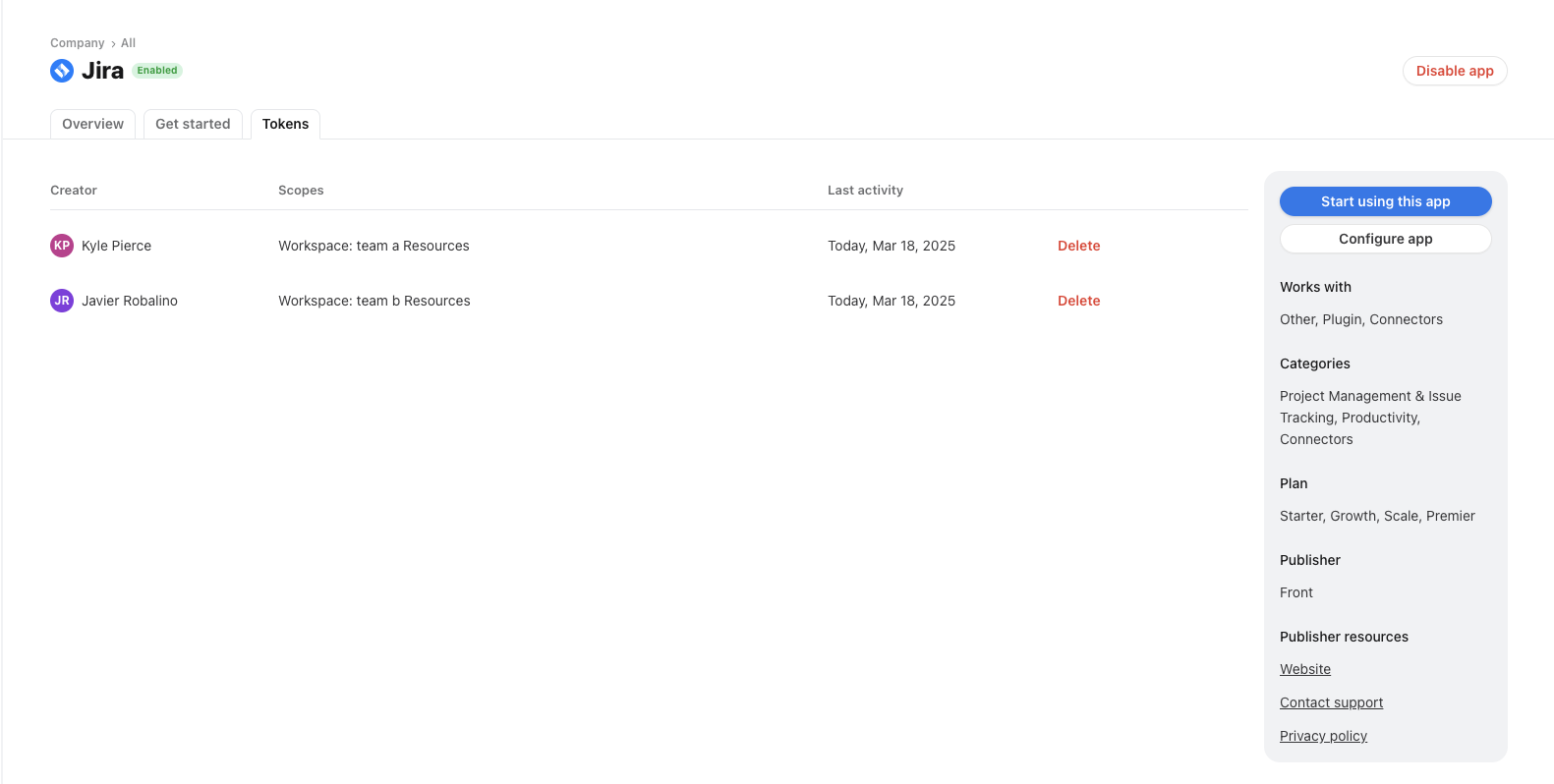
The Scopes column lists the type of data being sent to the app. Refer to our Developer Portal for a description of token scopes.
To revoke access for an app token, click Delete. Note that deleting a token can cause the app to stop working as expected, so only revoke access if you no longer need the app to access the resources granted by the token. If you disable the app, the tokens are automatically revoked.
Pricing
Please visit our pricing page and library of applications for more details on the apps supported for each plan.