
MCP Connectors
⚠️ MCP Connectors allow Front’s AI to connect to an external tool. If you’re looking to connect in the opposite direction and allow external AI tools (e.g., Claude, ChatGPT) to connect to Front, follow the steps for Front’s MCP server.
Overview
An MCP Connector lets Front's AI work directly in one of your tools, using that tool's own set of actions. Once connected, Front's AI can find information and take actions in that tool, and you decide what Front’s AI is allowed to do.
MCP Connectors are used by Front's AI via Copilot, Autopilot, and AI steps in your workflows. They are one of the three Connector types, alongside application requests and application objects. See this article to learn more about Connectors.
Prebuilt MCP Connectors
The following prebuilt MCP Connectors are available:
ClickUp: Create and update tasks, search tasks and docs, and add comments.
GitHub: Search code, issues, and pull requests, and create or update issues.
HubSpot: Look up contacts, companies, and deals, and create or update records.
Jira: Search and read issues, create and update them, and add comments.
Linear: Create and update issues, search across teams and projects, and add comments.
Microsoft Dynamics 365: Look up and update sales, service, and account records. Unlike the others, your Microsoft tenant admin needs to approve the connection first.
Notion: Search a workspace, read pages and databases, and create or update pages.
Salesforce: Look up and update accounts, contacts, opportunities, and cases, always within each user's own permissions.
Shopify: Look up product, order, and inventory details, and answer availability, pricing, or shipping questions.
Stripe: Look up payment history, invoices, and subscriptions, create refunds, and search payments to answer a billing question.
Front adds prebuilt MCP Connectors on an ongoing basis. Don't see the MCP Connector you need? Build a custom one by connecting your own MCP server.
Ways to add an MCP Connector
Option 1: Prebuilt Connector
Add a MCP Connector and its set of tools from Front’s app store in a few clicks. Front keeps it up to date.
Step 1
Click the gear icon, navigate to company settings, and select Connectors from the left menu.
Step 2
Click Browse Connectors, then select the application you want to connect.
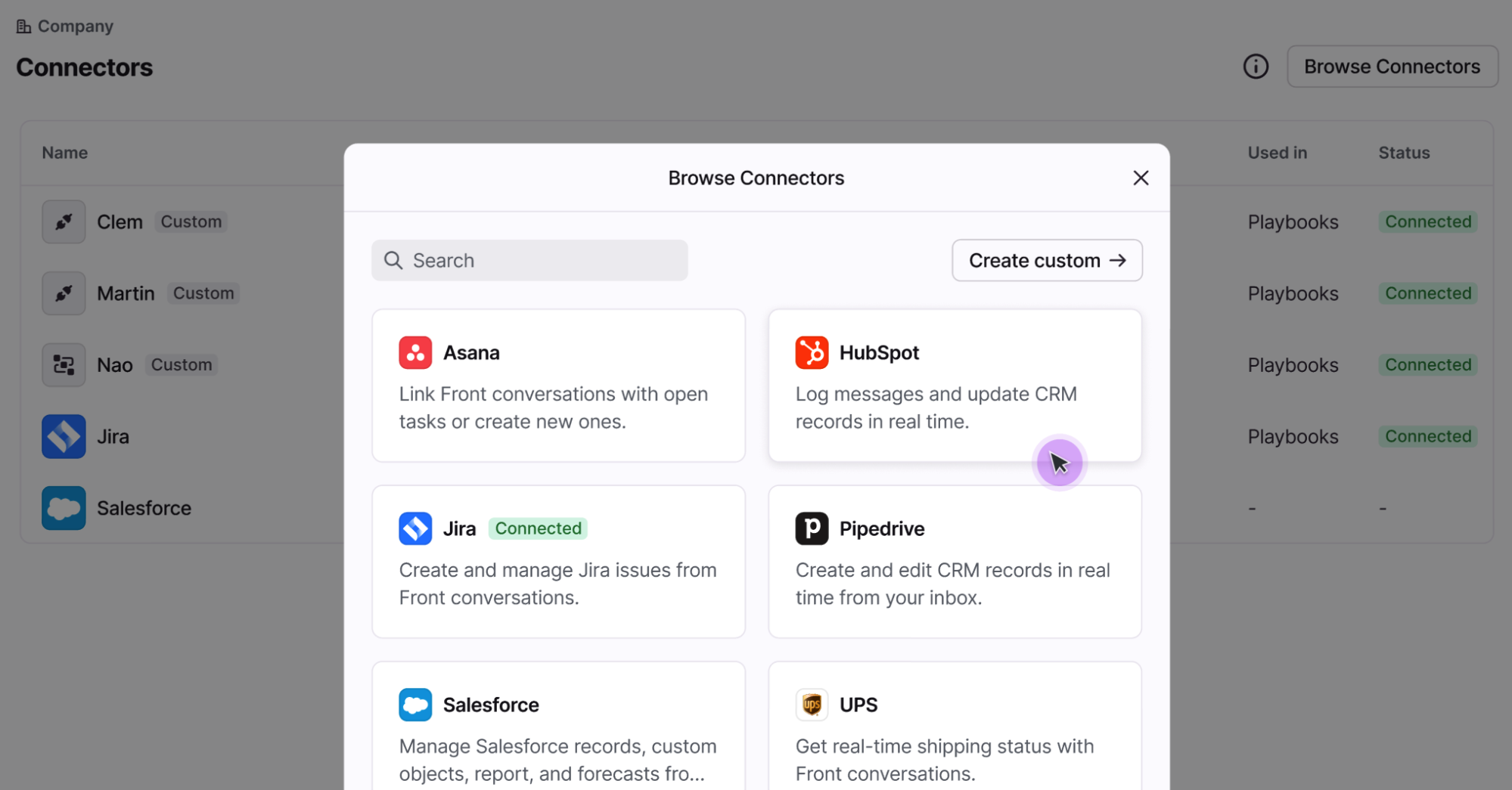
Step 3
Select Connect, click Connect MCP server in the pop-up, then sign in to the application to authorize it.
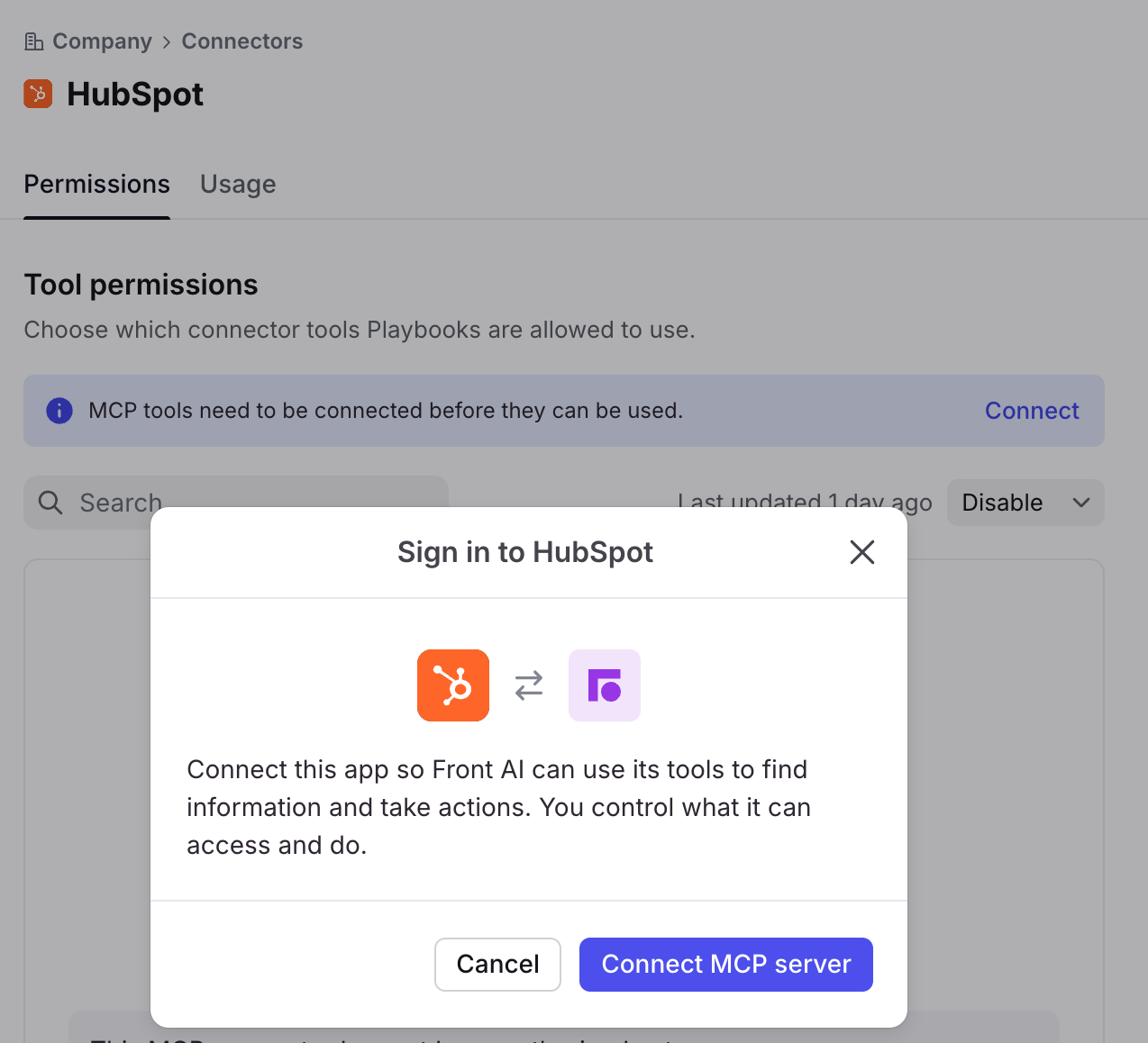
Step 4
Use the dropdown or individual toggles to choose which of the tool's actions Front's AI can use, and which features can use them.
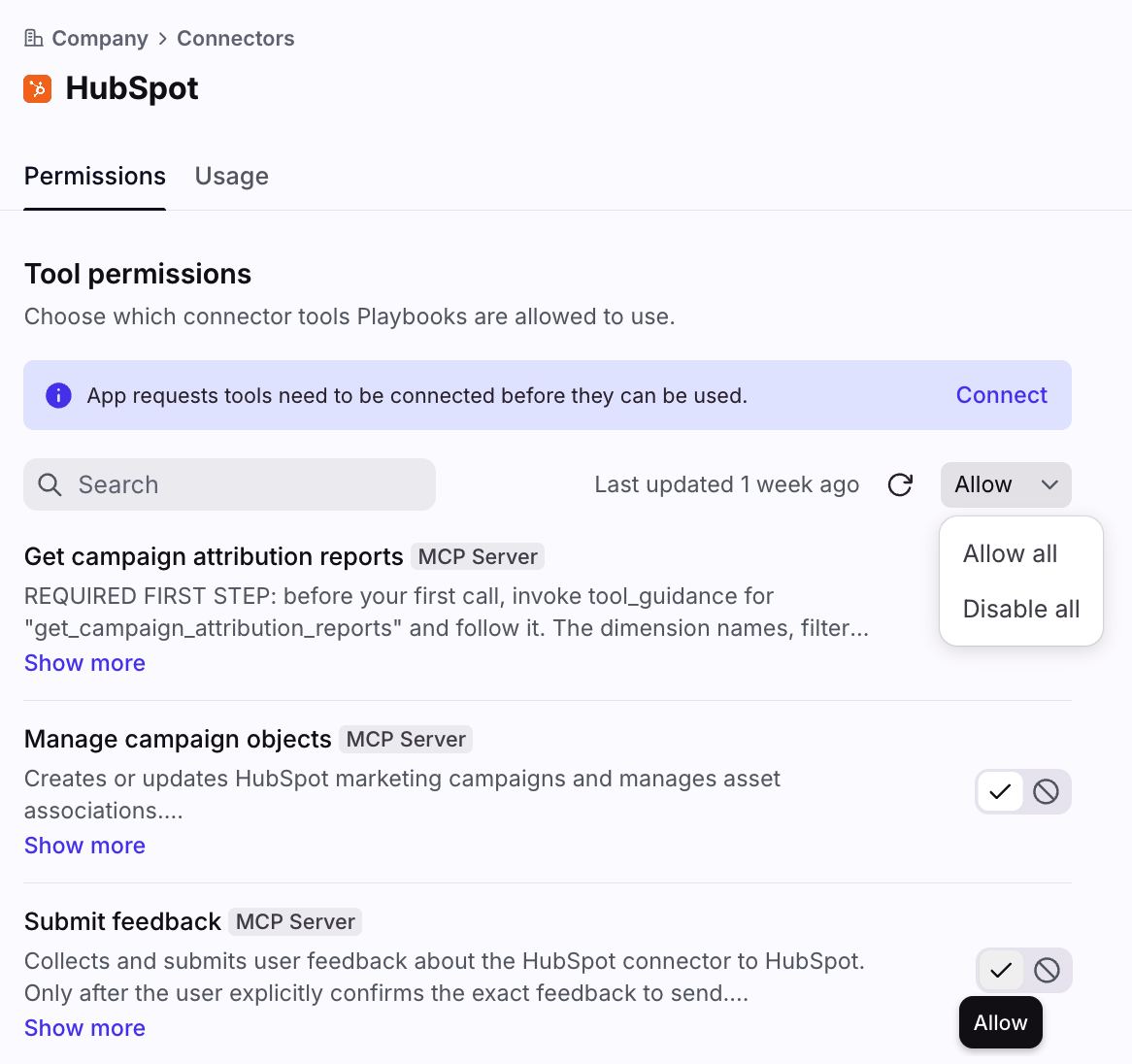
Option 2: Custom connection
If an MCP Connector isn't in the Front’s prebuilt catalog, a company admin can create a custom MCP Connector by connecting your own MCP server in Developer settings. Once connected, Front's AI uses it the same way as a prebuilt one, and it can be scoped with the same feature and tool permissions described above. See our developer documentation to learn more.
You must have Front company admin permissions to create a custom MCP Connector.
How MCP Connectors work with Front’s AI
Once connected, you control an MCP Connector in two ways:
Which AI features can use it — for example, Copilot, Autopilot, or AI-powered steps in rules and macros.
Which of its actions are turned on — every action is disabled by default, so the AI only ever does what you've explicitly allowed.
Disable or disconnect a Connector
Use the steps below if you want to disable a specific tool in a Connector’s set of tools, or disconnect the entire Connector. Disabling a tool or disconnecting the Connector takes effect immediately.
Disable a tool
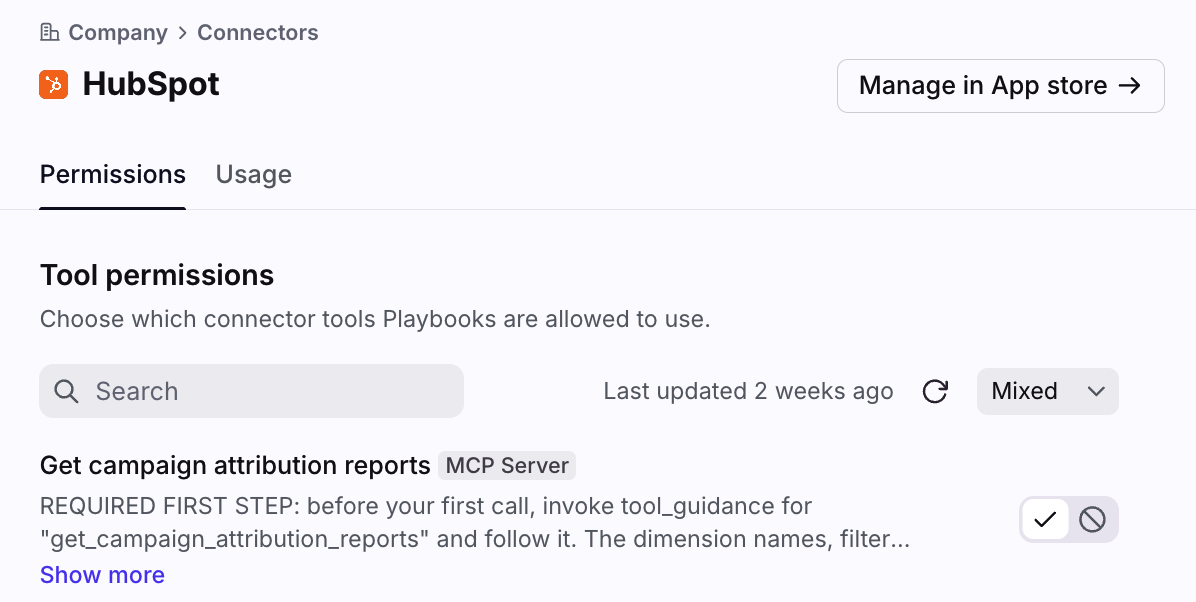
If you want to disable a specific tool in a Connector’s set of tools, you can navigate to Connector in company settings, select the Permissions tab, then toggle off the tool from the list.
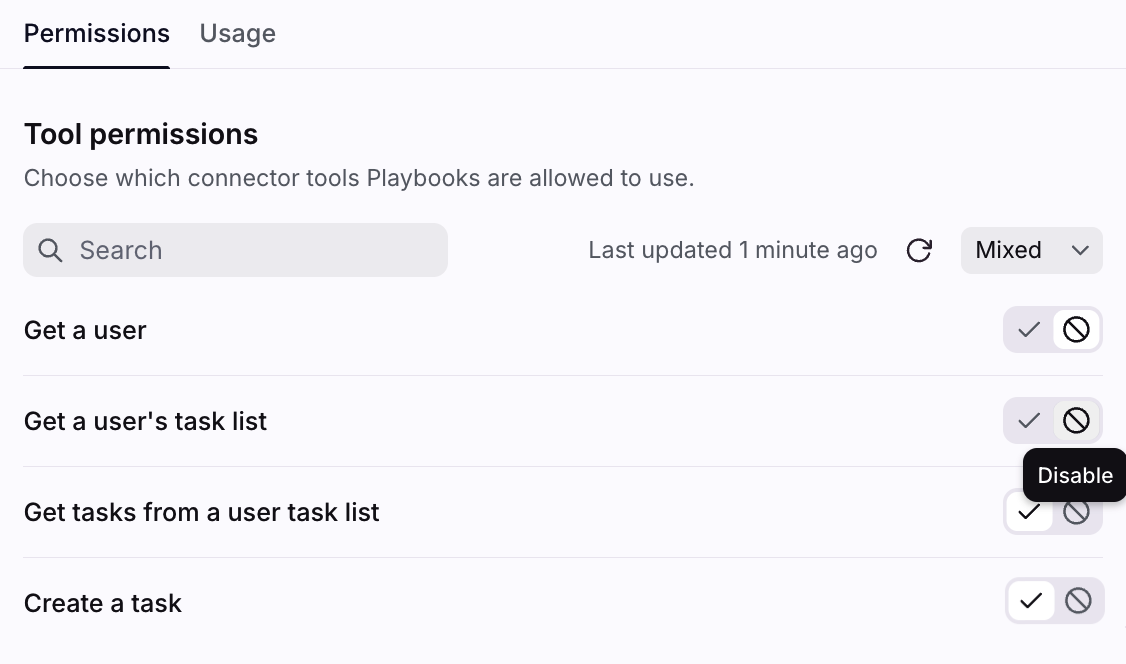
Disconnect a Connector
If you no longer want to use a Connector and its entire set of tools, you can disconnect it using the following steps. This disconnects the Connector while leaving other integrations like contacts/accounts syncs intact.
Step 1
Find your Connector in the list of Connectors, click the three-dot menu, then select Manage in App store.
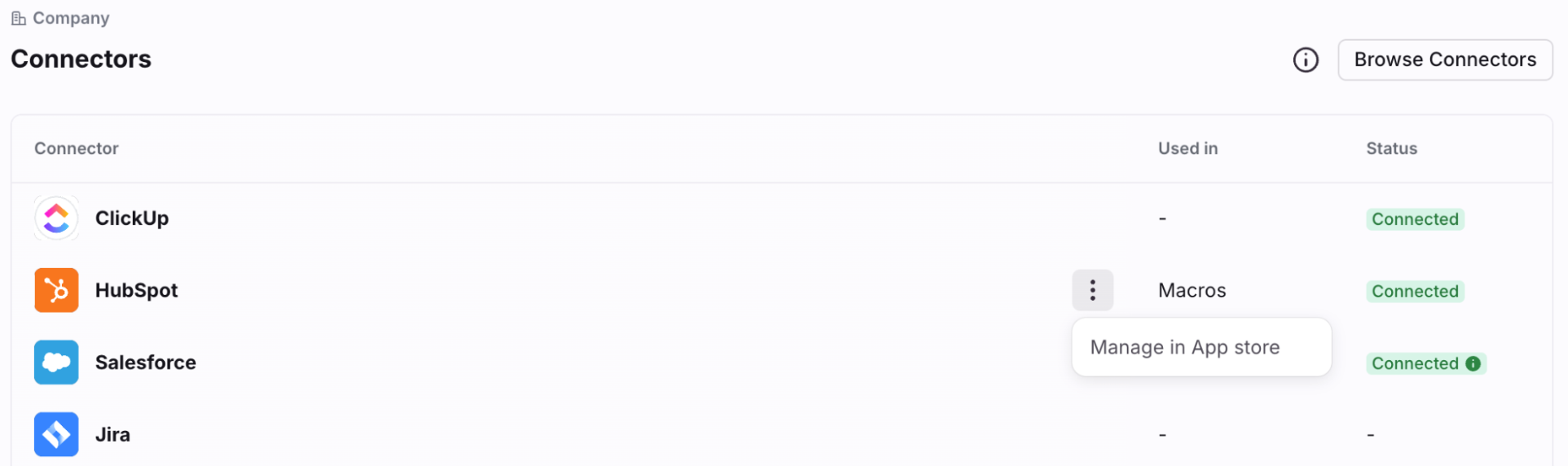
You can also click Manage in App store from the Connector’s details page.
Step 2
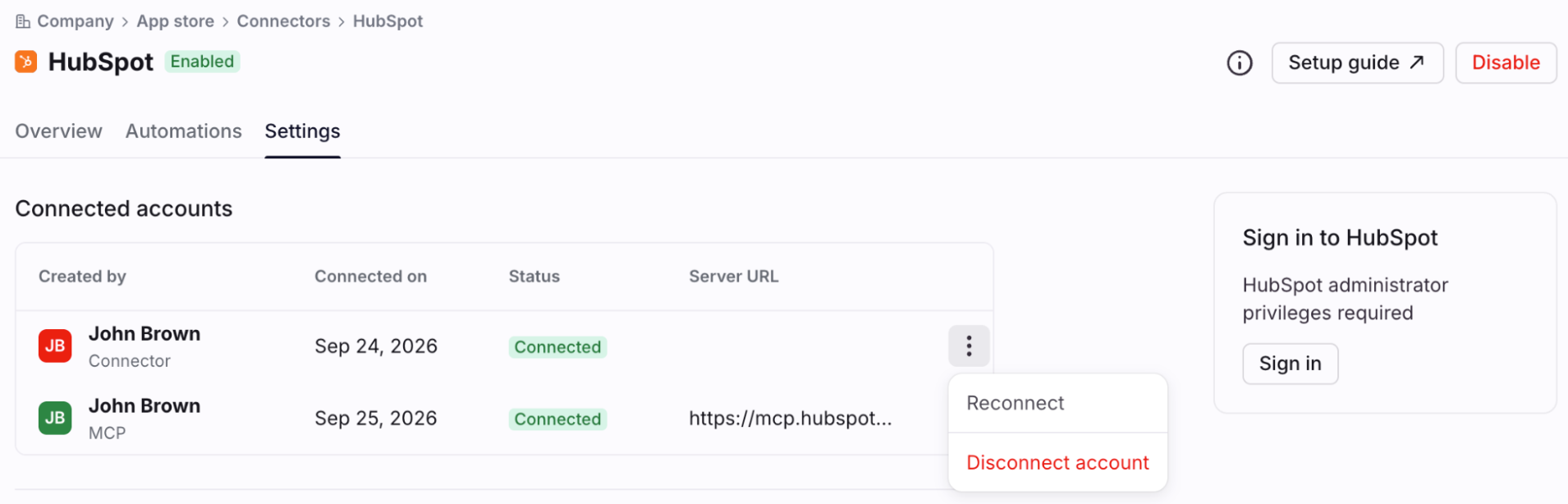
Under the Connected accounts section, hover over the Connector, click the three-dot menu, then click Disconnect account.
FAQ
I already connected an app request for my rules and macros. Do I need to connect it again for AI usage?
Yes. The application request or object you use in rules and macros and the MCP Connector Front's AI uses are separate connections, even for the same tool. Connecting one doesn't connect the other
What's the difference between an MCP Connector and Front's MCP server?
An MCP Connector lets Front's AI reach out to one of your tools. Front's MCP server is the reverse — it lets an outside AI assistant like Claude or ChatGPT connect into Front. See Front's MCP server for that direction.
Does disconnecting an MCP Connector affect anything else I've set up with that tool?
No. Disconnecting only removes Front AI's access to that tool's actions. Any existing sync with the same app, like contacts or accounts, keeps working.
Pricing
MCP Connectors are available on all plans. To use one, you must have access to a Front AI feature such as Copilot or Autopilot.