
How to set up the Salesforce External Client App
Overview
The Salesforce External Client App (ECA) lets your team connect Front to Salesforce through a package installed in your Salesforce org. It powers the Salesforce integration and Salesforce MCP in Front.
Two admins are involved, and both are required:
Front company admin: Enables the Salesforce app in Front. Only Front admins can do this.
Salesforce admin: Installs the Front package in your Salesforce org. Users can't log in or authorize Front until this is done. If you have a custom admin profile in Salesforce, you must have the “Download AppExchange Packages” permission enabled to complete the steps listed below.
Instructions
Salesforce admin steps: Install the package
Step 1
Open the Front package install link and log in to Salesforce as an admin: https://login.salesforce.com/packaging/installPackage.apexp?p0=04tiE00000003QvQAI
Step 2
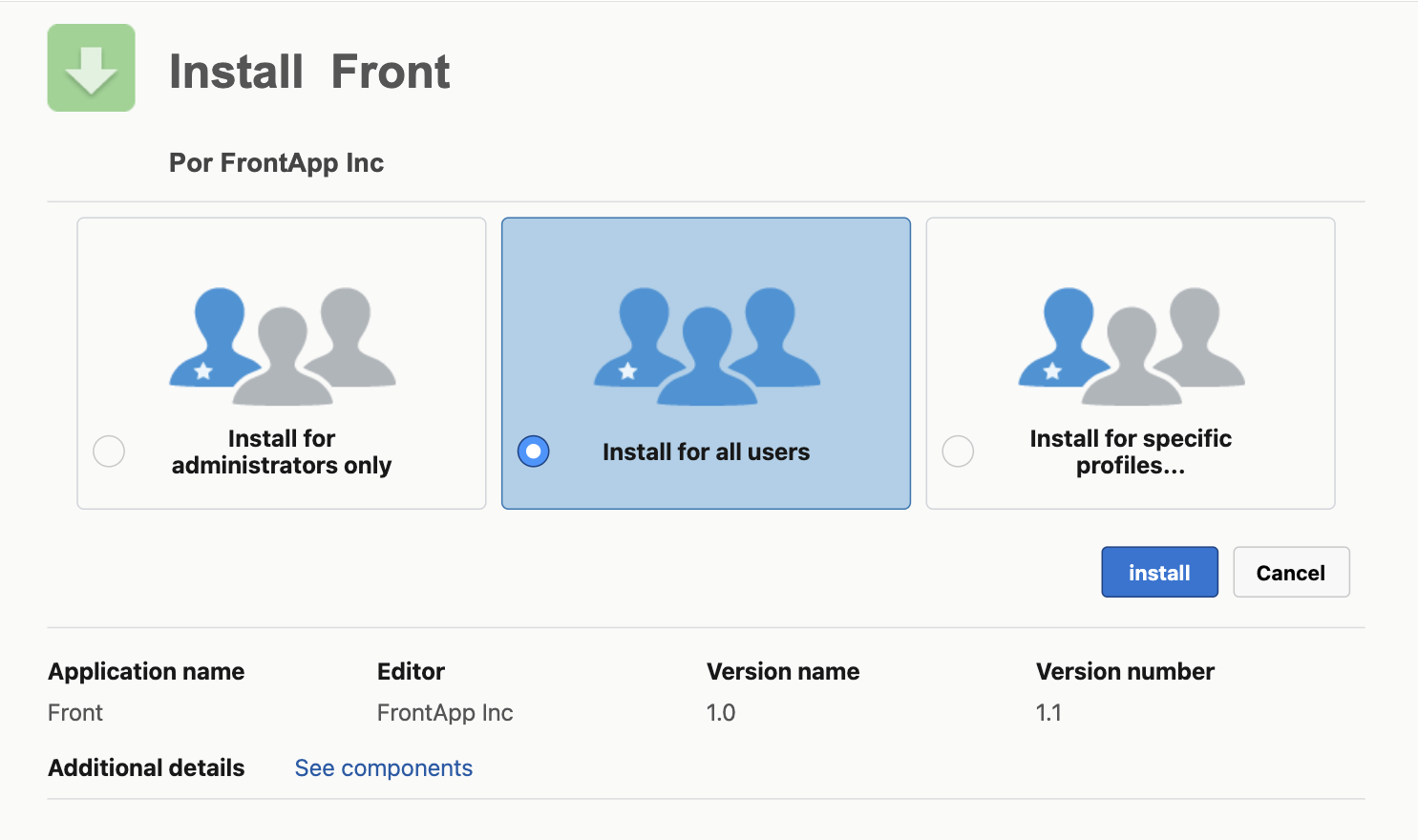
Under Install Front, choose who can access the package:
Install for Admins Only
Install for All Users (required)
Install for Specific Profiles
Important: you must select Install for All Users. If you choose Install for Admins Only or Install for Specific Profiles, the package won't work for every user who needs to connect Front to Salesforce, and the Salesforce ECA won't work as expected.
Step 3
Click Install.
Step 4
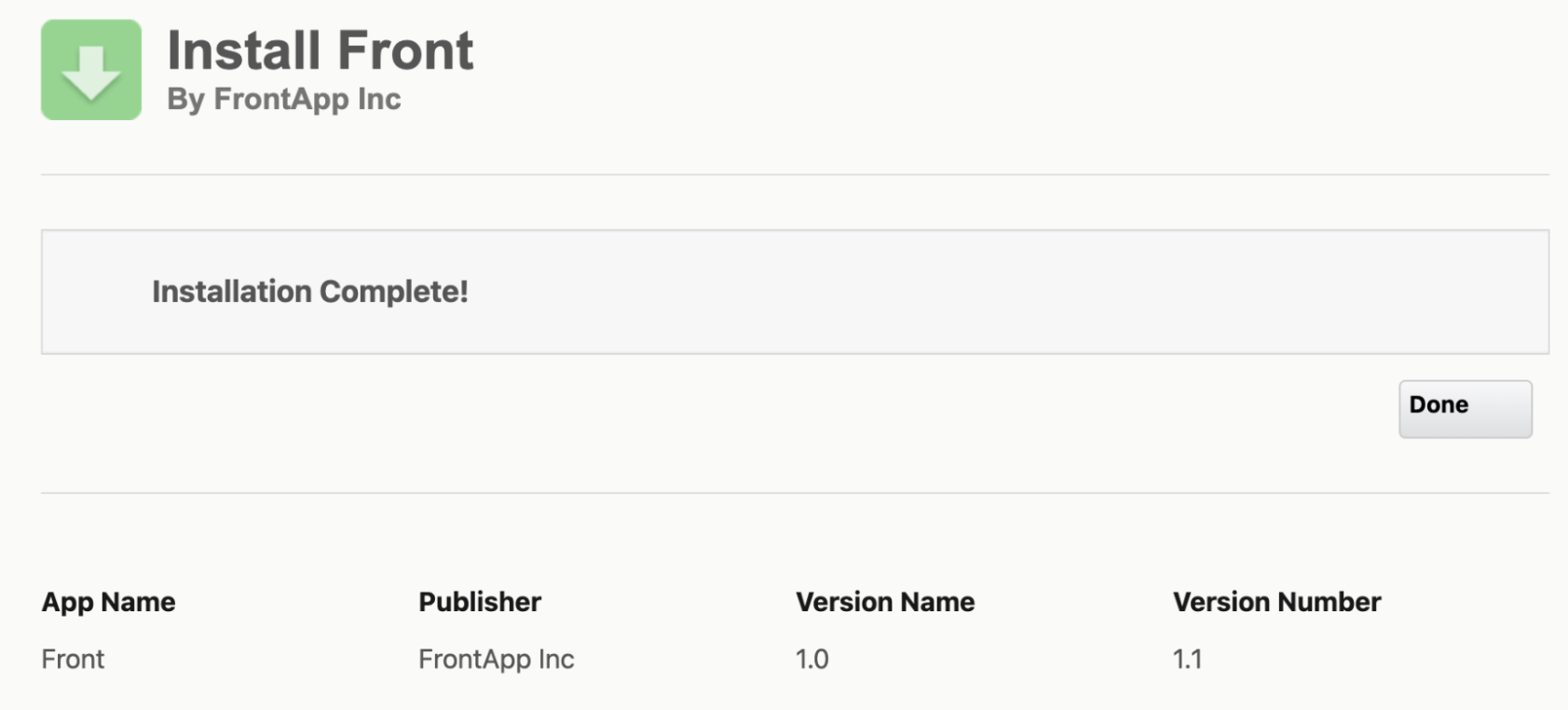
When you see Installation Complete!, click Done.
Front admin steps: Enable Salesforce in Front
You must have Front company admin permissions to enable the Salesforce ECA. Make sure the Salesforce admin has completed the install steps above first.
Step 1
Click the gear icon, navigate to company settings, then select App store from the left menu.
Step 2
Select Salesforce from the list of integrations, then click Enable app.
Step 3
Sign in to Salesforce to authorize Front when prompted. Front won't let you authorize until the package is installed in your Salesforce org.
Enable Salesforce MCP (optional)
Skip this section if you only use the Salesforce integration. Salesforce MCP needs an extra step in Salesforce before you can connect it in Front.
Step 1 (Salesforce admin)
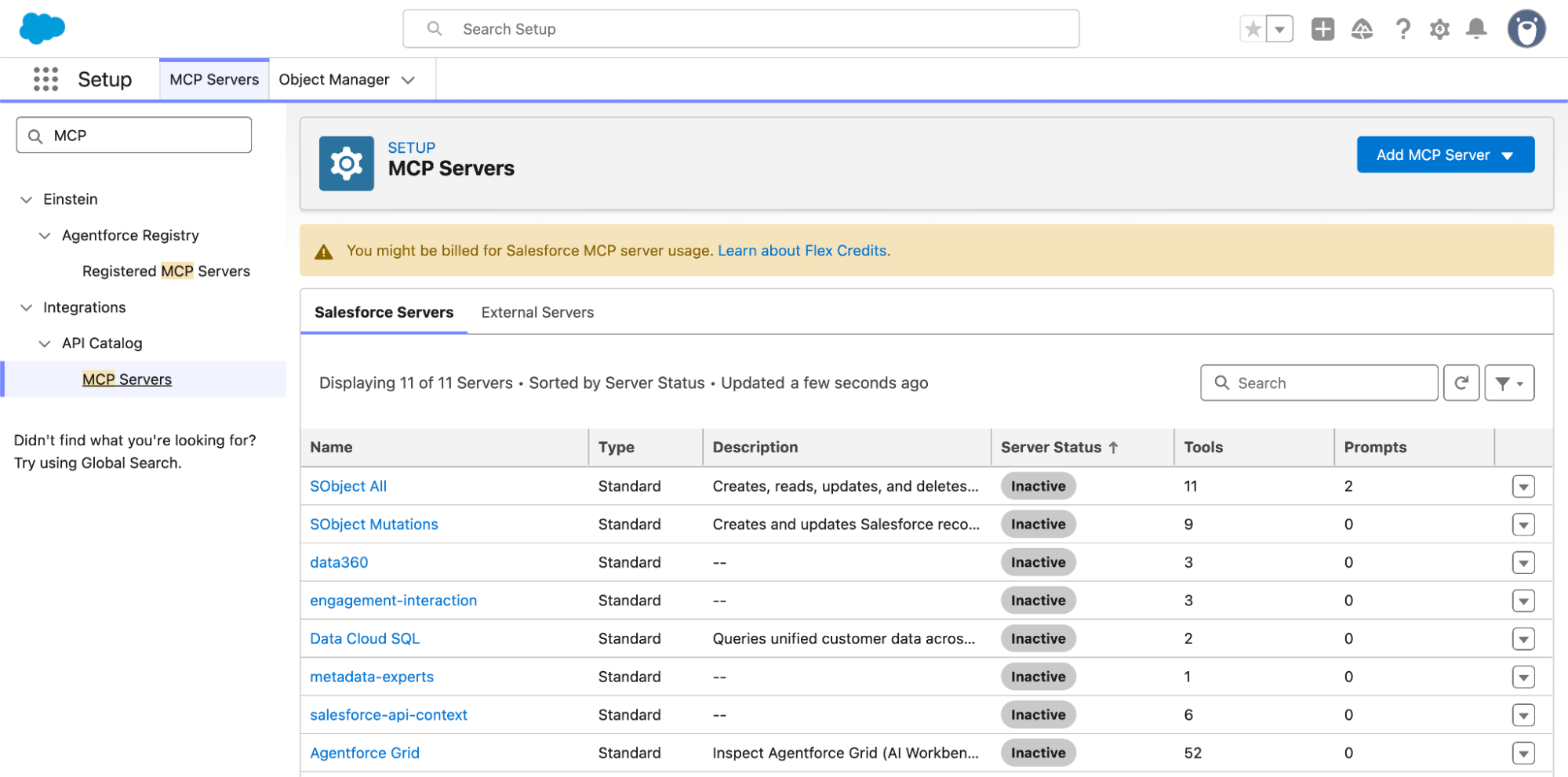
In Salesforce, go to Setup, select Integrations, API Catalog, then MCP Servers.
Salesforce may bill for MCP server usage. Review Salesforce's Flex Credits information before activating.
Step 2 (Salesforce admin)
Select the MCP server you want to use. Your org has several, such as SObject All.
Step 3 (Salesforce admin)
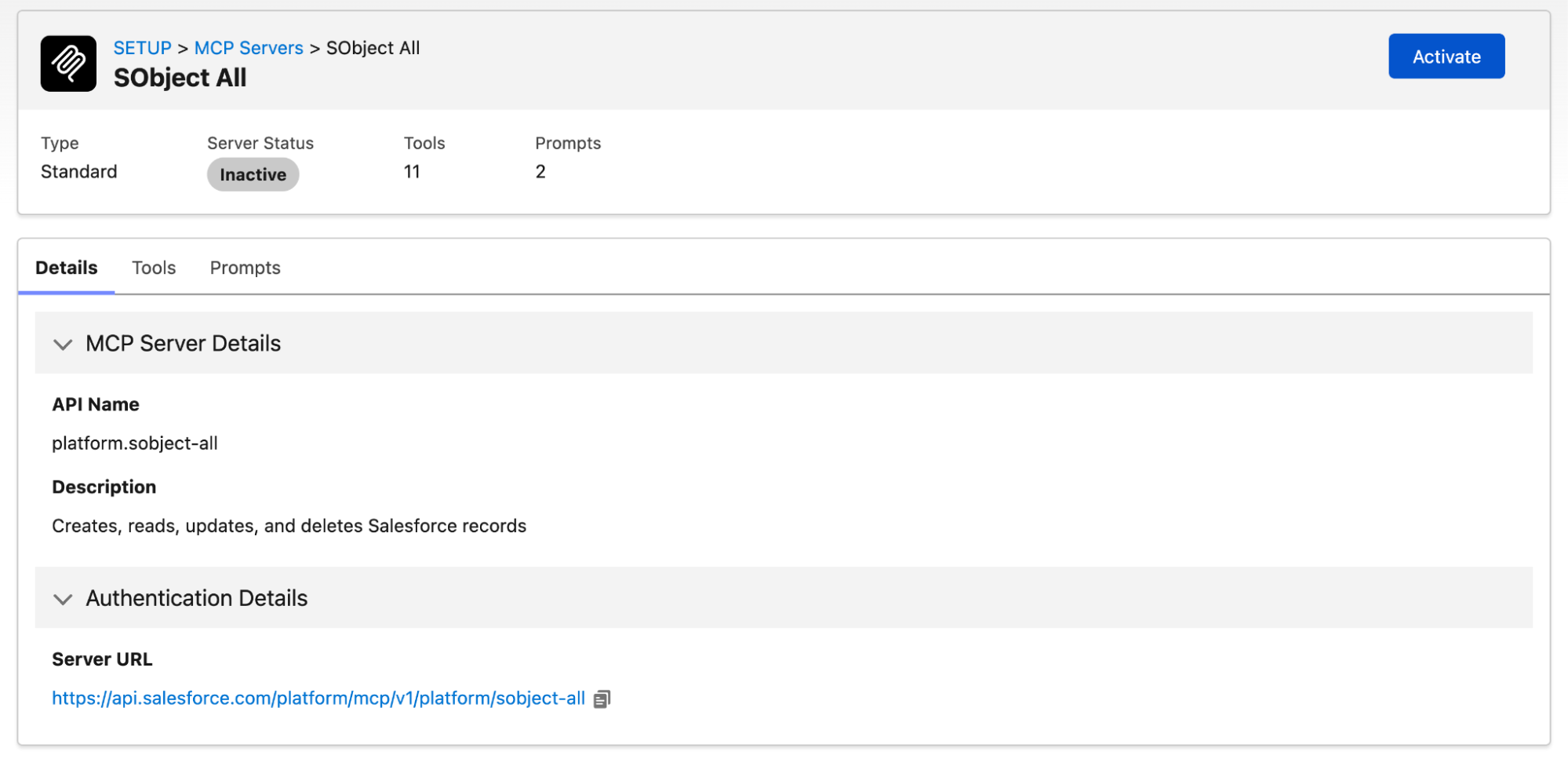
Click Activate.
Step 4 (Front admin)
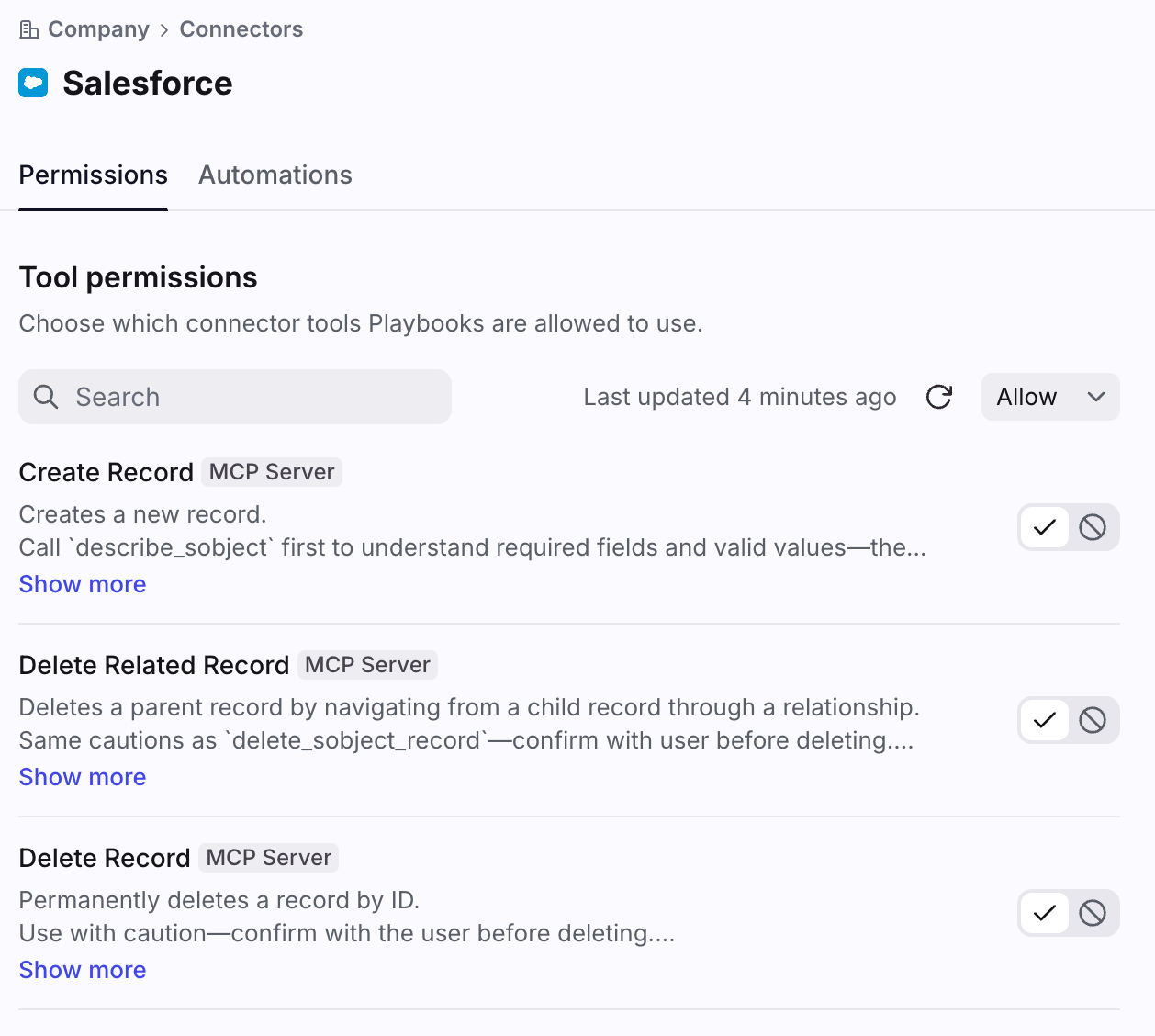
In Front, connect the Salesforce MCP server. Use the dropdown or individual toggles under Tool permissions to choose which of the tool's actions Front's AI can use.
Troubleshooting
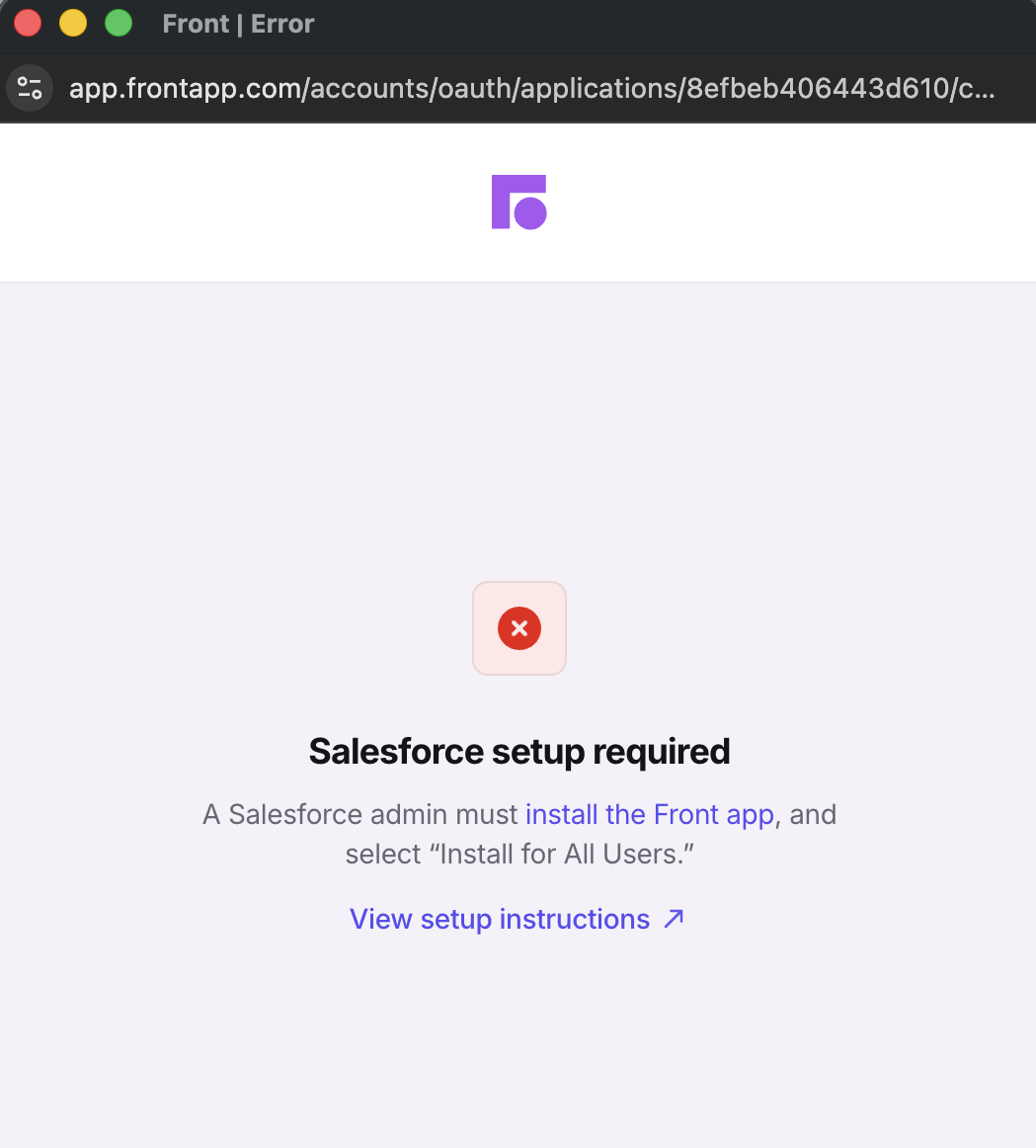
I see "The Front connected app is not installed in your Salesforce org"
If you see the above error message or "Salesforce setup required", the package hasn't been installed in your Salesforce org yet. A Salesforce admin needs to open the install link and select Install for All Users. If it was installed with another option, the admin should reinstall it with Install for All Users.
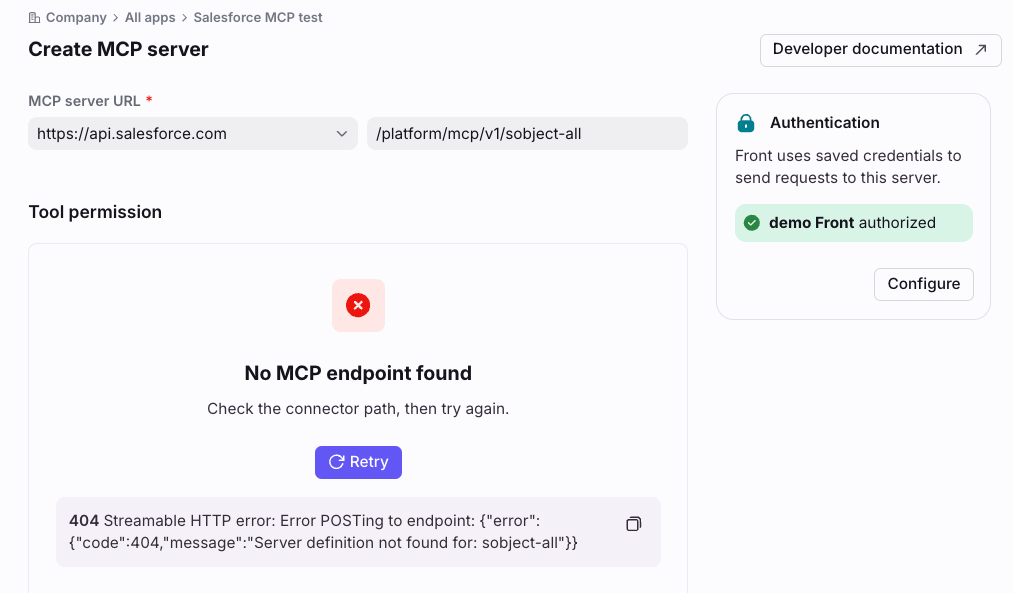
I see "No MCP endpoint found" when connecting the MCP server
The MCP server isn't activated in your Salesforce org. A Salesforce admin needs to activate it under Setup > Integrations > API Catalog > MCP Servers. Then click Retry in Front.
I can't enable the Salesforce app in Front
Only Front company admins can enable it. If you are not an admin, contact an admin on your team to enable the app for you.
Pricing
MCP Connectors are available on all plans. To use one, you must have access to a Front AI feature such as Copilot or Autopilot.