
Use notes with Front AI features
Overview
Front notes serve as a short-form knowledge source, designed for quickly adding or supplementing information to cover gaps in other knowledge sources and power Front's AI features. Notes have a 250-character limit to ensure the knowledge is as succinct and useful as possible.
To add more long-form content, we recommend using articles from a knowledge base. See this article to learn more about maximizing Front AI with knowledge sources.
You must have company admin permissions to manage notes.
Instructions
Step 1
Click the gear icon, navigate to your company settings, then select AI resources in your sidebar.
Step 2
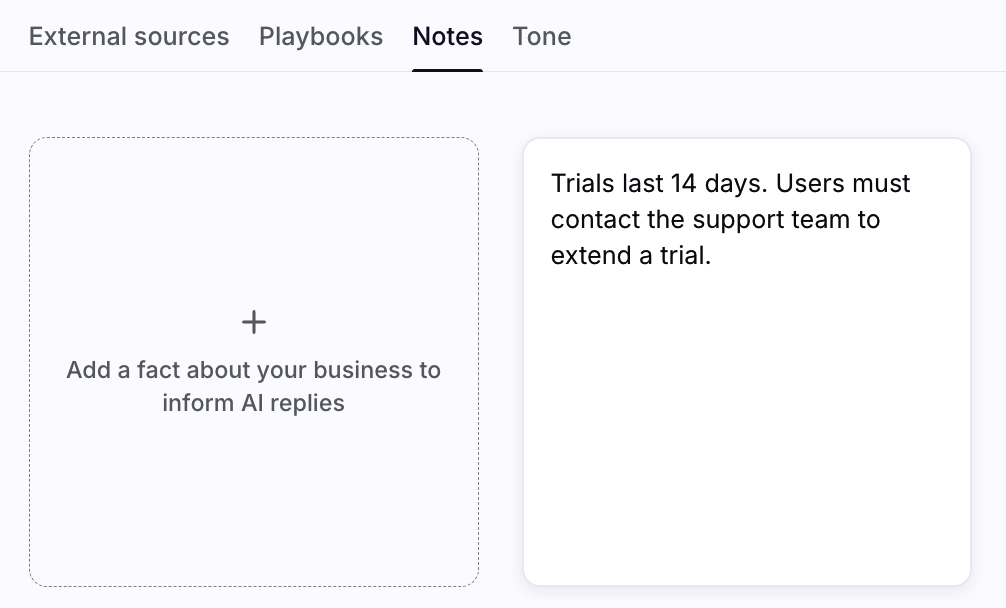
Select the Notes tab. Click Create note if adding notes for the first time, or click the plus sign (+) on a blank note to add a new one.
Step 3
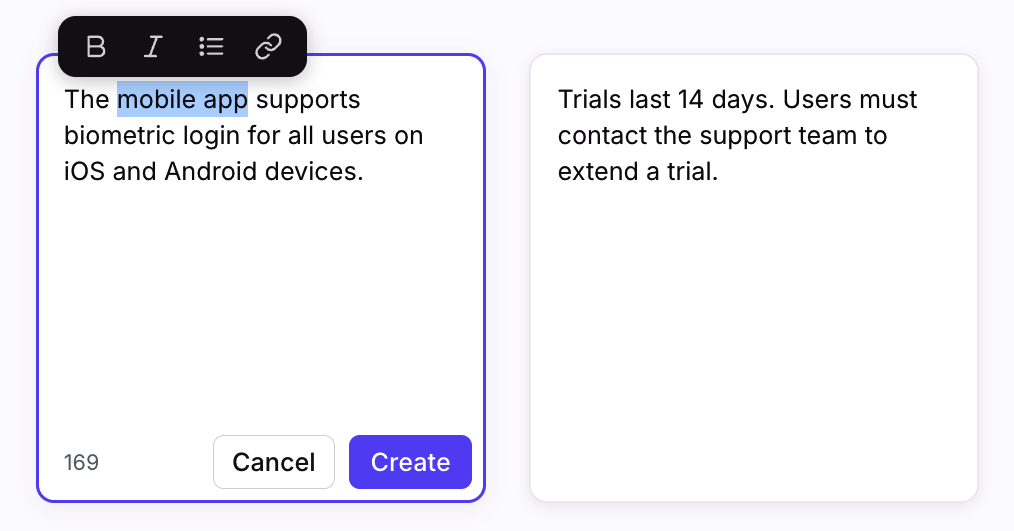
Fill in the note with the factual knowledge you want to add. You can optionally add formatting and embed links. Click Create to save it.
Step 4
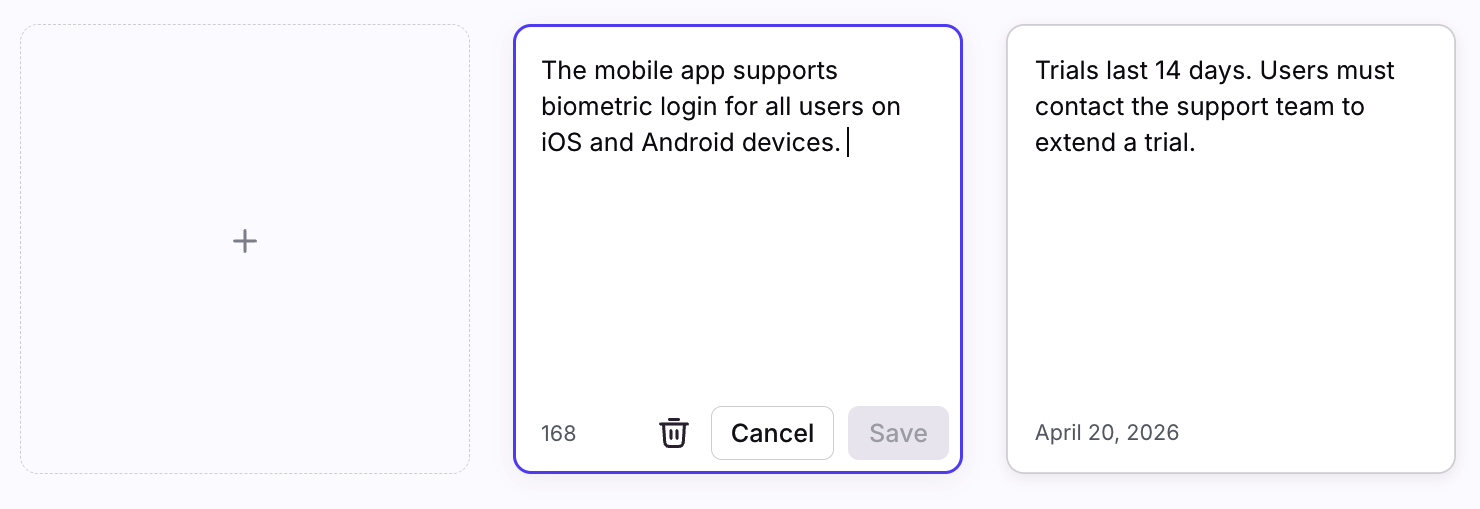
You can return to a note at any time to edit or delete it.
Guardrails
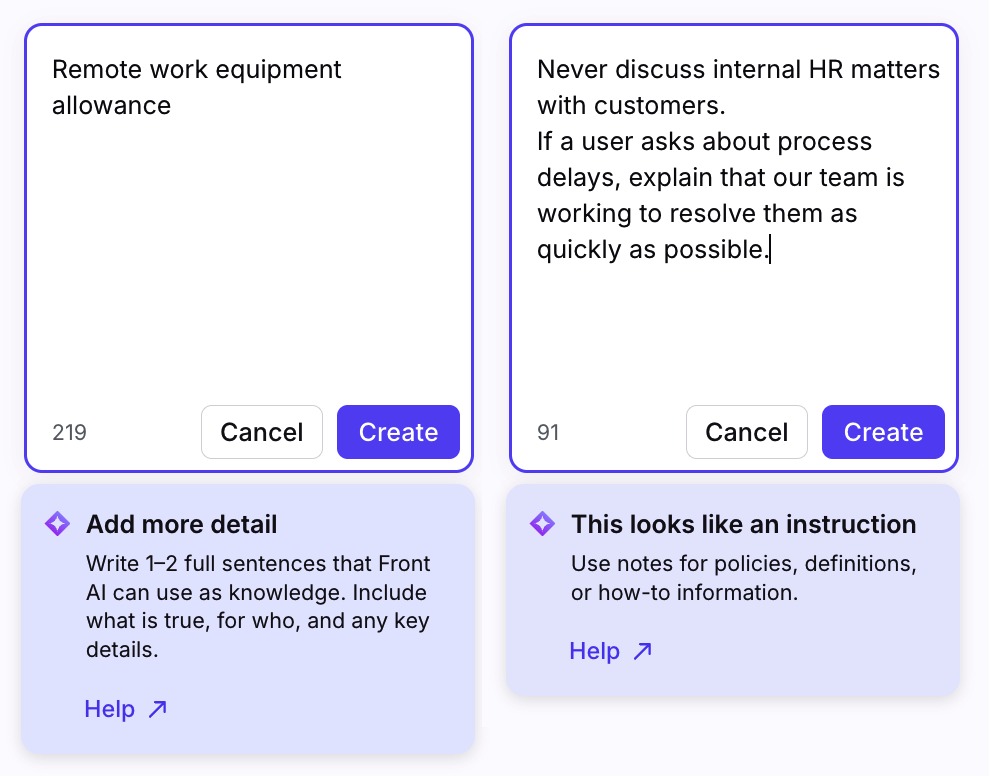
There are a series of guardrails built into this feature to help you with creating effective notes. If Front detects that the note can be improved, you’ll see a banner with suggestions before you save.
While we will not stop you from creating notes with warnings, it is highly unlikely they will get used as knowledge in generating replies. To ensure your content has the greatest possible impact, we recommend following the suggestions provided in the banners or following the best practices listed below.
Best practices
Good examples
Notes in their current form are used by Front AI as fact-based knowledge that is directly sharable to your customers/users in AI replies.
High quality notes are fact-based, succinct information that either adds new knowledge not in other AI knowledge sources or supplements that knowledge. Duplicating knowledge in multiple areas is not advised. Notes should also structurally include a noun and a verb and be full sentences. AI will likely ignore notes that are too short or lack clarity.
Good examples:
To update billing information, users need to log in and navigate to the 'Payment Methods' section.
The mobile app supports biometric login for all users on iOS and Android devices.
The server requires a minimum of 8GB RAM and runs on Ubuntu 20.04.
Enterprise customers receive a dedicated account manager and 24/7 support access.
Discount codes expire 30 days after issue unless otherwise specified.
Poor examples
Notes are not instructions or guidelines for Front AI to follow. This extends to AI reply tones, as each of your channels is already configured with its own specific tone. In-app tone settings are scheduled for a future update.
Poor examples, that will not end up being used:
API endpoint structure
Remote work equipment allowance
Never discuss internal HR matters with customers.
If a user asks about process delays, explain that our team is working to resolve them as quickly as possible.
Prioritize tickets labeled 'urgent' in the support queue.
FAQ
Can I give instructions to the AI?
No. As per the helpful hints above notes are built to be used as factual knowledge about your product, features, and customer-facing policies. We are continually investing in more customized AI though so stay tuned. You can give instructions to your AI agent in both agent Instructions and Playbooks.
Why can’t I exceed 250 characters?
For Front AI to utilize notes effectively, they must be short and precise. We recommend connecting a knowledge base if you want to use long-form AI knowledge. With a Front knowledge base, you can control visibility of your content via help center settings.
Is there a limit on the number of notes I can create?
No. There are no limits, so feel free to create as many as necessary to help inform your AI replies.
Can I see who added a note?
Not at this time. However, you can see who last updated the note by hovering over the note. If the note was never updated after creation then this will be who added the note.
Pricing
This feature is available with the Autopilot add-on and trials.