
Understanding message templates and folders
Overview
Message templates are your saved responses to common questions. They allow you to respond faster to inbound messages, lessen the repetitive nature of replying to frequently asked questions, and for your team to have a unified voice in what you tell your customers.
Front allows you to create individual and shared message templates. Individual message templates are visible to only you, and shared message templates can be visible to your teammates on the inbox level. Both admins and regular members can create message templates.
Create a message template
From the composer
Step 1
In your composer, draft up your message, including any dynamic variables, that you want to save as a message template.
Step 2
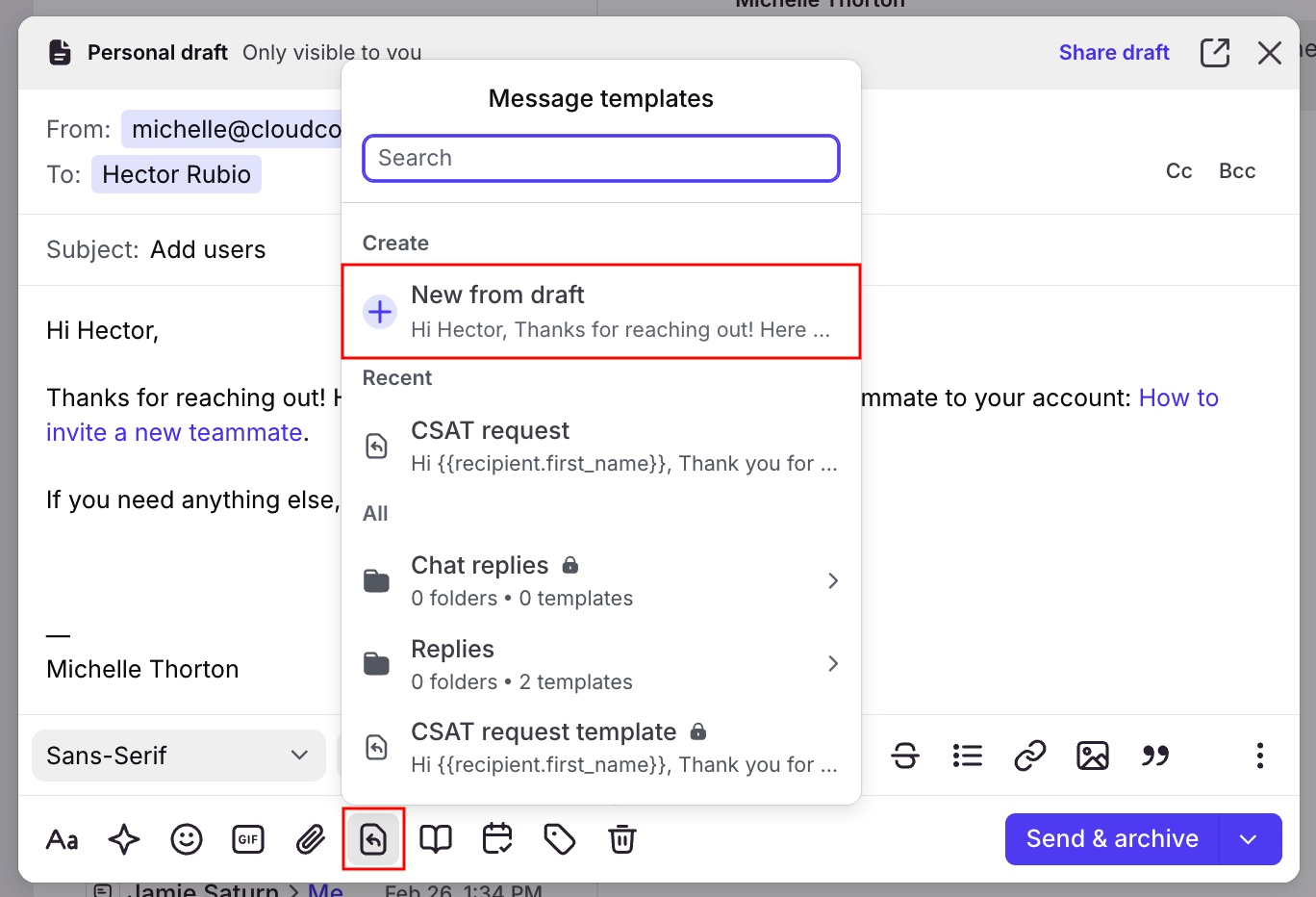
Click the message template icon in the composer toolbar to open the message template menu. Select New from draft.
Step 3
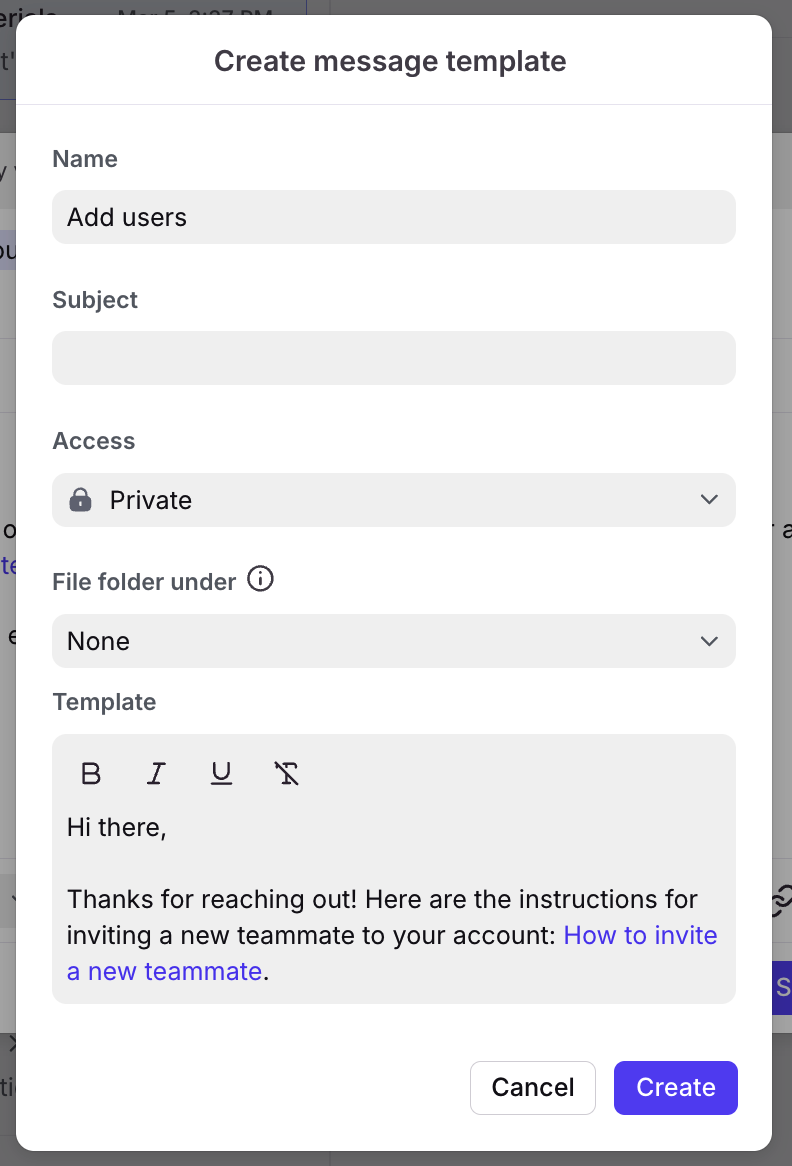
You will see a pop-up box to save the message template. Enter the name, choose whether you want to save it as a private or shared template, pick a folder to nest it under if needed, and make any last edits. Then click Create. This message template will now be available for future use.
Step 4
You can edit your message templates at any time in your settings following the steps here, including specifying which inboxes the message template should be available to.
From settings
Step 1
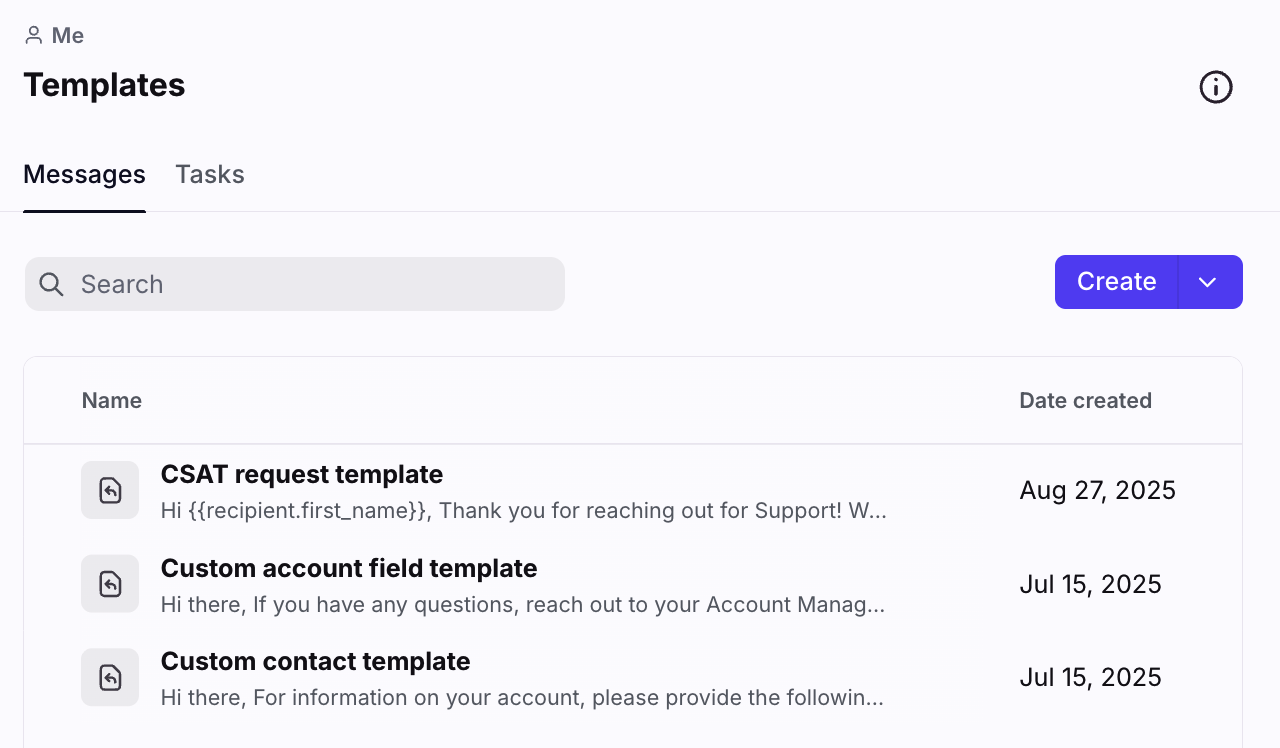
Click the gear icon, then navigate to your workspace or personal settings, depending on which space you are working with. Select Templates in the sidebar, then you'll land in the Messages tab.
For companies with multiple workspaces, shared message templates are set up per workspace.
Step 2
Click Create.
Step 3
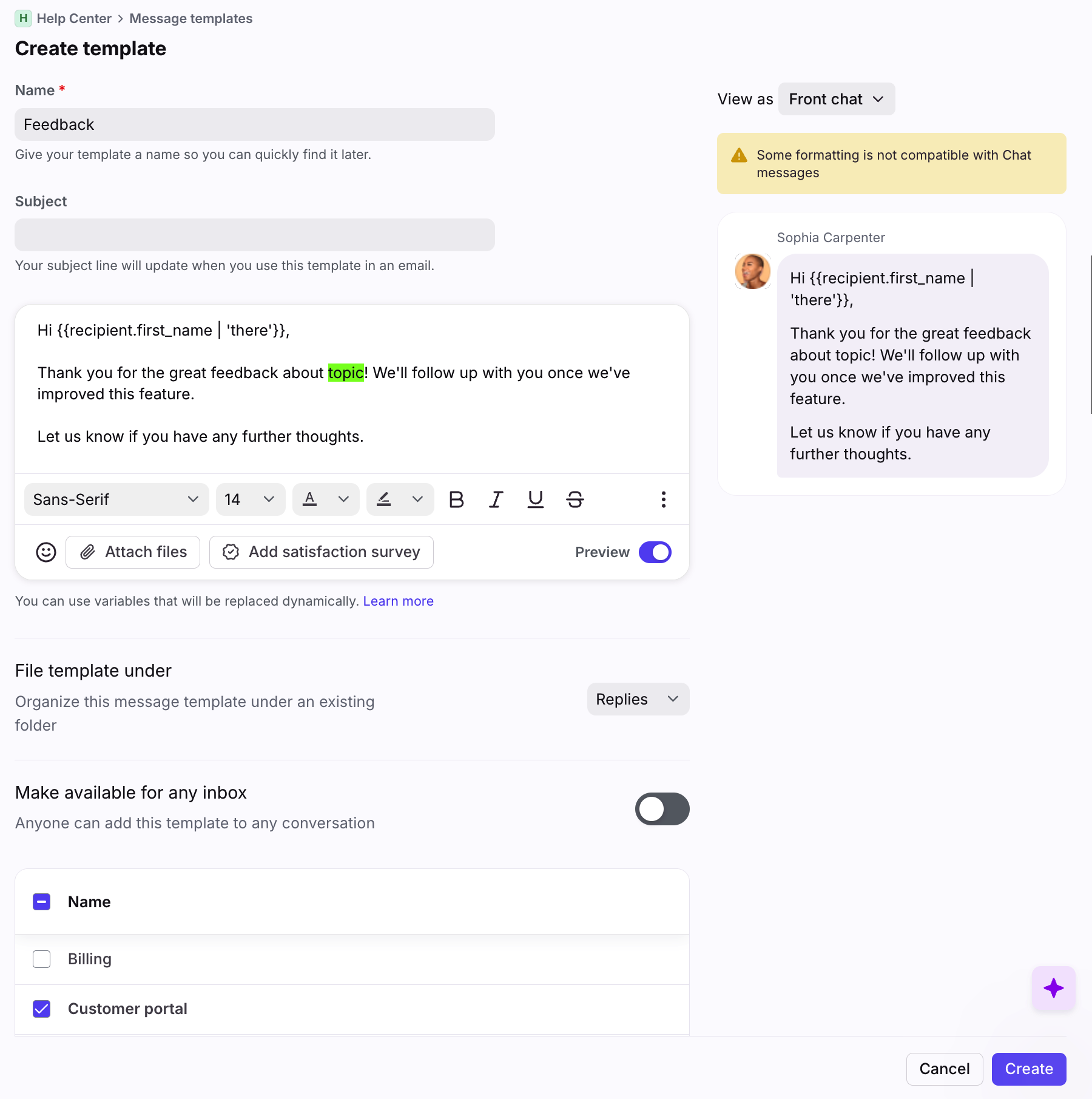
Fill in the following fields:
Name: Internal name for the message template.
Subject (optional): Enter the subject you want to use. The subject will update when you use the message template and override the previous subject.
Text box: Write your message template, including any variables and formatting if needed.
File template under (optional): Select the message template folder this template should be added to.
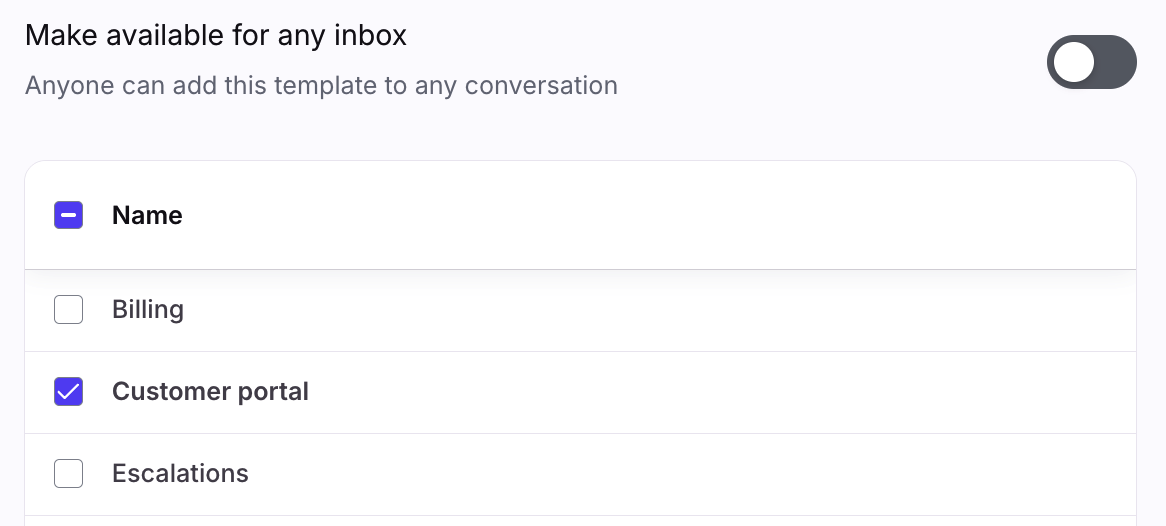
Make available for any inbox (optional, shared inboxes only): Select the shared inboxes that should have access to the template when replying in the composer. To grant access to all shared inboxes in the workspace, toggle the setting on. See below to learn more.
Tip: Highlight the text that should be edited or personalized before you send the message template, so that the text stands out.
Step 4
Click Create.
Message template availability
You can select which inboxes have access to a message template using the Make available for any inbox setting. To use the message template, teammates need to first have access to the inbox, and can then set the appropriate channel in the From field of the composer to use the available message templates of that inbox.
However, if a teammate has the Templates - Create and edit permission on their account, they can view all shared message templates in your workspace settings, even if they don’t have access to the selected inboxes. To prevent users from viewing all shared message templates in workspace settings, you can remove this permission by using a custom permission set.
Message template limits
There are currently no hard limits for the number of message templates you can create. If you are going to create a large number of templates, we recommend you organize them with folders.
Organize with folders
You may already have or plan to create dozens of message templates, so it's helpful to use folders to enable yourself and your team to find and use message templates quickly. You can nest up to 5 layers of folders.
Step 1
Click the gear icon, then navigate to your workspace or personal settings, depending on which space you are working with. Select Templates in the sidebar, then you'll land in the Messages tab.
Step 2
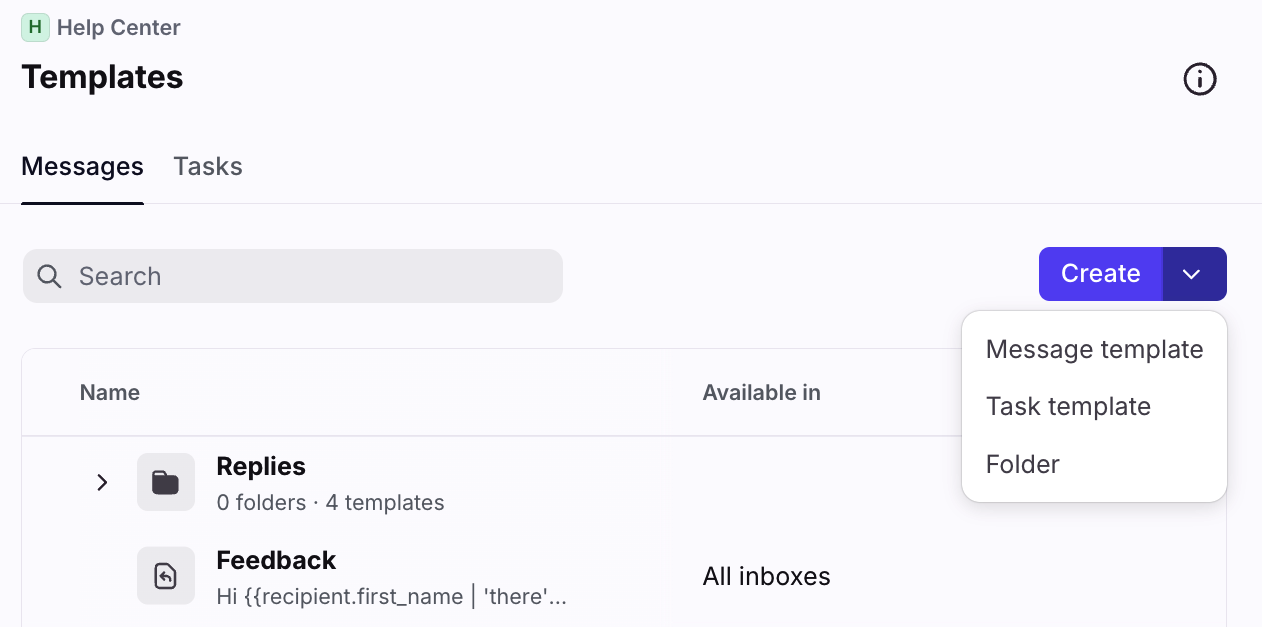
Click the arrow next to Create, then select Folder. To nest this folder under other existing folders, select the folder in the File folder under setting.
Step 3
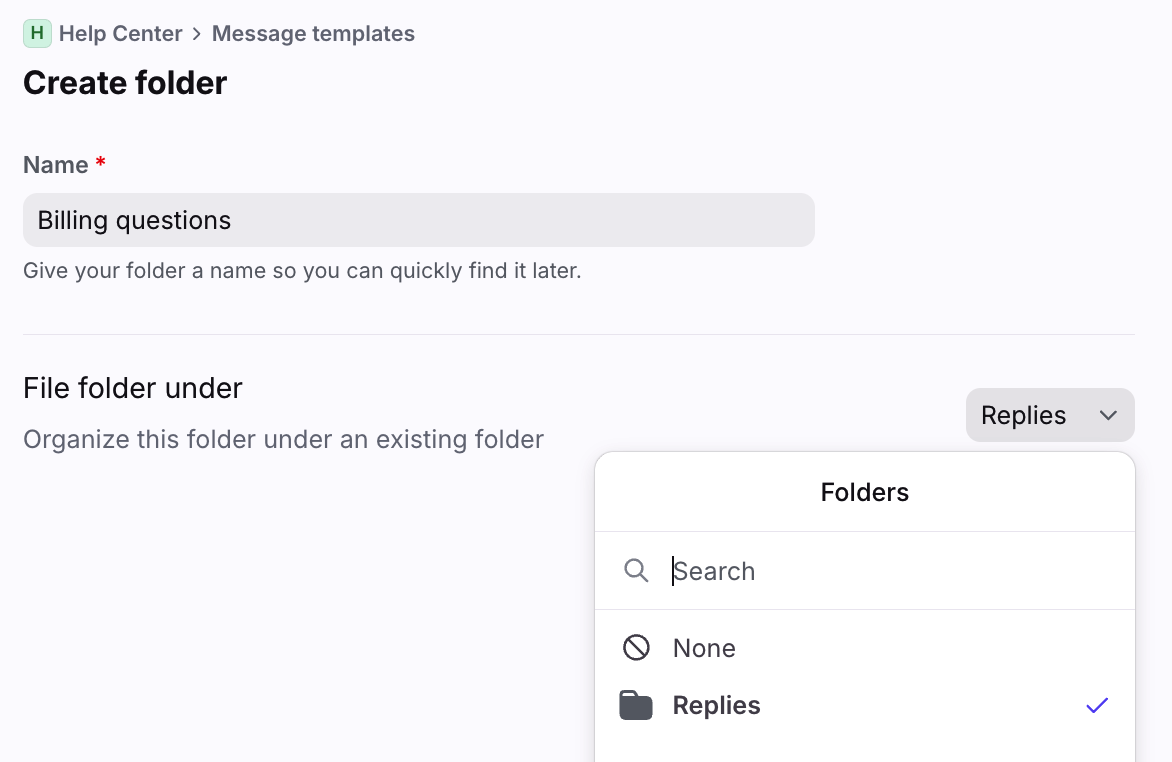
Enter a name for your folder. To nest this folder under other existing folders, select the folder in the File folder under setting. Click Create to finish.
Step 4
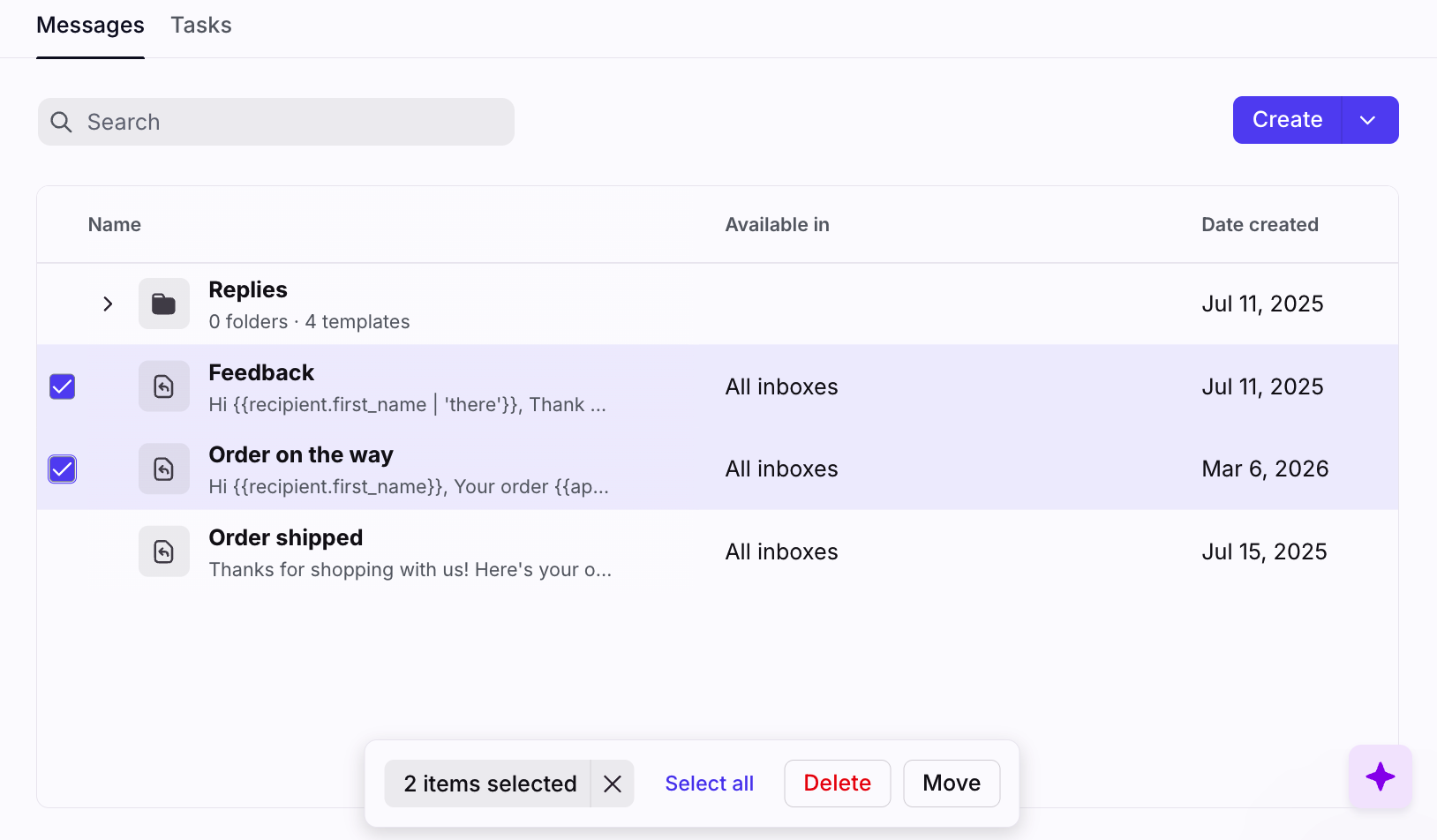
To move message templates into your folders, hover on a message template and click the checkbox to select it. Check off additional templates that you'd like to move, or click Select all.
Step 5
Click Move in the bottom menu, and then select the folder you'd like to move the message templates to. Click Move.
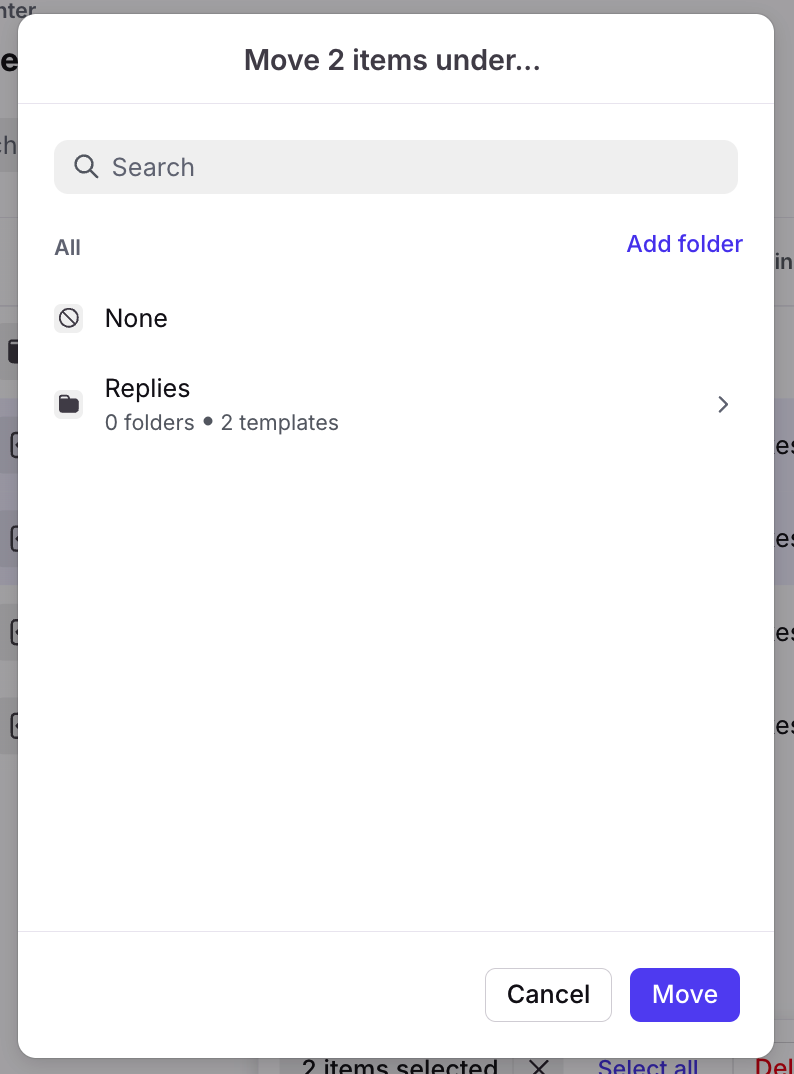
Step 6
Now, you'll see the folders in the Message templates menu when you insert a message template. You can also search for the name of a folder to quickly pull it up and browse through its contents before inserting the correct message template.
Use a message template
Via the composer icon
Step 1
To insert a message template you've created, click the message templates icon in the composer toolbar to open the message templates menu. You can type keywords to search for a message template or scroll through the list, then hover on one to see a preview of it.
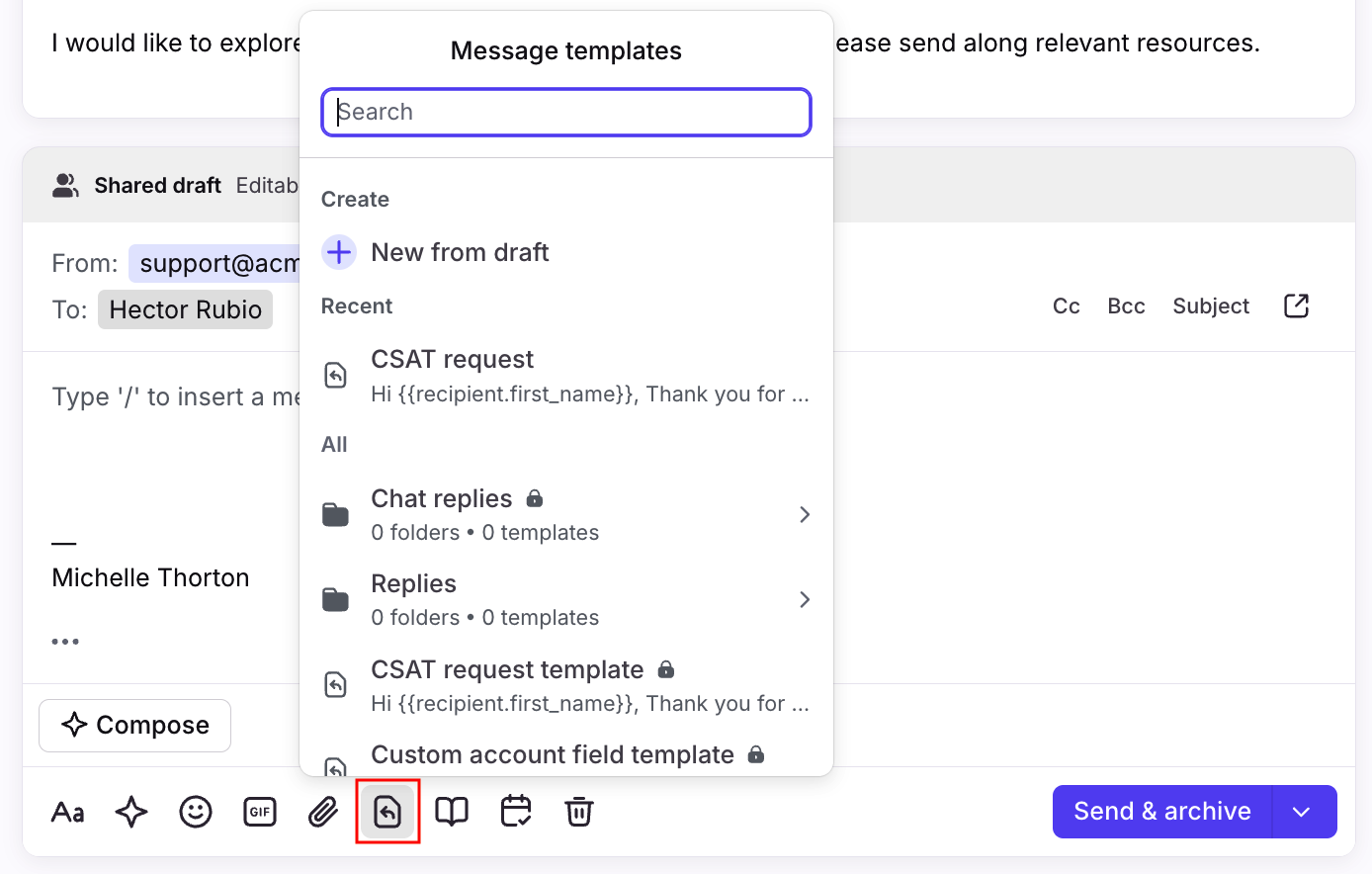
Step 2
Click the message templates to insert it, then make any edits before sending.
Via quick insert
You can also quickly find and insert a message template into your message without leaving your keyboard. Type /template or a forward slash in your composer, type the name of your message template, then press Enter to insert it.
Edit a message template
You can also edit message templates from both the composer and the Settings menu similar to above. For step-by-step instructions, see here.
Duplicate a message template
Step 1
Click the gear icon, then navigate to your workspace or personal settings, depending on which space you are working with. Select Templates in the sidebar, then you'll land in the Messages tab.
Step 2
In the list view, hover over the message template you'd like to duplicate, click the three-dot menu, then select Duplicate.
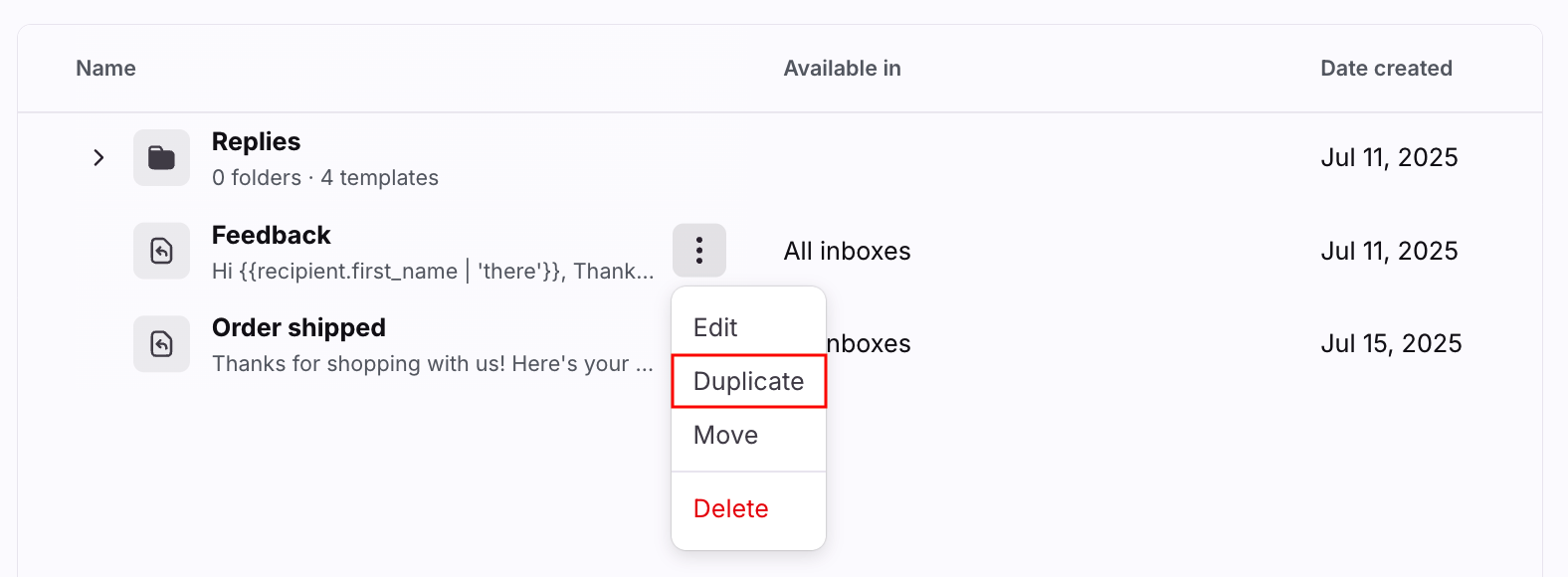
Step 3
The message template will be added to the list with the name "Copy of [original template name]". Select the template to edit it.
Note: Message templates cannot be copied across workspaces.
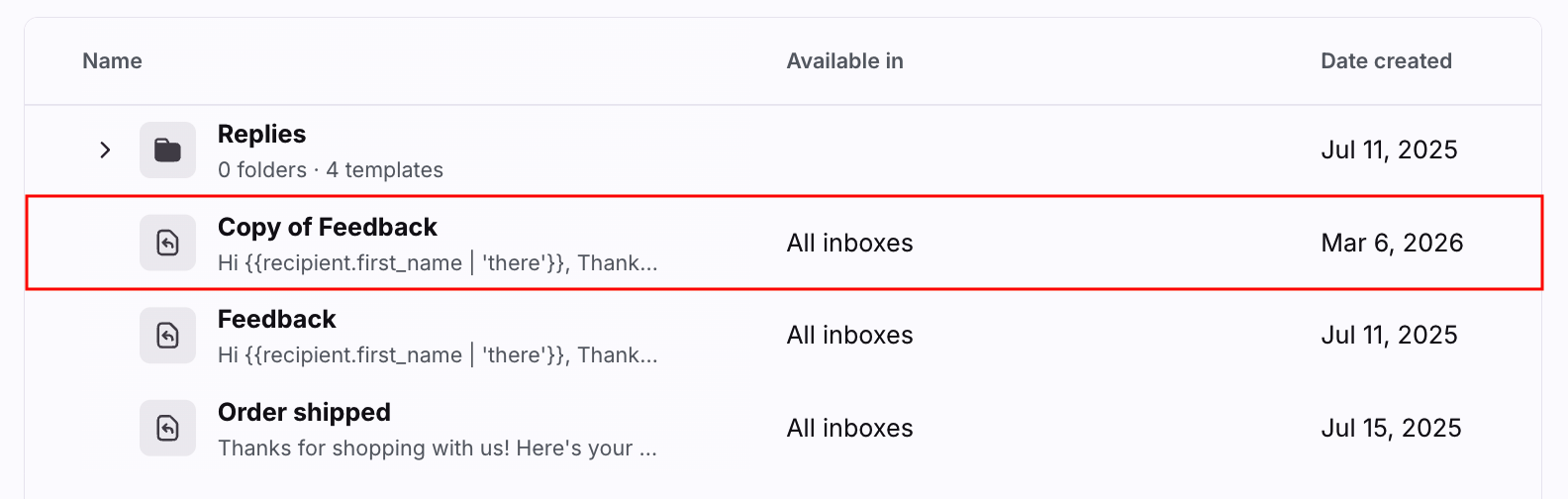
Message template analytics
Message templates report
The Message templates report allows you to gauge how often your team is using message templates, and narrow in on template-specific metrics. For more information about the Message templates report, check out this article.
Note: The Message templates report only includes messages sent by teammates. Message templates that were deleted, or sent by auto-replies or sequences are excluded.
Track automated message templates
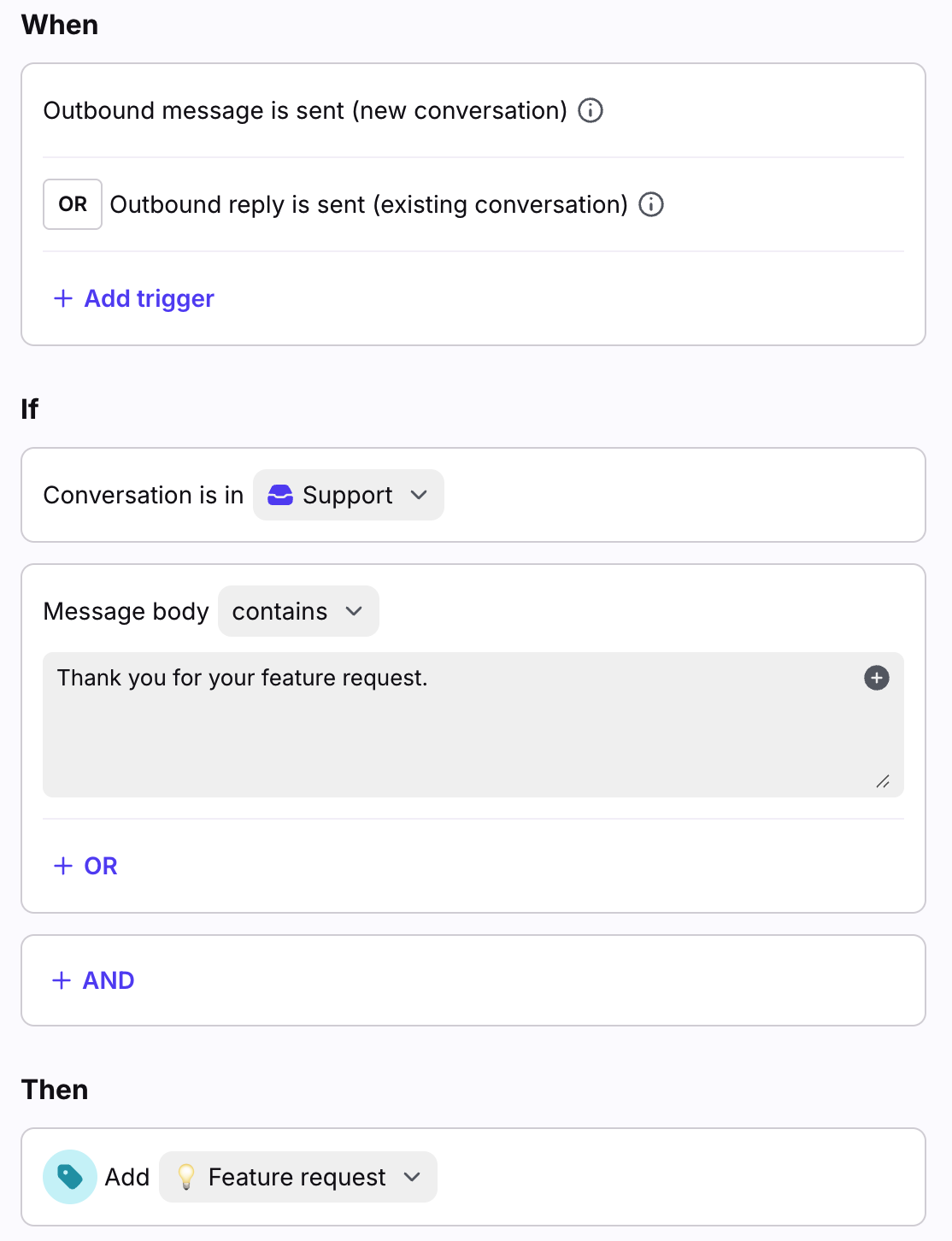
If you'd like to track how often a message template is being sent out by an auto-reply rule, you can do so by adding a rule to automatically tag the conversations where you've sent the message template.
You can create a rule triggered by an outbound message, if the body of the outbound message contains a unique snippet from your message templates, then add the tag to track this message templates. You can then run analytics reports on the tag to see how often the templates are being used. Use this workflow for each of the message templates you want to track.
FAQ
Can I convert private templates into shared templates?
No. If you need to make a private template a shared one (or vice versa), you can copy the content and recreate it in the desired private/shared space.
Can I move templates between workspaces?
No. Moving or duplicating templates from one workspace to another is not supported.
Can I mass update template access?
No. Template access is controlled per template via the Make available for any inbox setting. Configuring inbox availability via bulk action is not supported.
Can I configure a default sender for a template?
No. Templates do not include a From address or channel field. When a teammate applies a template, the From field stays under their control in the composer.
Pricing
This feature is available on all plans.