
How to edit a message template
Overview
Message templates can be edited at any time. If you haven't gotten around to creating a message template, we highly recommend you do, as they allow you to respond faster to inbound messages.
Instructions
From the composer
Step 1
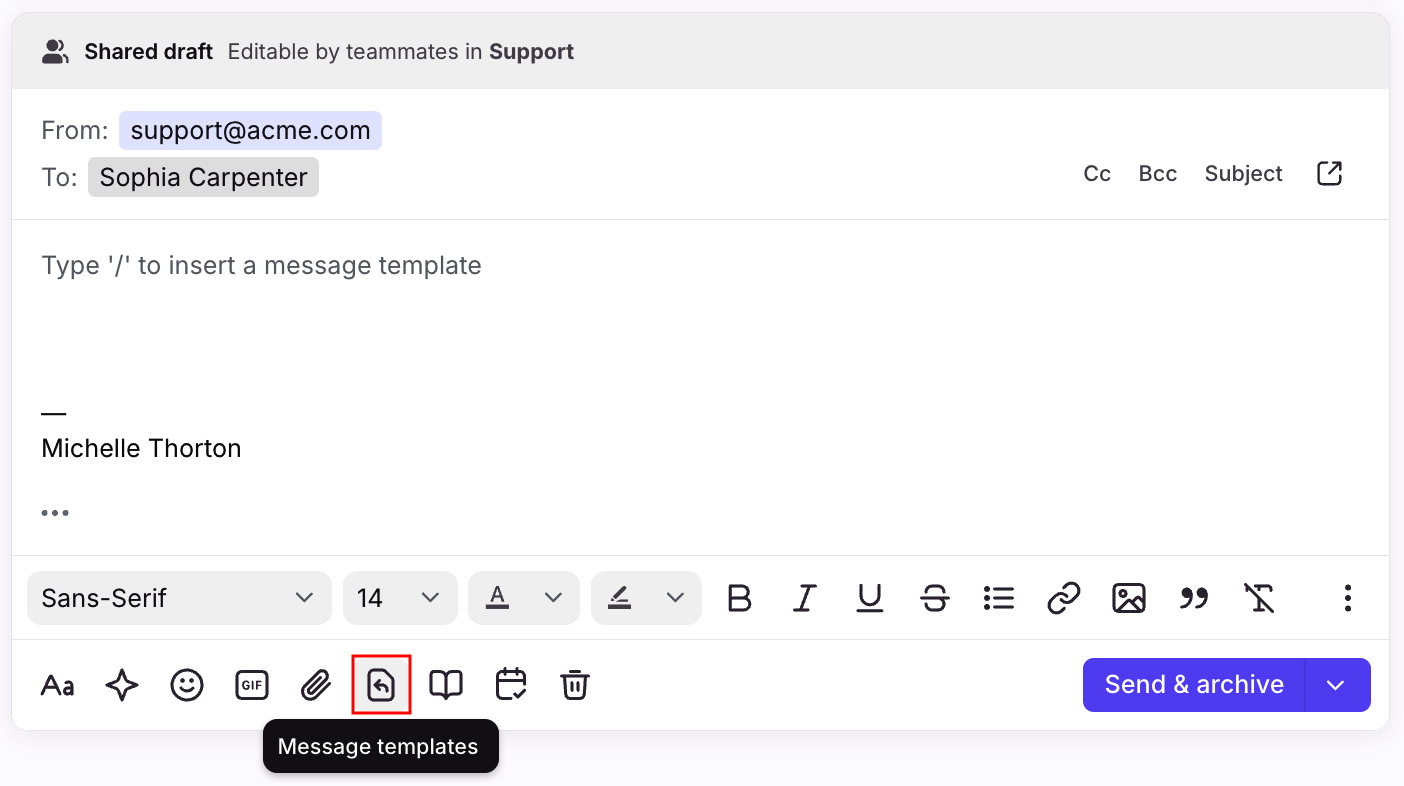
In the composer, click the message templates icon to open the menu, and find the message template you want to edit.
Step 2
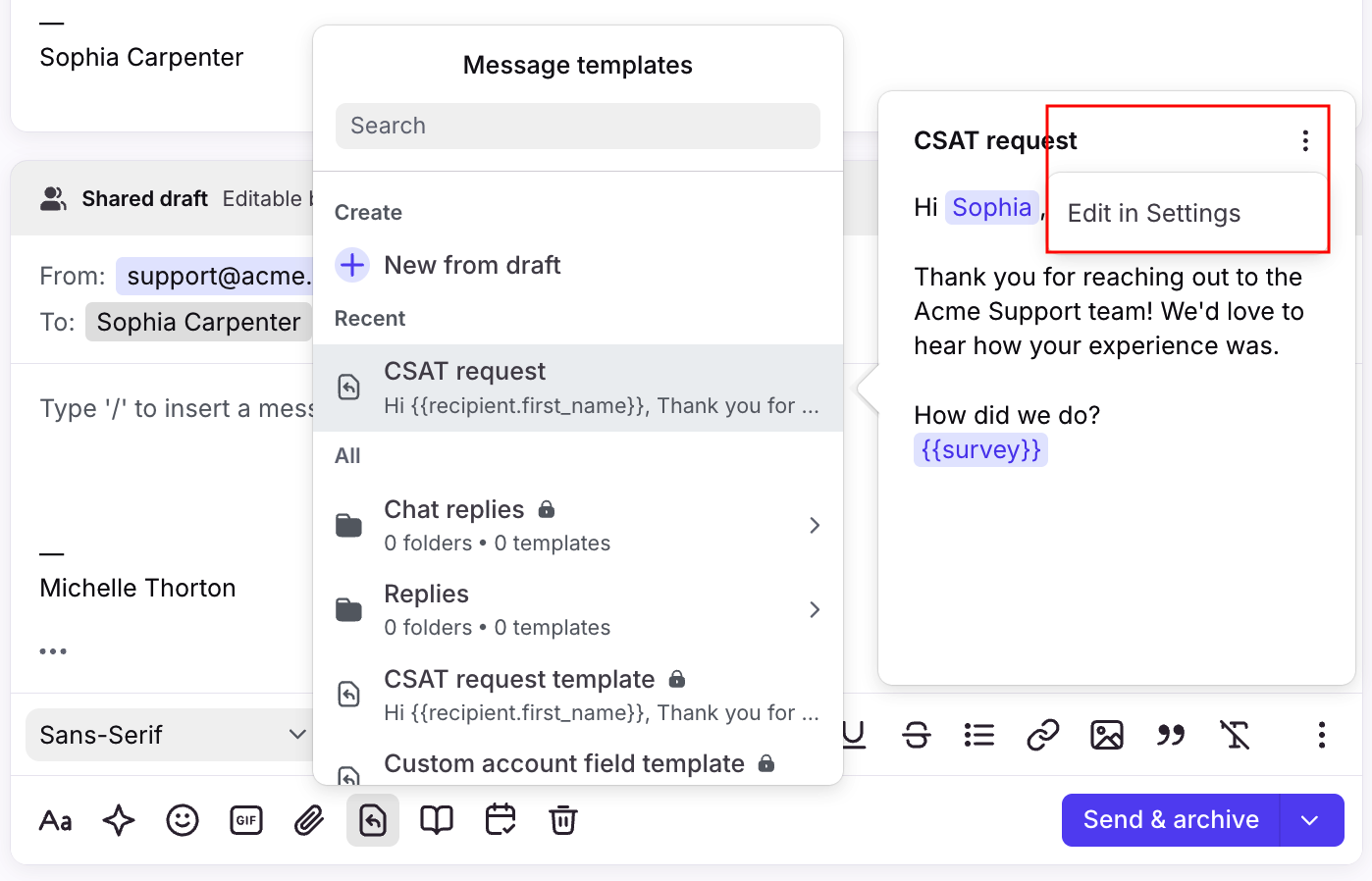
When you hover over the message template a preview will appear. Click the three-dot menu at the top of the preview, then click Edit in Settings.
Step 3
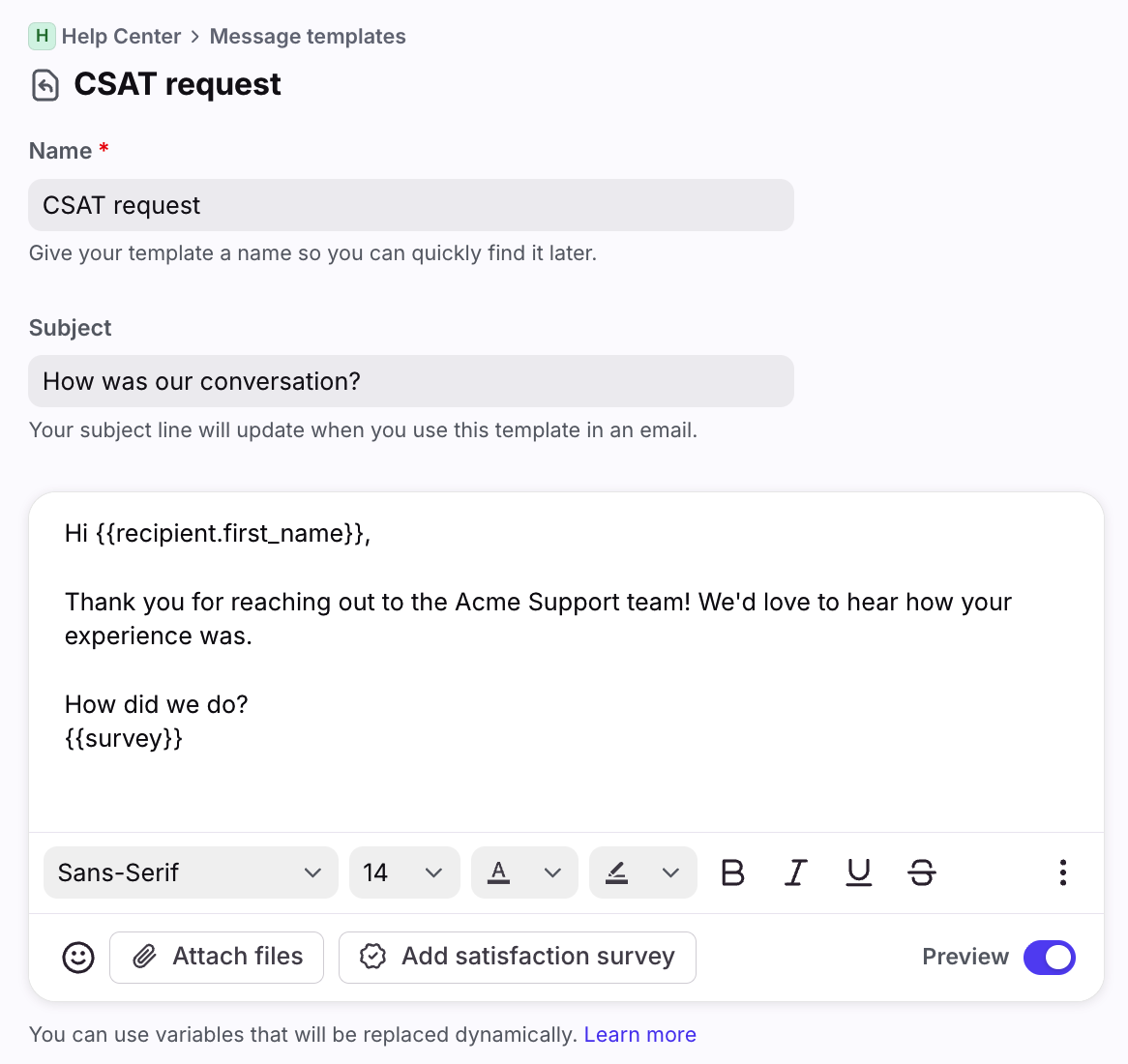
In the message template editor, make your desired edits and save your changes.
From settings
Step 1
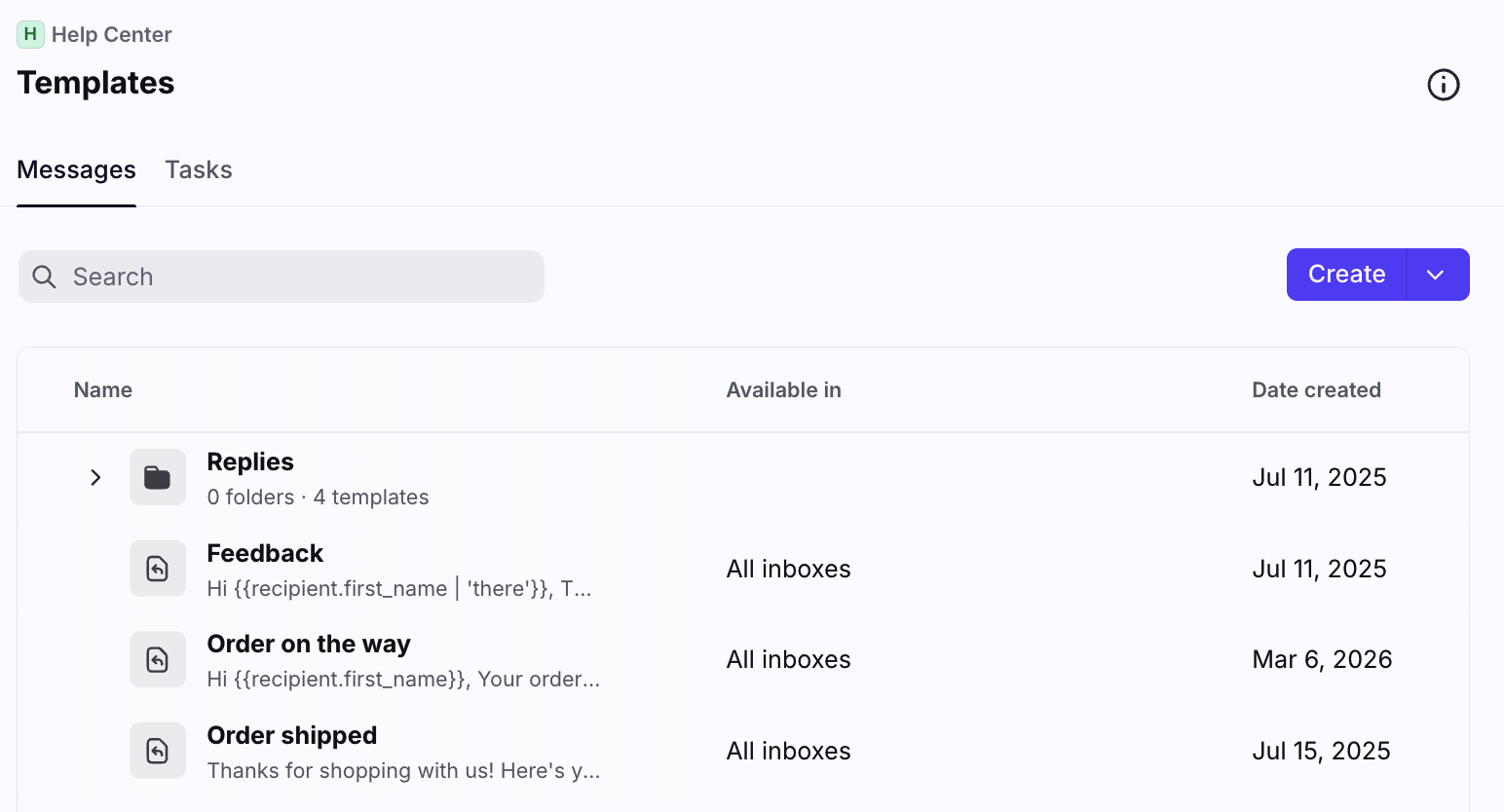
Click the gear icon, then navigate to your workspace or personal settings, depending on which space you are working with. Select Templates in the sidebar, then you'll land in the Messages tab.
Step 2
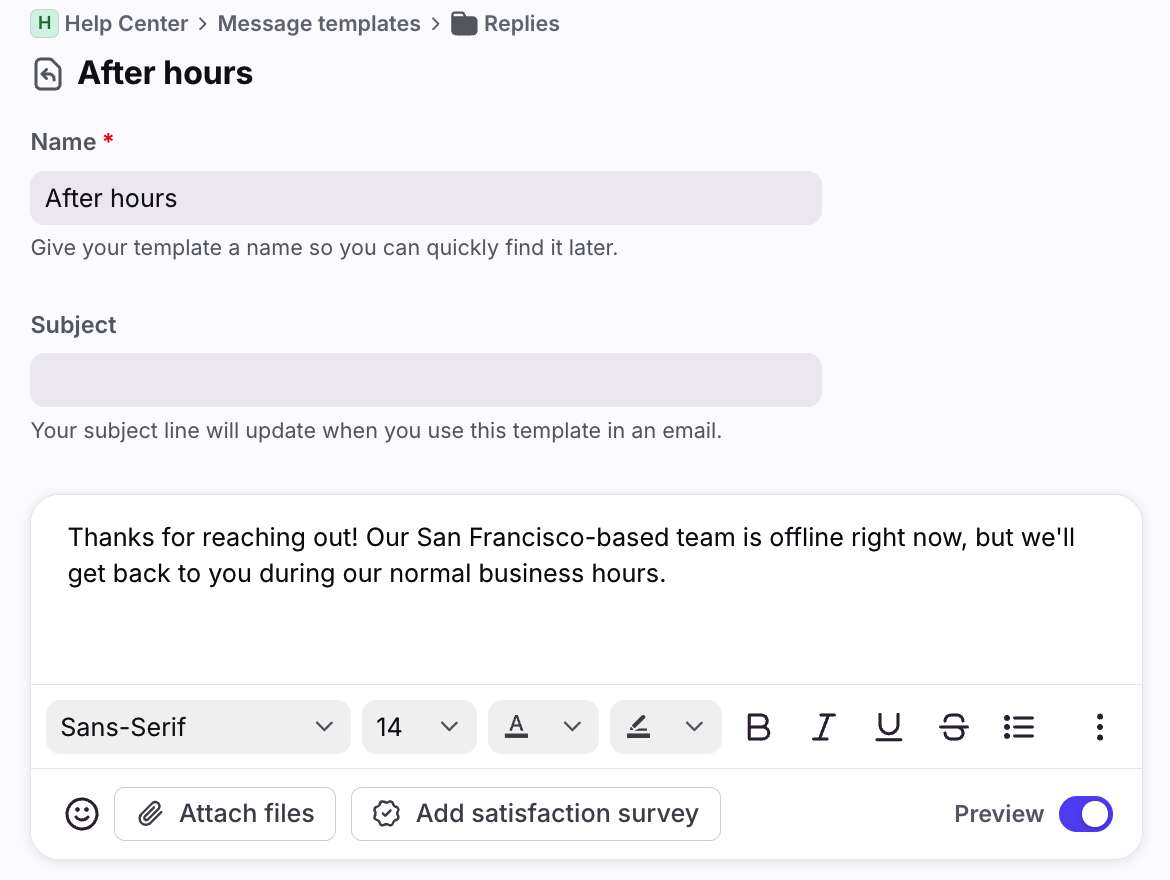
Find the message template you'd like to edit by typing in the search or by scrolling through the list. Click to open it.
Step 3
Make your edits.
Step 4 (optional)
In the File template under setting, select the message template folder this template should be added to.
Step 5
Shared inboxes only: In the Make available for any inbox setting, select the shared inboxes that should have access to the template when replying in the composer. To grant access to all shared inboxes in the workspace, toggle the setting on.
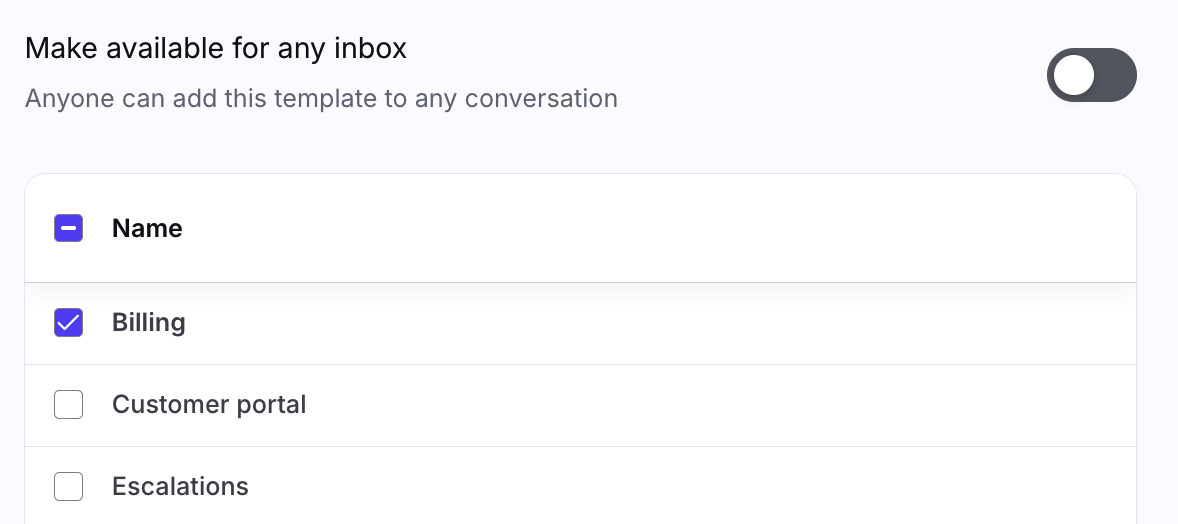
Message template availability
To learn more about making message templates available to specific inboxes, see this article.
Organize with folders
Use folders to organize your individual and shared message templates. See this article to learn more.