
Teammate presets [new]
⚠️ This article references the new permissions system. Front companies using legacy permissions can view the instructions here to use teammate templates instead.
Overview
Teammate presets let you define a new teammate's starting settings once, then apply them when the teammate is added to Front via user provisioning. Create a preset for each role or shift in your company, like Support Agent or Night Shift, so new teammates start with the settings they need instead of configuring everything themselves.
You must be a Front company admin to manage teammate presets.
How it works
Presets work alongside teammate groups. Each one owns a different half of a teammate's setup:
Teammate groups own access: workspace access, shared inbox access, contacts access, and permissions.
Teammate presets own settings: preferences, notification rules, signatures, message templates, custom fields, and snoozes.
A teammate preset never grants access or permissions.
What a preset includes
Preferences, such as default send action, default reply, mute on unassign or move, language
Notification rules
Signatures
Message templates
Custom fields
Snoozes
What a preset does not include
Shared inbox or workspace access, and permissions. Use teammate groups instead.
Sidebar setup
Shifts and time off
Company administrator setting
Create or edit a teammate preset
Step 1
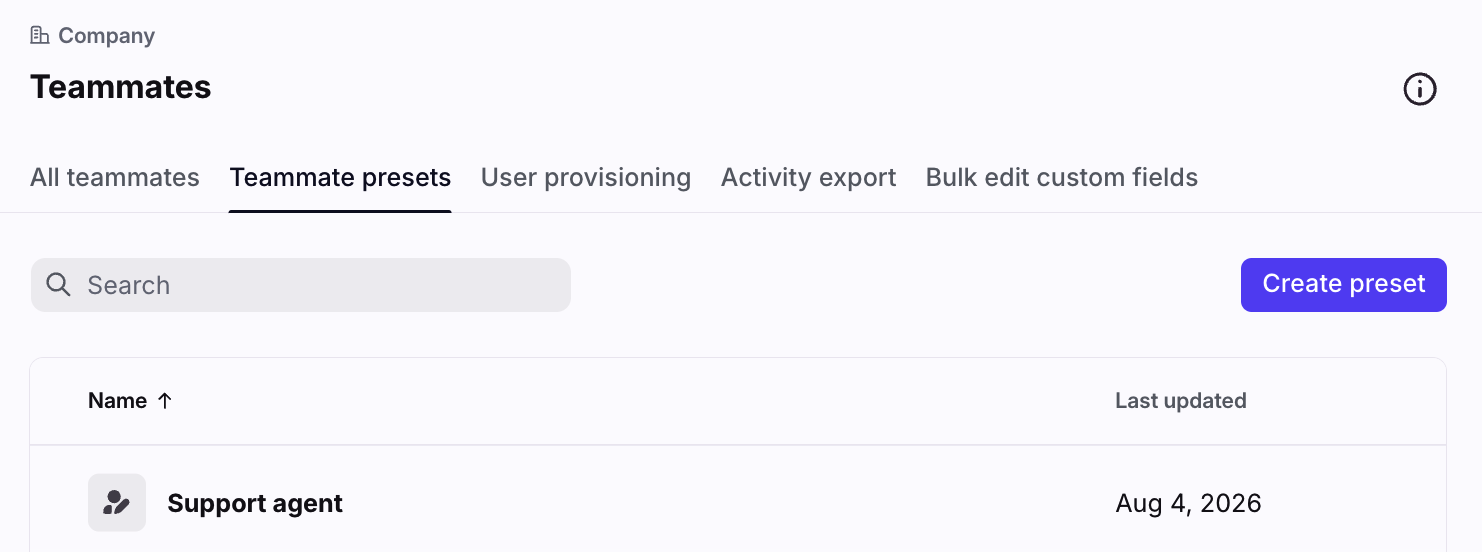
Click the gear icon and navigate to company settings. Click Teammates in the sidebar, then select Teammate presets.
Step 2
Select a teammate preset you'd like to edit, or click Create preset to create a new one.
Step 3
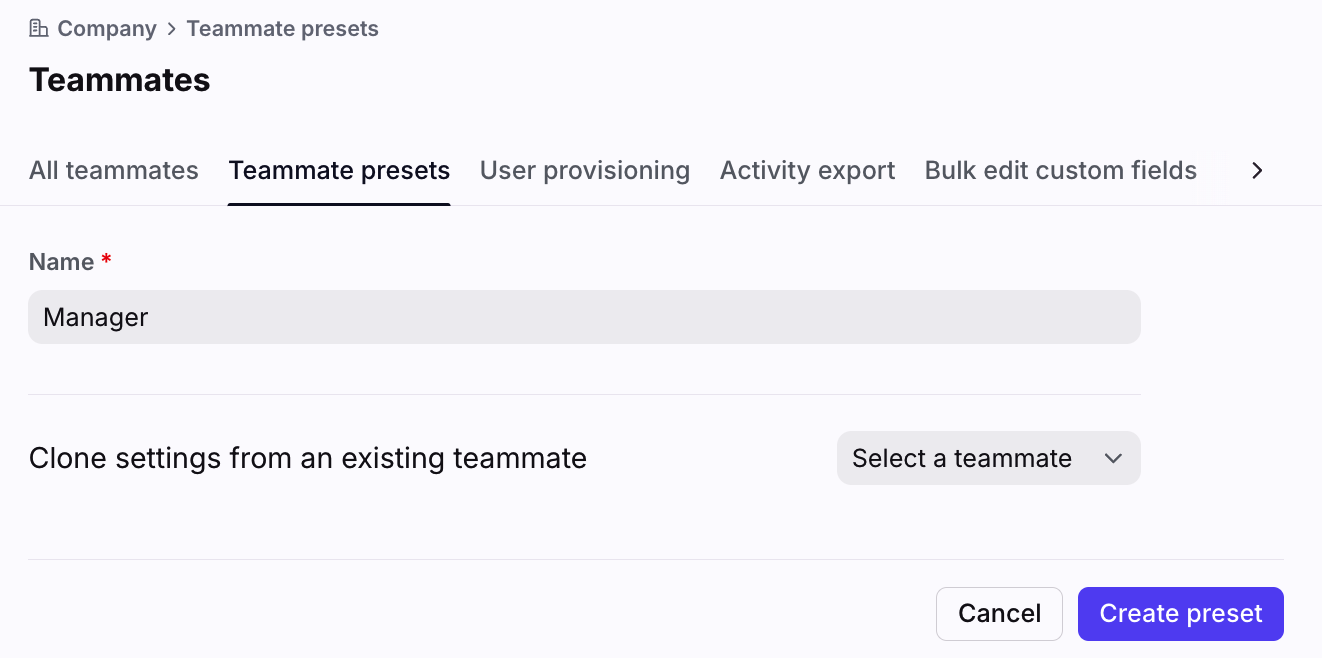
Give your preset a recognizable name, like the role of the teammates it will be used for. You can also choose to clone an existing teammate preset or teammate's settings to create the preset. Cloning copies that teammate's settings only. Their access and teammate group membership are not copied.
Click Create preset.
Step 4
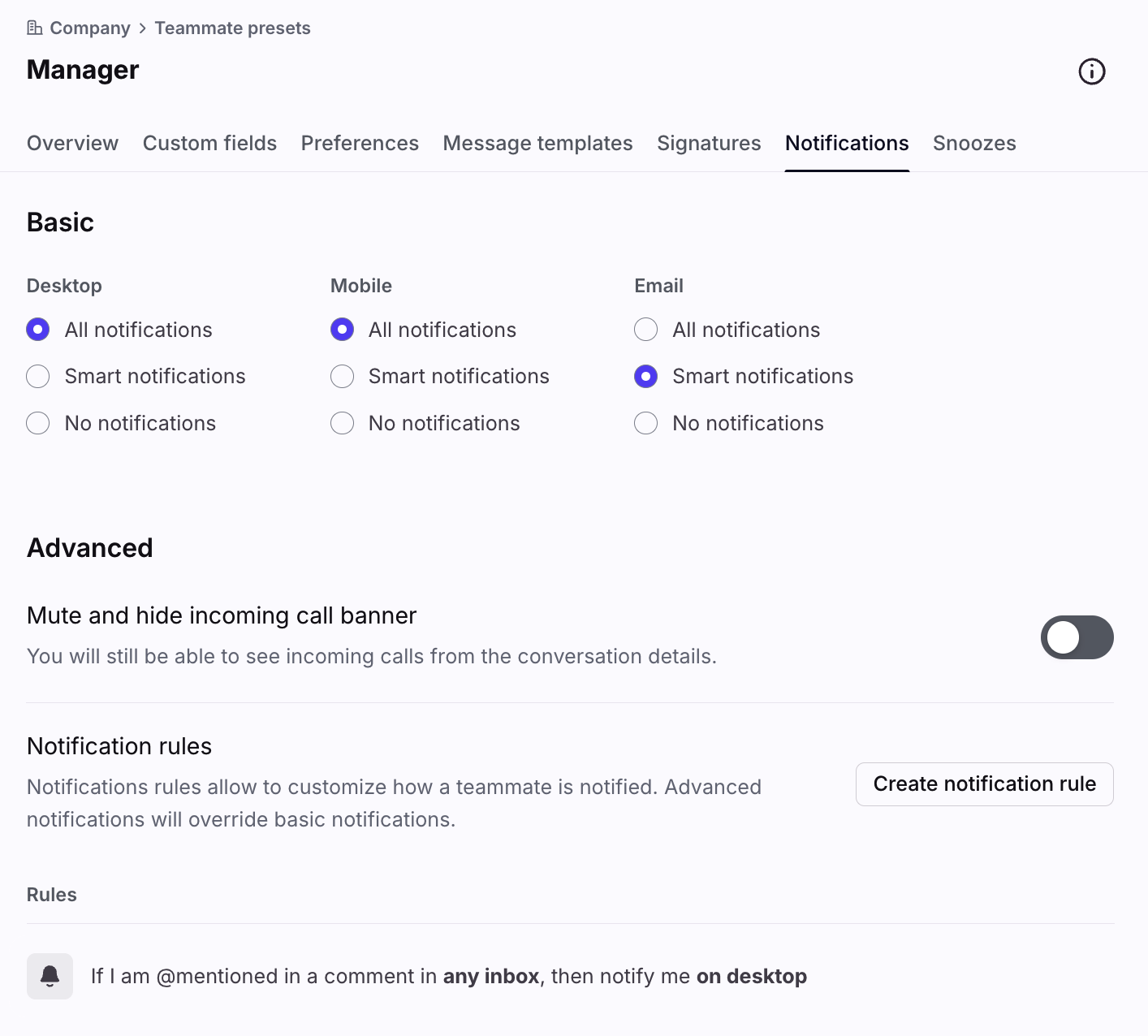
Using the tabs at the top, edit the preset's custom fields, preferences, message templates, signatures, notifications, and snoozes.
Example: This teammate preset has a custom notification rule configured.
Step 5
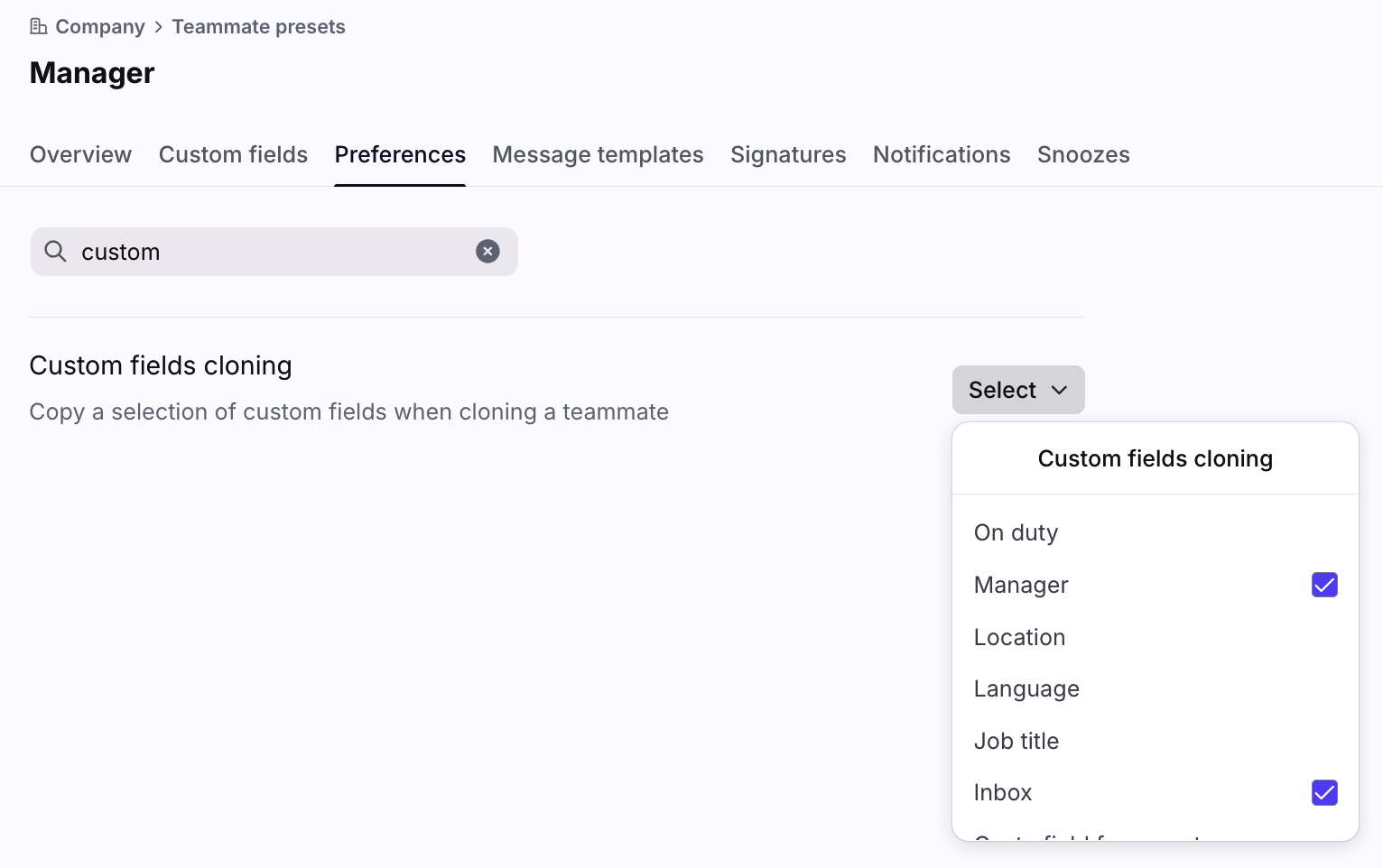
Use the Custom fields tab if you need to configure default custom field values for the preset.
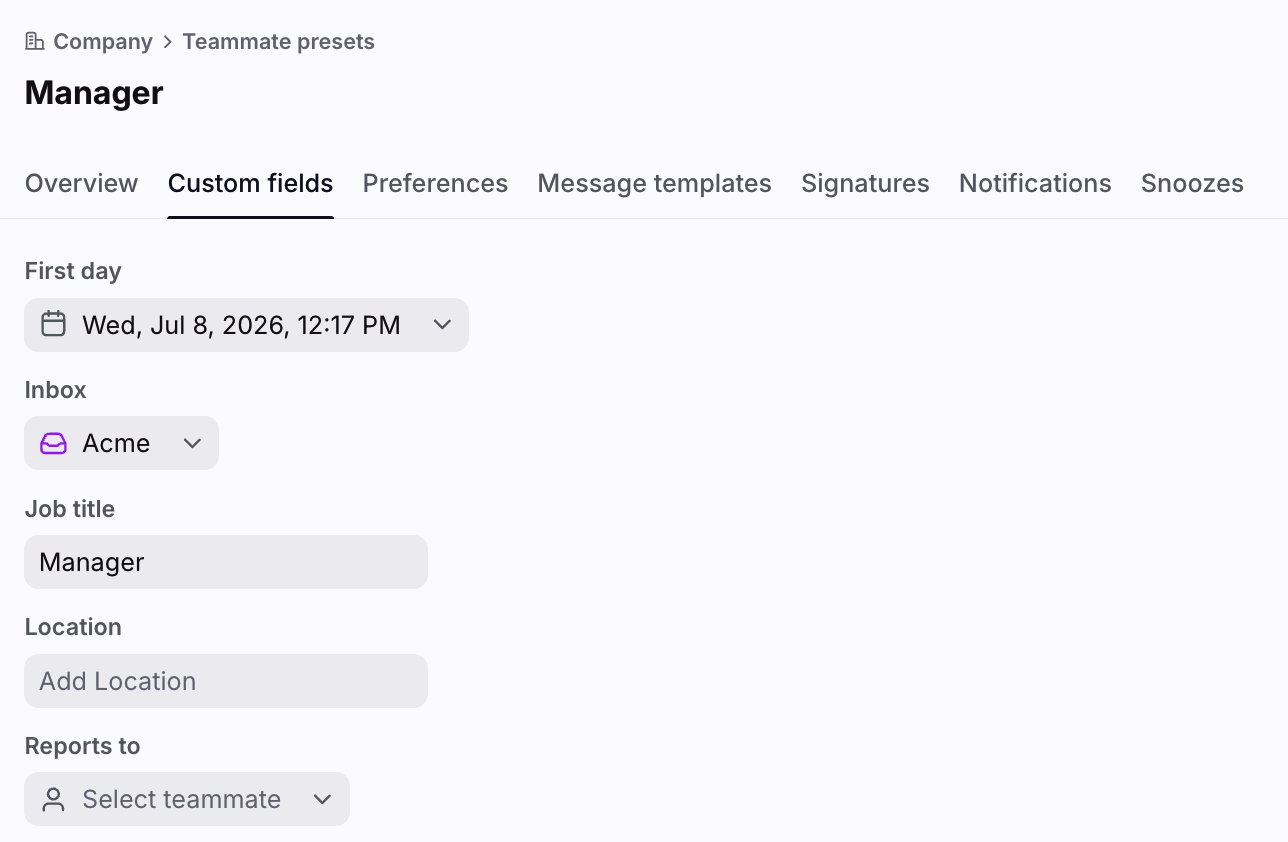
You’ll also need to select the fields using the Custom fields cloning setting in the Preferences tab.
Step 6
Click Save when finished. You can go back to edit presets at any time.
Apply a preset when provisioning with SCIM
If you provision teammates from an identity provider such as Microsoft Entra ID or Okta, Front can apply a preset's settings at the moment each teammate is created.
Step 1
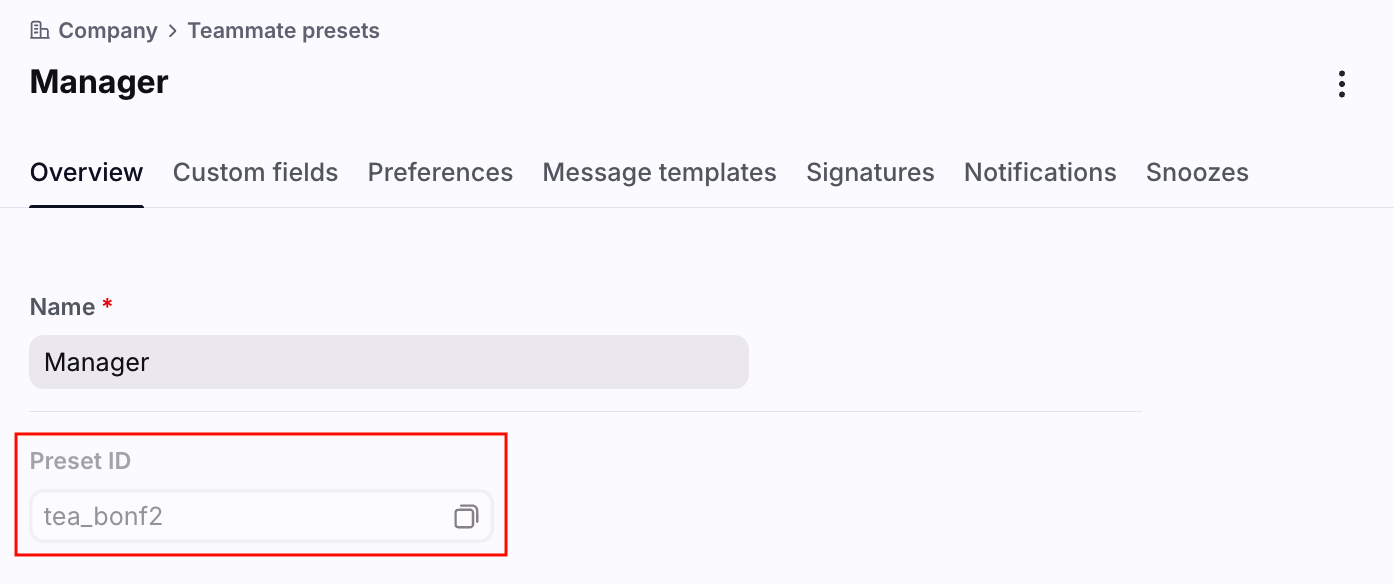
Open the preset and copy its Preset ID.
Step 2
In your identity provider's Front provisioning configuration, pass the preset ID in the Front teammate extension's template field on the request that creates the teammate. See this article to review the instructions to set up user provisioning with Front.
Step 3
Provision a teammate to confirm the settings are applied as expected.
Important to know:
Access is never granted by a teammate preset, including through SCIM. Grant workspace and shared inbox access with teammate groups, which can also be synced from your identity provider.
The SCIM attribute is named template for backward compatibility with Front’s legacy teammate templates.
FAQ
How many presets can I create?
You can create as many presets as you require. One preset is applied per teammate.
Who can manage teammate presets?
Company admins can always create, edit, and delete teammate presets. Presets are managed in company settings only, not in workspace settings.
Can I apply a preset when manually inviting a teammate?
No. Teammate presets are applied when teammates are provisioned from your identity provider through SCIM. See this article to learn more about using user provisioning with Front.
Can I change a setting for everyone after they have been invited?
No. A preset applies at the moment a teammate is added. Editing a preset does not change the settings of teammates who were already created from it, and presets cannot be used to update existing teammates.
What happened to teammate templates?
Teammate presets replace teammate templates for Front companies using the new permissions system. The access and permission parts of a template are now handled by teammate groups, and the settings parts are handled by teammate presets.
Pricing
This feature is available on the Professional plan or above.