
Front's mobile app
Overview
Front’s mobile app has been refreshed to mirror your desktop app and web browser experience! Stay up to date and communicate with your team, even when you don’t have your computer handy. Use the Front mobile app to respond to your customers and collaborate with your team on the go.
To download the iOS app, visit this link, or go to the App Store.
To download the Android app, visit this link, or go to the Google Play store.
Mobile vs. desktop app
Designed for productivity on the move, the mobile app allows you to review and manage your inbox efficiently while away from your desk. It is optimized for mobile-centric workflows, ensuring you remain responsive and effective regardless of your location.
The mobile app does not support some advanced features that the desktop app supports, including but not limited to:
Onboarding for new users
Full set of personal settings (profile, notification rules, snoozes, etc.)
Settings for message templates, signatures, inboxes, or rules
Full contact manager
Changing the default send button
Create, edit, rename, delete, archive private and shared tags
Analytics
Sequences
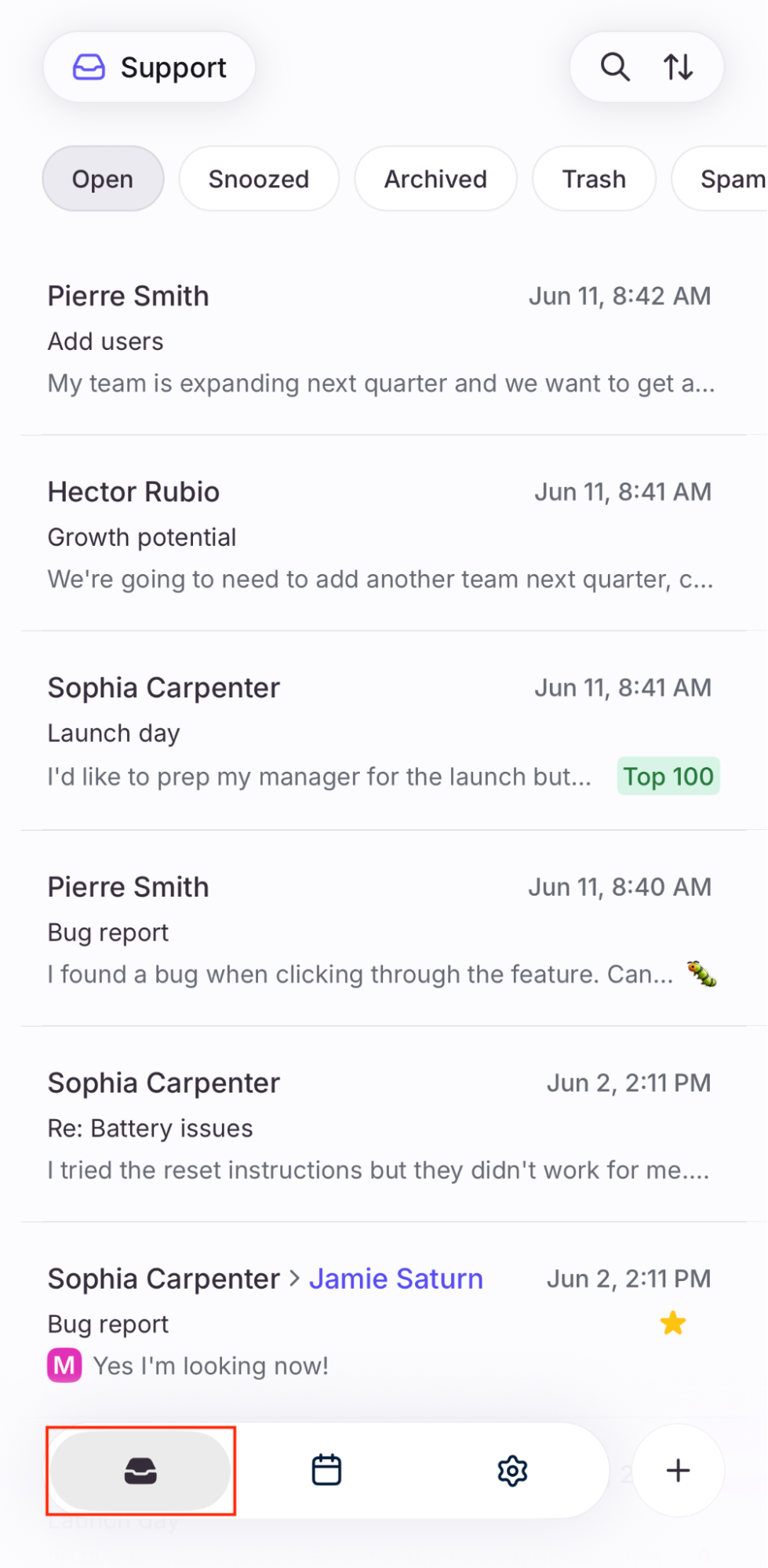
Conversation list
Use the inbox icon in the bottom navigation bar to access your conversations and inboxes.
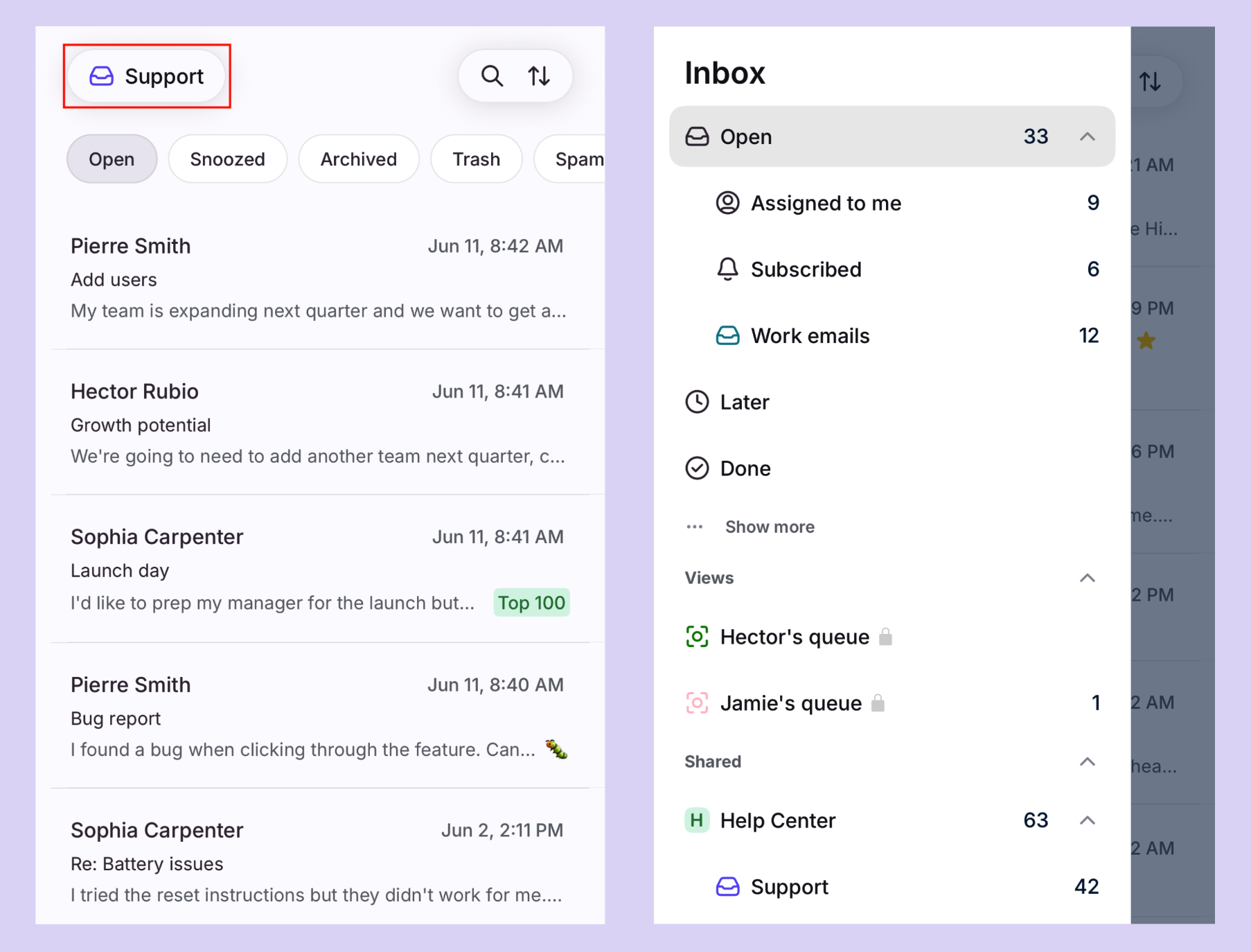
Inbox sidebar
Tap the name of the inbox, view, etc., at the top left to open your inbox sidebar. The sidebar mirrors the setup from your desktop app/web browser.
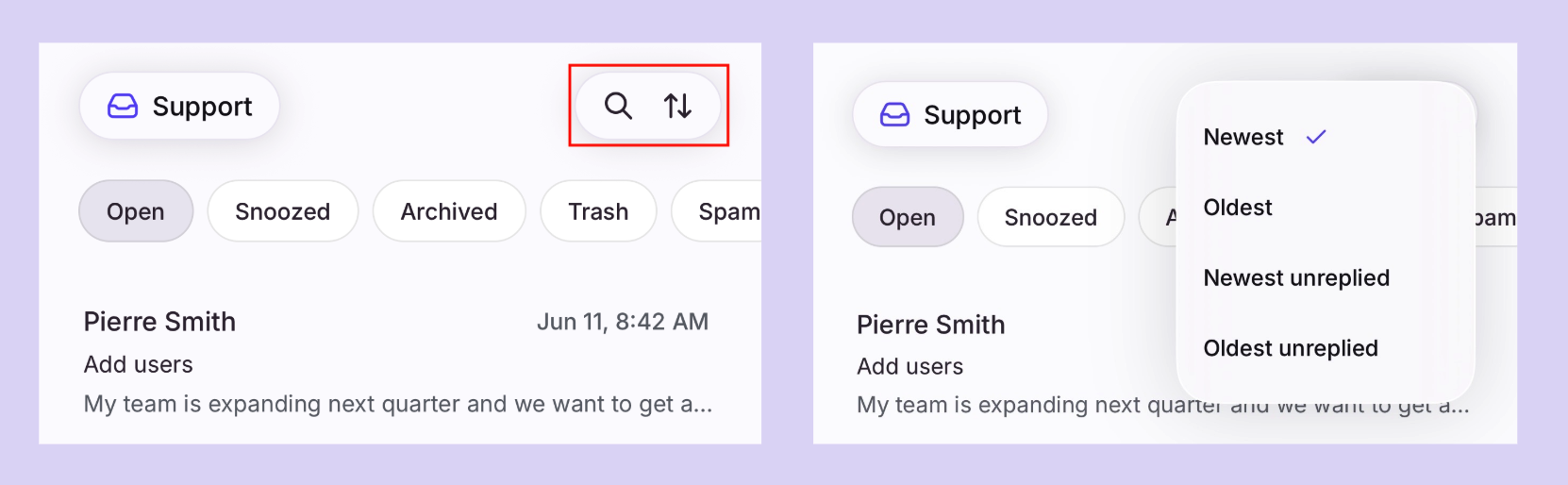
Search and sort conversations
Use the search icon to find specific conversations, or use the sort icon to choose the order your conversations are listed.
Similar to the desktop app and web browser experience, select a status (Open, Snoozed, etc.) to focus on a specific set of conversations.
Multi-select conversations
Long press on any conversation, then select multiple conversations to take action on. The main multi-select actions at the top are Archive and Snooze.
More actions are available in the three-dot menu next to the Snooze icon.
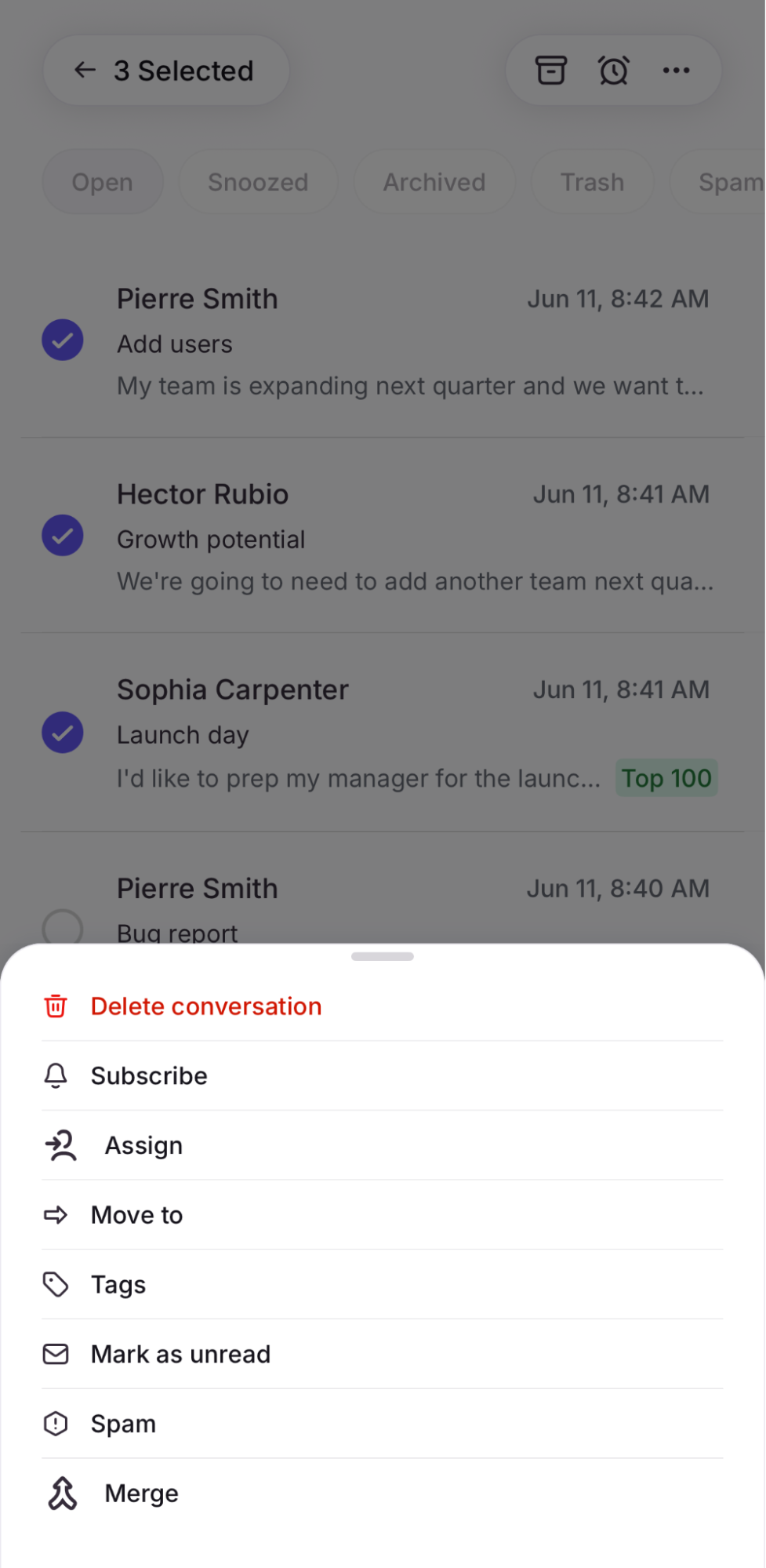
Conversation actions
Compose and send messages
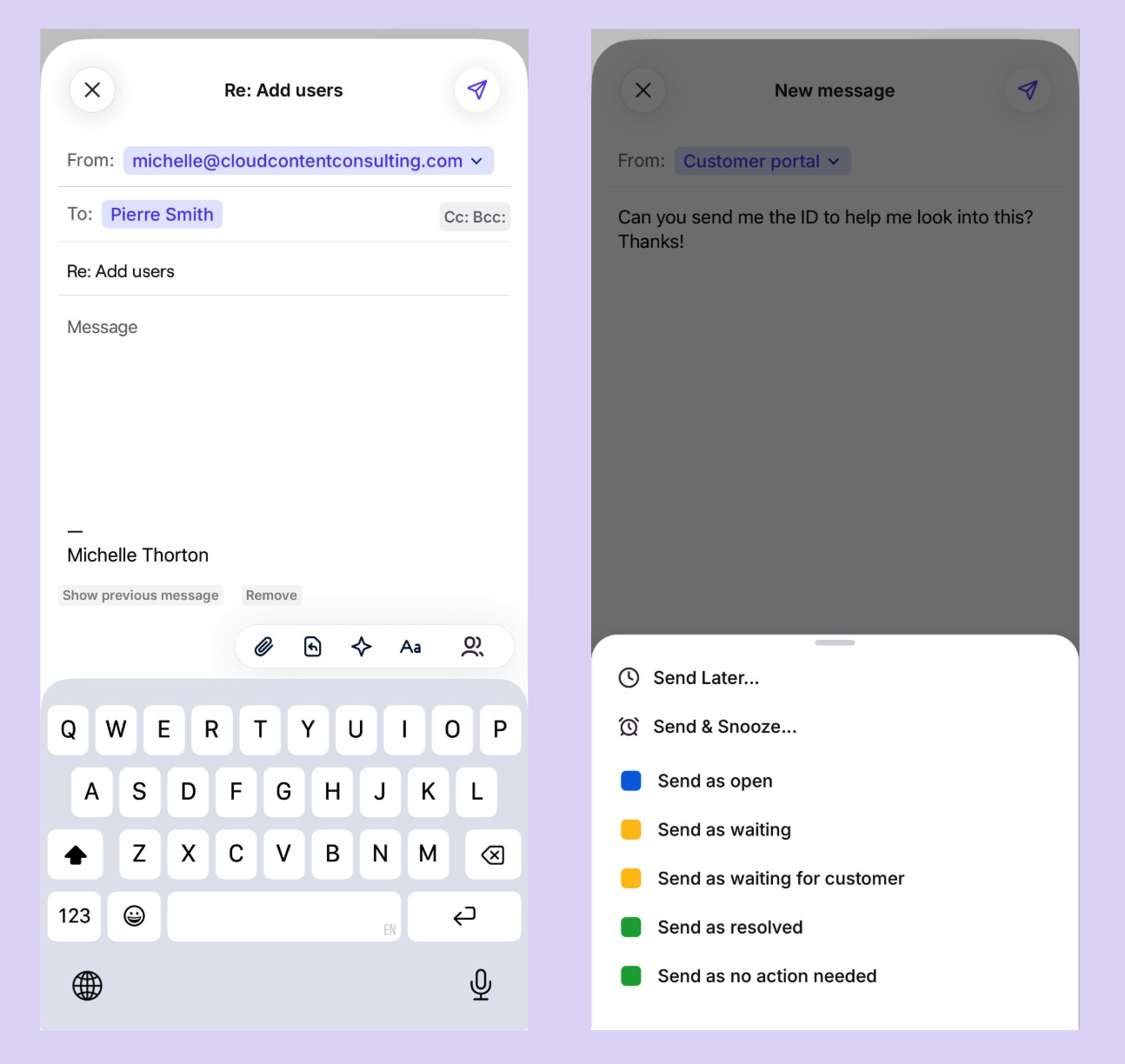
Tap Reply in a conversation or the plus icon (+) in the bottom navigation menu to draft a new message. Use the composer to add attachments, use message templates, compose with AI, or add light formatting.
When you press Send, you'll see the following send options: Send, Send & Archive, Send Later, or Send & Snooze, or Send + select a ticket status.
Attachments
For new messages or replies, tap the paperclip icon in the composer. For comments, you can tap on the plus icon (+) on the left side of the comment bar.
When adding images, if their dimensions are larger than 1024x768px, you’ll have the option to optimize them. Optimizing images resize them to 1024px on their longest edge while preserving their aspect ratio.
Participants
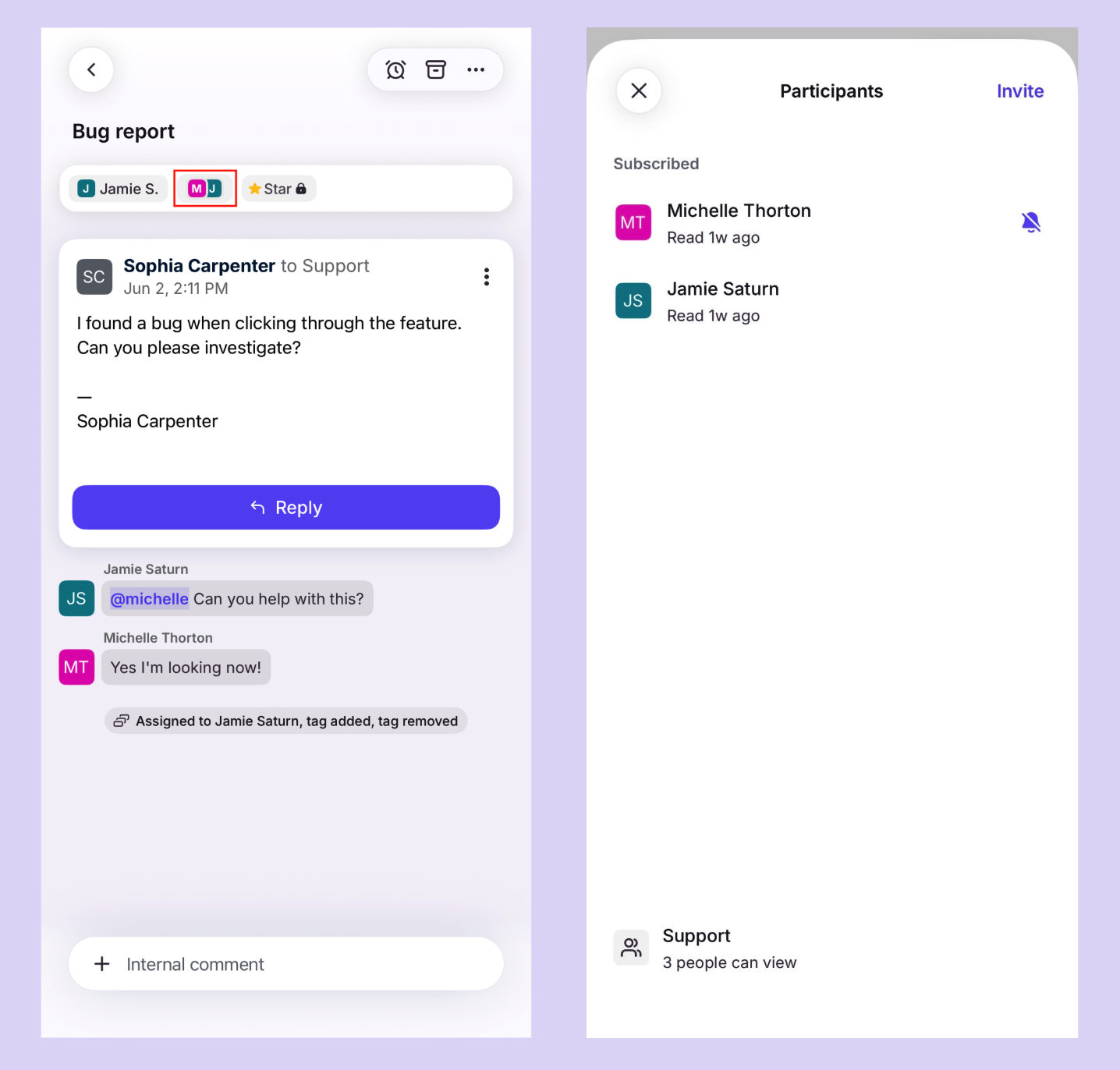
Tap the profile icons for the participants in the conversation header.
Names and read status will be listed for all participants.
Users that have not read the conversation will be grayed out.
Tags
To add, remove, or view all tags on a conversation, you can do the following:
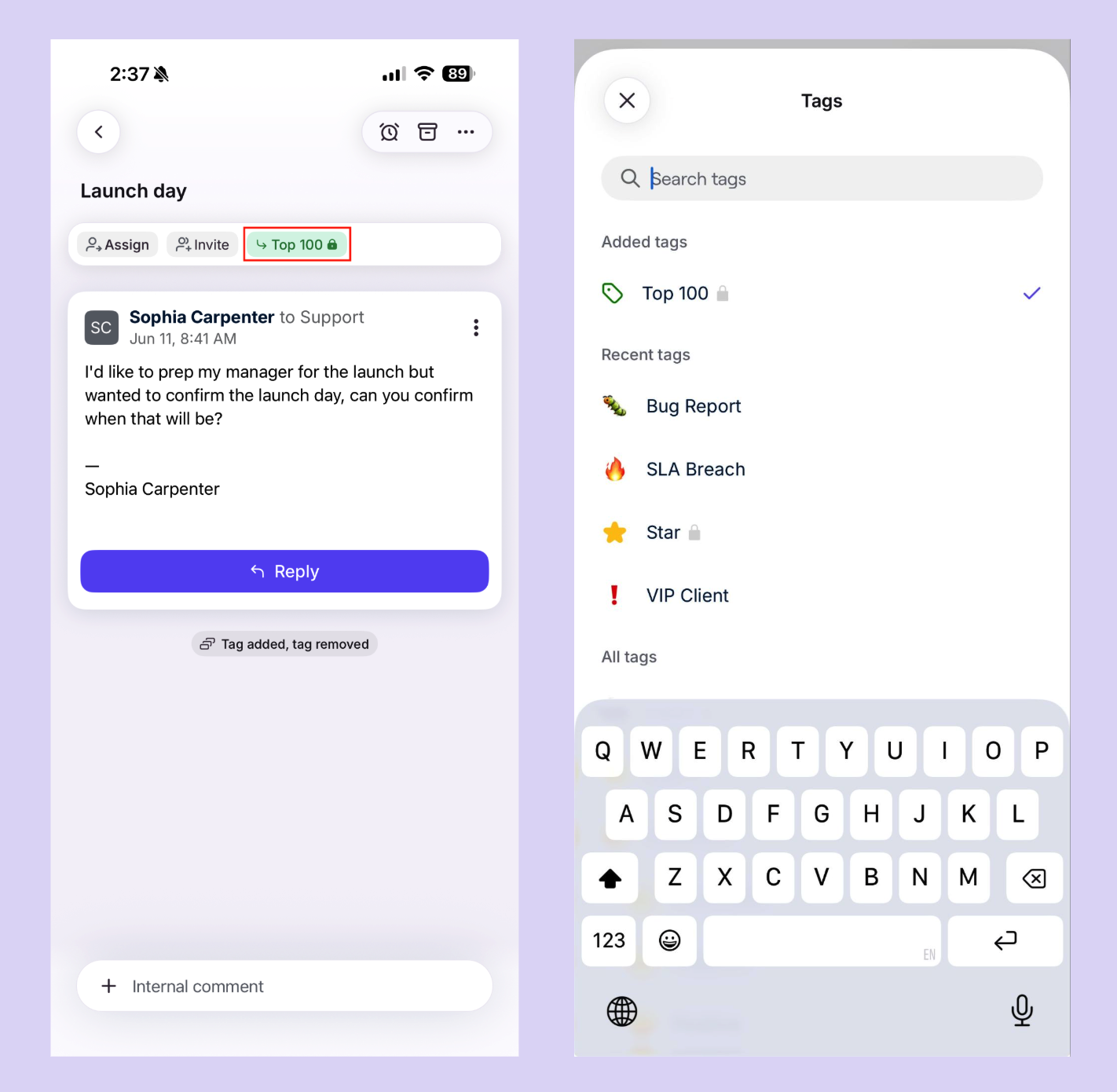
View tags: To view tags in a conversation, tap on any tags listed underneath the subject of a conversation
Add tags: Tap an existing tag applied to the conversation, or tap the three-dot menu in the toolbar (top right corner) within a conversation and select Tags. Select the tag name to apply it to the conversation.
Remove tags: Uncheck the tag under the Tags section
You cannot create, edit, rename, delete, or archive tags on Front's mobile app.
Other conversation actions
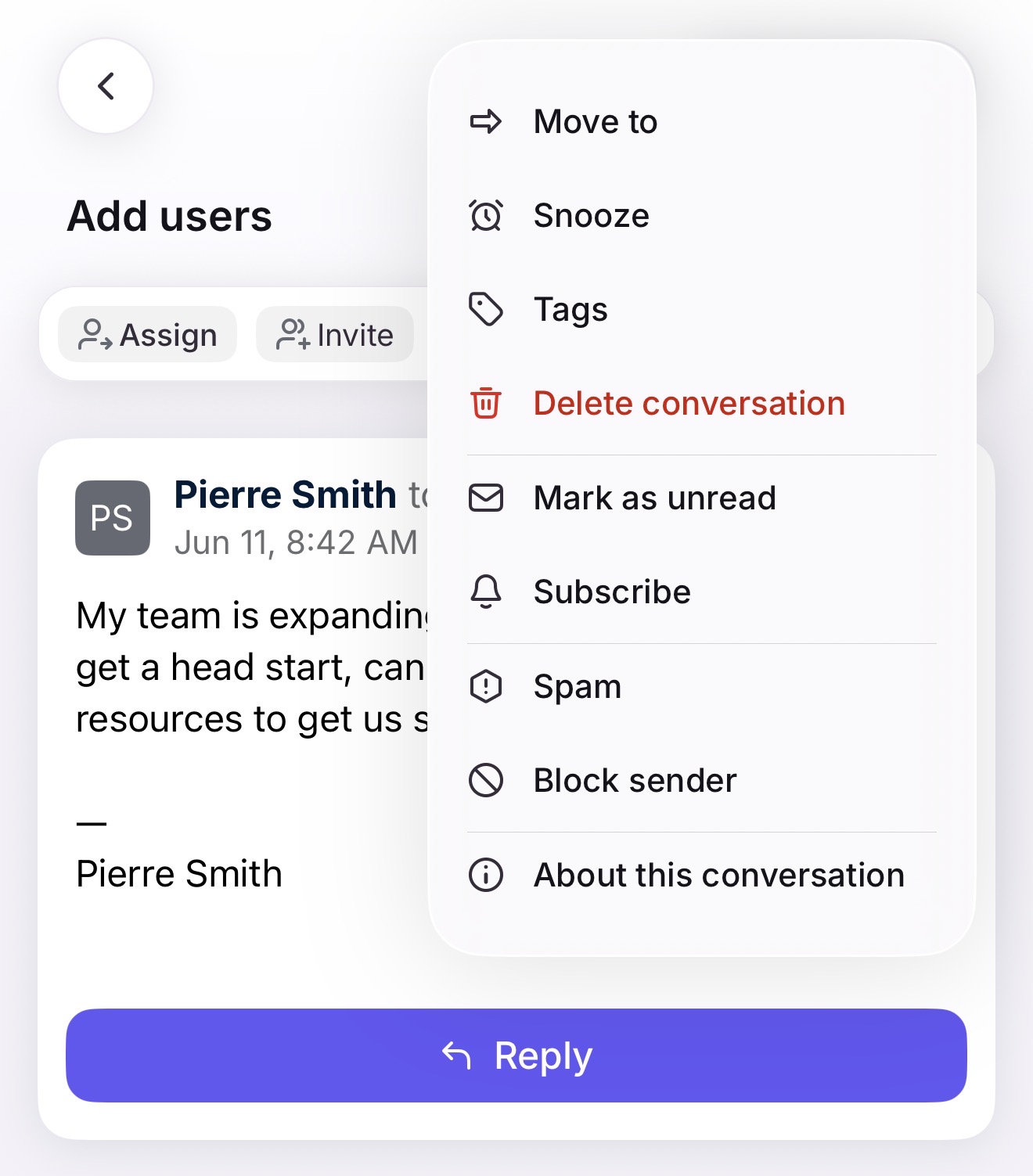
Tap the three-dot menu at the top to take these additional conversation actions: Move to, Snooze, Tags, Delete conversation, Mark as unread, Subscribe, Spam, Block sender, About this conversation.
Calendar
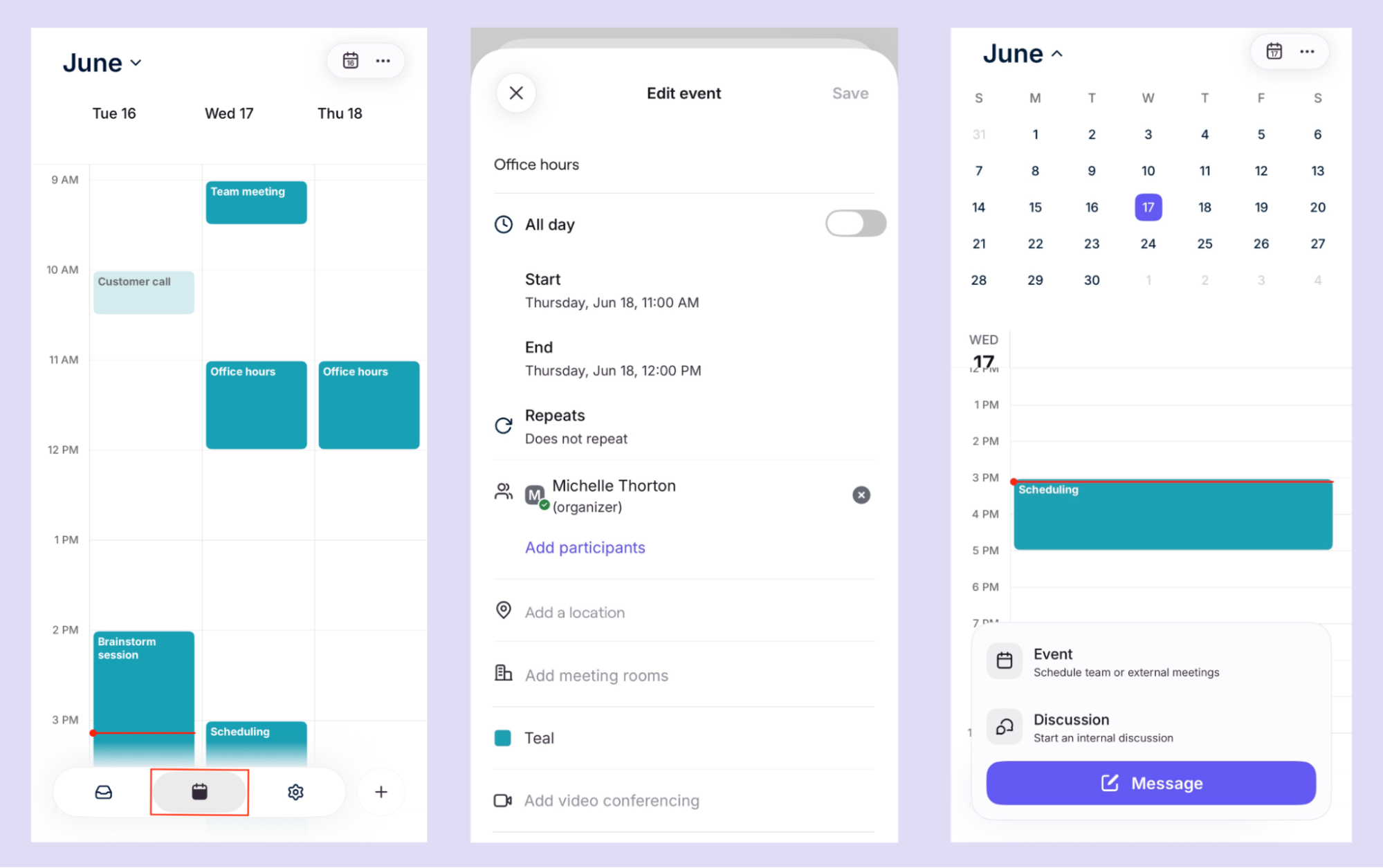
Use the calendar icon in the bottom navigation bar to access your Front Calendar.
Tap the calendar icon at the top right of the inbox to jump to today’s date
Choose a single-day view or a three-day view
See event details, update your RSVP, email guests
Scroll left and right between days
View month to navigate
Pinch/expand to see more or less of each day
Pick which calendars to display
Tap the plus sign (+) at the bottom to create a new event or select an existing event to edit it
Enable/disable reminder notifications in mobile app settings
Settings
Use the gear icon in the bottom navigation bar to access your mobile app settings.
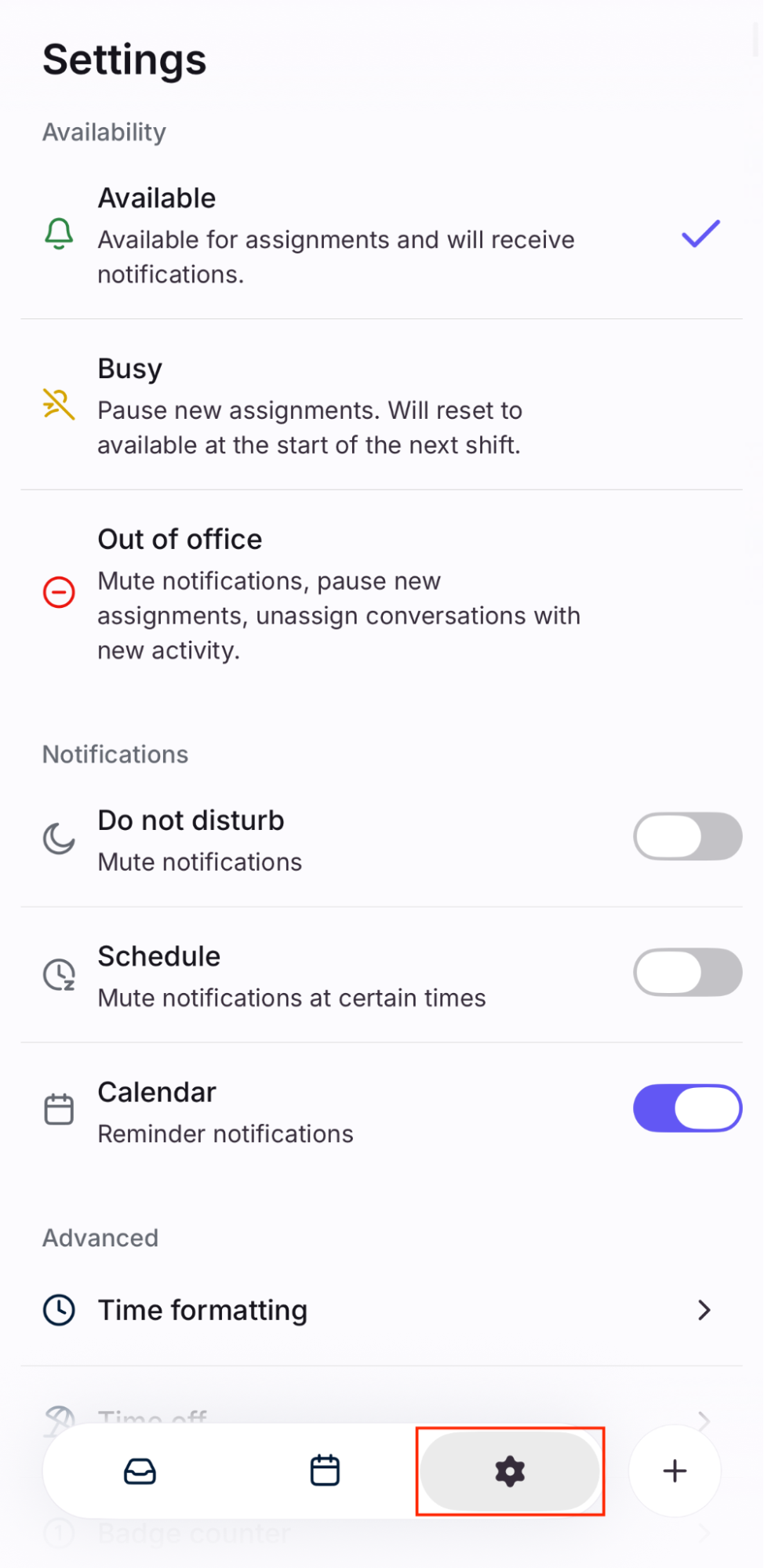
From here you can set:
🟢 Availability status: Select from Available, Busy, or Out of office. See this article to learn more.
🔔 Notifications:
🌙 Do not disturb notifications: Enable or disable notifications
⏰ Schedule: Enable or disable push notifications between a certain time range, daily
📅 Calendar: Enable or disable calendar event notifications
🕓 Time formatting: Choose between relative time (e.g. 2d, 2h) or absolute time (Jun 1, 10:30 AM). You can also enable 24 hour time.
🌴 Time off: Create and adjust your time off in the mobile app. You'll need to add an individual inbox in Front in order to use this feature. This setting can be also adjusted on Front's desktop app and web browser.
3️⃣ Badge counter (iOS only): Enable or disable the app icon badge counter. You can also choose if you want your inbox counter to reflect My inbox, or all items in the team section of your sidebar.
↔ Swipe actions: Assign one of the following actions to your left and right swipes on conversations- None, Archive or change ticket status, Trash, Mute, Read, Snooze.
✉️ Quick reply composer: The quick reply composer is a half-screen modal that is shown by default when replying to a message. It optimizes for short, text-only replies. If you’d like the full screen composer to be presented every time you reply to a message, turn this off.
🗄️ Data storage: You can download open conversations from the past 30 days to access them when your mobile device is offline or has limited connectivity. This allows you to pre-load your inbox for easier viewing when your connection is weak or unavailable. Any draft replies created offline will automatically send once you’re reconnected.
Other features
Push notifications
The mobile app offers push notification quick actions. You can Comment, Mark as Read, or Archive from your push notifications, to quickly triage your inbox.
To choose which push notifications you want to receive on your mobile device, you need to use either the Front desktop app or web browser.
From there, click the gear icon at the top right, navigate to personal settings, then select Notifications. You can set Basic Notifications by selecting either All, Smart, or None under the Mobile section. You can also set advanced notifications for your mobile app. See this article to learn more.
Share to Front from third-party apps
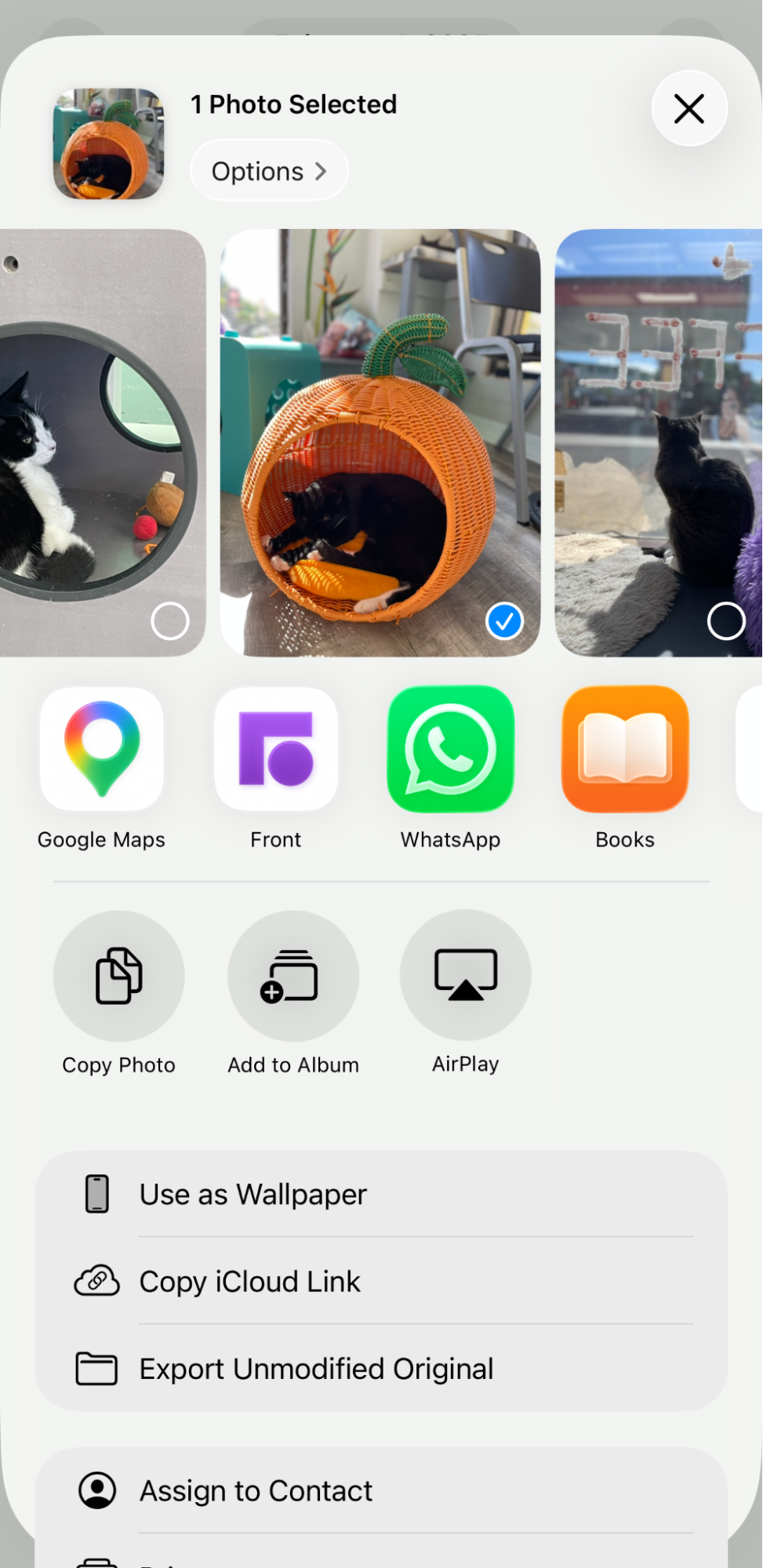
Tap the share button from any app to see the Front app logo in the selector pane.
Example view on iOS:
Set Front as your default email client (iOS only)
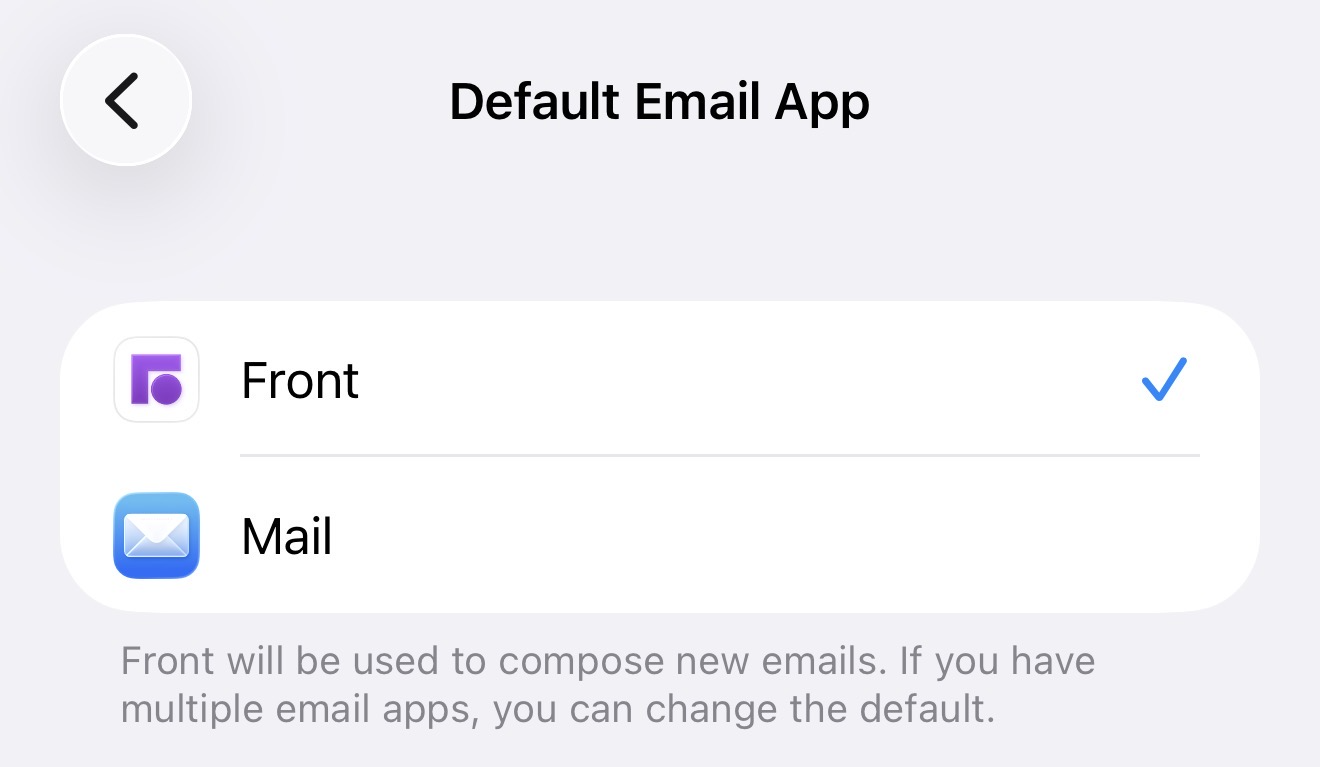
Front will automatically open a new draft when you tap on an email address.
To enable this on your iOS device, go to your Settings app, then select the Front app. Select Default Mail App, then select Front.
How it works
Step 1
Tap on an email address on your iOS device (this could be on your mobile app web browser, such as Safari).
Step 2
You'll see a prompt asking to open in Front. Tap Open.
Step 3
Front will automatically open a new draft when you tap on an email address.
Important to know:
Apps can sometimes override your default email app behavior (for example, tapping email addresses in Chrome will open the Gmail composer).
This feature works best on iOS 14.2 and above.
Troubleshooting
Error when logging in via Sign in with Google/Office 365 or SSO on Android
If you have a work profile set up on your Android device, install your web browser app using the same work profile you used to install the Front app, then log in again. You'll know it's installed correctly if you see a briefcase icon at the bottom right.
Android has a security feature where apps installed in a profile can only launch other apps installed in the same profile.
FAQ
Can I switch back to the old inbox experience?
No. As of September 1, 2026, the option to toggle between the new and old mobile app experience has been removed. All users are now on the newest design, which we've improved based on your feedback.
Can I still multi-select inbox filters?
No. The long press on multiple conversation status filters (Open, Archived, Snoozed, etc.) to view conversations from more than one filter is no longer supported. Some inbox sections now have an All tab.