
How to create a workspace [new]
⚠️ This article references the new permissions system. Front companies using legacy permissions can view the instructions here.
Overview
Workspaces are a way to divide up your inboxes into separate spaces with their own workflows, analytics and resources such as tags or message templates. Teammates can be given access to one or more workspaces with different roles.
If you’re unsure whether or not your team should use workspaces, check out this article about when to use workspaces.
You must have Front company admin permissions to create and manage workspaces.
Create a workspace
Step 1
Click the gear icon, navigate to company settings, and select Workspaces.
Step 2
Click Create workspace.
Step 3
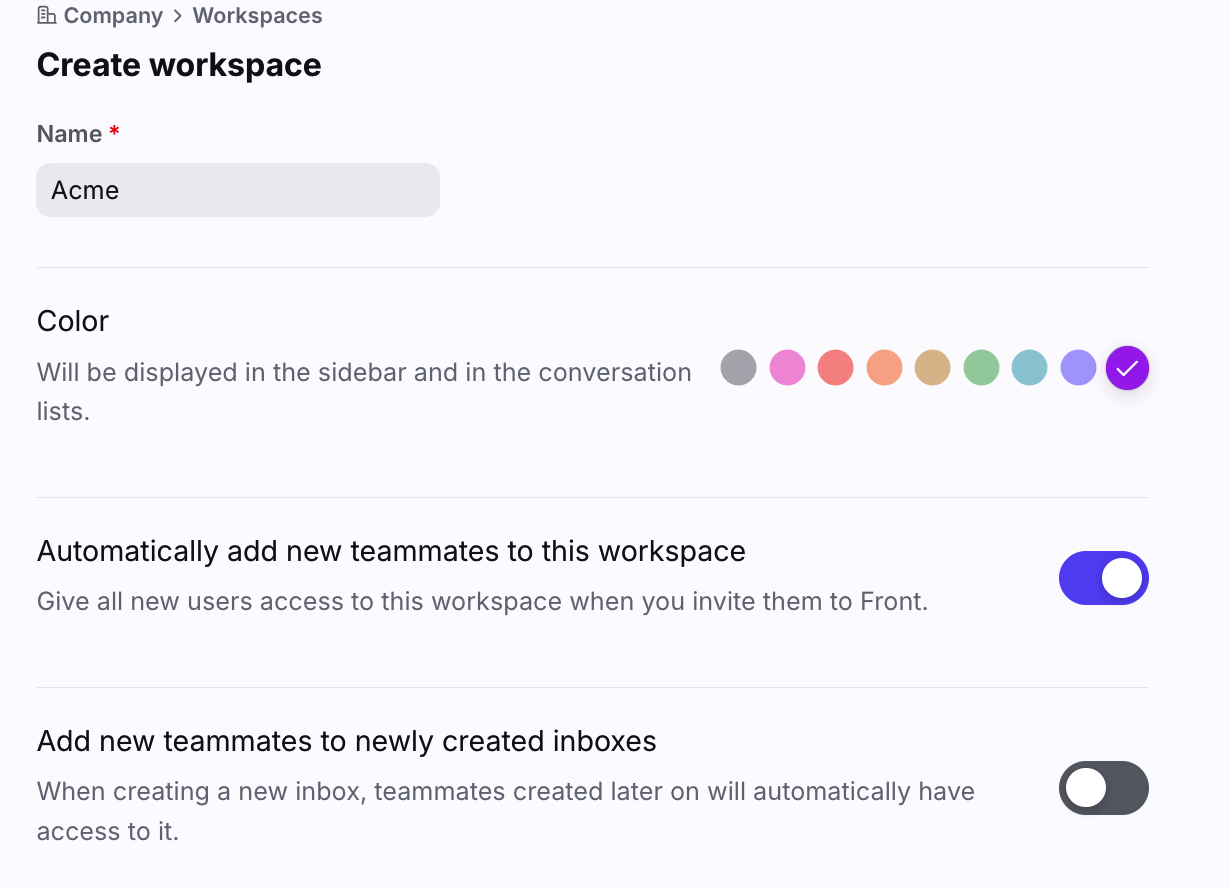
Give your workspace a name and select your desired settings.
Step 4
Click Create. The company admin who created the workspace will automatically be added to it. All company admins will have access to this new workspace.
Step 5 (optional)
In your new workspace settings, navigate to the Permissions page to adjust the default permissions everyone has access to. See this article to learn more.
Add teammates to a workspace
There are multiple ways to add teammates to a workspace, each described below.
Via the API
You can use the API to manage teammates and their workspaces programmatically. API documentation is available here (use the Teams endpoints).
Via teammate groups in Front
See this article to learn more about creating teammate groups and using them to grant workspace access and permissions. This allows you to create centralized lists of users and manage access at scale.
Via the Teammates menu in Front
Step 1
Click the gear icon, navigate to company settings, and select Teammates.
Step 2
Click the name of an existing teammate you’d like to add to the workspace. Check out this article if you’d like to invite brand new teammates to Front.
Step 3
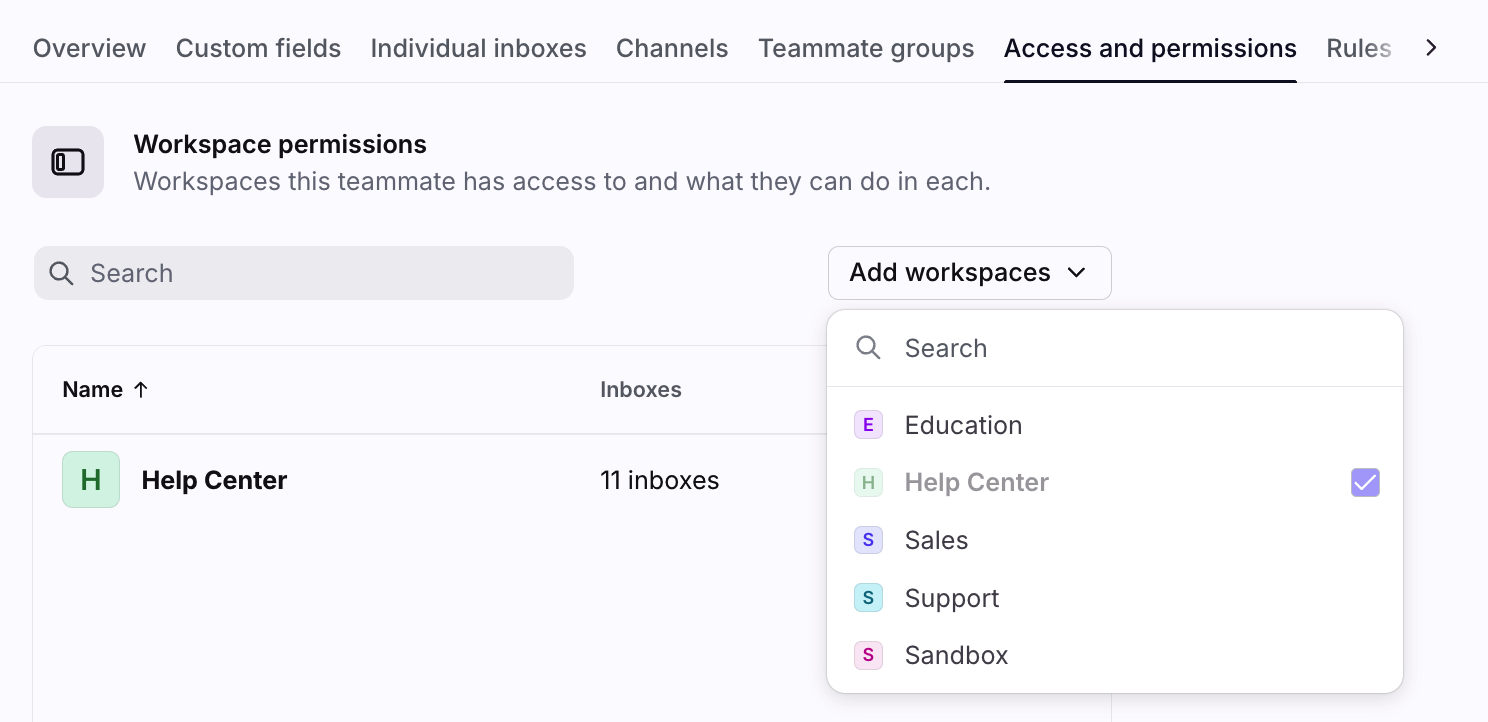
Click the Access and permissions tab.
Step 4
Use the dropdown menu to select the workspace the teammate should be added to.
Step 5
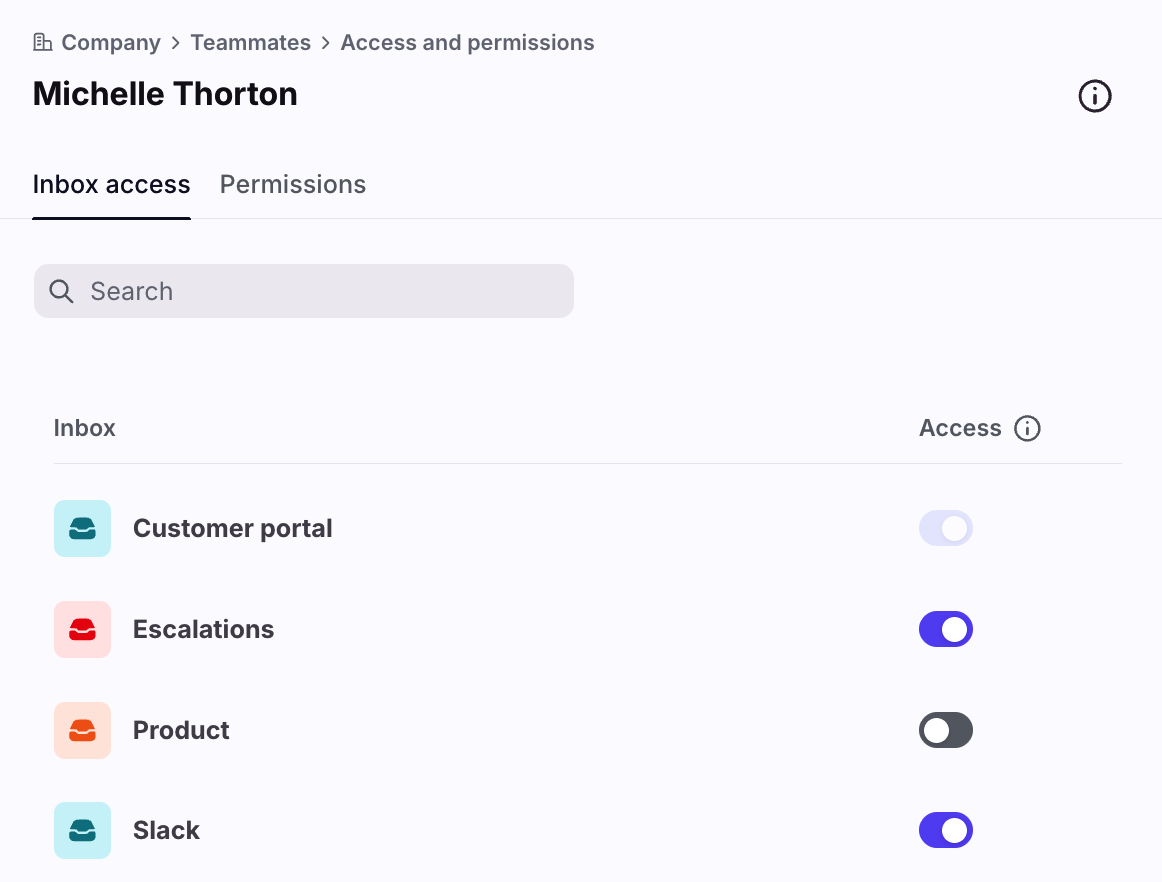
Click the workspace from the table to access the Inbox access page. In the inbox list, toggle on inboxes this teammate should have access to.
Step 6
Click Save.
Workspace limits
Front plans have the following workspace limits:
Starter: 1 workspace
Professional: 5 workspaces
Enterprise: Unlimited workspaces
Pricing
Multiple workspaces are available on the latest Professional plan or above. Some legacy plans may also have this feature.