
Copilot [open beta]
⚠️ This feature is in beta. This article may require final changes before the feature is released to general availability (GA).
Overview
Copilot is your always-on AI assistant, helping you quickly understand what matters most in every customer interaction. It brings together context, history, and knowledge across conversations to summarize requests, surface key details, and guide next steps—so you can move from questions to confident action without manual searching.
Prerequisites
You must have the Copilot add-on or have Copilot included in your plan.
Copilot is designed to work off-the-shelf; no complex setup necessary! However, we recommend that admins follow these steps to help Copilot produce high quality answers:
Connect important shared inboxes to AI. Go to workspace settings, then select Front AI to enable and configure inboxes. By connecting an inbox to AI, Copilot is able to generate Topics and provide higher quality answers from your previous conversations.
Connect your knowledge base to Front AI. Copilot does not have access to knowledge base content until you connect it in your Front AI settings. We also recommend connecting additional external knowledge sources. See article to learn more.
Enable the Compose company AI setting to use custom prompts with Compose with AI.
Using Copilot
Step 1
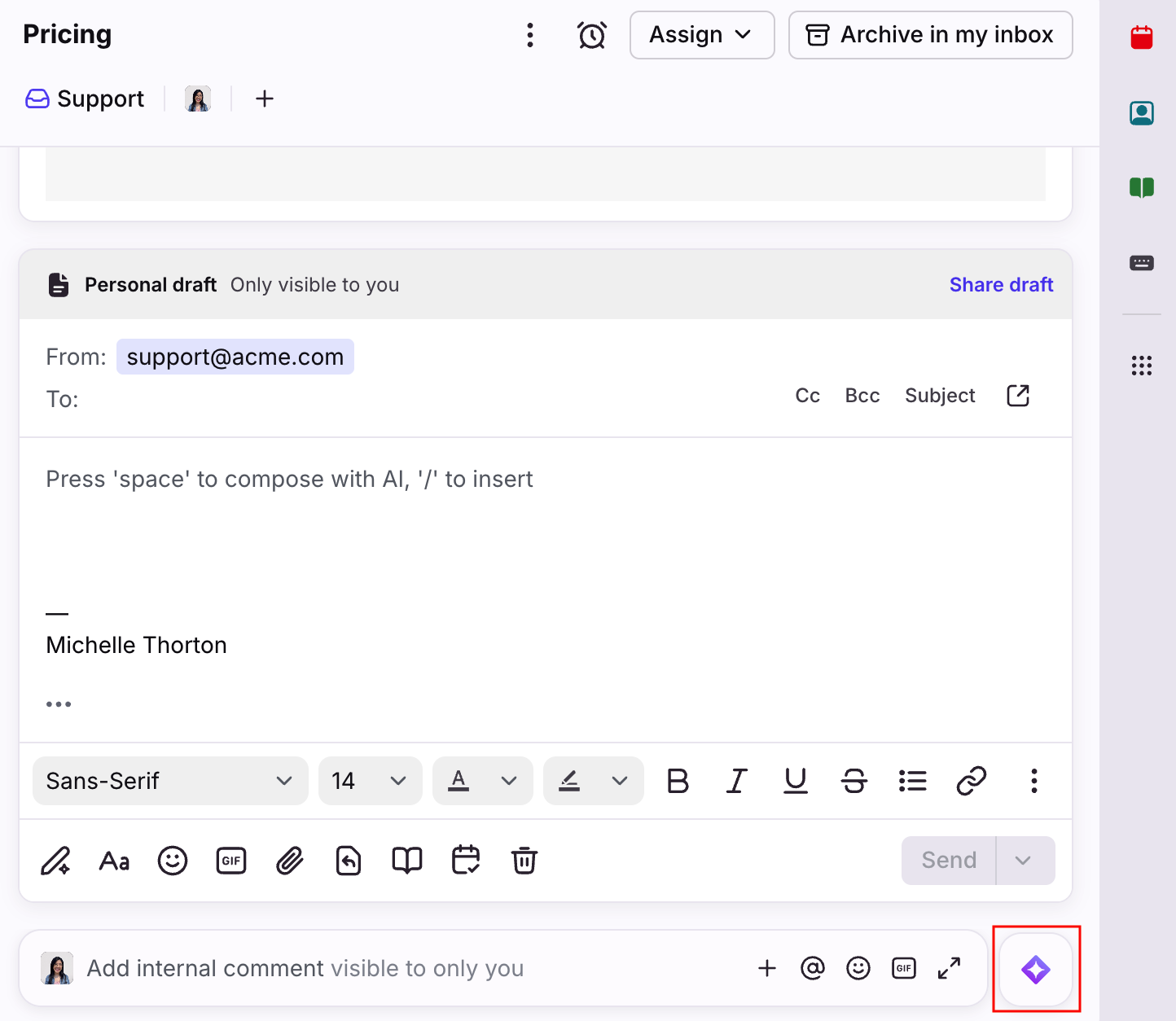
Navigate to a conversation, then click the Copilot icon next to the comment bar.
Step 2
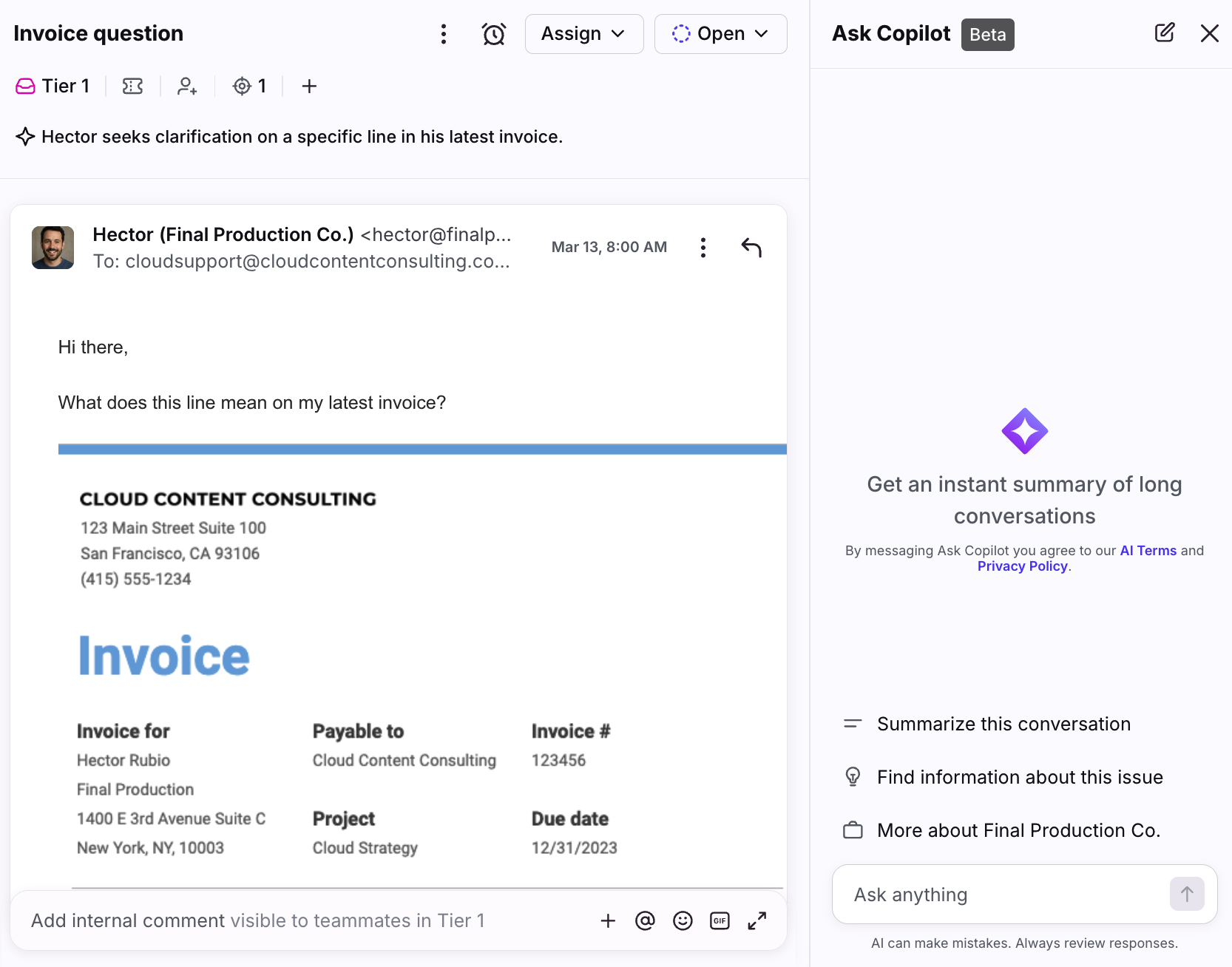
In the Copilot panel, type your question in the text box, then click send or press enter on your keyboard.
Step 3
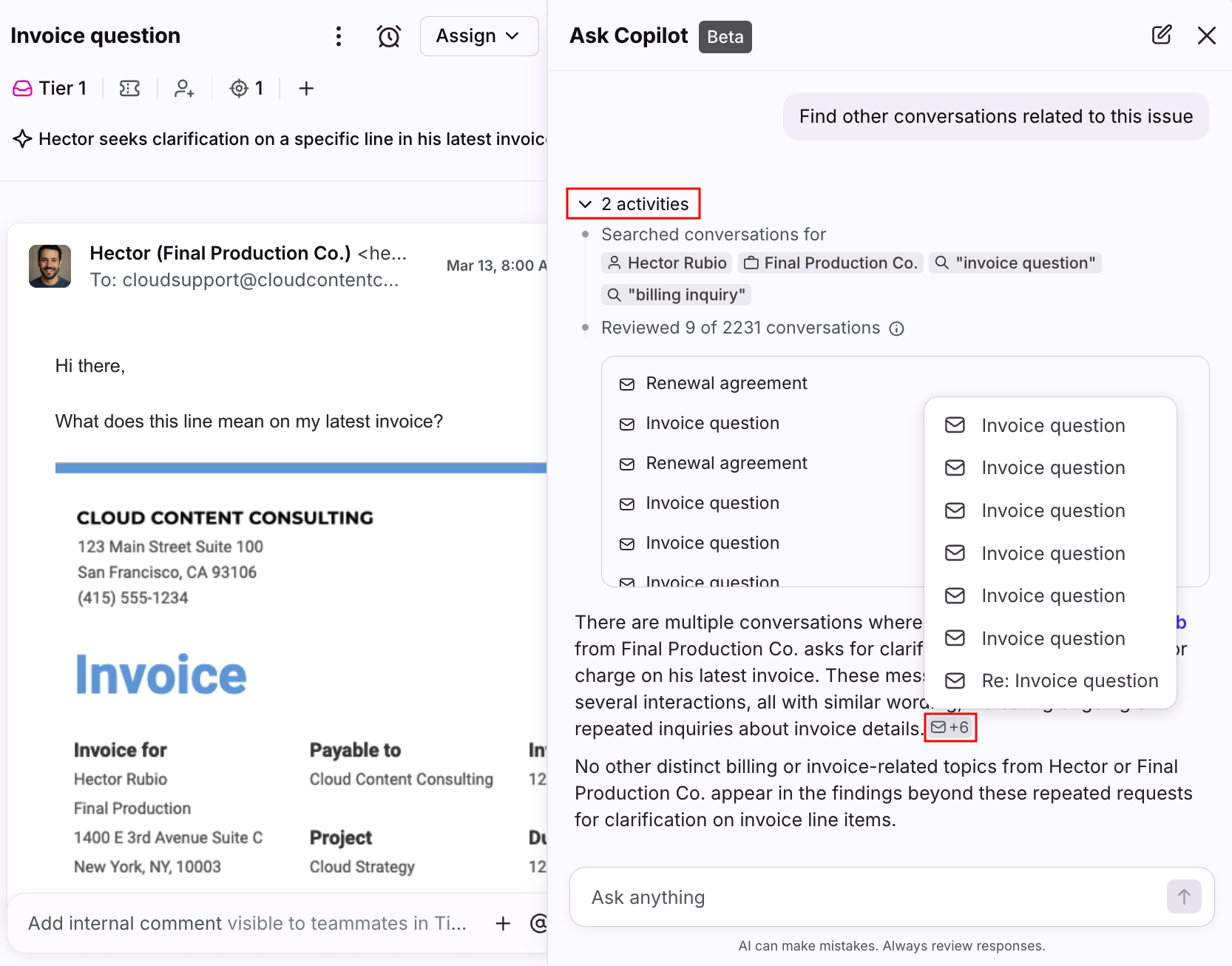
Copilot will generate an answer in the panel. From this panel, you can also:
View which activities and knowledge sources Copilot used to create the response
Ask follow up questions
Click the pencil icon at the top to start a new inquiry
Best practices
Example questions
Please feel free to ask Copilot any range of questions - Copilot is designed to be helpful across a range of different workflows.
Copilot searches conversations and knowledge sources to answer questions. It also responds to ‘filters’ you give it via the prompts you write. ‘@mentioning’ a teammate, contact, shared inbox, tag, etc. may help you get even more specific responses.
Some examples of questions you may want to ask Copilot include:
Understanding and summarizing conversations
“What is this customer asking for?”
“Summarize this conversation so far.” or “Summarize what ‘@teammate’ said?”
“What has the customer already tried or shared?”
Searching within and across conversations
“Did the customer mention an order number or deadline?”
“Find other conversations related to this issue.”
“Show similar conversations we’ve handled before.”
Finding conversations by customer, tag, app object, or criteria
“Show me past conversations with this @customer or @account.”
“Find conversations mentioning refunds (or another topic).”
“Find conversations related to order @#12345.”
Sentiment-based insights
“Show conversations where customers were frustrated or unhappy in @inbox or @view.”
“Are there recent complaints about [feature name]?”
Process, policy, and how-to questions
Note: Requires knowledge source with this information to be connected to Front as an AI knowledge source. Go to Front AI, then Knowledge sources to add.
“What is our policy on refunds?”
“What’s the process for handling this request?”
“How do I do this?”
Drafting Replies and Comments
“Draft a reply to the customer explaining the setup process”
“Draft a comment with context on the issue to handoff to technical support”
Tips and tricks
If you’re trying to search for a particular knowledge base article, but aren’t seeing results, double check that your knowledge base is connected in your workspace AI settings. If you haven’t connected your knowledge base before, we have a guide to help walk you through it!
Copilot starts by looking at the conversation you’re currently on, and then looking at sources related to that conversation. If you’re looking for something more specific, try the following:
@mentions
You can ‘@mention’ any teammate, contact, shared inbox, tag, app object, view, custom field, or conversation to make your question more specific. This will instruct Copilot to specifically look at information related to this object when answering your question.
Multi-select
You can also select multiple conversations at the same time and ask Copilot about them. Copilot will then start by looking at all selected conversations to answer your question.
If none of the following options work, please use the 👍 thumbs up / 👎 thumbs down feature to let us know! We’re continuing to make investments here and your specific feedback is helpful in understanding what we can do better.
Known limitations
Currently, Copilot is not able to answer questions related to:
Images or PDFs attached/in the body of a conversation
Conversation assignee
Calendar
Analytics reports
If you need to ask Front specific questions (about settings, teammates, rules, etc.) we recommend using Admin Copilot, which is available under Settings.
We will continue to release improvements to the Copilot beta. At times, this may require you to restart your Front instance to receive those improvements.
Composing with Copilot
Use the spacebar shortcut when the composer is empty, or click the Compose with Copilot icon to draft new replies, refine existing text, or iterate multiple times with custom prompts.
Example prompts:
Draft a helpful follow-up when a customer hasn’t replied in a few days.
Thank a customer for feedback and explain how it helps.
Add structure with bullets or numbered steps.
Summarize the issue in one line at the top.
See this article to learn more about the information Copilot uses to generate responses.
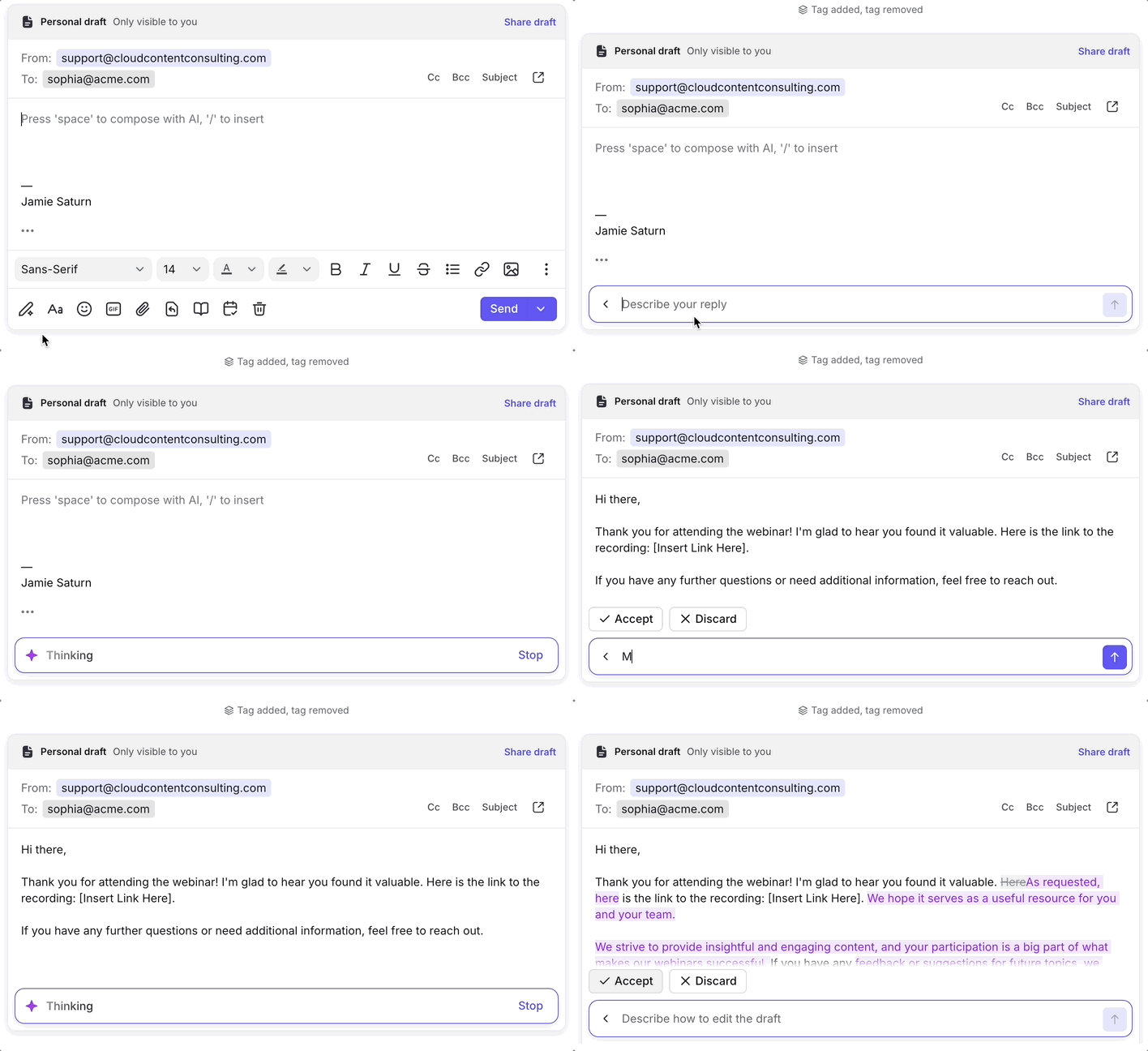
For existing messages, you’ll see preset options as well as the text field for writing custom prompts.

FAQ
What conversations can Copilot be used on?
Copilot can be used on all Front conversations, including conversations in shared and individual inboxes, discussions, and tasks.
What conversations and sources does Copilot have access to?
Copilot can access a teammate’s individual (personal) inbox, as well as conversations and AI-connected knowledge sources within the shared workspaces they belong to.
It cannot access other teammates’ individual inboxes or any conversations or knowledge sources in workspaces the teammate is not assigned to.
Company admins must be added as a member of a workspace if they need Copilot to access resources from that workspace.
General rule of thumb: Copilot has the same permissions as the teammate using it.
Are there rate limits?
Yes. Users may encounter rate limits for unusually high activity. This limit is separate from Front’s other AI features. See here to review other rate limits.
Can I disable Copilot?
Yes. Please contact us to disable the feature for your Front instance.
How do I share feedback?
The best place to leave us feedback is via the 👍 thumbs up / 👎 thumbs down feature in product. If you have more general feedback to share, leave a post in the Front Community group.
Pricing
This feature is available with the Copilot add-on. See this article for pricing plan availability.