
Understanding dynamic variables
Overview
Dynamic variables are options you can build within Smart Rules, chatbots, macros, and more that adapt to the different traits of the conversations and actions in Front. This way, one rule, condition, or action is able to replace multiple static, hardcoded options.
Variable types
The various dynamic variable options are categorized into different types, and the type will determine what type of action you can ultimately run with the variable. Here are the different variable types:
Text
Email
URL
Number
Teammate
Inbox
Tag
Boolean (true/false)
Date
Lists (see next section)
Variable lists
When you are using a certain variable type and want multiple options within that type, such as multiple teammates or inboxes to choose from, then the variable type turns into a List. For instance, you could have a Teammate List or Inbox List.
Within the dynamic variable, here are the actions you can take on lists:
Select an element in the list (1st, last or Nth). Using First element is the go-to method to transform an X list variable into Type X.
Sort the list based on fields of list elements
Filter the list to keep only element matching a filter. This returns a smaller list. Example: You can filter a teammate list to keep only the available ones.
Find in elements to keep the first element of the list matching a condition. For an X list this returns a variable of type X.
Map the list to create another corresponding list. Example: From a teammate list, you can create the list of emails of those teammates.
Rule conditions for each type
In your Smart Rule, the specific If filters and Then actions in the rule are compatible with specific variable types you create. Below is a chart of some examples of which rule conditions work with which variables, and also whether the action is compatible with the List version of the variable.
Action/filter | Variable | List |
Add objects | URL | Yes |
Notify | Teammate | Yes |
Move to inbox | Inbox | No |
Assign | Teammate | Yes |
Most text-based conditions | Text, URL, email | Yes |
Build with AI
Not sure where to start? Use the Build with AI feature when creating a dynamic variable in linear rules, branching rules, and macros. This allows you to quickly create and refine dynamic variables using natural language prompts.
Step 1
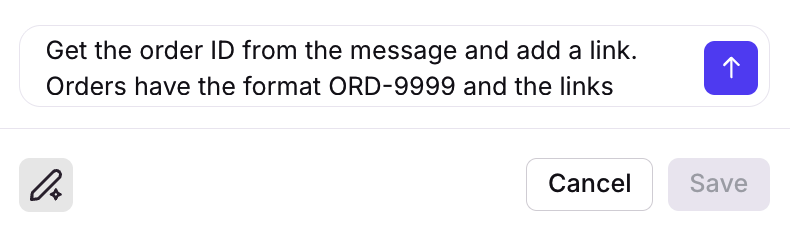
In the dynamic variable panel, describe the workflow you’d like AI to build in the text box. This works best when formatted as natural language.
In this example, we’ll ask AI to “Get the order ID from the message and add a link. Orders have the format ORD-9999 and the links should be www.acme.com/orders/[order_id]. There could be multiple orders in the message.”
Step 2
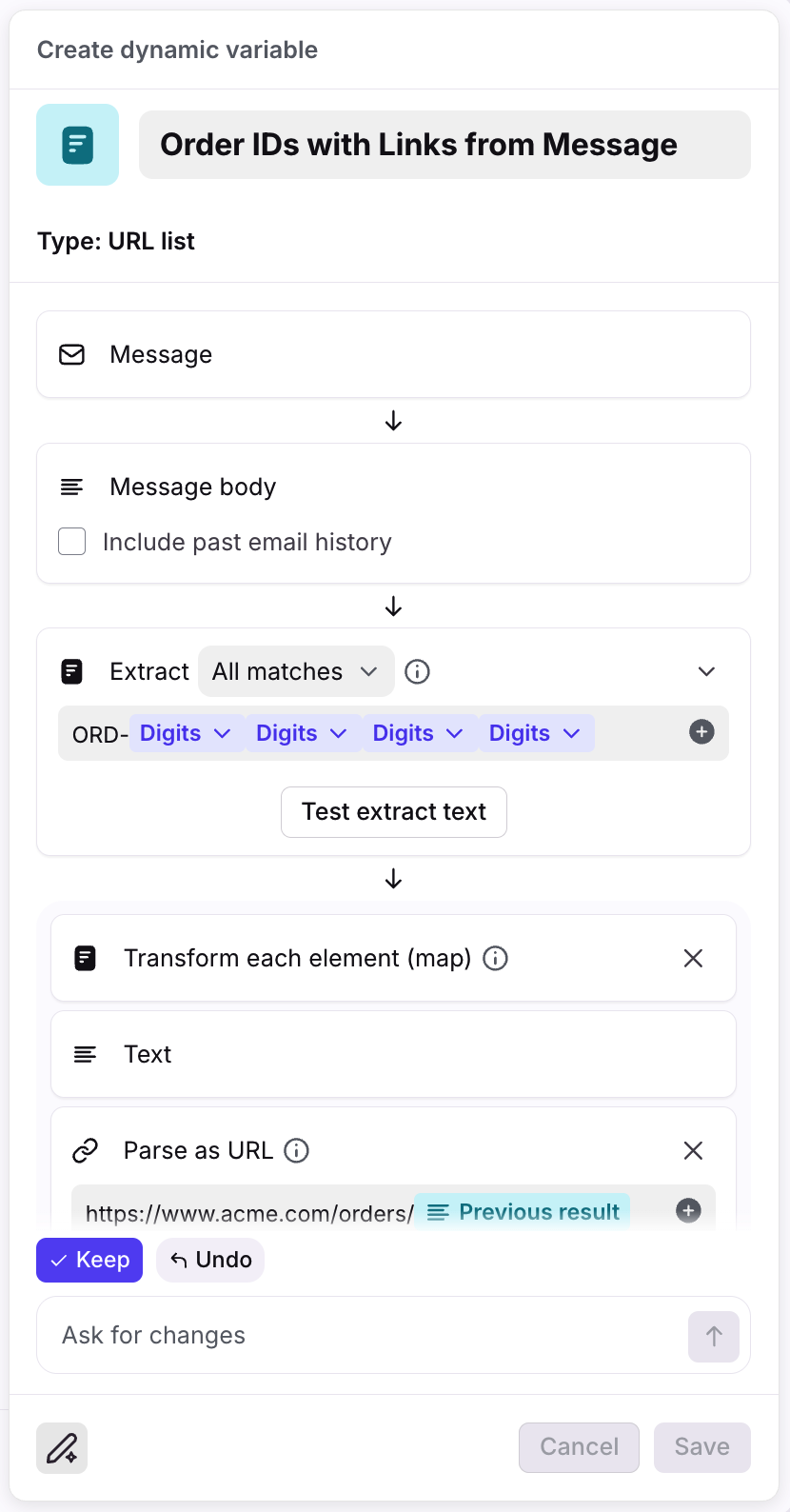
You’ll see a “Building” indicator in the text box, then the dynamic variable elements will automatically appear once AI is finished building.
From here, you can:
Click Keep to use the dynamic variable AI created, and manually edit where needed
Click Undo to go back a step
Use the text box to describe changes you’d like AI to make to the dynamic variable
Step 3
Click Save when finished. The dynamic variable is now ready to use in your rule or macro.
FAQ
Are there limitations when using the Build with AI feature?
The Build with AI feature:
Is automatically enabled and doesn’t require any other AI setting.
Does not support third-party integration actions at this time. Integration actions can still be configured manually.
Does not retain prompt history. It is not possible to access past prompts at this time.
What happens to my data? Which providers does Front use?
See this article for additional AI FAQs.
Related guides
Smart Rules: Get an introductory orientation on Smart Rules and the related resources.
Smart Rules use cases: Gain inspiration from common ways to leverage Smart Rules to supercharge your workflows.
How to build a Smart Rule: Learn how to build a Smart Rule with step-by-step instructions and screenshots.
Guide to dynamic variables: Check out the glossary of all the different steps and options you can have in dynamic variables.
Pricing
This feature is available on the Enterprise plan or with the Autopilot add-on.