
Enabling videoconferencing in Front Calendar
Overview
Front Calendar supports videoconferencing with the following providers:
Zoom
Google Meet
Microsoft Teams
Skype Meetings
Add videoconferencing to an event
When creating or editing an event, you can use the conference dropdown to add videoconferencing. The options shown in the conference menu depend on the videoconferencing options you have enabled for your team and your Google or Office 365 calendars. See the Enable videoconferencing section below for more details for each provider.
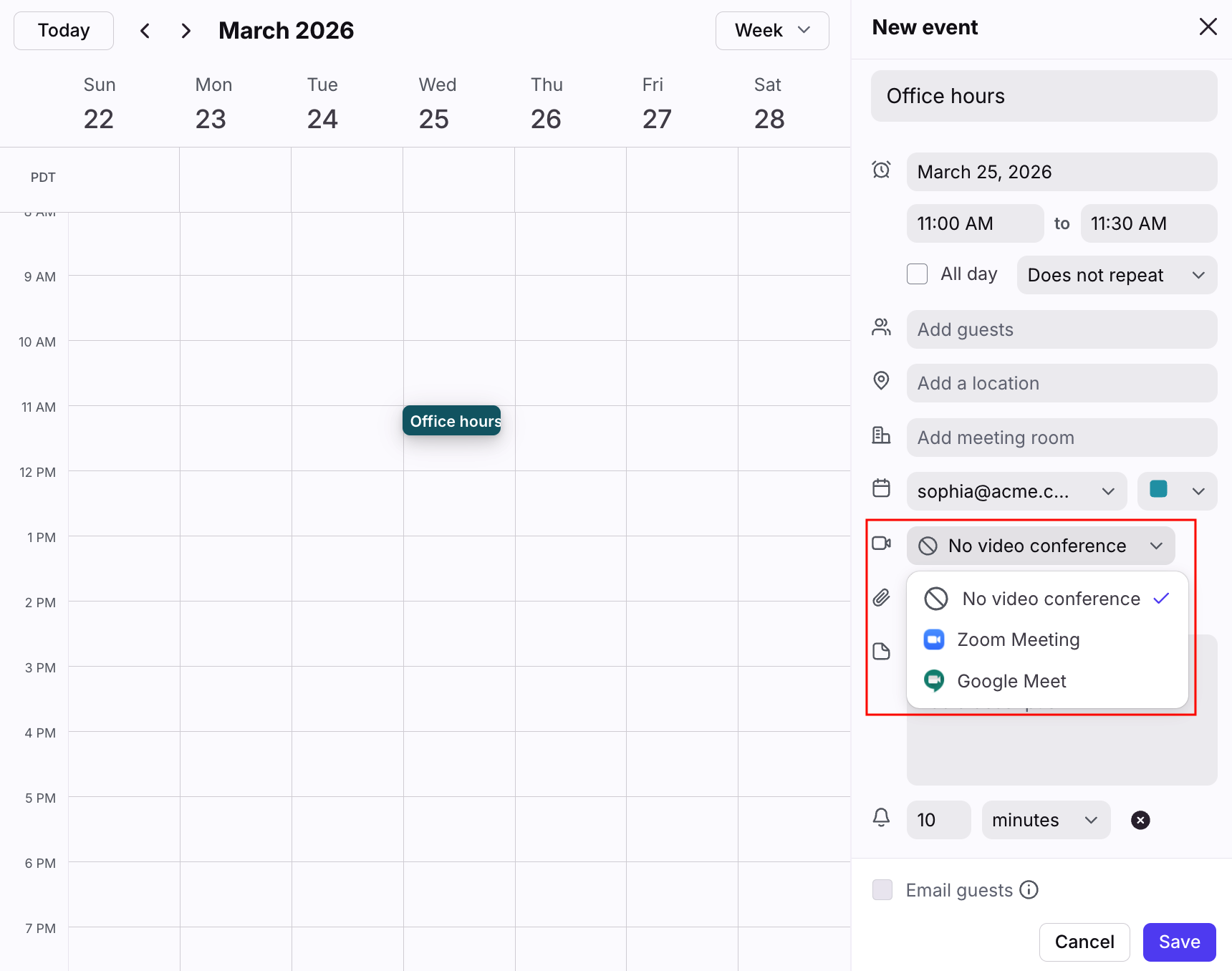
You can set a default video conferencing option in your personal preferences. You can always edit the option when creating the actual event.
Enable videoconferencing
Google Meet
Google Meet video meetings will appear as a videoconferencing option in Front if your Google Calendar settings have it enabled AND you have a Gmail channel connected to an individual inbox in Front. To enable or disable Google Meet, please follow this Google support article.
Microsoft Teams
Microsoft Teams videoconferencing will appear as a videoconferencing option in Front if it is enabled within your Office 365 organization AND you have an Office 365/Outlook channel connected to an individual inbox in Front. If it already works for your Outlook, it should also work for Front by default, as the feature is enabled. If not, contact your Office 365 administrator to manage this.
Skype Meetings
Skype Meetings videoconferencing will appear as a videoconferencing option in Front if it is enabled within your Office 365 organization. Contact your Office 365 administrator to manage this.
Zoom
Zoom videoconferencing must first be enabled as an integration in Front by a workspace admin before you can add Zoom links to your calendar events. See this article to learn more.
Pricing
This feature is available on all plans. For the latest Starter plan, you must have email set as your company's channel type to sync a Google or Office 365 calendar.