
Front's company rule library
Overview
Use Front’s company rule library to quickly explore and set up automations that apply to both individual and shared inboxes across your entire organization. Leverage company rules to ensure consistent implementation across all workspaces.
To create rules that apply to a specific workspace, see this article to check out Front’s workspace rule library.
Instructions
You must have company admin permissions to create company rules. This article assumes you’re familiar with using company rules.
Step 1
To navigate to the rule library, click the gear icon, then select company settings. Go to the Rules and macros section and click Create rule.
Step 2
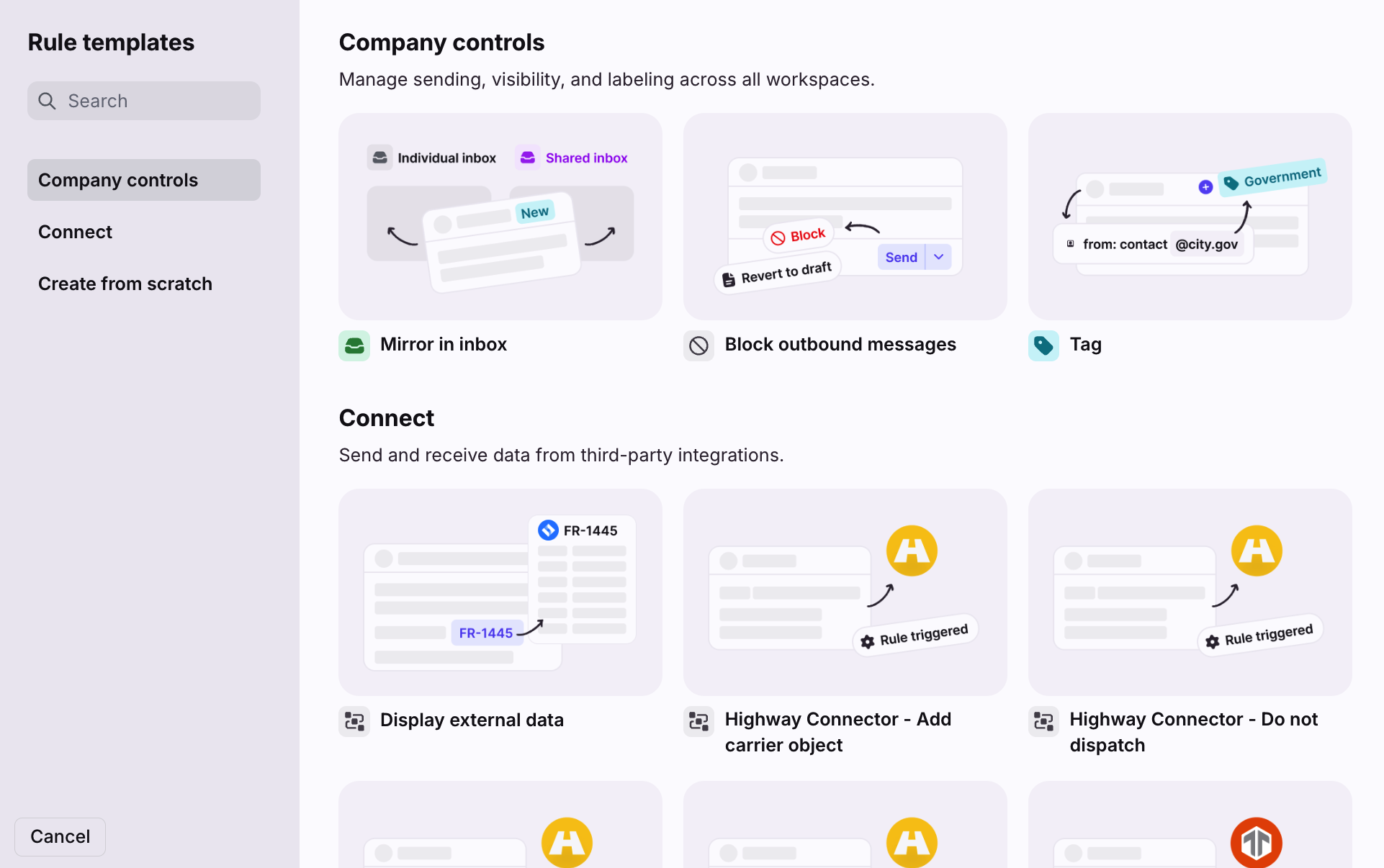
You'll see a pop-up with a list of rule templates. Search the library, scroll down the list, or use the category filters to browse rules related to specific rule actions and outcomes.
Step 3
Once you find a rule that fits your needs, hover over the template and click Create, and we’ll create a pre-filled rule for you.
Step 4
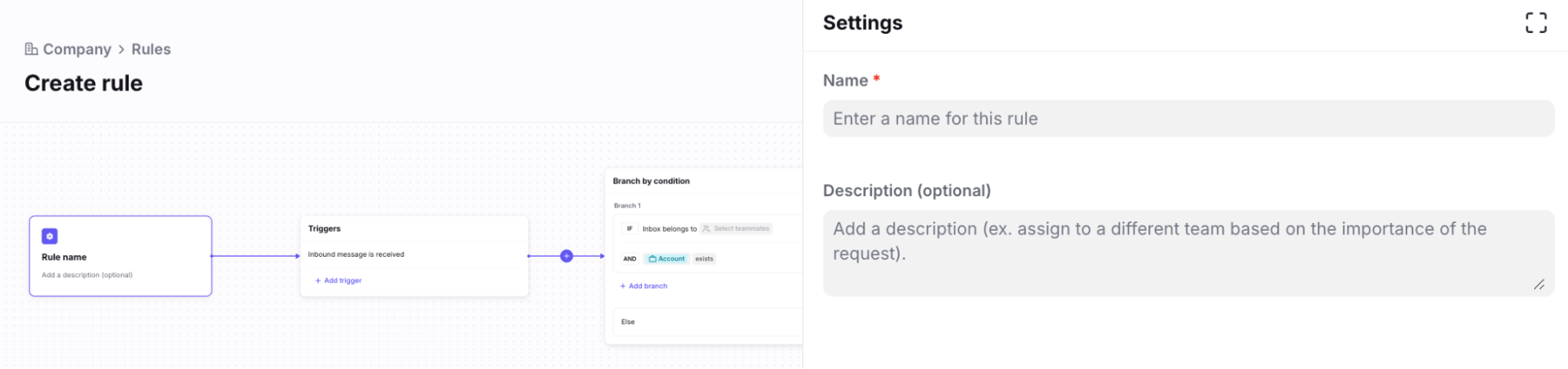
Add a name for your rule, and edit the rule to fit your team’s needs. You can further customize your rule with additional triggers, conditions, and actions.
Step 5
Click Create to finish. To discard the rule draft, click Cancel.
Category: Company controls
Use these rules to manage sending, visibility, and labeling across all workspaces.
Move new
Move new conversations to different inboxes based on the recipient field. This ensures messages are routed to the right teams based on what the customer needs help with.
Example: When a message arrives from someone with “acme.com” in their email address, move the conversation to the VIP inbox. Teammates working from the VIP team have additional knowledge that allows them to quickly assist VIP customers.
Check out this article to see additional routing/triaging examples.
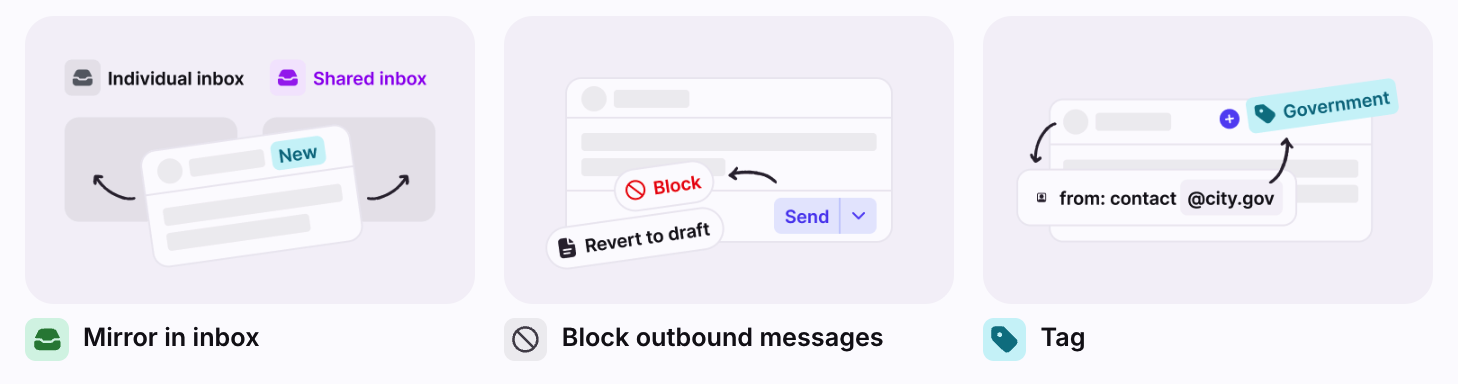
Mirror in inbox
Automatically make conversations in individual inboxes visible in shared inboxes, so they appear in both places without moving them.
Example: When an email arrives in a Customer Success Manager’s individual (personal) inbox, mirror the conversation in the “Customer Success” shared inbox. All Customer Success Managers can view the conversation and jump in and respond when their teammate is out of office.
Check out this article to learn more about the mirror in inbox rule action.
Block outbound messages
Add safeguards to prevent outbound messages from being sent under specific conditions.
Example: When a teammate sends an outbound message outside of business hours, they’ll see an error and their message will stay in draft mode.
Check out this article to learn more about the block outbound messages rule action.
Tag
Automatically tag conversations arriving in your inboxes. Tagging rules ensure all your conversations are labeled to help power your team’s workflows.
Example: Apply an “Urgent” tag every time the message subject or body contains the word “urgent”. Teammates can quickly scan the conversation list and prioritize these messages.
Category: Connect
Use these rules to send and receive data from third-party integrations.
Salesforce Connectors
Create leads, send tasks, or send emails to Salesforce directly from Front using app requests.
Check out this article to learn more about Connectors, or this article to learn more about the Salesforce integration.
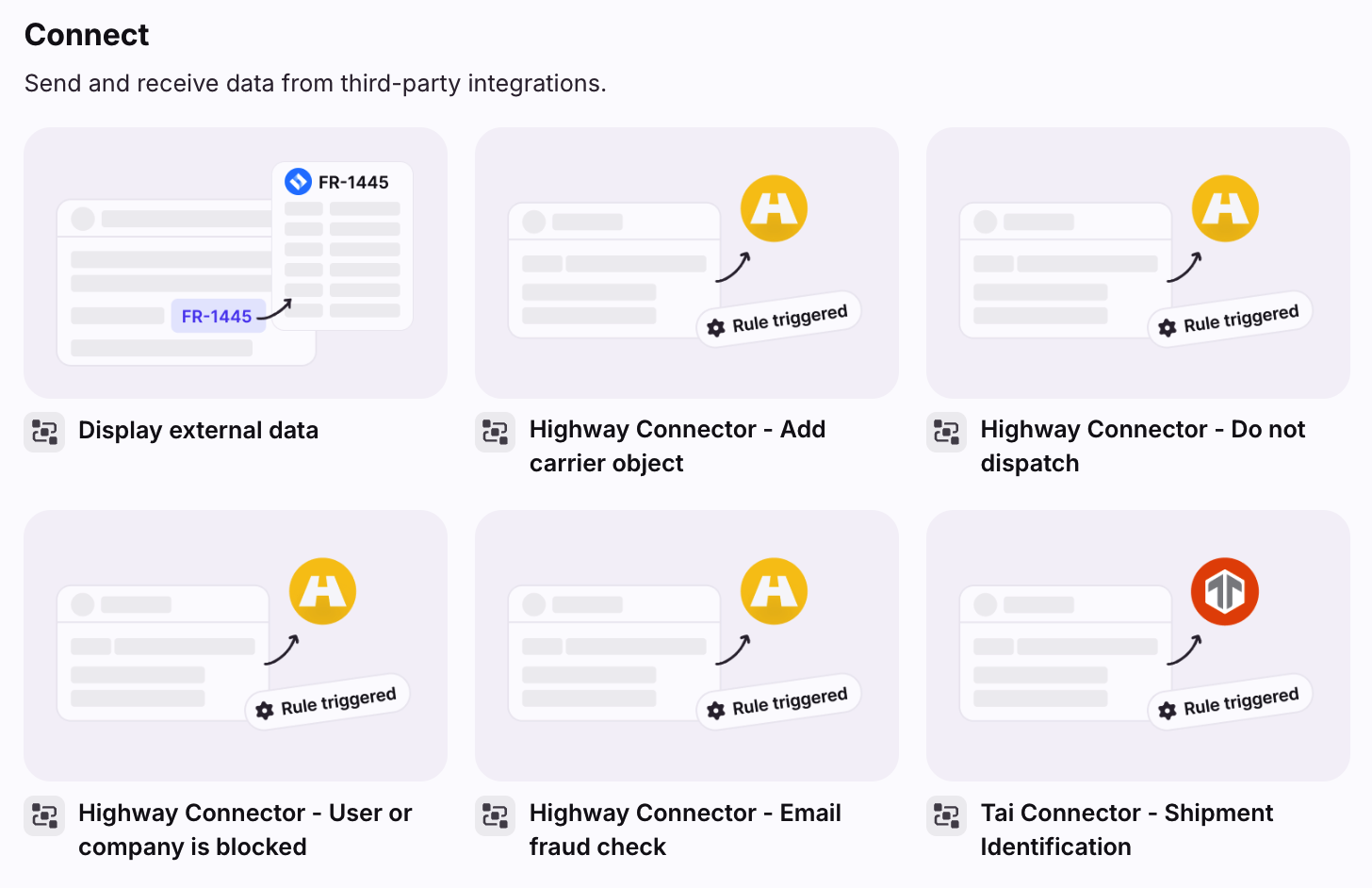
Display external data
Automatically bring third-party data into Front and attach it to conversations using application objects.
Check out this article to learn more about application objects.
Highway Connectors
Add application objects or comments with carrier information from Highway.
Check out this article to learn more about Highway Connectors.
Tai Connector
Add application objects or comments with carrier information from Tai.
Check out this article to learn more about Tai Connectors.
Pricing
Company rules are available on the Enterprise plan. Some legacy plans may also have this feature.