
Block outbound messages rule template
Overview
The Block outbound messages company rule template allows admins to add safeguards to prevent outbound messages from being sent under specific conditions. Sent messages will stay in draft mode, and can only be sent when they no longer meet the conditions defined in the rule. This is helpful for teams who want to implement workflows such as:
Requiring teammates to select a default channel (e.g. Use the risk@ channel when replying to conversations in the Risks inbox)
Blocking new teammates from sending messages in shared inboxes during their training period
Blocking teammates from sending messages to specific email domains
Blocking teammates from sending messages outside of business hours
Blocking teammates from sending messages based on a contact’s time zone (via custom fields)
Reminding teammates to add a BCC
You must be a company admin to create company rules. This article assumes you know how to use branching rules.
Instructions
Step 1
Click the gear icon and navigate to company settings. Select Rules and macros in the sidebar.
Step 2
Click Create rule, then select the Block outbound messages rule template from the rule library.
Step 3
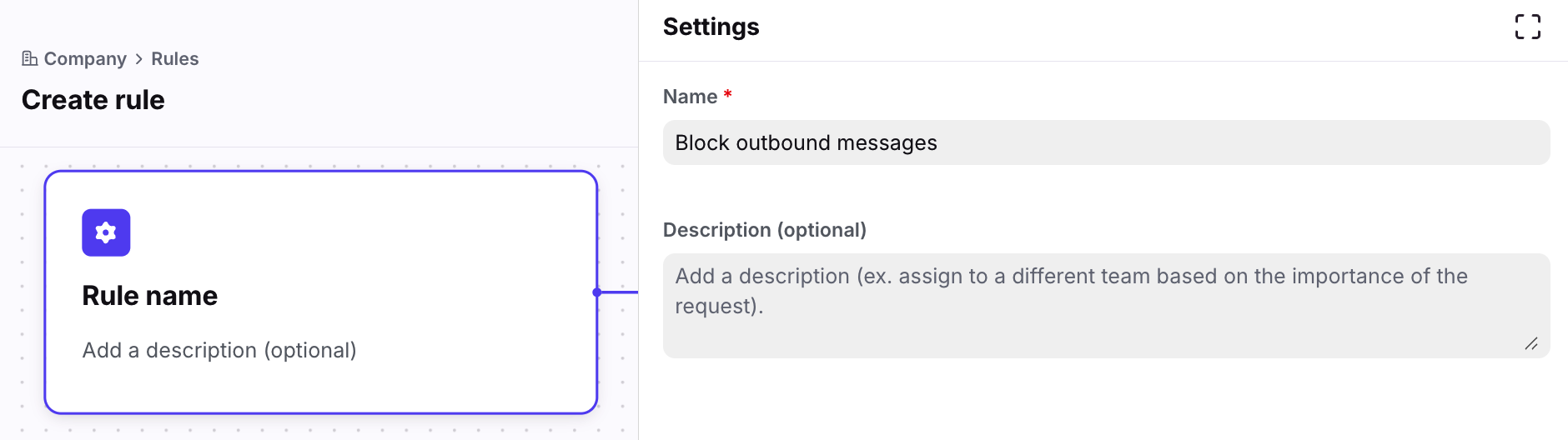
Give your rule a name, then optionally add a description. Click Save.
Step 4
In the Triggers step, the Outbound message is attempted trigger is automatically added and cannot be removed. Additional triggers cannot be added to this template.
Step 5
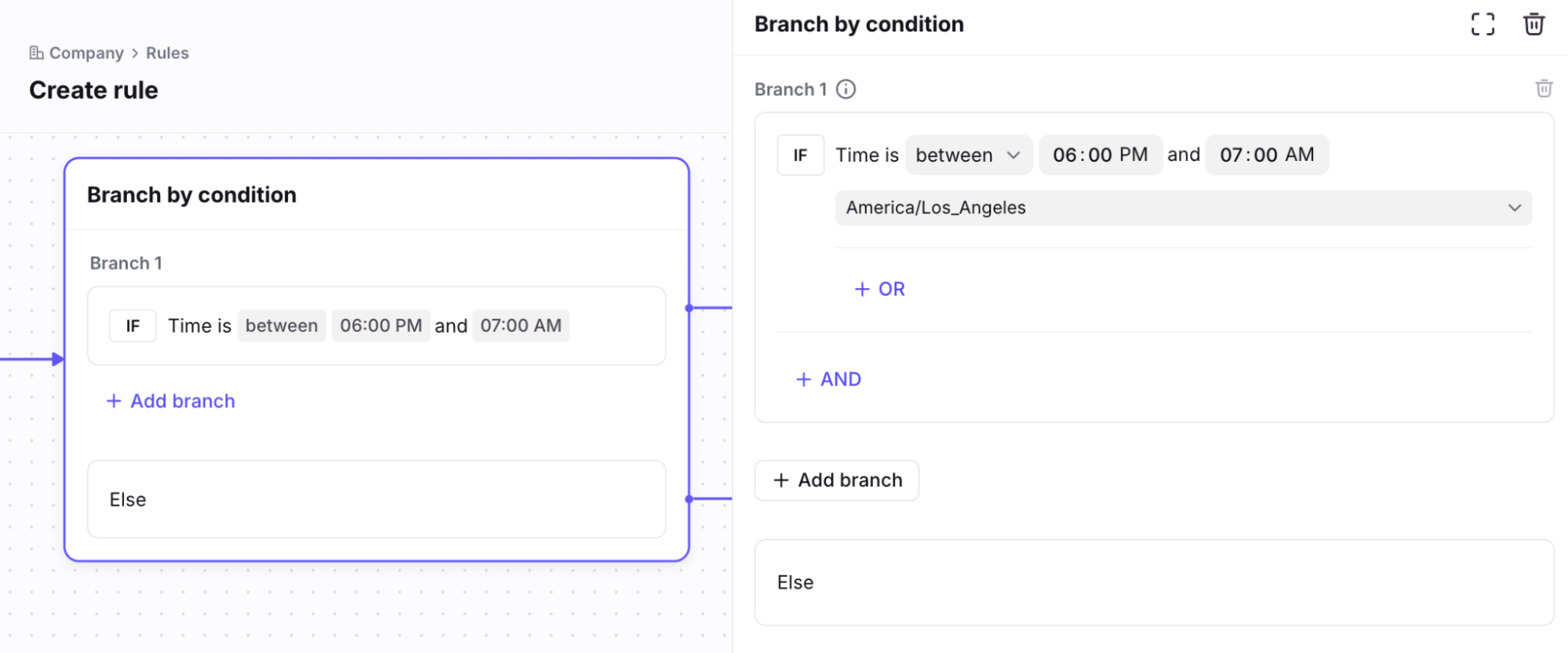
In the Branch by condition step, adjust the conditions to narrow down when the rule should run.
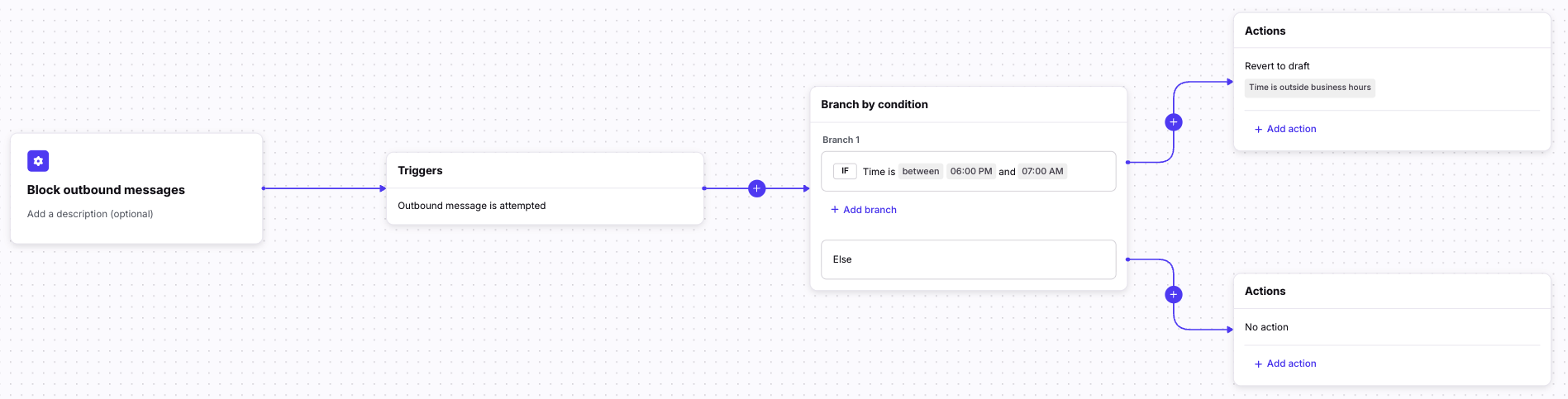
In this example rule, we want to prevent teammates from sending outbound messages outside of business hours.
Step 6
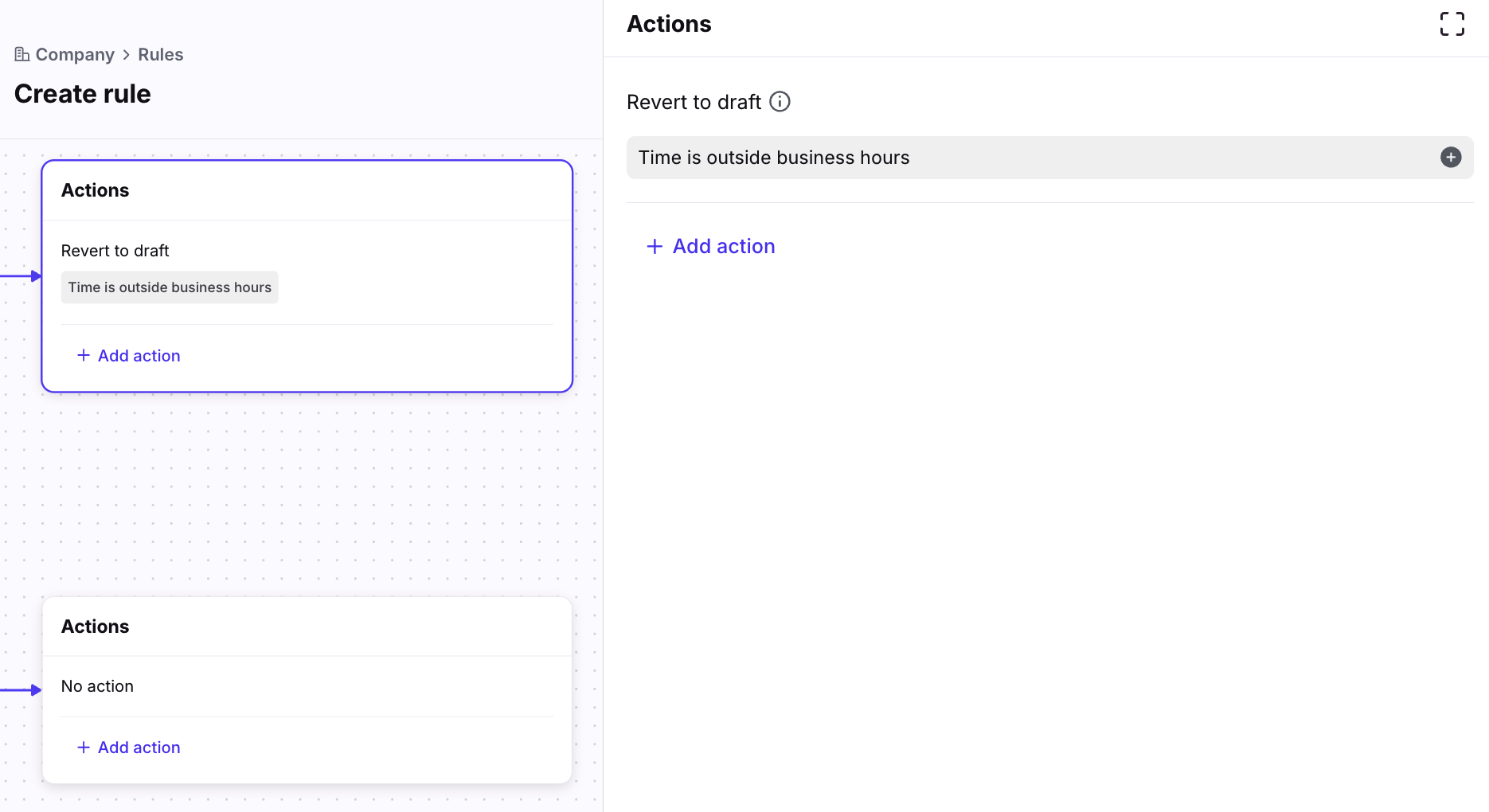
In the Actions steps, add the actions you want the rule to take depending on the branch. In the Revert to draft action, enter the error message text you want teammates to see if the rule applies to their message. Add any additional actions as needed.
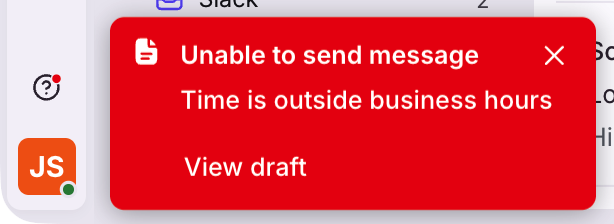
In this example rule, we want teammates to see the error “Time is outside business hours” when they try to send a message.
Step 7
Click Create when finished.
Example rule build:
Step 8
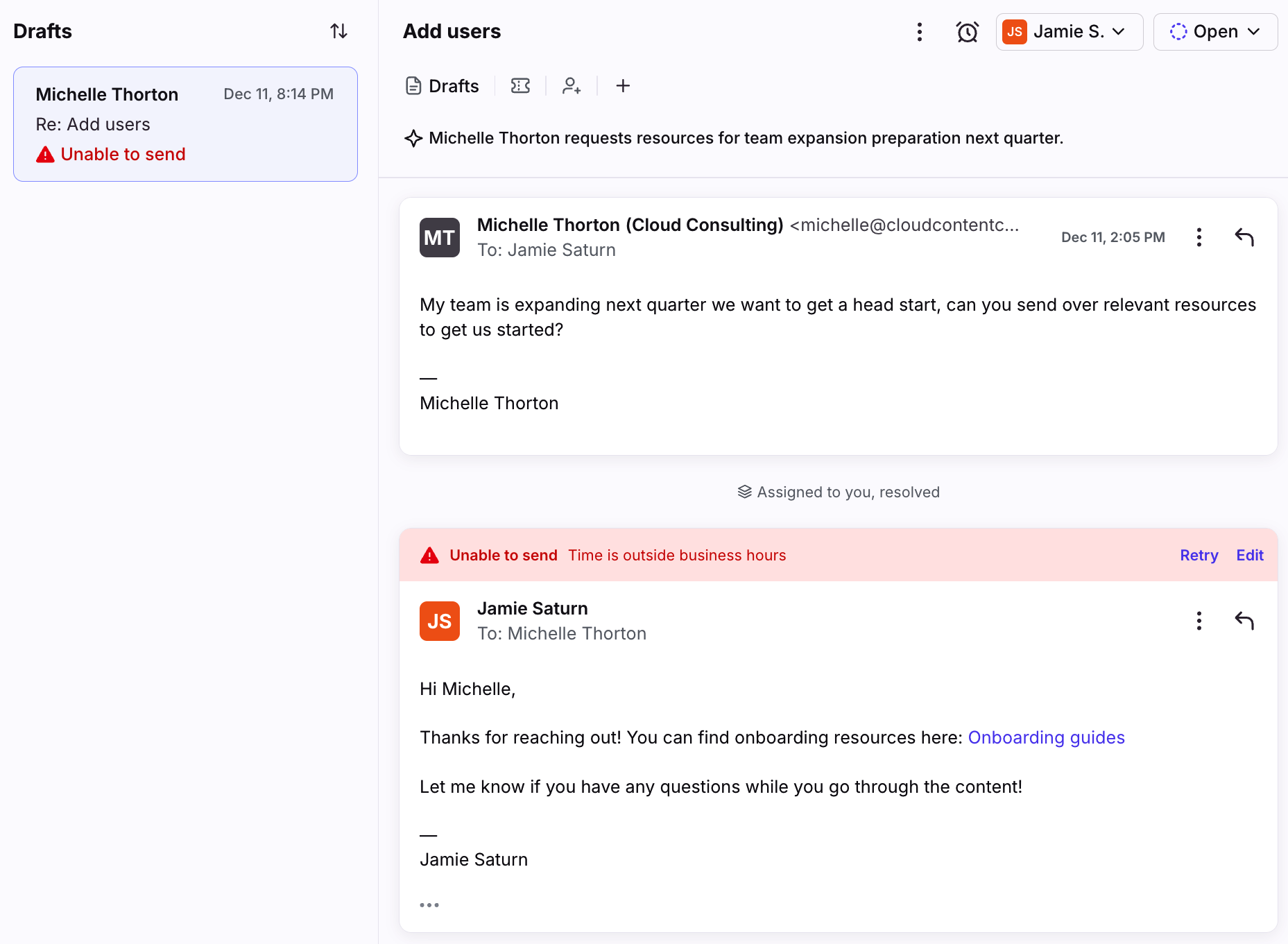
When the rule applies to a teammate’s message, Front will display the error message defined in the rule. Teammates can click View draft to navigate to the conversation.
Teammates will see a banner above the draft with the error message, along with Retry and Edit options.
FAQ
Can I use the trigger or action outside of the template?
No. The Outbound message is attempted trigger and Revert to draft action are only available when using the Block outbound messages rule template. The rule trigger/action cannot be added to other rule templates or rules created from scratch.
Pricing
This feature is available on the Enterprise plan. Some legacy plans may have access.