
Exploring Front’s new inbox experience
Overview
Front’s inbox has been refreshed with a clean and streamlined layout for even more productivity. This updated inbox design simplifies daily workflows, reduces visual clutter, and helps your team stay focused.
Benefits include:
Faster context at a glance. A compact conversation header and moving search into the sidebar give you more space for reading while keeping the key details you need to take action.
More space to work. Collapse the left sidebar to free up space for reading and replying to messages with fewer distractions. Just hover to reveal it when you need it!
Clearer prioritization. New Open, Later, and Done sections in your individual workspace help you focus on the conversations that need your attention most.
Sidebar
Navigation
Use the icons on the left of your sidebar to access all of Front’s tools, like calendar, contacts, knowledge base, and more.
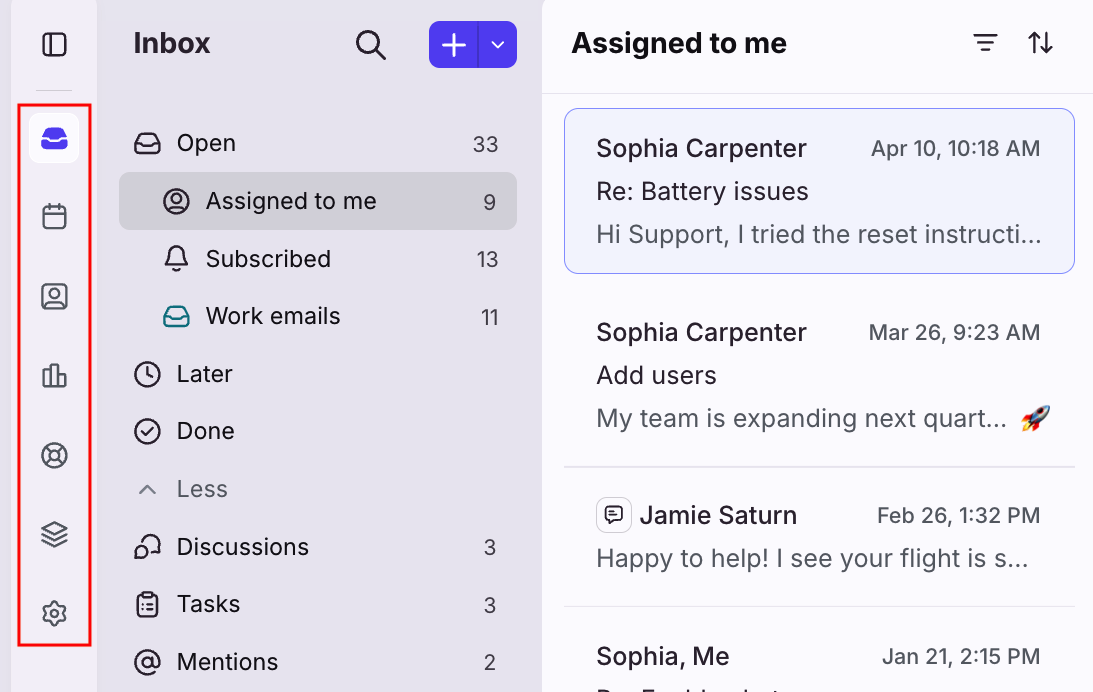
Sidebar sections
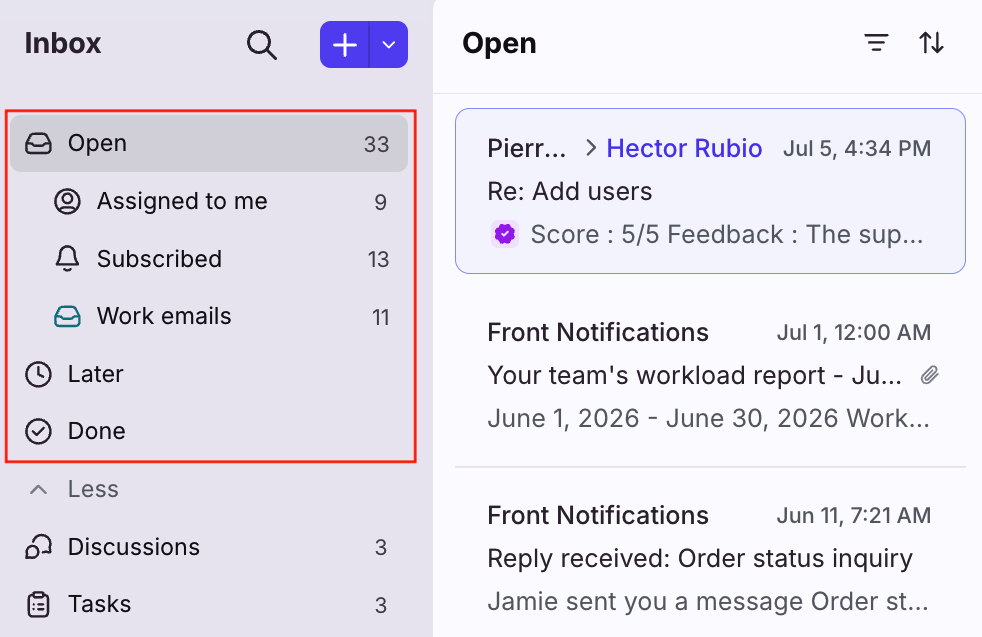
Use the Open, Later, and Done sections in your individual workspace to view your conversations by status. This updated structure is designed to make it easier to find and follow up on conversations that need your attention, whether you're using ticketing, classic shared inbox statuses, or a combination of both.
Open contains active conversations that are assigned to you, conversations you’re subscribed to, discussions, and tasks
Later contains your snoozed and waiting conversations
Done contains resolved and archived conversations
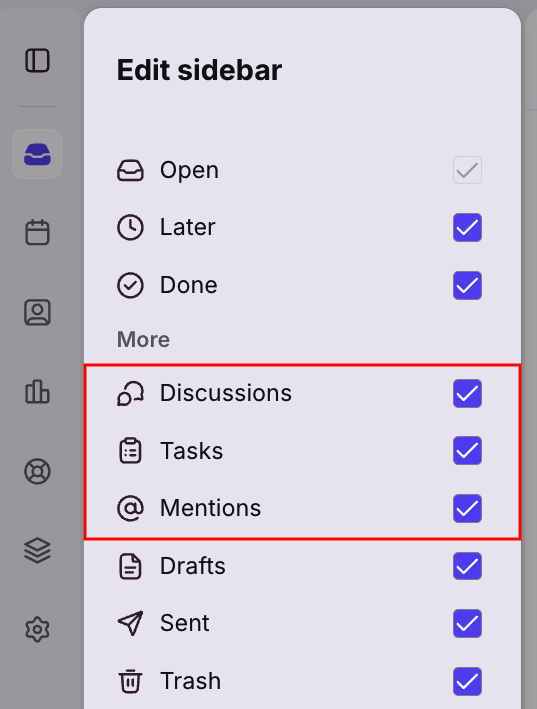
Discussions, Tasks, Mentions sections
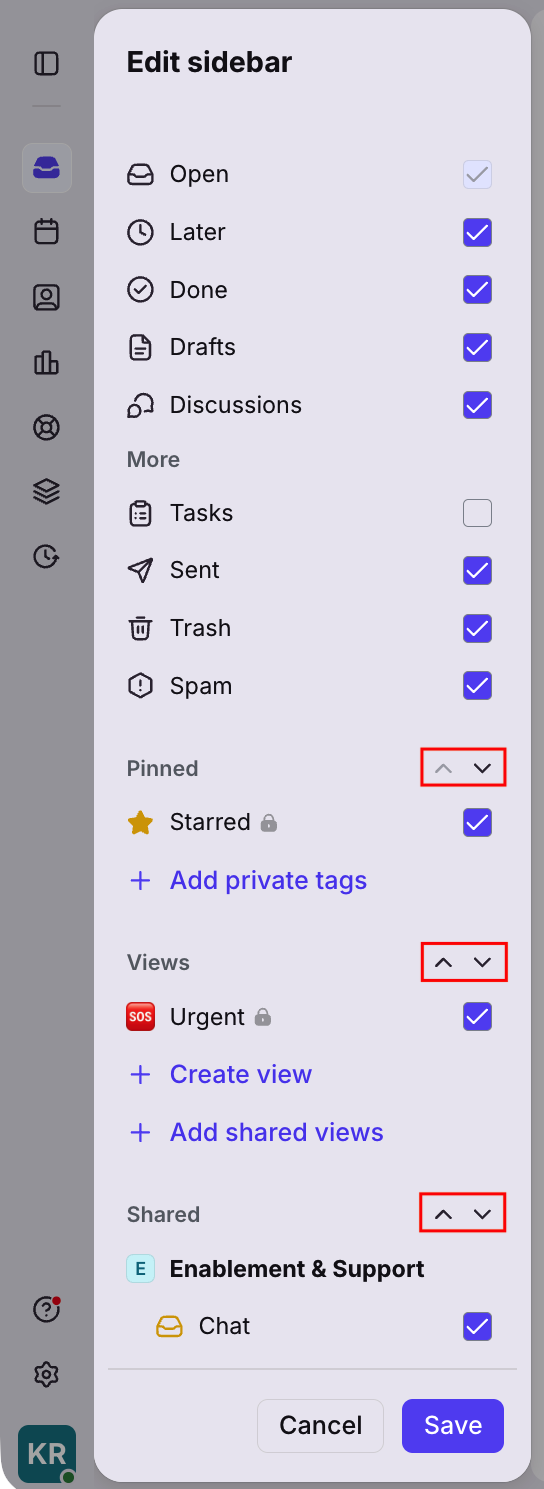
Add the Discussions, Tasks, or Mentions sections to your sidebar to quickly and easily access all those conversation types.
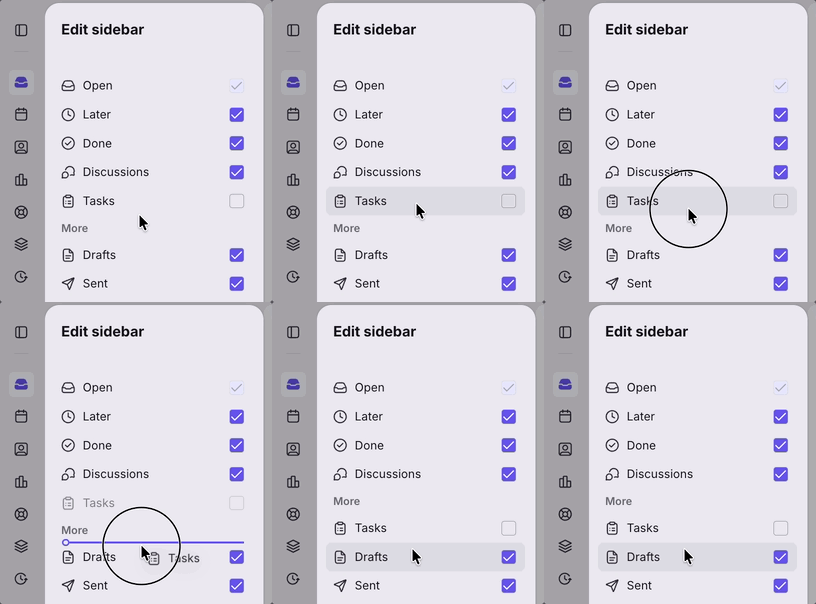
Hide individual workspace sections
Move lesser used sections in your individual workspace under the More menu to streamline your sidebar. Once you save, you can collapse the More menu to hide those sections.
Reorder section groups
Use the arrow icons to reorder the Pinned, Views, or Shared section groups in your sidebar to best support your personal workflows.
Collapsible sidebar
Collapse the left sidebar to free up space to focus on reading and replying to messages.
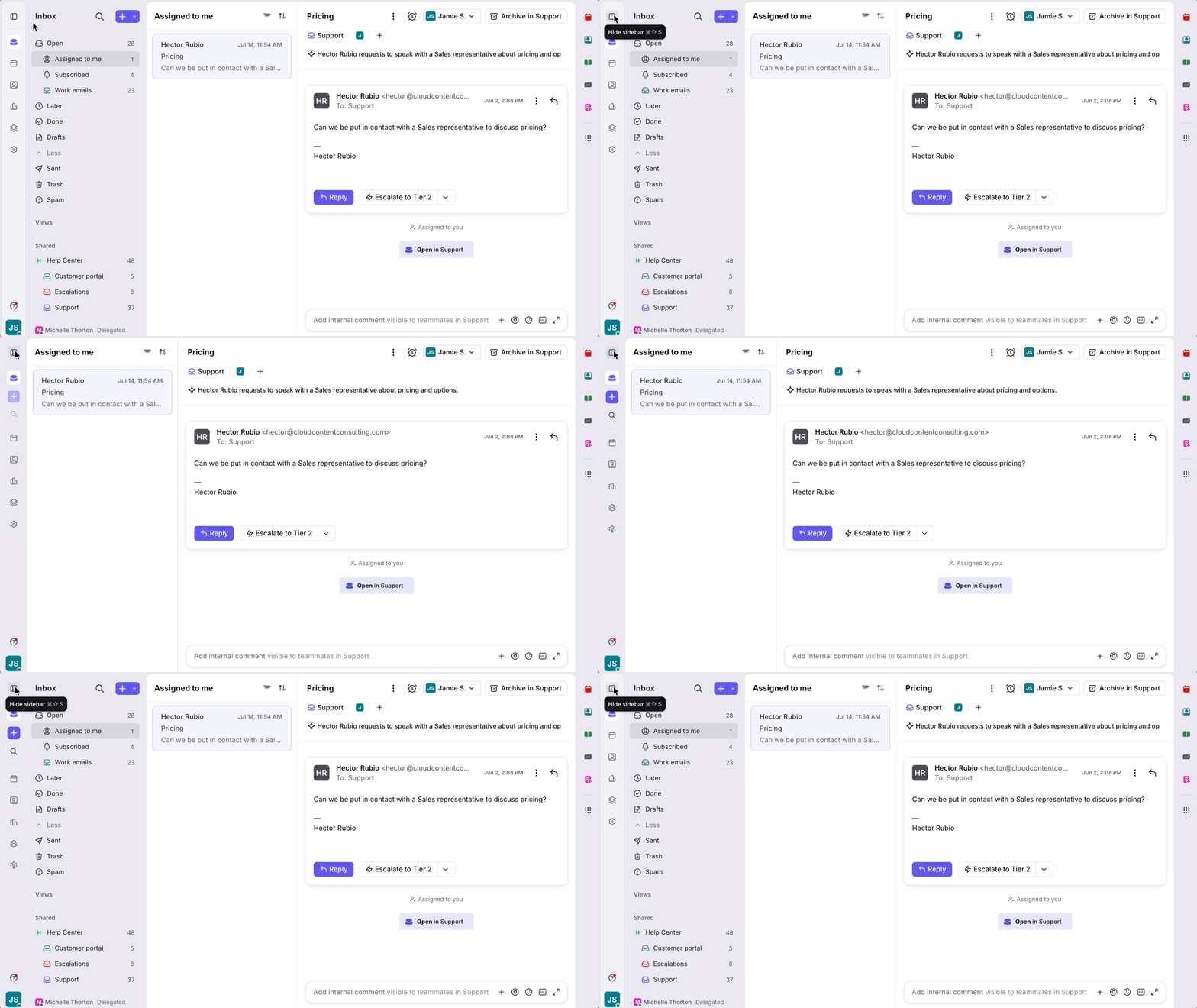
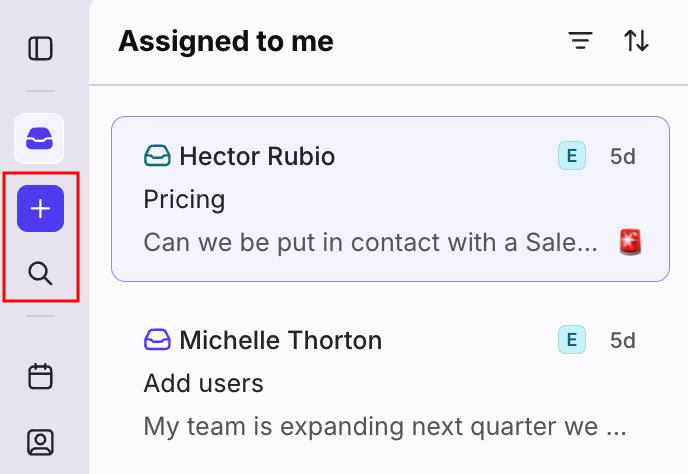
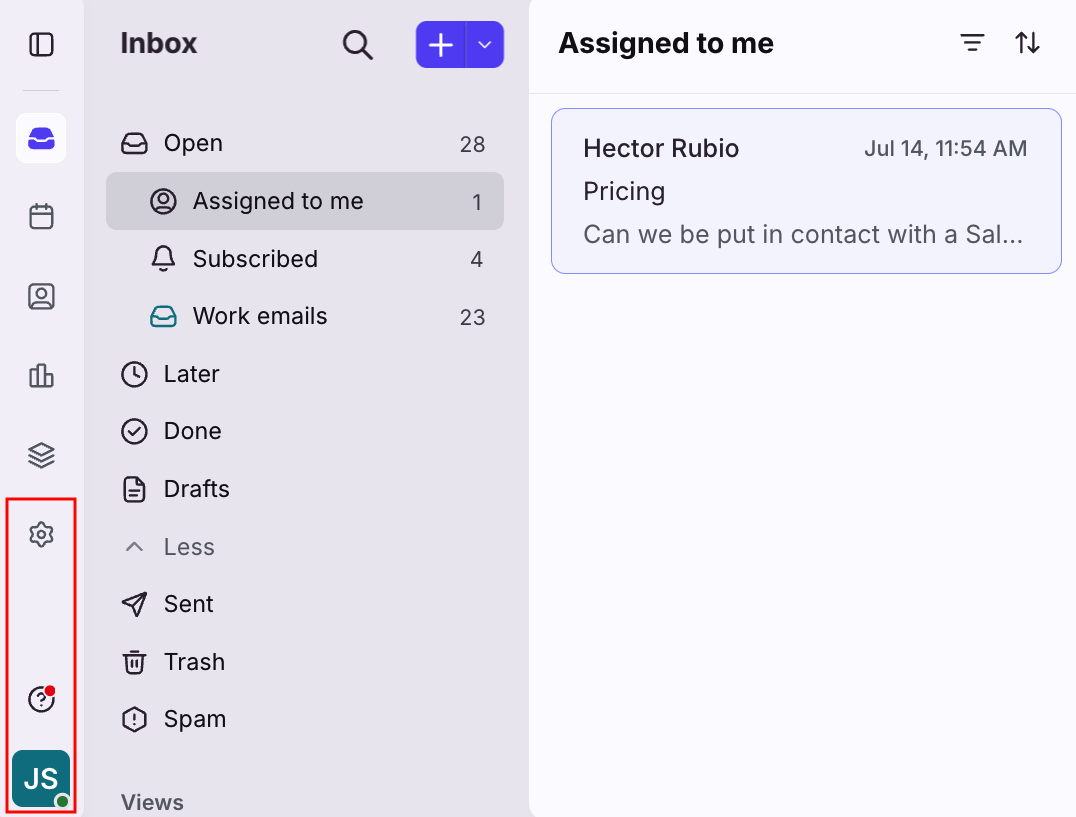
When collapsed, hover over the inbox icon in the sidebar to quickly reveal the hidden inbox sections. The New message and Search icons will also be available at the top of the navigation bar.
In settings, hover over the gear icon to reveal the hidden sections.
Create new conversations
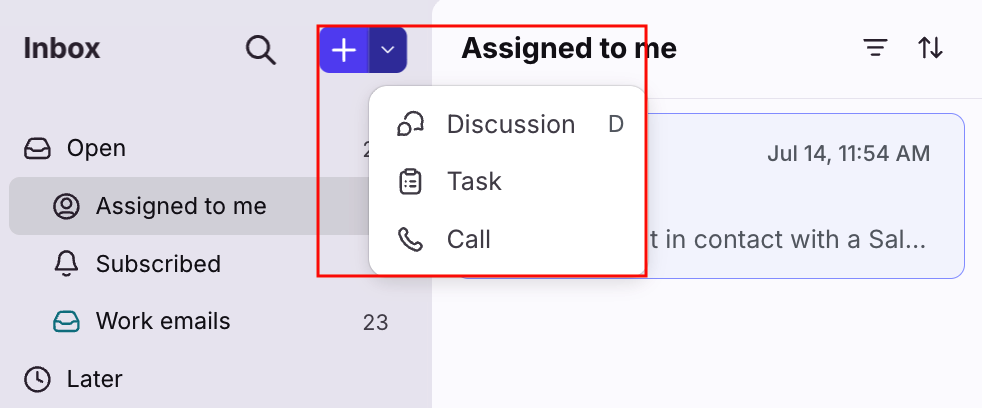
Use the plus icon (+) to start a new conversation, or click the arrow to start a discussion, task, or voice call.
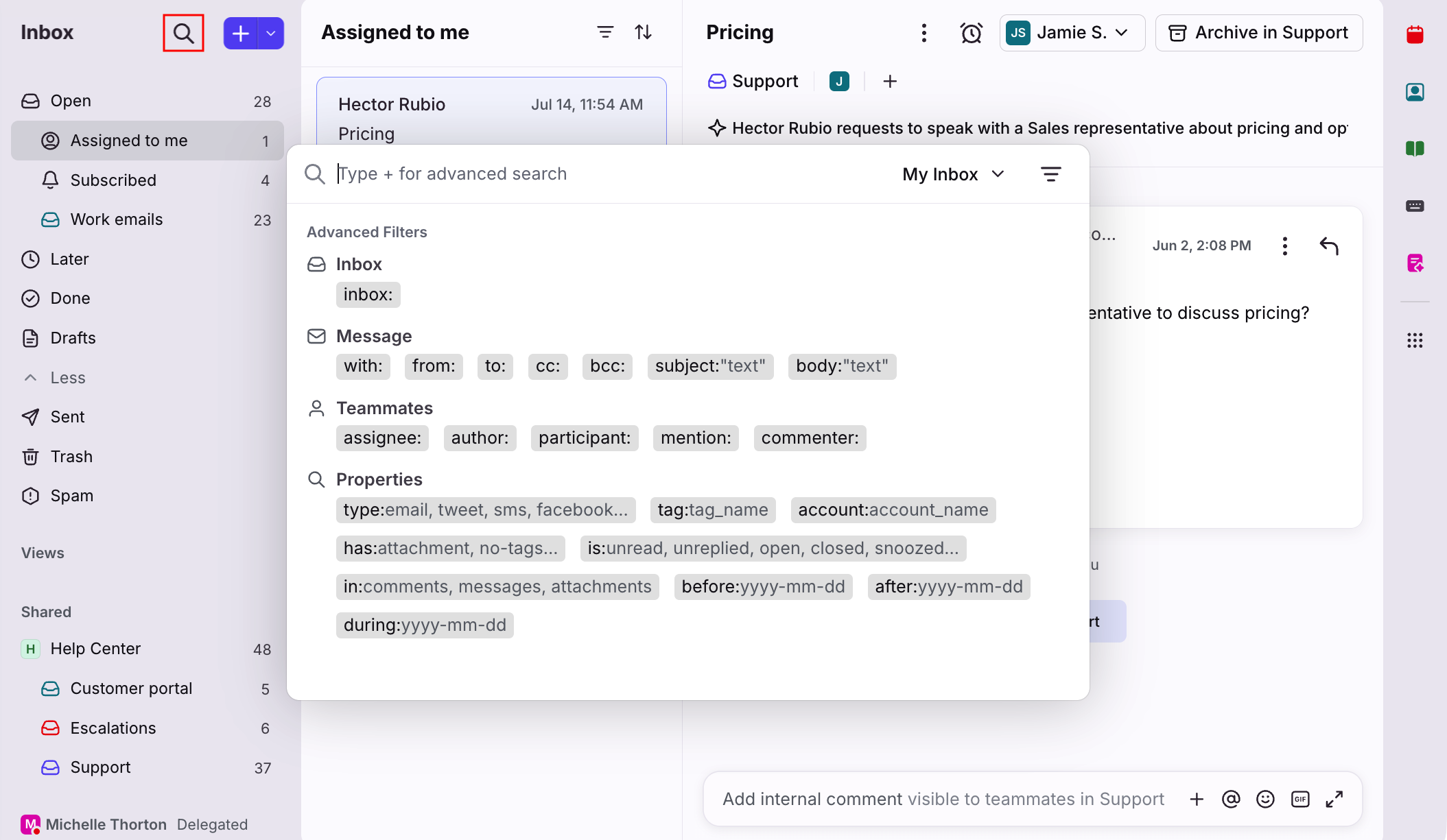
Search bar
Click the magnifying glass icon to access the search bar to look for specific conversations. This new location provides more vertical space for reading conversations.
Profile, Help, and Settings
At the bottom of the sidebar, set your availability status, access educational resources, or navigate to your settings and personal preferences.
Conversation list
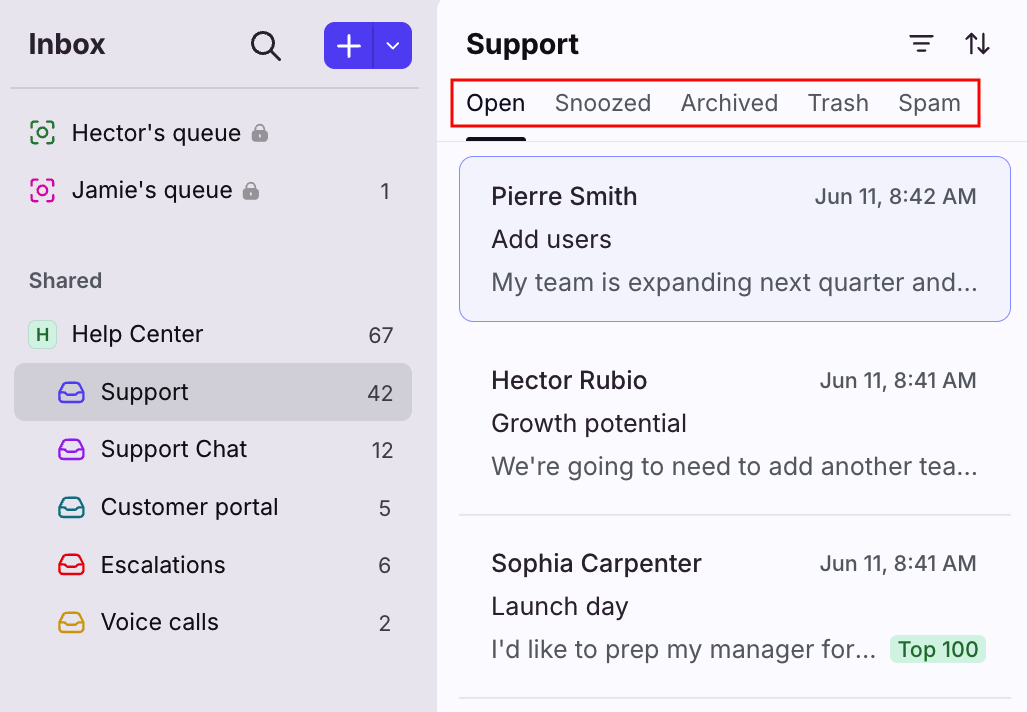
Status tabs
In your some sidebar sections, you'll see additional tabs to focus on specific conversation statuses.
See this article to learn more.
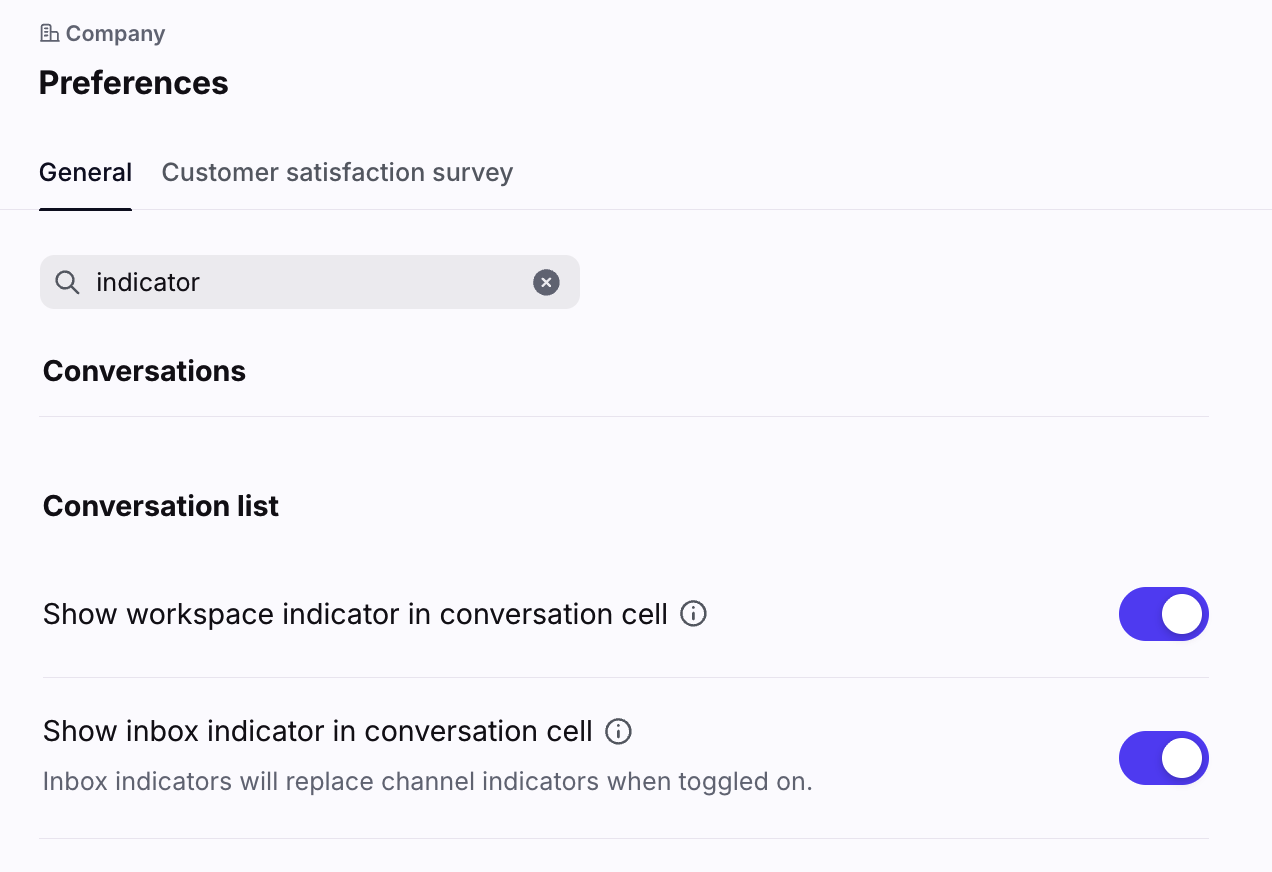
Inbox and workspace indicators
Easily identify the inbox and workspace a conversation belongs to at a glance. Hover over the indicator to see the full name.
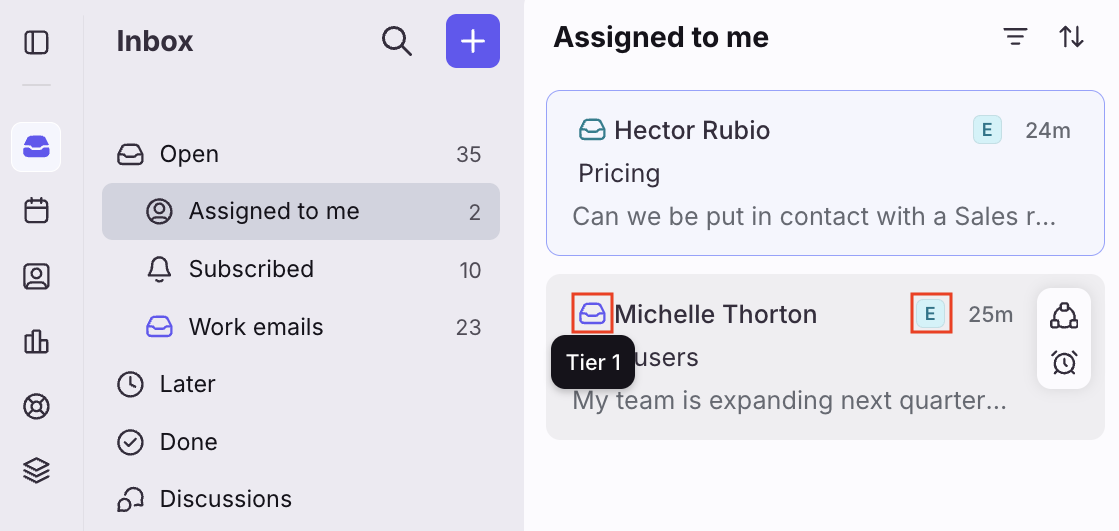
These company-wide settings can be toggled on or off by company admins.
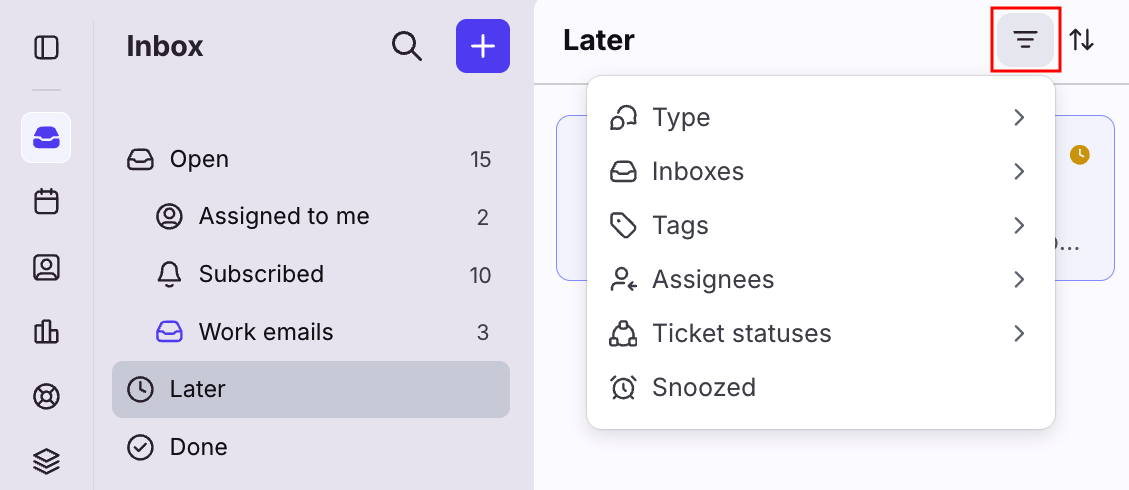
Filters
Use the filter icon to focus on specific inboxes, tags, or other attributes in your sidebar sections.
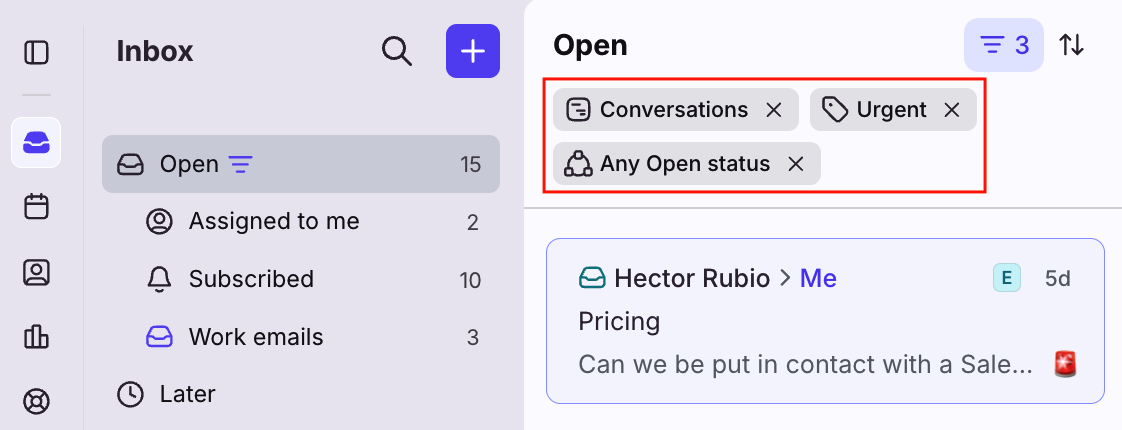
You’ll see the filters added to the top of your conversation list, where you can also clear them using the X icons.
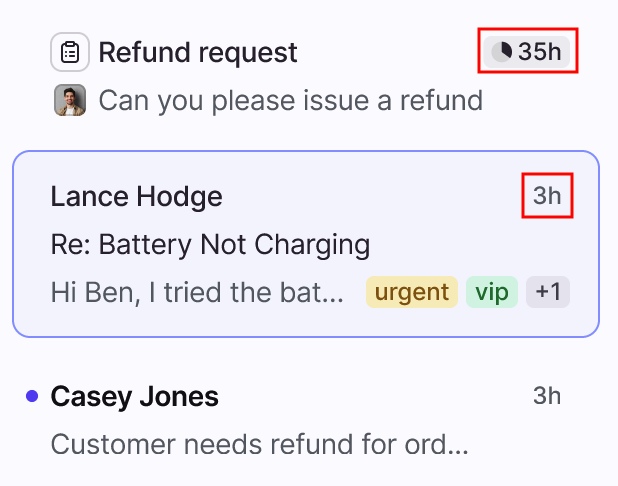
Message timestamps
Switch between relative time (3h), exact time (Dec 1, 12:30 PM), and time goals (new!) for individual conversations in your conversation list.
Conversation header
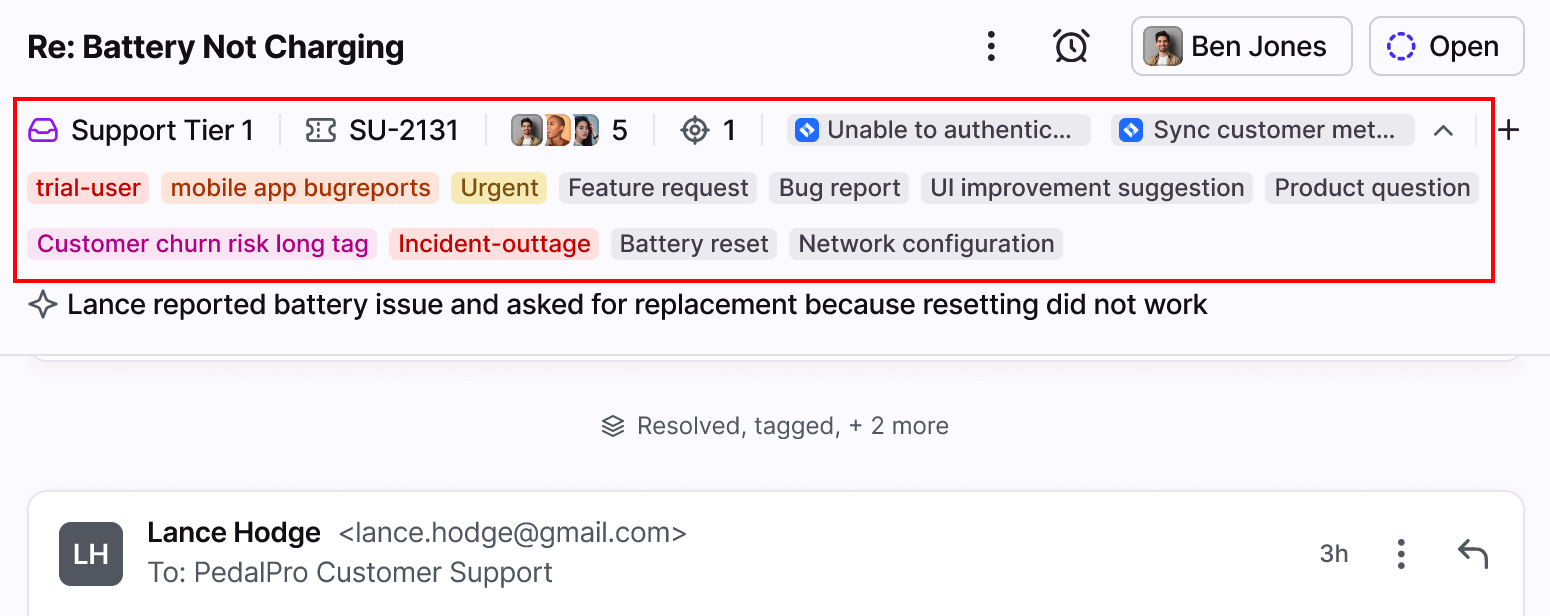
The compact conversation header allows you to see key details at a glance. Add and view information like tags and custom fields for context on the conversation.
Expand the conversation header to see all tags and application objects attached to the conversation. You can see up to three lines total worth of information.
FAQ
Can I switch back to the old inbox experience?
No. As of February 9, 2026, the option to toggle between the new and old inbox experience has been removed. All users are now on the newest design, which we've improved based on your feedback.
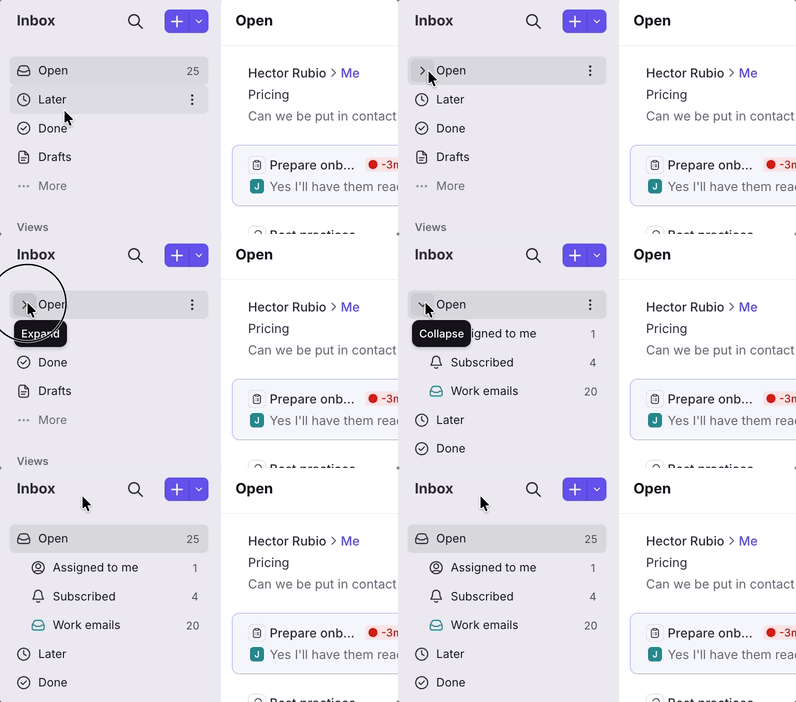
Where are my Assigned to me, Subscribed, and individual inbox sections?
Hover over the Open section and click the arrow to expand the section and view your Assigned to me, Subscribed, and individual inbox sections.
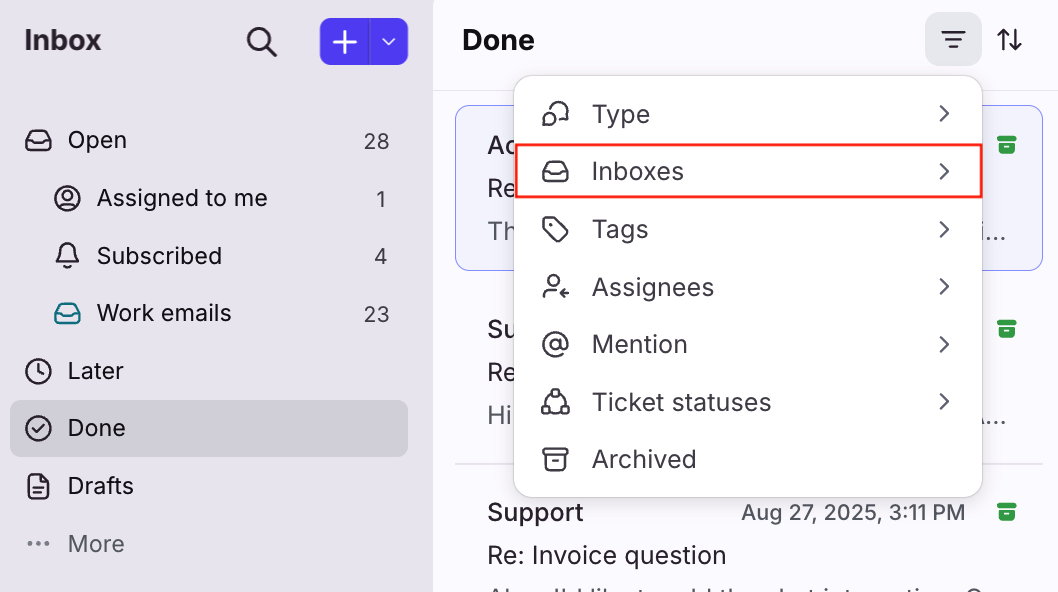
Where are the archived conversations in my individual inbox?
Click the Done section, then click the filter icon at the top of your conversation list. Click Inboxes, then select your individual inbox.
Are there new shortcuts?
Yes. There are new keyboard shortcuts for the navigation menu. See this article to learn more.
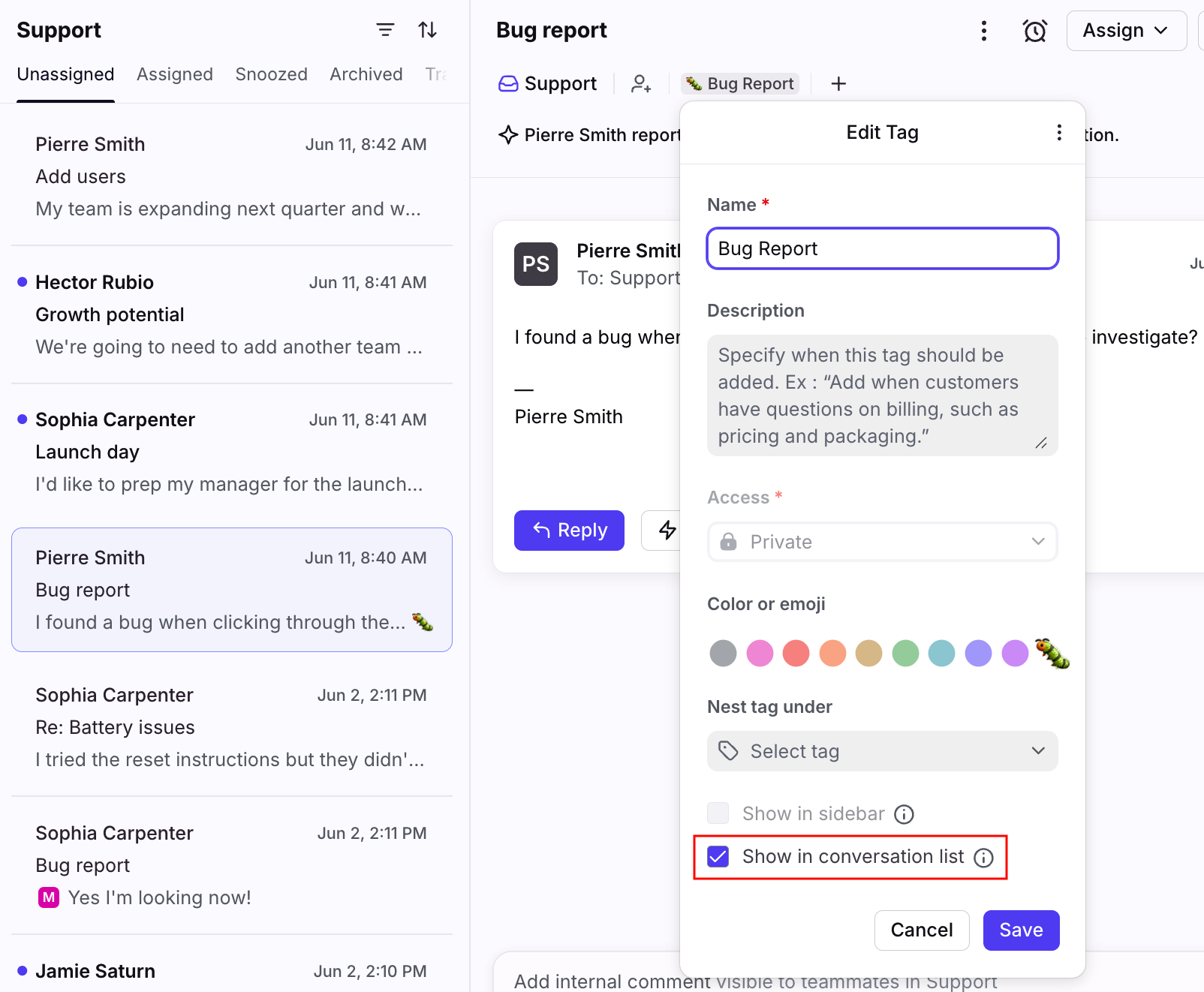
How do I prioritize tags shown in the conversation list and header?
Enable the Show in conversation list setting in your tag see it in your conversation list and header.
How do I share feedback?
Thanks for helping us improve Front! To share feedback, please visit our Front Community group, or reach out to your account manager or our Support team.