
Time off
Overview
Planning a vacation or time away from work? Schedule time off in Front to automatically set yourself as out of office, update your shifts, and reply to your personal emails while you're away.
Time off auto-responders are available for individual email channels only. See this article to learn how to create an out-of-office reply for shared inboxes.
How it works
Features
Automatically change your Front status: At your specified Start time, your status will change to Out of office. At the End time, your status will switch back to Available. If you're using shifts or Workforce Management, see the Time off & shifts section below for additional details.
Send auto-responses: If you've enabled a time off auto-responder, any inbound message sent to the channel you've selected will begin receiving your auto-responder's message as a reply, once every 4 days at most. The auto-responder will automatically stop sending after your specified End time. If needed, you can disable the auto-responder at any time to pause it.
Set auto-responses for multiple channels: If you have multiple individual channels, you can select more than one channel in your time off auto-responder settings, or you can create separate auto-responders for different channels.
Time off & shifts
At your specified time off Start time, your status will change to Out of office. At the End time, your status will switch back to Available, unless you belong to a shift and the End time is outside of your shift hours.
If you're in an active shift, your status will not switch to Available if you have scheduled time off. If you manually set your status as Available during your time off, your shift will set your status to Out of office when the shift ends.
During your time off, your analytics are calculated based on workspace or inbox business hours instead of your shift hours.
Instructions
Step 1
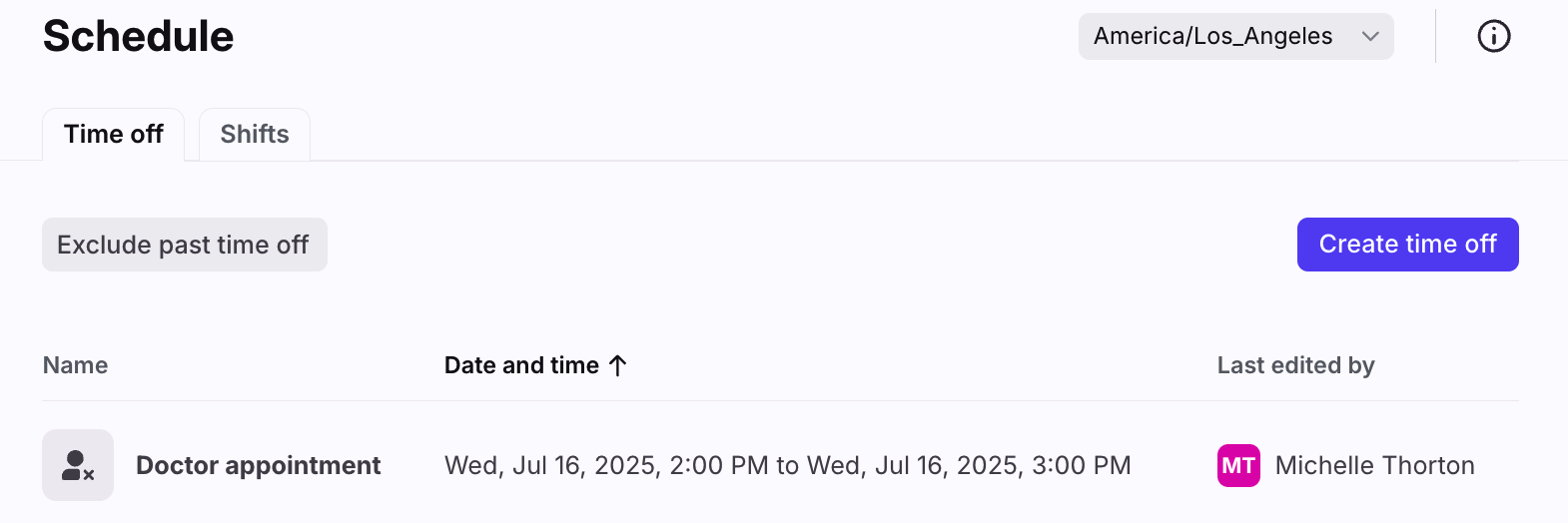
Click the gear icon and navigate to your personal settings. Select Schedule in the sidebar, then click Create time off.
Step 2
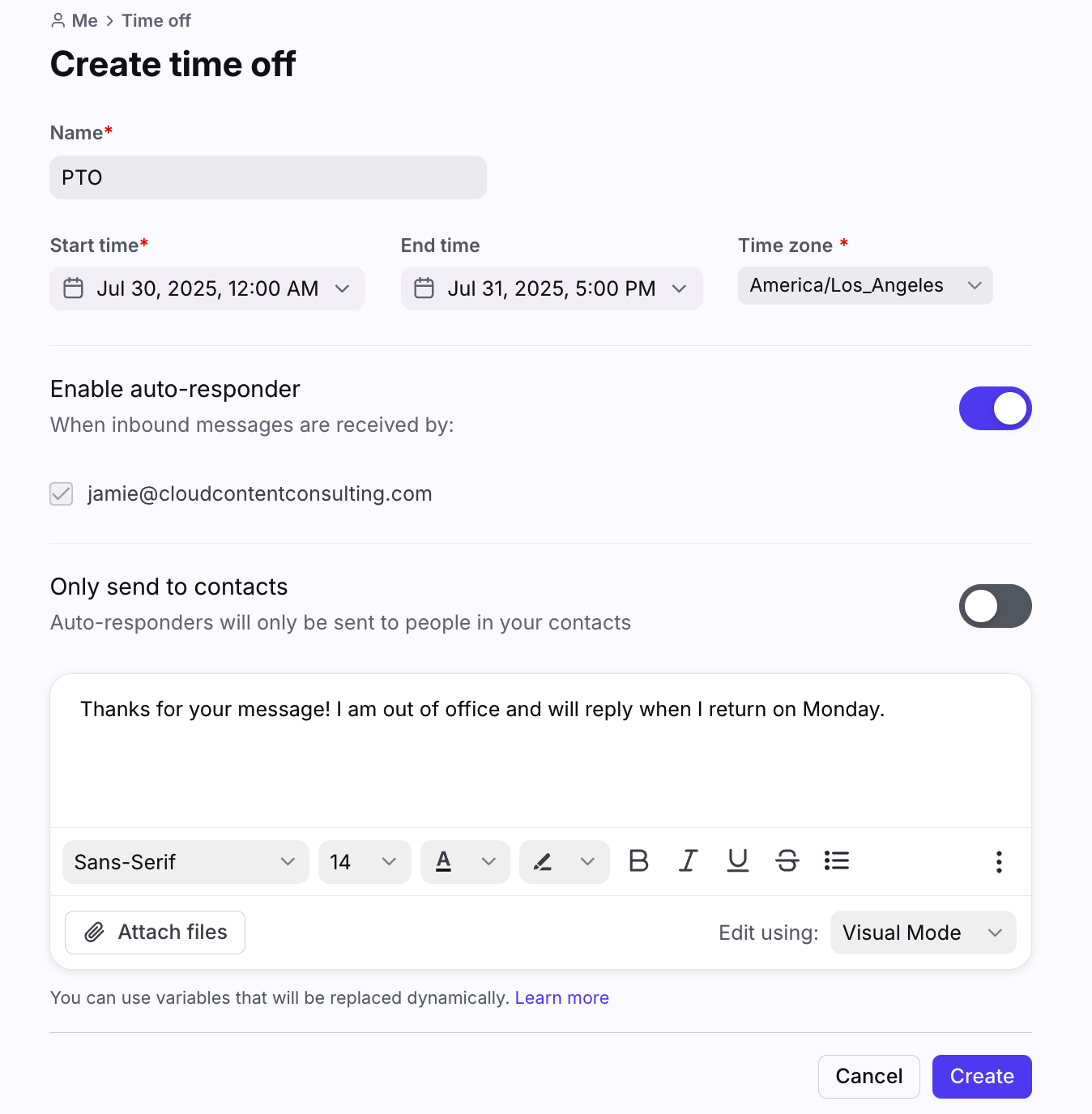
Fill out the fields:
Name: The name will not appear anywhere on the recipient's end.
Start time: Select the date and time you'd like your time off to start.
End time: Select the date and time for the last day of your time off. If left blank, the time off auto-responder will run indefinitely.
Enable auto-responder (optional): Select if you want auto-responses to be sent during your time off. If enabled, select the individual channels the auto-responder should apply to.
Only send to contacts: Toggle on if you only want the auto-responder to be sent to people in your contacts.
Text box: Write the contents of your auto-response. You can also use variables that will be replaced dynamically.
Step 3
Click Create.
Step 4 (optional)
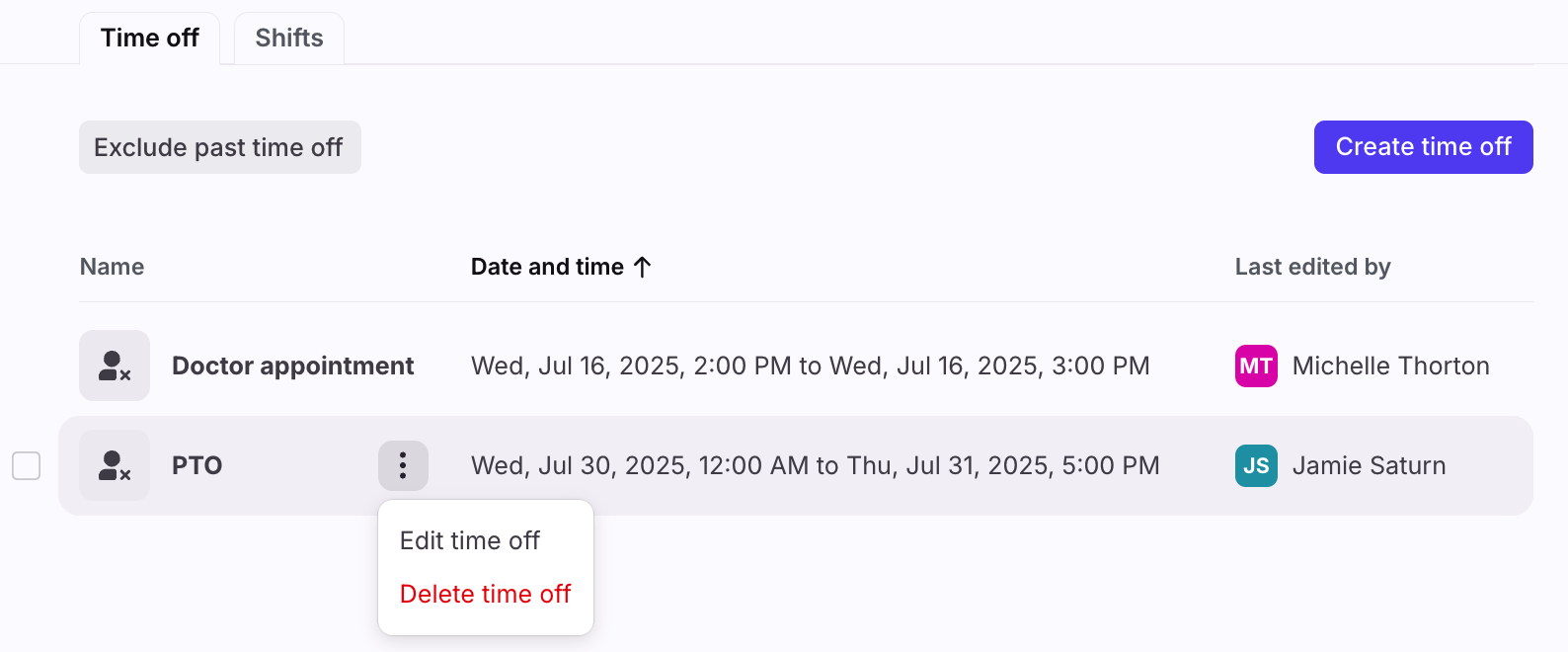
You can edit or delete your time off at any time by clicking on your time off, or using the three-dot menu.
FAQ
Why isn't my auto-responder working?
An auto-responder may fail to reply to messages. There are some reasons why this might happen:
The inbound message was auto-generated. Front will not send any auto-responses to auto-generated messages.
That recipient received your auto-response within the last 4 days. Front will only your send auto-response to a recipient at most once every 4 days.
The inbound message was not addressed directly to your channel. For example, if support@acme.com is my email address (and the channel connected to Front), emails sent directly to support@acme.com should generally receive auto-responses. If help@acme.com is an alias of support@acme.com, emailing help@ will deliver messages to Front via my support@ channel, but no auto-responses will be sent.
Similarly, if I receive messages via a distribution list, those emails will be addressed to the distribution list, and not my channel, so while I will receive those messages in Front, no auto-response will be sent.
Are analytics affected if I add time off for a past date?
No. Front considers the time off settings at the moment the event occurs. If you set time off for a past date, those events have already been processed and the metrics won't retroactively update.
What if I manually change my status during my scheduled time off?
If you manually change your status to Available during the time off period, you will remain Available for the remainder of the time. The auto-responder will still reply to messages when you are set to Available during the time off period.
If you manually change your status to Available, then back to Out of office during your time off period, you will remain Out of office for the remainder of the time. Your status will automatically change to Available on the time off end date.
Pricing
Time off is available on all plans. Shifts is available on the Enterprise plan.