
Troubleshooting Salesforce
Overview
This article contains frequently asked questions and common errors and solutions for troubleshooting Salesforce integration issues.
FAQ
Which licenses work with the Salesforce integration?
To use the Salesforce integration, you must use a license type that has API access enabled. Additionally, because Front interacts with specific standard objects, your license must have permission to access those objects.
We currently support two main license types, but their level of access differs:
Feature/Object | Salesforce License | Platform License |
API Access | Required | Required |
Accounts & Contacts | ✅ Supported | ✅ Supported |
Tasks | ✅ Supported | ✅ Supported |
Leads | ✅ Supported | ❌ Not Available |
Opportunities | ✅ Supported | ❌ Not Available |
Cases | ✅ Supported | ❌ Not Available |
Choosing the right license
Salesforce License: Provides full access to all integrated objects (Leads, Opportunities, Cases, etc.). This is required if your team needs to manage sales pipelines or support tickets within Front.
Salesforce Platform License: Ideal for users who only need to sync and view Accounts, Contacts, and Tasks. Users with this license will not be able to view or interact with Leads, Opportunities, or Cases.
Please check Salesforce's documentation to see which specific editions include API access by default.
Which channels work with Salesforce?
Salesforce only matches records for email, SMS, and voice channels. It shows related records for the:
Email address of the sender of an open conversation
Phone number of the sender of an open conversation
If we cannot find an exact match for the email, we will try to find an Account that matches that domain. E.g. If mary@acme.com doesn’t exist in Salesforce, Front will then show records tied to @acme.com email addresses.
When a conversation is between multiple senders or CC’ed recipients, Salesforce will only show related records for the first address or number in the list. You can look up records for other contacts with the Search field.
Can I log in with a sandbox account?
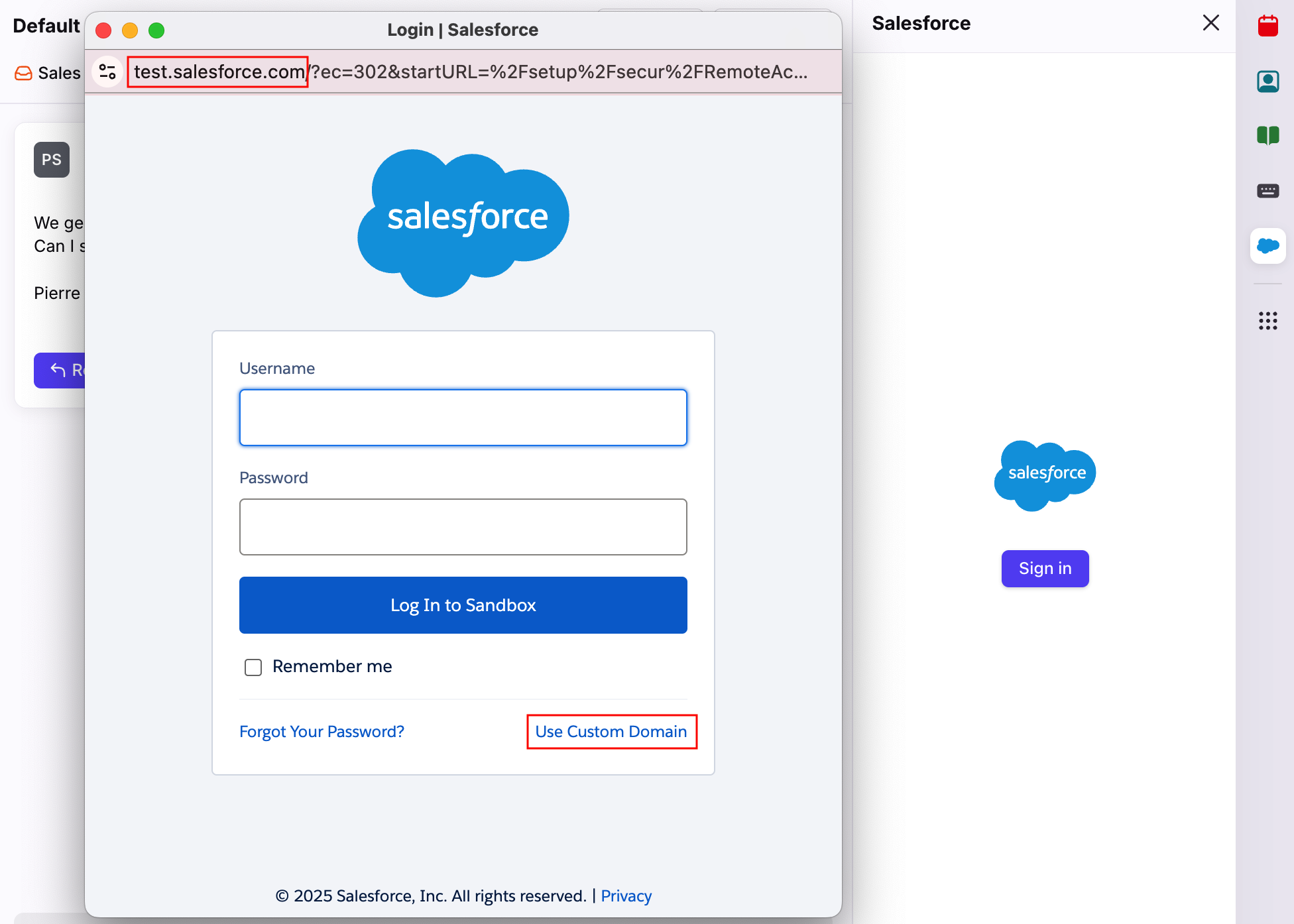
Yes. To sign in to a sandbox (developer) account, hold the Shift key on your keyboard and click the Sign in button in the Salesforce plugin. This will open the authentication window pointing at test.salesforce.com. Enter your sandbox login credentials.
If you prevent user logins from https://login.salesforce.com in production through My Domain settings, the sandbox prevents user logins from https://test.salesforce.com by default. In this case, select Use Custom Domain in the authentication window and enter your domain.
Do I need special API Permissions?
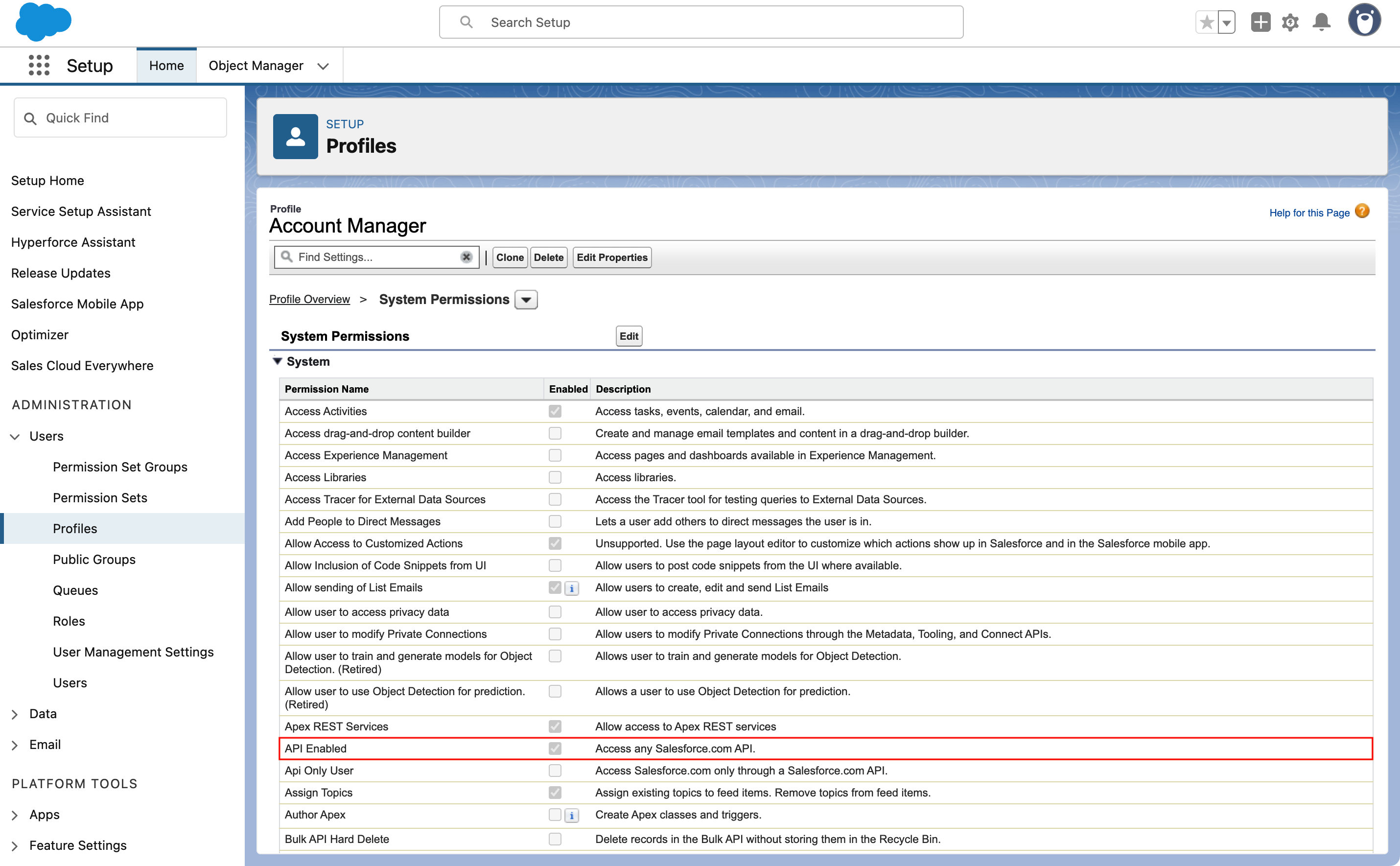
All Front teammates that use the Salesforce integration will require the "API Enabled" permission on their Salesforce user. That permission will give your user access to the Salesforce API, which the Front integration uses.
To enable, as a Salesforce admin:
Click the gear icon at the top, then select Setup.
Under the Administration section in the left sidebar, expand the Users section, then select Profiles.
Click the profile name you want to edit.
Select System Permissions.
Click Edit, then check the box next to the API Enabled setting.
Click Save.
Does the Salesforce API quota impact my integration?
To use this integration, you will also need to be on a Salesforce plan with API access and sufficient API request quota.
Every time Front surfaces information from Salesforce or performs an action on your behalf, it makes API requests to Salesforce. Depending on your Salesforce plan, you might be subjected to an API quota: your organization is only allowed to make a certain number of API requests every day.
Our implementation tries to limit the number of Salesforce requests as much as possible. For example, the plugin panel will only make requests if it is actually visible: if another integration is selected or if the panel is closed, Salesforce will become inactive. However, know that Salesforce rules will generate at least one request every time the rule triggers.
You can review the limitations on the Salesforce documentation.
What happens if my integration credentials are rejected?
If your integration credentials are rejected by Salesforce, or if your company hits the API request limit you have for Salesforce, your rules will fail. When this happens, you will see errors in Front. Example error: Some rules are failing because your Salesforce login is invalid. Update your credentials and test the rules again.
To fix the credentials errors, a company admin will need to update the integration credentials used in your Salesforce integration settings in Front. For the request limit errors, you will need to either increase your request limit with Salesforce or wait until your request limit cycle starts over.
What if I have someone saved as both a Lead and a Contact?
Front will prioritize the Contact record over the Lead, so the person will appear in the integration as a Contact. If you want to ensure they appear as a Lead, they should only be saved to your Salesforce as a Lead and not a Contact.
Why are all Salesforce Lead fields editable?
The Salesforce Lead section may contain fields like “Created by” or “Created date" that are shown in the integration as editable even though they may seem like values set by the system. The reason we show these as editable is that the permission Create Audit Fields is enabled within your Salesforce settings. This permission grants API editing access to these and other fields and means that Front also formats these as editable within the integration.
If you’d like to change this, you’ll need to reach out internally to your IT or Salesforce admin team to take a look at the permissions in your business settings.
How do I log out of the Salesforce plugin?
Open the plugin in the app switcher, click the gear icon at the bottom right corner, then click Sign out.
Errors
See an error message, “An Error Has Occurred”
Click Refresh Custom Fields in your field settings screen, or sign in and sign out of the integration. The reason being the custom objects need to be pulled in and we only do so when we have a hard refresh.
Users may see the custom object in their settings, but when enabled the plugin stalls
Check the Client Relationship name on the Parent Object. The Client Relationship name needs to match the API name of the custom object EXACTLY.
New custom object definition was created in Salesforce but it doesn’t show up in Front
Click Refresh Custom Fields in the field settings screen to pull in the latest custom objects.
See an error message, "Invalid type - verify custom objects configuration"
Your master-detail relationship is not configured properly. You need to have a master-detail on the parent and then a lookup on the custom object, pointing to the parent.
Unchecking custom objects under the parent object and adding them back one by one can help identify which custom object doesn’t have its relationship set up properly.
Check the child relationship needs to match
Saving a custom object fails
Please verify if there are validation rules on the custom object that may prevent the custom object from being created.
See an error message, "Unexpected field. Try updating custom fields"
A field in the custom object cannot be rendered (typically relationship fields e.g. Owner ID).
The custom object is not showing up in the parent card
The custom object needs to be set as visible in the parent object (e.g. Account). So you have to go to the visibility settings for the parent object and check your custom object. Additionally, Front will only pull in custom objects that are one level deep on default objects. Front will not be able to pull custom objects off of another custom object.
Existing custom objects cannot be removed from the parent
We do not support this, it should be removed in Salesforce. We can only remove custom objects when they have NOT yet been created.
I created a Contact when I created an Account, but I didn't get my Contact custom objects
This is by design. We create the custom object for the first record we create. So if you click Create Account, even if you create a contact from that flow (you can), we will only create the custom objects related to Account.
I see Created Date, Created By ID, Last Modified Date and Last Modified By ID as required fields when I try to create a record
This is a result of the Set Audit Fields upon Record Creation settings in Salesforce. According to Salesforce (article) this is a feature that should only be enabled when doing a data migration and is safe to turn off. To correct, disable the Set Audit Fields upon Record Creation and Update Records with Inactive Owners settings in Salesforce, then log out of the Salesforce integration and back in again.
You will need to go to the App store section in your Company settings in Front and sign out of the Salesforce integration, as well as sign out from the plugin for all teammates.
See an error message, "Verify custom objects configuration. Child relationship name should match Parent API name."
Currently, the only way the Front Salesforce integration will recognize the lookup relationship to a Parent object (Lead, Contact, Account, etc.) from a custom object is if the relationship field is named that same as the parent object, eg. Lead, Contact, etc. This setup requirement is covered in the Salesforce integration setup here.
If you continue to encounter errors, please contact our Support team so that we can assist.
See an error message, "OAUTH_APPROVAL_ERROR_GENERIC: An unexpected error has occurred during authentication. Please try again."
When logging into the Salesforce integration plugin, you may see this error along with the following parameters in the URL:
error=invalid_client
error_description=app must be installed into org
To resolve this error, your Salesforce admin must complete the steps outlined in this Salesforce article.