
Create Zoom meetings from comments
Overview
You can create a Zoom meeting link directly from the comment bar in your discussions or conversations in Front, and your teammates can join the meeting with you immediately from there! You no longer need to go into Zoom to generate a meeting link or send out an invite, saving you time to collaborate when it matters most.
Instructions
Admin steps
A company admin will need to first enable the Zoom integration for the whole company.
Step 1
Click the gear icon, navigate to company settings, and choose App store in the left sidebar.
Step 2
Select Zoom from the list of integrations, then click Enable.
End-user steps
Step 3
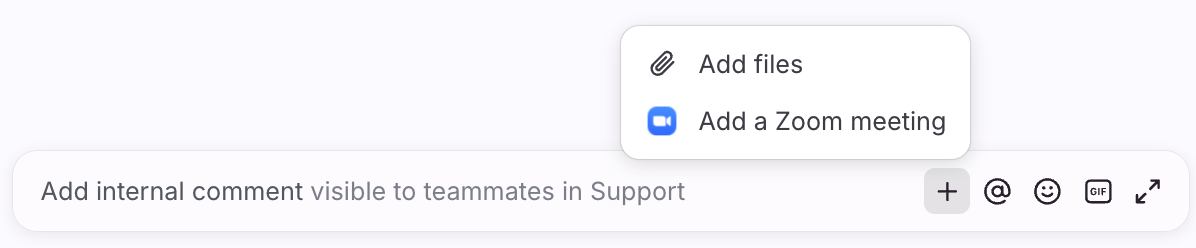
Navigate to any conversation or discussion in Front, and click the (+) plus icon in the comment bar. Select Add a Zoom meeting.
Step 4
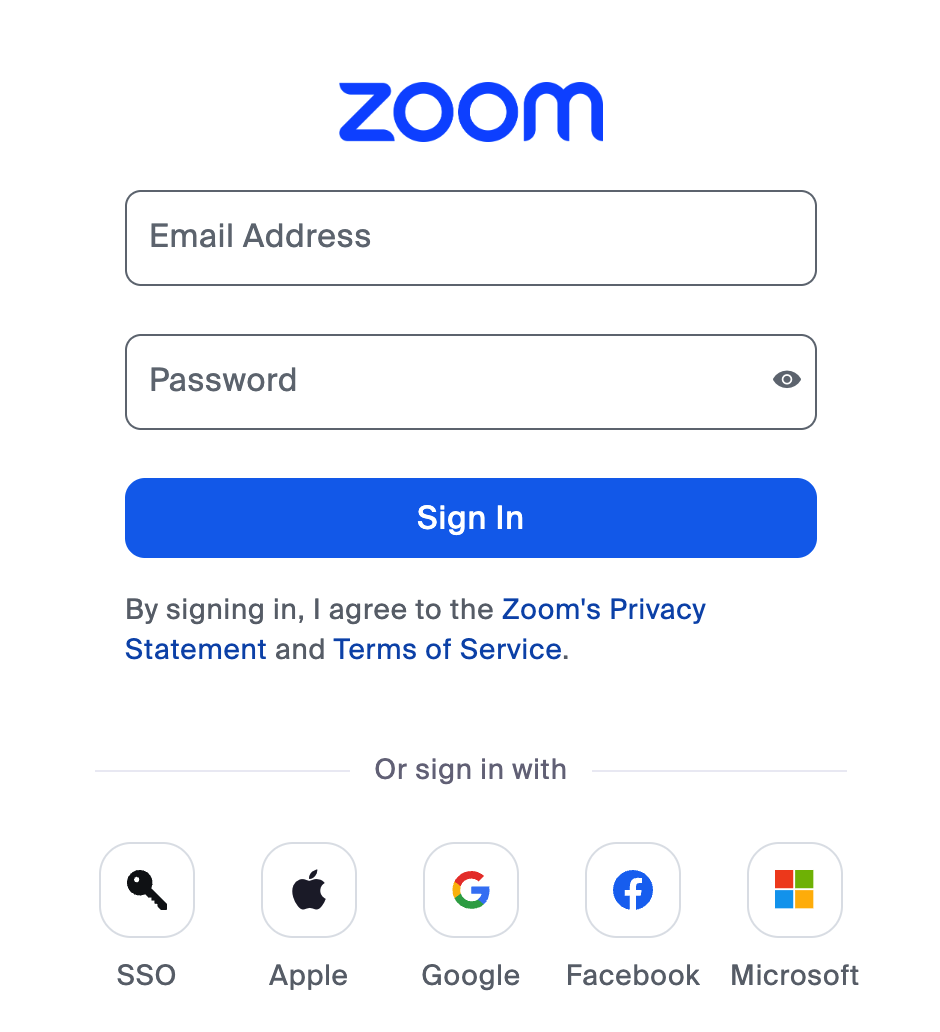
The first time you use this feature, you will see the Zoom sign-in screen, where you will enter the Zoom account credentials you want to connect.
Step 5
Once signed in, repeat Step 1 by clicking the plus icon (+) and clicking Add a Zoom meeting. You'll see a unique Zoom link populate in the comment field, which you can send to your teammates. Remember to @mention your teammates to get their attention if needed!
Every time you use this feature, you'll generate a new, unique Zoom link.
