
Calendar in-app reminder notifications
Overview
Front’s in-app calendar reminder notifications are a helpful way to stay on top of your schedule. You can set a reminder time for calendars or specific events and Front will send you a desktop notification before your events. In this article, we’ll walk through how to customize notifications for calendar and events.
Set default reminder notifications for a calendar
Step 1
Open your calendar by selecting Calendar in the navigation menu.
Step 2
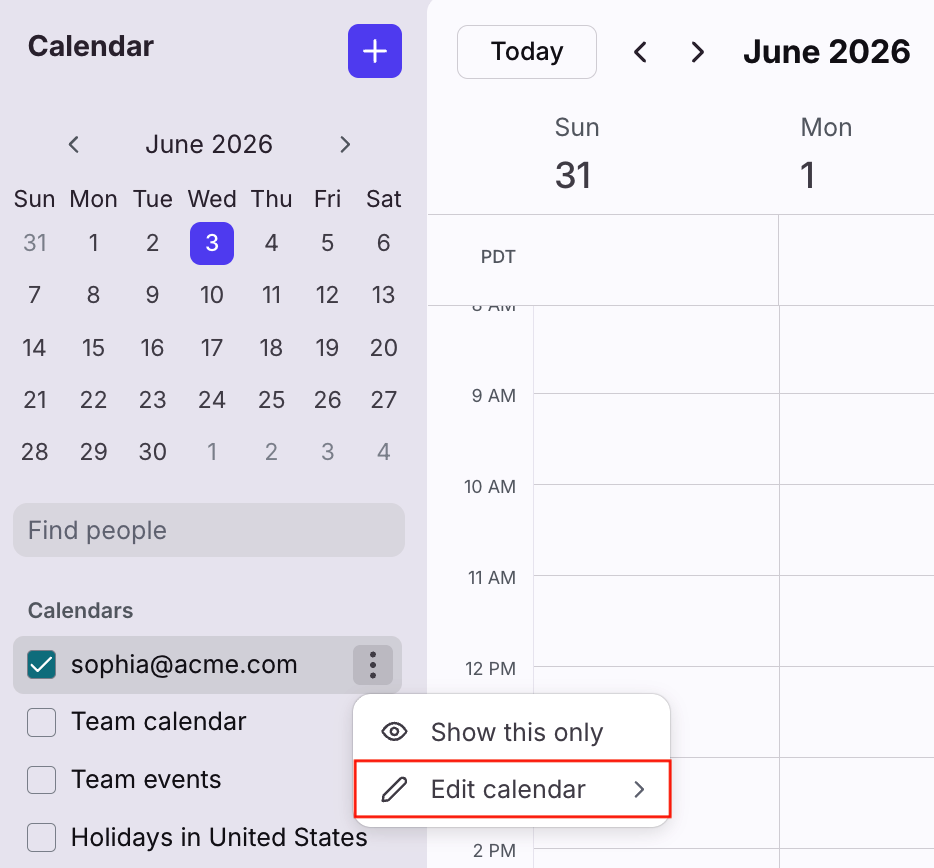
In the calendar list on the left side, hover over the calendar you want to edit reminders for, click the three-dot icon, and then select Edit calendar.
Step 3
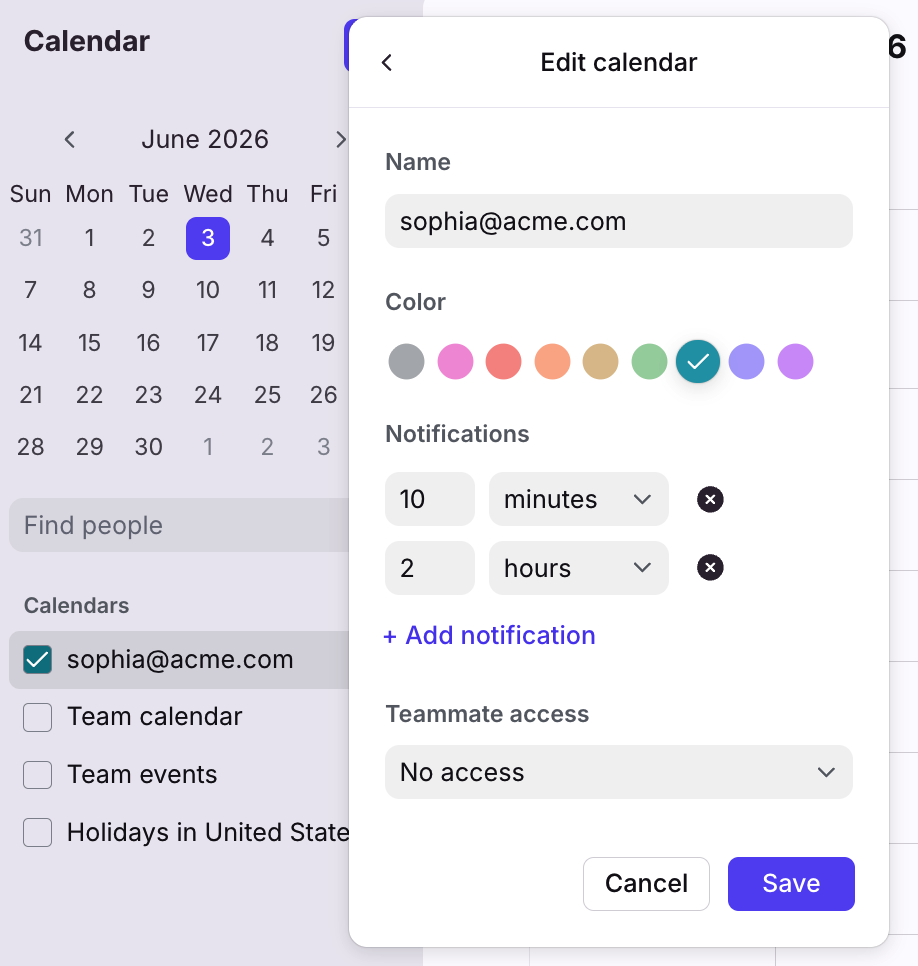
From the edit menu, add or remove notifications for this calendar. Front supports up to 5 reminders for a single event and the time of the notification can range from 0 minutes to 4 weeks before the start of the event.
Step 4
Click Save to finish.
Note: The default notification settings that you set up in Front only pertains to push notifications. To set up default notifications as email reminders, you'll need to edit the notification settings in Google or Office 365.
Set specific reminder notifications for an event
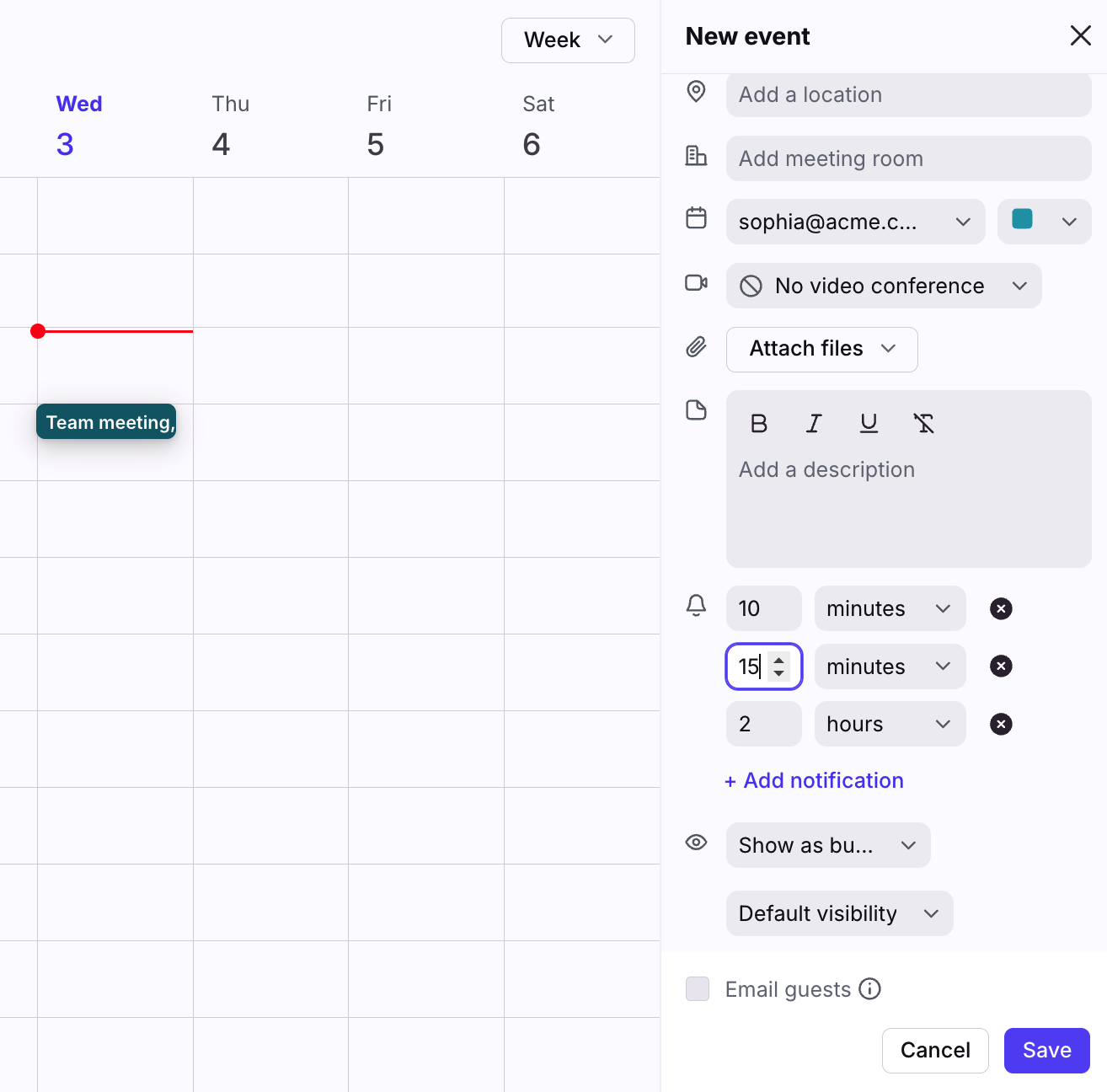
For some events, it can be helpful to have reminders that differ from the default reminder settings of the calendar. Front also supports event-specific reminder overrides, which can be edited when creating or editing a calendar event. Simply open the event and adjust the reminder time.
Calendar reminders on mobile
Reminder notification settings are synced only when an event is first created. Changes to reminders made after creation, in either Front or your provider's calendar app, will not synchronize between the two.
To enable or disable calendar notifications in the mobile app, tap the sidebar icon at the top left, then tap the gear icon. Under Notifications, toggle on/off Calendar - Reminder notifications.
To view all of Front's mobile calendar features, see this article.
Dismiss notifications
Front calendar notification behavior will vary depending on your device and the app you use to log in to Front.
Mac users
Browser:
Google Chrome, Microsoft Edge, Opera: Calendar notifications will stay on your screen until you manually dismiss them
Safari, Firefox: Calendar notifications will automatically dismiss after a short time
Desktop app: Calendar notifications will automatically dismiss after a short time
Windows users
Browser:
Google Chrome, Opera: Calendar notifications will stay on your screen until you manually dismiss them
Microsoft Edge, Safari, Firefox: Calendar notifications will automatically dismiss after a short time
Desktop app: Calendar notifications will stay on your screen until you manually dismiss them