
Using spell check with Front
Overview
If you're using Front on your web browser, Front uses your browser's built-in spell checker. If you're using the desktop app, Front uses your computer's (operating system's) spell checker. In both cases, spell check is provided by the browser or OS — not by Front itself.
You can also use Grammarly’s desktop app or browser extension for suggestions on spelling, punctuation, and grammar correction.
Instructions for Mac
Desktop app (Mac)
Step 1
Navigate to System Settings, then select Keyboard.
Step 2
Scroll to the Text Input section, then click Edit.
Step 3
Choose your language from the Spelling dropdown menu.
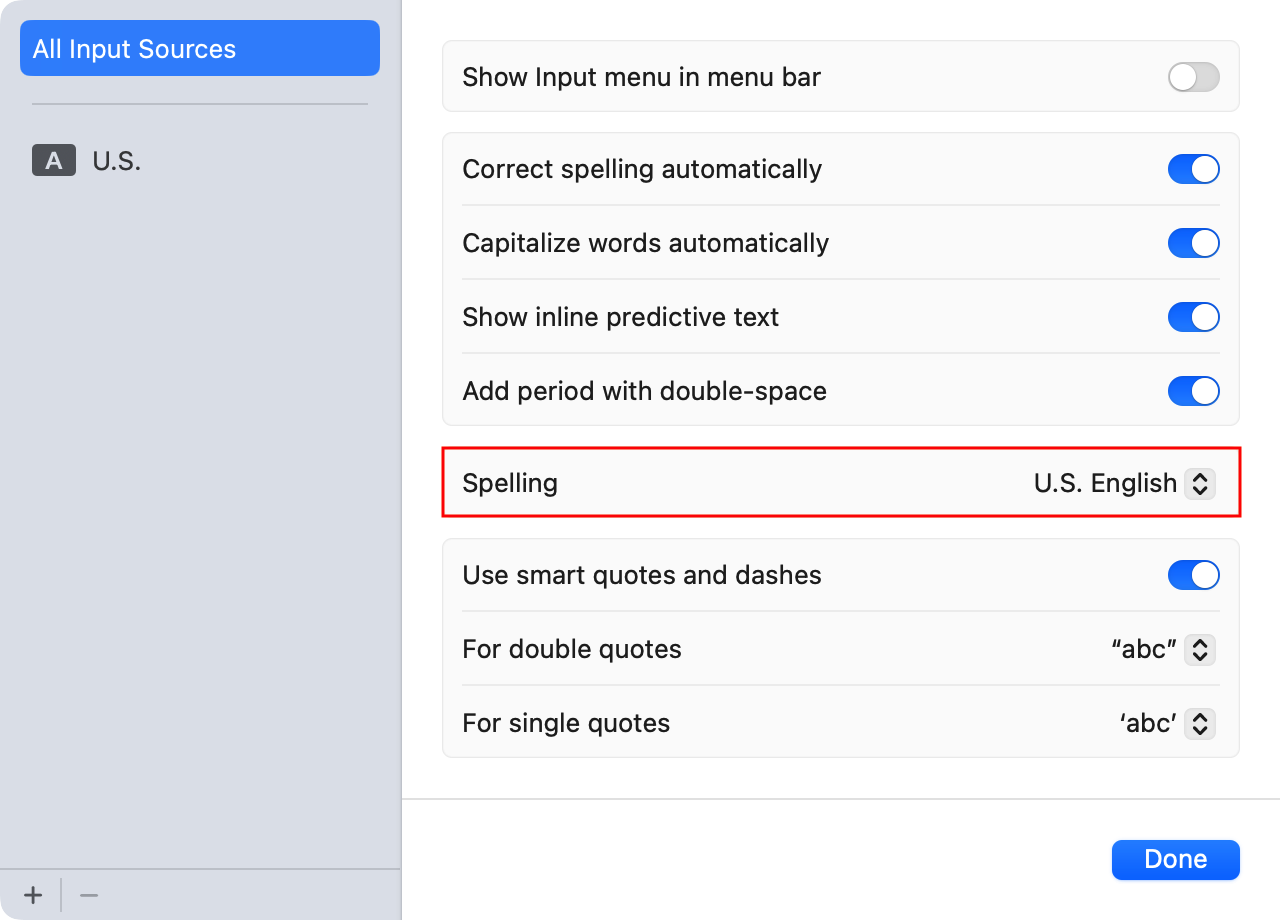
Step 4
Click Done to save your changes.
Browser (Mac)
This example uses Google Chrome.
Step 1
Highlight a word in the composer, then right-click it.
Step 2
Select Language Settings.
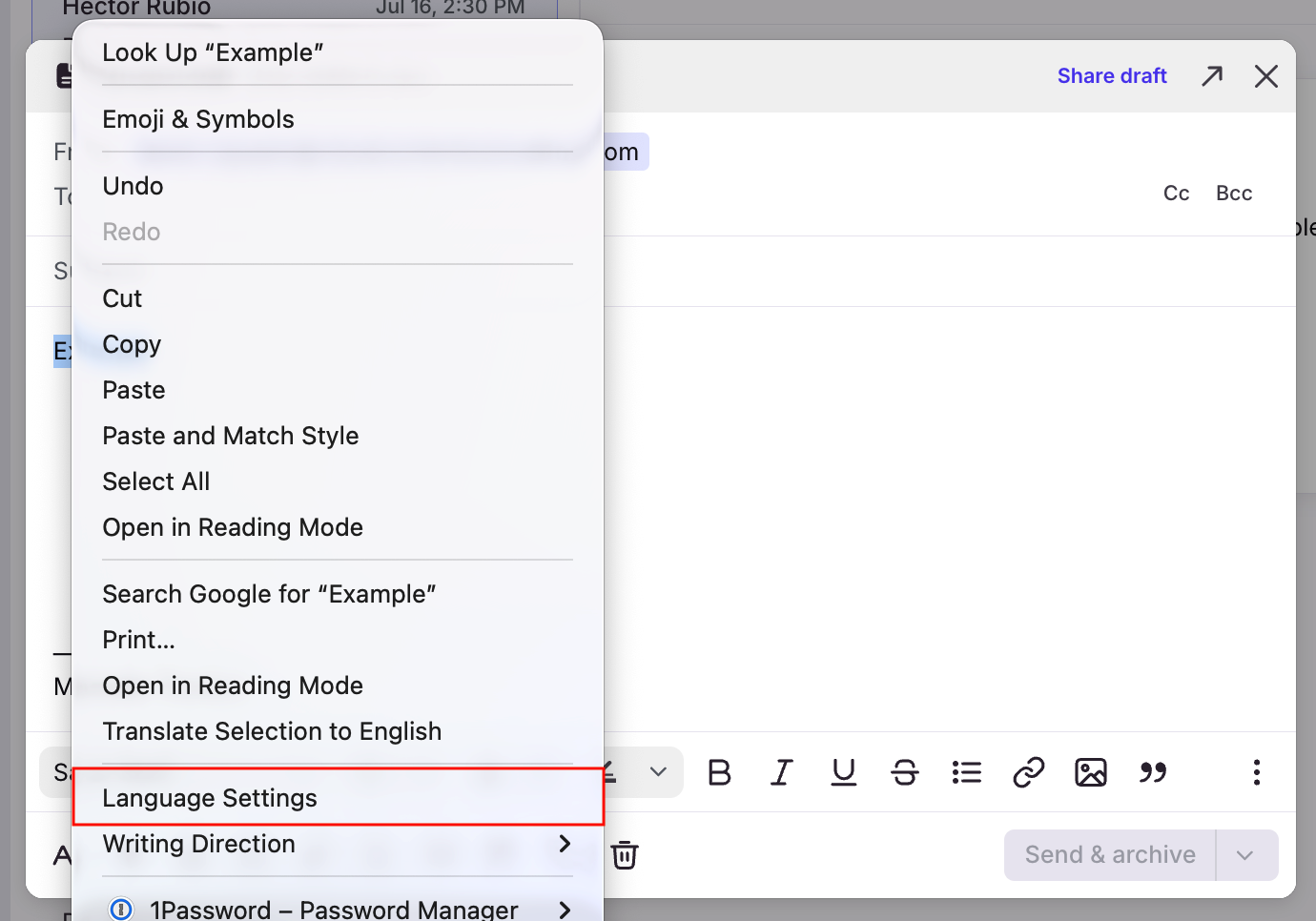
Step 3
In your language settings, select your preferred language and ensure the spell check feature is toggled on.
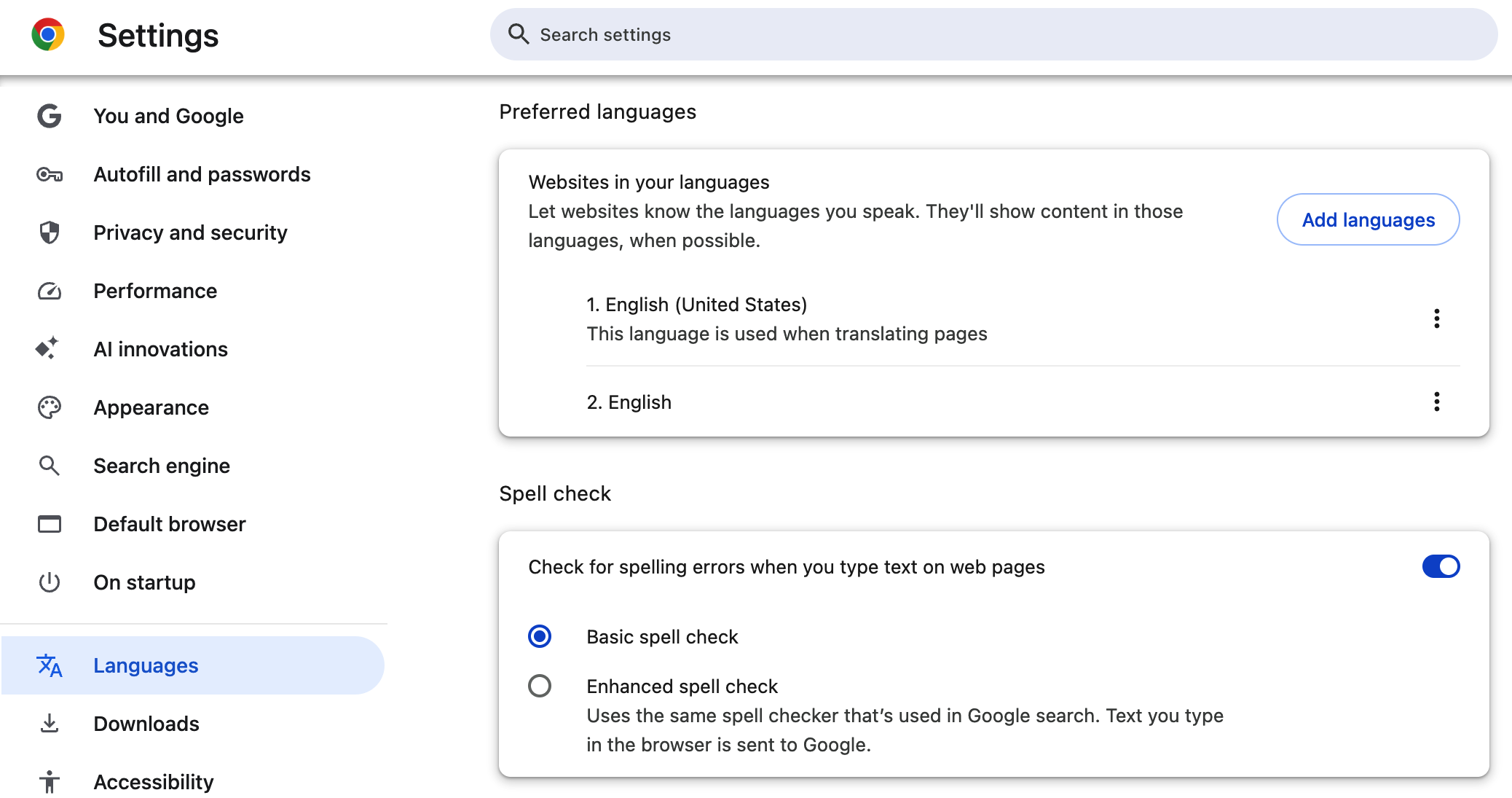
Instructions for Windows
Desktop app (Windows)
Step 1
Highlight a word in your composed message.
Step 2
Right-click the highlighted word.

Step 3
Hover over Languages to expand the list of supported languages.
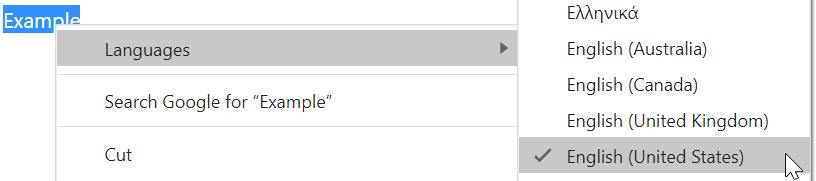
Step 4
Choose a language.
Note: On some Windows machines, you may need to add a language to your dictionary. To do this, go into your computer Settings and select Language & region.
If you have a language selected, spell check will underline the misspelled word, but not change it automatically.
Browser (Windows)
This example uses Google Chrome.
Step 1
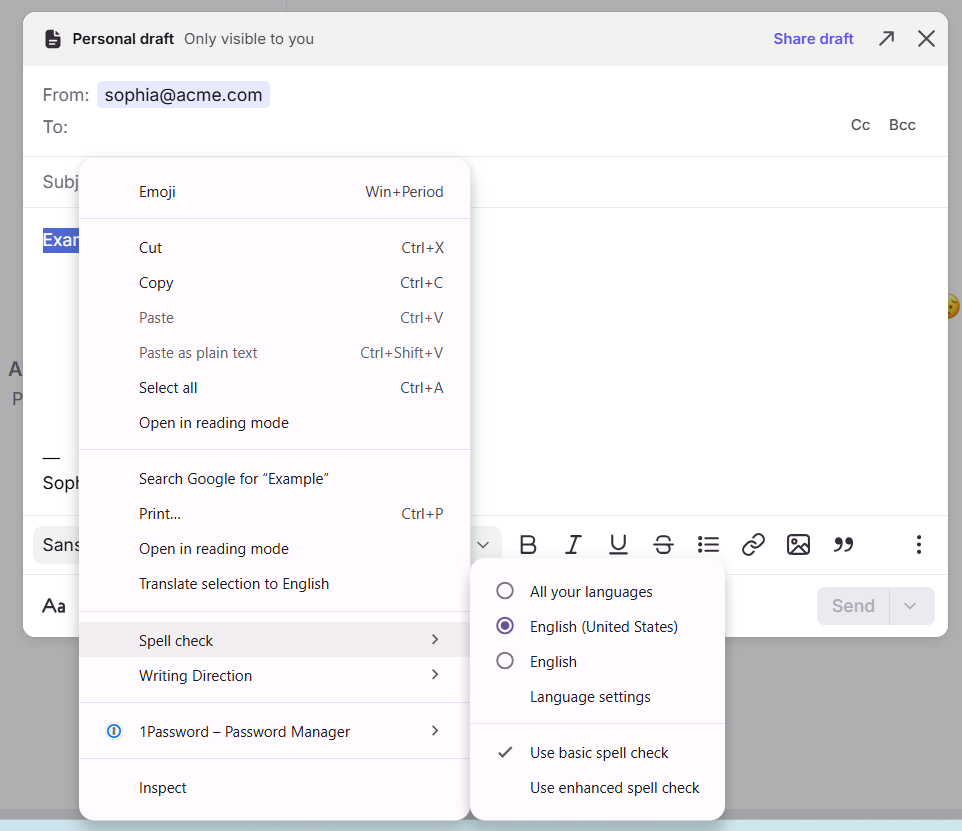
Highlight a word in the composer, then right-click it.
Step 2
Hover over Spell check, then select your preferred language and ensure the spell check feature is toggled on.
Troubleshooting
Windows/Mac: Incorrect red underline
If you see no red underlines or red underlines under every word, check that the correct language is selected in your spell check settings.
If the correct language is already selected, try selecting a different language, save, reselect your preferred language, then save again.
Windows: Misspelled word suggestions
If you accidentally saved a misspelled word in your device's custom dictionary via the "Add to dictionary" option, you can:
Option 1: Clear custom dictionary
Navigate to Windows settings, then click Time & language.
Select the Typing setting.
Select Inking & typing personalization.
Select Custom dictionary.
Check for misspelled words in the custom dictionary. Click Clear custom dictionary to remove the words from the list.
Option 2: Locate and clear .txt file exclusive to Front
Contact your IT team to locate the .txt file exclusive to Front on your C drive. Your IT team can remove the word from the file saved locally on your device.