
How to enable and use the Virtru integration
Overview
The Virtru integration lets your team send end-to-end encrypted emails directly from Front. When an agent enables encryption on a message, Front injects a signal header that routes the email through your organization's Virtru gateway before delivery — no changes to your existing email setup in Front are required.
Note: You must have Front company admin permissions to enable the Virtru integration. Agents can use the encrypt toggle once the integration is installed and your Virtru gateway is configured.
Instructions
Admin: Enable the integration in Front
Step 1
Click the gear icon, navigate to company settings, and select App store from the left menu.
Step 2
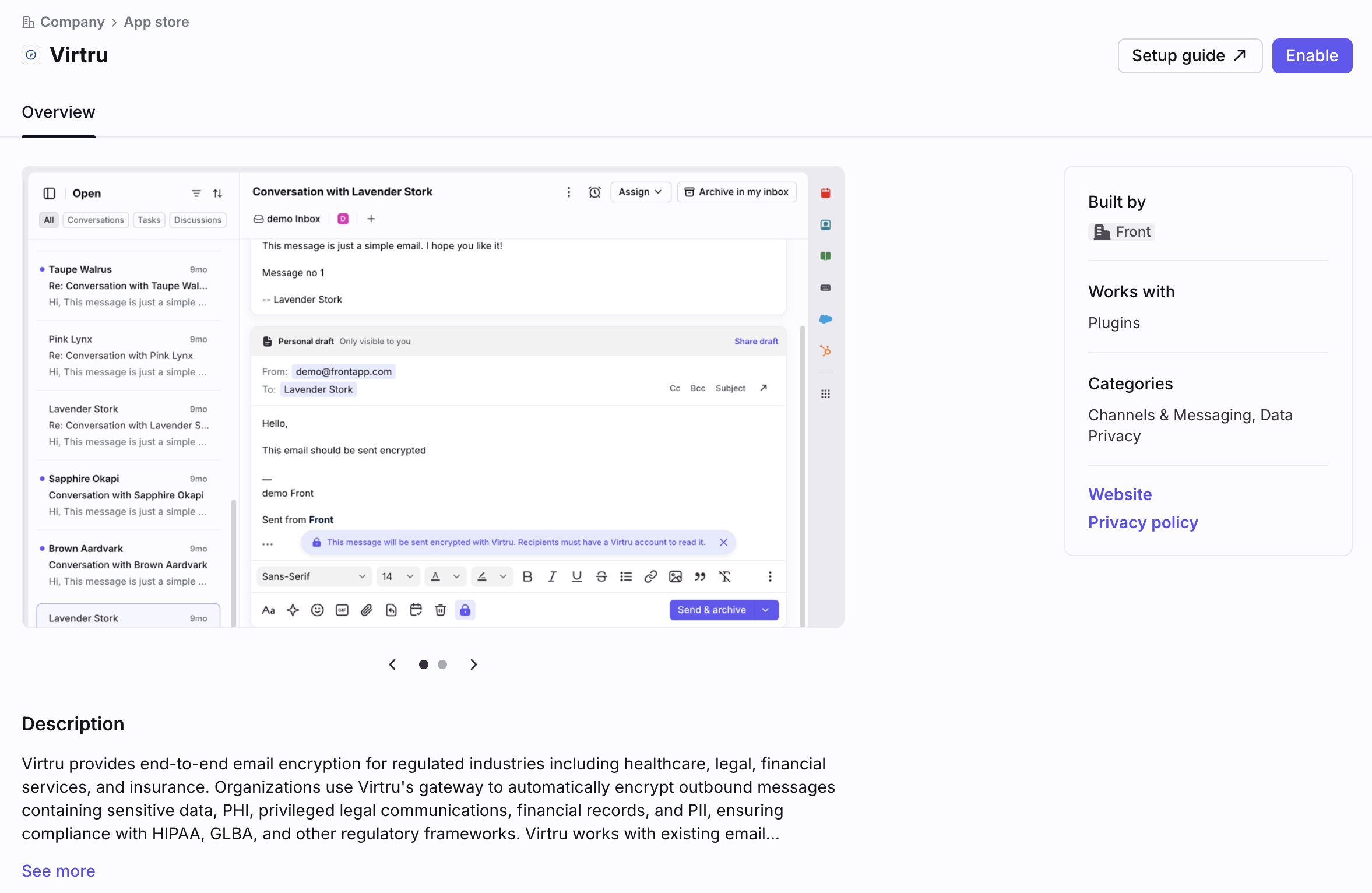
Select Virtru from the list of integrations, then click Enable.
Step 3
Confirm the installation. Virtru will now appear as an installed integration, and agents on email channels will see the encrypt toggle in their composer toolbar.
Admin: Configure Virtru (Control Center)
This section is completed by your IT team or Virtru admin — not in Front. Front's Virtru integration works by injecting a header (X-Front-Encrypt: true) into outbound emails when an agent enables encryption. Your Virtru gateway reads that header and performs the actual encryption before final delivery.
Two things need to be configured on your side:
1. Create a Security Rule in the Virtru Control Center
Create a custom rule that triggers on the SMTP header x-front-encrypt: true and sets the action to Encrypt Email. See Virtru documentation: Creating Custom Security Rules
Authorization token: Your X-Virtru-Auth value is specific to your organization and provided by Virtru during onboarding. Contact your Virtru account team if you don't have it.
2. Configure outbound routing in your email provider
Route outbound messages through your Virtru gateway. Follow the guide for your provider:
Agents: Send an encrypted message
Step 1
Open a new message or reply in any email conversation.
Step 2
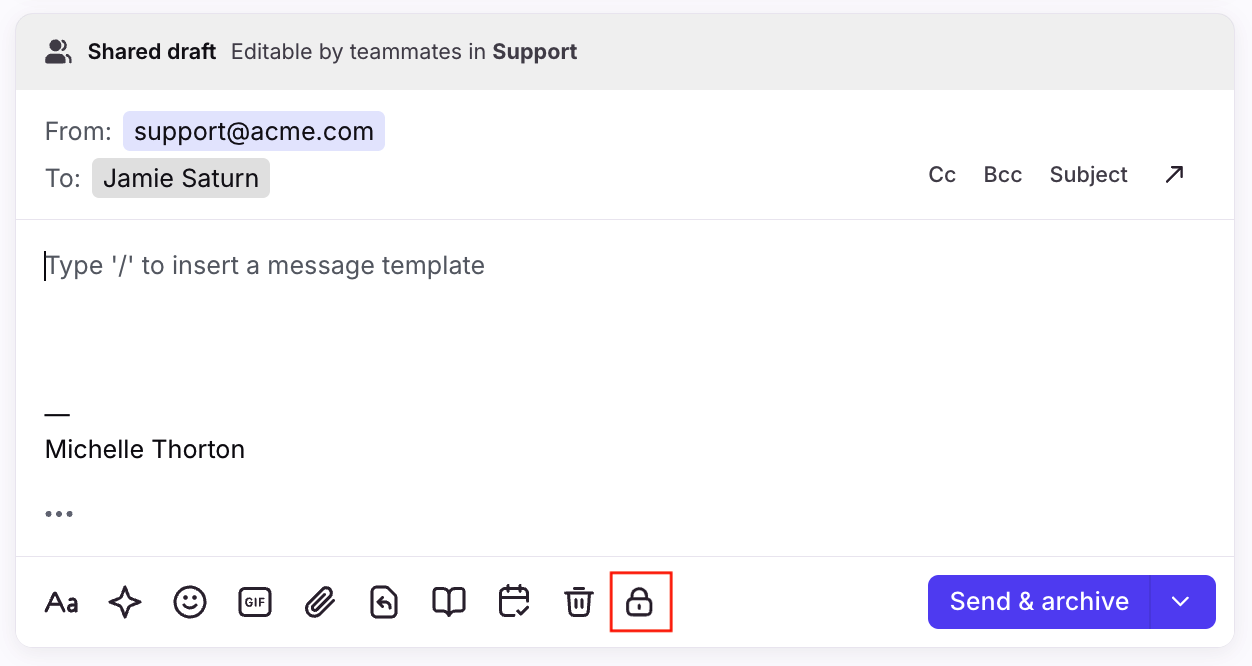
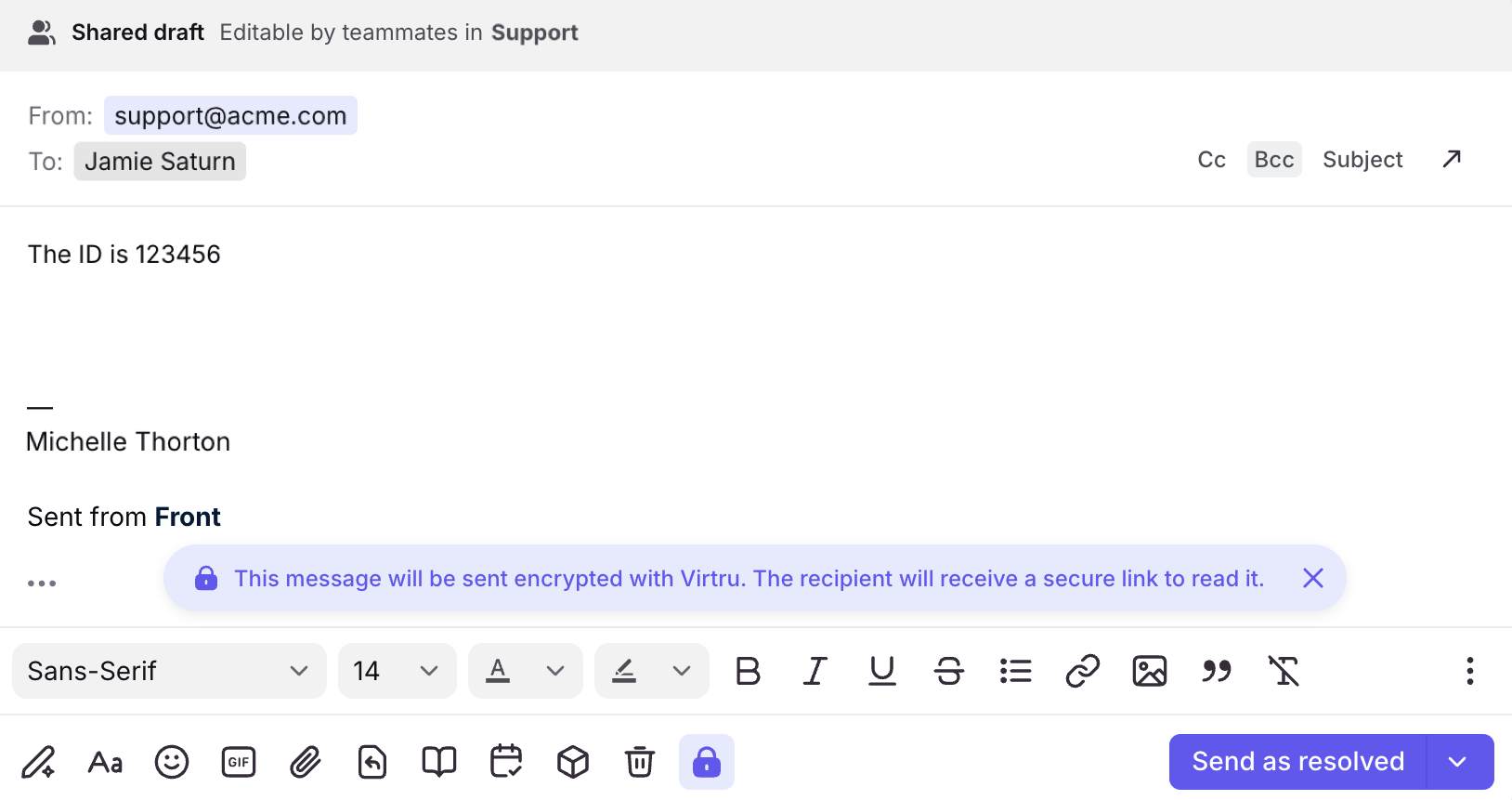
Click the lock icon in the composer toolbar to enable encryption. A blue banner will appear confirming the message will be sent as encrypted.
Step 3
Compose and send your message as usual. The recipient will receive a secure link to access the encrypted email.
Note: The encrypt toggle applies to that individual message only. Each message must be toggled on separately.
How it works
The encrypt toggle
The lock icon appears in the email composer toolbar when the Virtru integration is installed. It is off by default for every new message. Toggling it on marks the message for encryption — this state is saved with the draft, so if you navigate away and return, the toggle will be in the same position you left it.
Note: The lock icon can appear on all email channels once the integration is installed, even if a specific channel isn't actually routed through Virtru — the UI can't verify your email-routing setup.
Dismissing the blue banner does not turn off encryption. The message will still be sent encrypted.
The lock badge on sent messages
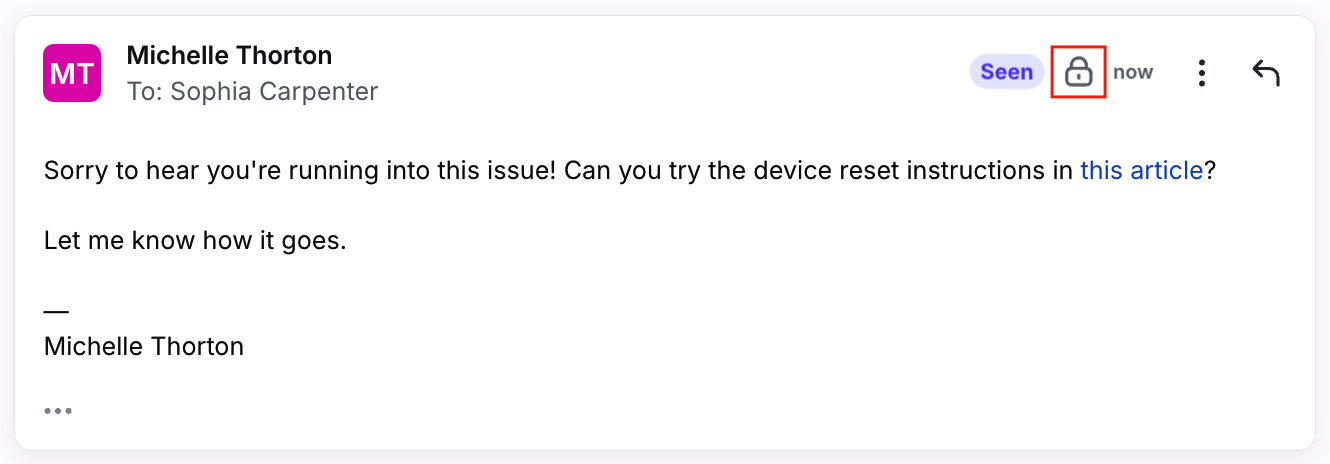
Once a message is sent with encryption enabled, a lock badge appears in the conversation timeline next to that message. This lets anyone on the team confirm at a glance that the message was sent securely.
Supported email channels
The encrypt toggle is available on Gmail, Google SMTP, Microsoft 365, Microsoft SMTP, and custom SMTP channels.
Troubleshooting
The encrypt toggle isn't showing up in the composer
Make sure the Virtru integration is enabled in Settings → App store. The toggle only appears on email channels — it won't show on SMS, chat, or other channel types.
The recipient received the message unencrypted
This means the email reached your provider but wasn't routed through your Virtru gateway. Check two things:
Virtru Control Center: Confirm the Security Rule is saved and active in Admin → Rules. The rule condition should match on the x-front-encrypt SMTP header.
Email provider routing: Confirm the outbound gateway or connector is correctly configured in your Google Workspace Admin Console or Exchange Admin Center, and that the compliance rule or transport rule is enabled.
The Virtru Control Center rule isn't triggering
Security rule changes propagate to the Virtru Hosted Gateway in seconds. If you're on a Customer-Hosted Gateway, restart the applicable containers. If the rule still doesn't trigger, confirm the SMTP Header search field is available for your Virtru subscription by checking Virtru's Security Rule Compatibility Matrix or contacting your Virtru account team.
FAQ
Can I search for encrypted messages in Front?
Not at this time. Encrypted messages are not indexed for search within Front. You can still find them by navigating directly to the conversation.
Are encrypted messages included in Front analytics and reporting?
Not at this time. Encrypted messages are excluded from Front's analytics and reporting features. This is planned for a future release.
Does the encrypt toggle apply to all messages in a conversation automatically?
No. The toggle applies to individual messages only. Each message must be manually toggled on before sending. It does not carry over between replies in the same conversation.
Can I use Virtru with any email channel in Front?
Virtru works with Gmail, Google SMTP, Microsoft 365, Microsoft SMTP, and custom SMTP channels.
Do recipients need a Virtru account to read encrypted messages?
No. Recipients receive a secure link to access the encrypted message and don't need a Virtru account of their own.
Can I set encryption to be on by default for certain inboxes or channels?
Not in the current version. The toggle defaults to off for every new message and must be enabled manually per message. Default-on behavior by inbox or channel is being considered for a future release.
Where do I find my Virtru authorization token?
The X-Virtru-Auth token is specific to your organization and is provided by Virtru during onboarding. If you can't locate it, contact your Virtru account team or Customer Success representative.
Pricing
This feature is available on all plans.