
Read vs. unread status
Mark as read vs. archive
Archiving instead of marking emails as read is the Front-recommended way to manage your inbox. Once no immediate action is required on a message, simply click on the Archive icon at the top of the conversation. This way, you'll be able to focus on only seeing the conversations that need your attention, rather than having to look through a long list of both read and unread conversations.
Conversations will automatically unarchive and appear in your Inbox when there's a new message or comment. For more information on archiving, see this article.
Read/unread counters
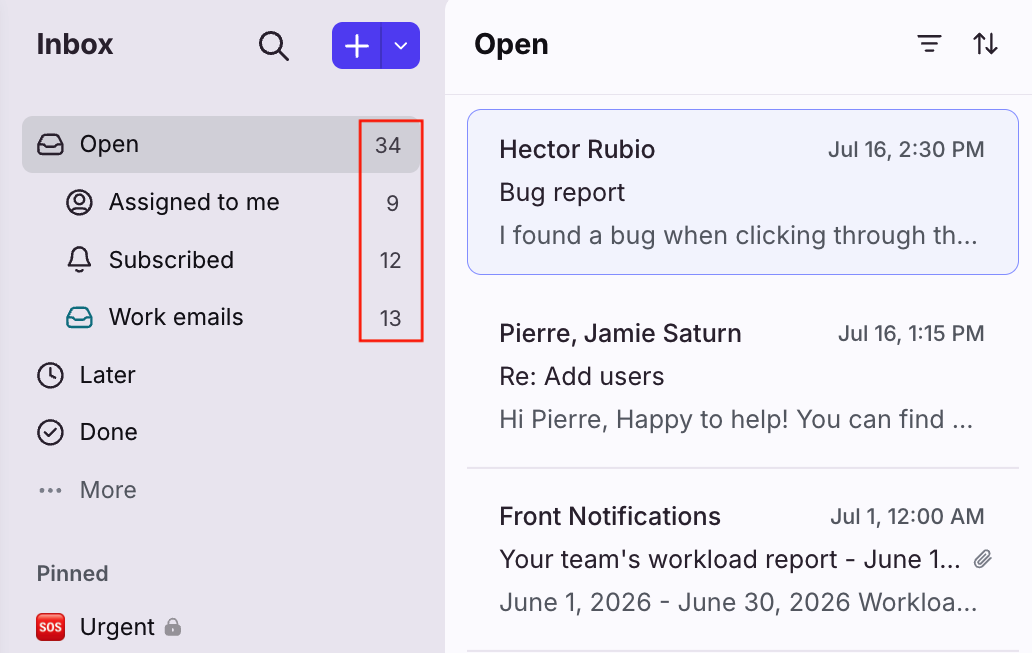
By default, your individual inbox counters (the number next to the sections in at the top section of your sidebar) are set to represent the number of open conversations. This is because we generally recommend an archiving workflow instead of marking your conversations as read.
However, you can switch your individual inbox counters to represent the number of unread messages. See this article for instructions.
Mark conversations as read or unread
Mark individual messages read or unread
Although we recommend using the archiving method above, you can still mark messages as read or unread in Front.
Marking a conversation as read or unread applies only to you. This means that if you've marked a conversation as read, it will appear as read in your view, but your teammates will still see the conversation as unread.
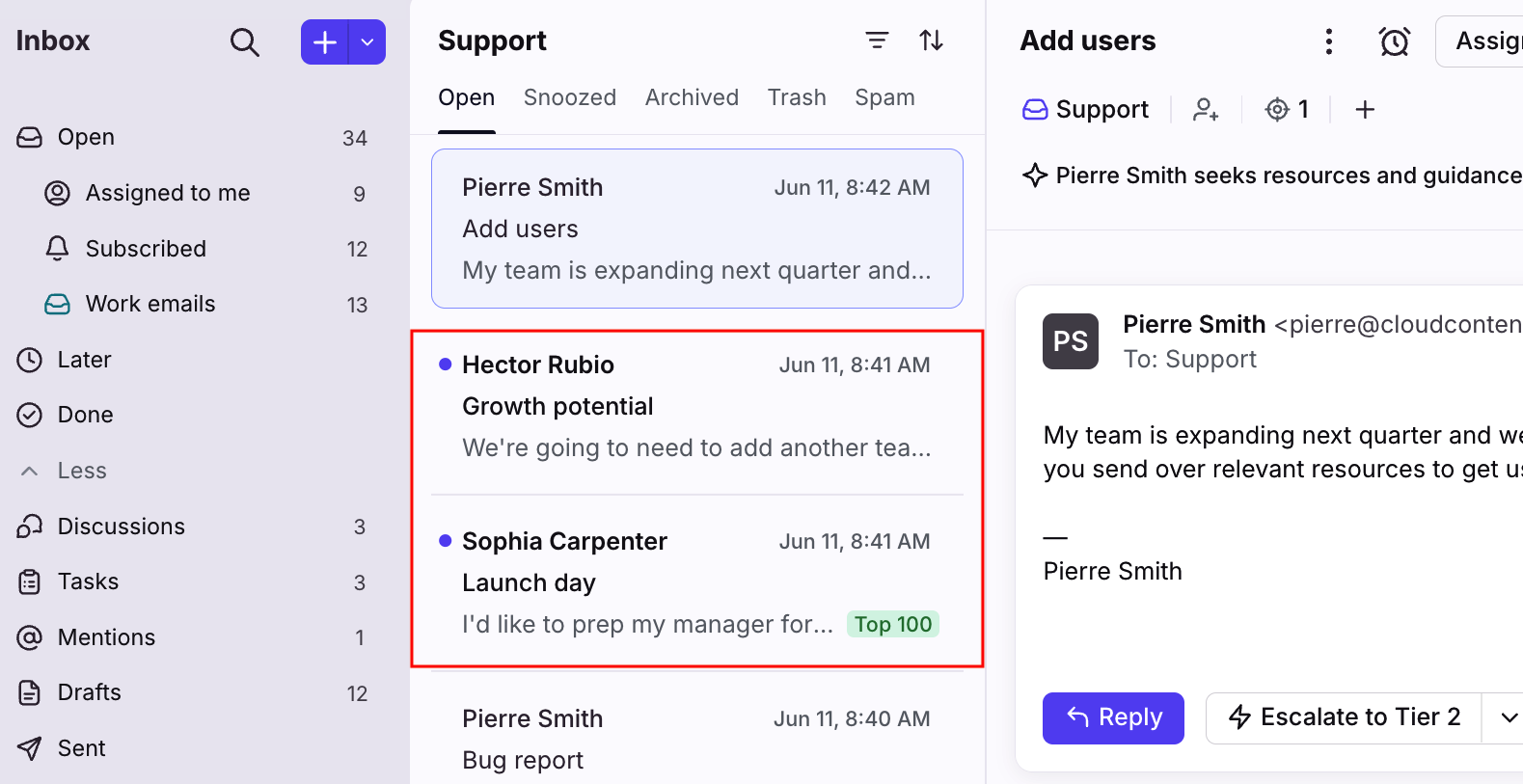
Unread messages in Front have a blue dot to the left of the message.
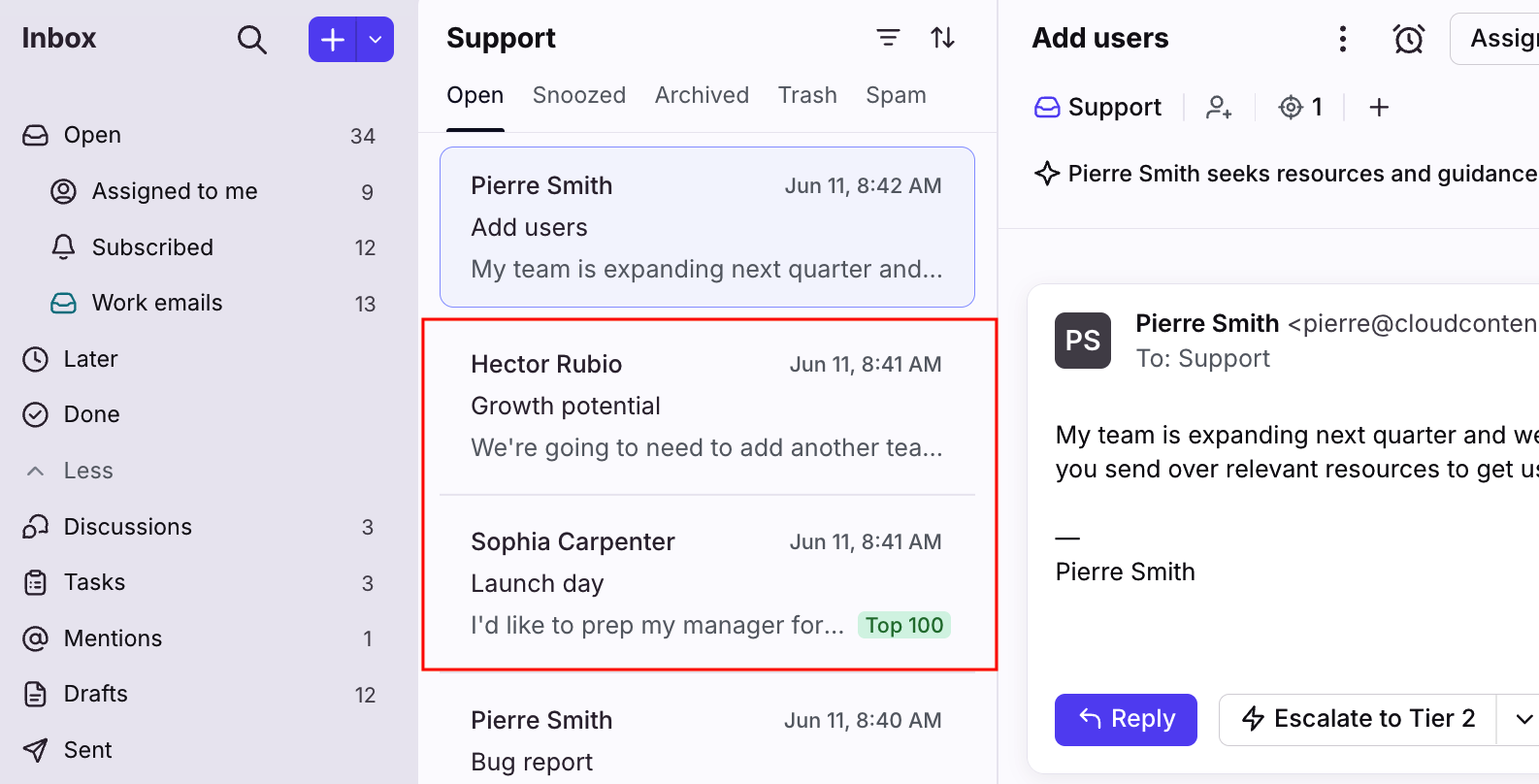
Once you've read a message in Front, the blue dot disappears. A conversation is marked as read once you've selected the conversation and read it, or by clicking the blue dot to the left of an unread message.
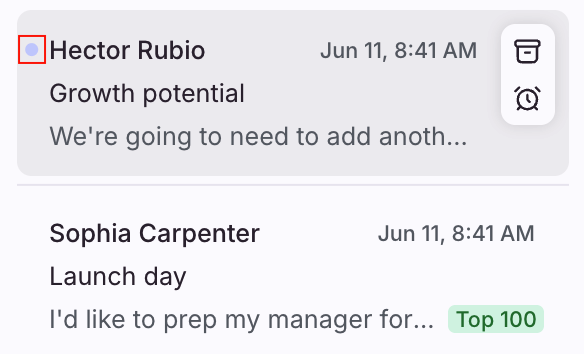
To mark as unread, hover over the left of the conversation, and a blue dot will appear. Click the dot to mark the conversation as unread.
Mark multiple messages read or unread
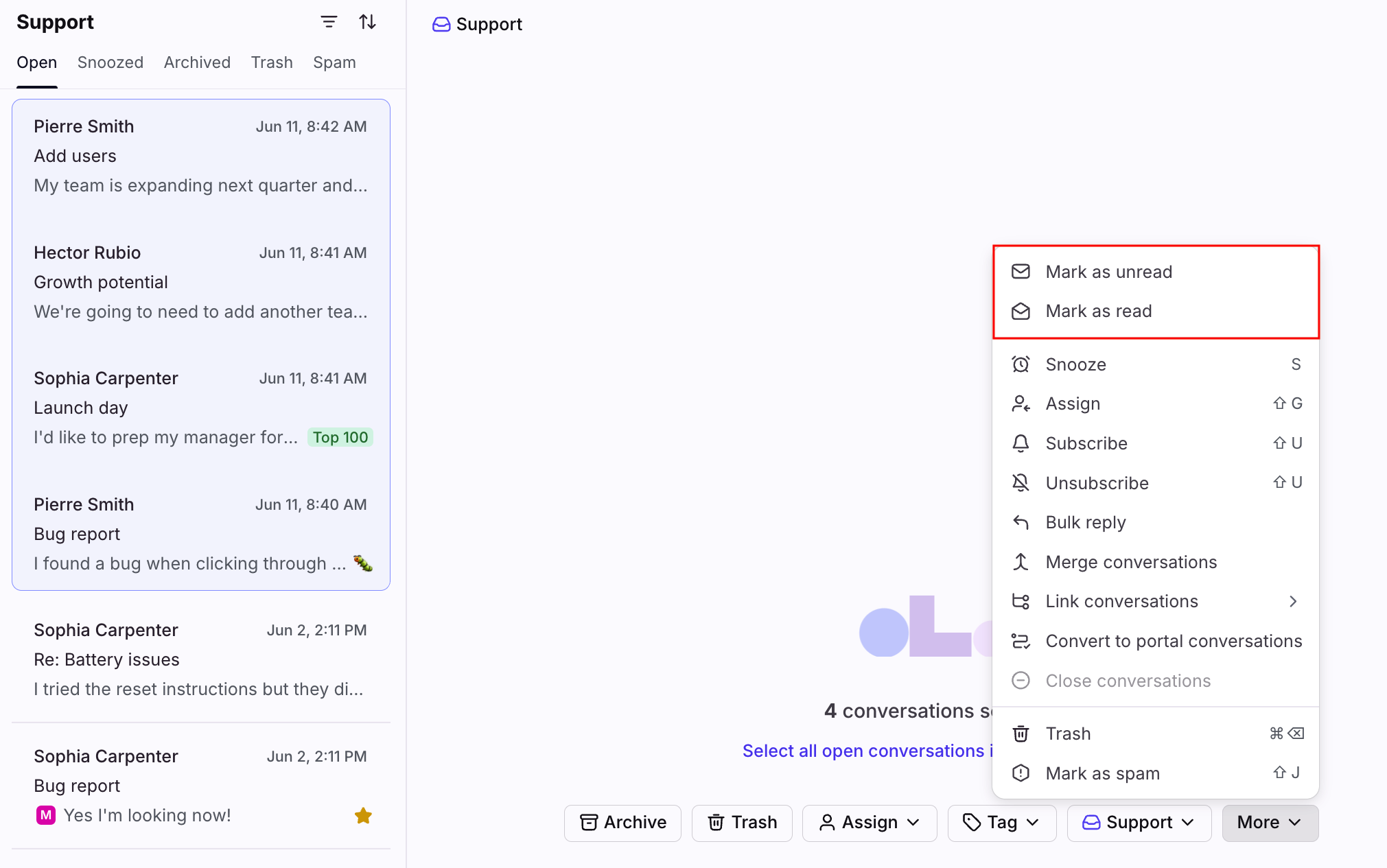
Select the messages you wish to change mark read or unread by holding the Shift key and using your down arrow on the conversation list. Once selected, click More from the conversation view, and click Mark as unread or Mark as read.
Automatically mark messages as read
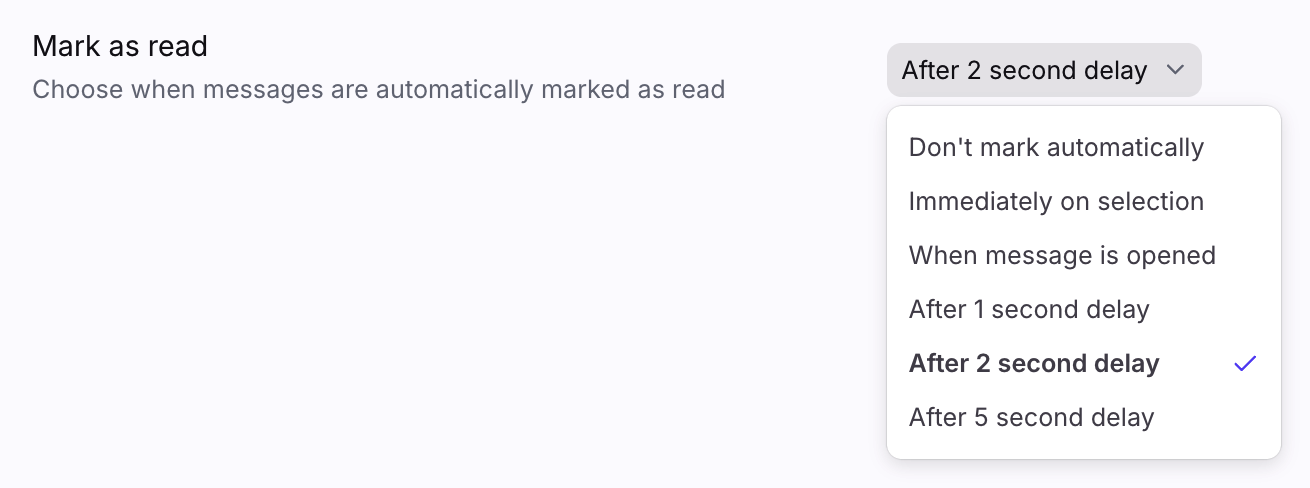
Use the Mark as read personal preference to choose when conversations are automatically read when you click them. See this article to learn more.
Filter for unread messages
To filter an inbox by unread messages, click the search icon, then use the advanced search filter is:unread to refine your search to unread messages only.
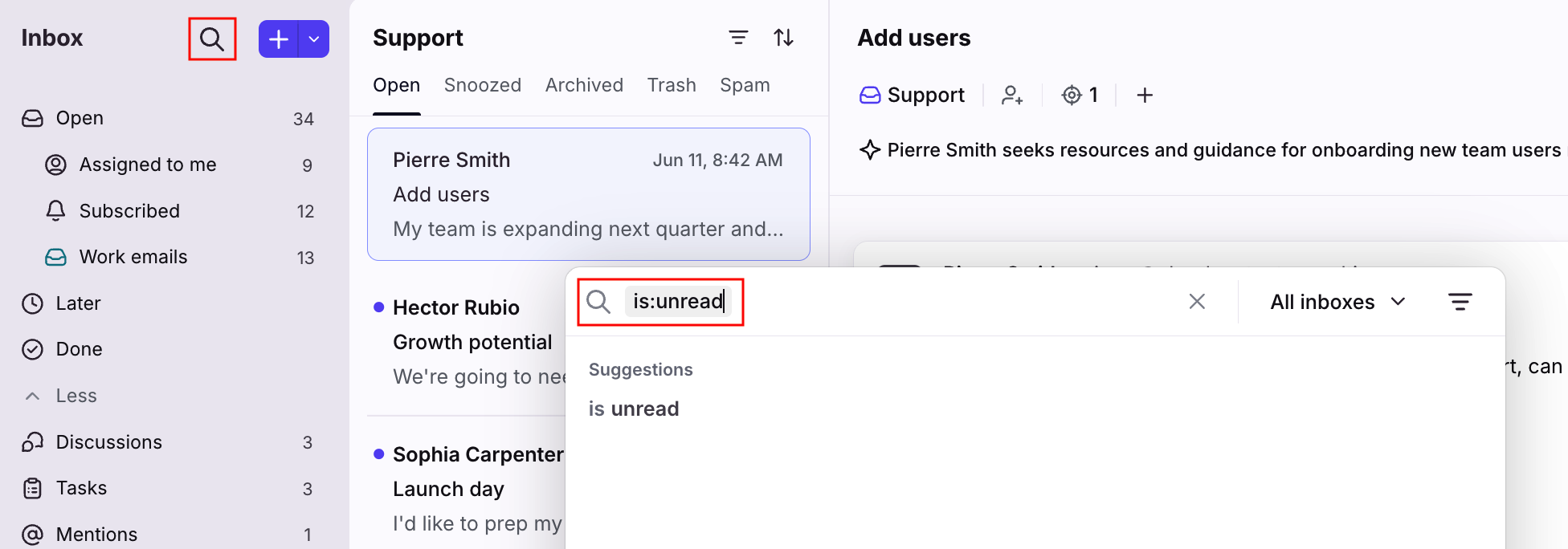
You can also add additional filters like inboxes or tags with the is:unread filter to narrow down your results.